COBBLESTONE SOFTWARE
Contract Insight — User Guide
Delete an Attachment
07. End Users - Contracts › Contract Attachments › Delete an Attachment
Note: Each procedure in this guide begins at the Contract Insight homepage, so any section can be followed on its own. Custom fields are configurable, so the exact field list on a contract category record may vary between environments.
1. Overview
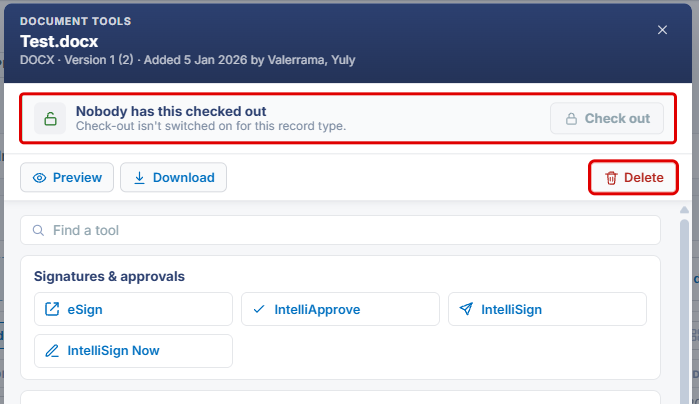
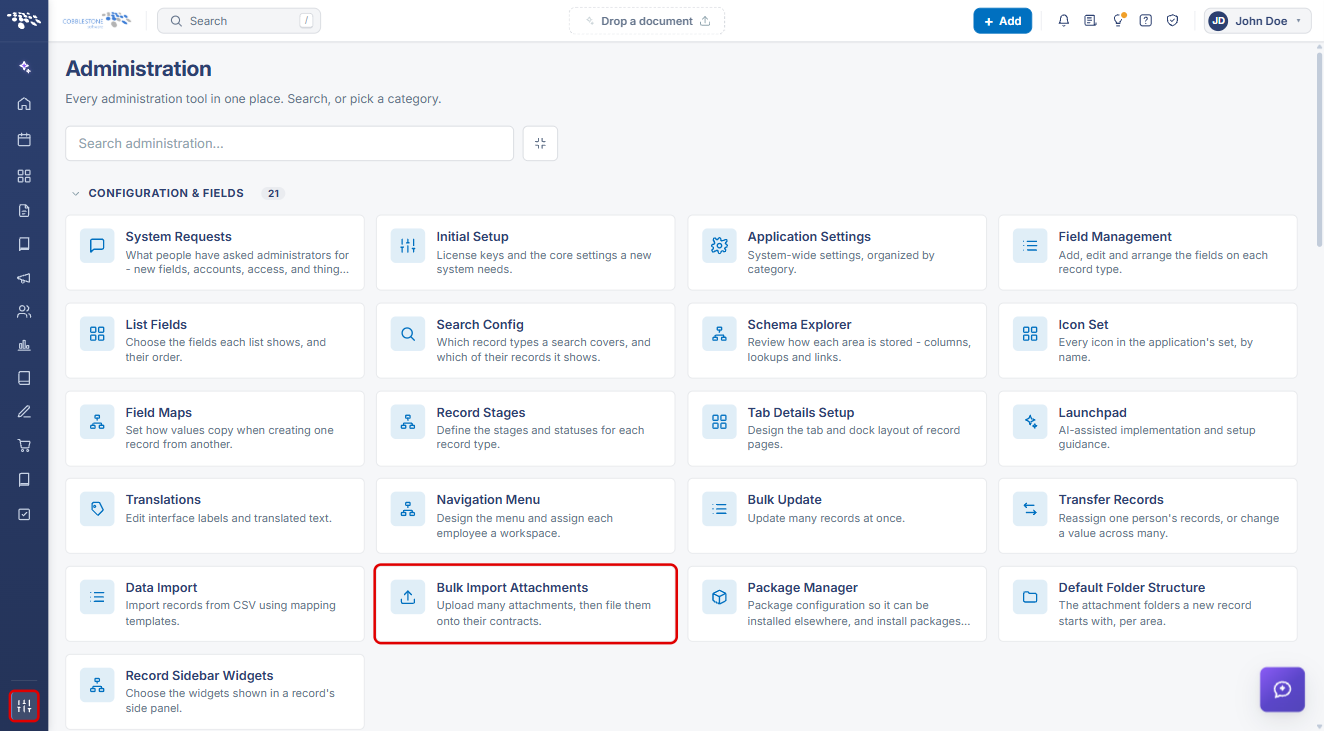
An attachment is deleted from its Document Tools window: opening the window for a file shows a red Delete button (with a trash-can icon) alongside Preview and Download at the top. Files that are checked out cannot be deleted until they're checked back in, consistent with the check-out lock described in Attachment Check-In/Check-Out. Administration › Bulk Import Attachments offers a separate place to delete files that were uploaded but never filed onto a record (Pending attachments): each has its own Delete action, useful for clearing out files left behind after their intended contract was removed.
2. Key Elements
- Document tools (briefcase icon on each file row): opens the file's Document Tools window.
- Delete: the red button with a trash-can icon at the top of the Document Tools window, next to Preview and Download.
- Check-out status: the banner at the top of the Document Tools window shows whether the file is checked out. A checked-out file cannot be deleted (or replaced) until it is checked back in — see Attachment Check-In/Check-Out.
- Administration › Bulk Import Attachments: lists every attachment that was uploaded but never filed onto a record under Pending attachments, each with its own Delete button.
- Status column: shows each pending file's state, such as Waiting to be filed. Files marked contract deleted were left behind when their contract was removed and are natural candidates for cleanup.
Note: Download a copy of the file before deleting it if you may need it later.
3. Navigating to a Record's Attachments
- From the Contract Insight homepage, click the Requests/Contracts icon in the left navigation bar, then select Contracts.
.png)
- On the Contracts list, locate the contract (use the Search box or the column filters if needed) and click Manage on its row.
.png)
- On the contract record, click the Attachments & Templates tab. The Files / Attachments panel opens.
.png)
4. Deleting an Attachment from a Record
- Navigate to the record's Attachments & Templates tab (see Section 3).
- In the Folders list, select the folder that contains the file, or find it with Search files.
- On the file's row, click the Document tools (briefcase) icon.
.png)
- At the top of the Document Tools window, check the check-out status. If the file is checked out, it must be checked back in before it can be deleted.
- Click Delete, then confirm the deletion if prompted. The file is removed from the record's file list.
5. Deleting a Pending (Unfiled) Attachment
- From the Contract Insight homepage, click the Administration (settings) icon at the bottom of the left navigation bar.
- On the Administration page, click Bulk Import Attachments. You can also type "bulk" in Search administration to find it.
- Scroll to Pending attachments. Use the Search box or the column filters to find the file, and check its Status.
- Click Delete on the file's row, then confirm the deletion if prompted.
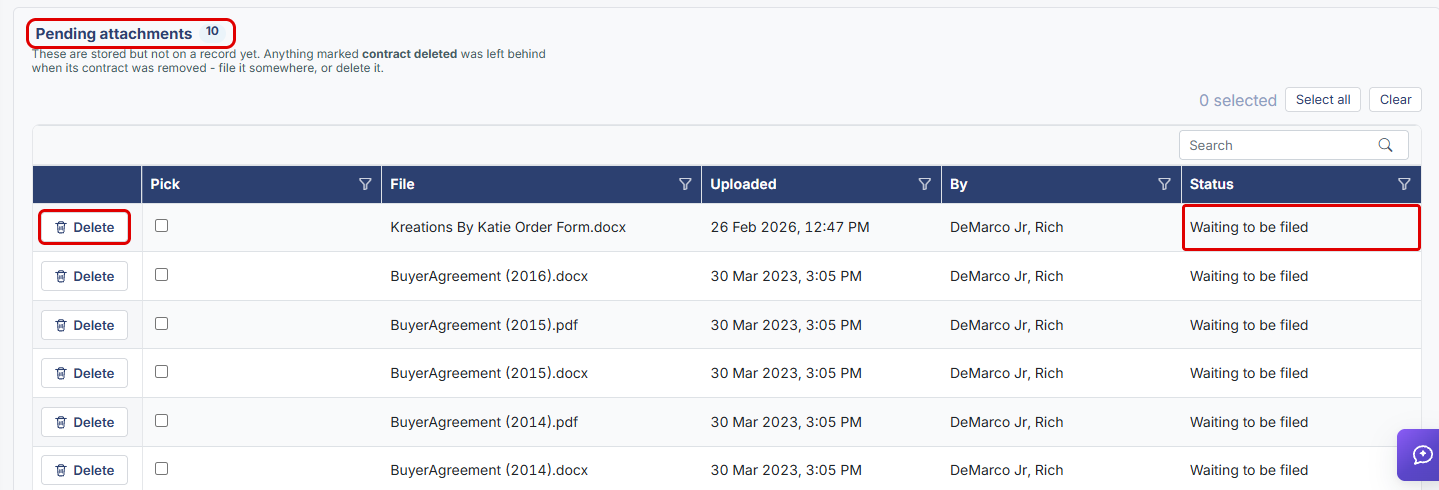
Note: The Pick checkboxes, Select all, and Clear are used to file pending attachments onto a contract, not to delete them. Pending attachments are deleted one at a time with each row's Delete button.
6. Quick Reference Summary
| Task | Where | Action |
|---|---|---|
| Open a contract's attachments | Requests/Contracts → Contracts → Manage | Click the Attachments & Templates tab |
| Delete a file on a record | File row → Document tools | Click Delete |
| Delete a checked-out file | Document Tools window | Check the file back in first, then click Delete |
| Find unfiled attachments | Administration → Bulk Import Attachments | Review Pending attachments |
| Delete an unfiled attachment | Pending attachments list | Click Delete on the file's row |