COBBLESTONE SOFTWARE
Contract Insight — User Guide
OCR PDF
07. End Users - Contracts › Contract Attachments › OCR PDF
Note: Each procedure in this guide begins at the Contract Insight homepage, so any section can be followed on its own. Custom fields are configurable, so the exact field list on a contract category record may vary between environments.
1. Overview
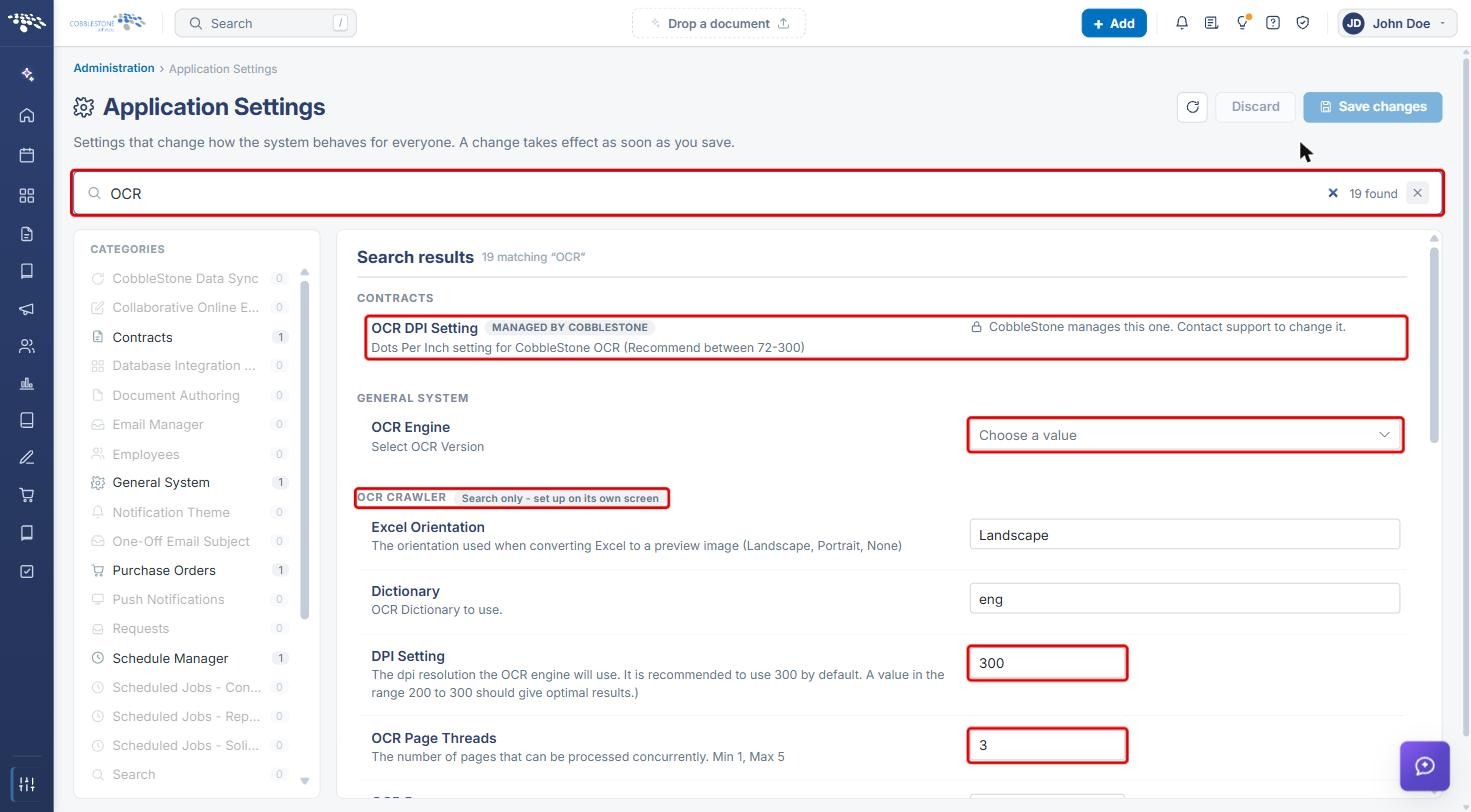
OCR (optical character recognition) reads the text in scanned or image-only documents so it can be searched and indexed. In Contract Insight, OCR is controlled by settings in Administration › Application Settings rather than by a dedicated OCR screen. Searching the settings for "OCR" returns the OCR DPI Setting (Contracts), the OCR Engine (General System), the OCR Crawler group and the OCR Services schedule (Schedule Manager).
The OCR Crawler group (marked "Search only - set up on its own screen") controls how documents are processed: which Media Types and OCR Objects (for example, company, contract, solicitation and request records) are processed, the DPI Setting, Dictionary, page threads and passes, how often the crawler runs, and whether an OCR'd copy is saved as a new attachment. It also includes settings for on-demand OCR of PDFs, such as the maximum file size processed immediately.
2. Key Elements
- OCR DPI Setting (Contracts): dots per inch for CobbleStone OCR (recommended 72-300). Managed by CobbleStone; contact support to change it.
- OCR Engine (General System): selects the OCR version.
- OCR Crawler › DPI Setting: the resolution the OCR engine uses. 300 is recommended by default; 200 to 300 should give optimal results.
- OCR Crawler › OCR Page Threads (1 to 5 pages processed at once), OCR Passes, Dictionary (for example, eng), Batch Size and OCR Sleep (minutes between process cycles).
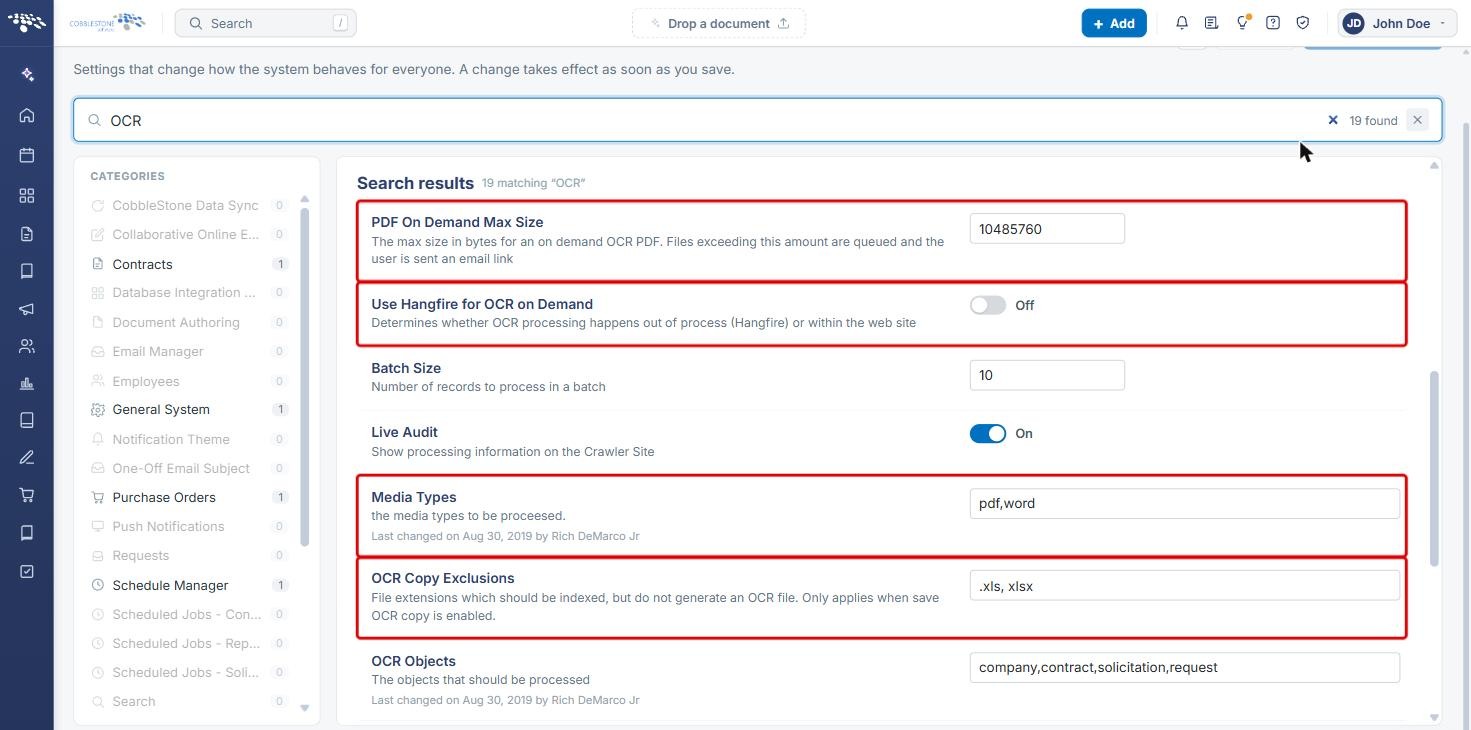
- PDF On Demand Max Size: the maximum size in bytes for an on-demand OCR PDF. Larger files are queued and the user is emailed a link.
- Use Hangfire for OCR on Demand: whether on-demand OCR runs out of process (Hangfire) or within the web site.
- Media Types, OCR Objects and OCR Copy Exclusions: which file types and record types are processed, and which file extensions are indexed without generating an OCR file.
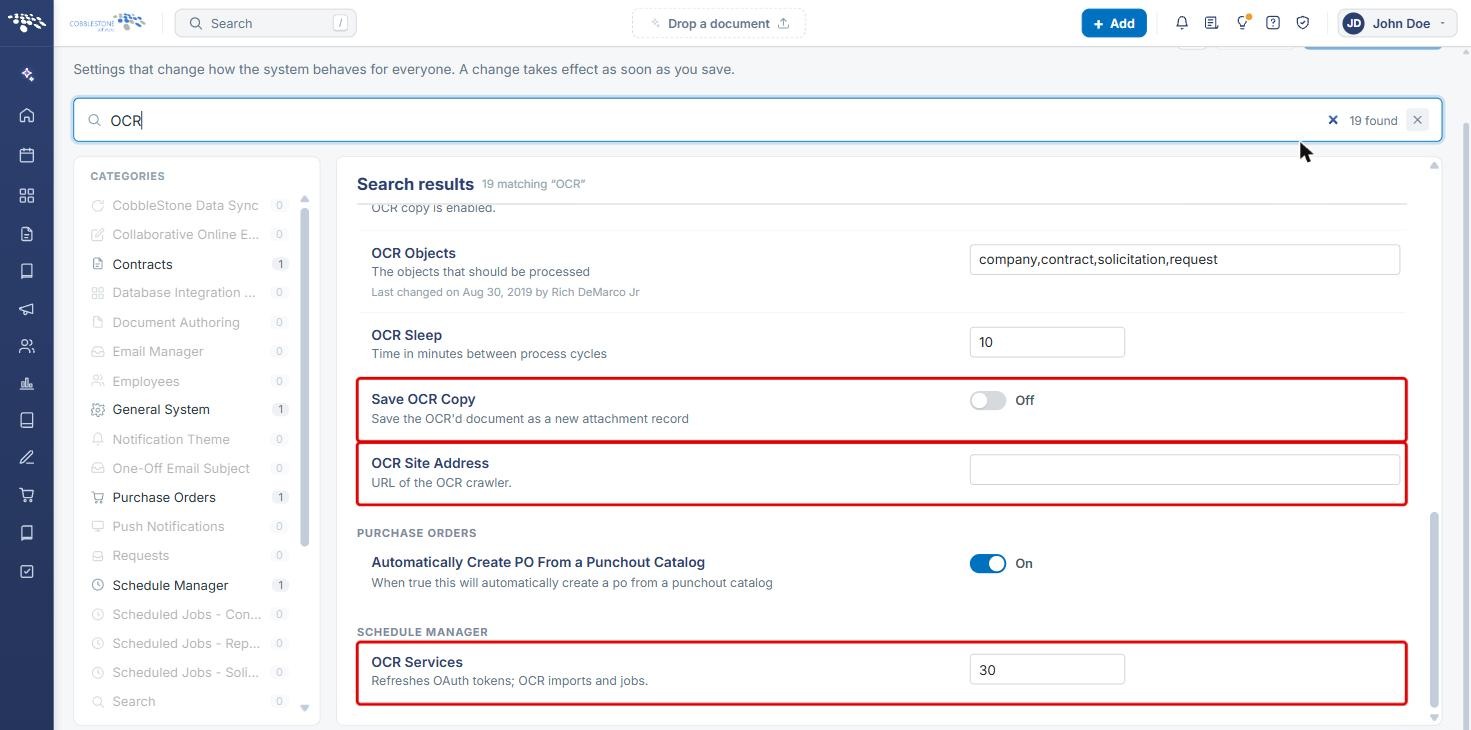
- Save OCR Copy: saves the OCR'd document as a new attachment record.
- OCR Site Address: the URL of the OCR crawler.
- OCR Services (Schedule Manager): how often the service that refreshes OAuth tokens and runs OCR imports and jobs is run.
3. Finding the OCR Settings
- From the Contract Insight homepage, click the Administration icon at the bottom of the left navigation bar.
.jpg)
- On the Administration page, click Application Settings.
.jpg)
- Type OCR in the Search every setting by name or description box. The matching settings are listed under Search results, grouped by category.
4. Reviewing OCR Crawler Settings
- Review the DPI Setting (300 is recommended) and OCR Page Threads shown in Section 3.
- Scroll the search results to review the on-demand settings: PDF On Demand Max Size and Use Hangfire for OCR on Demand.
- Check Media Types to confirm which file types are processed (for example, pdf,word), and OCR Copy Exclusions for extensions that are indexed without creating an OCR file.
- Scroll to the end of the results to review Save OCR Copy (saves the OCR'd document as a new attachment), OCR Site Address and the OCR Services schedule under Schedule Manager.
5. Changing an OCR Setting
- Change the value of the setting (for example, the DPI Setting or the Save OCR Copy switch).
- Review the change ready to save banner at the top of the page. Click Undo next to a setting to revert it, or Discard to cancel all pending changes.
- Click Save changes. A change takes effect for everyone as soon as it is saved.
Note: The OCR DPI Setting under Contracts is managed by CobbleStone and cannot be changed here. Contact CobbleStone support to change it.
Note: No manual "run OCR" action was found in a file's Document tools window. OCR runs through the crawler and on-demand processing configured by these settings. Confirm the expected behavior against a scanned, image-only PDF in your environment.
6. Quick Reference Summary
| Task | Where / How |
|---|---|
| Find all OCR settings | Administration › Application Settings › search OCR |
| Set OCR resolution | OCR Crawler › DPI Setting (200 to 300 recommended) |
| Choose the OCR engine | General System › OCR Engine |
| Control on-demand OCR | PDF On Demand Max Size, Use Hangfire for OCR on Demand |
| Save OCR'd copies as attachments | OCR Crawler › Save OCR Copy |
| Change file or record types processed | Media Types, OCR Objects, OCR Copy Exclusions |
| Change the OCR service schedule | Schedule Manager › OCR Services |
| Change the CobbleStone OCR DPI | Contact CobbleStone support (OCR DPI Setting is managed) |