COBBLESTONE SOFTWARE
Contract Insight — User Guide
Folders : Move Files
07. End Users - Contracts › Contract Attachments › Folders : Move Files
Note: Each procedure in this guide begins at the Contract Insight homepage, so any section can be followed on its own. Custom fields are configurable, so the exact field list on a contract category record may vary between environments.
1. Overview
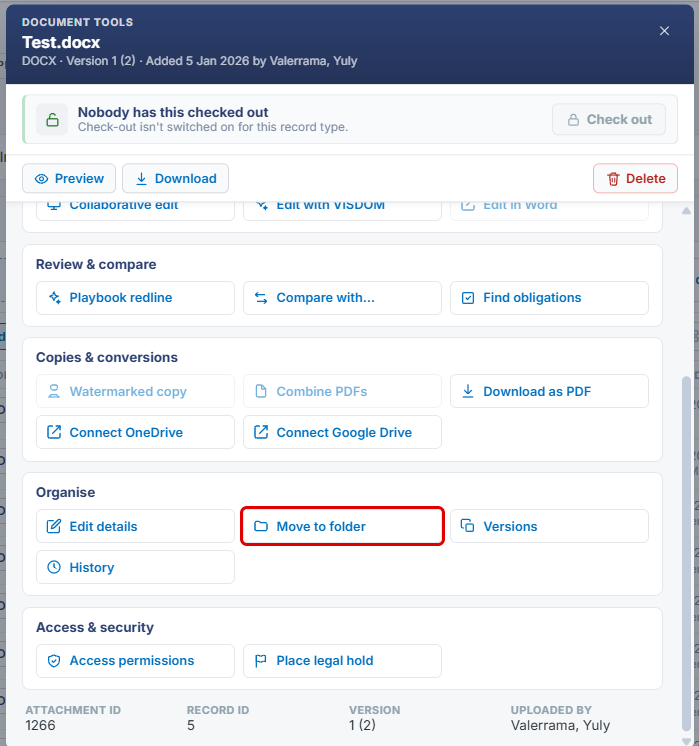
A file is moved between folders from its own Document Tools window. The Organise section includes a Move to folder tool alongside Edit details, Versions, and History. Selecting it lets the file be relocated from its current folder (Root Folder or any subfolder) into a different folder on the same record, without re-uploading the file.
2. Key Elements
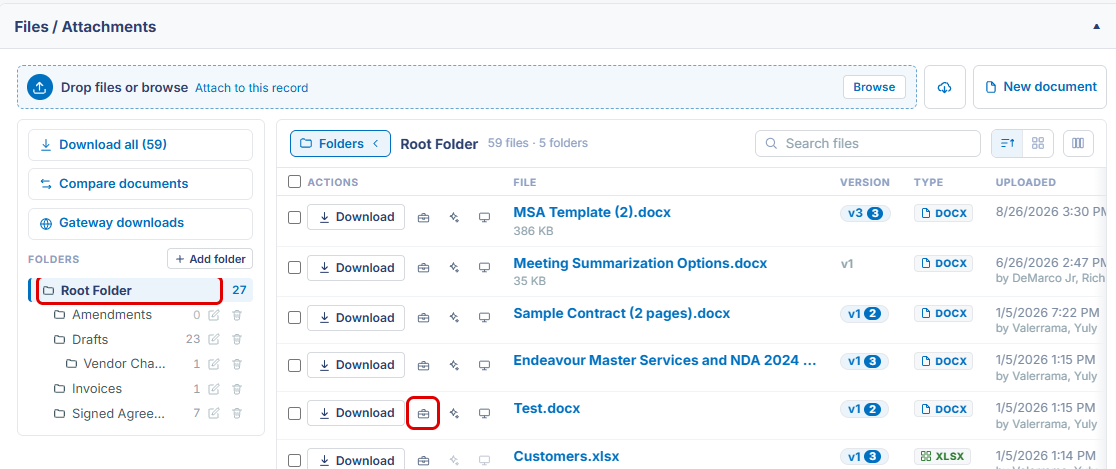
- Document tools (briefcase icon on each file row): opens the file's Document Tools window.
- Move to folder: in the Organise section of the Document Tools window; opens the Move to Folder window.
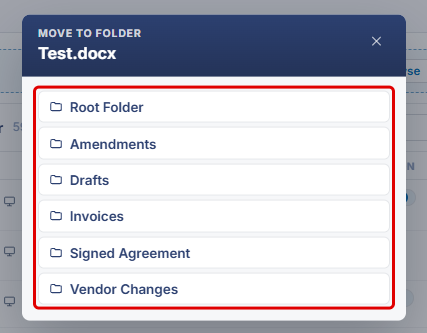
- Move to Folder window: lists Root Folder and every subfolder on the record. Click a folder to move the file into it.
- Files are moved one at a time. Selecting files with the checkboxes in the file list does not provide a move action; it only changes Download all to download the selected files.
- Moving a file changes only its folder location within the record — it does not create a new version or change its check-out state.
- After a move, the file appears in its new folder and no longer appears in its previous folder's file list. The file counts in the Folders list update to match.
3. Navigating to a Record's Attachments
- From the Contract Insight homepage, click the Requests/Contracts icon in the left navigation bar, then select Contracts.
.png)
- On the Contracts list, locate the contract (use the Search box or the column filters if needed) and click Manage on its row.
.png)
- On the contract record, click the Attachments & Templates tab. The Files / Attachments panel opens.
.png)
4. Moving a File to Another Folder
- Navigate to the record's Attachments & Templates tab (see Section 3).
- In the Folders list, select the folder that currently contains the file (for example, Root Folder).
- On the file's row, click the Document tools (briefcase) icon.
- In the Document Tools window, scroll to the Organise section and click Move to folder. You can also type "move" in the Find a tool box to locate it.
- In the Move to Folder window, click the folder the file should be moved to. Click X to close the window without moving the file.
5. Confirming the Move
- In the Folders list, select the destination folder. The moved file now appears in its file list.
- Select the original folder to confirm the file no longer appears there. The file counts beside each folder update to reflect the move.
Note: To move a file back, repeat Section 4 and choose its original folder. If the destination folder doesn't exist yet, create it first (see Folders: Create New).
6. Quick Reference Summary
| Task | Where | Action |
|---|---|---|
| Open a contract's attachments | Requests/Contracts → Contracts → Manage | Click the Attachments & Templates tab |
| Open a file's tools | File row | Click the Document tools (briefcase) icon |
| Move a file | Document Tools → Organise | Click Move to folder, then click the destination folder |
| Cancel a move | Move to Folder window | Click X |
| Confirm a move | Folders list | Select the destination folder and check its file list |