COBBLESTONE SOFTWARE
Contract Insight — User Guide
Notifications & Email Alerts - E-Approvals
Module: Document Collaboration Gateway › Document Collaboration Gateway E-Approvals & E-Signatures › Notifications & Email Alerts - E-Approvals
Note: Each procedure in this guide begins at the Contract Insight homepage, so any section can be followed on its own. Custom fields are configurable, so the exact field list on a contract category record may vary between environments.
1. Overview
Each step on an approval process's console records whether and when its participant was notified — a timestamp next to "notified" for a step that has emailed its participant, or "not notified" for one that hasn't yet — with a Resend action to trigger another notification email for that step.
2. Key Elements
- Each step shows a notified timestamp, or "not notified" if none has gone out
- Resend re-sends the notification email for that step's participant
3. Opening an Approval Process's Console
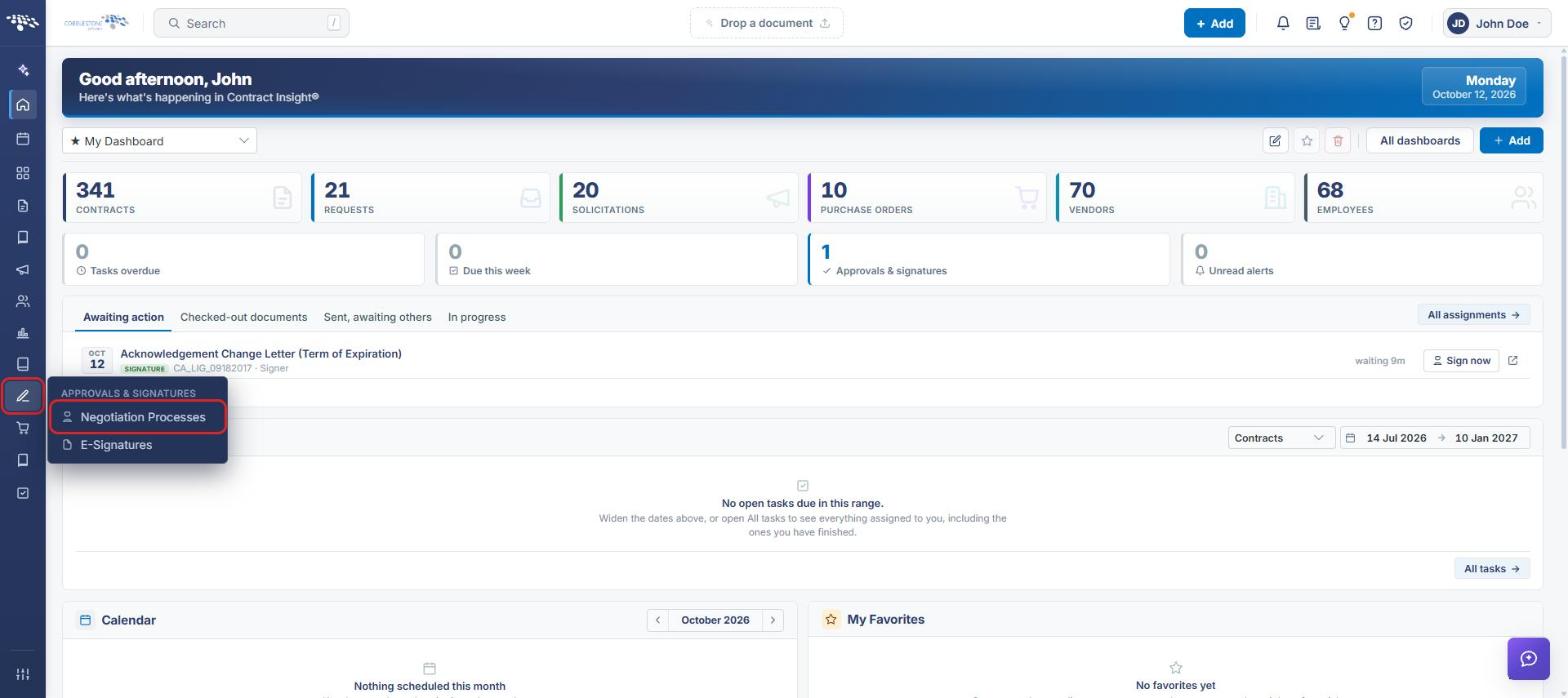
- From the Contract Insight homepage, click the Approvals & Signatures icon in the left navigation bar.
- Select Negotiation Processes.
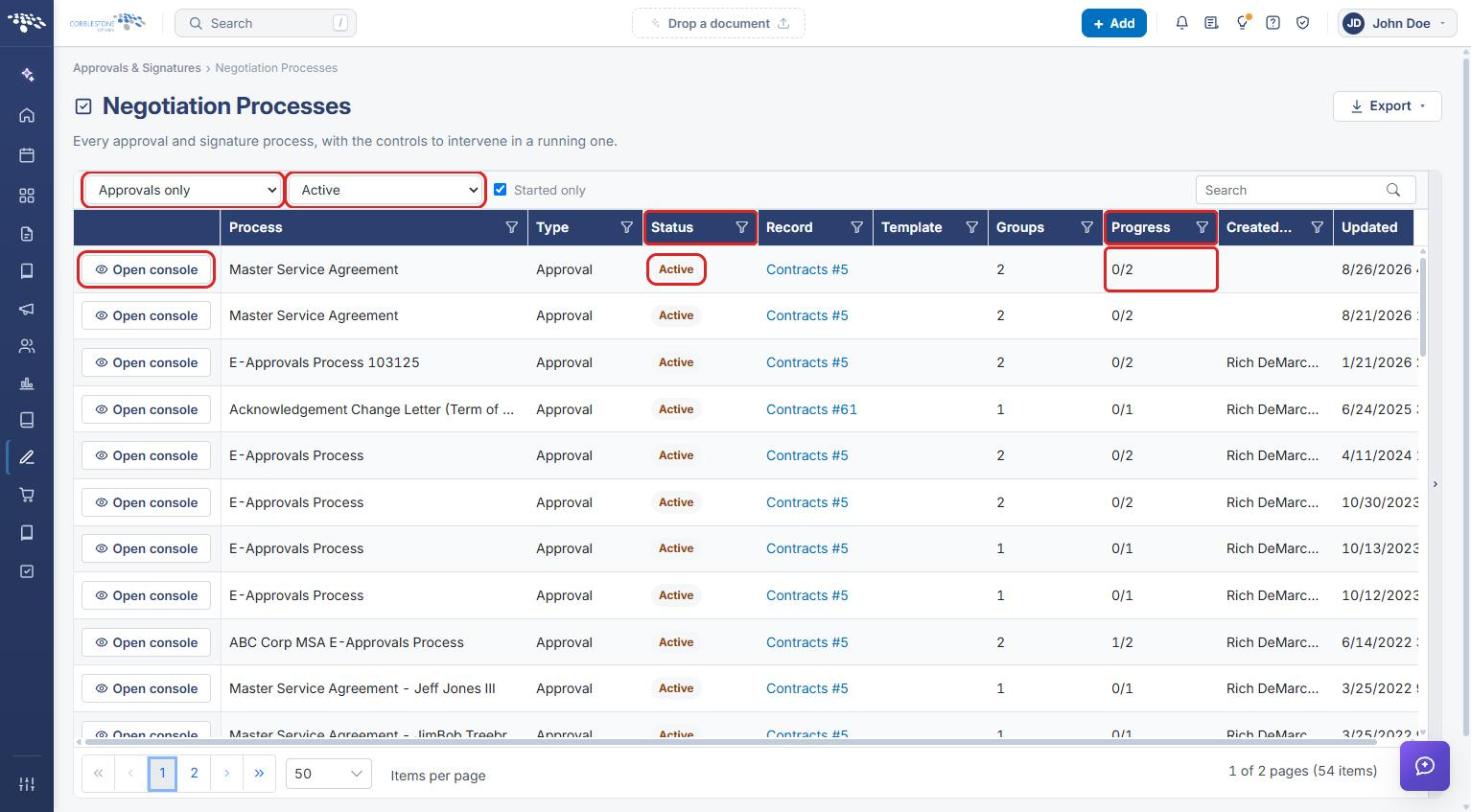
- Set the status filter to Active and the type filter to Approvals only.
- Click Open console on the process's row.
4. Checking Who Has Been Notified
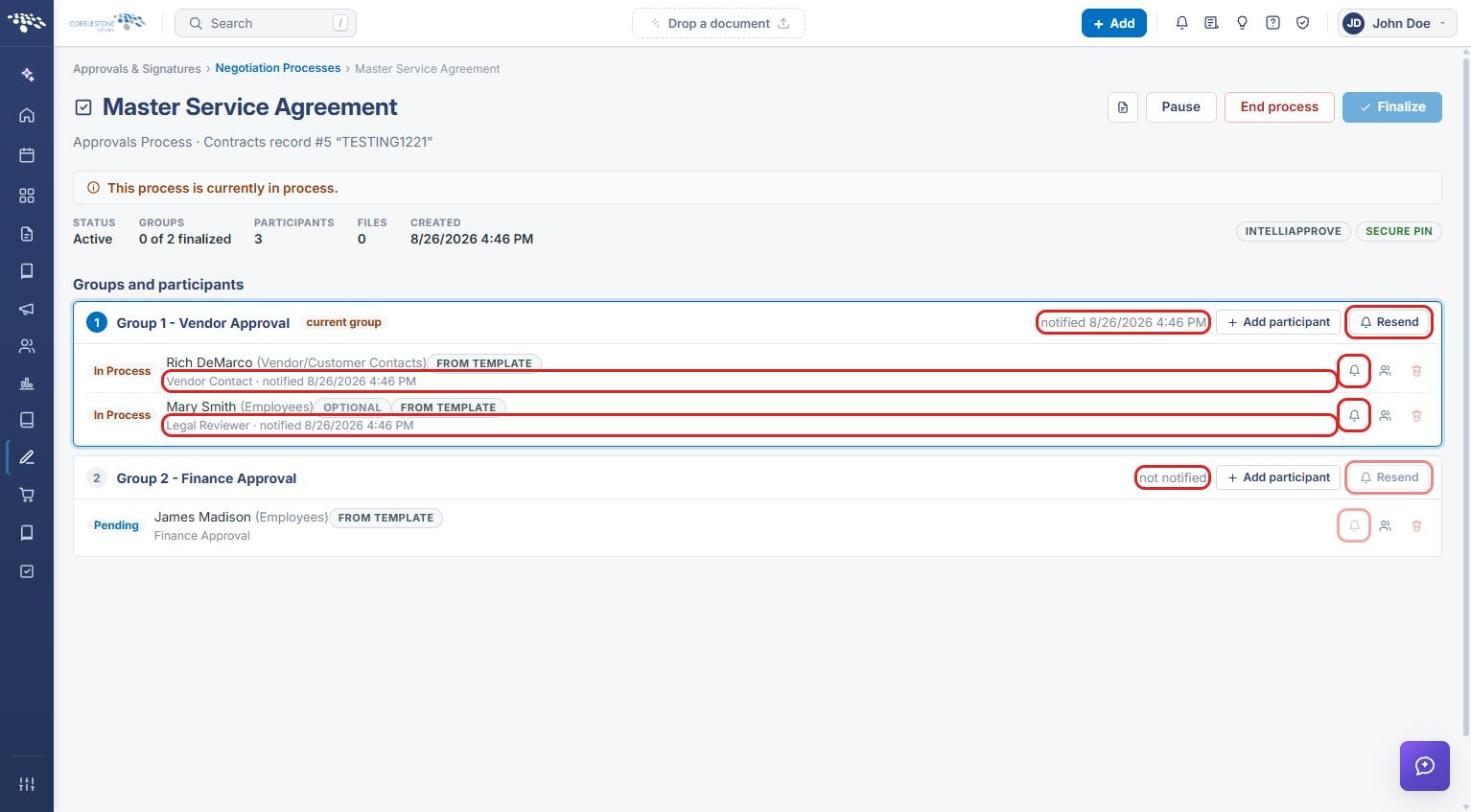
- On the console, look at the header of each group under Groups and participants:
- A group that has emailed its participants shows notified followed by the date and time (for example, "notified 8/26/2026 4:46 PM").
- A group that hasn't been reached yet shows not notified, and its participants show Pending.
- Each participant's line also shows when they were notified (for example, "Vendor Contact · notified 8/26/2026 4:46 PM").
5. Re-sending Notification Emails
- To re-notify everyone in a group, click Resend on the group's header. Only the current group can be re-notified.
- To re-notify one participant, click the bell icon (Re-send this invitation) on that participant's row. The icon is unavailable for participants whose step hasn't been notified yet.
Note: Groups are notified in order. When the current group is finalized, the next group is notified and its header changes from not notified to a notified timestamp.
6. Quick Reference Summary
| Task | How to Complete It |
|---|---|
| Open an approval's console | Approvals & Signatures → Negotiation Processes → Open console. |
| See when a group was notified | Console → group header shows notified with date/time, or not notified. |
| See when a participant was notified | Console → participant line shows notified with date/time. |
| Re-notify the current group | Group header → Resend. |
| Re-notify one participant | Participant row → bell icon (Re-send this invitation). |