COBBLESTONE SOFTWARE
Contract Insight — User Guide
Notification Template Themes
03. Admin User Manual › Alerts & Notifications › Notification Template Themes
Note: Each procedure in this guide begins at the Contract Insight homepage, so any section can be followed on its own. Custom fields are configurable, so the exact field list on a contract category record may vary between environments.
1. Overview
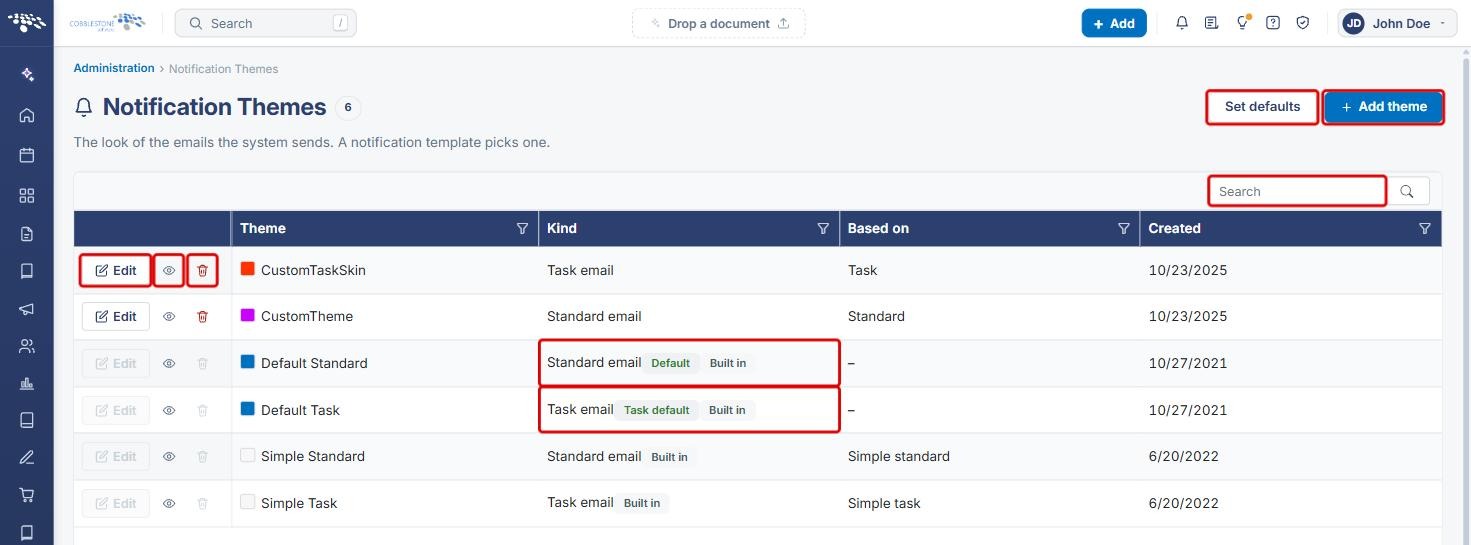
Administration › Notification Themes controls "the look of the emails the system sends. A notification template picks one." Each theme sets the colors of an email's header, sub-heading, body background, links, buttons and footer on top of a base layout. Themes come in two kinds, Standard email and Task email, and one theme of each kind is set as the default for notification templates that do not name a theme of their own.
The screen lists every theme with its color swatch, Kind, Based on layout and Created date, with Set defaults and Add theme buttons above the list. The built-in themes (Default Standard, Default Task, Simple Standard and Simple Task) are marked Built in and cannot be edited or deleted, but can be previewed. Custom themes are created and edited in a side panel with a live preview.
2. Key Elements
- Notification Themes list: shows each theme's color swatch, Kind (Standard email or Task email), Based on layout and Created date. The badge next to the title shows how many themes exist, and the Search box filters the list.
- Row actions: Edit, Preview this theme (eye icon) and Delete this theme (trash icon). Edit and Delete are unavailable on built-in themes.
- Default and Task default tags: mark the themes currently used for standard emails and task emails when a notification template does not name a theme.
- Set defaults: chooses the default theme for Standard emails and Task emails, and whether to Show social media links in the footer.
- Add theme / Edit theme panel: Theme name (up to 20 characters, must be unique), Base layout, six Colors, Reset to the layout's colors, and a live Preview.
3. Navigating to Notification Themes
- From the Contract Insight homepage, click the Administration icon at the bottom of the left navigation bar.
.jpg)
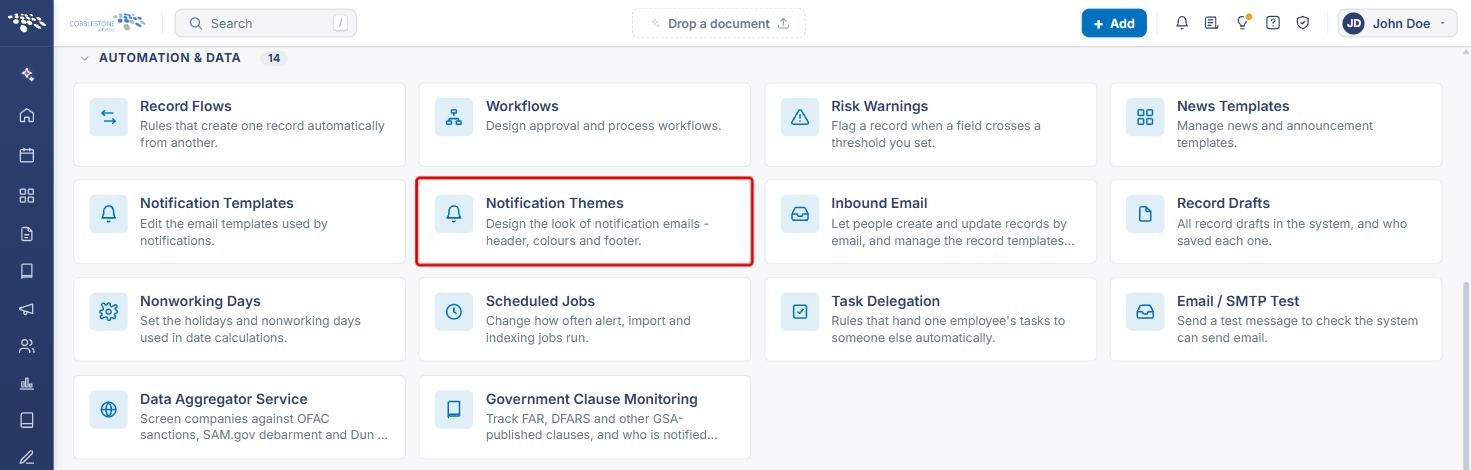
- On the Administration page, scroll to Automation & Data and click Notification Themes. You can also type "themes" in the Search administration box.
- The Notification Themes list opens. Use Search to find a theme, or use the row actions to Edit, preview or delete it.
4. Setting the Default Themes
- On the Notification Themes list, click Set defaults.
- In the Default themes window, choose a theme from Standard emails and from Task emails. Each list only offers themes of the matching kind, plus - none -.
- Select Show social media links in the footer to add social links to emails sent with these themes.
- Click Save defaults, or Cancel to close without changes.
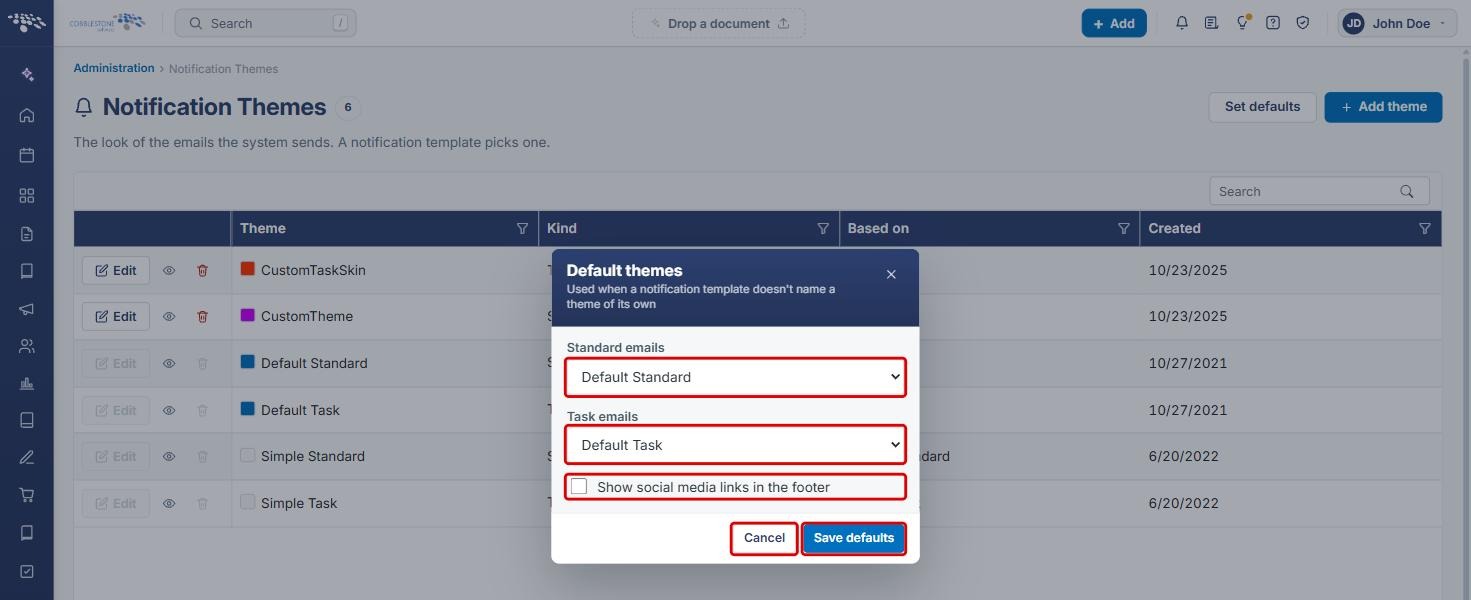
Note: The default themes are used only when a notification template does not name a theme of its own.
5. Adding a Theme
- On the Notification Themes list, click Add theme.
- Enter a Theme name (up to 20 characters). Each theme needs its own name.
- Choose a Base layout: Simple standard or Standard for standard emails, or Simple task or Task for task emails. Standard layouts cover everything other than task emails, such as expiring contracts, approvals and alerts.
- Under Colors, click the swatch next to Header, Sub-heading, Body background, Links, Buttons and Footer to set each color. Click Reset to the layout's colors to start over.
- Check the result in the Preview, which updates as you change the colors.
- Click Create theme, or Cancel to close without saving.
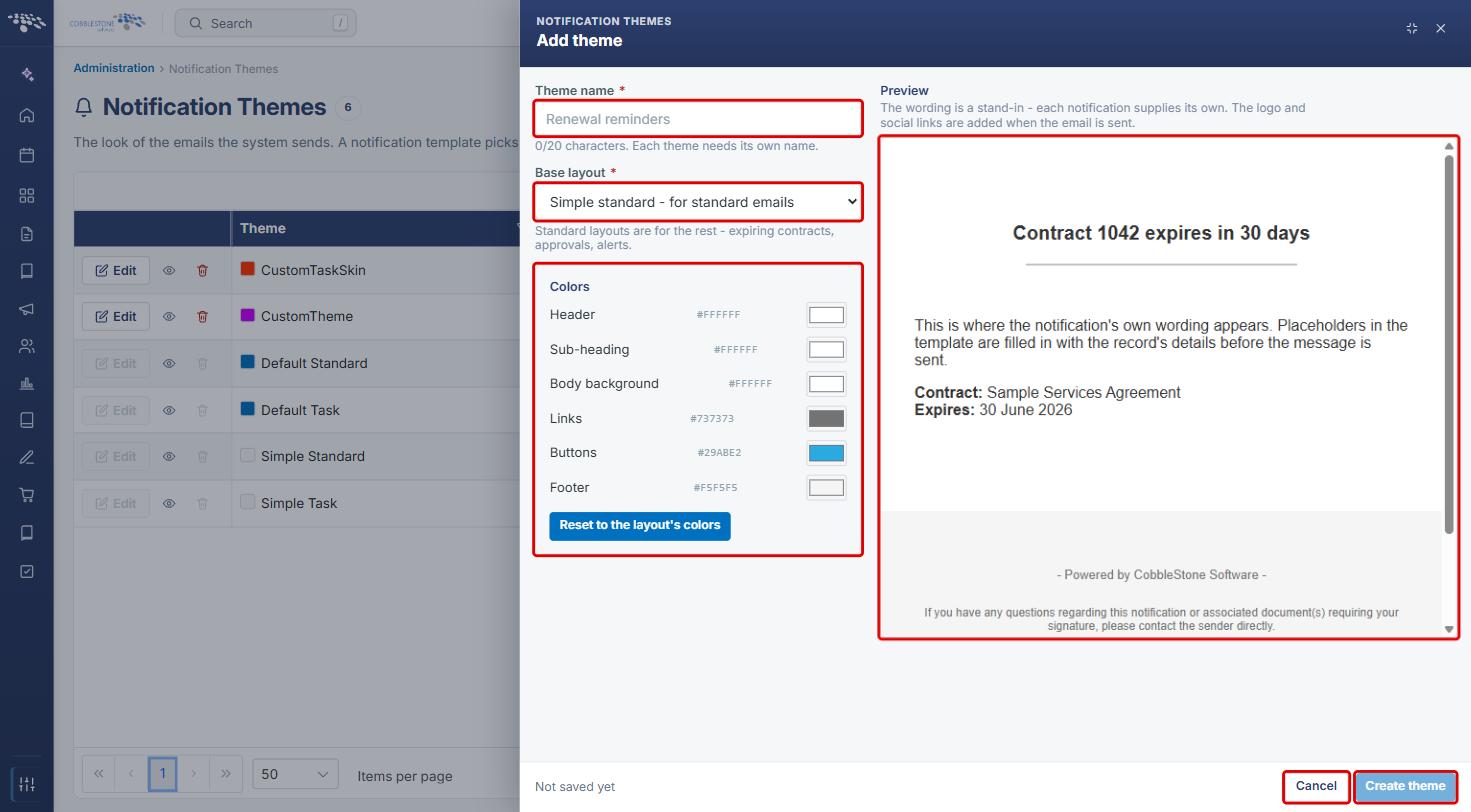
Note: The preview uses stand-in wording, because each notification supplies its own text. The logo and social media links are added when the email is sent.
6. Editing a Theme
- On the Notification Themes list, click Edit on a custom theme.
- Change the Theme name, Base layout or any of the Colors, and check the Preview.
- Click Save theme, or Cancel to discard your changes.
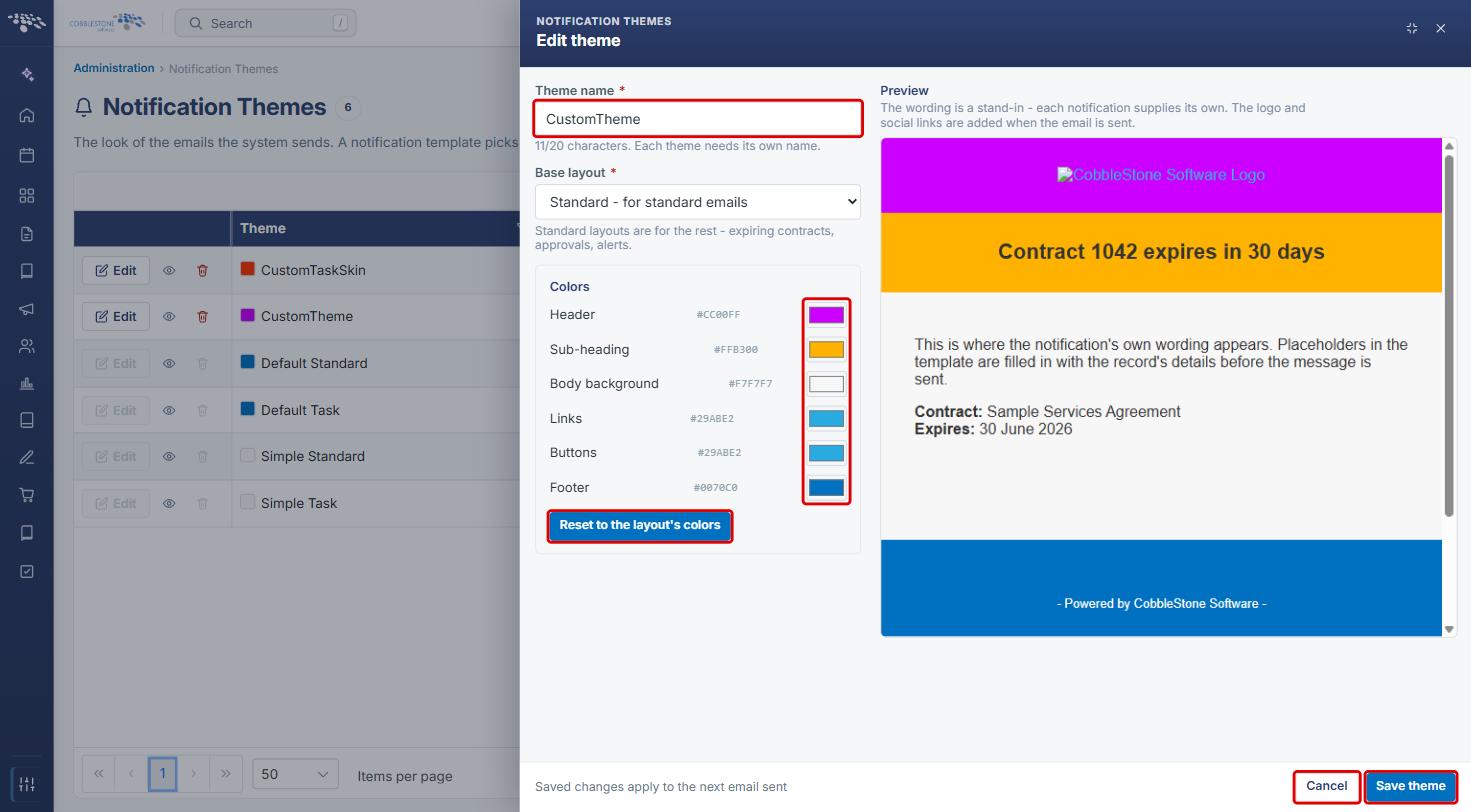
Note: Saved changes apply to the next email sent. Built-in themes cannot be edited or deleted. To customize one, add a new theme based on the same layout.
7. Previewing a Theme
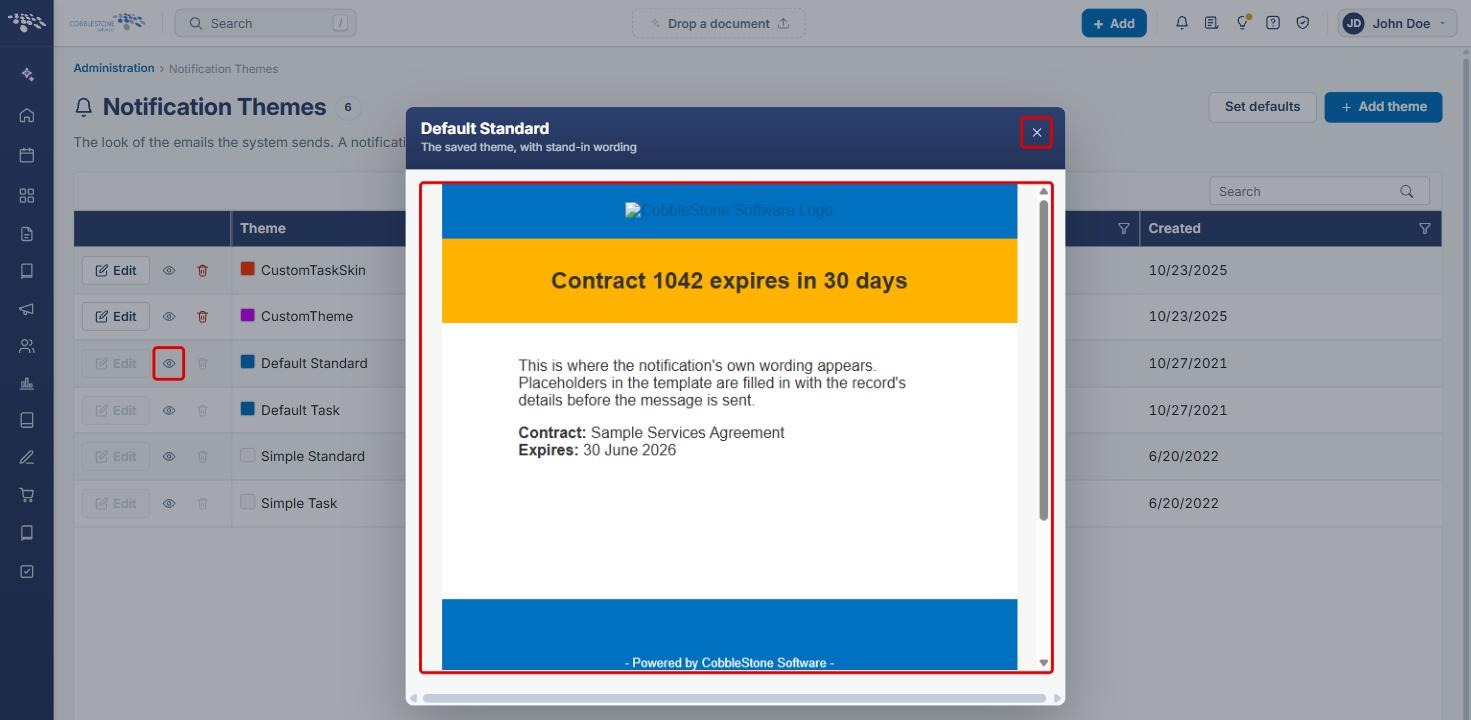
- On the Notification Themes list, click the Preview this theme (eye) icon on any theme, including built-in themes.
- Review the saved theme, shown with stand-in wording, then click X to close the preview.
8. Quick Reference Summary
| Task | Where / How |
|---|---|
| Open Notification Themes | Administration › Automation & Data › Notification Themes |
| Choose the default themes | Set defaults › Standard emails / Task emails › Save defaults |
| Show social links in email footers | Set defaults › Show social media links in the footer › Save defaults |
| Create a theme | Add theme › Theme name, Base layout, Colors › Create theme |
| Change a theme | Edit on a custom theme › Save theme |
| See what a theme looks like | Preview this theme (eye icon) |
| Remove a theme | Delete this theme (trash icon, custom themes only) |