COBBLESTONE SOFTWARE
Contract Insight — User Guide
Nonworking Days
Application Administration: Holidays and Closures
Note: Each procedure in this guide begins at the Contract Insight homepage, so any section can be followed on its own. The regions offered on a nonworking day come from the languages and locales configured for the environment, so the exact list may vary between environments.
1. Overview
Nonworking Days are the days the system treats as nonworking when it calculates dates. Task due dates, alerts, and workflow timing all skip these days, so automatically generated task alerts do not fall on a weekend or a holiday when the business is closed.
Nonworking days are held in two places on one screen. Recurring Days sets the days of the week that are always nonworking, and applies every week. Single Days holds specific calendar dates, such as public holidays and company closures, each recorded with a date, a description, and a region.
A single day carries a Region. Where a region other than All Regions is chosen, the nonworking day applies only to employees assigned to that region, so a system used across more than one country can hold each country’s holidays without applying them to everyone.
Because Nonworking Days is maintained from the Administration area, only Application Administrators — or other users specifically granted the appropriate permission — can change the recurring days or add, edit, and remove single days. The settings then apply to every user of the environment.
2. Accessing Nonworking Days
The Nonworking Days screen is the single management screen for both recurring and single nonworking days. To open it:
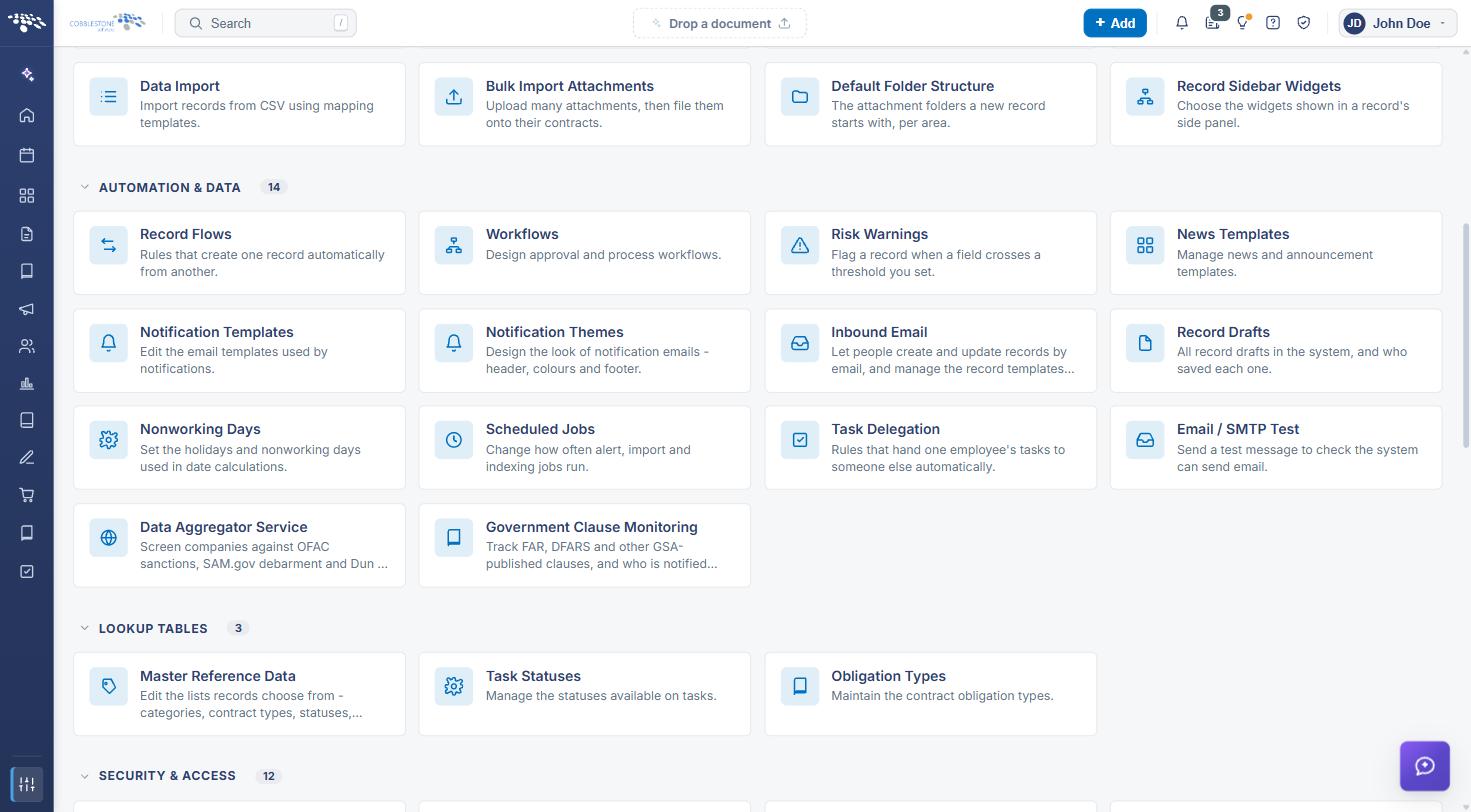
From the Contract Insight homepage, click Administration at the bottom of the left navigation menu. On the Administration page, under Automation & Data, select Nonworking Days.
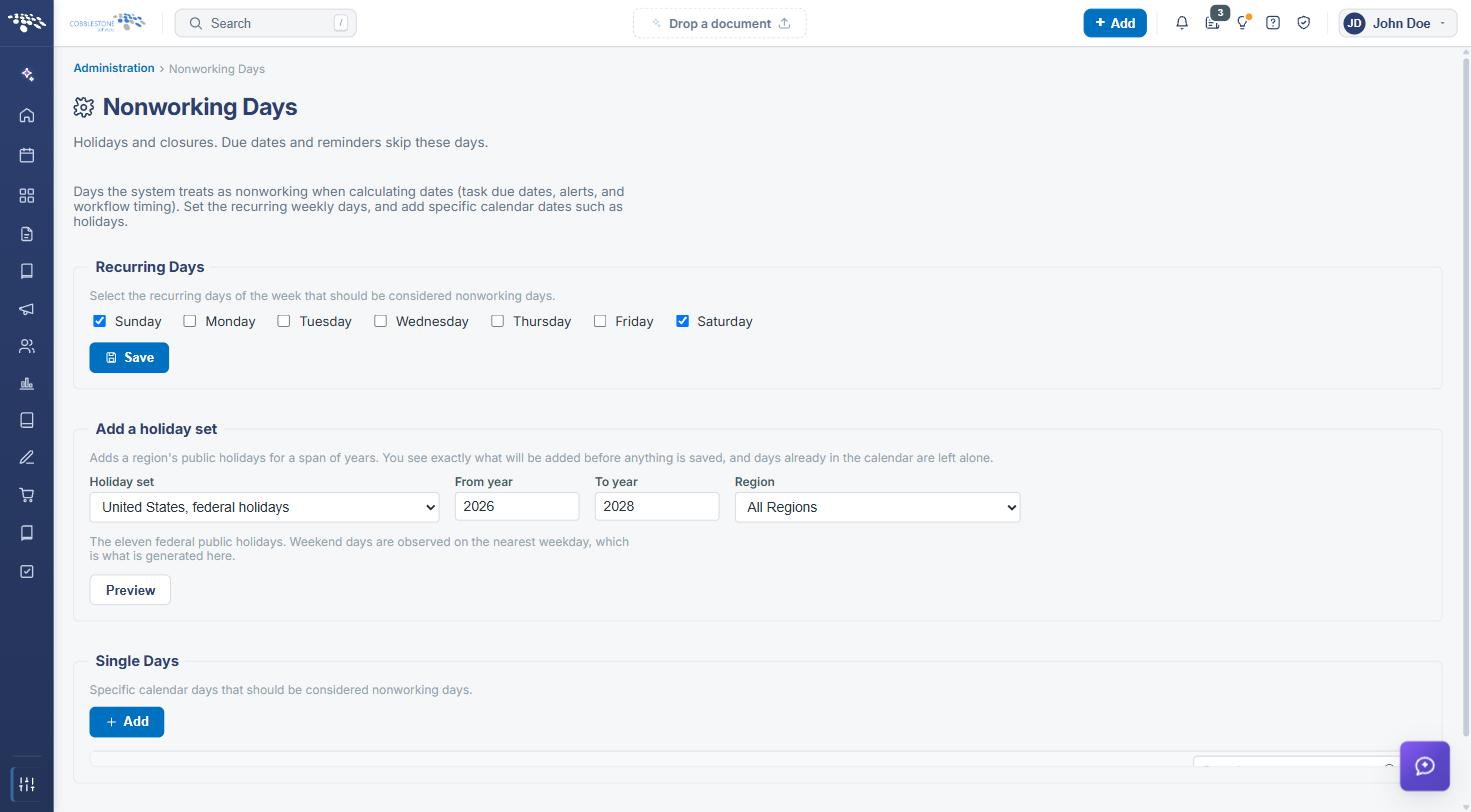
The Nonworking Days screen includes the following elements:
- A breadcrumb trail of Administration › Nonworking Days, and the page title Nonworking Days with the subtitle “Holidays and closures. Due dates and reminders skip these days.”
- An introductory line explaining that these are the days the system treats as nonworking when calculating dates — task due dates, alerts, and workflow timing
- A Recurring Days panel with a tick box for each day of the week, Sunday through Saturday, and a Save button
- A Single Days panel with an Add button and a grid of the dates already recorded
- A Search box at the right of the grid toolbar to filter the list by keyword
- Grid columns for Description, Date, and Region, each with its own filter icon, plus an action column at the left
- Per-row Edit and delete buttons, the delete button labelled Delete this day
- Pagination controls beneath the grid, with a live page and record count and an Items per page selector
3. Setting Recurring Days
Function: Sets the days of the week that are always treated as nonworking, so that dates calculated by the system never land on them.
Steps:
- From the Contract Insight homepage, click Administration at the bottom of the left navigation menu. On the Administration page, under Automation & Data, select Nonworking Days.
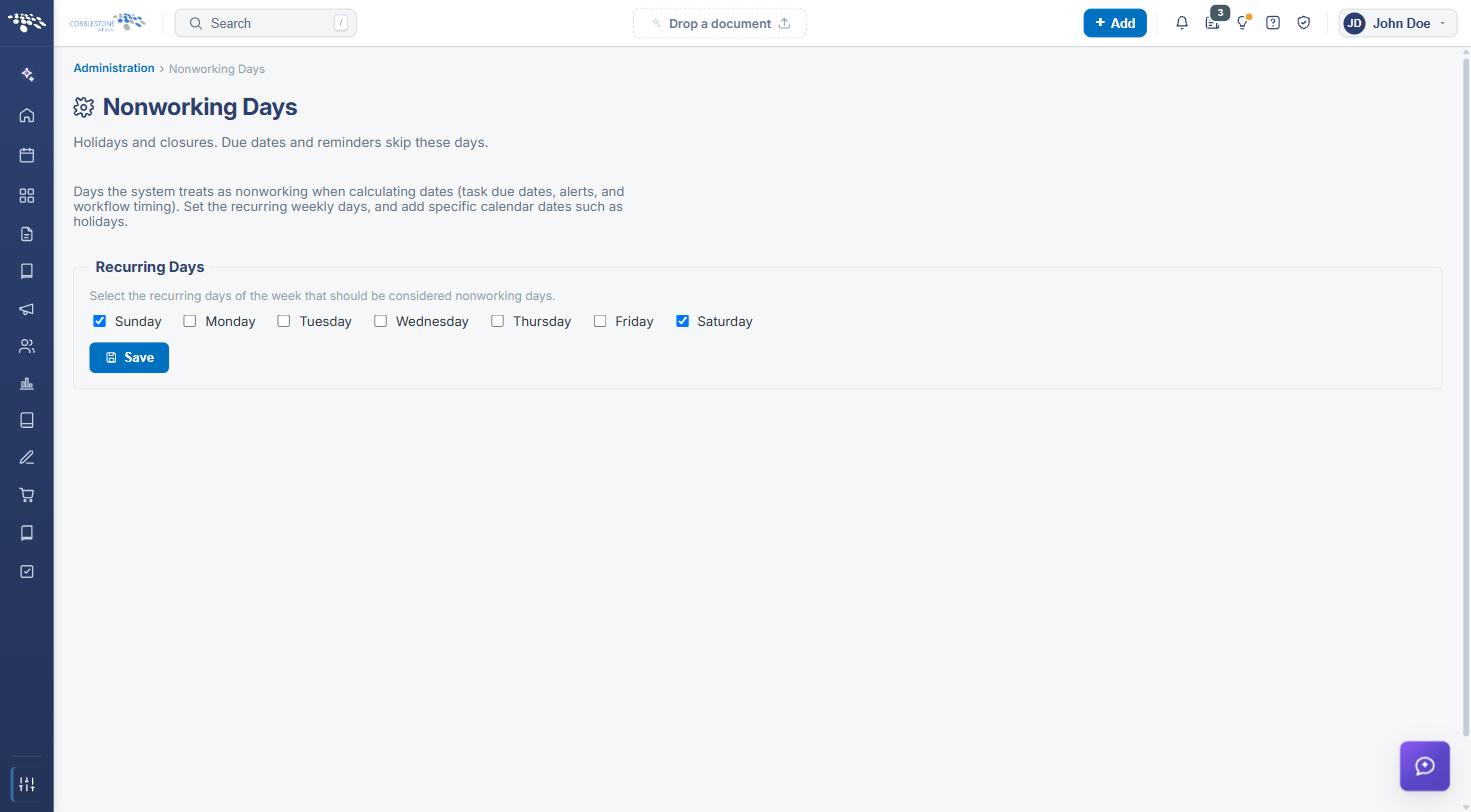
- In the Recurring Days panel, tick each day of the week that should be treated as nonworking — typically Saturday and Sunday.
- Untick any day that should be treated as a working day again.
- Click Save beneath the tick boxes to apply the change.
Note: Recurring days apply every week and to every employee, whatever their region. Use Single Days for a date that applies once, or that applies only to one region.
4. Adding a Single Day
Function: Records one specific calendar date — a public holiday or a company closure — as a nonworking day.
Steps:
- From the Contract Insight homepage, click Administration at the bottom of the left navigation menu. On the Administration page, under Automation & Data, select Nonworking Days.
- In the Single Days panel, click Add. The Add nonworking day form opens above the grid.
- In Date, enter or pick the calendar date. The field defaults to today’s date.
- In Description, enter a name for the day — for example, Independence Day, Christmas, or Labor Day.
- In Region, leave All Regions to apply the day to everyone, or select a single region to apply it only to the employees assigned to that region.
- Click Save to add the day, or Cancel to close the form without adding it.
The new day appears in the Single Days grid with its description, date, and region.
Note: Single Days are exactly that — single days. A holiday recorded for one year does not repeat the following year: once the date has passed it can be edited to the next year’s date, or the same holiday can be added for several years in advance.
5. Editing a Single Day
Function: Changes the date, description, or region of a day already recorded — for example, rolling a holiday forward to next year.
Steps:
- From the Contract Insight homepage, click Administration at the bottom of the left navigation menu. On the Administration page, under Automation & Data, select Nonworking Days.
- In the Single Days grid, locate the day you want to change, using the Search box or the column filters if necessary.
- Click Edit on its row. The Edit nonworking day form opens above the grid with the current Date, Description, and Region values filled in.
- Change the values as needed.
- Click Save to commit the change, or Cancel to leave the day unchanged.
6. Deleting a Single Day
Note: Prior to deleting a nonworking day, make sure it is no longer required. Removing a day means dates calculated from that point on can fall on it again, which can place task due dates and alerts on a day the business is closed.
Steps:
- From the Contract Insight homepage, click Administration at the bottom of the left navigation menu. On the Administration page, under Automation & Data, select Nonworking Days.
- In the Single Days grid, locate the day you want to remove.
- Click the delete icon at the right of its row — its tooltip reads Delete this day.
- Confirm the deletion if prompted. The day is removed from the Single Days list.
Recurring days are not deleted. To stop a day of the week being treated as nonworking, untick it in the Recurring Days panel and click Save.
7. Finding a Day in the Single Days List
Environments that have been in use for several years can hold a long list of single days. The grid provides three ways to narrow it:
- Search — the box at the right of the grid toolbar filters the list by keyword, across the description, date, and region
- Column filters — the filter icon in the Description, Date, and Region headers filters on that column alone
- Pagination — the controls beneath the grid move between pages, and the Items per page selector sets how many rows are shown at once
The grid also reports the current page and the total number of days recorded — for example, “1 of 1 pages (8 items)”.
8. Regions and How They Apply
The Region selected on a single day controls who it applies to:
- All Regions — the day is nonworking for every employee in the environment
- A single region — the day is nonworking only for the employees assigned to that region; everyone else continues to treat it as a working day
The regions offered are the languages and locales configured for the environment, listed as a language and country pair — for example, English - United States (en-US) or English - Canada (en-CA). A holiday observed in one country only, such as Boxing Day, is therefore recorded against that country’s region rather than against All Regions.
Note: Regional nonworking days depend on employees being assigned to a region. An employee with no region assigned is not covered by a day recorded against a single region.
9. How Nonworking Days Affect Date Calculations
Nonworking days are applied wherever the system works out a date rather than being given one:
- Task due dates — a due date calculated a number of days ahead skips the recurring days and single days that fall in that period
- Alerts and reminders — automatically generated task alerts are not raised on a nonworking day
- Workflow timing — workflow steps that wait a number of days before escalating or notifying take the nonworking days into account
Dates entered directly on a record are not changed. Nonworking days affect the dates the system calculates, so a change made here applies to work scheduled from that point on rather than to dates already set.
10. Quick Reference Summary
Task | How to Complete It |
Open Nonworking Days | Homepage → Administration → Automation & Data → Nonworking Days. |
Set the weekly days | Tick the days in Recurring Days, then Save. |
Add a holiday | Add in Single Days, enter the Date, Description and Region, then Save. |
Edit a holiday | Edit on its row, change the values, then Save. |
Remove a holiday | Delete this day on its row, then confirm if prompted. |
Find a day | Search box on the grid toolbar, or the filter icon on Description, Date or Region. |
Limit a day to one region | Select that region instead of All Regions on the day. |
Roll a holiday forward | Edit the day that has passed and set next year’s date, or add each year in advance. |
Fields on a single day | Date, Description, and Region (All Regions by default). |