COBBLESTONE SOFTWARE
Contract Insight — User Guide
My Dashboards
05. End Users: Home Page Options › Dashboards › My Dashboards
Note: Each procedure in this guide begins at the Contract Insight homepage, so any section can be followed on its own. Custom fields are configurable, so the exact field list on a contract category record may vary between environments.
1. Overview
Click on "All Dashboards" to open the Dashboards Gallery.
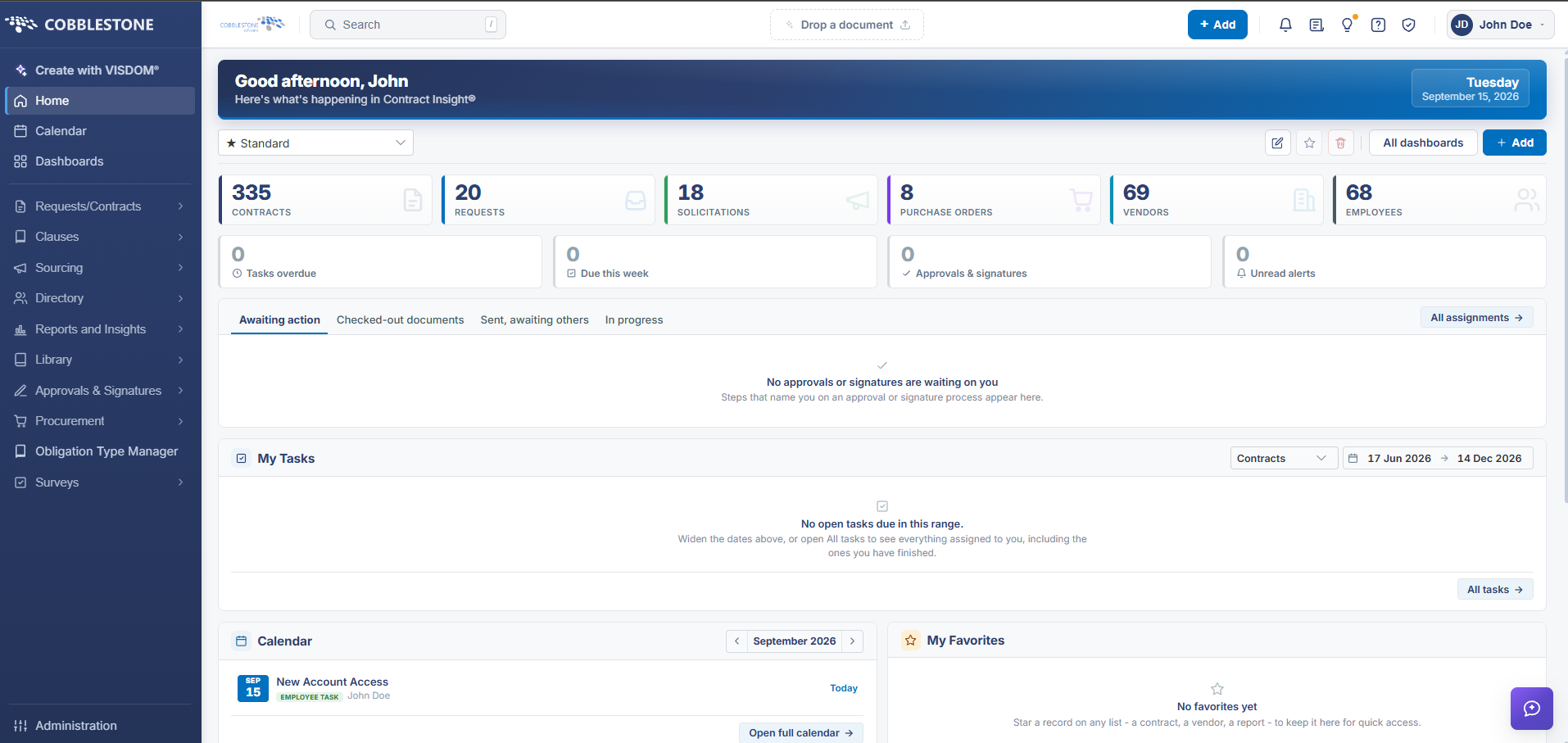
Dashboards a person owns personally show as "Yours" on their card in the Dashboards Gallery (versus "Assigned to you" for ones shared by an administrator), and Add on that gallery is how a new personal dashboard is created, named and populated with docks.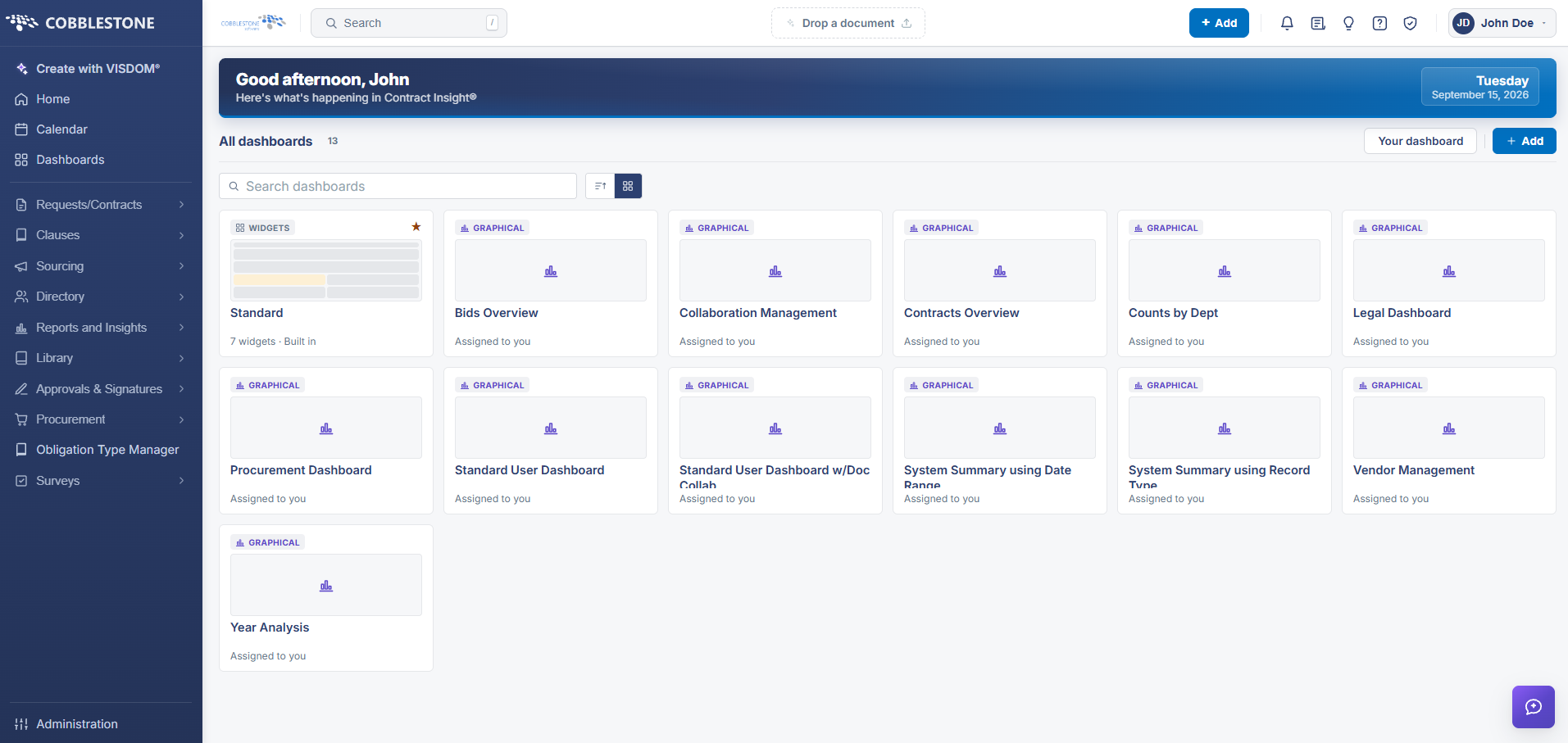
2. Key Elements
- Dashboards gallery cards read "Yours" for personally created dashboards and "Assigned to you" for ones shared in
- Add on the Dashboards gallery creates a new personal dashboard (Dashboard name, optional Description)
- A star on any card favorites it for faster access, personal dashboards included