COBBLESTONE SOFTWARE
Contract Insight — User Guide
Modifying Columns Displayed
06. End Users: Searching & Reporting › Quick Search › Modifying Columns Displayed
Note: Each procedure in this guide begins at the Contract Insight homepage, so any section can be followed on its own. Custom fields are configurable, so the exact field list on a contract category record may vary between environments.
1. Overview
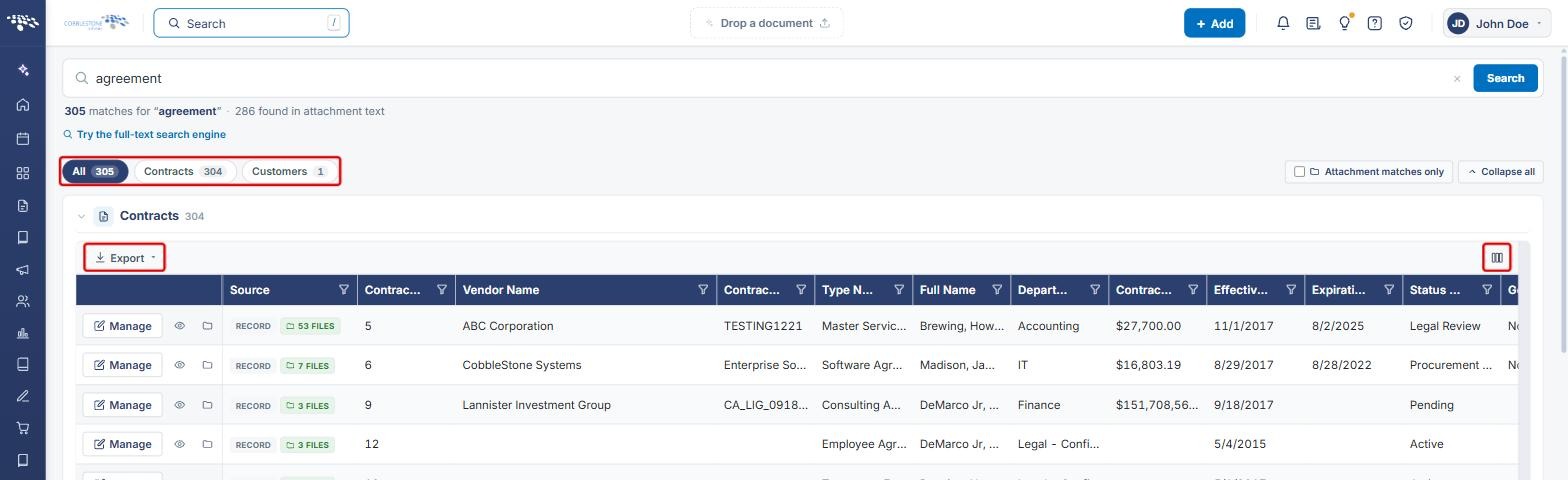
The top-bar Search (the live counterpart to legacy Quick Search) opens a quick results list, and its Full search button opens the full Search results page. On that page, results are grouped into one section per area (for example, Contracts and Customers), and each section has its own Choose which fields this list shows button (the columns icon at the top right of the section's grid).
The button opens a Fields window ("Untick a field to hide it from your Contracts results") with a checkbox for every column in that section. Each section's choices are separate: changing the Contracts columns does not affect the Customers section, or the column choices on the main Contracts list described in the companion Modifying Columns Displayed (Find/Search Contracts List) article.
2. Key Elements
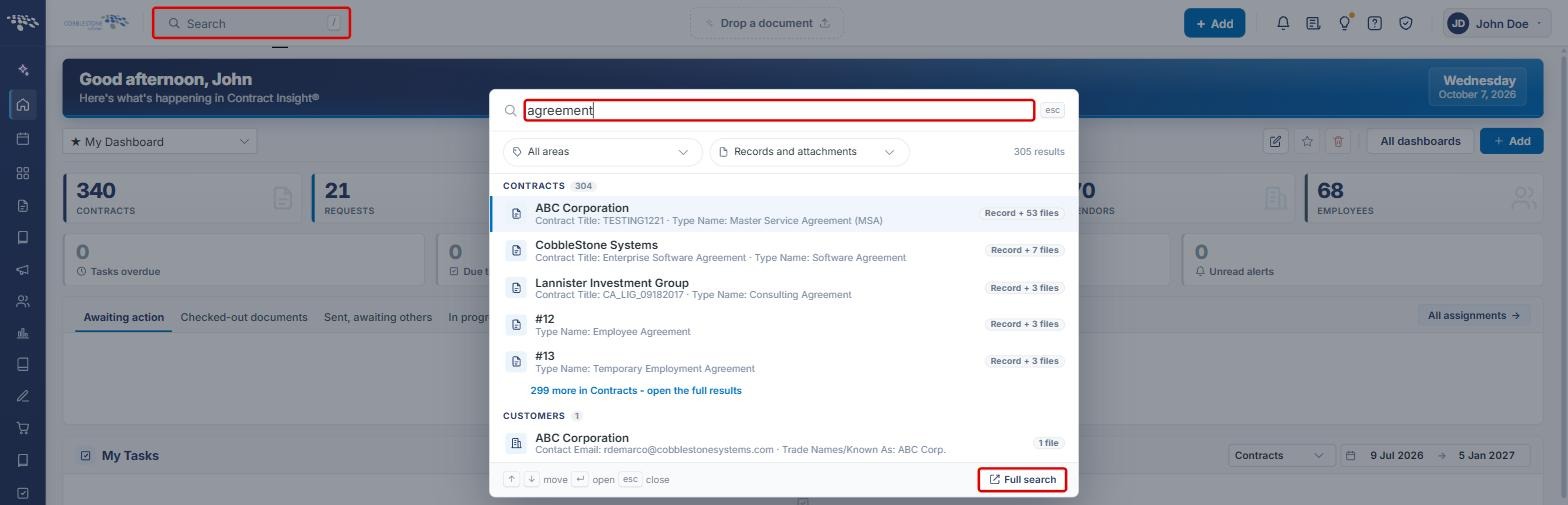
- Search box (top bar): opens the quick search list, with All areas and Records and attachments filters and a Full search button.
- Area filters on the Search results page: All plus one button per area with results (for example, Contracts and Customers), each with a result count.
- Choose which fields this list shows: the columns icon at the top right of each section's grid, next to the section's Export button row.
- Fields window: Select / unselect all, a checkbox for each column, Show every field, Cancel and Apply.
- Column choices apply only to that section of the Search results page.
3. Opening the Search Results Page
- From the Contract Insight homepage, click the Search box in the top bar (or press /) and type a search term.
- Review the quick results, then click Full search to open the full Search results page.
- On the Search results page, use the area buttons (All, Contracts, Customers and so on) to focus on one area's results.
4. Choosing the Columns Displayed
- In the section you want to change (for example, Contracts), click the Choose which fields this list shows button (columns icon) at the top right of the grid.
- In the Fields window, review the checkbox list. Every ticked field is shown as a column.
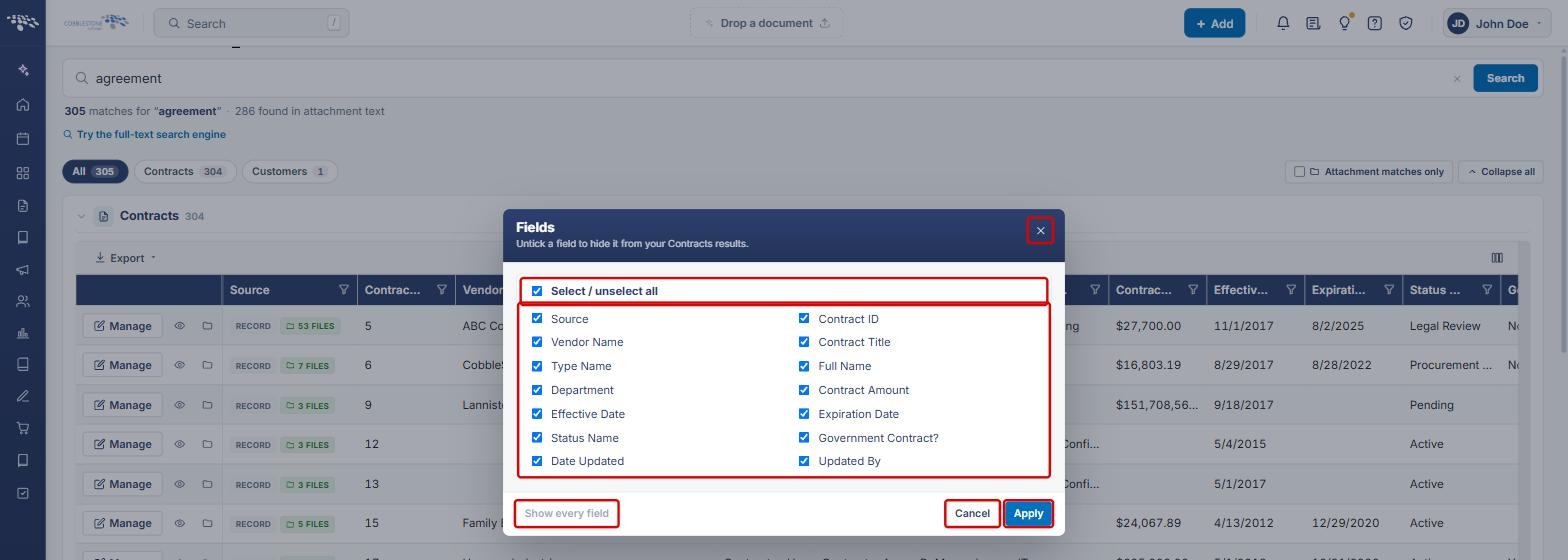
- Untick each field you want to hide. Use Select / unselect all to tick or clear every field at once.
- Click Apply to update the section's columns, or Cancel to close without changes.
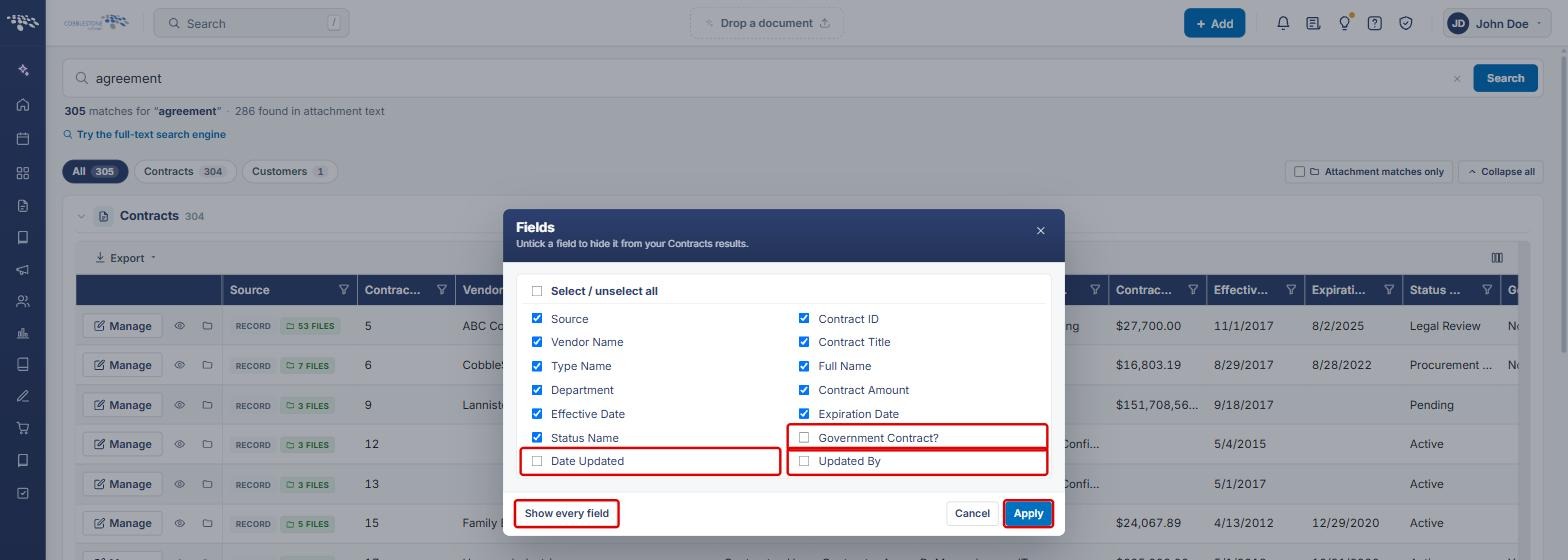
Tip: To bring back all hidden columns, open the Fields window and click Show every field, then click Apply. The button is only available when at least one field is hidden.
Note: Each section has its own field list. For example, the Customers section offers fields such as Vendor/Client Name, Contact Email, Tax ID and Company ID, and changing them does not affect the Contracts section.
5. Quick Reference Summary
| Task | Where / How |
|---|---|
| Open the full Search results | Top-bar Search › type a term › Full search |
| Focus on one area | Search results › area button (for example, Contracts) |
| Choose a section's columns | Section's Choose which fields this list shows (columns icon) › tick or untick fields › Apply |
| Hide or show all columns at once | Fields window › Select / unselect all |
| Restore every column | Fields window › Show every field › Apply |