COBBLESTONE SOFTWARE
Contract Insight — User Guide
1. Managing E-Approval Flow/Groups
Document Templates Management › E-Approval Flow/Groups › 1. Managing E-Approval Flow/Groups
Note: Each procedure in this guide begins at the Contract Insight homepage, so any section can be followed on its own. Custom fields are configurable, so the exact field list on a contract category record may vary between environments.
1. Overview
An approval flow is made up of numbered approval groups. Each group is one stage of the flow, with its own name (e.g. "Vendor Review," "Finance Approval"), its participants, and each participant's title, role, and whether they are required. Approvers are invited group by group: people within a group act in parallel, and the groups run in sequence. Groups are first set up on the template (Approvals & signing step), copied onto each document generated from it, and then tracked in the process console's Groups and participants section once the approval process is running.
2. Key Elements
- Template approval groups — set on the template's Approvals & signing step, E-Approvals tab, under Who approves, and in what order.
- Group settings — Group name, Description, Sequence, For version, Accept tracked changes on complete, and Set record status on complete.
- Participants — each comes from Employees, Roles & Groups, or Vendor/Customer Contacts, and has a Title (unique per template), an optional Reason, and Required/Locked settings.
- Group actions — Edit, Participant, Rules (limit the group to records that match a condition), Copy (adds a copy of the group, and everyone in it, at the end of the flow), and Delete.
- Document approval groups — copied from the template onto each generated document and editable there until the process starts.
- Process console — once running, each group in Groups and participants shows its status, and a later group stays Pending / not notified until the current one finalizes.
3. Turning On E-Approvals for a Template
- From the Contract Insight homepage, click the Administration icon at the bottom of the left navigation bar, then click Document Templates.
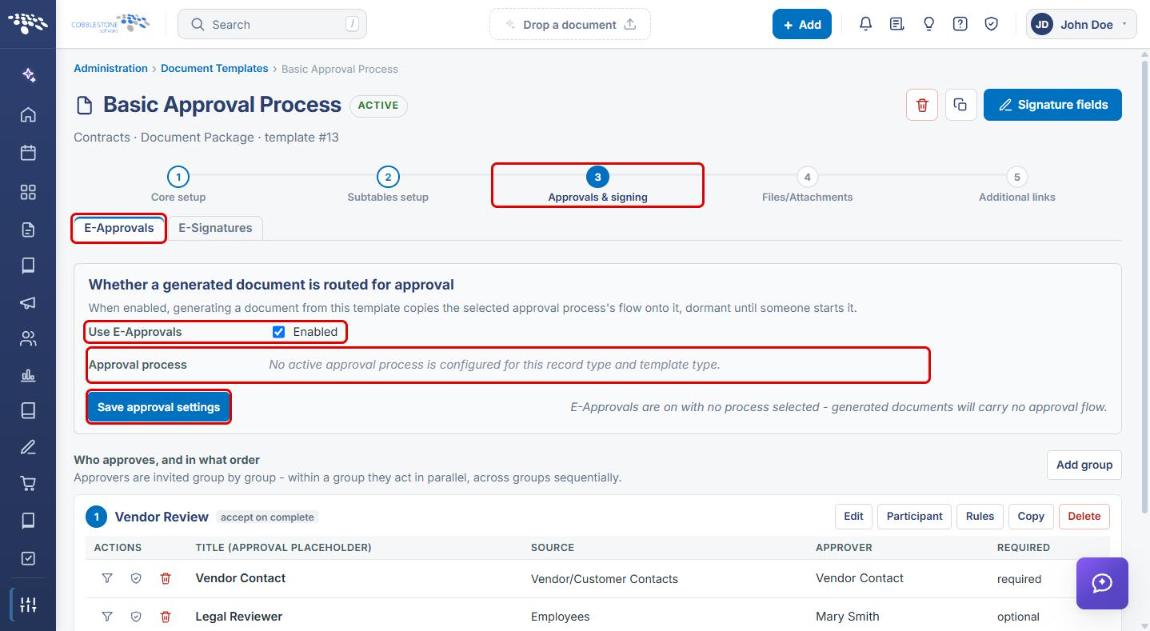
- Click Open on the template, then click step 3 Approvals & signing and make sure the E-Approvals tab is selected.
- Check Use E-Approvals and select an Approval process if one is available for this record type and template type.
- Click Save approval settings.
4. Reviewing a Template's Approval Groups
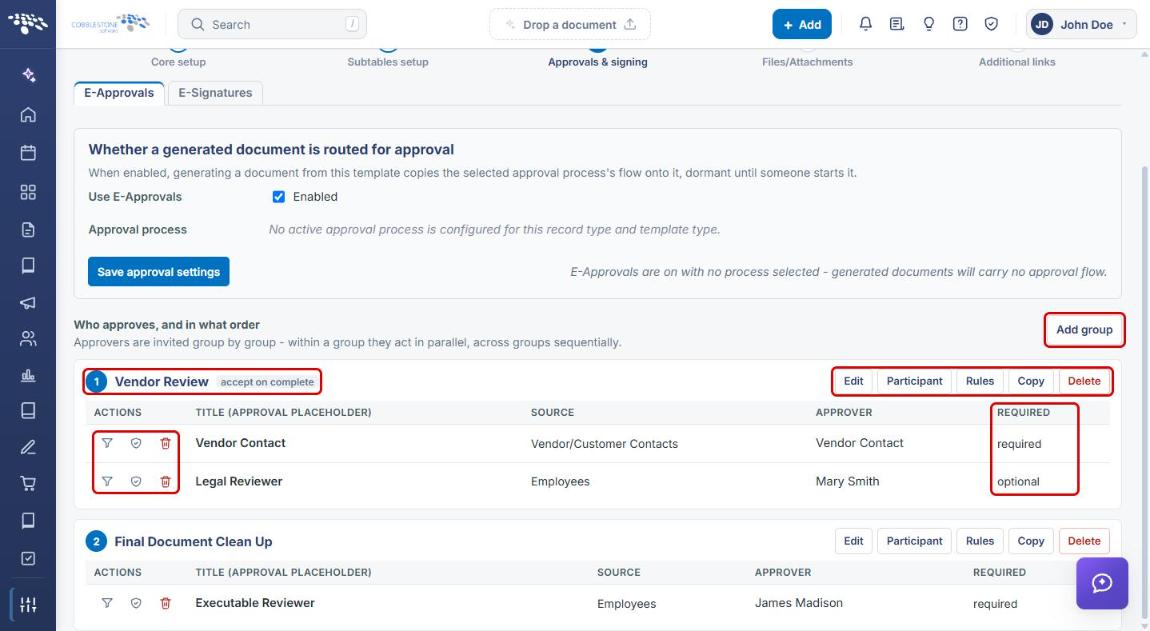
- On the E-Approvals tab, scroll to Who approves, and in what order.
- Each numbered card is one group. The card header shows the group's sequence number, name, and settings (for example, accept on complete), plus the Edit, Participant, Rules, Copy, and Delete buttons.
- Each row is one participant, showing the Title (approval placeholder), Source, Approver, and whether they are required or optional.
- Use the row icons to set when this approval is required (filter icon), the content controls this approver may edit (shield icon), or to remove this approver (trash icon).
5. Adding an Approval Group
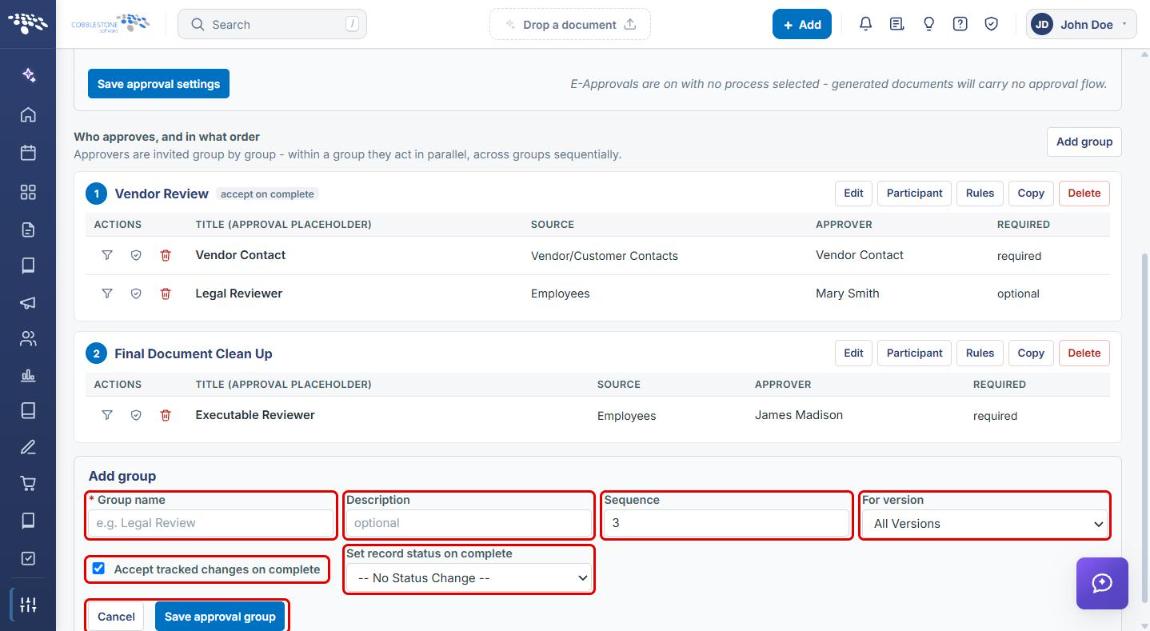
- On the E-Approvals tab, click Add group. The Add group form opens below the existing groups.
- Enter a Group name (required) and an optional Description.
- Check the Sequence. It defaults to the next number, and it sets where the group runs in the flow.
- Choose For version: Initial Version Only, Additional/Modified Versions, or All Versions.
- Choose whether to Accept tracked changes on complete, and optionally pick a Set record status on complete value to update the record when the group finishes.
- Click Save approval group, or Cancel to close the form without saving.
Tip: To change an existing group's settings, click Edit on its card. To limit a group to certain records, click Rules and add conditions; with no conditions, the group is part of every approval process generated from the template.
6. Adding a Participant to a Group
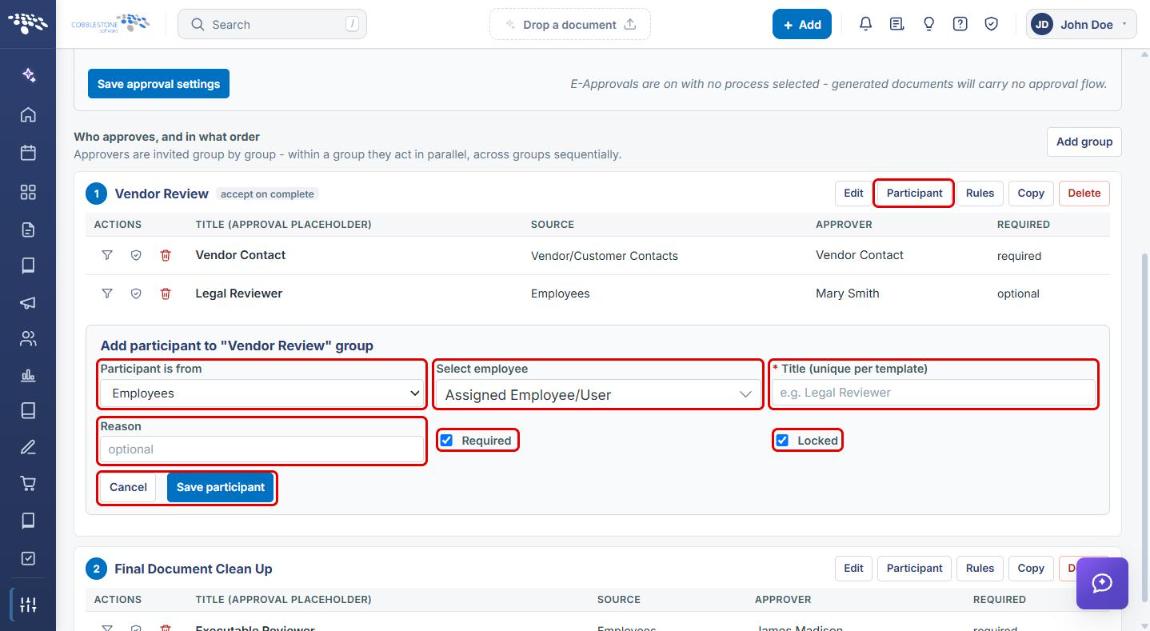
- On the group's card, click Participant.
- Under Participant is from, choose Employees, Roles & Groups, or Vendor/Customer Contacts.
- Select the employee, role/group, or contact (for example, Assigned Employee/User).
- Enter a Title (unique per template), such as Legal Reviewer, and an optional Reason.
- Check or clear Required and Locked.
- Click Save participant, or Cancel to close without saving.
7. Managing Approval Groups on a Generated Document
When a document is generated from a template with E-Approvals on, the template's groups are copied onto the document. They can be adjusted for that one document until its approval process starts.
- From the Contract Insight homepage, click Administration → Merged Documents, and click Open on the document. (You can also open the document package from its record.)
- Expand the Approvals section.
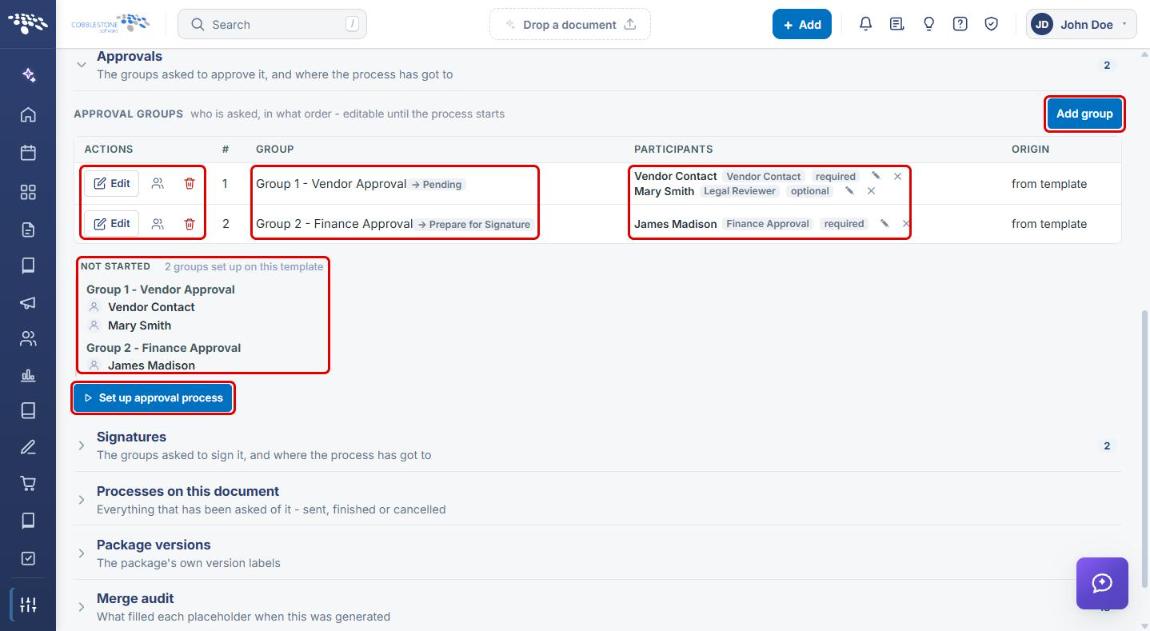
- Under Approval Groups, use Add group, or a group's Edit, add-participant, or delete icons, to change the flow. Each group shows the record status it sets on completion (for example, → Pending), and the Participants column shows each person's title and whether they are required.
- Review the Not Started summary of groups and participants, then click Set up approval process when the flow is ready.
8. Tracking a Running Approval Flow
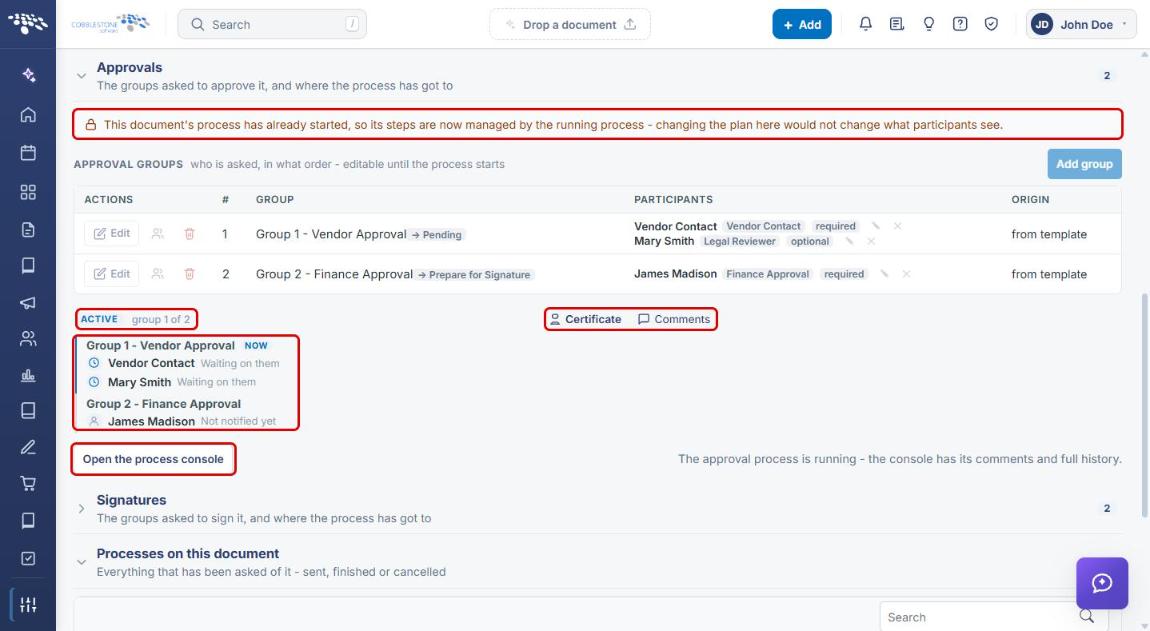
- Once the process has started, the document's Approvals section shows a notice that the steps are now managed by the running process. Changes to the groups here no longer affect what participants see.
- The live summary shows the process status (for example, ACTIVE · group 1 of 2), the current group marked NOW, and each participant's status (Waiting on them, Not notified yet). Use Certificate and Comments for more detail.
- Click Open the process console.
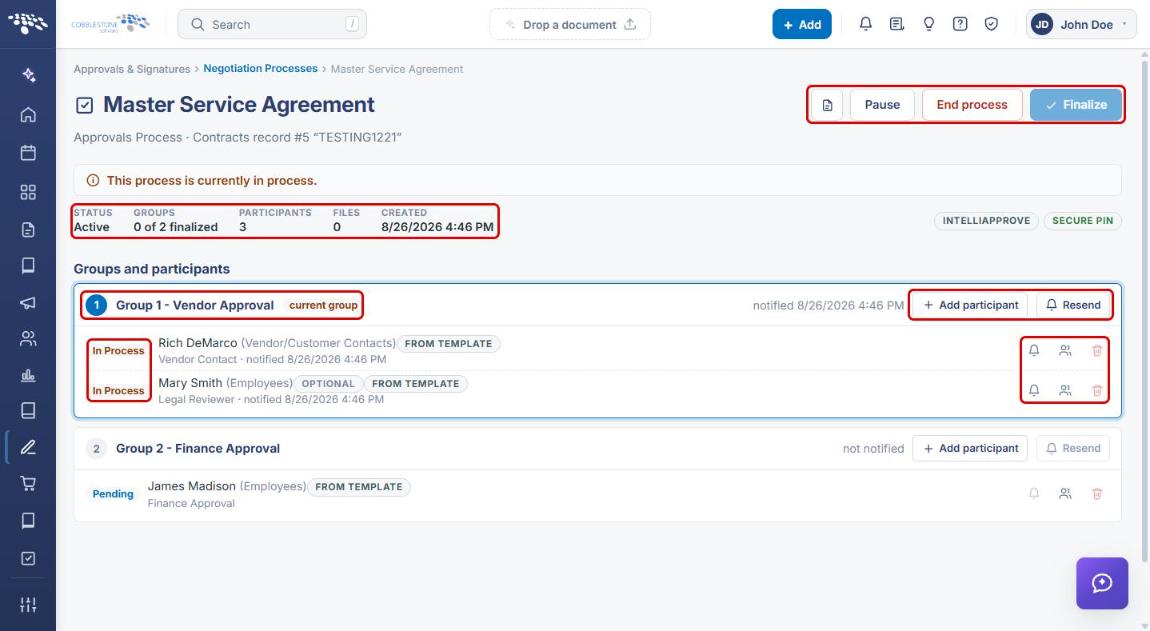
- In the process console, the summary shows Status, Groups finalized, Participants, Files, and Created.
- Under Groups and participants, the current group is highlighted. Each participant shows a status badge (In Process, Pending), and later groups stay not notified until the current group finalizes.
- Use Add participant or Resend on a group, or the row icons to re-send the invitation, replace the participant, or remove them (not allowed for participants added through the process).
- Use Pause, End process, or Finalize at the top to control the whole process. Finalize is available only after every group is finalized.
9. Quick Reference Summary
| Task | How to Complete It |
|---|---|
| Turn on E-Approvals for a template | Administration → Document Templates → Open → Approvals & signing → E-Approvals → check Use E-Approvals → Save approval settings. |
| Add an approval group | E-Approvals tab → Add group → enter Group name, Sequence, For version, and completion options → Save approval group. |
| Add a participant to a group | Group card → Participant → choose source, person, and Title → Save participant. |
| Limit a group to certain records | Group card → Rules → add conditions → Save rules. |
| Copy or remove a group | Group card → Copy (adds it at the end of the flow) or Delete. |
| Adjust groups on one document | Administration → Merged Documents → Open → Approvals → Approval Groups (before the process starts). |
| Start the approval flow | Document's Approvals section → Set up approval process. |
| Track a running flow | Document's Approvals section → Open the process console → Groups and participants. |