COBBLESTONE SOFTWARE
Contract Insight — User Guide
Managing Electronic Signature Groups, Participants & Attachments
Document Templates: Generation/Merging › Manage Electronic Signature Process › Managing Electronic Signature Groups, Participants & Attachments
Note: Each procedure in this guide begins at the Contract Insight homepage, so any section can be followed on its own. The examples below use a contract record; the same screens are used for any record type that supports generated document packages.
1. Overview
When a generated document package is sent for electronic signature, the signature process is organized into signing groups (who is asked to sign, and in what order), the participants in each group, and the files attached to the process. You manage these in two places:
- The document package's Signatures section, where signing groups are planned. The plan can be edited until the process starts.
- The process console, used while the process is running to add, replace, or re-notify participants, review the attached files, and Pause, End process, or Finalize the process.
The console follows the same Groups / Participants / Files pattern as an approval process.
2. Key Elements
- Signatures button and Manage (gear) icon: row actions for each saved document package on the record's Attachments & Templates tab.
- Signing Groups table: lists each group in signing order, its participants, and its origin (for example, from template). Use Add group, Edit, the participants icon, and the delete icon to change the plan before the process starts.
- Open the process console: opens the live console for a running process.
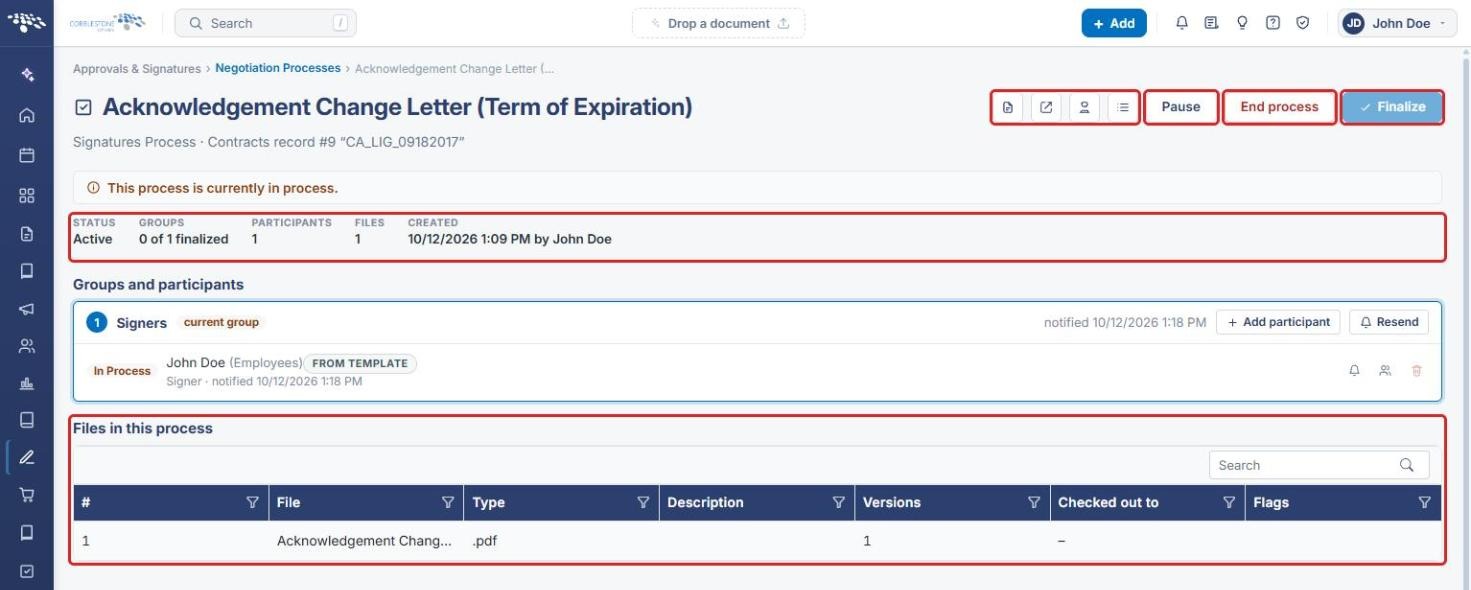
- Summary strip: shows the process STATUS, GROUPS finalized, PARTICIPANTS count, FILES counter, and when the process was CREATED.
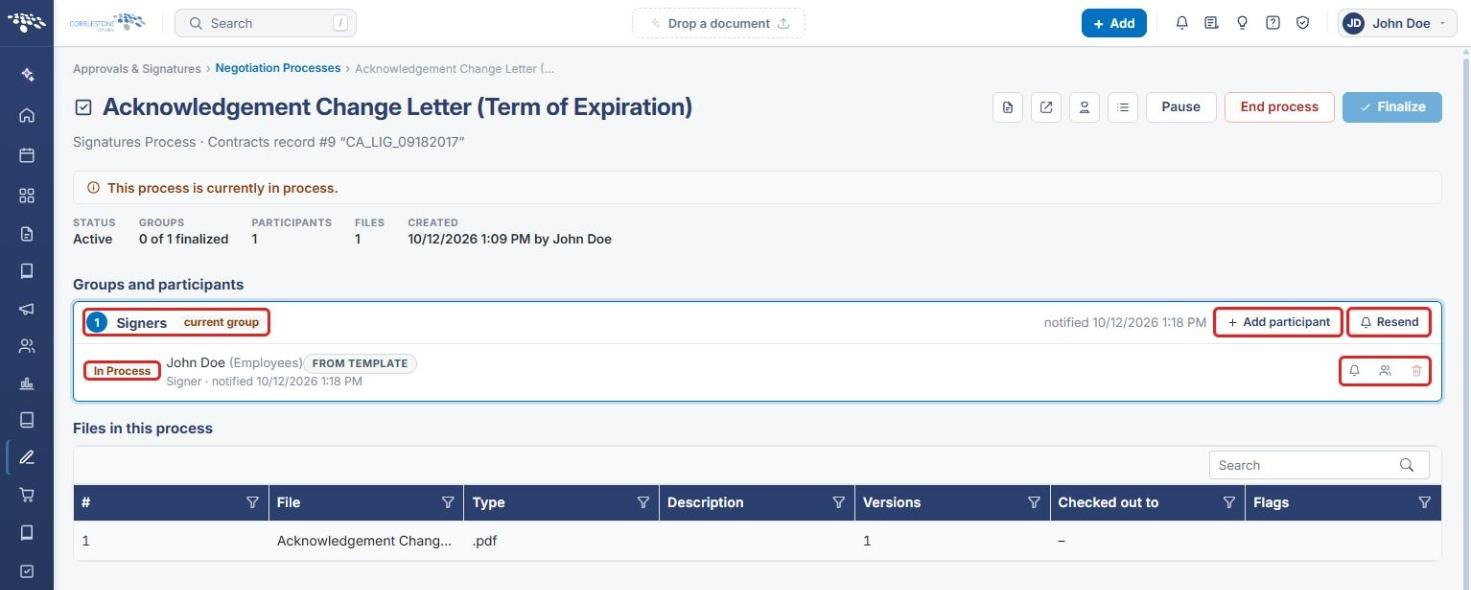
- Groups and participants: shows each group, the current group, and each participant's status, with Add participant, Resend, and per-participant Re-send this invitation, Replace this participant, and delete actions.
- Files in this process: the documents attached to the signature process, with Search and column filters.
- Pause / End process / Finalize: manage the process while it runs. Finalize becomes available only after every group is finalized.
3. Opening a Document Package's Signature Settings
- From the Contract Insight homepage, hover over the Requests/Contracts icon in the left navigation bar, select Contracts, and click Manage on the contract record.
- Click the Attachments & Templates tab.
- Scroll to Merged Document Templates → Saved documents. A package that is out for signature shows Active Signature Process under its name, and the FILES badge shows how many files it contains.
- Click the Manage (gear) icon on the package's row to open the document package page.
.jpg)
Note: Clicking Signatures on the row instead opens a quick status panel below the row, showing who has signed and a Sign now button if it is your turn.
4. Managing Signing Groups
- On the document package page, scroll down and expand the Signatures section.
- Review the Signing Groups table. Groups are listed in signing order (#), with their Participants and Origin.
- Before the process starts, use:
- Add group to add a new signing group.
- Edit to change a group's settings.
- The participants icon to change who is in the group.
- The delete (trash) icon to remove the group.
- Below the table, check the process status (for example, ACTIVE and 0 of 1 signed).
- Click Open the process console to manage a running process.
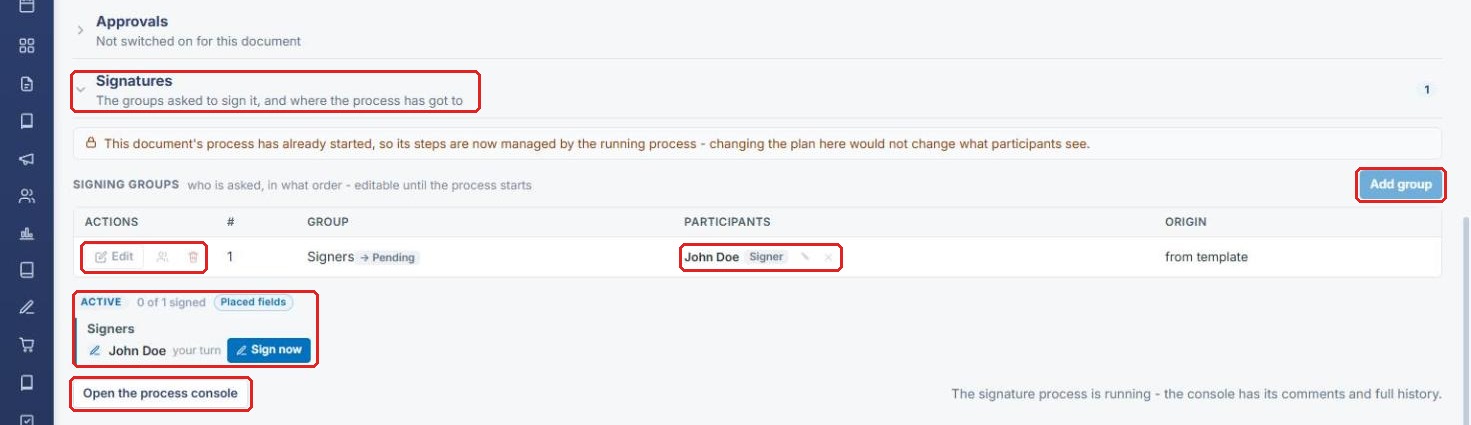
Note: Once the process has started, the signing groups on this page are locked. The page displays "This document's process has already started, so its steps are now managed by the running process," and changes are made from the process console instead.
5. Using the Process Console
5a. Console Overview
- Open the process console (see Section 4).
- Use the icon buttons at the top right to Open record, Open this process on the signing portal, view the Signature receipt (who signed what, and when), or Place fields (pre-define where each participant signs).
- Review the summary strip: STATUS, GROUPS (finalized out of total), PARTICIPANTS, FILES, and CREATED.
- Review the attached documents under Files in this process.
5b. Groups and Participants
- Under Groups and participants, find the group you want. The group being signed now is labeled current group, along with when it was notified.
- Check each participant's status (for example, In Process) and how they were added (for example, FROM TEMPLATE).
- Use the group-level buttons:
- Add participant: adds someone to the group (see Section 6).
- Resend: re-sends the invitation to the group.
- Use the icons on a participant's row:
- Re-send this invitation (bell icon).
- Replace this participant (people icon; see Section 7).
- Delete (trash icon). This is unavailable for participants added through the template/process.
6. Adding a Participant to a Running Group
- In the process console, click Add participant on the group.
- In the Add a participant to [group] panel, select the participant type: External participant, Employee participant, or Company contact participant.
- Enter the participant's details (for an external participant, Full name and E-mail address).
- Optionally, enter why they are being added.
- Click Add, or Cancel to close the panel.
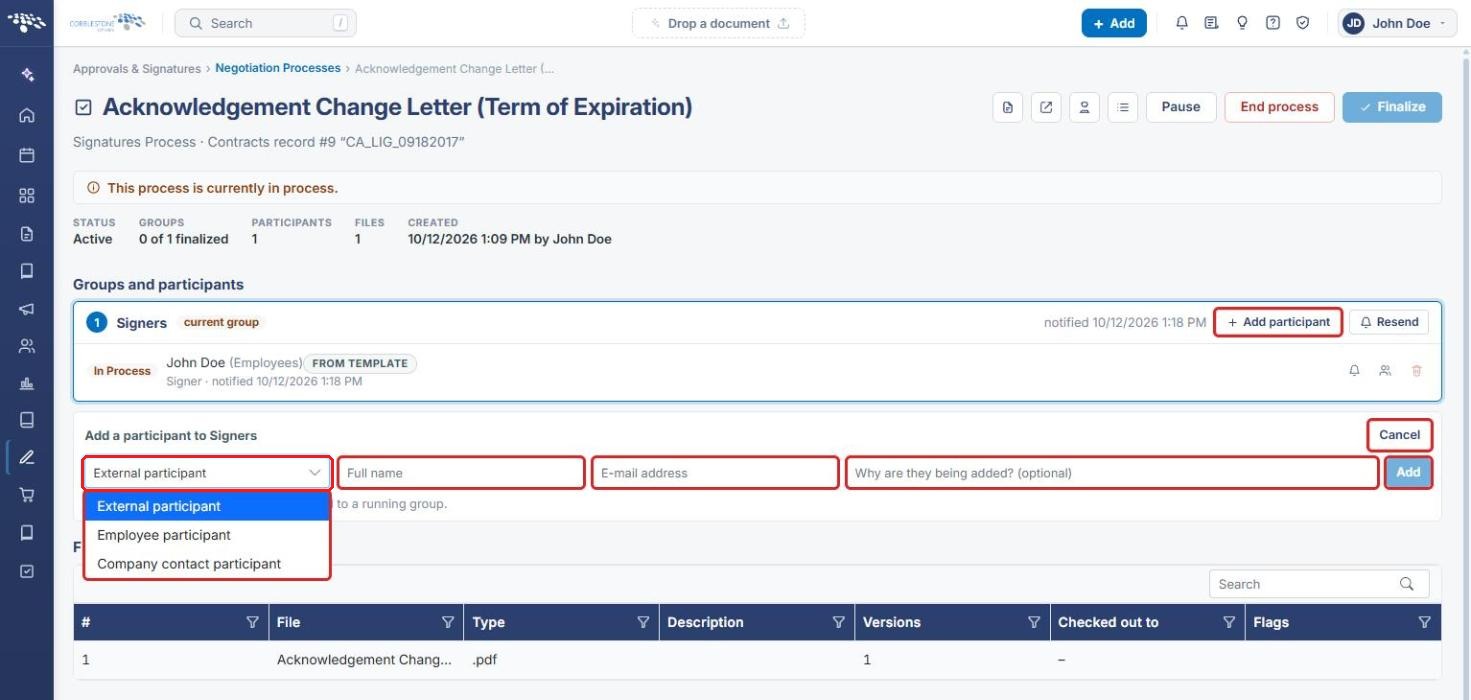
Note: Participants added to a running group are invited as soon as they are added.
7. Replacing a Participant
- In the process console, click the Replace this participant icon on the participant's row.
- In the Replace "[name]" in this group panel, select the replacement from the list.
- Enter why you are replacing them.
- Click Replace, or Cancel to keep the current participant.
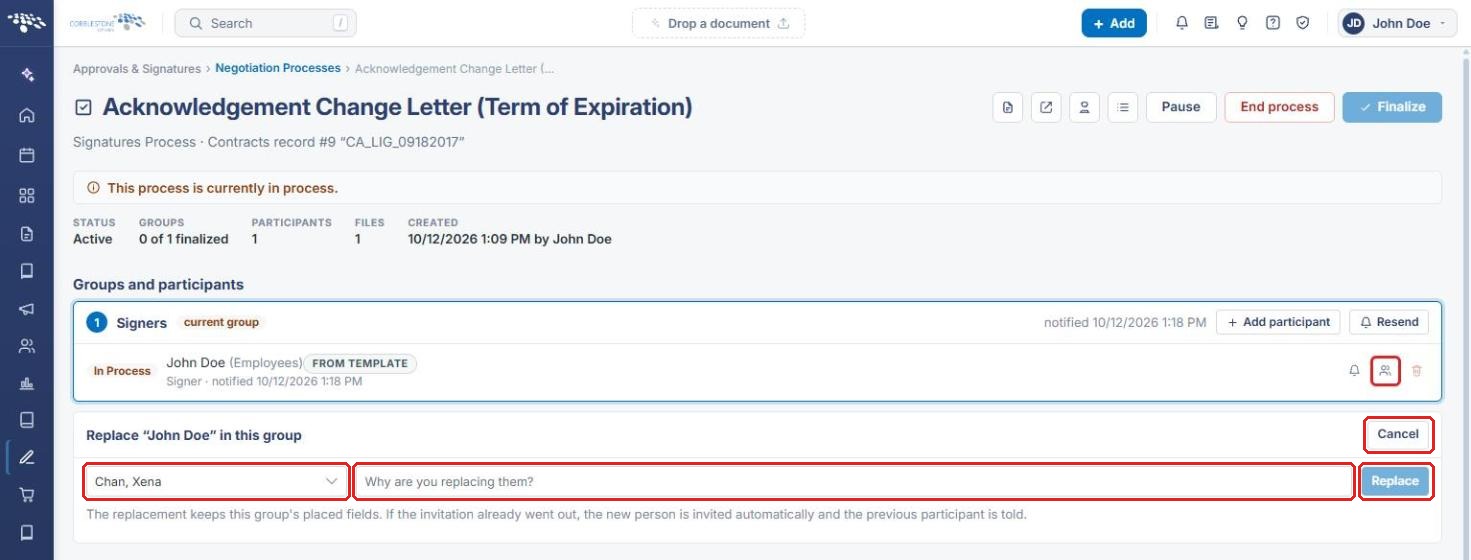
Note: The replacement keeps the group's placed signature fields. If the invitation already went out, the new person is invited automatically and the previous participant is notified.
8. Managing Attachments (Files)
- In the process console, the FILES counter in the summary strip shows how many documents are attached to the signature process.
- Under Files in this process, review each file's #, File, Type, Description, Versions, Checked out to, and Flags.
- Use the Search box or the column filter (funnel) icons to find a specific file.
See the screenshot in Section 5a.
Note: While a signature process is running, the document package is locked: no document can be added to the package, and its files cannot be changed. To change the documents, wait for the process to finish or stop it first.
9. Pausing, Ending, or Finalizing the Process
Use the buttons at the top right of the process console (see Section 5a):
- Pause: temporarily stops the process.
- End process: stops the signature process.
- Finalize: completes the process. It is unavailable until every group is finalized (hover over the button to see how many are).
These work the same way for signature processes as they do for approval processes.
10. Quick Reference Summary
| Task | Where | Action |
|---|---|---|
| Find a package that is out for signature | Record → Attachments & Templates → Saved documents | Look for Active Signature Process |
| Check signing status quickly | Saved documents row | Click Signatures |
| Open the document package | Saved documents row | Click the Manage (gear) icon |
| Plan signing groups (before start) | Package page → Signatures | Add group / Edit / participants / delete |
| Open the live process | Package page → Signatures | Open the process console |
| Add someone to a running group | Process console | Add participant → type and details → Add |
| Swap a participant | Process console | Replace this participant → choose → Replace |
| Re-notify participants | Process console | Resend (group) or bell icon (participant) |
| Review attached files | Process console | FILES counter / Files in this process |
| Control the process | Process console header | Pause / End process / Finalize |