COBBLESTONE SOFTWARE
Contract Insight — User Guide
Completed Signature Processes
Document Templates: Generation/Merging › Manage Electronic Signature Process › Completed Signature Processes
Note: Each procedure in this guide begins at the Contract Insight homepage, so any section can be followed on its own. Custom fields are configurable, so the exact field list on a contract category record may vary between environments.
1. Overview
The same Negotiation Processes list, filtered to Signatures only and status Completed, surfaces every finished signature process — the same Process Completed status tag and finished Groups/Progress count used for approvals, scoped to the Signatures Process type instead. Opening a completed process shows who signed in each group and when, along with the files in the process.
2. Key Elements
- Negotiation Processes → Signatures only + status Completed.
- Completed signature processes carry the same Process Completed tag as completed approvals, with a finished Progress count (for example, 3/3).
- Open console opens the process, which reads "This process is completed/finalized."
- Each signing group shows a finalized date, and each participant shows Approved with the date and time they acted.
- Pause, End process, and Finalize are unavailable on a completed process.
3. Navigating to Negotiation Processes
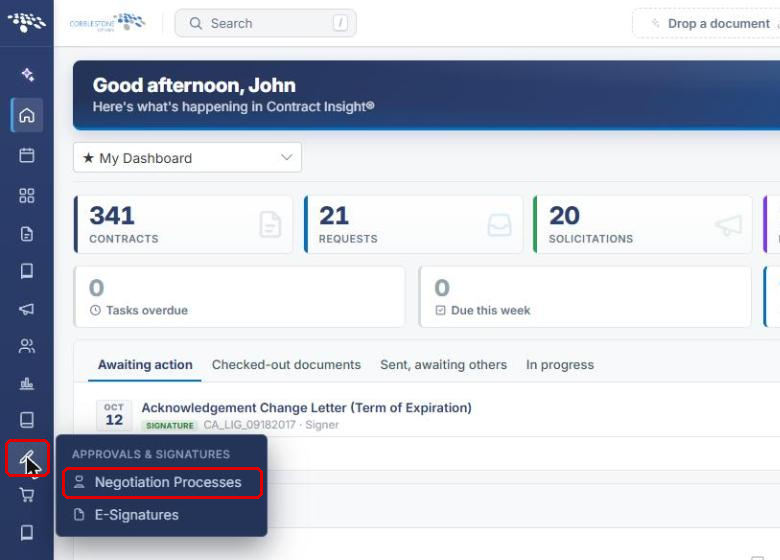
- From the Contract Insight homepage, hover over the Approvals & Signatures icon in the left navigation bar.
- Select Negotiation Processes.
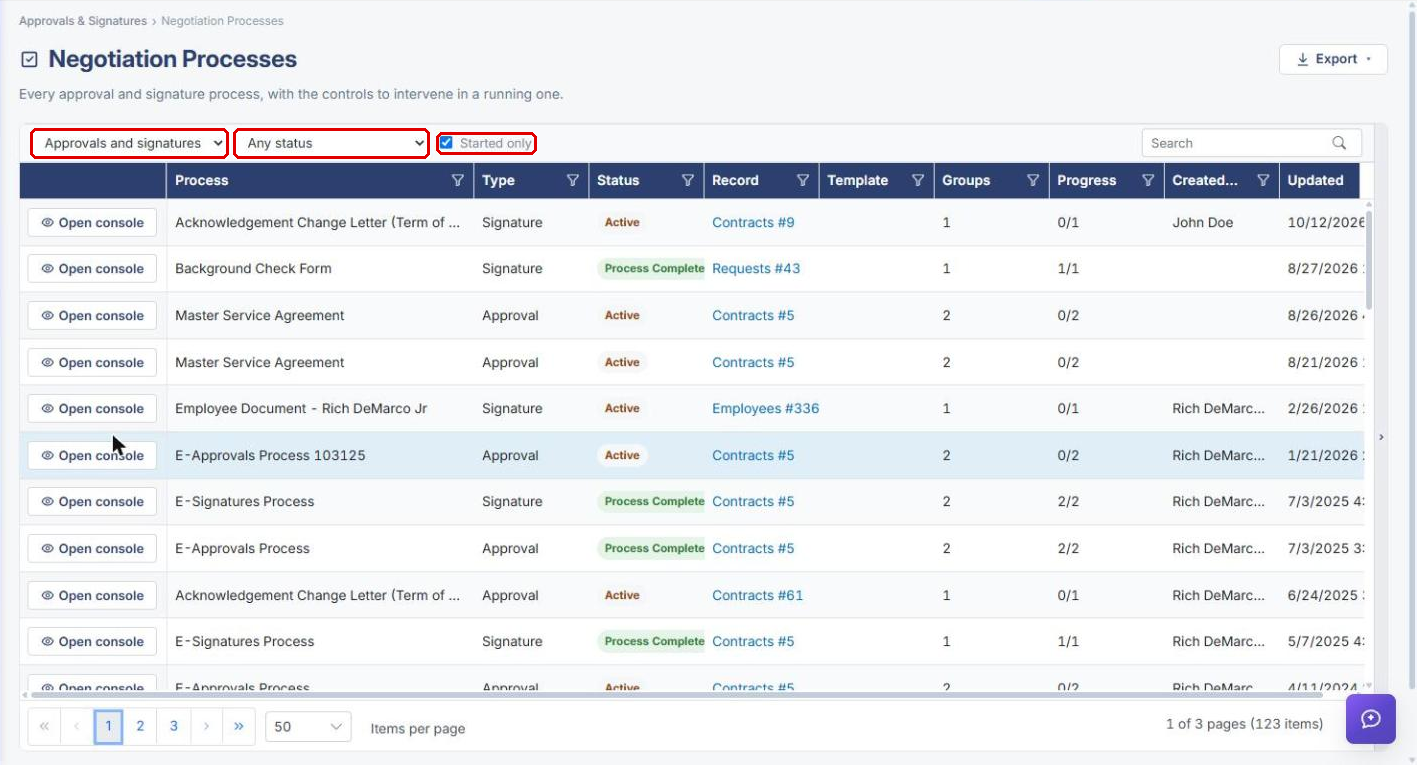
The Negotiation Processes page lists every approval and signature process. By default it shows Approvals and signatures with Any status, and Started only is checked.
4. Filtering to Completed Signature Processes
- Navigate to Negotiation Processes (see Section 3).
- In the process type filter, select Signatures only.
- In the status filter, select Completed.
- Optionally, use the Search box or the column filters to narrow the list (for example, by record or creator).
Each completed signature process shows the Process Complete status tag and a finished Progress count that matches its number of Groups.
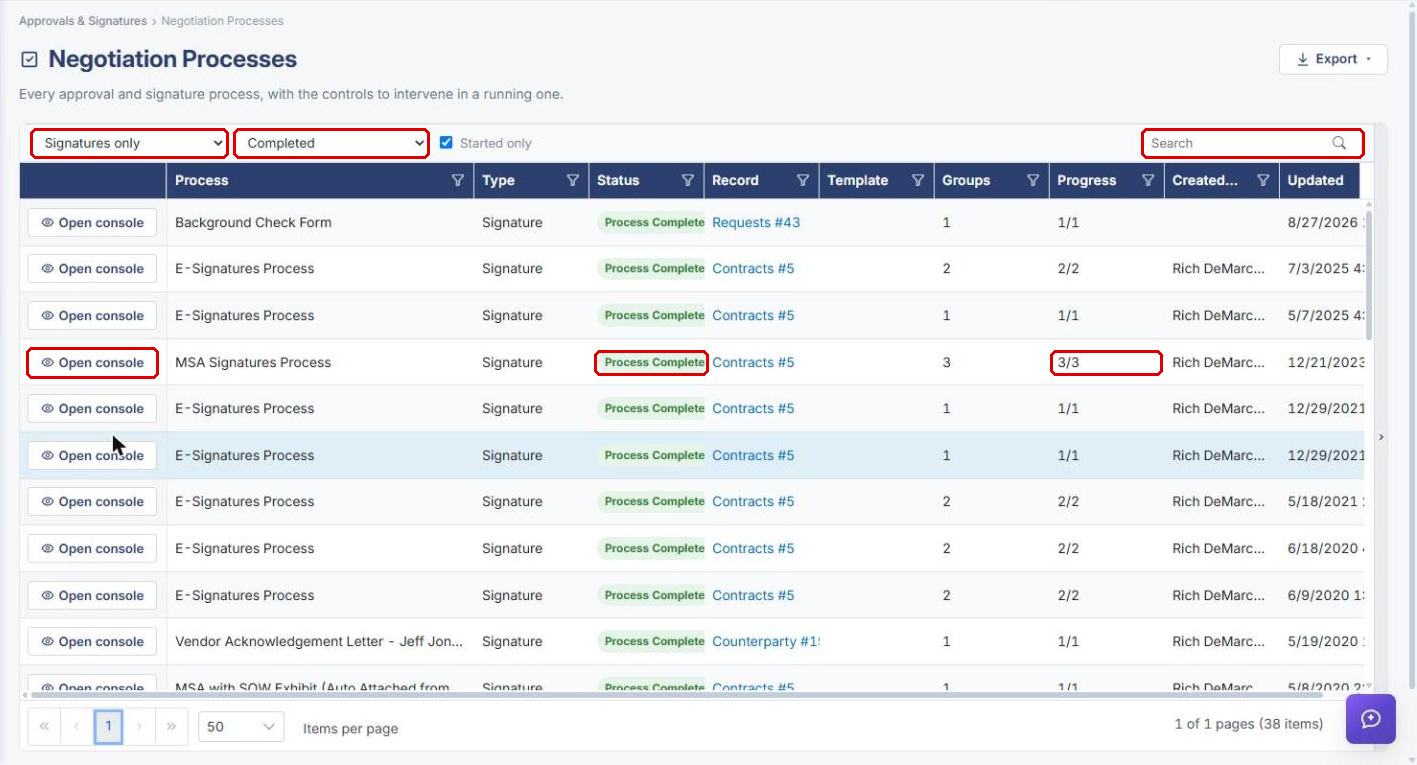
Note: The status filter also offers Active, Paused, Rejected, Cancelled after starting, and Cancelled before starting. Select Approvals only to see completed approval processes instead.
5. Reviewing a Completed Signature Process
- Click Open console on the process's row.
- Confirm the banner reads "This process is completed/finalized." The summary shows Status: Process Completed, the number of Groups finalized, Participants, Files, and who Created the process and when.
- Under Groups and participants, review each signing group's finalized date and each participant's Approved tag, with the date and time they acted and their signer instructions.
- Under Files in this process, review the signed files and their versions.
- Use the icons at the top of the page to Open record or view the Signature receipt (who signed what, and when).
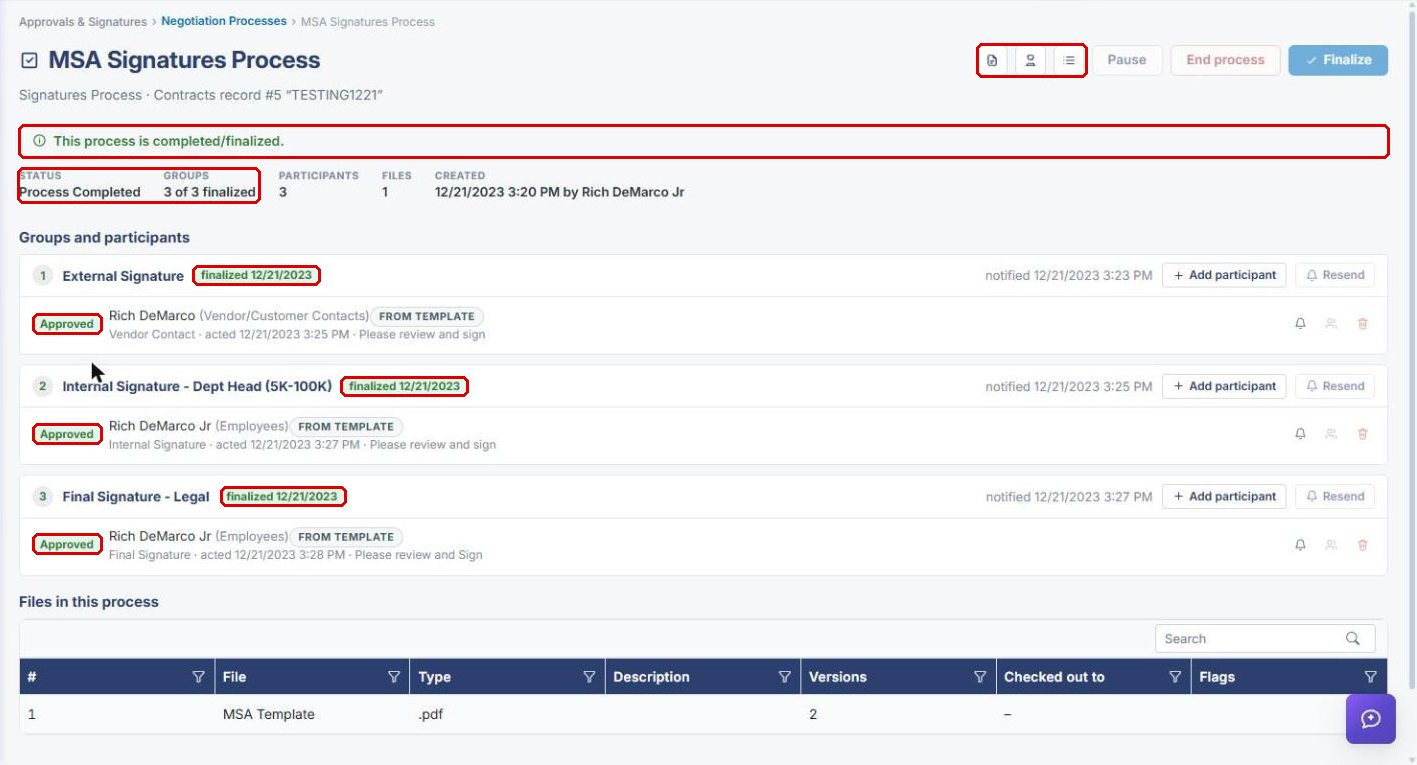
Note: Pause, End process, and Finalize are unavailable because the process is already completed.
6. Quick Reference Summary
| Task | How to Complete It |
|---|---|
| Open the process list | Approvals & Signatures → Negotiation Processes. |
| Show only completed signature processes | Process type filter → Signatures only; status filter → Completed. |
| Find a specific process | Search box or column filters. |
| Open a completed process | Open console on the process's row. |
| See who signed and when | Console → Groups and participants, or the Signature receipt icon. |
| Go to the related record | Console → Open record icon, or the link in the Record column. |
| See completed approvals instead | Process type filter → Approvals only; status filter → Completed. |