COBBLESTONE SOFTWARE
Contract Insight — User Guide
Completed Approval Processes
Document Templates: Generation/Merging › Manage Electronic Approval Process › Completed Approval Processes
Note: Each procedure in this guide begins at the Contract Insight homepage, so any section can be followed on its own. Custom fields are configurable, so the exact field list on a contract category record may vary between environments.
1. Overview
Filtering Negotiation Processes to Approvals only and a status of Completed surfaces every finished approval process, shown with a Process Completed status tag and a Steps/Progress reading of, for example, "1/1" — confirming every step was finalized.
From the filtered list, Open console shows the details of a completed process: its finalized groups, how each participant responded, and the files that were routed.
2. Key Elements
- Negotiation Processes → Approvals only + status Completed.
- Completed rows show a Process Completed status tag.
- Progress reads N of N steps finalized, e.g. "1/1".
- Open console opens the process, which shows "This process is completed/finalized.", the number of groups finalized (e.g. "1 of 1 finalized"), each participant's response, and the Files in this process.
3. Navigating to Negotiation Processes
- From the Contract Insight homepage, click the Approvals & Signatures icon in the left navigation bar.
- Select Negotiation Processes.
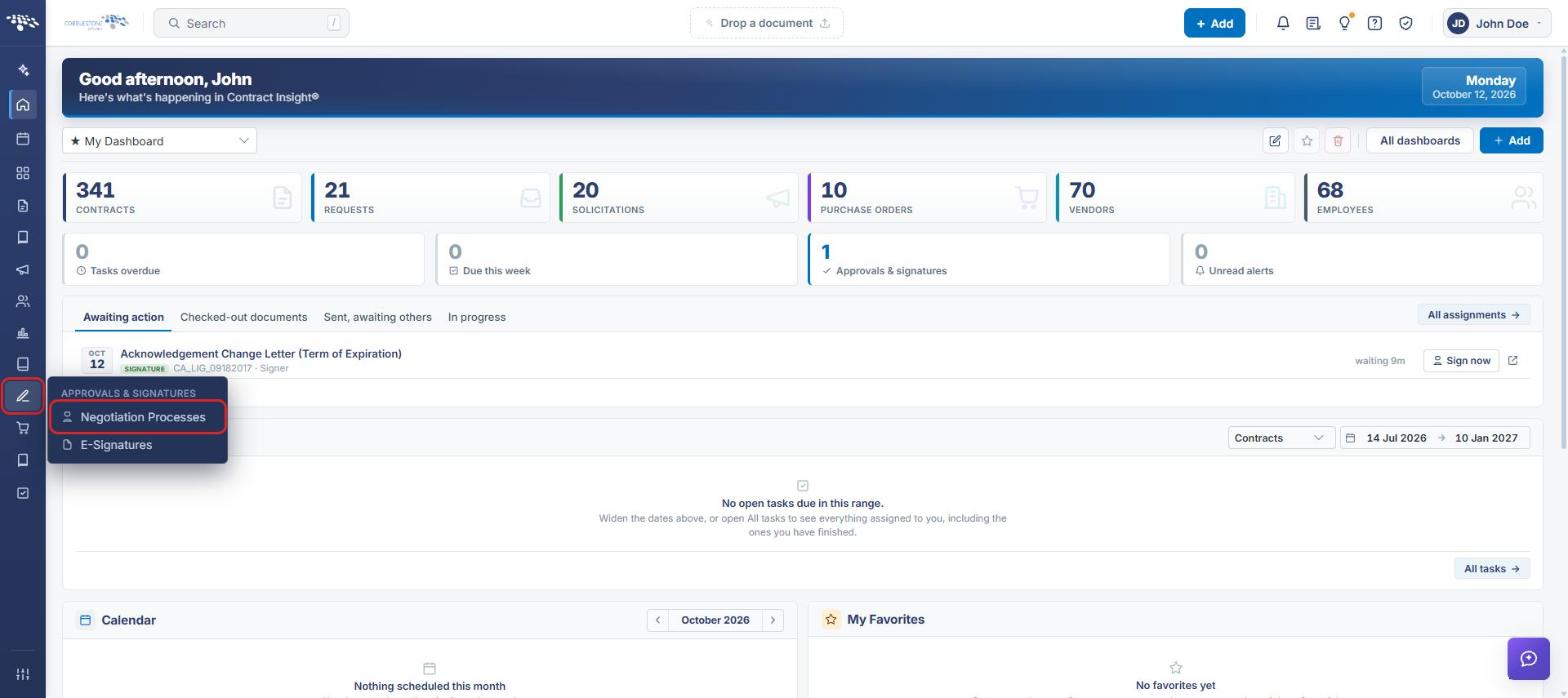
The Negotiation Processes page opens, listing every approval and signature process.
4. Viewing Completed Approval Processes
- Navigate to Approvals & Signatures → Negotiation Processes (see Section 3).
- In the first filter list, change Approvals and signatures to Approvals only.
- In the status filter list, change Any status to Completed.
- Review the results. Each completed process shows a Process Completed tag in the Status column, and the Progress column shows every group finalized (for example, 1/1 or 2/2).
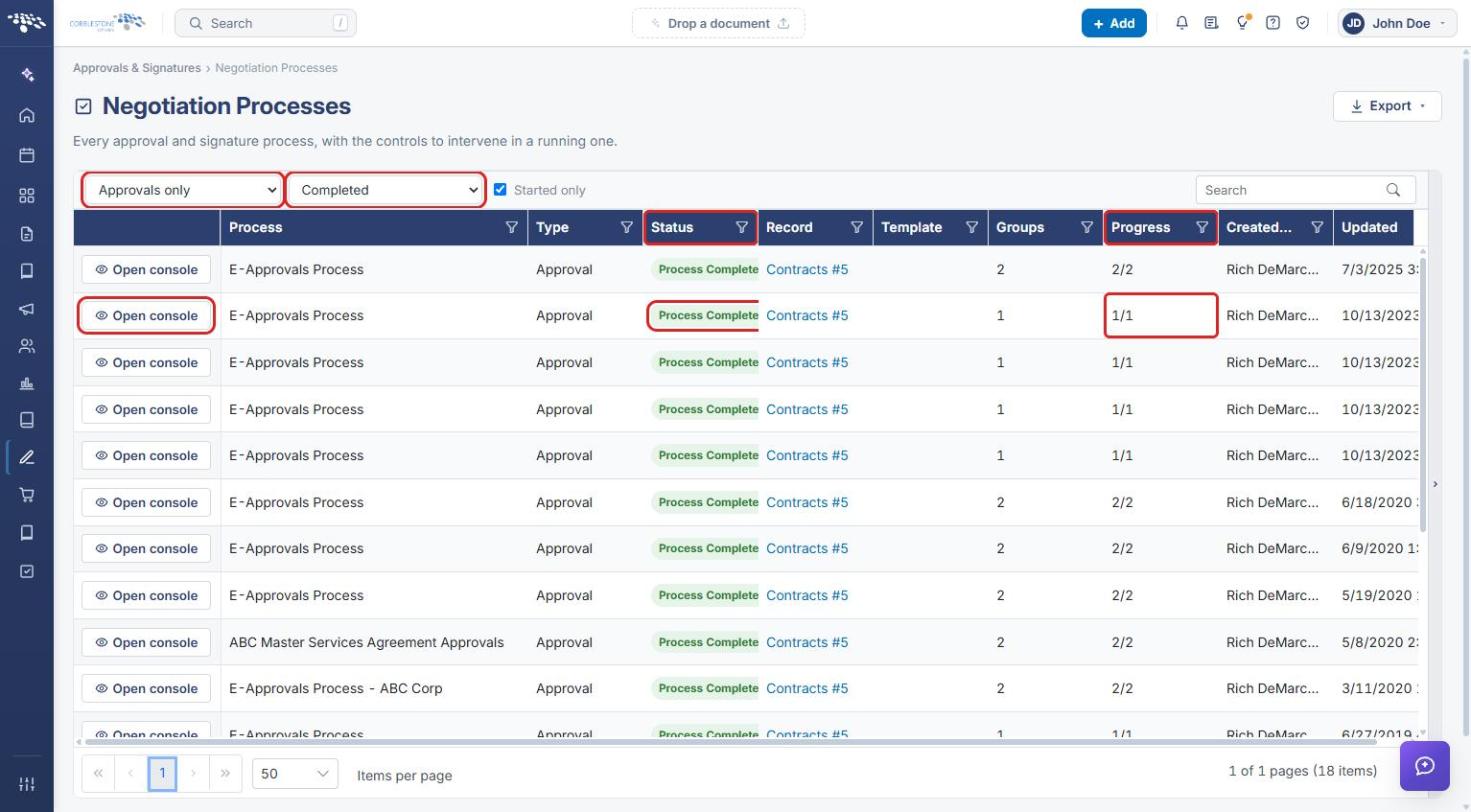
Tip: Use the Search box above the grid, or the filter icon on any column heading (such as Record), to narrow the list to a specific process or record.
5. Reviewing a Completed Approval Process
- On the filtered list (see Section 4), click Open console on the process's row.
- Confirm the banner reads This process is completed/finalized. and Status shows Process Completed.
- Check Groups, which shows how many groups were finalized (for example, 1 of 1 finalized).
- Under Groups and participants, each group shows a finalized tag with its date, and each participant shows their response (for example, Approved).
- Review Files in this process for the documents that were routed for approval.
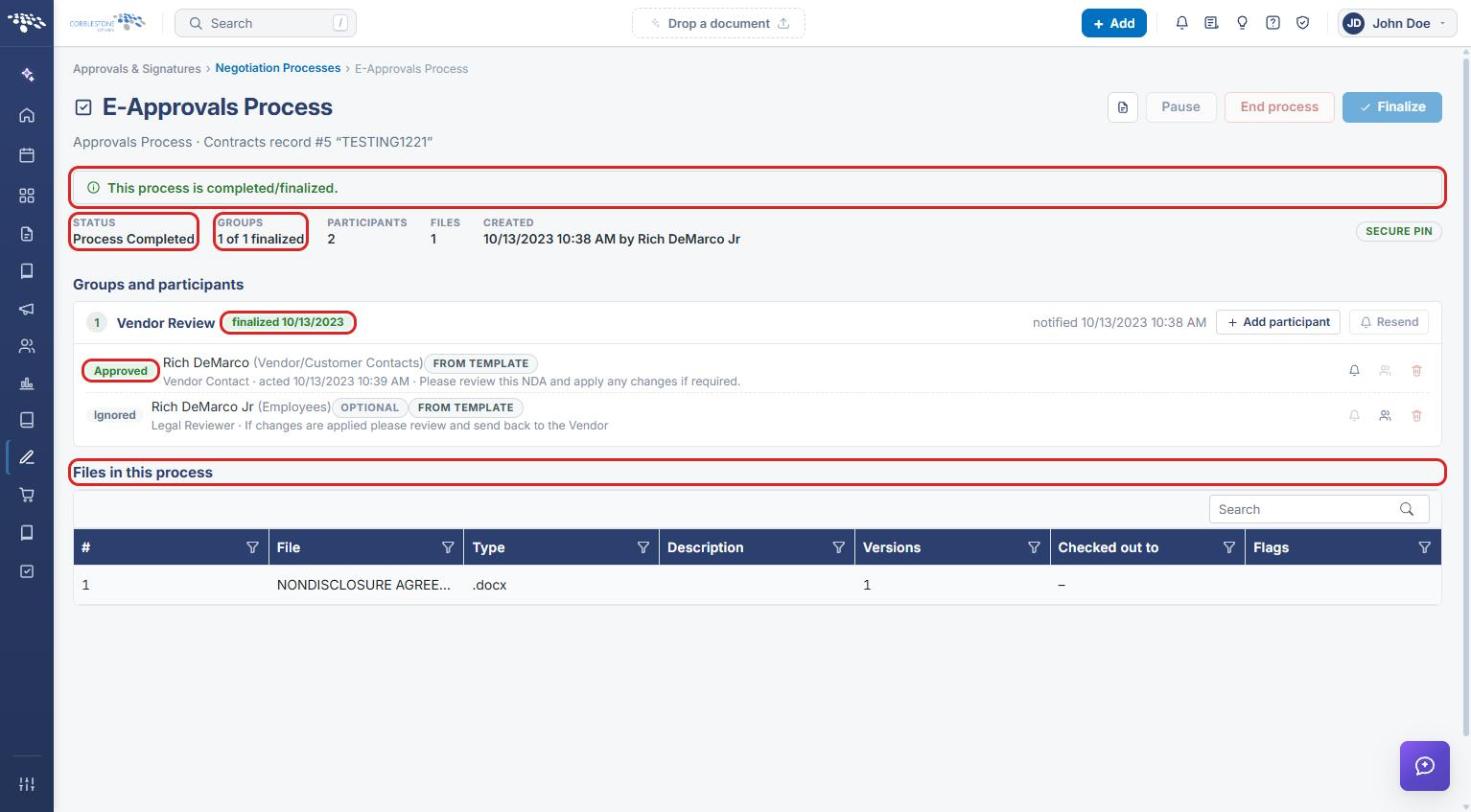
Note: The Pause, End process, and Finalize buttons appear disabled on a completed process.
6. Quick Reference Summary
| Task | How to Complete It |
|---|---|
| Open Negotiation Processes | Approvals & Signatures → Negotiation Processes. |
| Show only completed approvals | Set the filters to Approvals only and Completed. |
| Confirm a process is finished | Status shows Process Completed; Progress shows N/N (e.g. 1/1). |
| See a completed process's details | Click Open console on the process's row. |
| See who approved | Open console → Groups and participants. |
| See the routed files | Open console → Files in this process. |