Managing & Editing a Contract Record
Contract Details: Managing & Editing a Contract
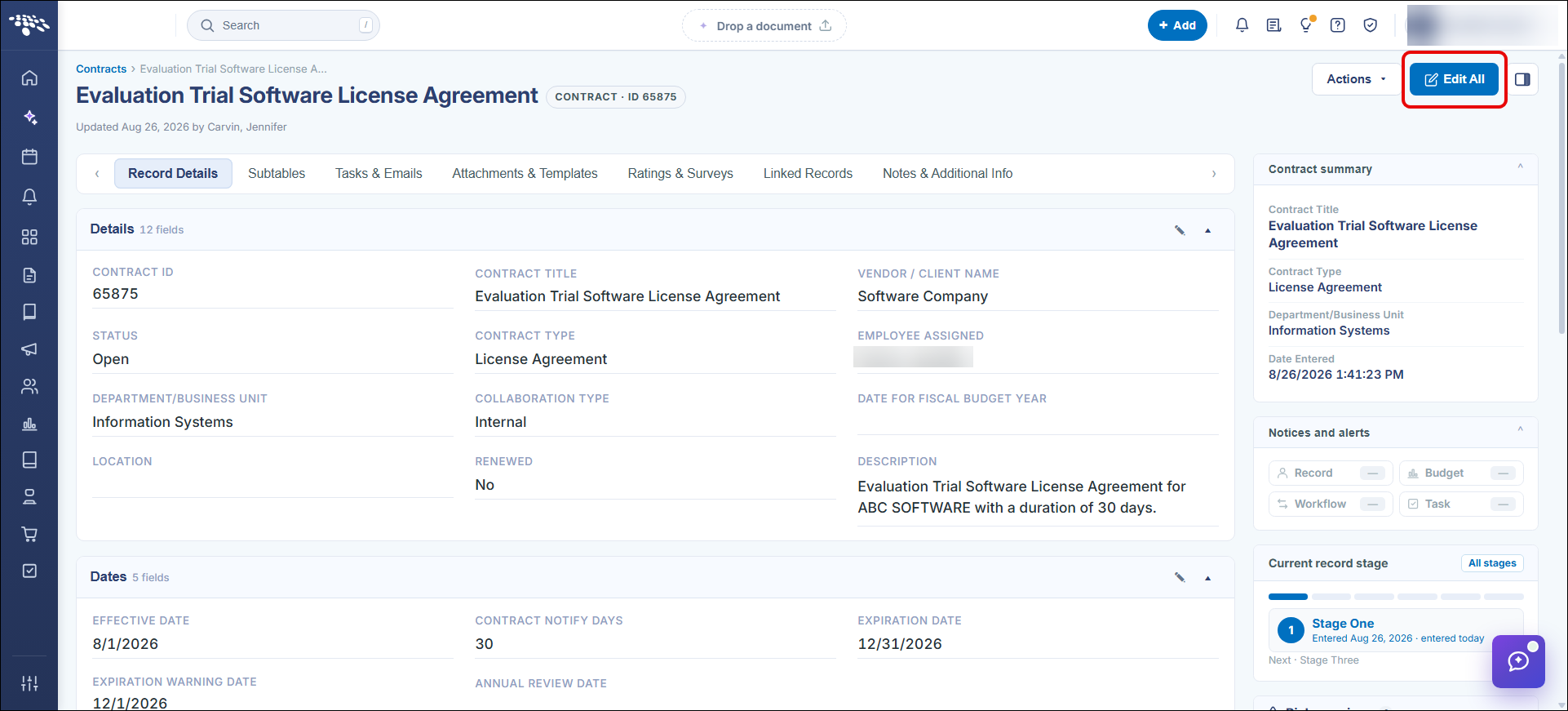
A contract record opens on its Record Details tab, which lays out every field assigned to that contract type inside a Details panel. An Edit All button at the top of the record switches the whole panel into an editable form; individual fields can also be edited inline. Related information is organized into collapsible panels below the Details grid, including Contract summary, Notices and alerts, and Status history.
● Record Details tab is the default landing tab for any contract
● Details panel header shows the total field count for that contract type
● Edit All switches the record into full edit mode
● Collapsible panels: Contract summary, Notices and alerts, Status history, Sections
● A Sections panel with a filter box surfaces custom field groups defined for the contract type
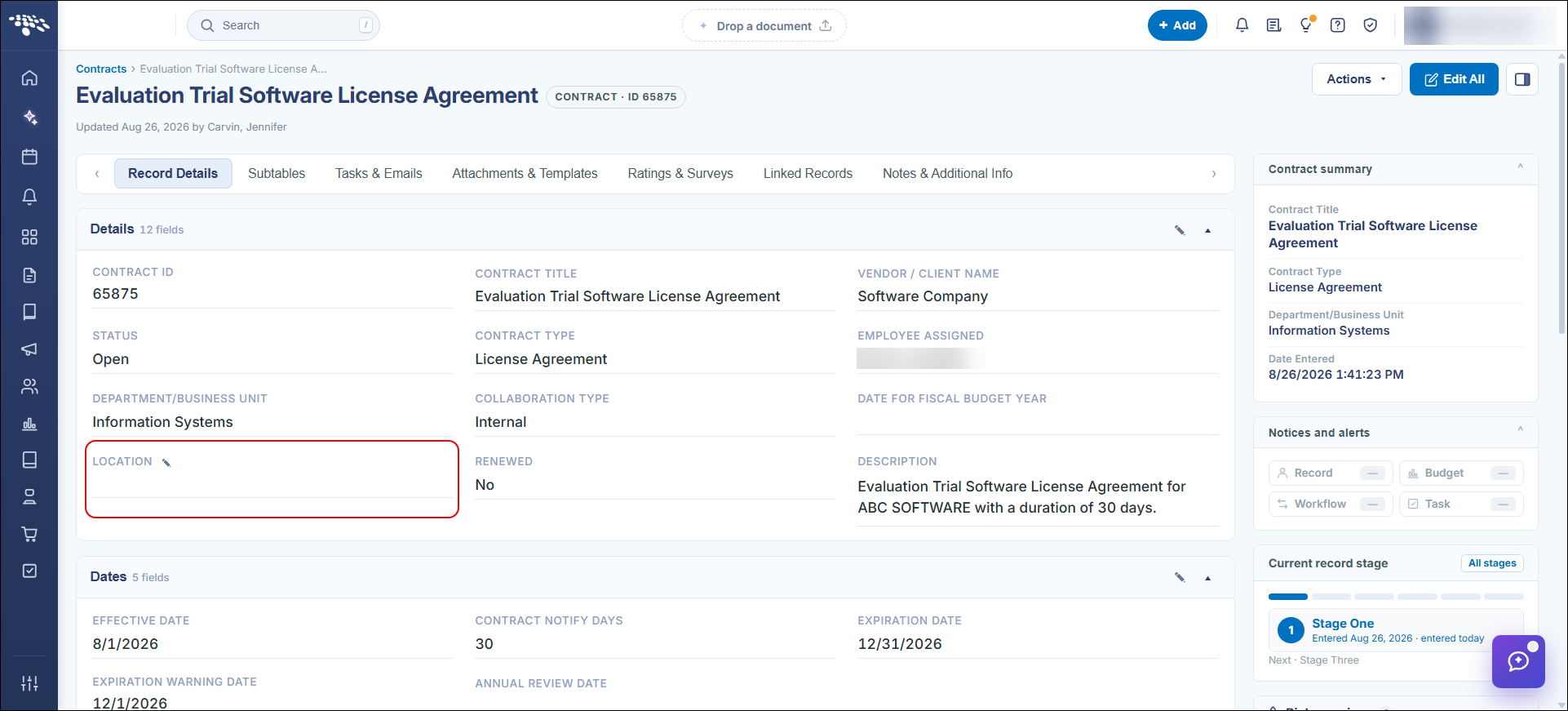
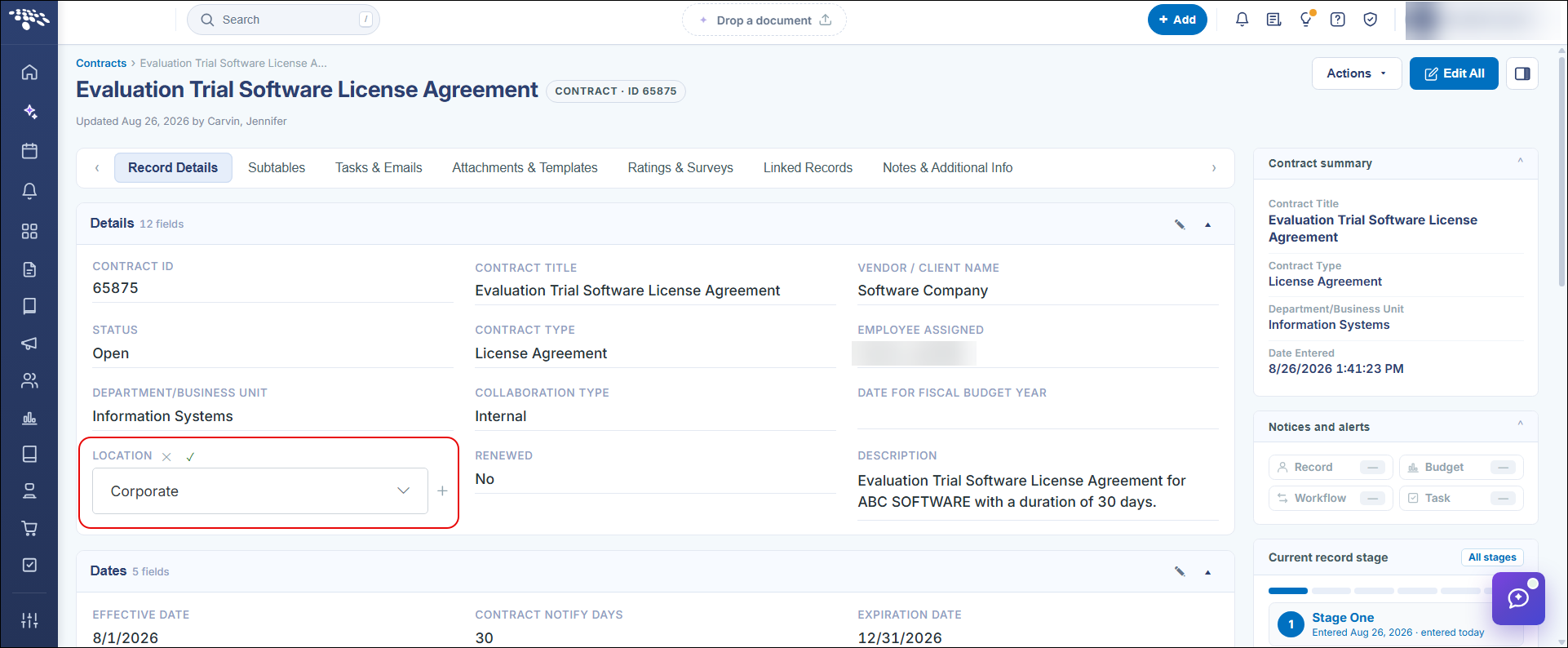
From the Contract Details screen, fields can be edited by hovering over the field in question and clicking the Pencil icon ( ) then click the check mark to save the updated value.
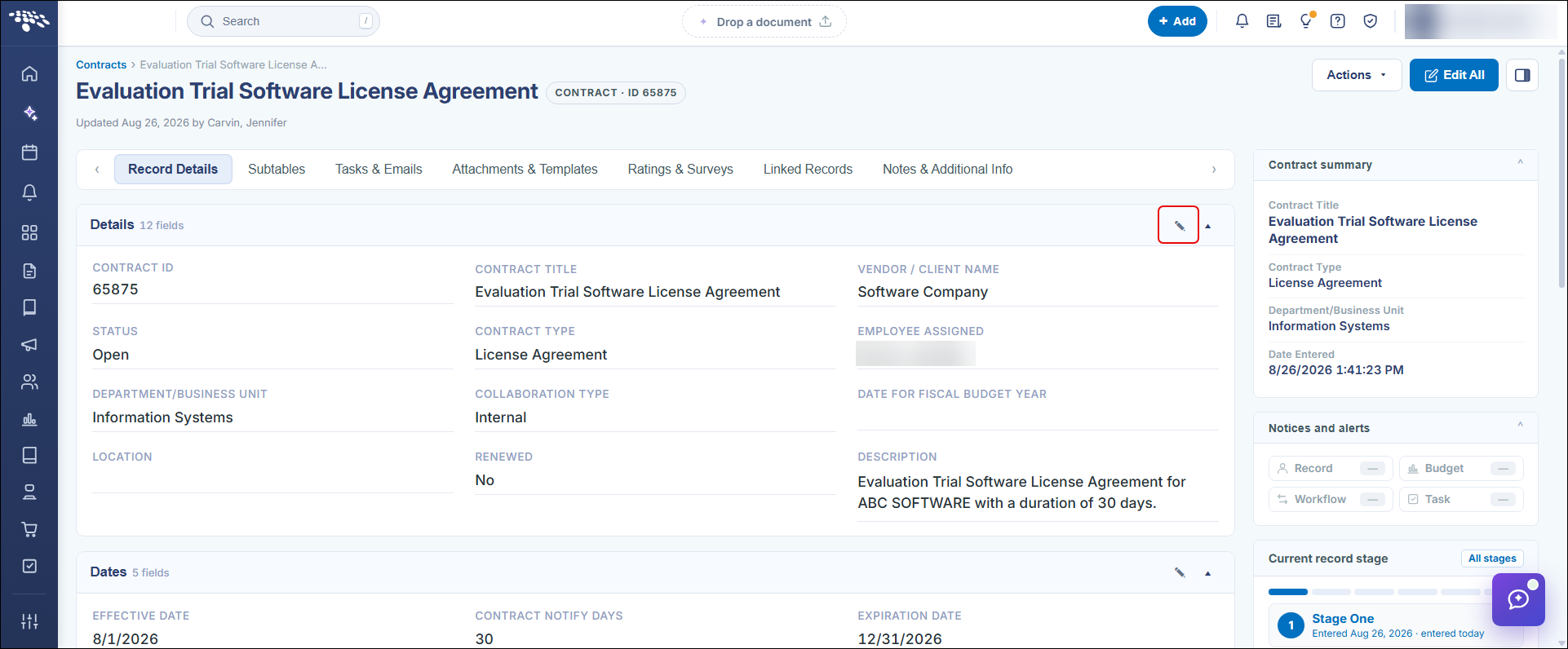
Fields can also be edited by Field Group. Click the Pencil icon ( ) next to the Field Group to edit. All fields assigned to the Field Group can be edited in line. Once finished editing, click the check mark to save the updated values.
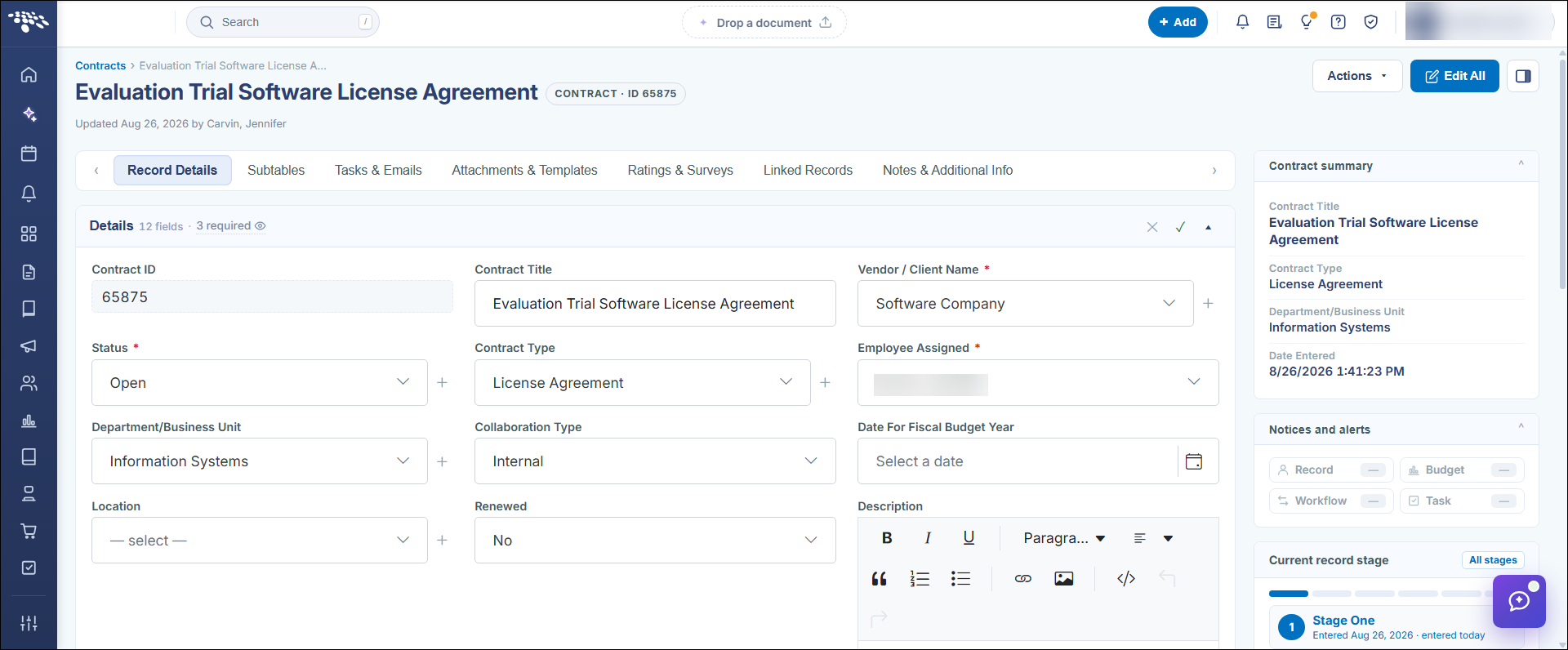
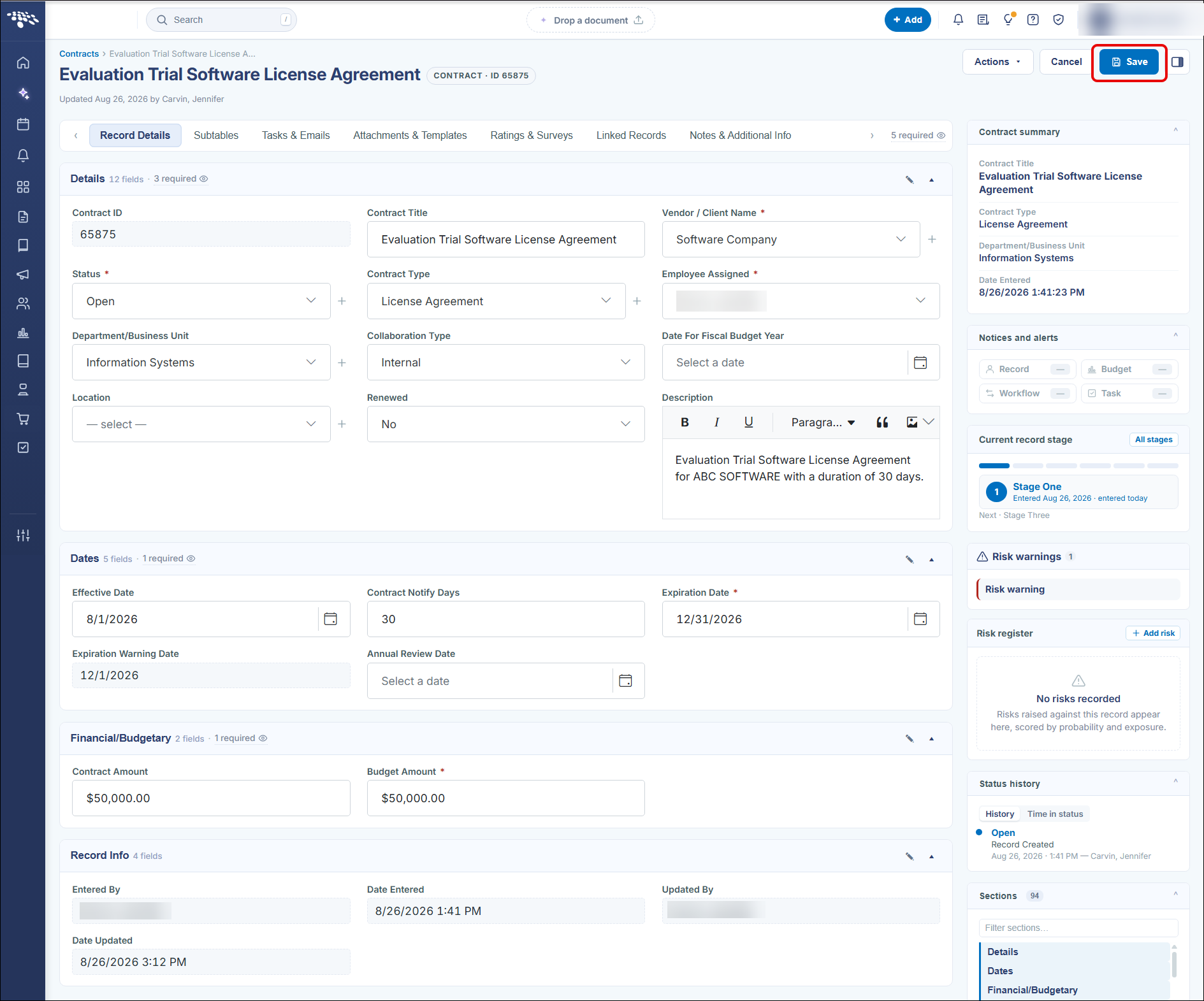
Fields can also be updated by using the Edit All option at the top of the screen. This makes all fields available for editing across every field group on the Record Details screen. Once finished editing, click the Save button at the top of the screen.