COBBLESTONE SOFTWARE
Contract Insight — User Guide
Manage/Edit a Contract Request
09. End Users: Contract Requests › Contract Request Details › Manage/Edit a Contract Request
Note: Each procedure in this guide begins at the Contract Insight homepage, so any section can be followed on its own. Custom fields are configurable, so the exact field list on a contract category record may vary between environments.
1. Overview
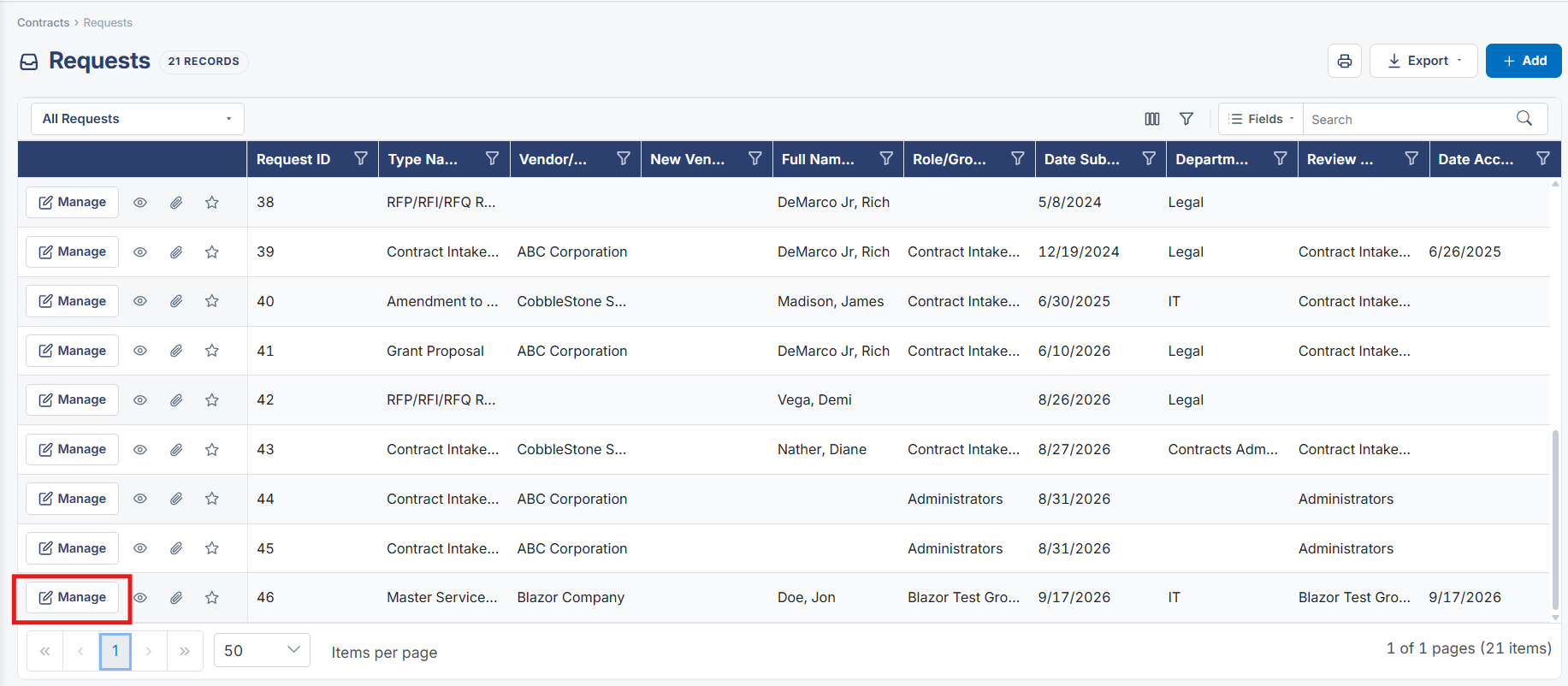
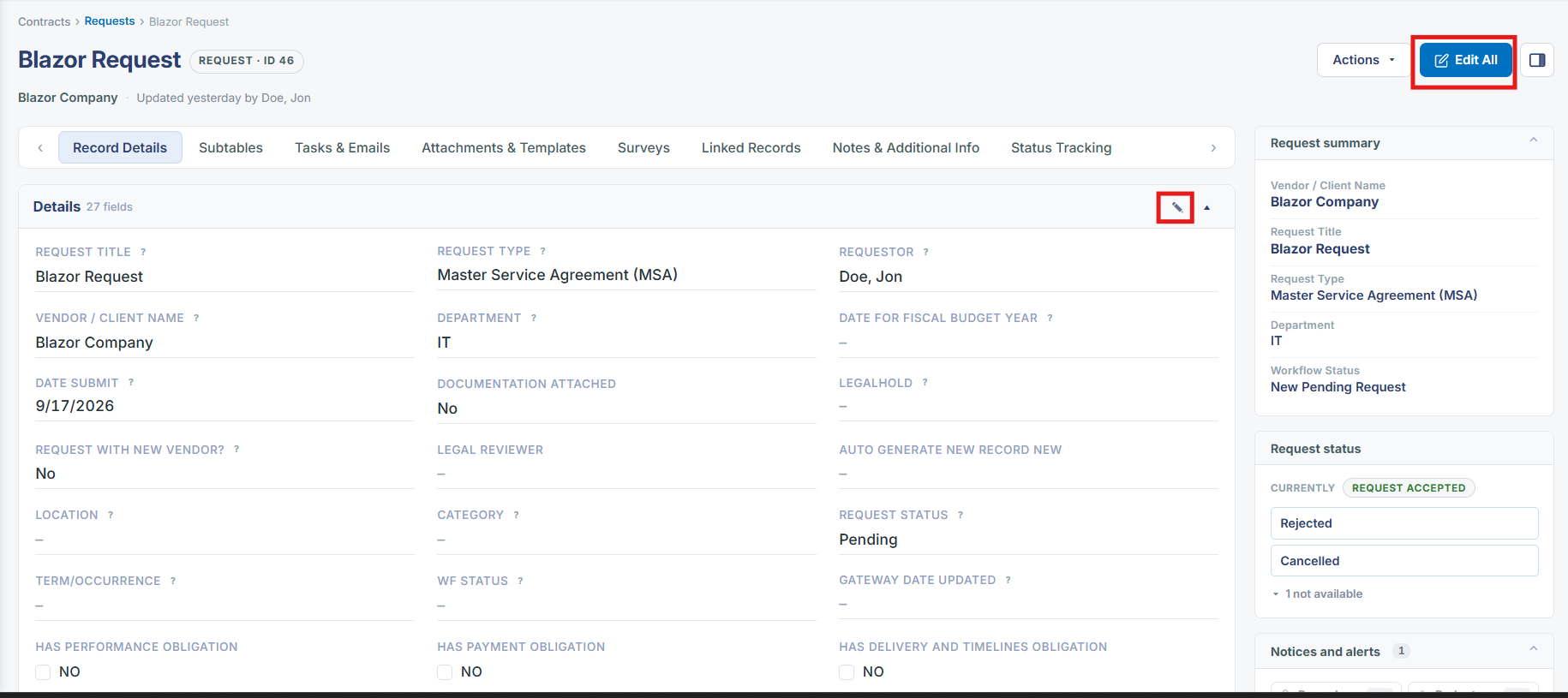
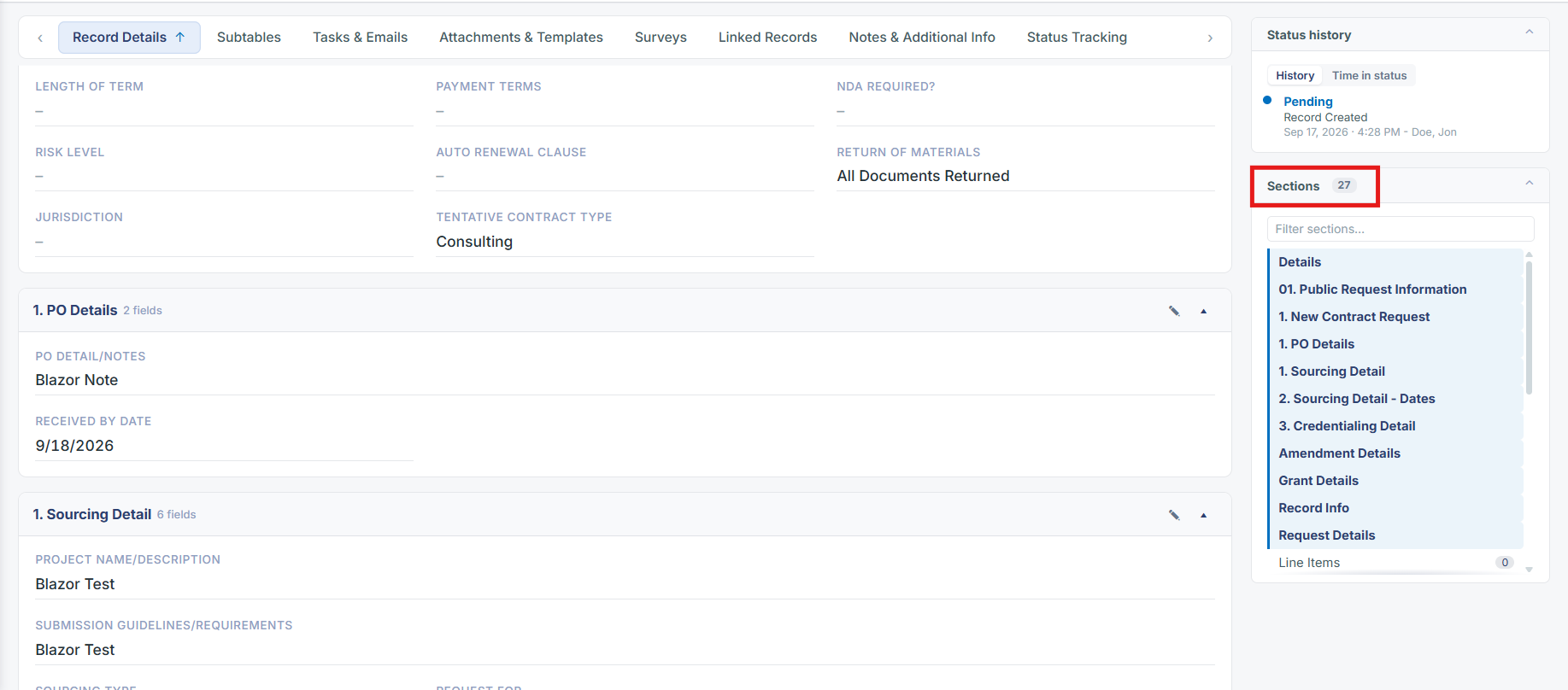
An existing Request record is edited the same way as other record types in this application: the Record Details tab displays each field group (e.g. Details, Common Clause Fields, custom sections such as New Hire Information and Record Info) with a pencil/edit icon at the top of each group for inline editing, and an "Edit All" button at the top of the record page for editing every field across the record at once. The Requests list screen also offers a "Manage" button on every row, which opens that request directly in the same record view for editing. A record's Sections panel (in the right-hand column) lists every section configured for that request type, including any custom subtables (this QA environment's example request has 31 sections, several of which are custom test tables), letting an editor jump straight to a specific section rather than scrolling the whole page.
2. Key Elements
- Each field group on a Request record's Details tab has its own pencil/edit icon for inline editing of just that group.
- The "Edit All" button at the top of the record page opens every field on the record for editing at once.
- The Requests list screen's "Manage" button on each row opens that request directly for editing, as an alternative entry point to the record view.
- The Sections panel in the right-hand column lists every section/subtable configured for the request's type and lets an editor jump to any one of them directly.
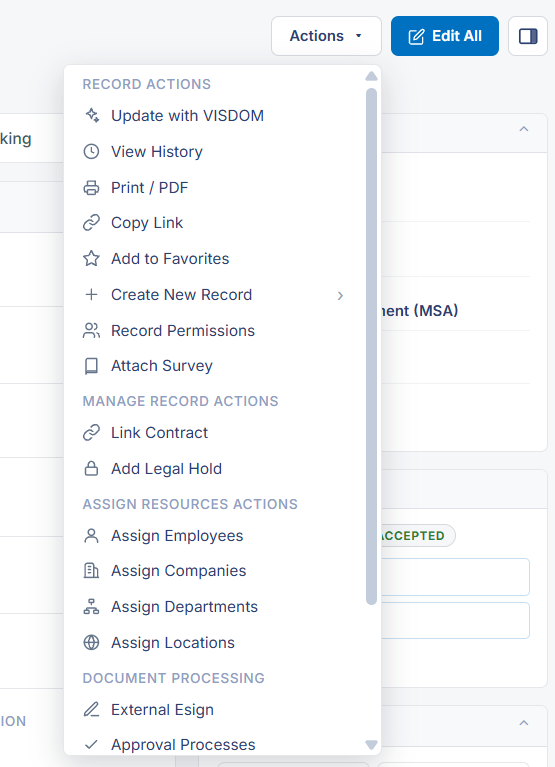
- The same Actions dropdown used for other record-level operations (Update with VISDOM, View History, Record Permissions, etc.) is available from within the record being edited.