COBBLESTONE SOFTWARE
Contract Insight — User Guide
Contract Request Attachments
09. End Users: Contract Requests › Contract Request Details › Contract Request Attachments
Note: Each procedure in this guide begins at the Contract Insight homepage, so any section can be followed on its own. Custom fields are configurable, so the exact field list on a contract category record may vary between environments.
1. Overview
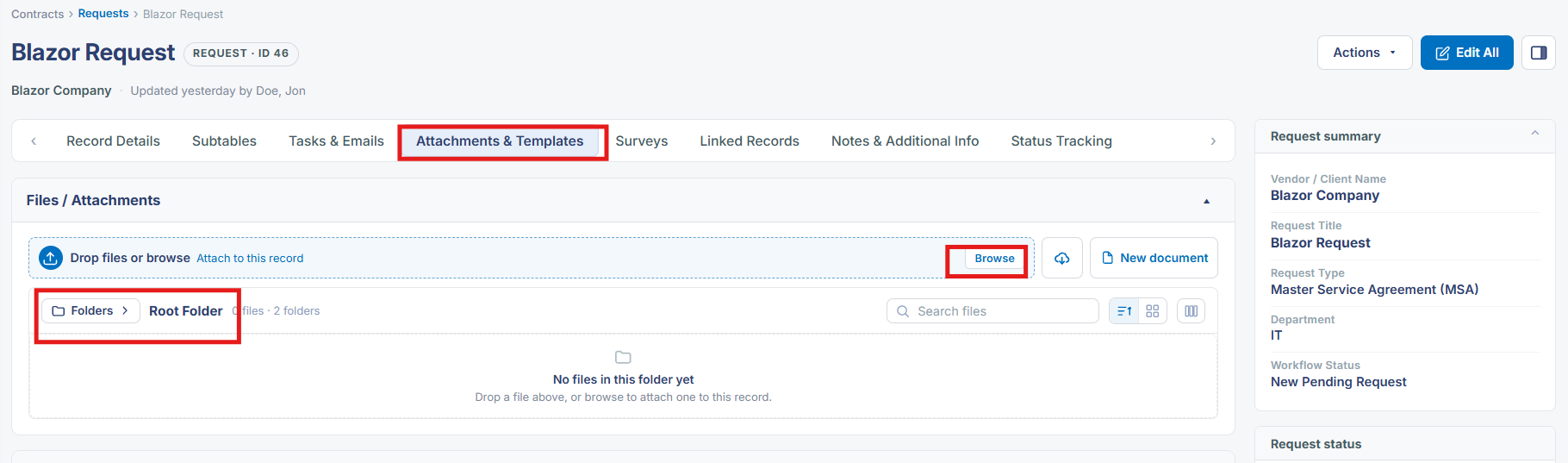
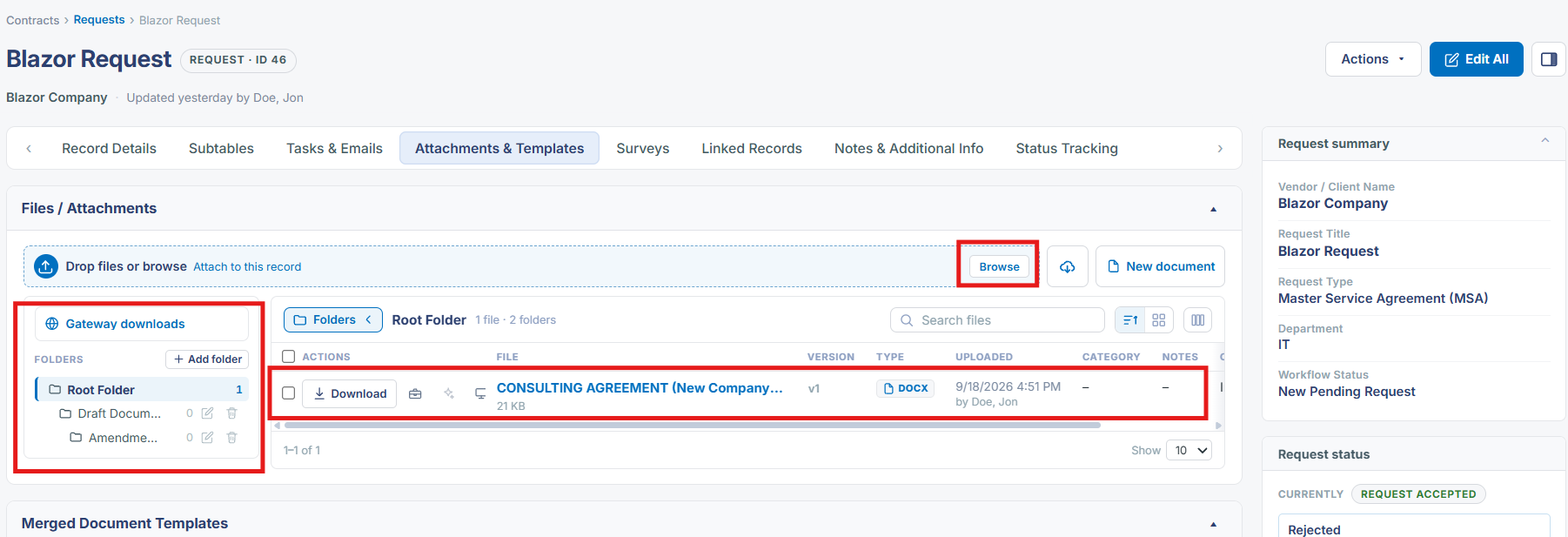
A Request record has its own Attachments & Templates tab, structured the same way as the equivalent tab on Contract and other record types. It offers a drag-and-drop "Drop files or browse" zone at the top (with a Browse button as the click-to-upload alternative), a Folders view with a Root Folder that can hold both files and subfolders, and a file list showing each attachment's name, version (with a version-count badge when more than one version exists), file type icon, and who uploaded it and when. Per-file actions include Download, plus icon-only controls for further actions (such as sharing/linking and editing). Files can be searched within the current folder, sorted, switched between list/grid/table display, and paged (the list is paginated with a configurable page size).
2. Key Elements
- Attachments & Templates is its own tab on a Request record, matching the attachments experience used elsewhere in the application.
- Files can be added either by dragging them onto the drop zone or by clicking Browse to pick them from the local file system.
- Attachments are organized into a Folders structure starting from a Root Folder; folders can hold both files and further subfolders.
- Each file row shows its version (with a badge when multiple versions exist), file type, and upload metadata (who uploaded it and when), alongside a Download action.
- The file list supports searching, sorting, switching between list/grid/table views, and paging through larger attachment sets.