COBBLESTONE SOFTWARE
Contract Insight — User Guide
Manage E-Approval Clause Restrictions
Module: Document Collaboration Gateway › Document Collaboration Gateway Settings & Functionality (Internal Users) › Manage E-Approval Clause Restrictions
Note: Each procedure in this guide begins at the Contract Insight homepage, so any section can be followed on its own. Custom fields are configurable, so the exact field list on a contract category record may vary between environments.
1. Overview
Clause-level controls on documents routed for approval are configured centrally under Administration → Mergeable Clauses, which manages the optional clauses offered when generating a document — the same clause set an approval flow can be built to require, restrict, or route differently around.
2. Key Elements
- Administration → Mergeable Clauses manages optional clauses offered during document generation
- An approval flow tied to a document template can be scoped around specific clauses
3. Making a Clause Editable in Generated Documents
Approvers can only be given edit rights to clauses that merge into the document as editable blocks (content controls). Set this on the clause first.
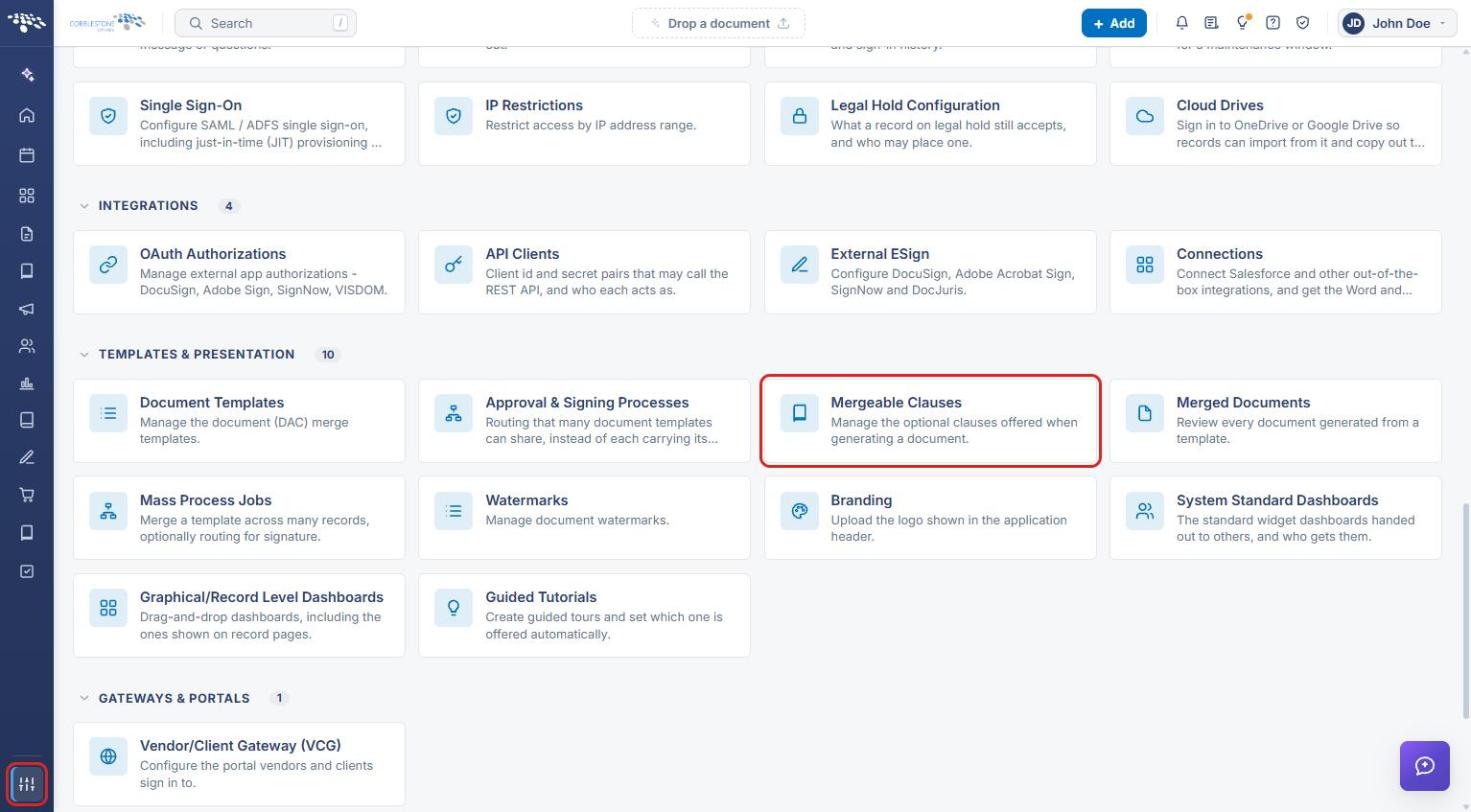
- From the Contract Insight homepage, click the Administration (settings) icon at the bottom of the left navigation bar.
- Under Templates & Presentation, click Mergeable Clauses.
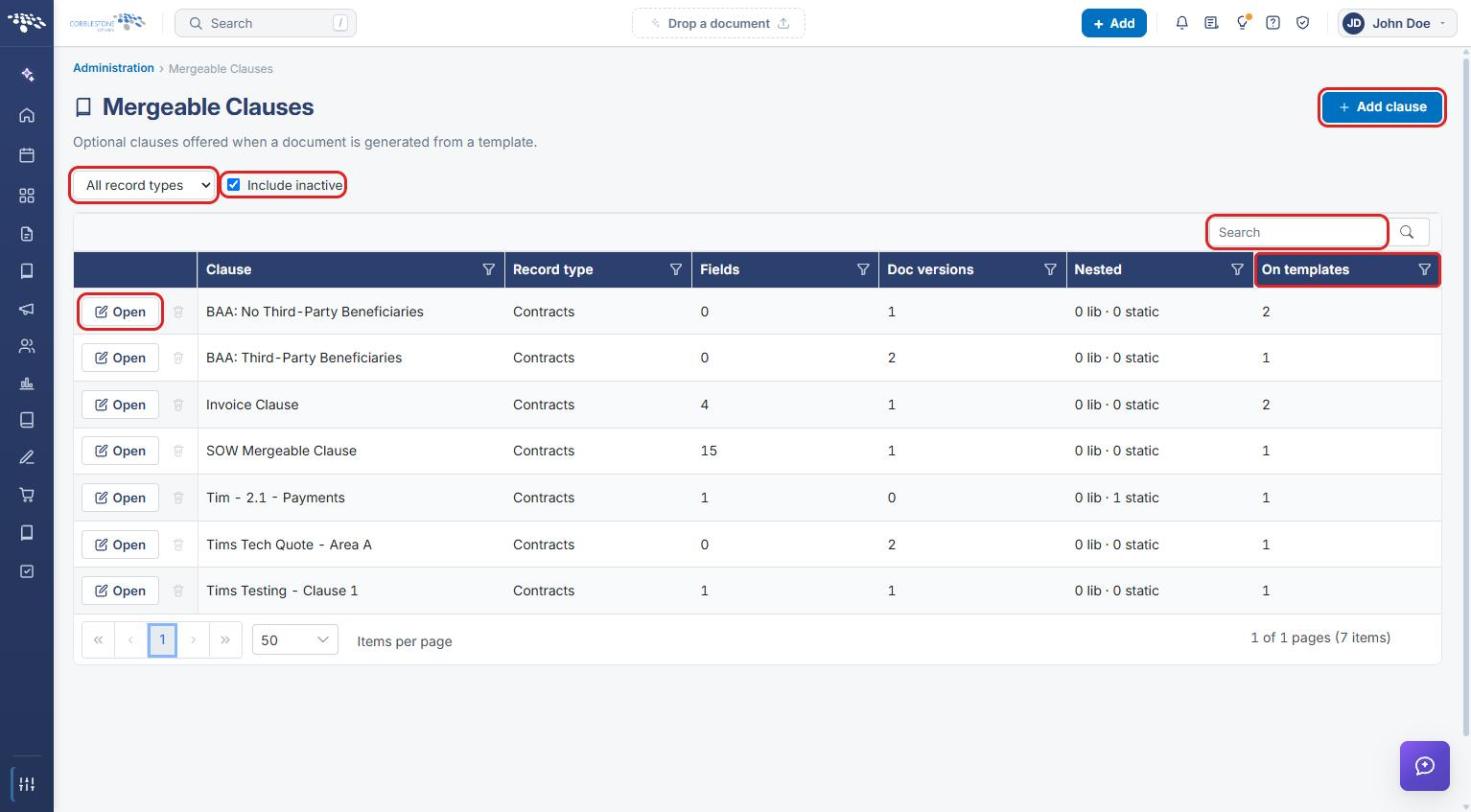
- Click Open on the clause's row.
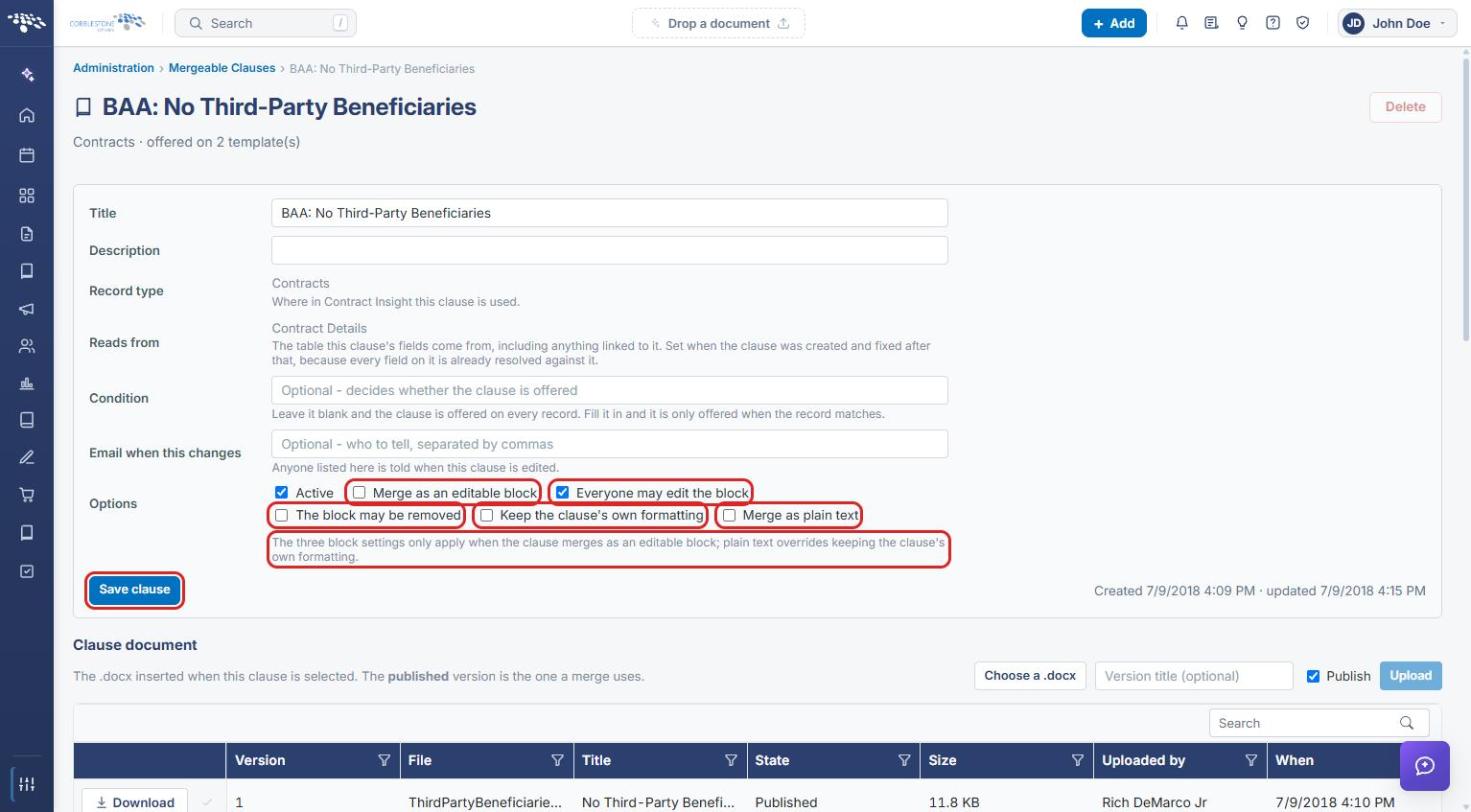
- Under Options, check Merge as an editable block.
- Set the block settings as needed: Everyone may edit the block, The block may be removed, and Keep the clause's own formatting. These only apply when the clause merges as an editable block. Merge as plain text overrides keeping the clause's own formatting.
- Click Save clause.
4. Restricting Which Content Controls an Approver May Edit
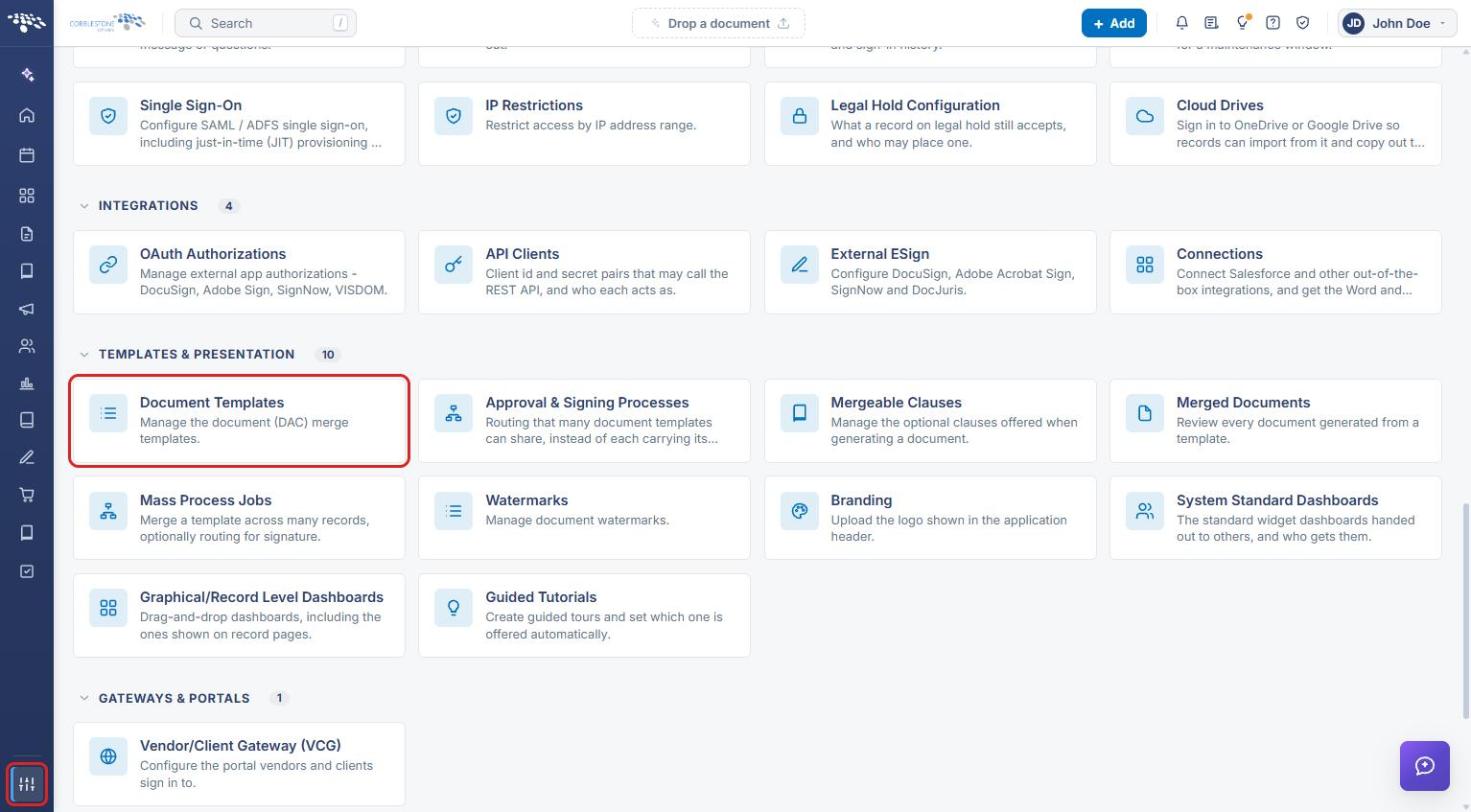
- From the Contract Insight homepage, click the Administration (settings) icon, then under Templates & Presentation click Document Templates.
- Click Open on the template's row, then click step 3 Approvals & signing and the E-Approvals tab.
- Under Who approves, and in what order, find the approver and click the shield icon (Content controls this approver may edit) in the Actions column.
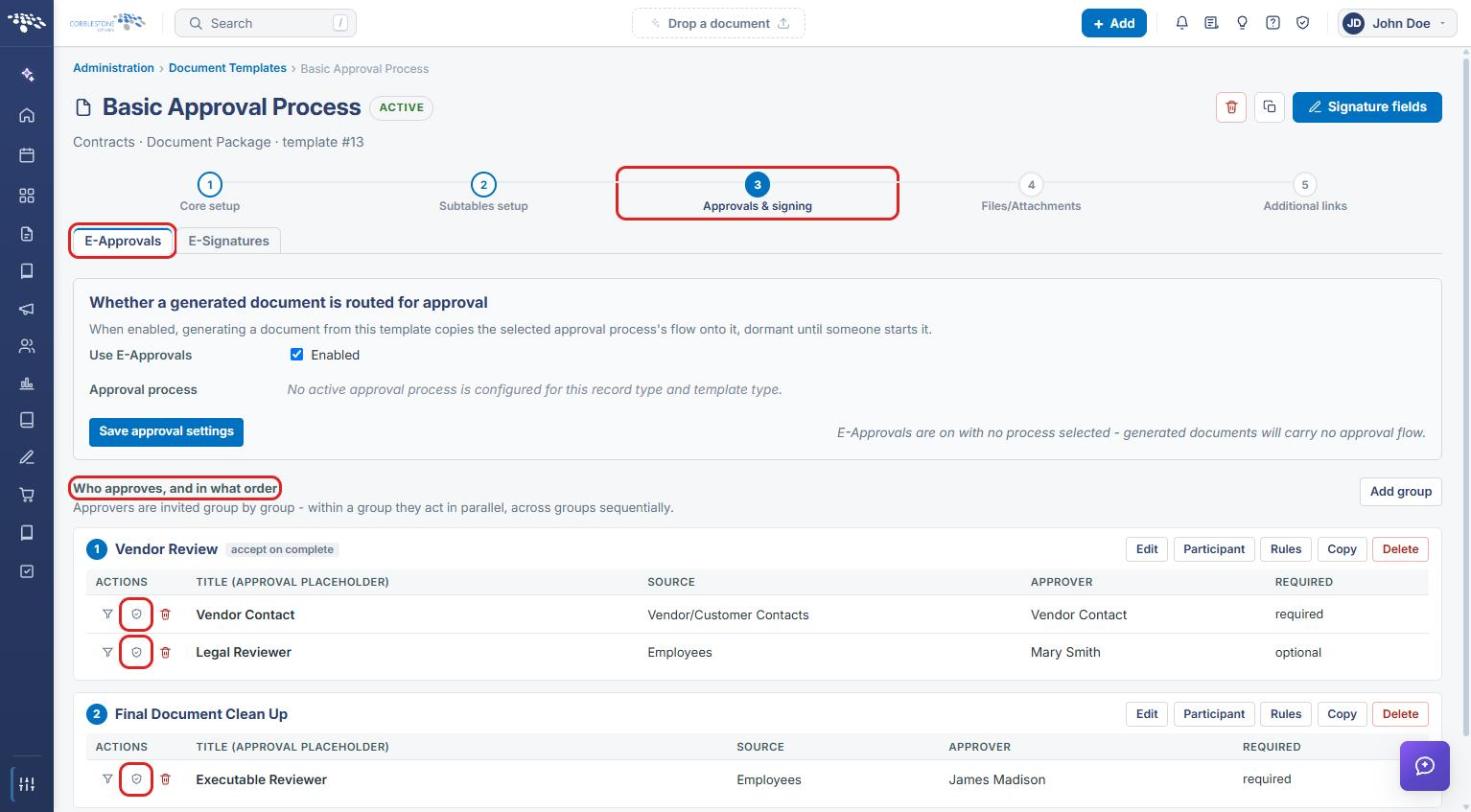
- In the Content controls this approver may edit panel, tick each content control the approver may change. Anything left unticked is read-only for them.
- Click Save permissions, or Cancel to close without changes.
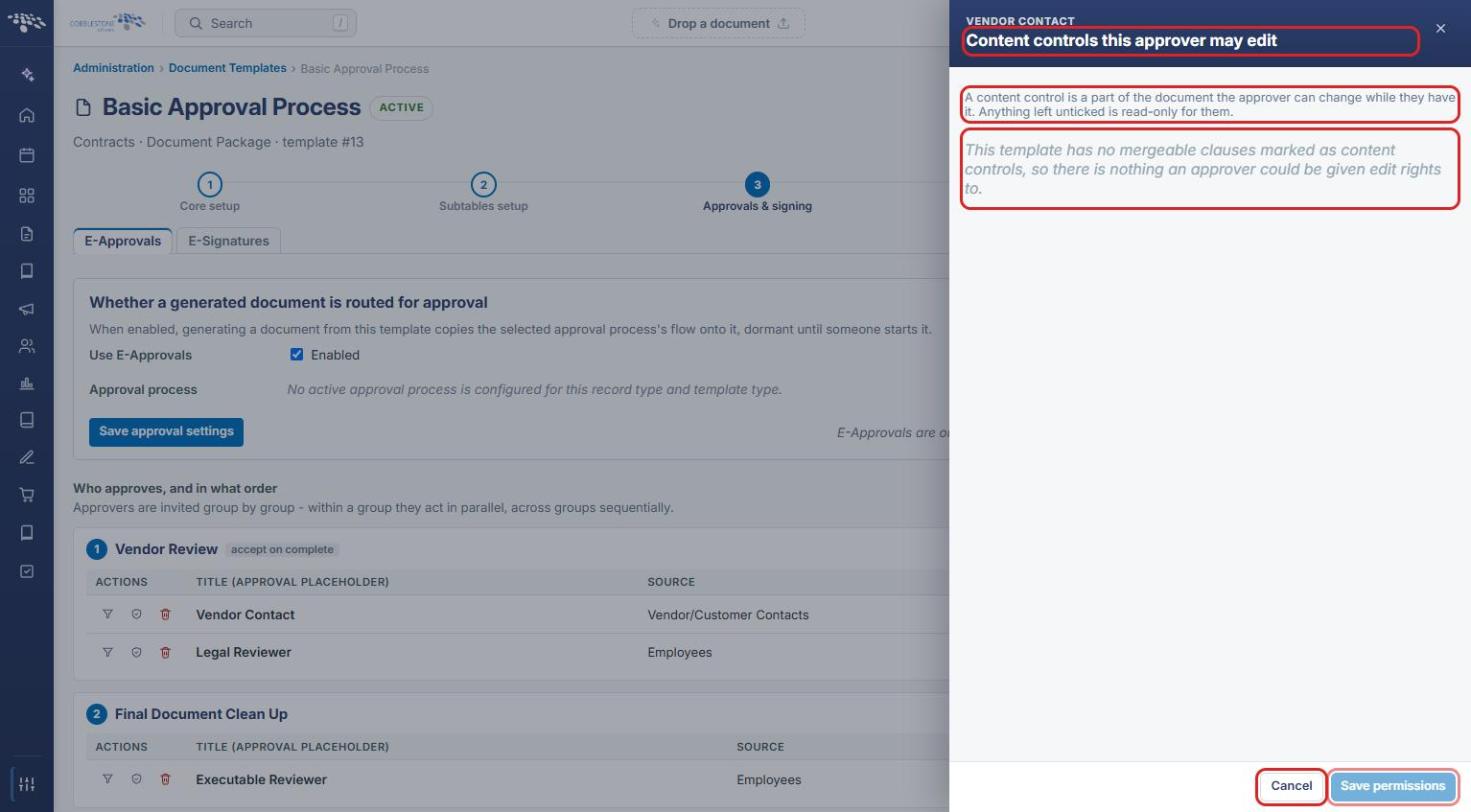
Note: If the template has no mergeable clauses marked as content controls, the panel reads "This template has no mergeable clauses marked as content controls, so there is nothing an approver could be given edit rights to." Mark at least one of the template's clauses as an editable block first (see Section 3).
Tip: To control when an approver or group is involved rather than what they may edit, use the filter icon on the approver's row (When this approval is required) or the group's Rules button. On the clause itself, a Condition decides whether the clause is offered at all.
5. Quick Reference Summary
| Task | How to Complete It |
|---|---|
| Open a mergeable clause | Administration → Templates & Presentation → Mergeable Clauses → Open. |
| Make a clause an editable block | Clause → Options → Merge as an editable block → Save clause. |
| Control who may edit or remove the block | Clause → Everyone may edit the block / The block may be removed → Save clause. |
| Open a template's approvers | Administration → Document Templates → Open → 3 Approvals & signing → E-Approvals. |
| Restrict what an approver may edit | Approver row → shield icon → tick allowed content controls → Save permissions. |
| Limit when an approver is required | Approver row → filter icon (When this approval is required). |