COBBLESTONE SOFTWARE
Contract Insight — User Guide
Access E-Approval/Signature Processes Assigned
Module: Document Collaboration Gateway › Document Collaboration Gateway Settings & Functionality (Internal Users) › Access E-Approval/Signature Processes Assigned
Note: Each procedure in this guide begins at the Contract Insight homepage, so any section can be followed on its own. Record names and counts shown in the screenshots are from a test environment.
1. Overview
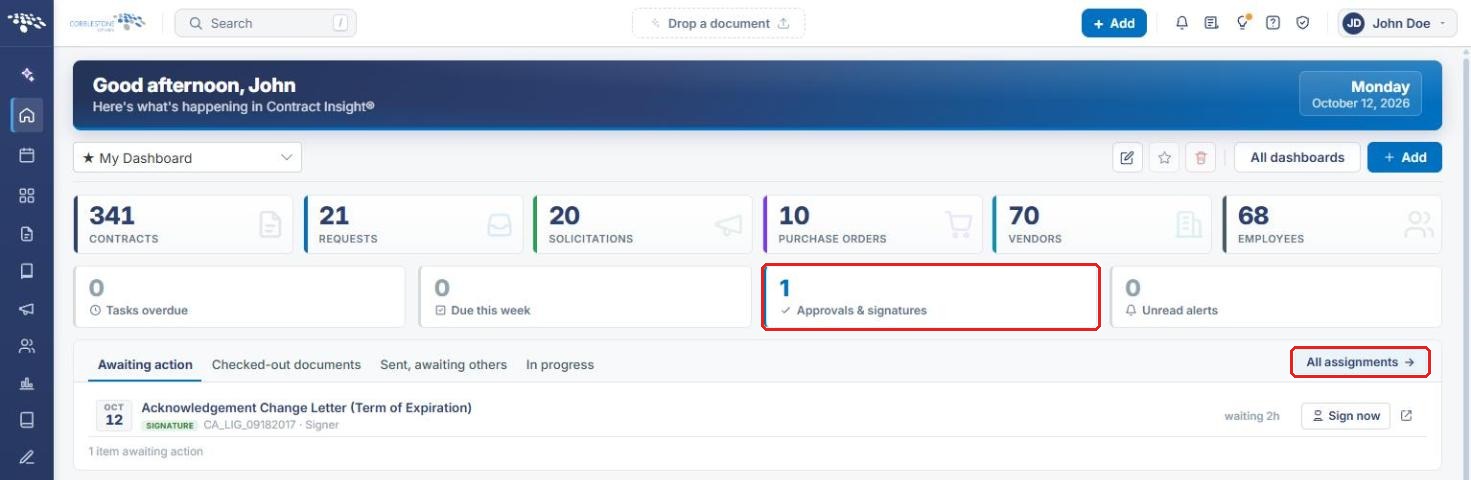
My Assignments lists the "approval and signature steps assigned to you, across every record." You open it from the home dashboard's Approvals & signatures counter or the All assignments link.
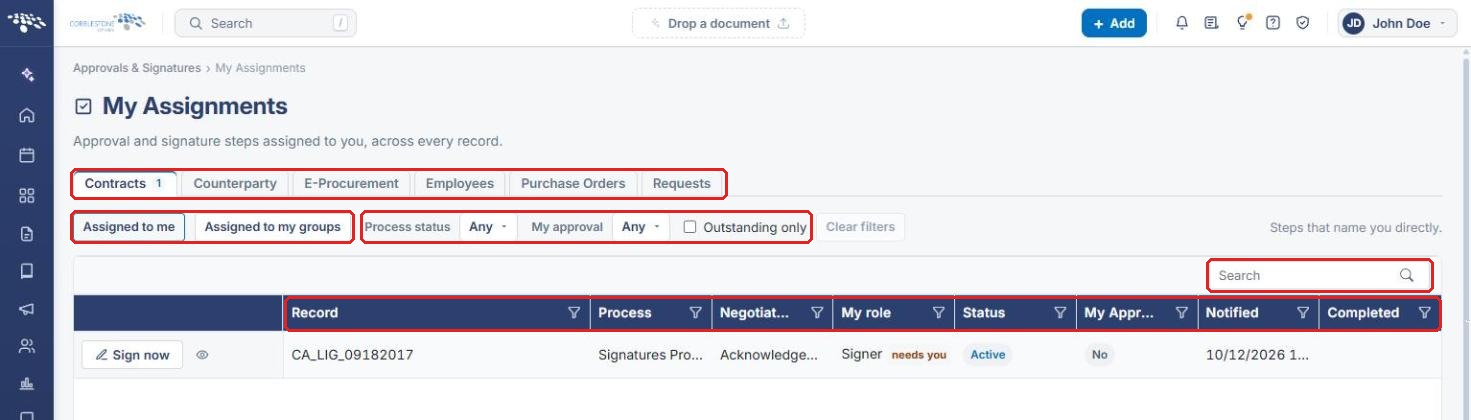
The page is organized into tabs by record type (Contracts, Counterparty, E-Procurement, Employees, Purchase Orders, Requests). Above the grid, Assigned to me and Assigned to my groups buttons switch between steps that name you directly and steps that name a role or group you belong to. Process status, My approval, and Outstanding only filters narrow the list. The grid shows each step's Record, Process, Negotiation, My role, Status, My Approval, Notified, and Completed details, with Sign now and Open the record actions on each row.
2. Key Elements
- Approvals & signatures counter and All assignments link (home dashboard): both open My Assignments.
- Record type tabs: split your assignments by area. A number on a tab shows how many items it contains.
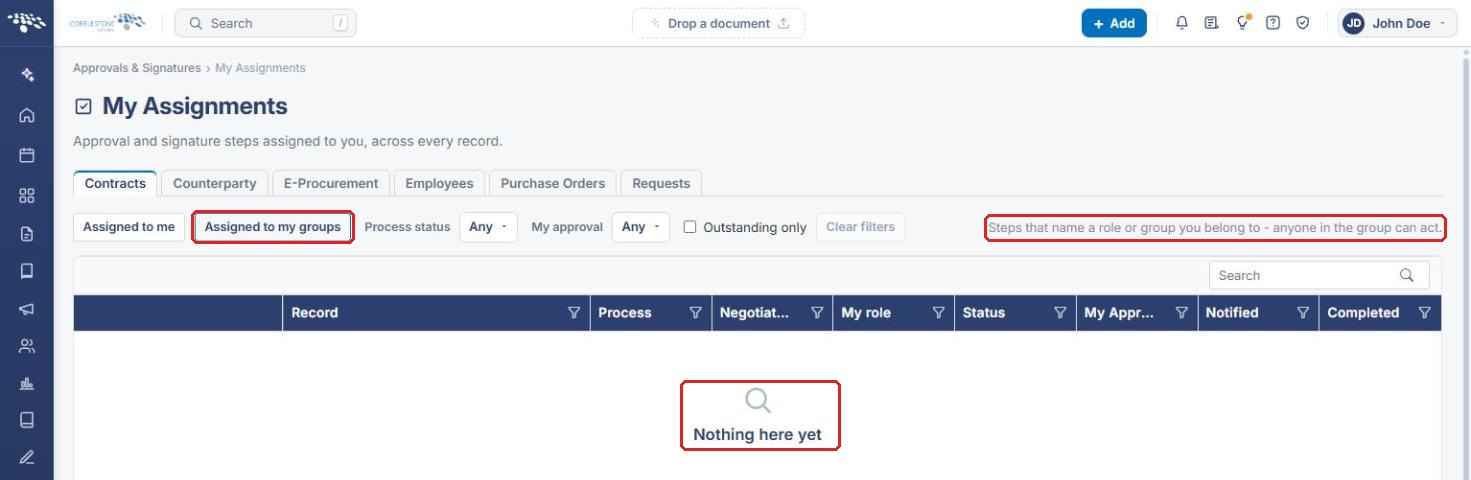
- Assigned to me / Assigned to my groups: show steps that name you directly, or steps that name a role or group you belong to (anyone in the group can act).
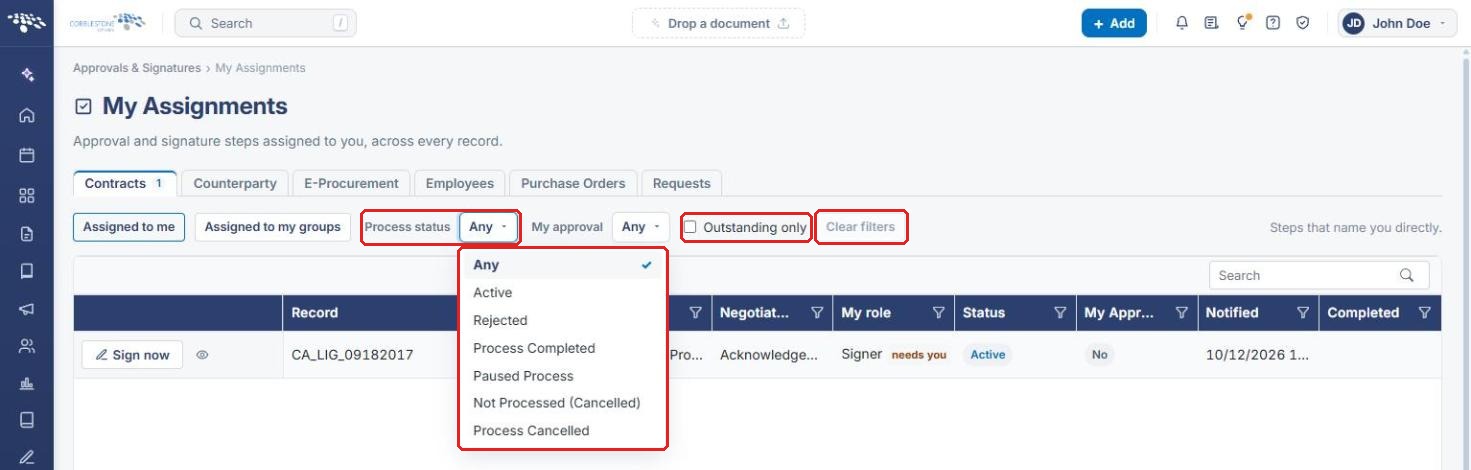
- Process status filter: Any, Active, Rejected, Process Completed, Paused Process, Not Processed (Cancelled), or Process Cancelled.
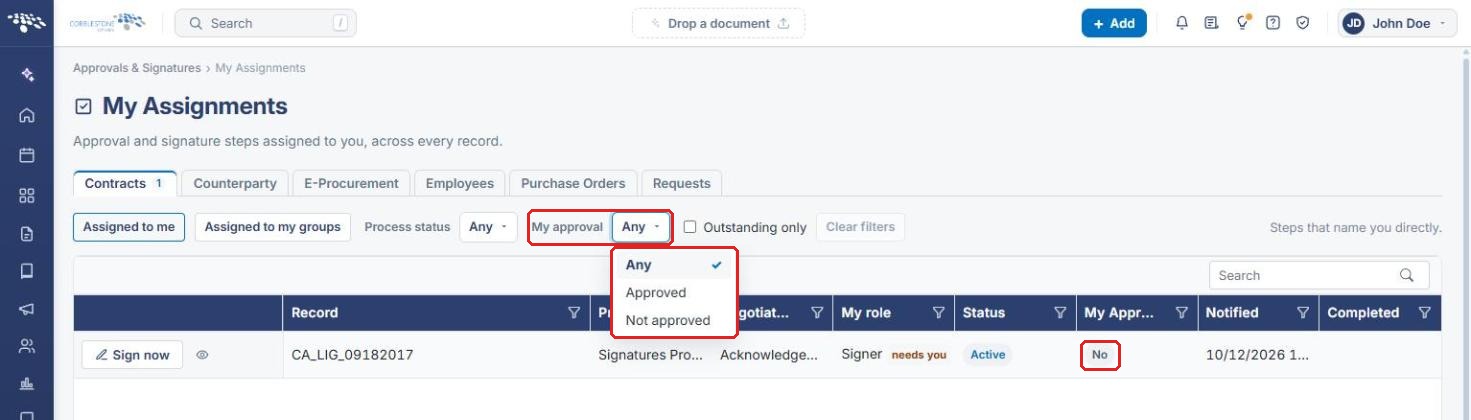
- My approval filter: Any, Approved, or Not approved.
- Outstanding only and Clear filters: show only steps still waiting, or reset every filter.
- Sign now and Open the record (eye icon): act on a step, or go to the record it belongs to.
3. Opening My Assignments
- From the Contract Insight homepage, click the Approvals & signatures counter, or click All assignments above the Awaiting action list.
- On My Assignments, select the tab for the record type you want (for example, Contracts).
- Review the grid. Use Search or the column filter (funnel) icons to find a specific step.
4. Filtering Your Assignments
4a. Assigned to Me vs. Assigned to My Groups
- Click Assigned to me to see steps that name you directly. This is the default view.
- Click Assigned to my groups to see steps that name a role or group you belong to. Anyone in the group can act on these. If none exist, the grid shows "Nothing here yet."
4b. Process Status
- Click the Process status dropdown.
- Select a status: Any, Active, Rejected, Process Completed, Paused Process, Not Processed (Cancelled), or Process Cancelled.
- Check Outstanding only to show only steps that are still waiting.
- Click Clear filters to reset all filters.
4c. My Approval
- Click the My approval dropdown.
- Select Any, Approved, or Not approved to filter by your own response. The My Approval column shows your response for each step.
5. Acting on an Assignment
- Find the step in the grid. The My role column shows your role (for example, Signer) and flags steps that need you. Status shows whether the process is Active, and Notified shows when you were asked.
- Click Sign now to open the signing page in a new browser tab and complete your step.
- Click the Open the record (eye) icon to open the record the step belongs to.
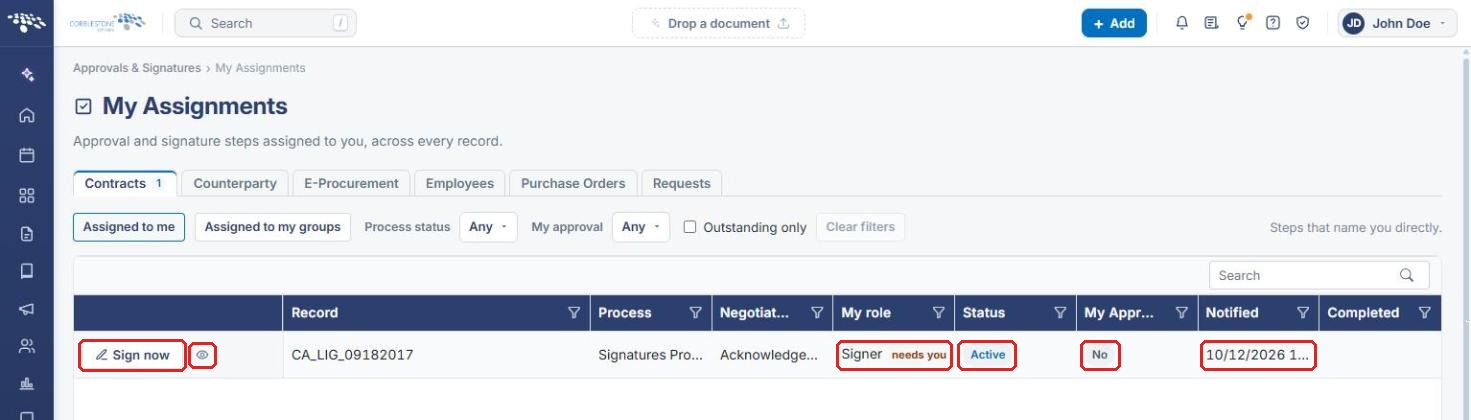
Note: The Completed column shows when a step was finished.
6. Quick Reference Summary
| Task | Where | Action |
|---|---|---|
| Open My Assignments | Home dashboard | Approvals & signatures counter or All assignments |
| See a record type's assignments | My Assignments | Click the record type tab |
| See steps for your groups | My Assignments | Assigned to my groups |
| Show only pending steps | My Assignments | Outstanding only |
| Filter by process status | My Assignments | Process status dropdown |
| Filter by your response | My Assignments | My approval dropdown |
| Sign or approve a step | Grid row | Sign now |
| Go to the related record | Grid row | Open the record (eye icon) |