COBBLESTONE SOFTWARE
Contract Insight — User Guide
Manage E-Approval/Signature Processes
Module: Document Collaboration Gateway › Document Collaboration Gateway Settings & Functionality (Internal Users) › Manage E-Approval/Signature Processes
Note: Each procedure in this guide begins at the Contract Insight homepage, so any section can be followed on its own. Custom fields are configurable, so the exact field list on a contract category record may vary between environments.
1. Overview
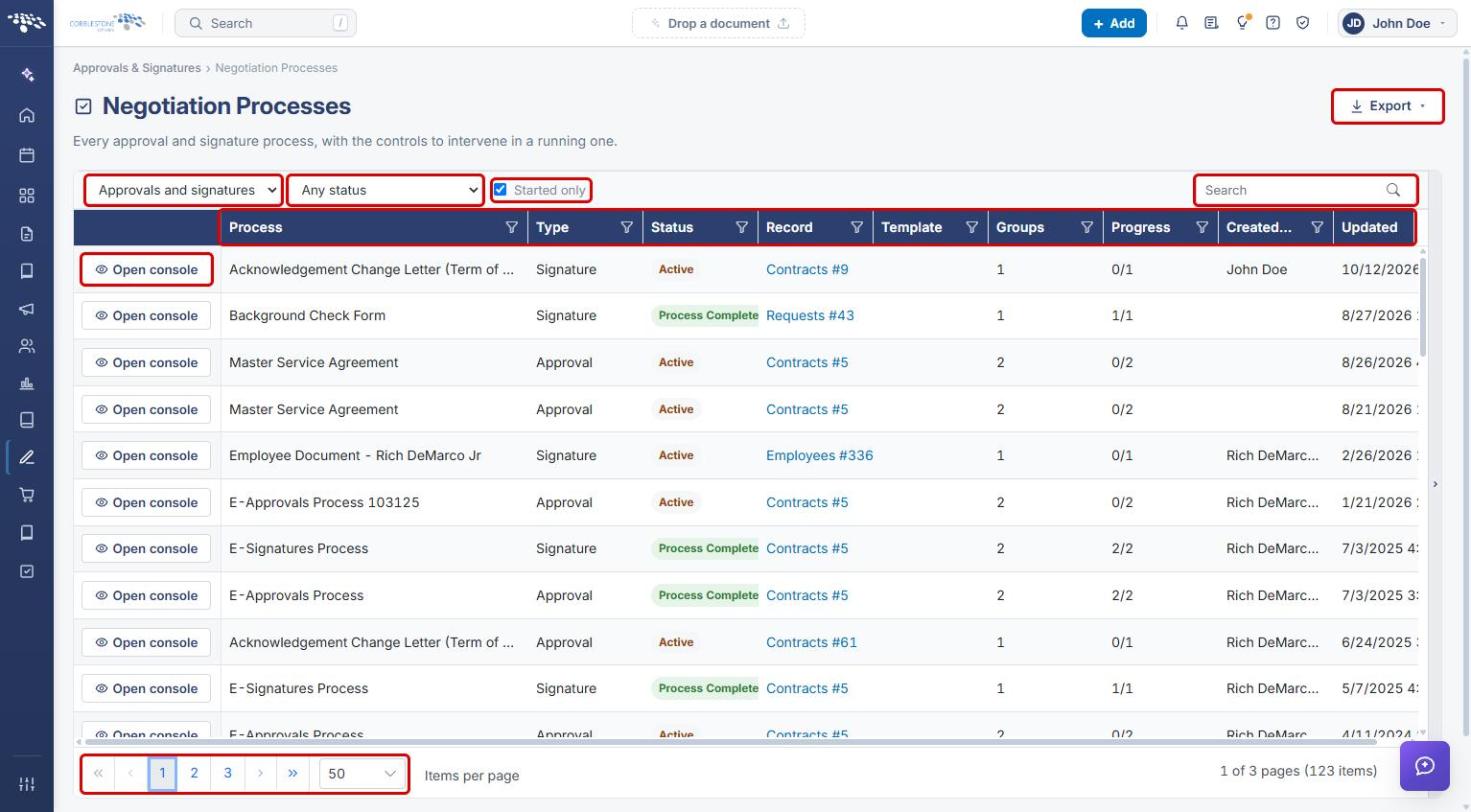
Negotiation Processes (Approvals & Signatures › Negotiation Processes) lists every approval and signature process system-wide — “Every approval and signature process, with the controls to intervene in a running one.” The list can be filtered to Approvals and signatures, Approvals only, or Signatures only, and by status (Any status, Active, Paused, Completed, Rejected, Cancelled after starting, Cancelled before starting), with a Started only checkbox. Columns are Process, Type, Status, Record, Template, Groups, Progress, Created by, and Updated. Each row's Open console leads to that process's own control screen, and Export downloads the list.
2. Key Elements
- Approvals & Signatures › Negotiation Processes lists every process system-wide.
- Filters: type (Approvals and signatures / Approvals only / Signatures only), status, and Started only, plus a Search box and per-column filter icons.
- Grid columns: Process, Type, Status, Record, Template, Groups, Progress, Created by, Updated.
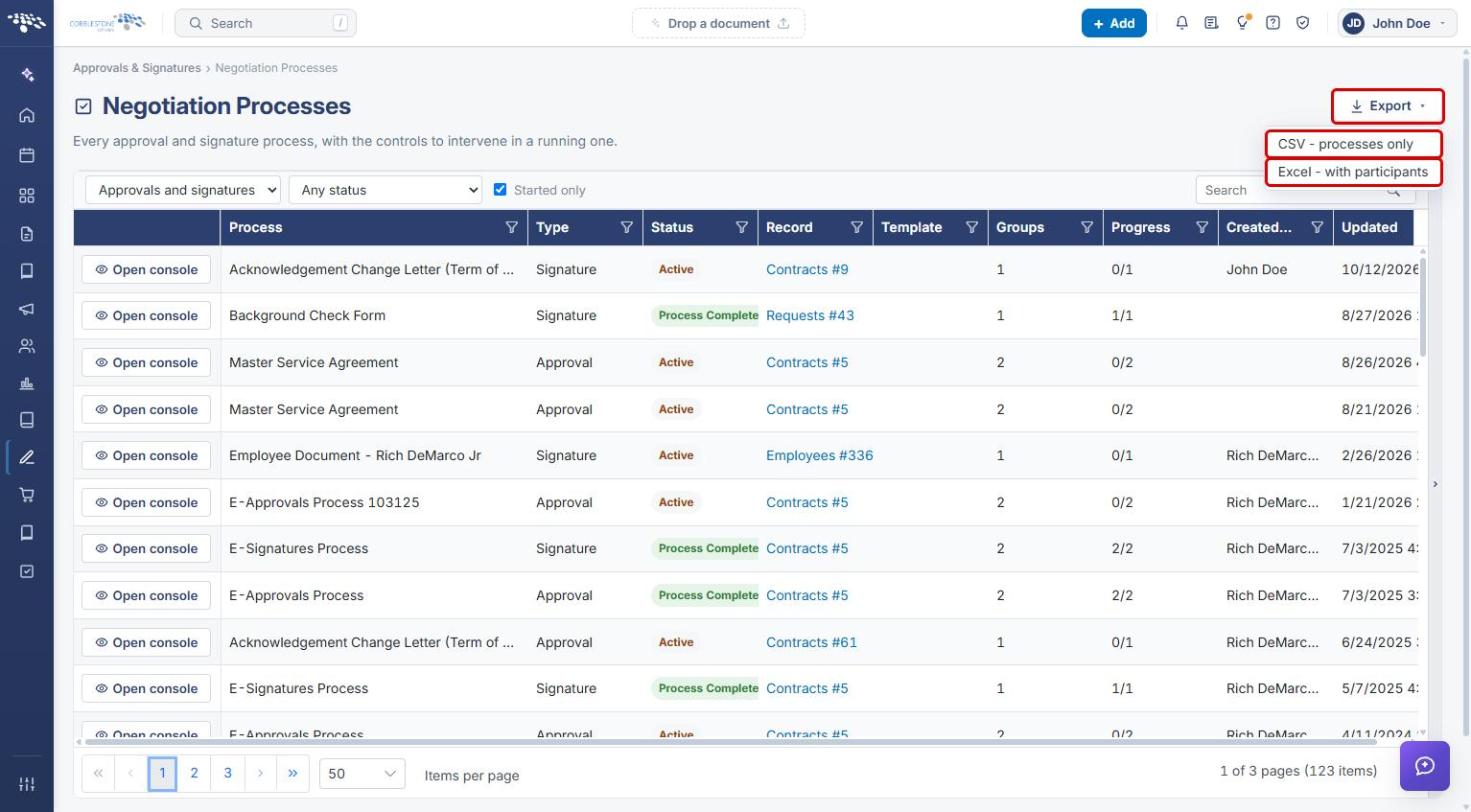
- Export offers CSV – processes only and Excel – with participants.
- Open console on each row opens that process's detail and controls (Pause, End process, Finalize, groups and participants, files).
3. Navigating to Negotiation Processes
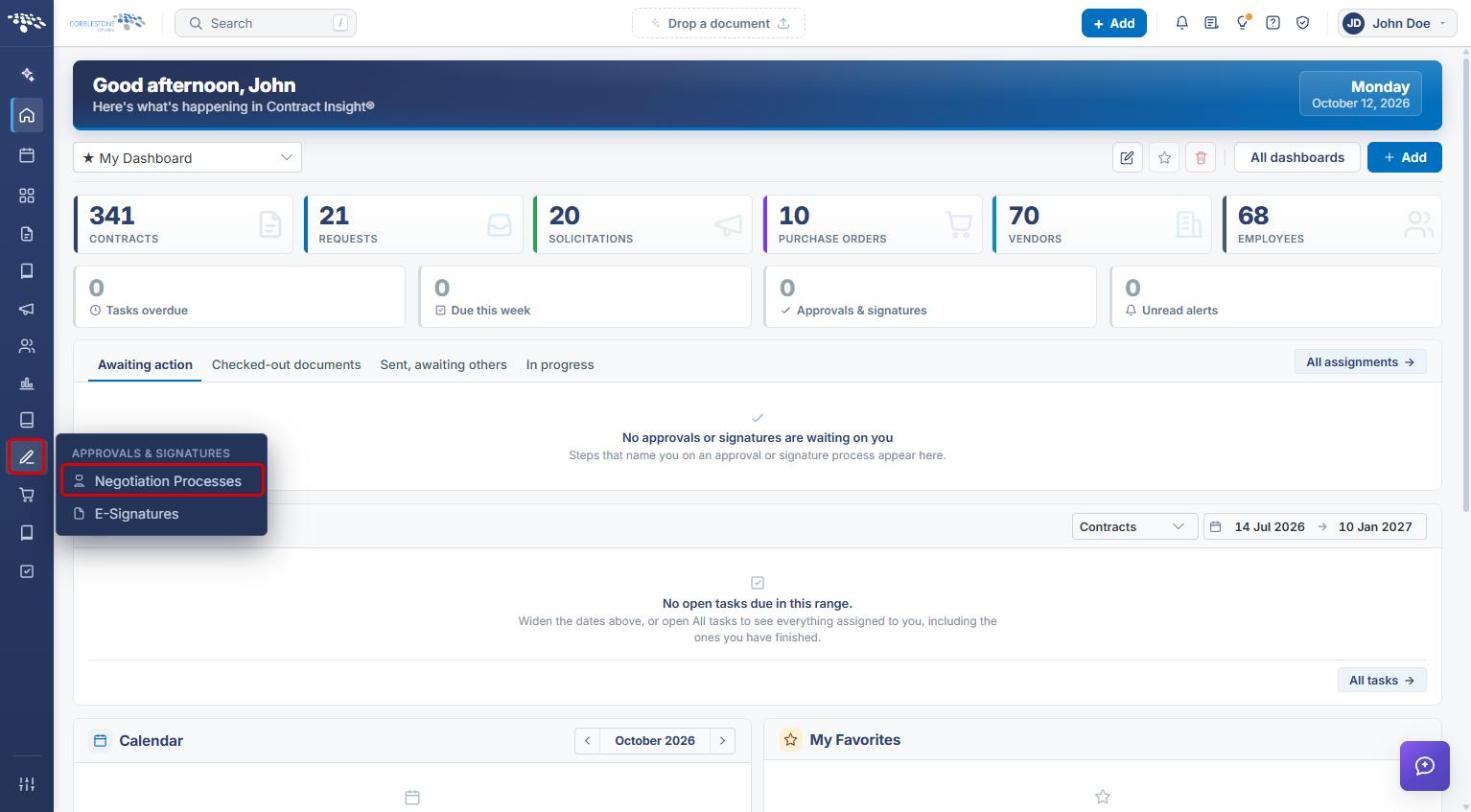
- From the Contract Insight homepage, click the Approvals & Signatures icon in the left navigation bar.
- Select Negotiation Processes.
4. Reviewing the Process List
- Review the grid. Status shows where each process stands (for example Active or Process Completed), Groups shows how many groups it has, and Progress shows how many are finalized (for example 0/2).
- Click a link in the Record column to open the record the process belongs to.
- Use the pager and Items per page at the bottom to move through results.
5. Filtering and Searching Processes
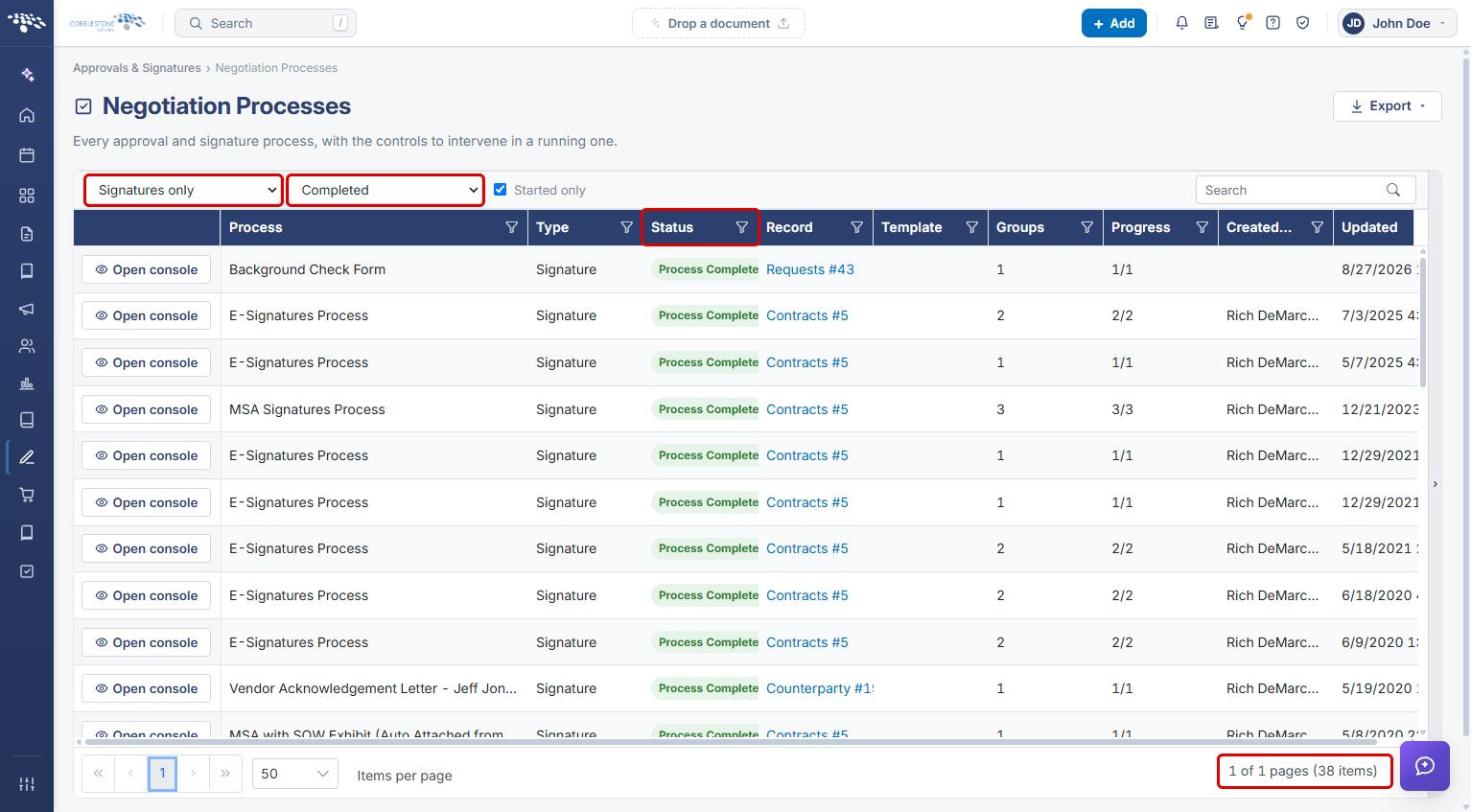
- Use the type filter to choose Approvals and signatures, Approvals only, or Signatures only.
- Use the status filter to choose Active, Paused, Completed, Rejected, Cancelled after starting, or Cancelled before starting.
- Leave Started only checked to hide processes that were never started, or clear it to include them.
- Type in Search, or use a column's filter icon, to narrow the list further. The item count at the bottom right updates to match.
6. Exporting the Process List
- Click Export at the top right.
- Choose CSV – processes only for one row per process, or Excel – with participants to include each process's participants.
7. Managing a Process from Its Console
- Click Open console on the process's row.
- Review the status banner and summary (Status, Groups, Participants, Files, Created).
- Use Pause, End process, or Finalize to control the process as a whole. Finalize is available only once every group is finalized.
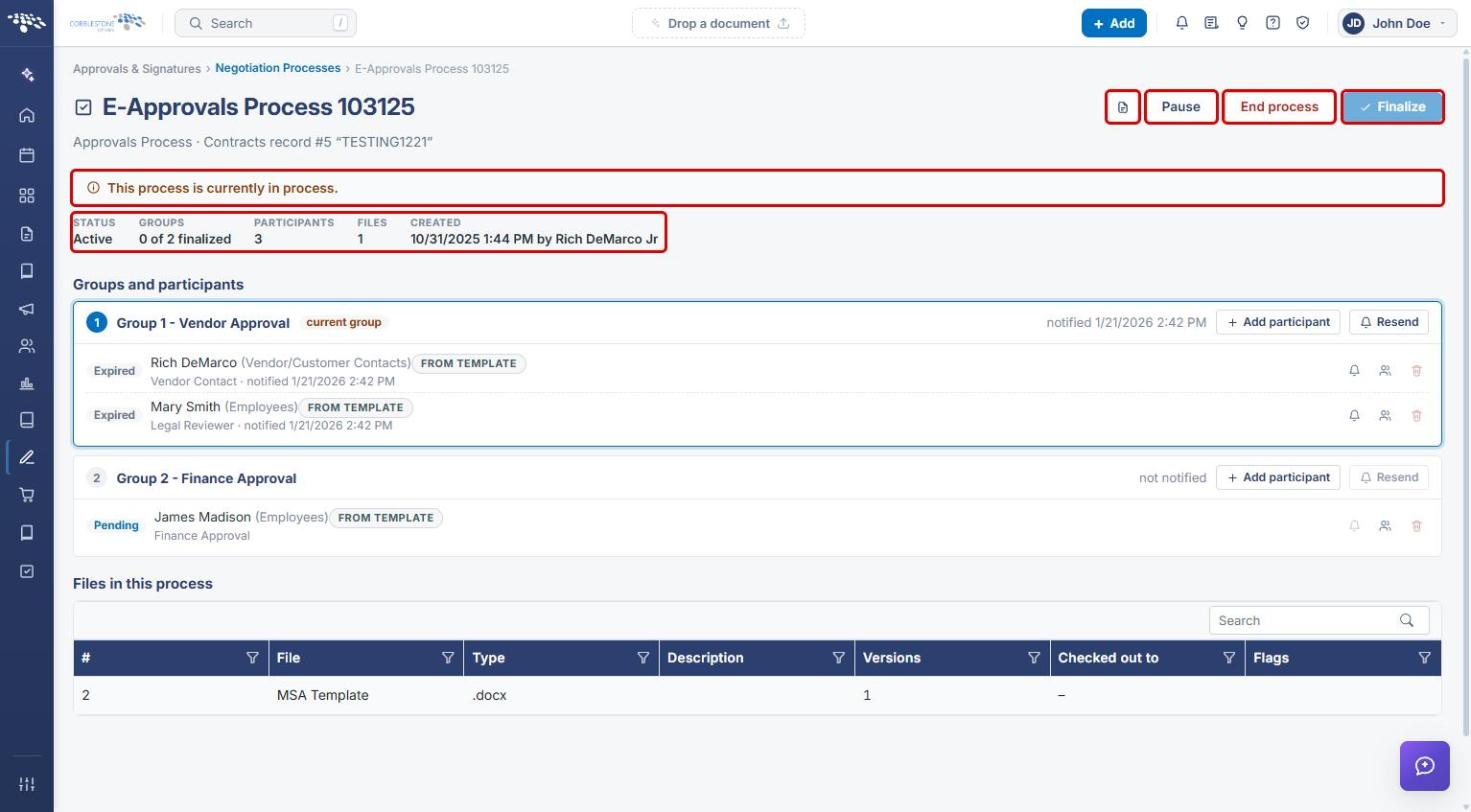
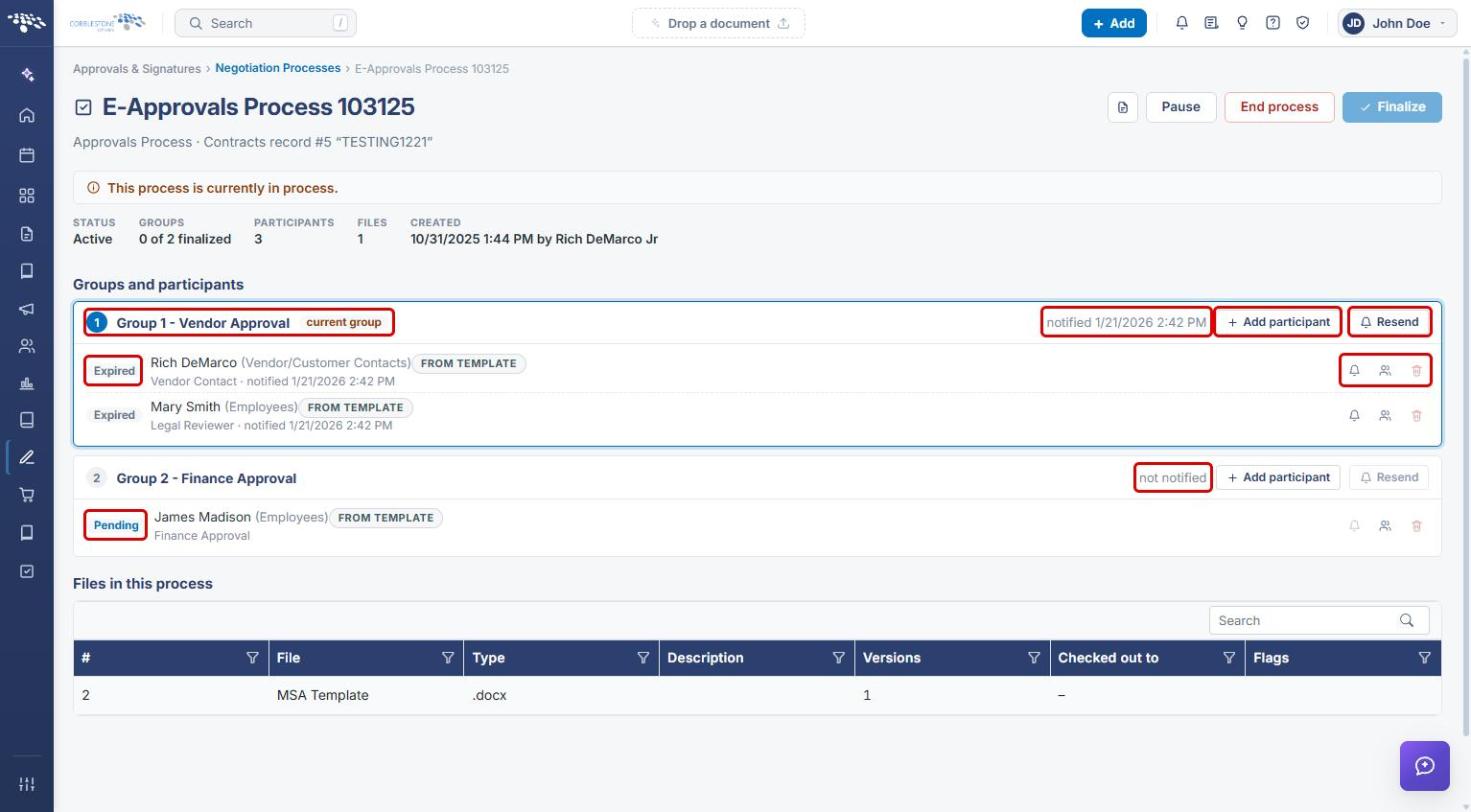
- In Groups and participants, use Add participant, Resend, and the participant icons (re-send, replace, delete) to intervene in a running process.
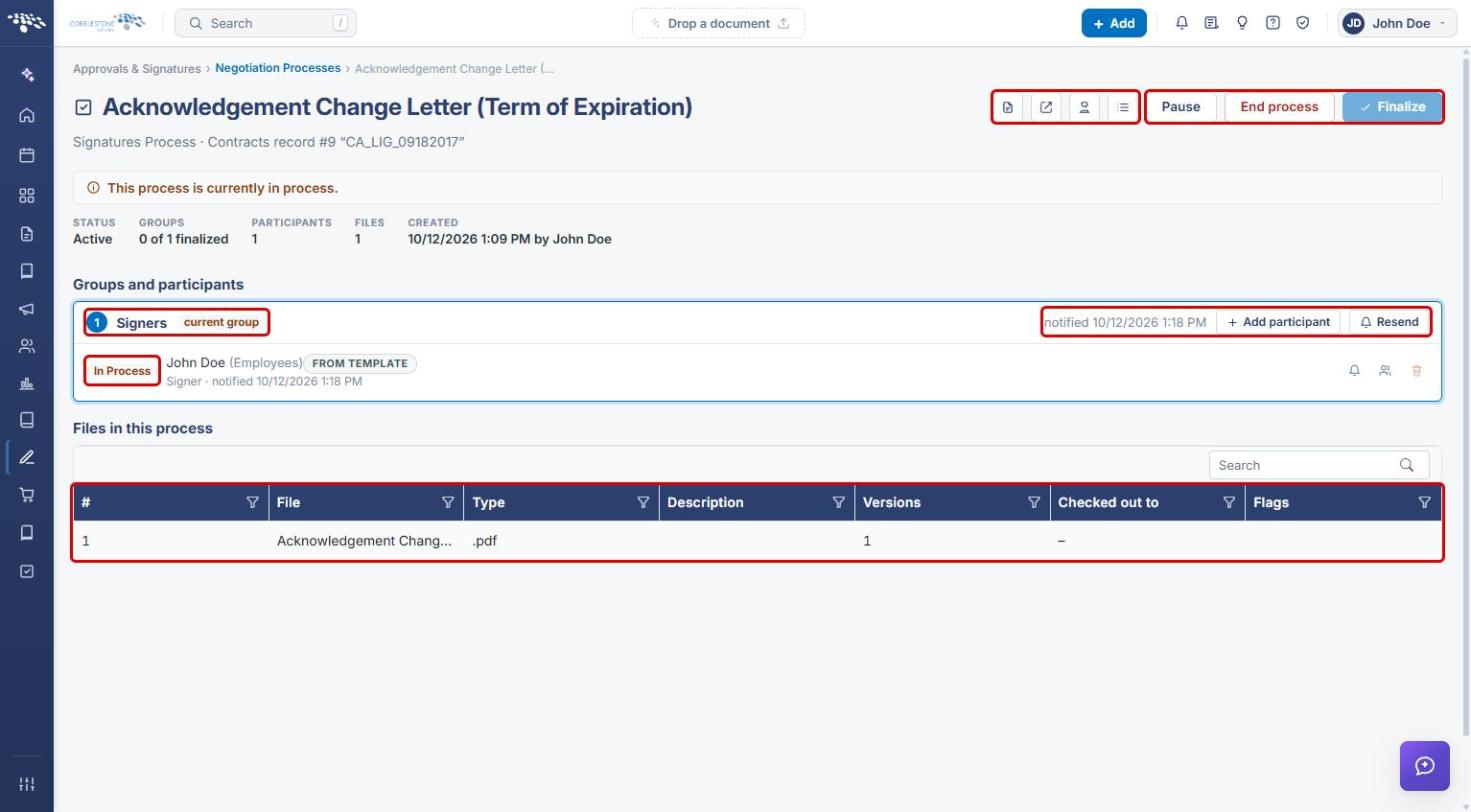
Signature process consoles add header icons to Open this process on the signing portal, view the Signature receipt, and Place fields.
For details on each console action, see E-Approvals Processing and Managing Electronic Approval Groups, Participants & Attachments.
8. Quick Reference Summary
| Task | How to Complete It |
|---|---|
| Open the process list | Approvals & Signatures → Negotiation Processes. |
| Show only approvals or signatures | Type filter → Approvals only / Signatures only. |
| Show processes by status | Status filter → Active, Paused, Completed, Rejected, or Cancelled. |
| Include processes that never started | Clear Started only. |
| Export the list | Export → CSV (processes only) or Excel (with participants). |
| Manage a process | Open console → Pause / End process / Finalize, or manage groups and participants. |