COBBLESTONE SOFTWARE
Contract Insight — User Guide
Item List
03. Admin User Manual › Catalog Manager › Item List
Note: Each procedure in this guide begins at the Contract Insight homepage, so any section can be followed on its own. Custom fields are configurable, so the exact field list on a contract category record may vary between environments.
1. Overview
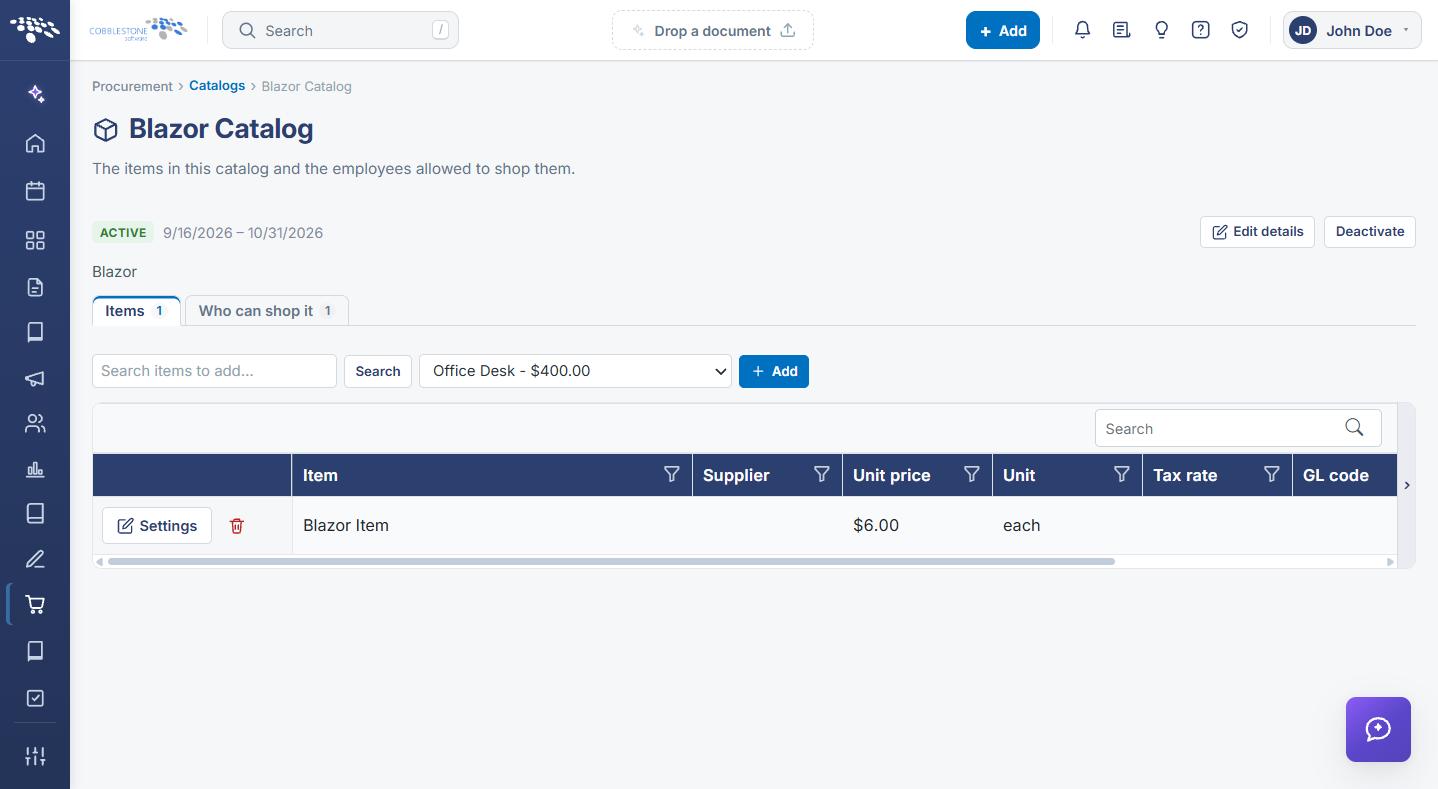
The — choose an item — picker inside a catalog draws from a single master list of items that is shared across every catalog in the environment, shown as a long searchable dropdown of item names and prices (for example "Office Desk - $400.00" or "Laptop - $1,599.00"). The dropdown only offers items that aren’t already in the open catalog’s own Item table, so the list narrows as items are added to that catalog. Selecting an item and clicking Add copies it into the open catalog’s Item table, where it can be given its own Supplier, Unit price, Unit, Tax rate, and GL code without affecting the item’s details anywhere else.
2. Key Elements
- The item picker inside a catalog searches a single master item list that every catalog in the environment draws from
- Each item in the picker is listed with its name and price, for example "Office Desk - $400.00"
- The picker only offers items not already in the open catalog’s Item table, so an item already added drops out of the list until it’s removed
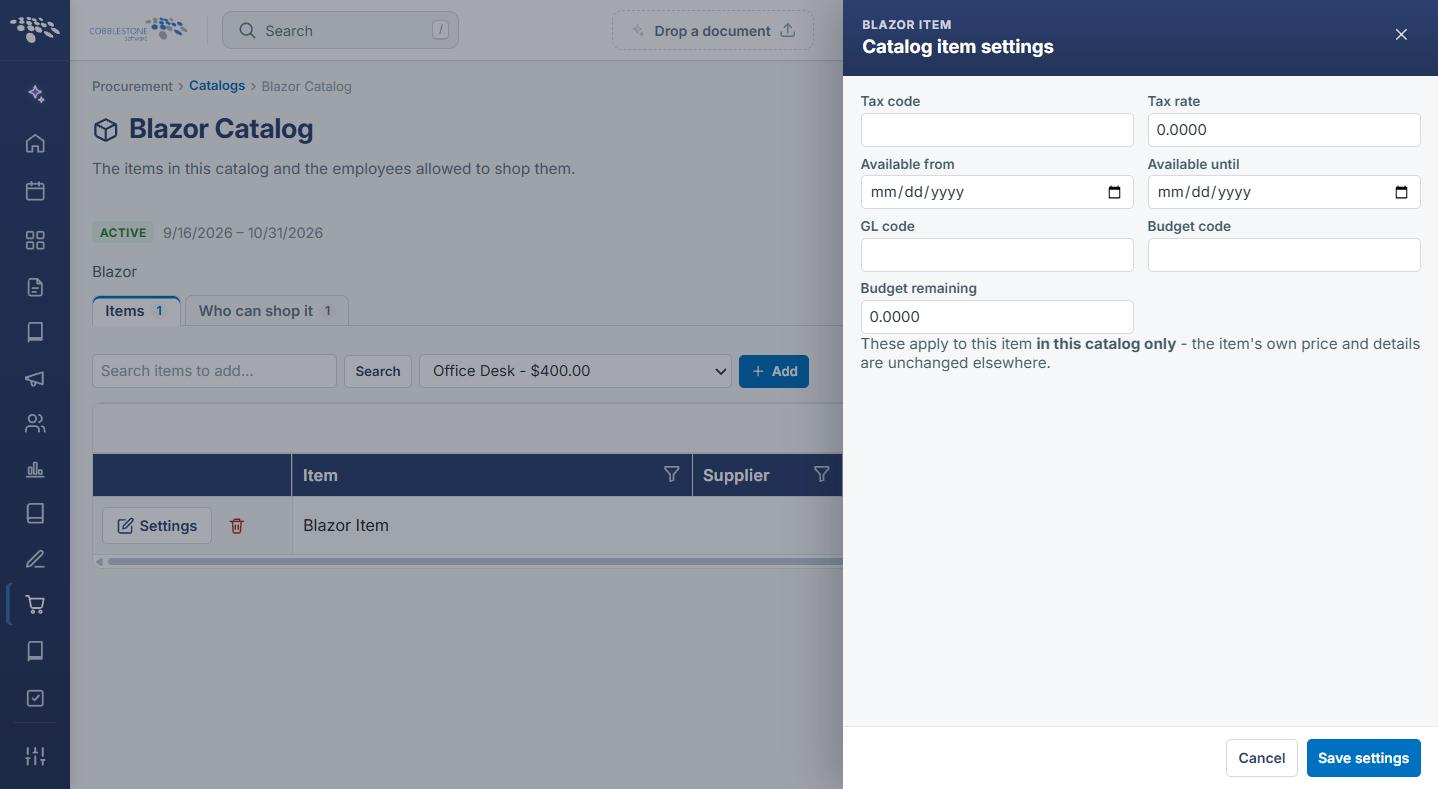
- Selecting an item and clicking Add copies it into the open catalog’s Item table, where a Settings panel lets you set a Tax code, Tax rate, an Available from/until window, a GL code, a Budget code, and a Budget remaining amount for that item in that catalog only
3. Adding an Item to a Catalog
To add an item to a catalog, open the catalog and go to its Items tab. Use the Search items to add… box to filter the master list, or open the — choose an item — dropdown directly; each option shows the item’s name and price (for example "Office Desk - $400.00"). Selecting an item and clicking Add copies it into the catalog’s Item table immediately below.
4. Setting an Item's Catalog-Specific Details
Once an item is in a catalog, its Settings icon opens a Catalog item settings panel where you can set a Tax code, Tax rate, an Available from/until window, a GL code, a Budget code, and a Budget remaining amount. A note on the panel confirms these values apply to this item in this catalog only — the item’s own price and details are unchanged everywhere else.
5. Quick Reference Summary
| Action | Where |
|---|---|
| Open a catalog | Procurement → Catalogs → click the catalog name |
| View items already in a catalog | Catalog detail page → Items tab |
| Search the master item list | "Search items to add…" box on the Items tab |
| Browse the master item list | — choose an item — dropdown on the Items tab |
| Add an item to the catalog | Select it in the dropdown (or search), then click Add |
| Items already in the catalog | Automatically excluded from the — choose an item — dropdown |
| Set a per-catalog Tax code/rate, GL code, Budget code, or availability window for an item | Items tab → Settings icon on that item’s row |
| Remove an item from a catalog | Items tab → trash/Remove icon on that item’s row |
| Change an item’s own name or base price | Not from here — edit the item itself in the master item list, outside this catalog |