COBBLESTONE SOFTWARE
Contract Insight — User Guide
Linked Images for Items
Module: Purchase Orders › Catalog Management › Linked Images for Items
Note: Each procedure in this guide begins at the Contract Insight homepage, so any section can be followed on its own. Custom fields are configurable, so the exact field list on a contract category record may vary between environments.
1. Overview
Individual catalog items are managed through the Settings action next to each item row in a catalog's item table. This per-item Catalog item settings panel is where item-level configuration for that catalog is set. The wiki-era terminology of a separate “Linked Images” screen now lives inside this per-item Settings panel rather than as its own page.
Settings made in this panel apply to the item in this catalog only. The item's own price and details are unchanged elsewhere.
2. Key Elements
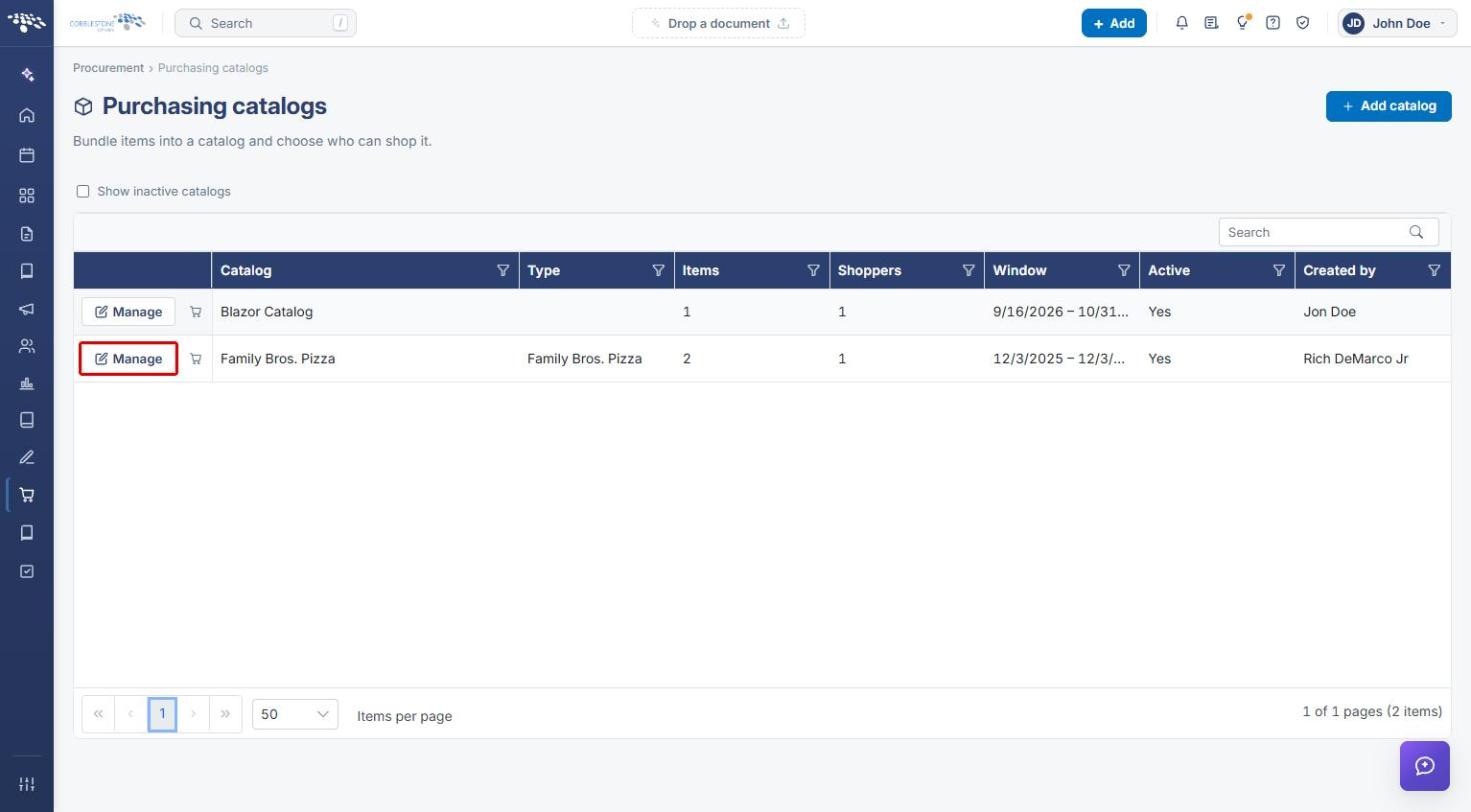
- Procurement → Catalogs lists every purchasing catalog, with its type, item count, shoppers, date window, and status.
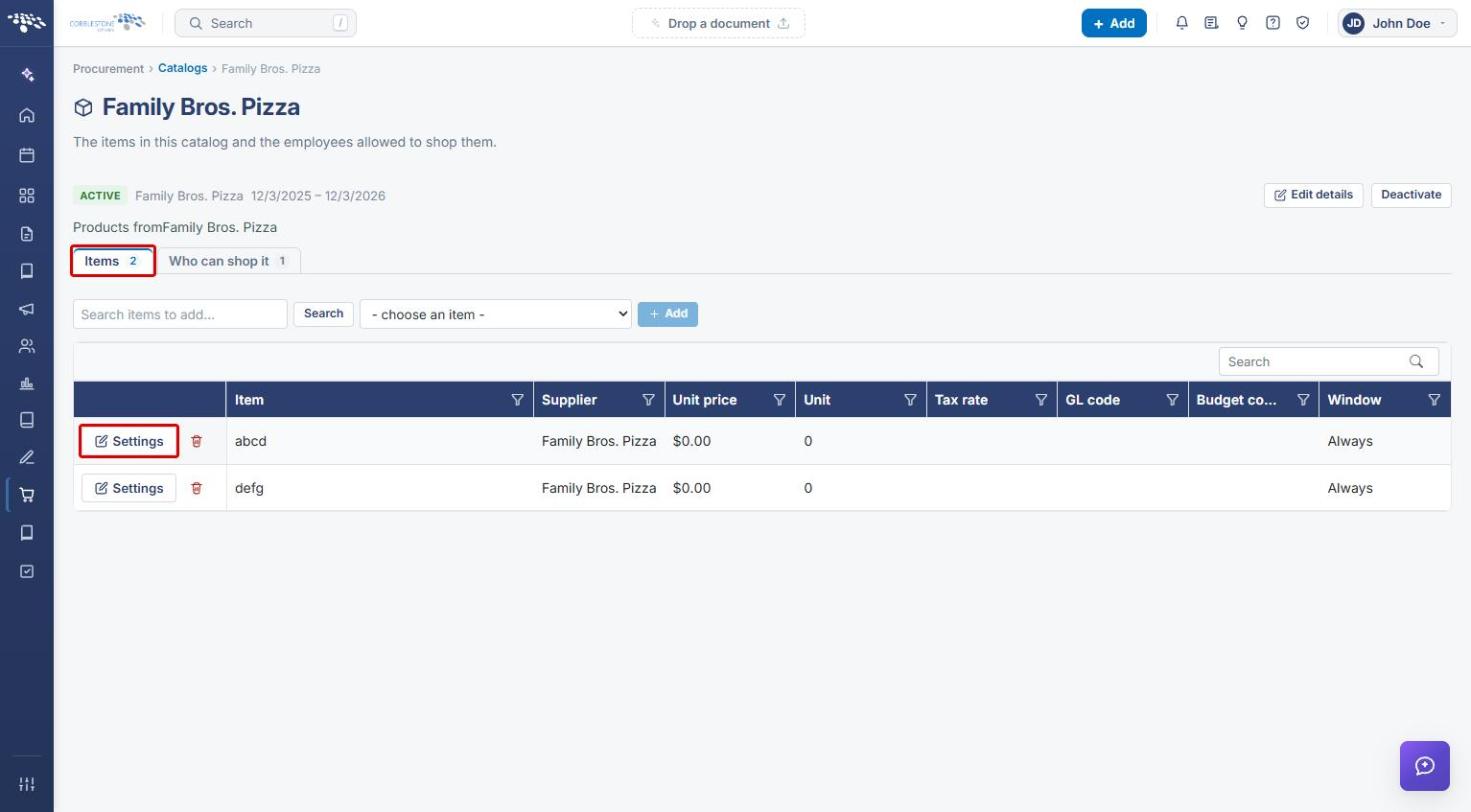
- Each catalog has an Items tab (the items in the catalog) and a Who can shop it tab (the employees allowed to shop it).
- The Settings action next to each item in the catalog's item table opens that item's Catalog item settings panel.
- Item-level details are managed from this panel rather than from a standalone screen.
3. Navigating to a Catalog
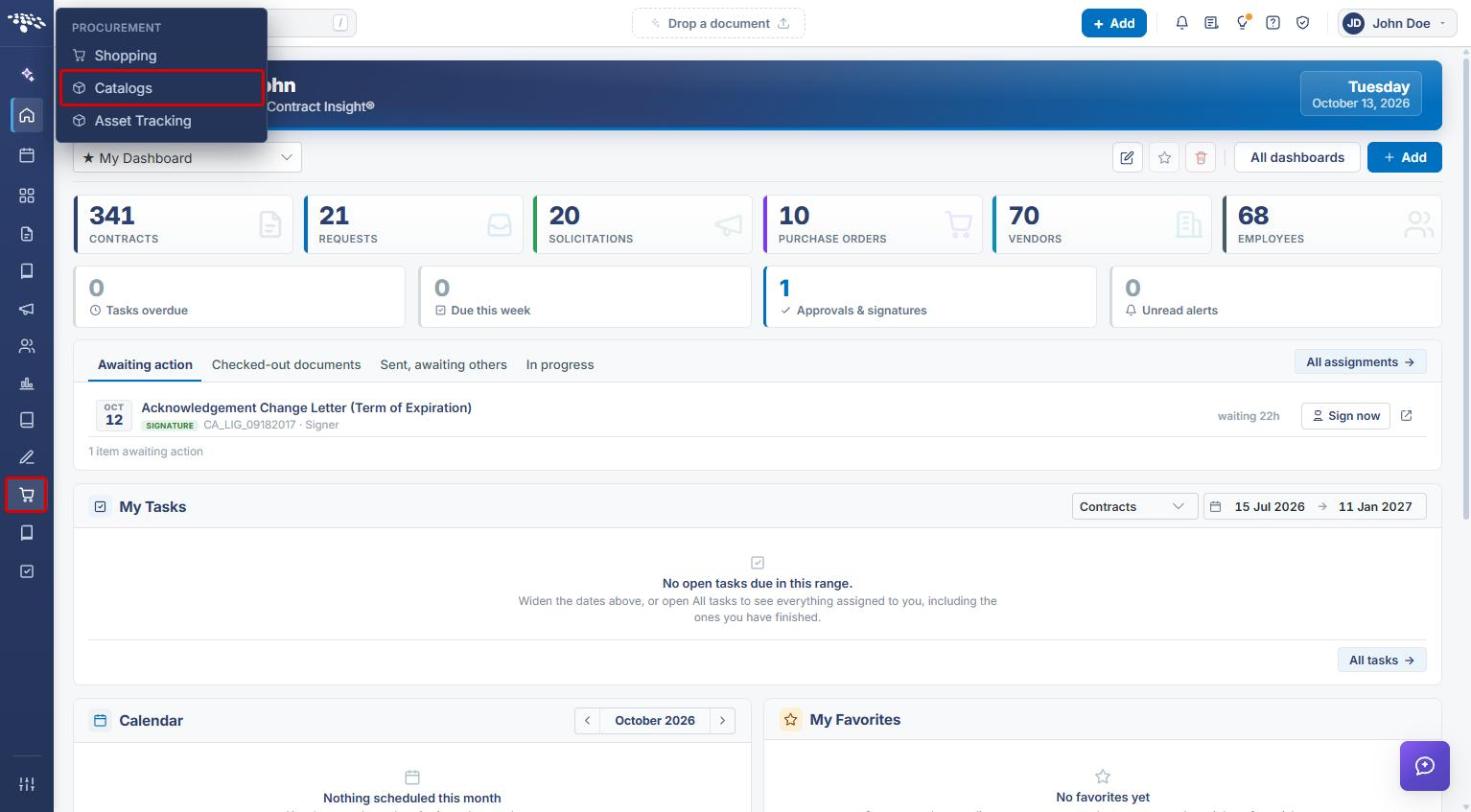
- From the Contract Insight homepage, click the Procurement icon in the left navigation bar.
- Select Catalogs.
- On the Purchasing catalogs page, locate the catalog. Use the Search box, or select Show inactive catalogs to include inactive ones.
- Click Manage on that catalog's row.
4. Opening an Item's Settings
- The catalog opens on the Items tab, which lists each item with its supplier, unit price, unit, tax rate, GL code, budget code, and availability window.
- Click Settings on the item's row.
5. Configuring the Item
The Catalog item settings panel opens, with the item's name at the top.
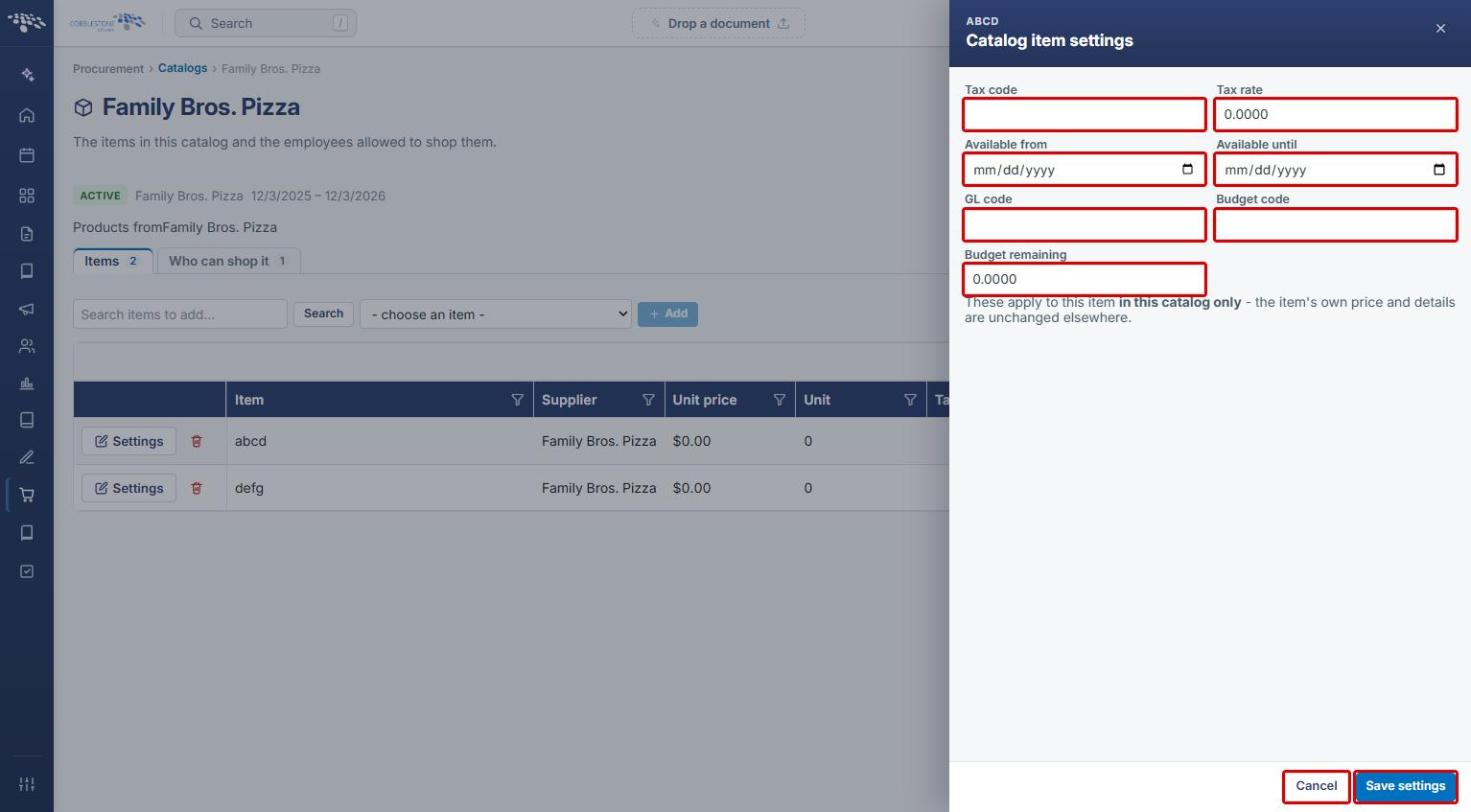
- Complete or update the fields as needed:
- Tax code and Tax rate.
- Available from and Available until: the dates the item can be shopped in this catalog.
- GL code and Budget code.
- Budget remaining.
- Click Save settings to apply the changes, or Cancel to close the panel without saving.
Note: These settings apply to the item in this catalog only. The item's own price and details are unchanged elsewhere.