COBBLESTONE SOFTWARE
Contract Insight — User Guide
Legal Hold
Module: Purchase Orders › Purchase Order Details › Legal Hold
Note: Each procedure in this guide begins at the Contract Insight homepage, so any section can be followed on its own. Custom fields are configurable, so the exact field list on a contract category record may vary between environments.
1. Overview
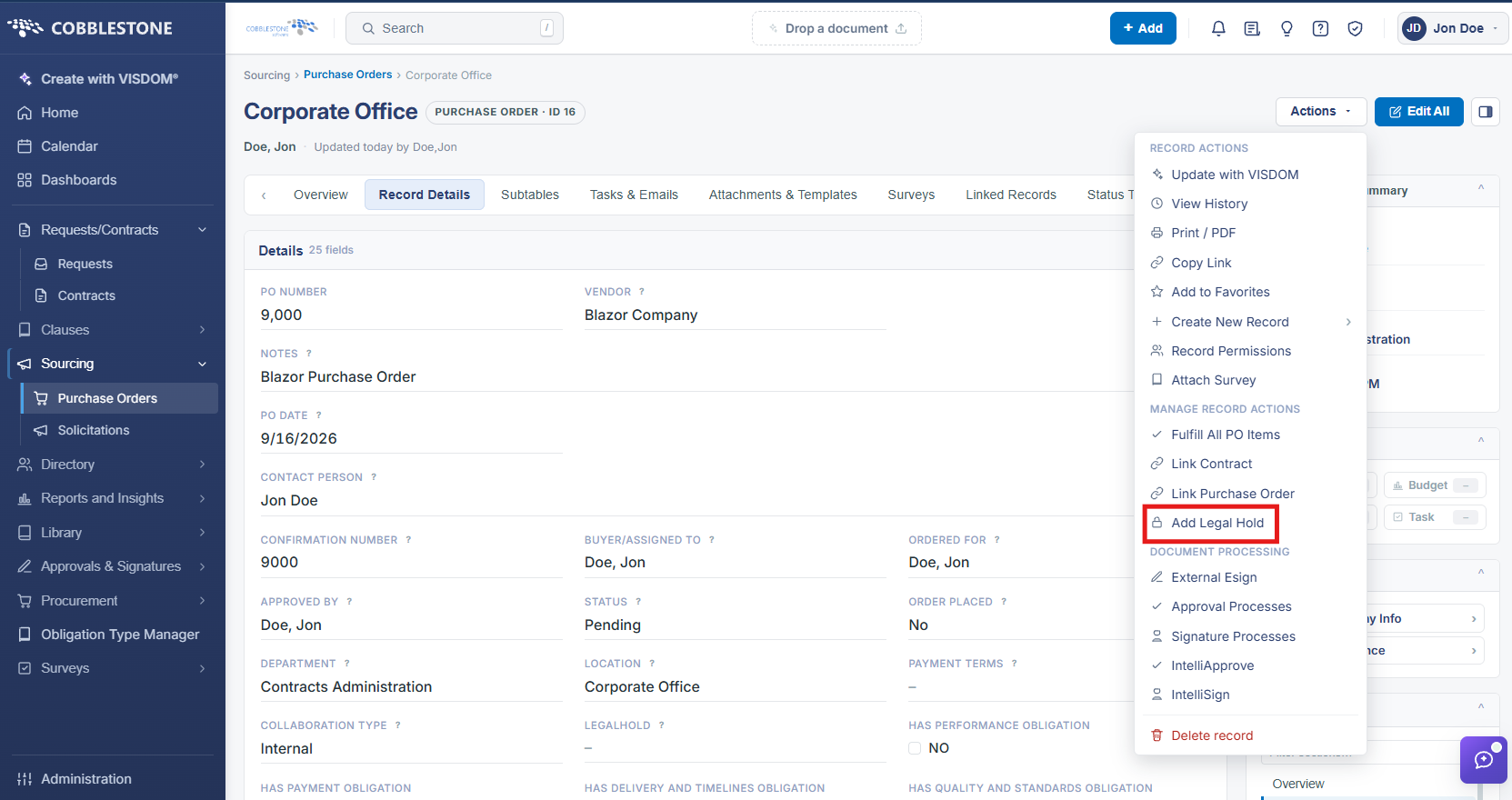
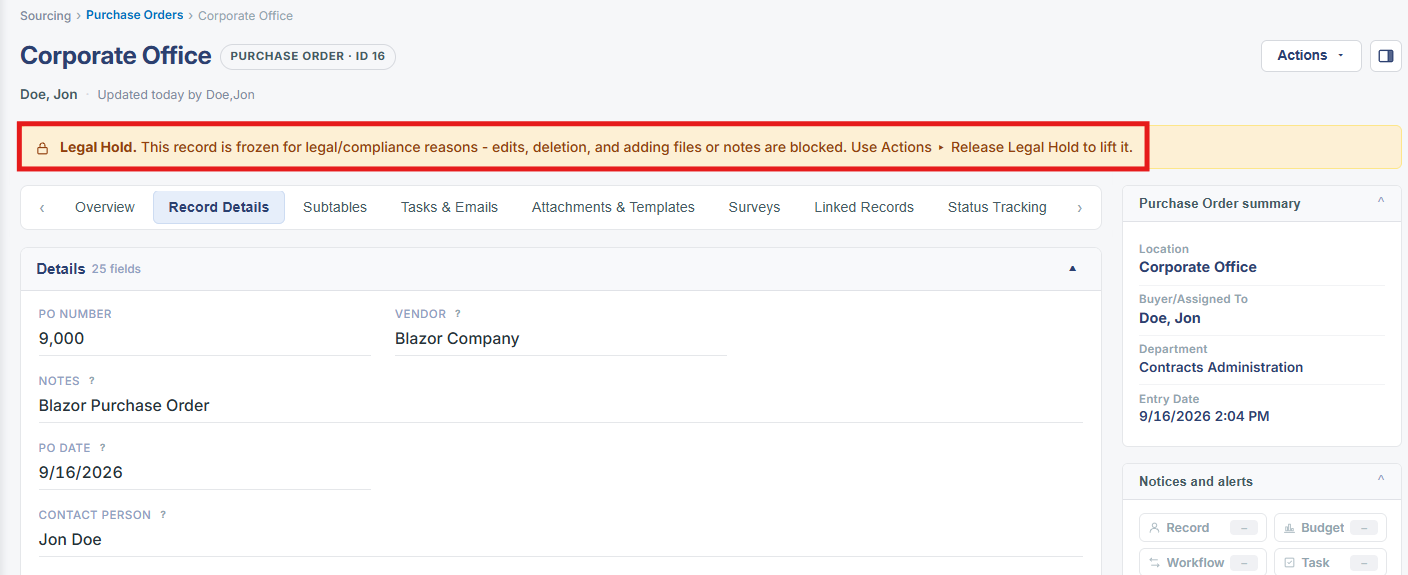
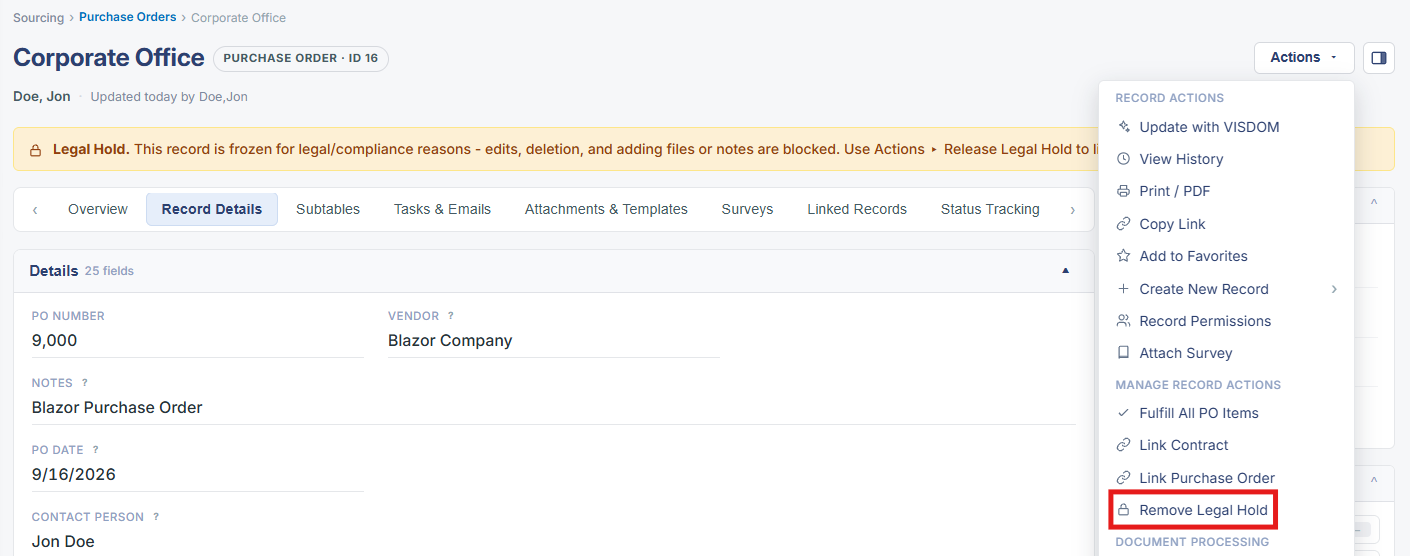
Placing a Purchase Order on legal hold locks its fields from editing and prevents attachment changes for compliance purposes, following the same pattern confirmed live on Contract and Request records in this environment: an "Add Legal Hold" item under Manage Record Actions in the record's Actions dropdown, applied immediately (producing the frozen-record banner and hiding Edit All) and lifted via the same menu item once it reads "Remove Legal Hold." This entry was not independently re-tested on a live Purchase Order record, but the identical Actions-menu structure confirmed on two other record types in this environment makes it a reasonably confident extrapolation that Purchase Orders follow the same unified mechanism, in place of the legacy wiki's separate "Set Legal Hold" side-menu control for this record type.
2. Key Elements
- The live application's Add Legal Hold / Remove Legal Hold mechanism, confirmed on Contract and Request records, is expected to apply identically to Purchase Order records via that record's Actions dropdown.
- Applying the hold is expected to produce the same frozen-record banner (edits, deletion, and file/note additions blocked) and hide the Edit All button.
- This entry was not independently re-tested on a live Purchase Order record; the grounding here extrapolates from the identical mechanism confirmed on Contracts and Requests rather than from a direct test of this record type.
- The legacy wiki described a "Set Legal Hold" side-menu control specific to Purchase Orders — in the redesigned application this is unified into the same Actions dropdown used across every record type.