
COBBLESTONE SOFTWARE
Contract Insight — User Guide
IntelliSign Process from Record Details
Module: Document Collaboration Gateway › IntelliSign › IntelliSign Process from Record Details
Note: Each procedure in this guide begins at the Contract Insight homepage, so any section can be followed on its own. Custom fields are configurable, so the exact field list on a contract category record may vary between environments.
1. Overview
Starting IntelliSign from Record Details means opening a record's Actions menu directly from its default landing tab and choosing IntelliSign — the same direct entry point pattern used for IntelliApprove from Record Details. IntelliSign opens the Negotiation Processes page filtered to that record, where you can review the record's existing signature processes or start a new one using a document already attached to the record.
2. Key Elements
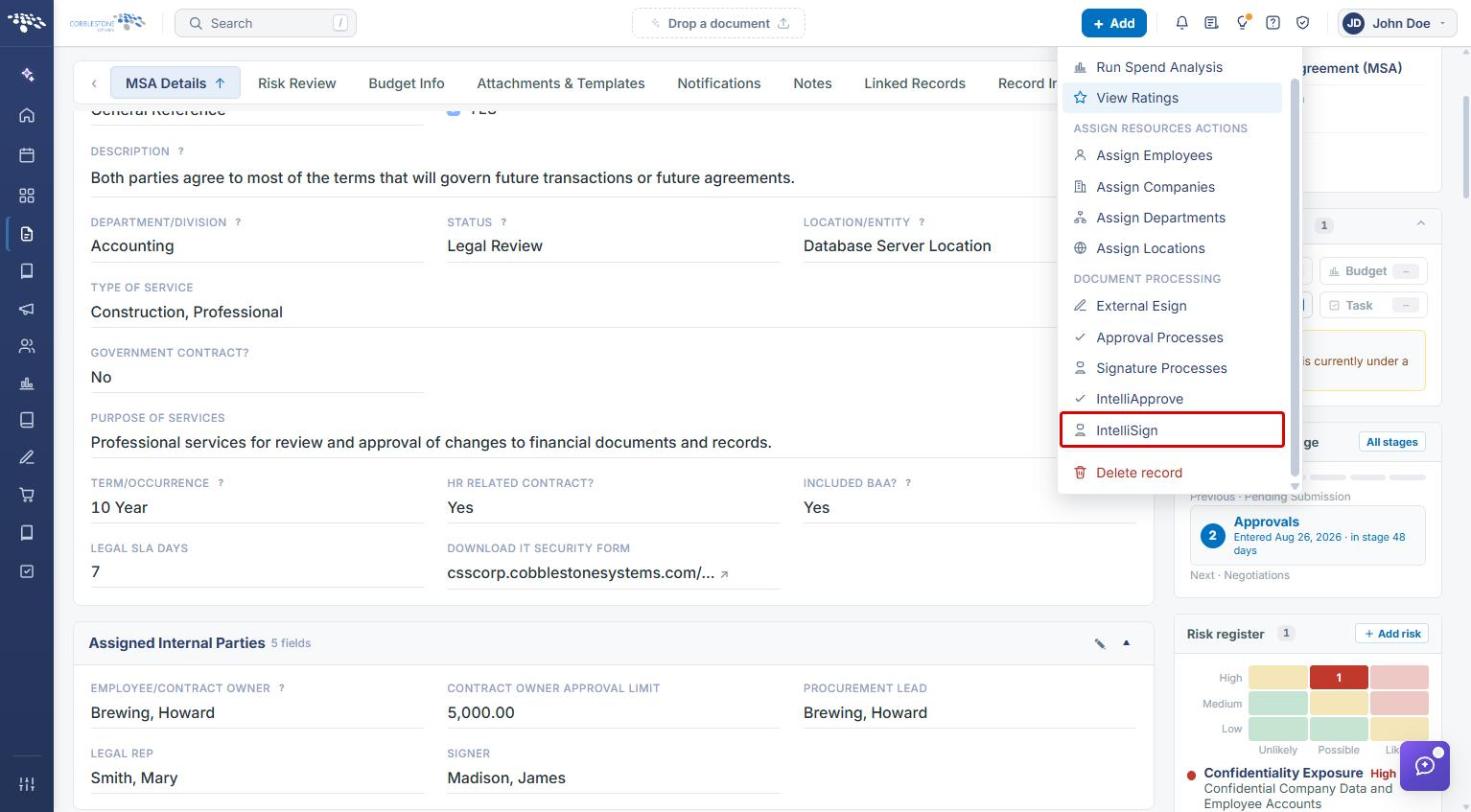
- Record Details tab → Actions → IntelliSign: the IntelliSign option is listed under the Document Processing group of the Actions menu, alongside External Esign, Approval Processes, Signature Processes, and IntelliApprove. It mirrors the IntelliApprove-from-Record-Details entry point.
- Negotiation Processes page: opens filtered to the current record (for example, “Showing only this record's processes - Contracts #5”) and set to Signatures only. Use Open record to return to the record, or Show all processes to remove the record filter.
- New signature process: opens the Send a document for signature dialog, which lists only documents attached to this record.
- Open console: opens an existing process so you can review its documents, participants, signing groups, signature fields, and process settings. Nothing is sent until you click Start process.
3. Navigating to a Contract Record
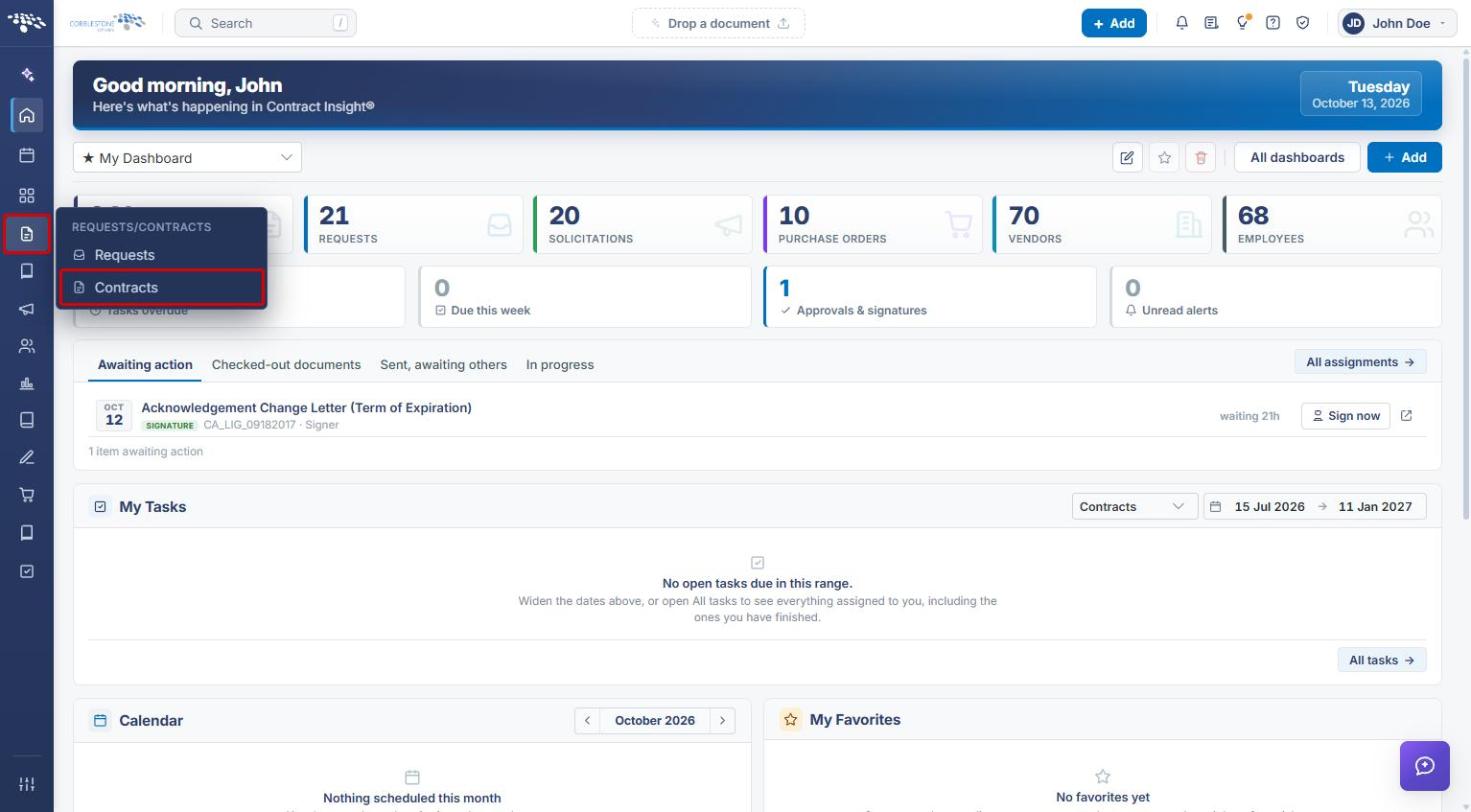
- From the Contract Insight homepage, click the Requests/Contracts icon in the left navigation bar.
- Select Contracts.
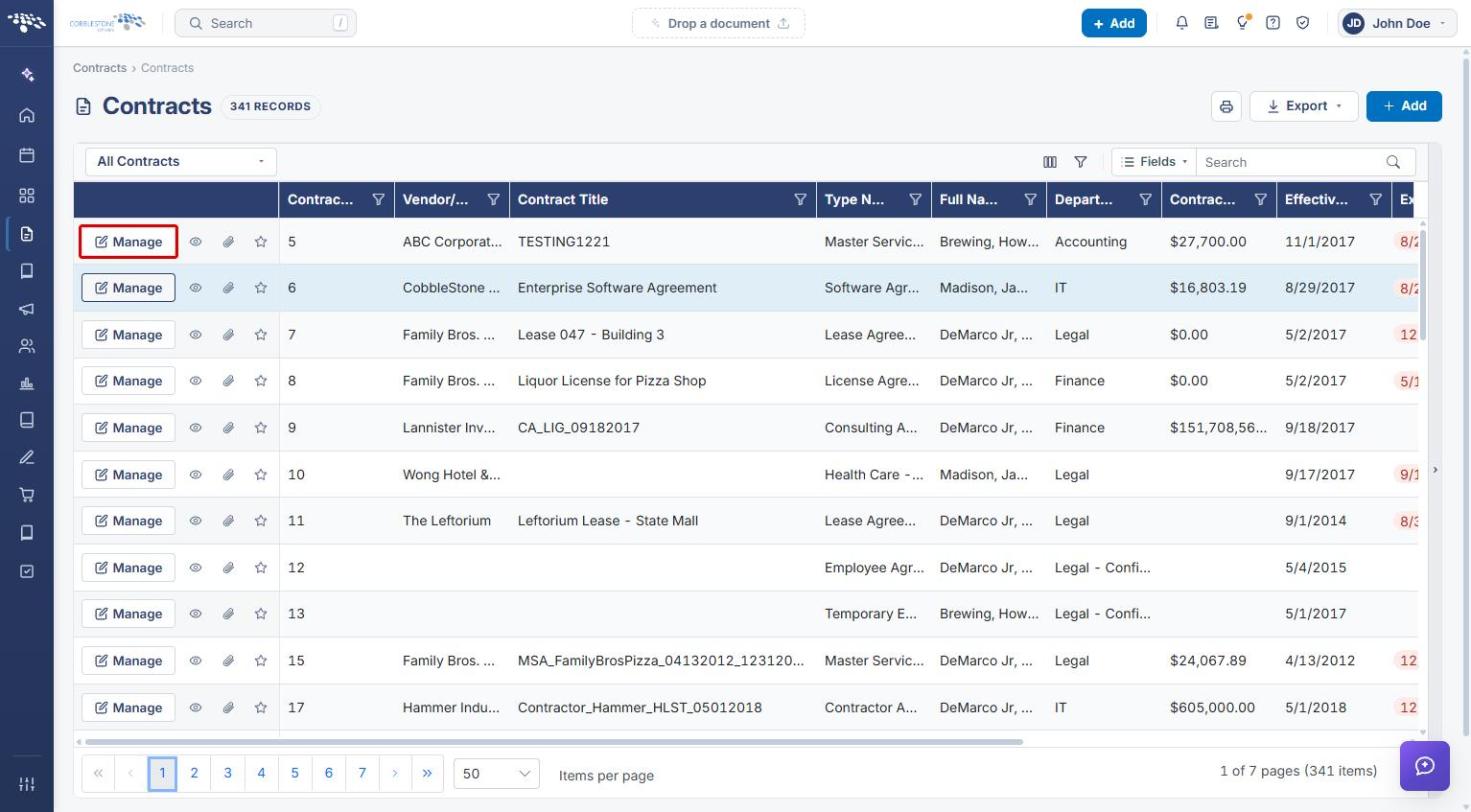
- On the Contracts list, locate the record you want to send for signature. Use the Search box, column filters, or the view drop-down (for example, All Contracts) to narrow the list.
- Click Manage on that record's row to open its Record Details.
4. Starting IntelliSign from Record Details
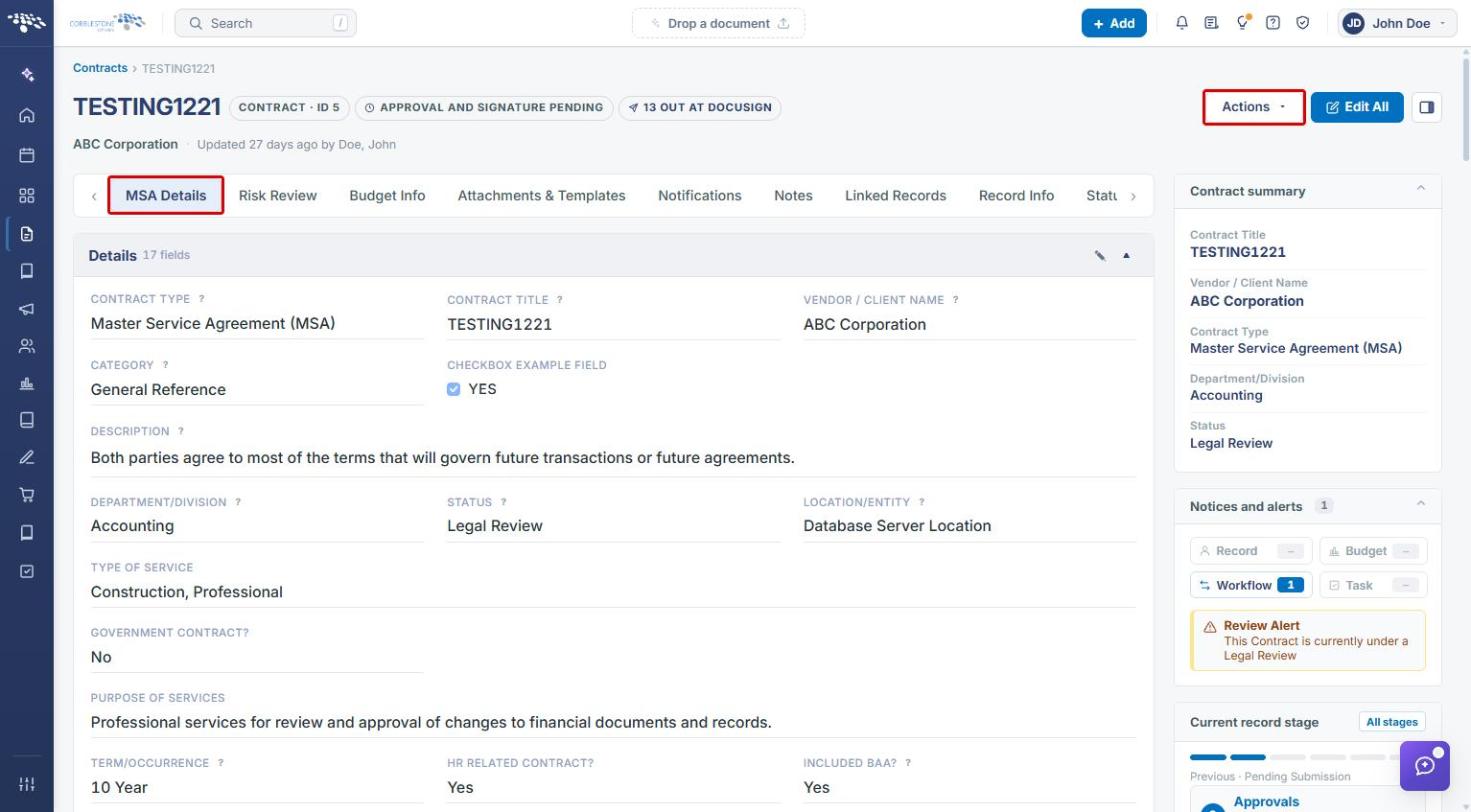
- The record opens on its default landing tab (in this example, MSA Details). You do not need to switch tabs to start IntelliSign.
- Click the Actions button in the upper-right corner of the record.
- Scroll to the Document Processing group at the bottom of the Actions menu.
- Click IntelliSign.
Note: If IntelliSign does not appear in the Actions menu, confirm that IntelliSign is enabled for your system and that your security group has access to it.
5. Reviewing the Record's Signature Processes
The Negotiation Processes page opens, showing only the signature processes raised on documents in this record, with the controls to intervene in a running one.
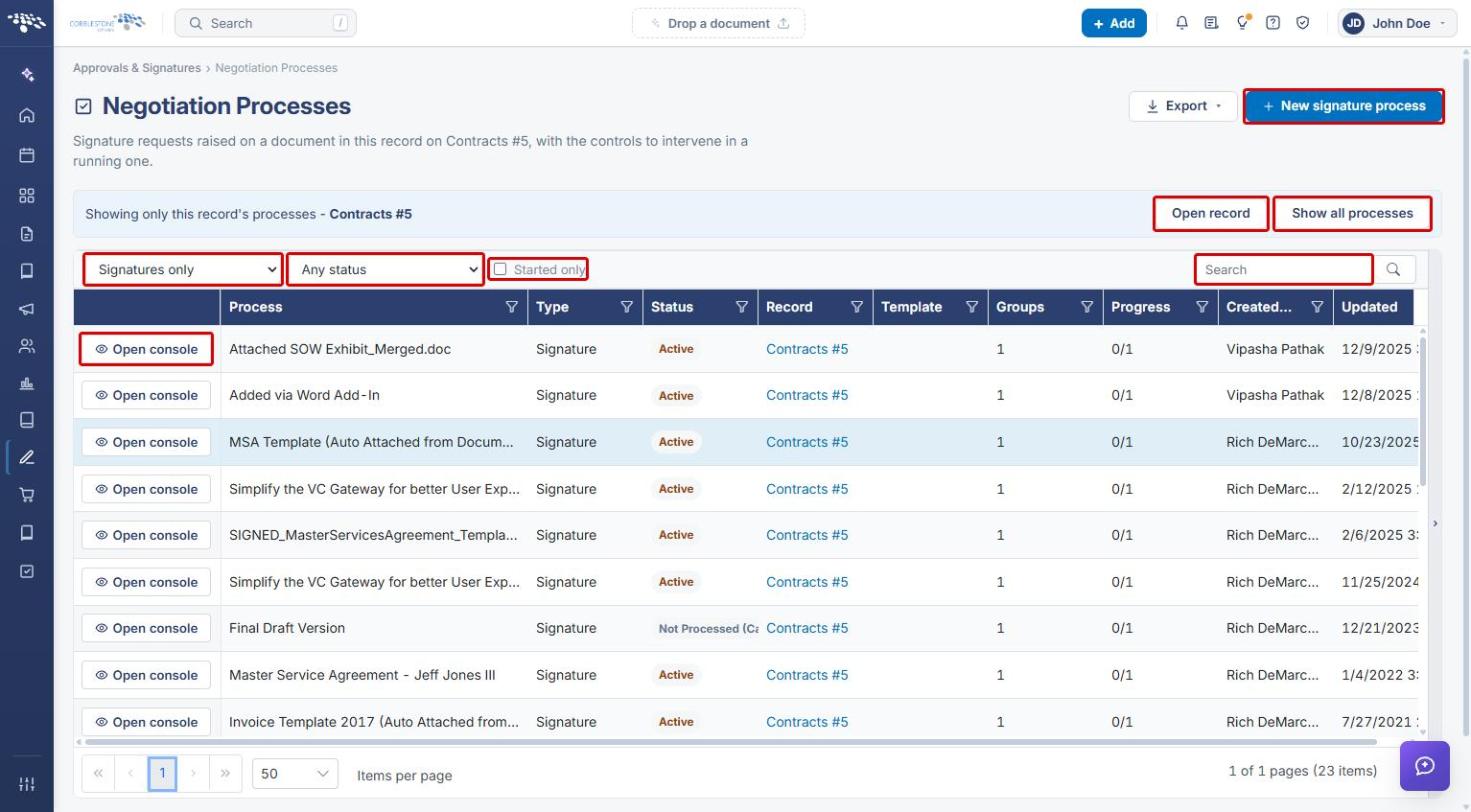
- New signature process: starts a new IntelliSign process for this record (see Section 6).
- Open record: returns to the record's Record Details.
- Show all processes: removes the record filter and shows processes for all records.
- Process type filter: choose Approvals and signatures, Approvals only, or Signatures only (the default when opened from IntelliSign).
- Status filter: choose Any status, Active, Paused, Completed, Rejected, Cancelled after starting, or Cancelled before starting.
- Started only: select to hide processes that have not been started yet.
- Search: find a process by name or other column values.
- Open console: opens that process's console (see Section 7).
6. Creating a New Signature Process
- On the Negotiation Processes page, click New signature process. The Send a document for signature dialog opens.
- Complete the fields below.
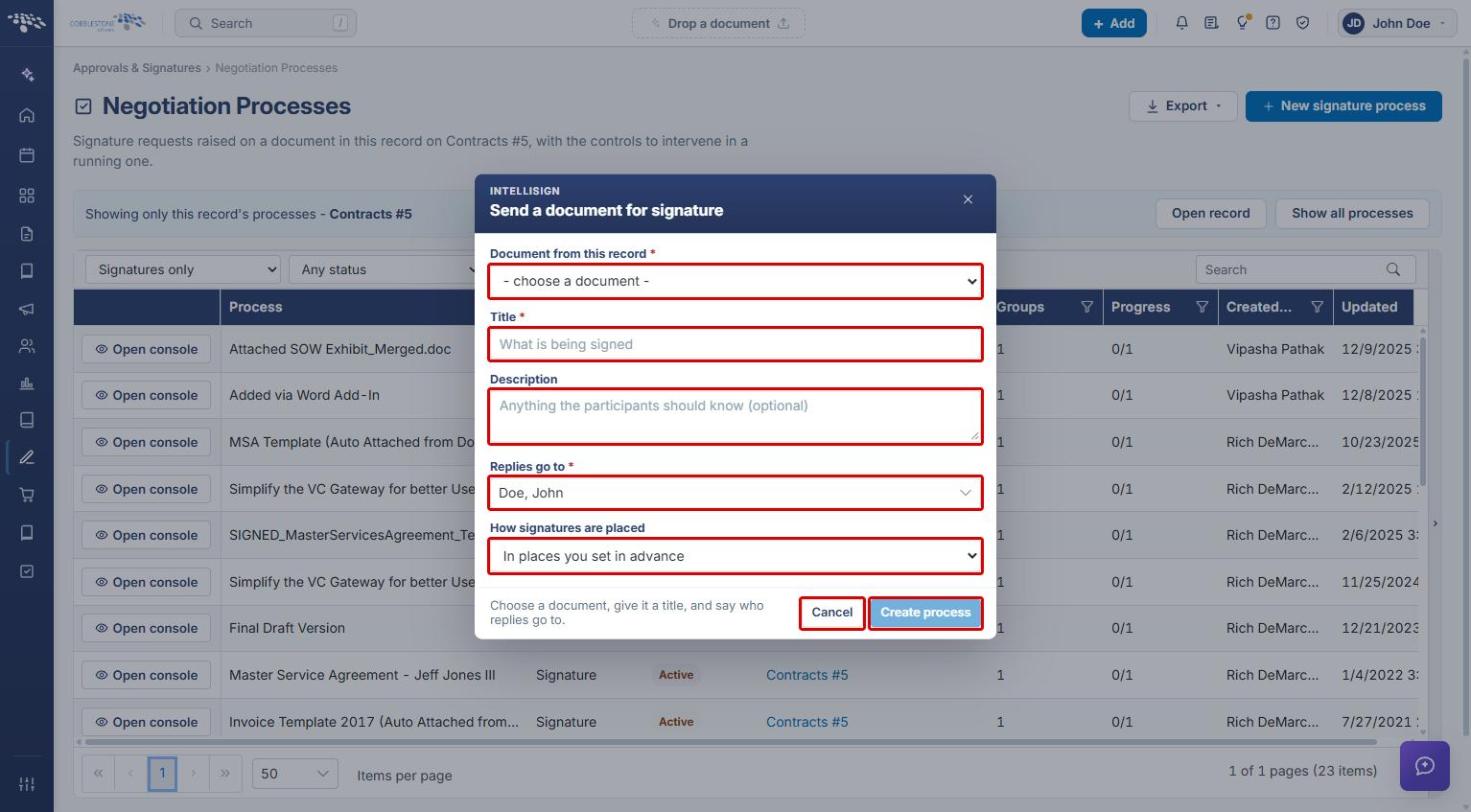
- Document from this record (required): choose the document to be signed. Only documents attached to the current record are listed.
- Title (required): enter what is being signed. This becomes the process name.
- Description (optional): add anything the participants should know.
- Replies go to (required): the employee who receives replies. This defaults to the current user.
- How signatures are placed: choose In places you set in advance to lay out signature fields before sending, or Anywhere the signer chooses to let signers place their own signature.
- Click Create process. (Click Cancel to close the dialog without creating a process.)
7. Completing the Process Setup
After the process is created, its console opens. The console lists everything the process needs before it goes out — nothing is sent until you start it. A status badge such as NOT READY - REVIEW EACH ITEM BELOW appears beside the process name until all required items are complete. You can also reach this page at any time by clicking Open console on the Negotiation Processes page.
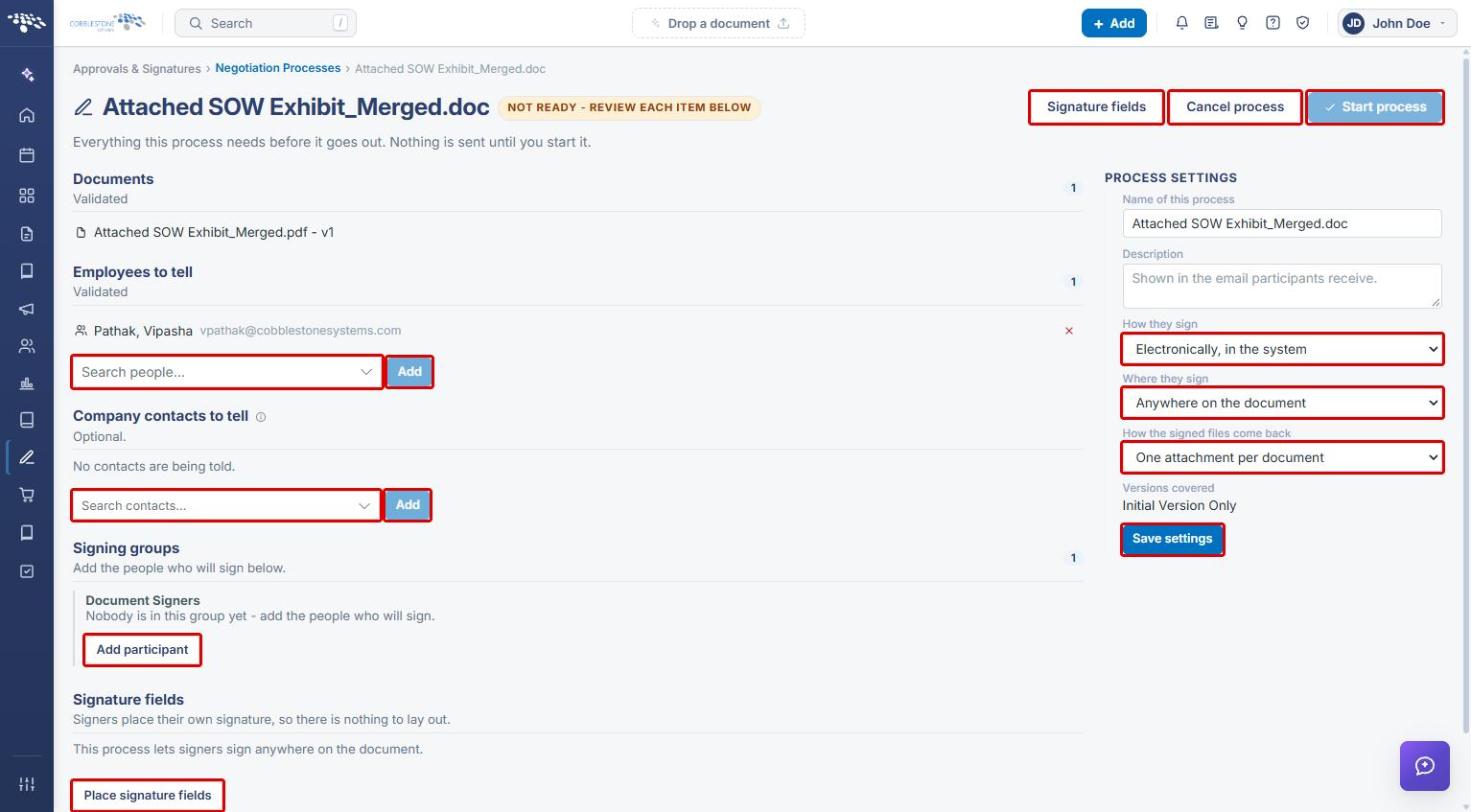
- Documents: confirm the correct document and version are listed.
- Employees to tell: use Search people... and click Add to notify internal employees. Click the red × beside a name to remove it.
- Company contacts to tell (optional): use Search contacts... and click Add to notify external contacts.
- Signing groups: click Add participant to add the people who will sign.
- Signature fields: if the process uses fields set in advance, click Place signature fields (or Signature fields at the top of the page) to lay them out on the document. For more information, see Setting Signature Place Holders.
- Under Process Settings, review the following and click Save settings:
- Name of this process and Description (shown in the email participants receive).
- How they sign: Electronically, in the system or On paper - they download, sign and upload it back.
- Where they sign: Only where fields have been placed or Anywhere on the document.
- How the signed files come back: One attachment per document or All of them as a single PDF.
- When every item is complete, click Start process to send the document for signature. To discard the process instead, click Cancel process.
8. Related Articles
- IntelliSign Overview
- Starting an IntelliSign Process
- Setting Signature Place Holders
- IntelliSign Process from E-Approvals
- IntelliSign Process from Standard Packages