
COBBLESTONE SOFTWARE
Contract Insight — User Guide
IntelliSign Process from E-Approvals
Module: Document Collaboration Gateway › IntelliSign › IntelliSign Process from E-Approvals
Note: Each procedure in this guide begins at the Contract Insight homepage, so any section can be followed on its own. Custom fields are configurable, so the exact field list on a contract category record may vary between environments.
1. Overview
Since approvals and signatures are managed on the same Negotiation Processes hub, a document that has just finished an E-Approvals Process can move directly into an IntelliSign-handled Signatures Process on the same record, without leaving the Approvals & Signatures area.
The usual sequence is: confirm the approval process shows Process Completed, open the record from the approval console, start the signature process from the record's Actions menu, then track it back on Negotiation Processes.
2. Key Elements
- Approval and signature processes on the same record both live under Negotiation Processes.
- A completed approval process can be followed by starting a signature process (IntelliSign or otherwise) on the same document.
- The Type column separates Approval processes from Signature processes, and the Status column shows when one is Process Completed.
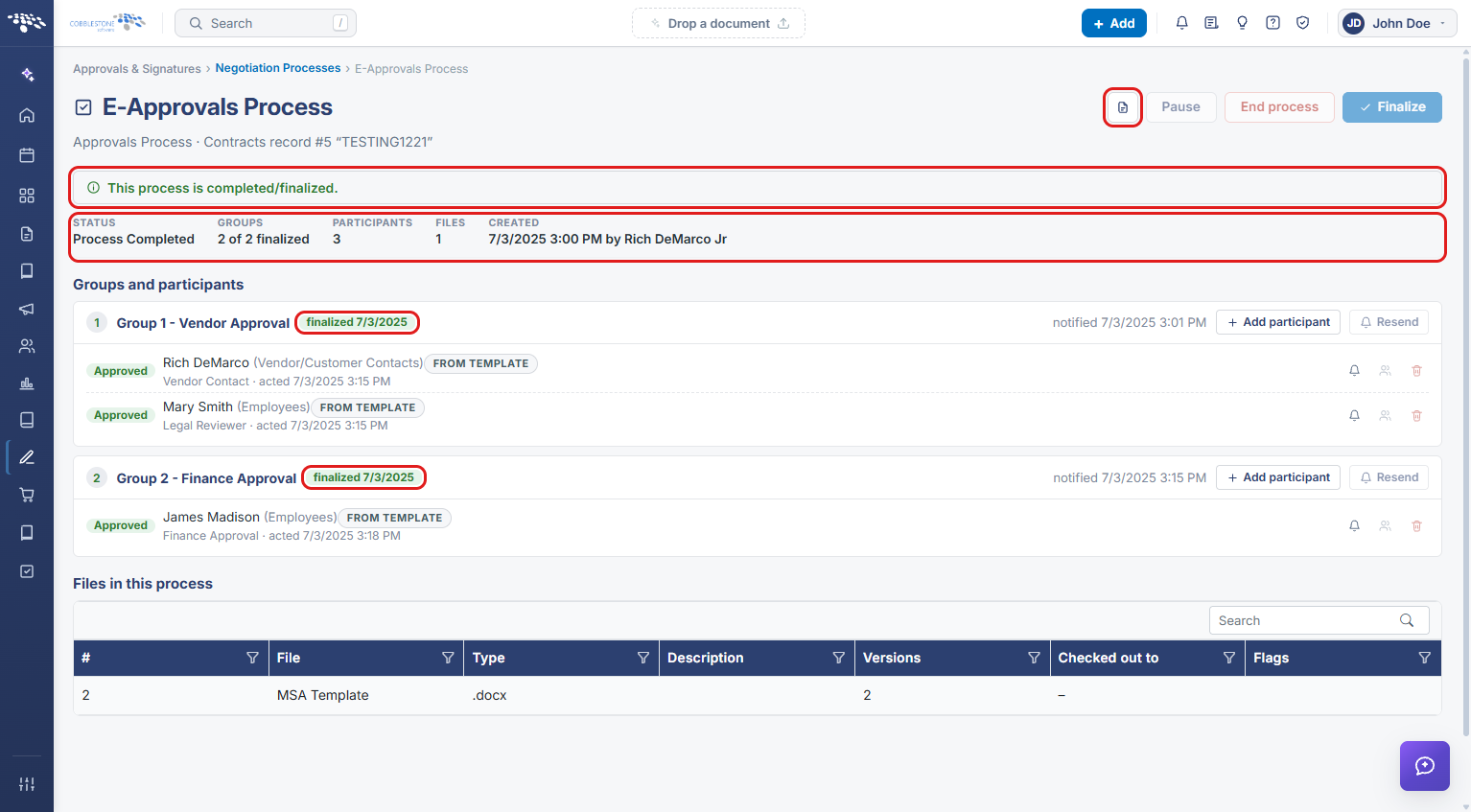
- A completed console shows “This process is completed/finalized,” with each group marked finalized.
- The Open record icon on the console goes straight to the record the process belongs to.
- The record's Actions → Document Processing menu holds Approval Processes, Signature Processes, IntelliApprove, and IntelliSign.
3. Navigating to Negotiation Processes
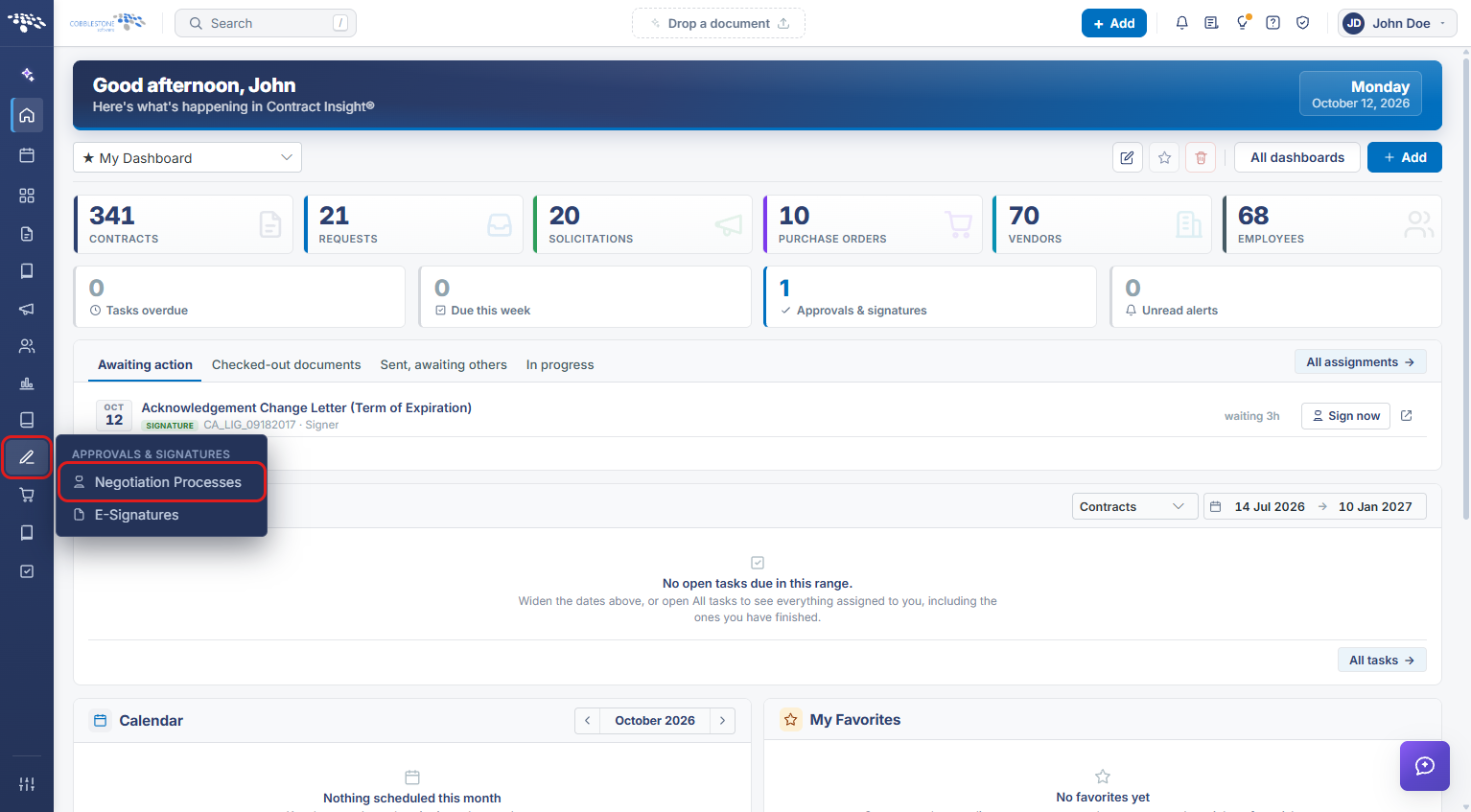
- From the Contract Insight homepage, click the Approvals & Signatures icon in the left navigation bar.
- Select Negotiation Processes.
4. Confirming the Approval Process Is Complete
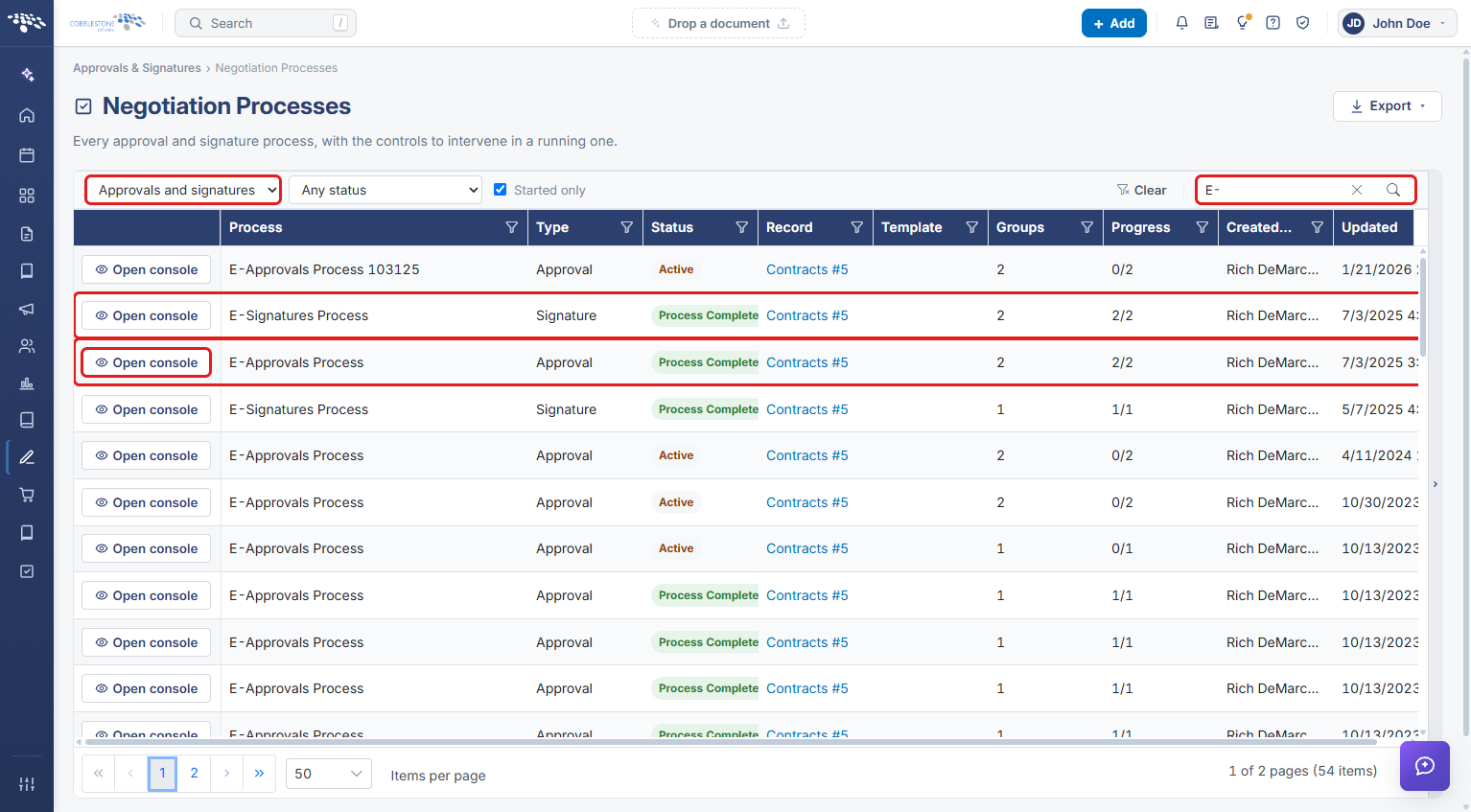
- Navigate to Approvals & Signatures → Negotiation Processes (see Section 3).
- Leave the type filter on Approvals and signatures and use the Search box to find the record's processes.
- Find the Approval row for the document and check that its status is Process Complete. Any signature process already started on the same record appears in the same list.
- Click Open console on the approval row.
- On the console, confirm the banner reads “This process is completed/finalized” and that the summary shows Status: Process Completed, with every group finalized.
- Click the Open record icon at the top right to go to the record.
5. Starting the IntelliSign Signatures Process
- On the record, click Actions.
- Scroll to Document Processing and click IntelliSign to start a new signature process on the record. To see the record's existing signature processes instead, click Signature Processes.
- Follow the IntelliSign setup to choose the document and signers. See Starting an IntelliSign Process for the full steps.
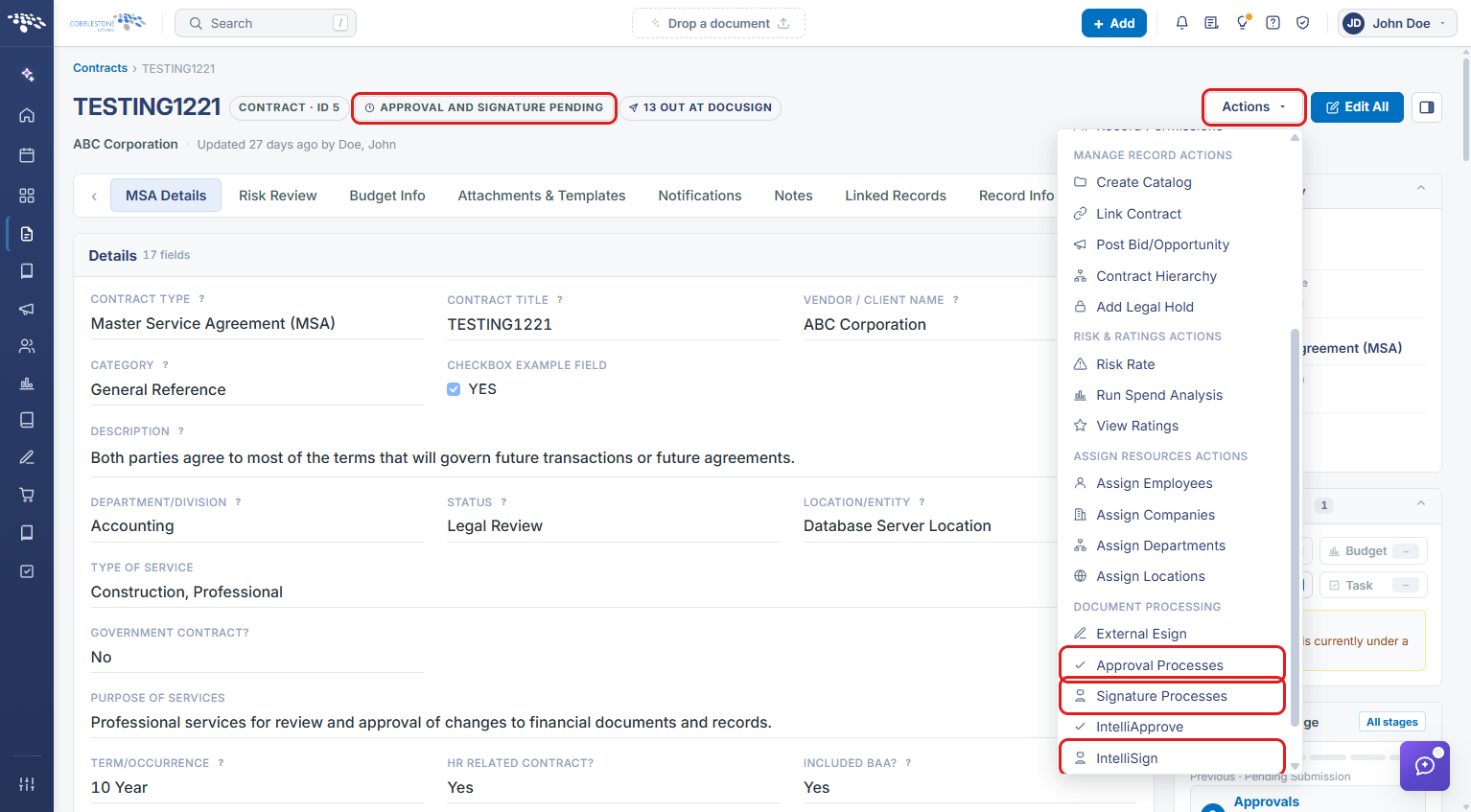
Note: The badge next to the record title (for example, APPROVAL AND SIGNATURE PENDING) shows where the record is in its approval and signature cycle.
6. Tracking the Signatures Process
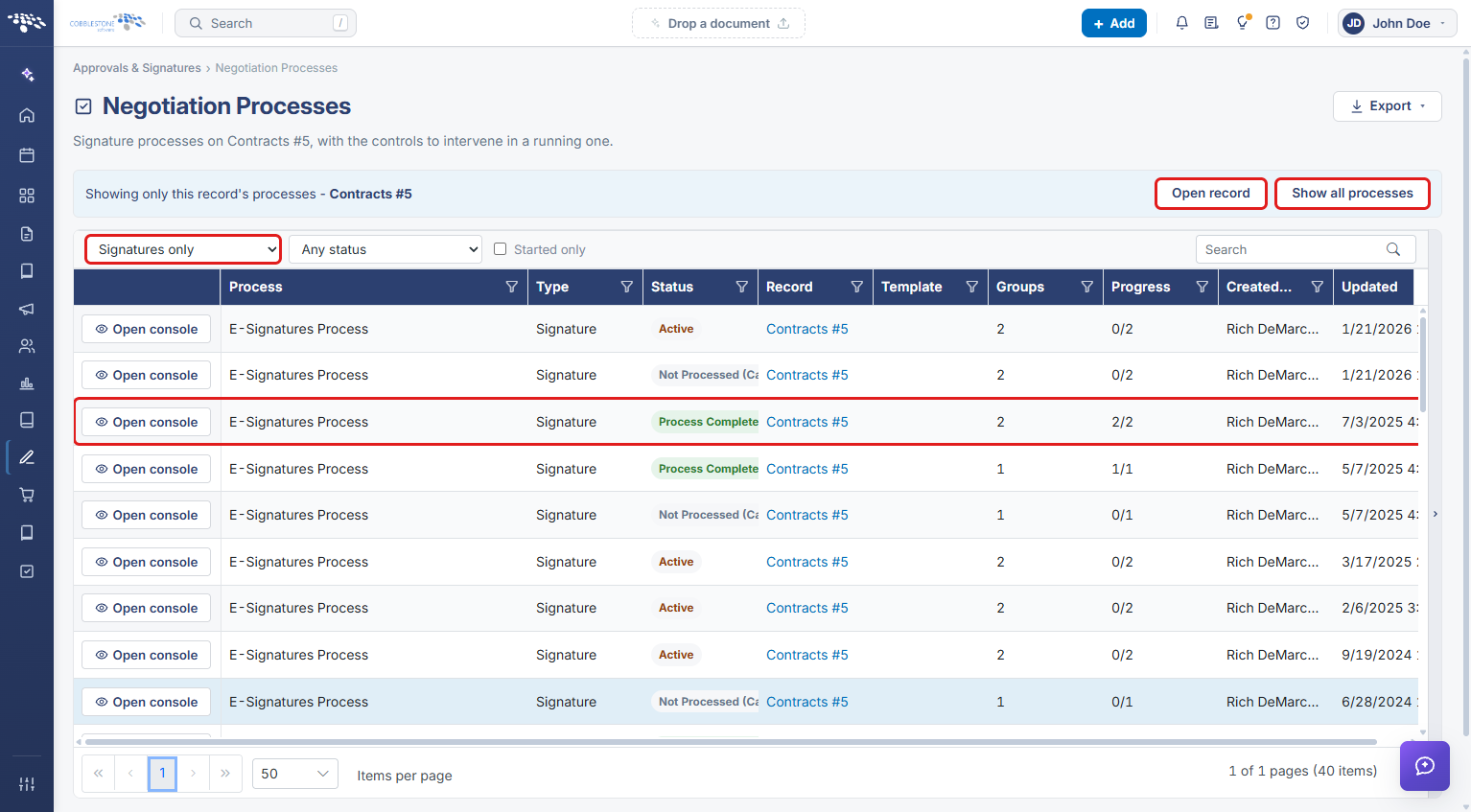
- On the record, click Actions → Signature Processes. Negotiation Processes opens filtered to this record, with the type filter set to Signatures only.
- Find the signature process and click Open console. Click Show all processes to remove the record filter, or Open record to go back to the record.
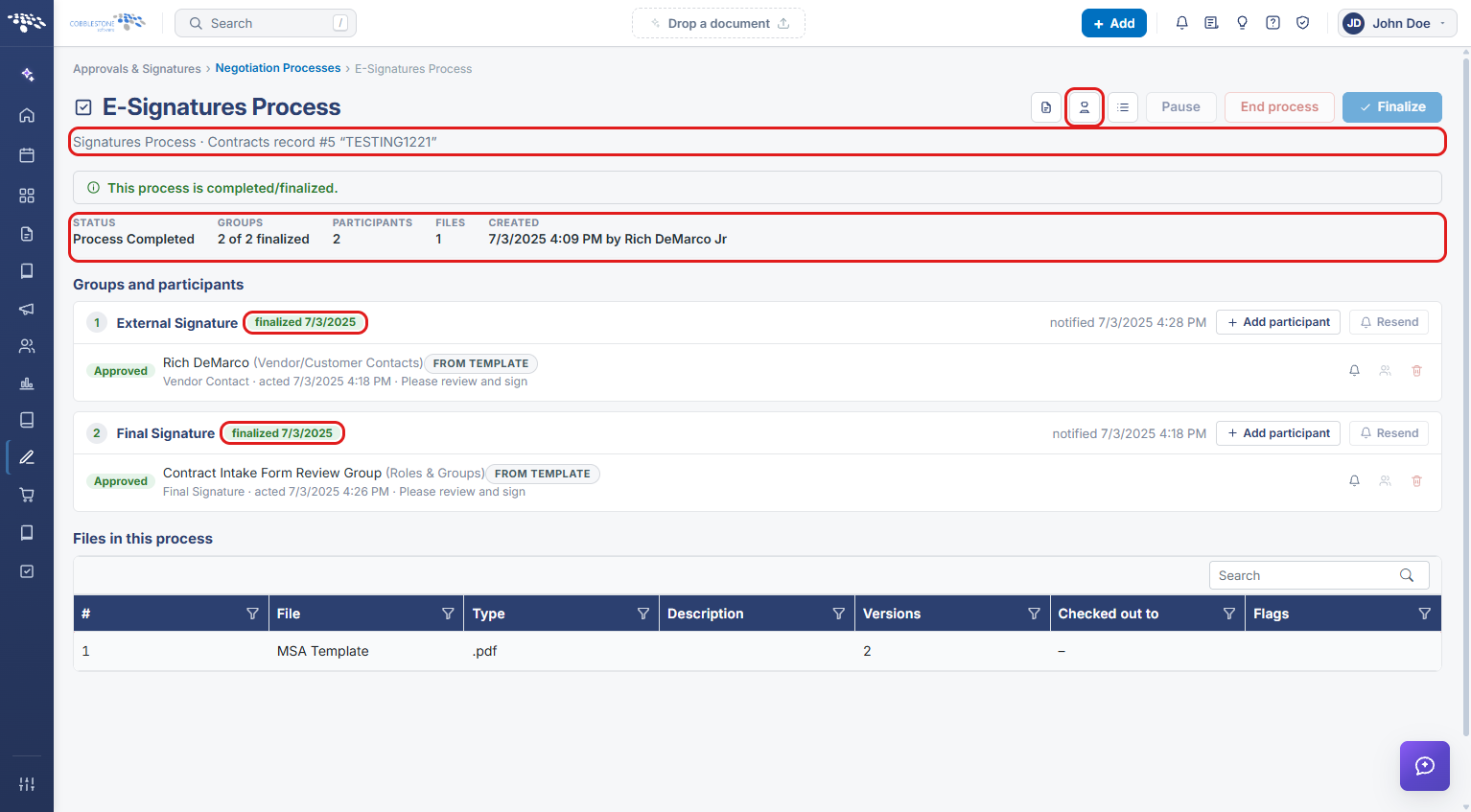
- On the signature console, confirm it is a Signatures Process on the same record as the approval.
- Review the status summary and each signing group's progress. Groups show finalized once all their signers have acted.
- Click the Signature receipt icon to see who signed what, and when.
7. Quick Reference Summary
| Task | How to Complete It |
|---|---|
| Open Negotiation Processes | Approvals & Signatures → Negotiation Processes. |
| Confirm the approval is complete | Find the Approval row → Open console → check for Process Completed. |
| Go from the approval to the record | Approval console → Open record icon. |
| Start the IntelliSign process | Record → Actions → IntelliSign. |
| See the record's signature processes | Record → Actions → Signature Processes. |
| See who signed and when | Signature console → Signature receipt icon. |