COBBLESTONE SOFTWARE
Contract Insight — User Guide
IntelliSign Overview
Module: Document Collaboration Gateway › IntelliSign › IntelliSign Overview
Note: Each procedure in this guide begins at the Contract Insight homepage, so any section can be followed on its own. Custom fields are configurable, so the exact field list on a contract category record may vary between environments.
1. Overview
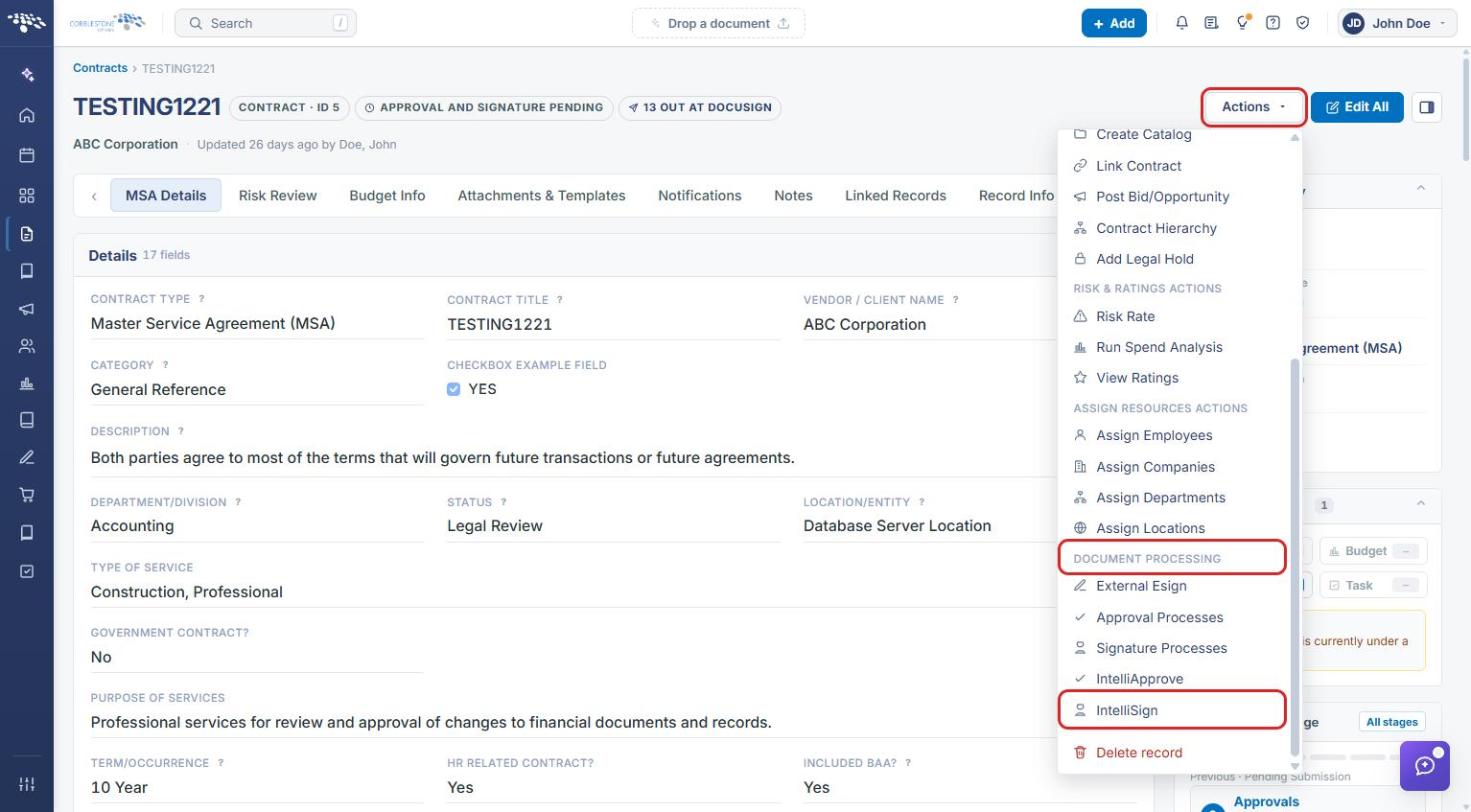
IntelliSign is CobbleStone's own signing mechanism, started from Actions → IntelliSign (Document Processing group) on a record, alongside Approval Processes, Signature Processes, and IntelliApprove — CobbleStone's built-in alternative to routing a signature through DocuSign, Adobe Acrobat Sign, or another external provider.
2. Key Elements
- Actions → IntelliSign (Document Processing group) starts an IntelliSign process
- An alternative to the external DocuSign / Adobe Acrobat Sign / SignNow integrations
3. Opening IntelliSign on a Record
- From the Contract Insight homepage, open the record (for example, Requests/Contracts → Contracts, then click Manage on the contract's row).
- Click Actions in the upper-right corner of the record.
- Scroll to the Document Processing group and select IntelliSign.
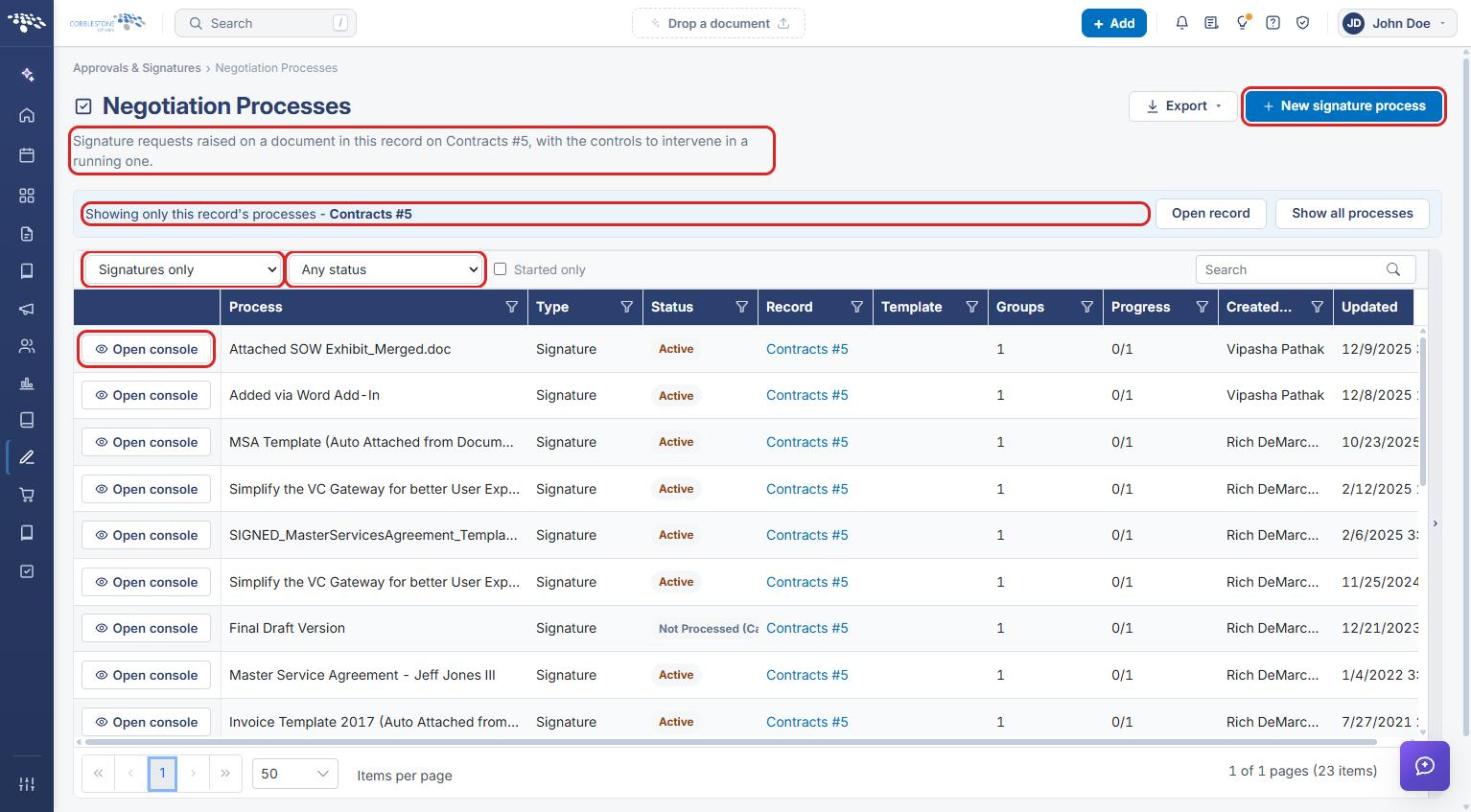
- The Negotiation Processes page opens, filtered to Signatures only and to signature requests raised on documents in this record (the banner reads "Showing only this record's processes"). Click Open console on a row to track an existing request.
4. Sending a Document for Signature with IntelliSign
- On the IntelliSign view (see Section 3), click + New signature process.
- In Send a document for signature, select the Document from this record to be signed.
- Enter a Title (what is being signed) and an optional Description with anything the participants should know.
- Choose who Replies go to.
- Select How signatures are placed: In places you set in advance or Anywhere the signer chooses.
- Click Create process, or Cancel to close without creating it.
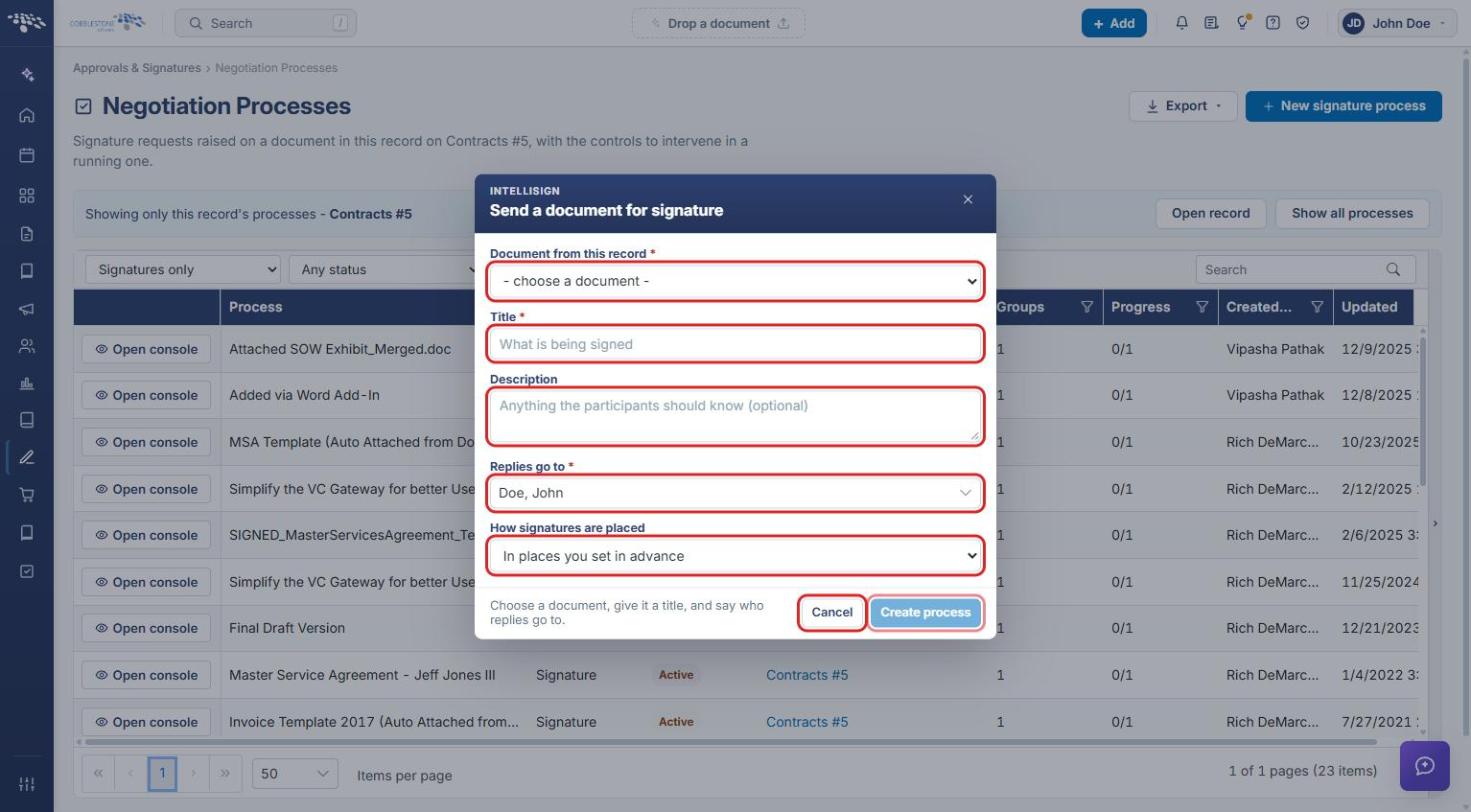
Note: Document from this record, Title, and Replies go to are required; Create process stays unavailable until they are filled in.
5. Quick Reference Summary
| Task | How to Complete It |
|---|---|
| Open IntelliSign for a record | Record → Actions → Document Processing → IntelliSign. |
| Track an IntelliSign request | IntelliSign view → Open console. |
| Send a document for signature | IntelliSign view → + New signature process. |
| Choose the document and title | Document from this record → Title. |
| Set where signers sign | How signatures are placed → in advance, or anywhere the signer chooses. |
| Create the request | Complete the required fields → Create process. |