COBBLESTONE SOFTWARE
Contract Insight — User Guide
Approving a Document
Module: Document Collaboration Gateway › Document Collaboration Gateway Settings & Functionality (External Users) › Approving a Document
Note: Each procedure in this guide begins at the Contract Insight homepage, so any section can be followed on its own. Custom fields are configurable, so the exact field list on a contract category record may vary between environments.
1. Overview
A My Assignments row for an approval step provides an Open action that leads to the record being approved (rather than a dedicated signing page, which only applies to signatures); from there, the reviewer works through the approval process's console to complete their assigned step.
2. Key Elements
- My Assignments → an approval row's Open leads to the underlying record
- The console's current step shows who the approval "needs" and their role
- Completing a step is reflected immediately in the console's Steps finalized count
3. Finding the Approval Assigned to You
- From the Contract Insight homepage, click All assignments in the Awaiting action panel to open My Assignments.
- Choose the record area tab (for example, Contracts) and click Assigned to me (or Assigned to my groups for steps assigned to a group you belong to).
- Narrow the list with Process status, My approval, and Outstanding only. The My role column shows your role on the step, tagged needs you when it is waiting on you.
- On the approval row, click the eye icon (Open the record) to open the record being approved.
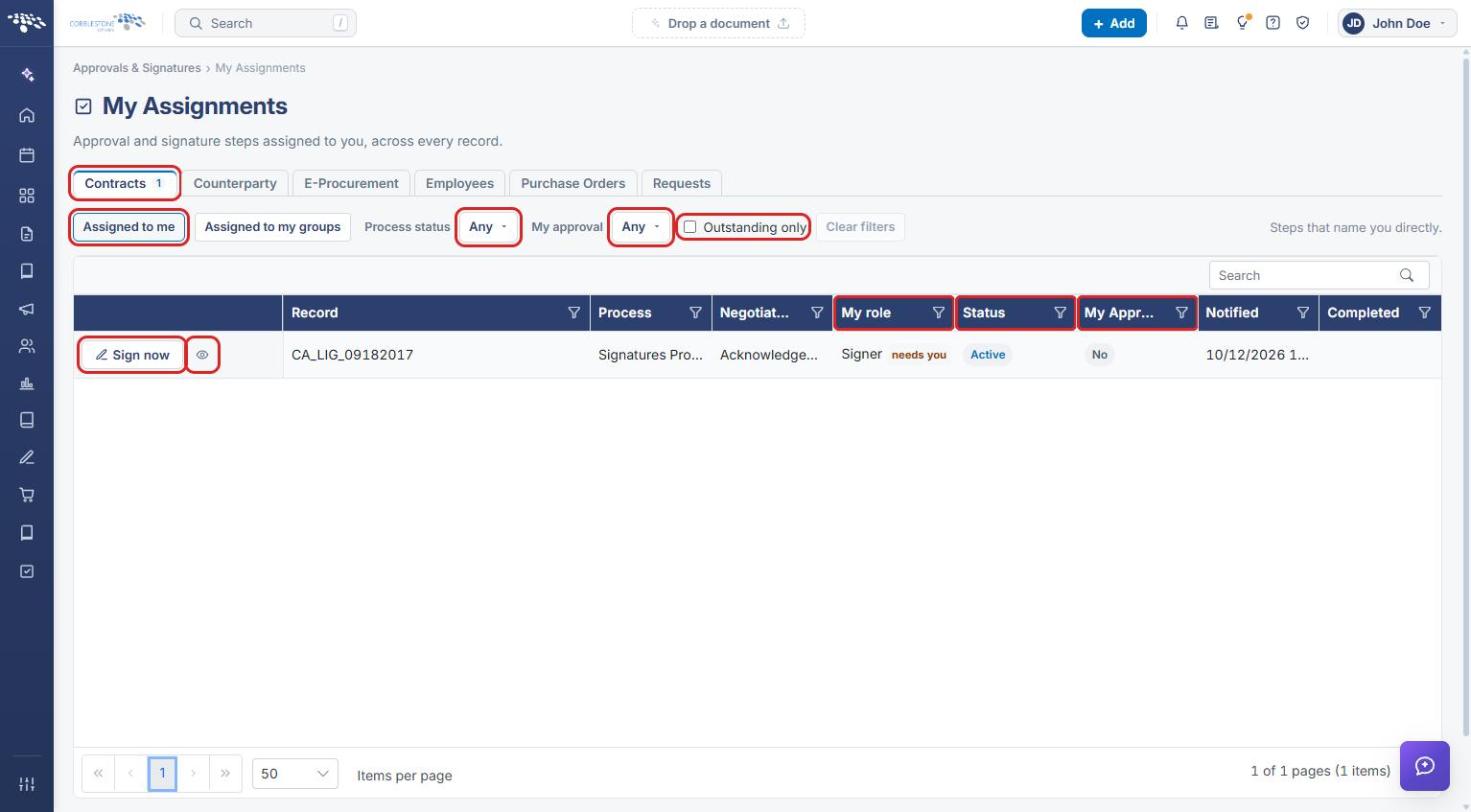
Note: Signature rows also offer Sign now, which opens a separate signing page. Approval rows are completed through the record and its approval process instead.
4. Opening the Approval Process from the Record
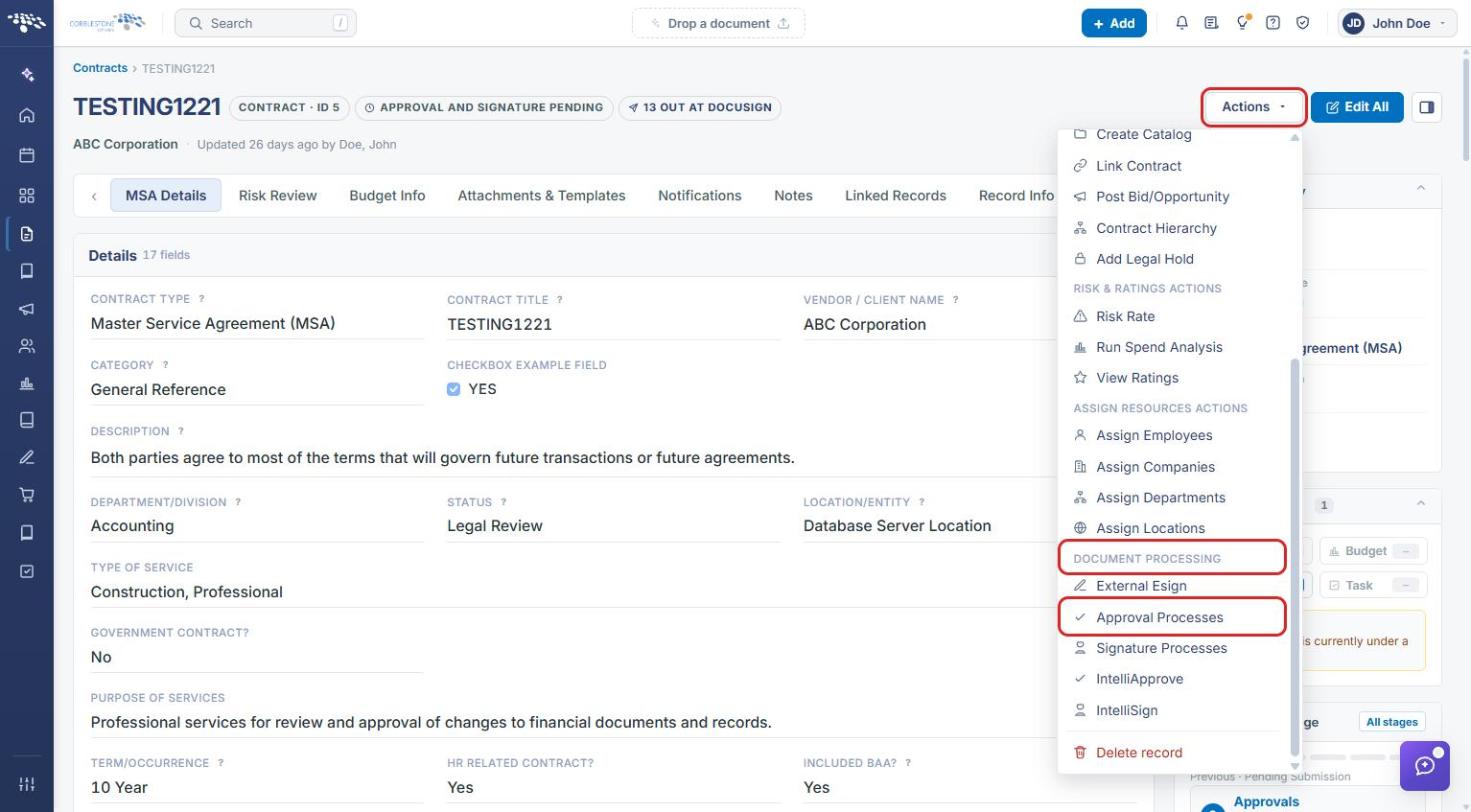
- On the record, click Actions in the upper-right corner.
- Under Document Processing, select Approval Processes.
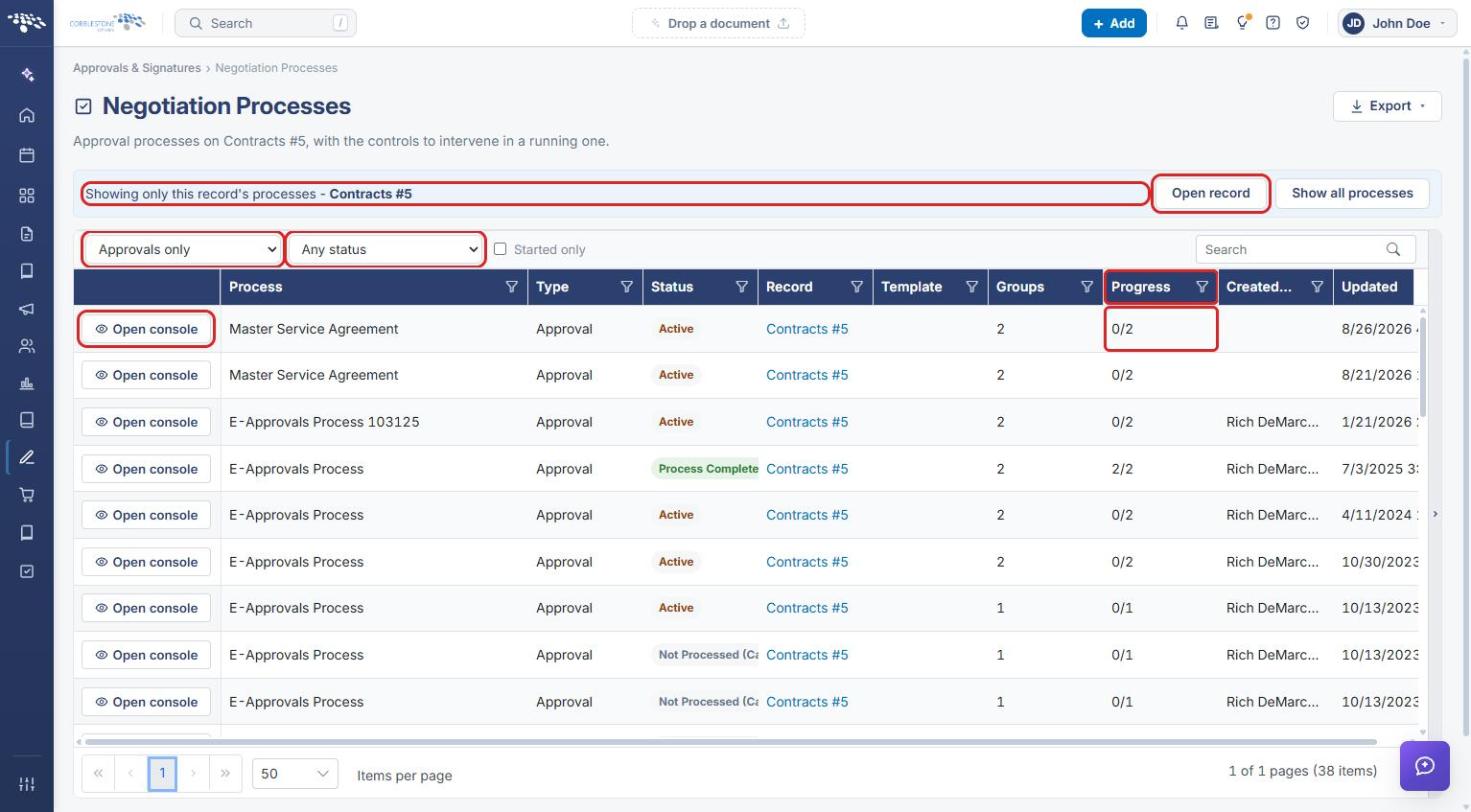
- The Negotiation Processes page opens filtered to Approvals only and to this record. Find the active process (its Progress shows groups finalized out of the total, for example 0/2) and click Open console. Click Open record at any time to go back to the record.
5. Reviewing Your Step in the Console
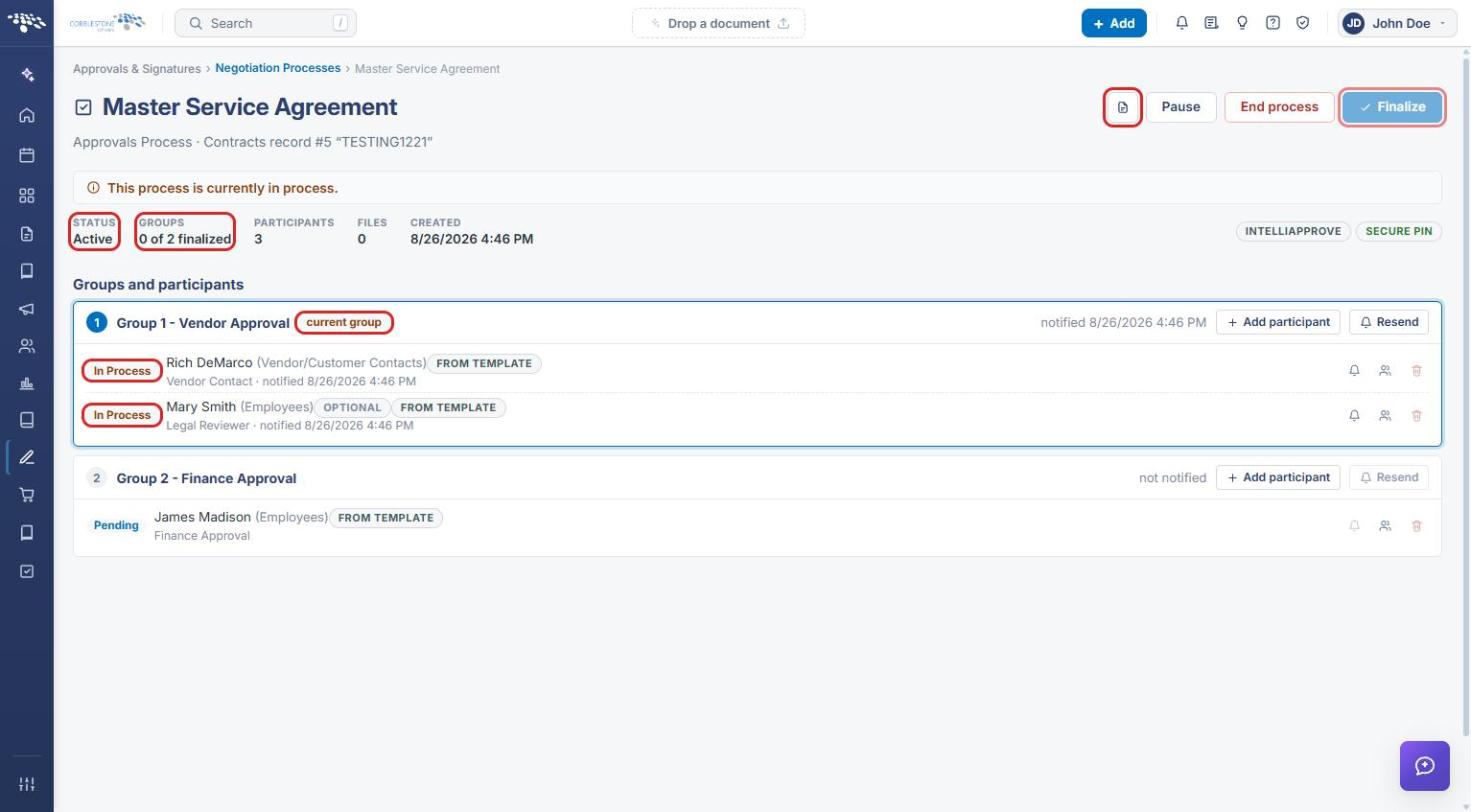
- Click the Open record icon (next to Pause) to review the document or record being approved.
- Under Groups and participants, the group tagged current group is the one being worked on. Its participants show In Process, along with their role (for example, Vendor Contact or Legal Reviewer).
- When your step is completed, the Groups count (for example, 0 of 2 finalized) and the list's Progress column update, and the process moves to the next group.
6. Quick Reference Summary
| Task | How to Complete It |
|---|---|
| Find approvals assigned to you | Homepage → Awaiting action → All assignments. |
| Open the record being approved | My Assignments → eye icon (Open the record). |
| Open the record's approval processes | Record → Actions → Document Processing → Approval Processes. |
| Open the approval console | Record-scoped Negotiation Processes → Open console. |
| See which step is in progress | Console → current group; participants show In Process. |
| Track completion | Console → Groups (e.g. 0 of 2 finalized), or the list's Progress column. |