COBBLESTONE SOFTWARE
Contract Insight — User Guide
IntelliApprove Process from Record Details
Module: Document Collaboration Gateway › IntelliApprove › IntelliApprove Process from Record Details
Note: Each procedure in this guide begins at the Contract Insight homepage, so any section can be followed on its own. Custom fields are configurable, so the exact field list on a contract category record may vary between environments.
1. Overview
Starting IntelliApprove from a record's details is the most direct way to route one of the record's documents for approval. Open the record, click Actions, and under Document Processing choose IntelliApprove. The Negotiation Processes page opens filtered to that record, where you can start a new approval process with + New approval process or manage running ones with Open console.
2. Key Elements
- Record details page: the record opens on its first details tab (for example, MSA Details on a Master Service Agreement). The Actions menu sits at the top right of the record.
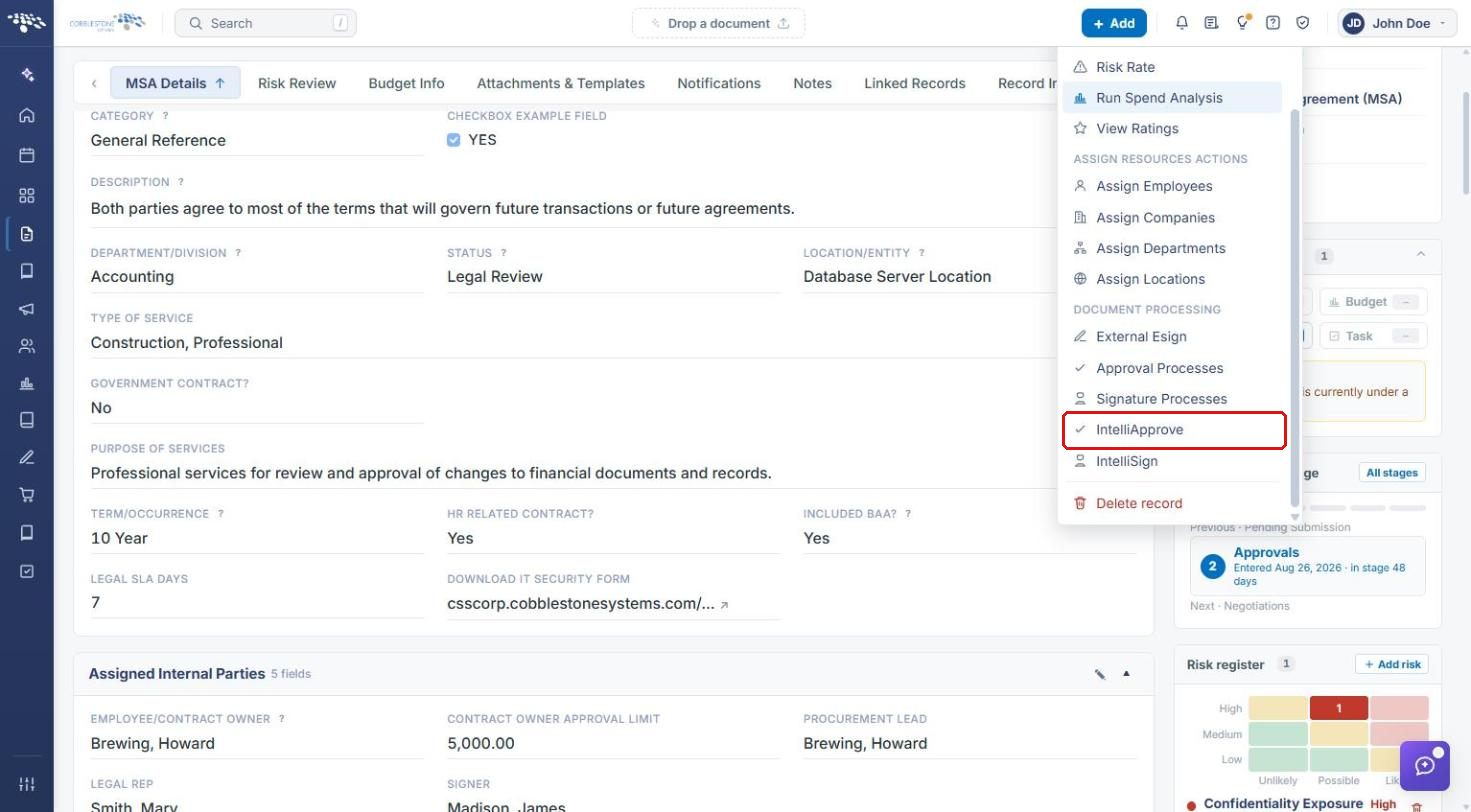
- Actions → Document Processing → IntelliApprove: opens the record's approval processes.
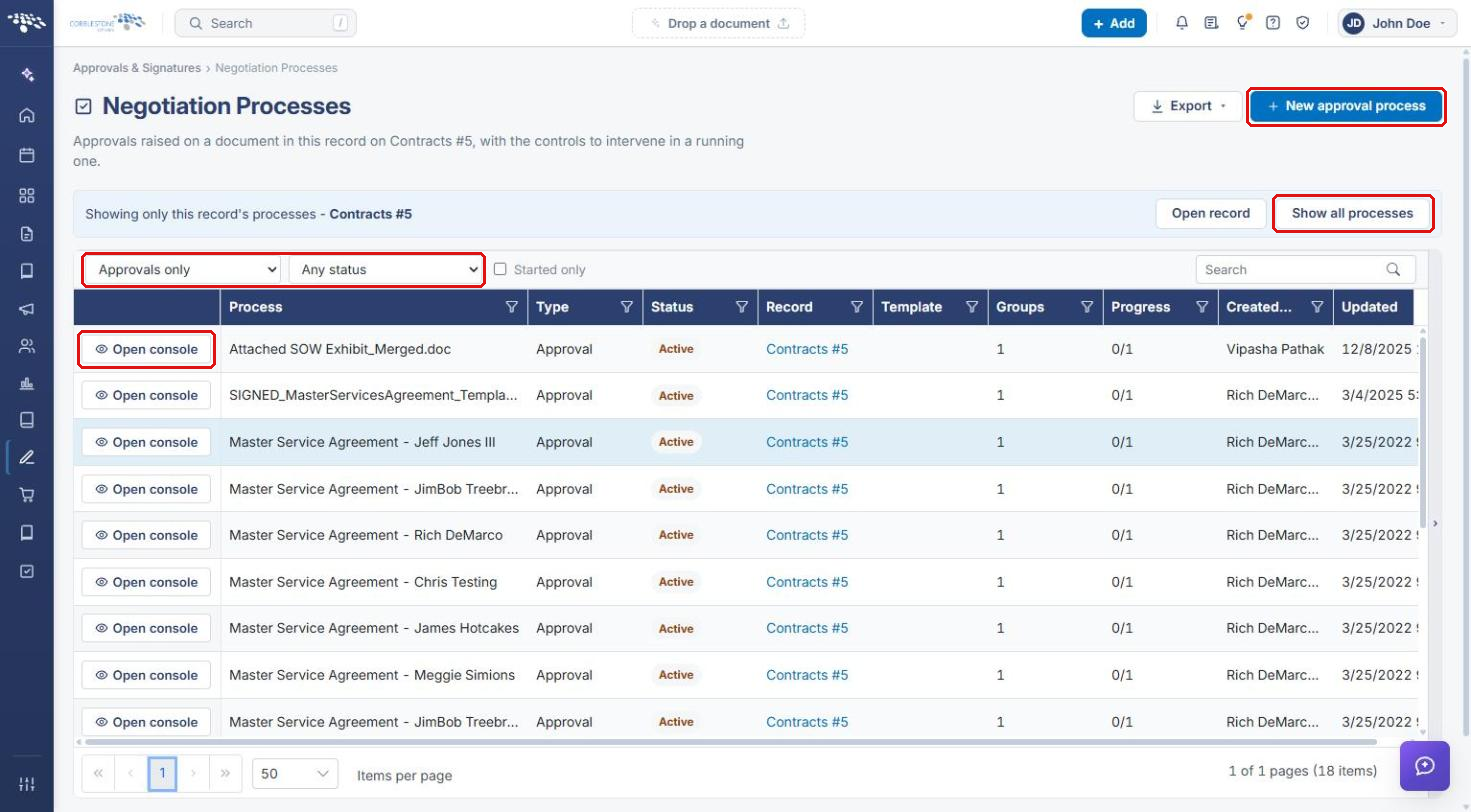
- Negotiation Processes page: “Approvals raised on a document in this record,” with the controls to intervene in a running one. Shows each process's Status, Groups, and Progress, with filters for process type and status.
- Send a document for approval window: the document, title, description, who replies go to, and the approval settings. You add the people after the process is created.
- Process console: groups and participants, files in the process, and the Pause, End process, and Finalize controls.
3. Opening the Record
- From the Contract Insight homepage, click the Requests/Contracts icon in the left navigation bar and select Contracts.
- Locate the contract and click Manage on its row.
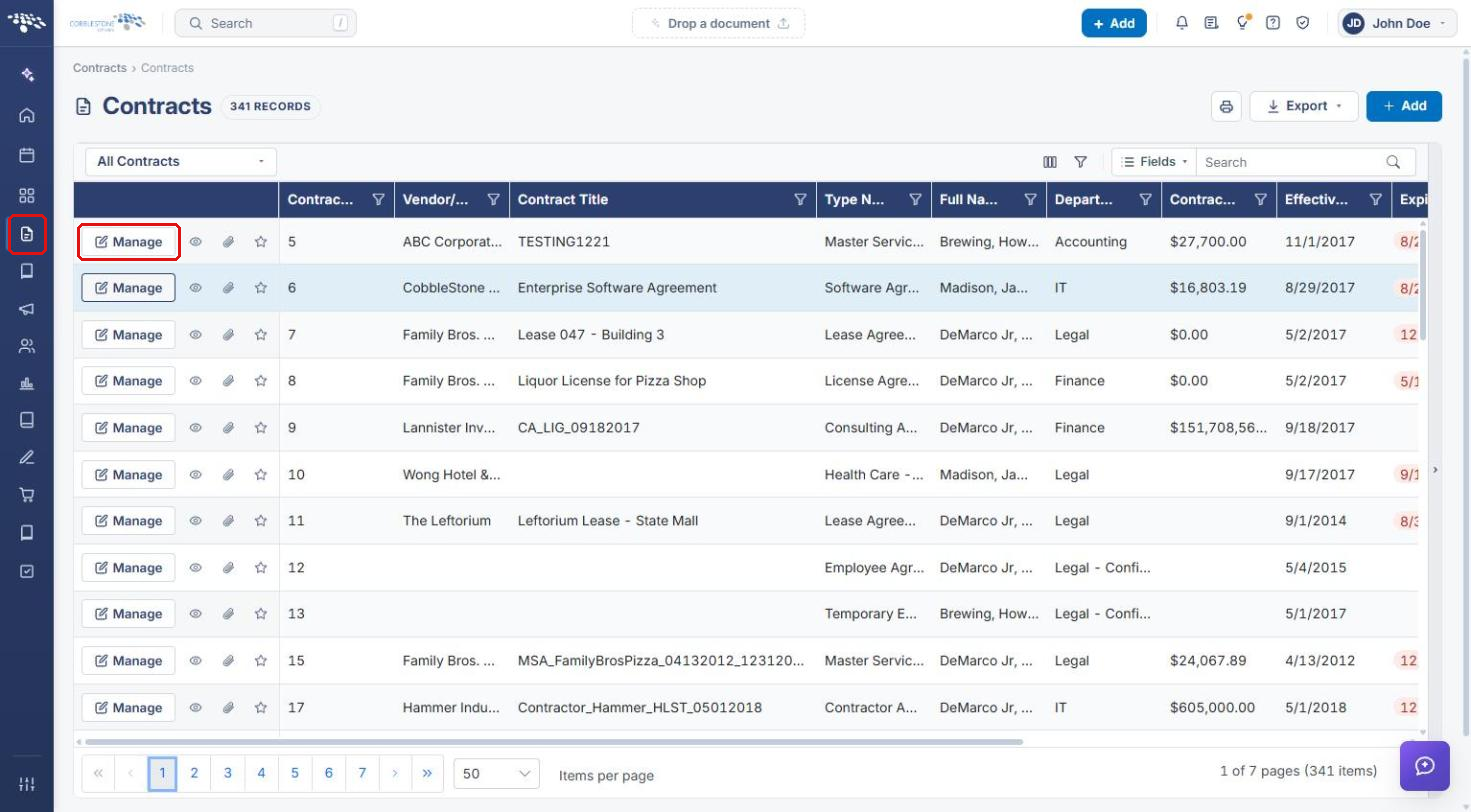
The record opens on its details tab. Click Actions at the top right.
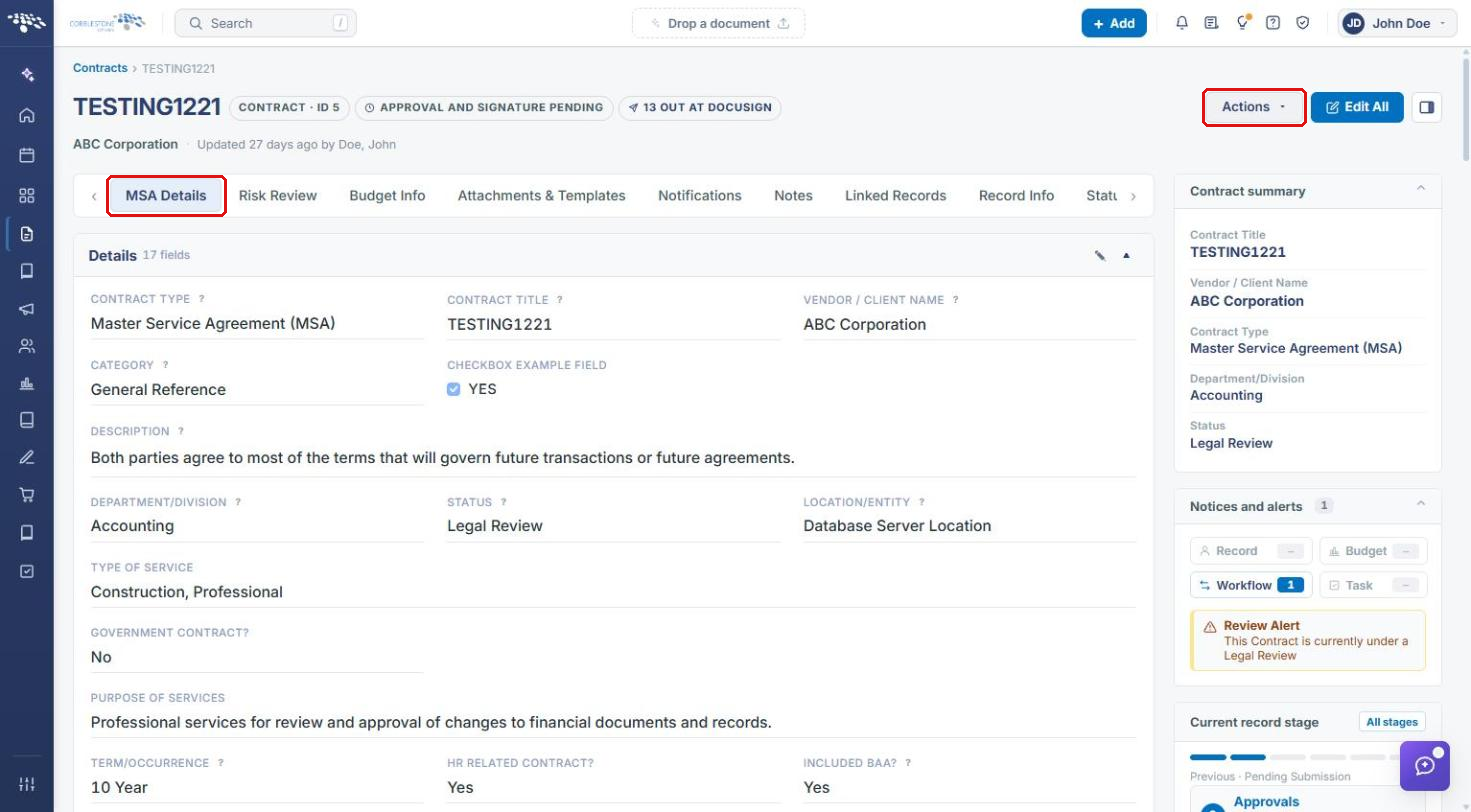
4. Starting IntelliApprove from the Actions Menu
- In the Actions menu, scroll to Document Processing.
- Click IntelliApprove.
The Negotiation Processes page opens showing only this record's approval processes. Click Show all processes to see every record, or Open record to return to the contract.
5. Creating a New Approval Process
- On the Negotiation Processes page, click + New approval process.
- In Document from this record, choose the document to be approved. The Title and Description fill in automatically; edit them as needed. The description is what participants should know.
- In Replies go to, choose who receives replies about the process.
- Set Approval type: Full approvals or Acknowledge only.
- Set Track changes in the document: Yes or No.
- Set Checking the document out: Optional or Required before editing.
- Set Approvers can see each other's comments: Yes or No.
- Click Create process. You'll add the people next.
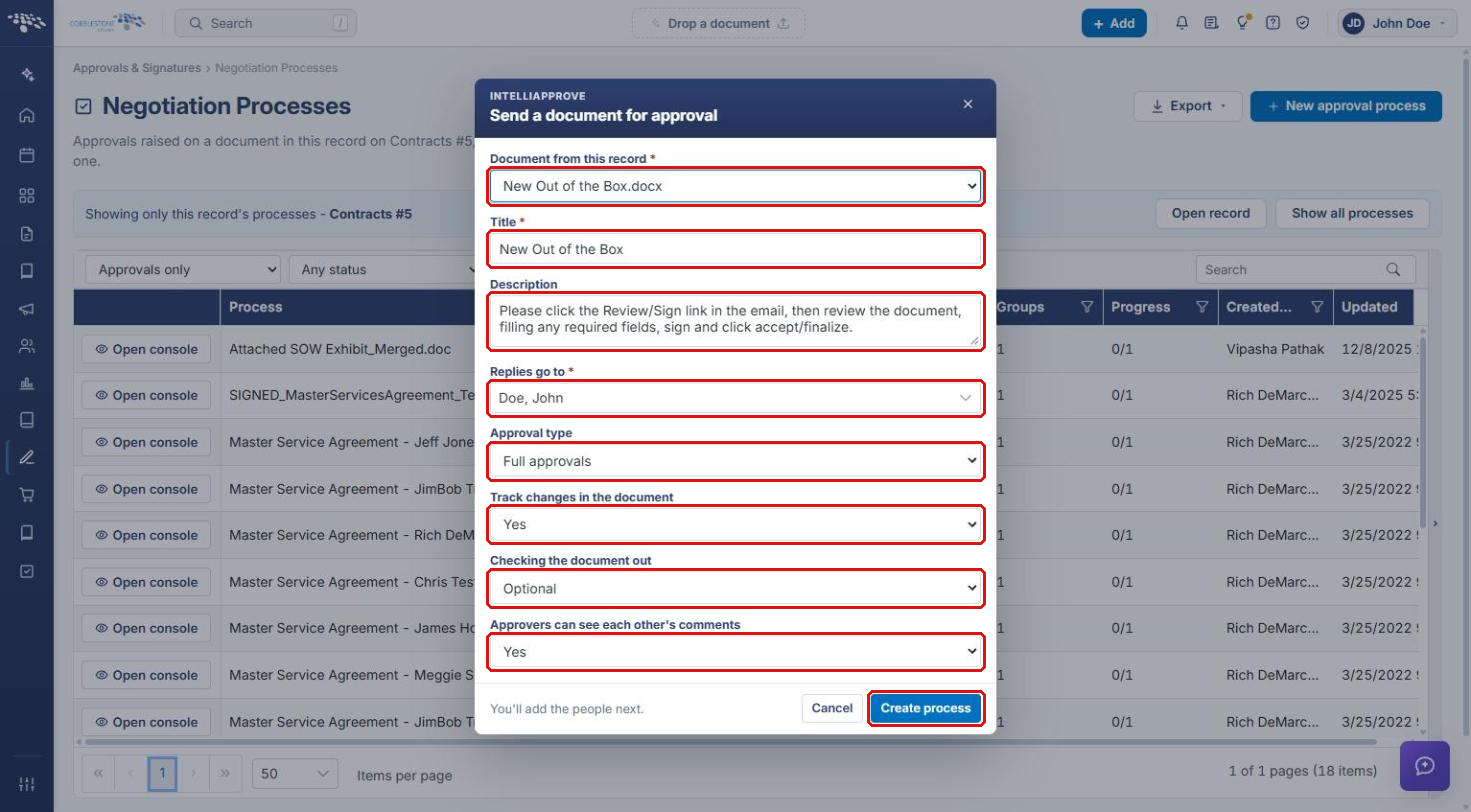
Note: Create process stays disabled until a document, a title, and Replies go to are filled in.
6. Managing the Process in the Console
To open an existing process, click Open console on its row on the Negotiation Processes page. The console shows the process's Status, how many Groups are finalized, its Participants and Files, and who created it.
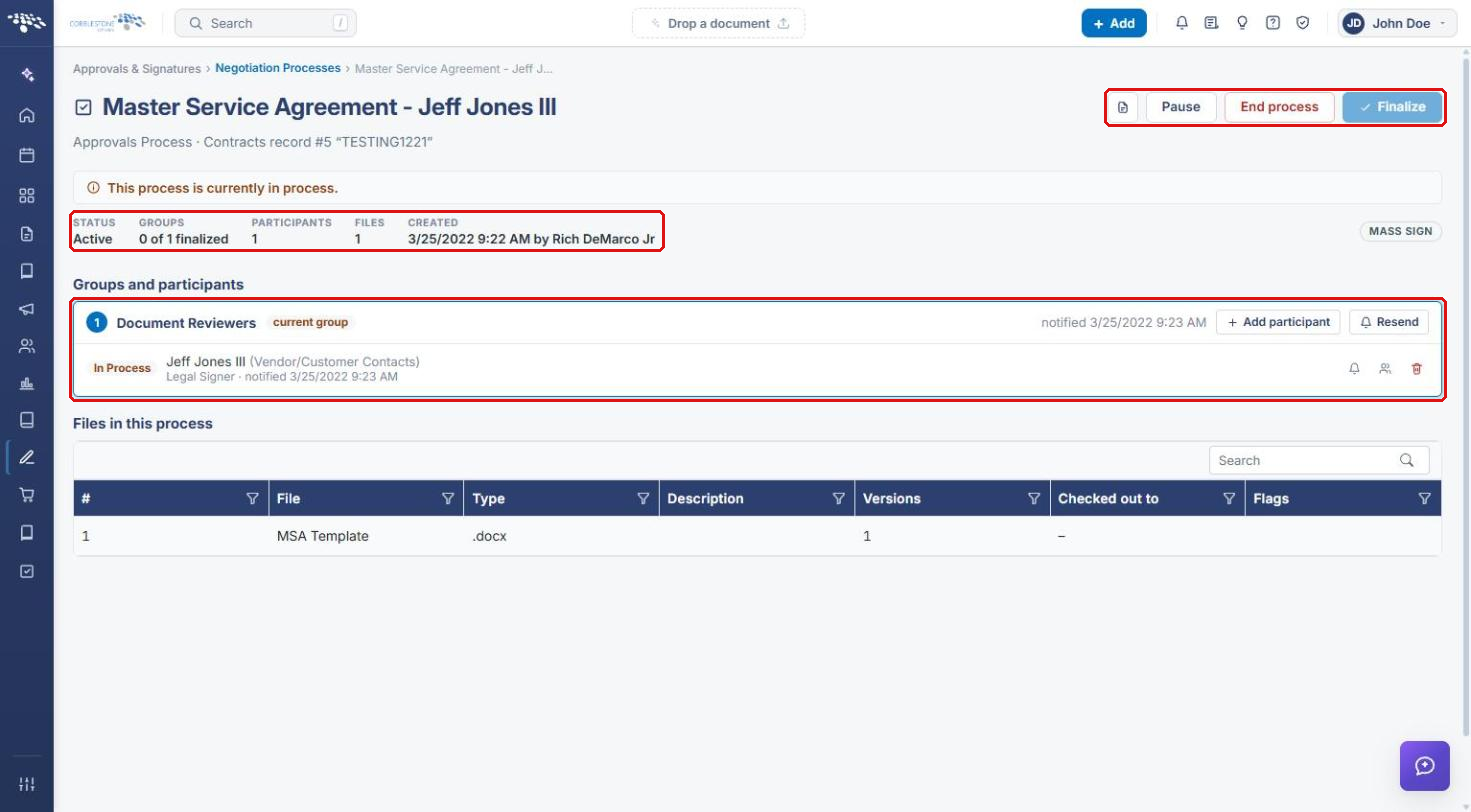
- Groups and participants: each approval group, the current group, and each participant's status. Use the row icons to send a reminder, reassign, or remove a participant, and Resend to notify the group again.
- Files in this process: the documents being approved, their versions, and who has them checked out.
- Pause, End process, and Finalize (top right): control the running process.
6a. Adding a Participant
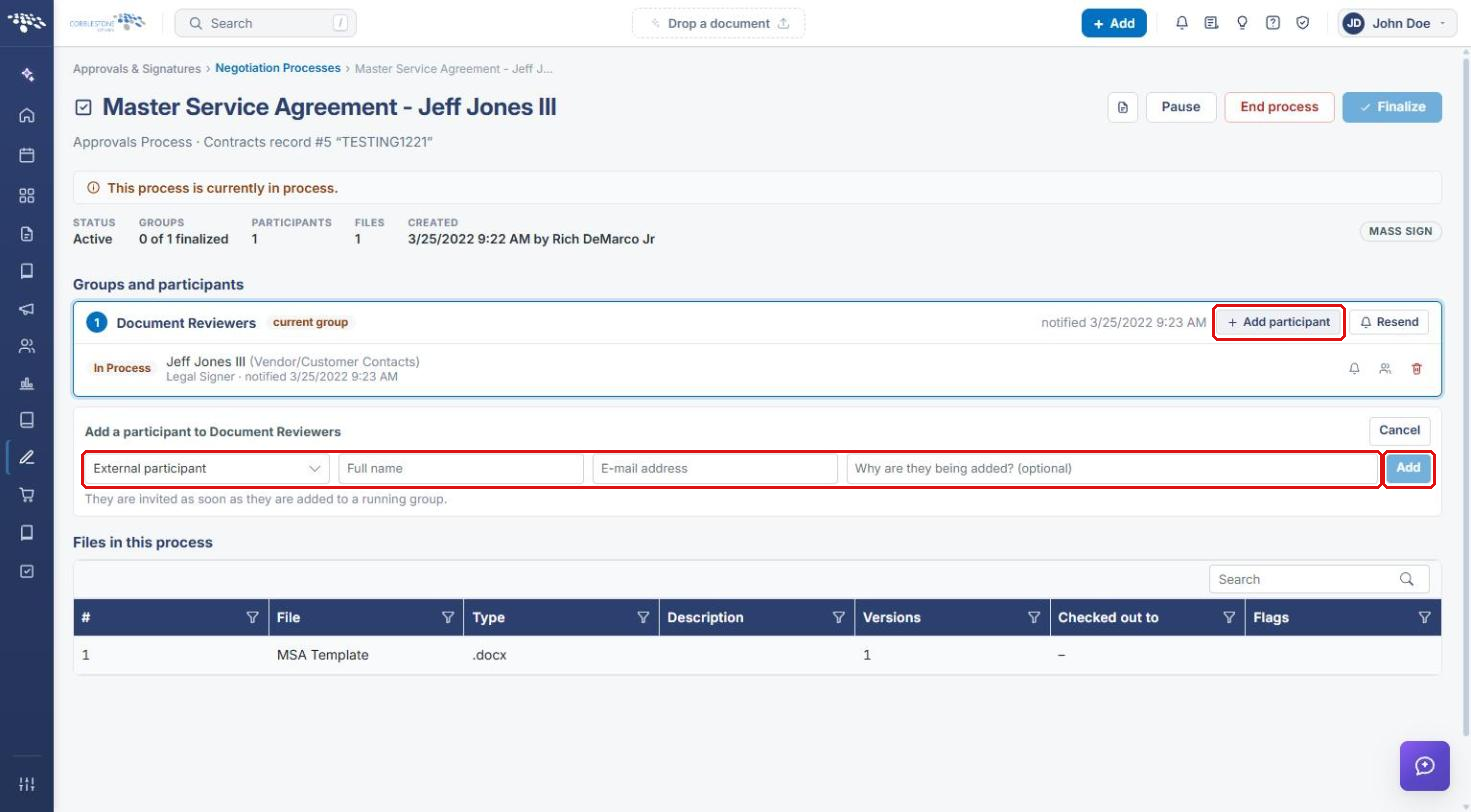
- On the group, click + Add participant.
- Choose the participant type (for example, External participant), then enter the Full name and E-mail address, and optionally why they are being added.
- Click Add. Participants are invited as soon as they are added to a running group.
7. Quick Reference Summary
| Task | How to Complete It |
|---|---|
| Open the record | Requests/Contracts → Contracts → Manage on the contract's row. |
| Open IntelliApprove for the record | Record → Actions → Document Processing → IntelliApprove. |
| Start a new approval | Negotiation Processes → + New approval process → choose document, set options → Create process. |
| Manage a running approval | Negotiation Processes → Open console. |
| Add someone to a group | Console → + Add participant → enter details → Add. |
| Pause, end, or finalize | Console → Pause, End process, or Finalize. |