COBBLESTONE SOFTWARE
Contract Insight — User Guide
Initiating an eSignature Process
Module: Document Collaboration Gateway › Document Collaboration Gateway E-Approvals & E-Signatures › Initiating an eSignature Process
Note: Each procedure in this guide begins at the Contract Insight homepage, so any section can be followed on its own. Custom fields are configurable, so the exact field list on a contract category record may vary between environments.
1. Overview
A signature process is started the same way as an approval process, from a record's Actions menu — Signature Processes, in the Document Processing group — which opens a Negotiation Processes view scoped to that record for starting and tracking new signature processes on its documents.
2. Key Elements
- Record → Actions → Signature Processes (Document Processing group)
- Opens the same record-scoped Negotiation Processes view used for approvals, filtered to signatures
3. Opening a Record's Signature Processes
- From the Contract Insight homepage, open the record (for example, Requests/Contracts → Contracts, then click Manage on the contract's row).
- Click Actions in the upper-right corner of the record.
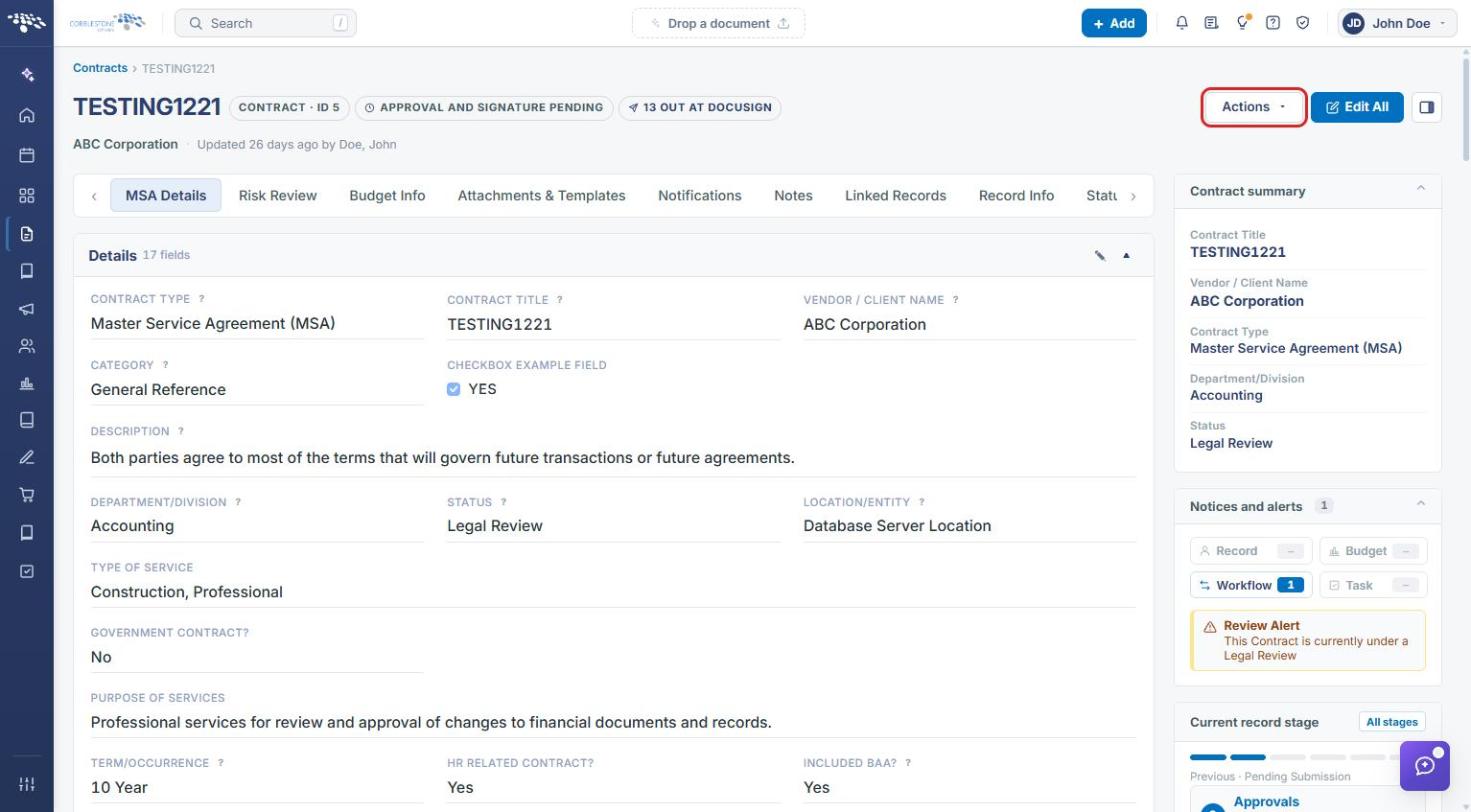
- Scroll to the Document Processing group and select Signature Processes.
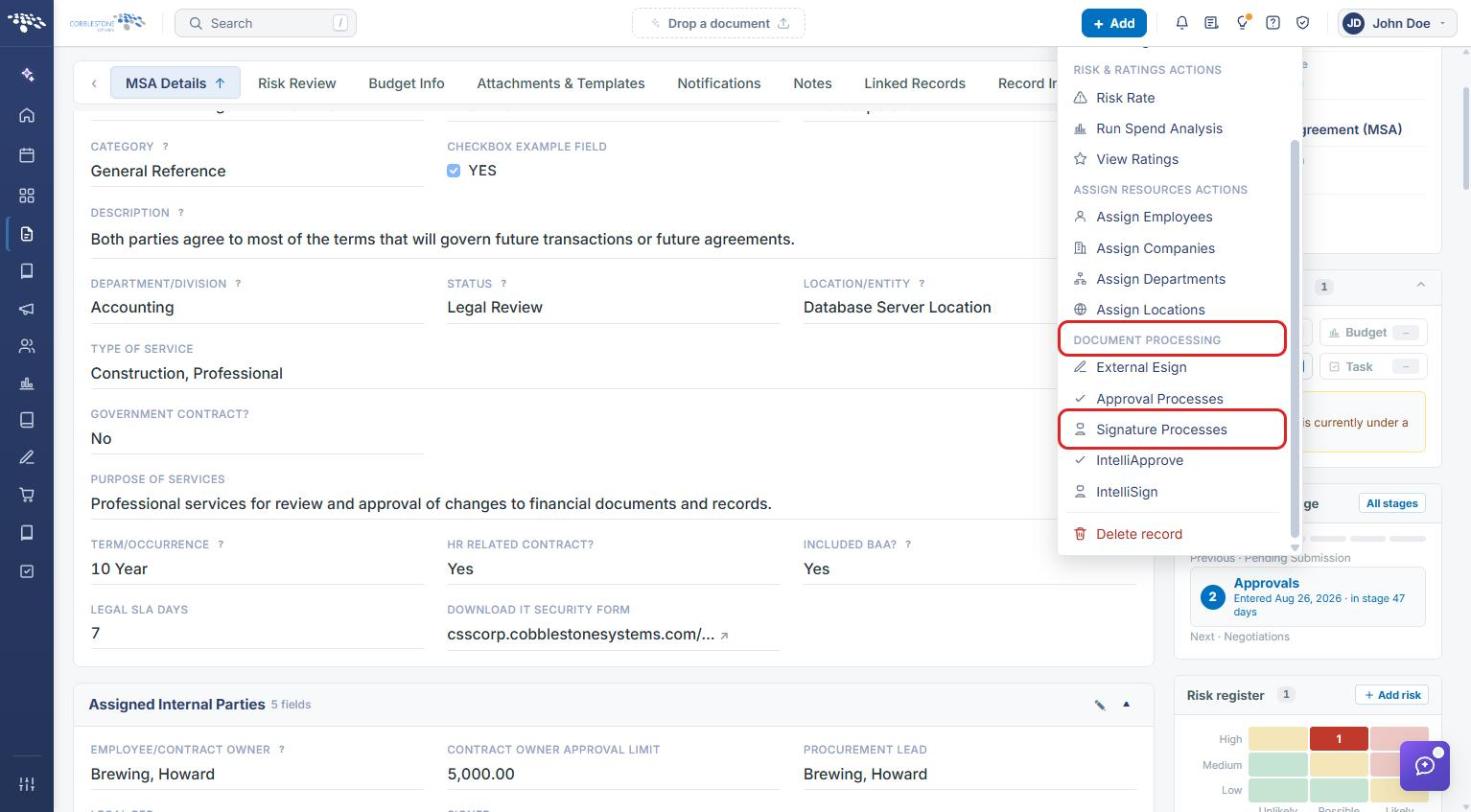
- The Negotiation Processes page opens filtered to Signatures only and to this record (the banner reads "Showing only this record's processes"). Use the status filter and Started only to narrow the list, and click Open console to track a process.
- Click Open record to return to the record, or Show all processes to remove the record filter.
4. Starting a New Signature Process
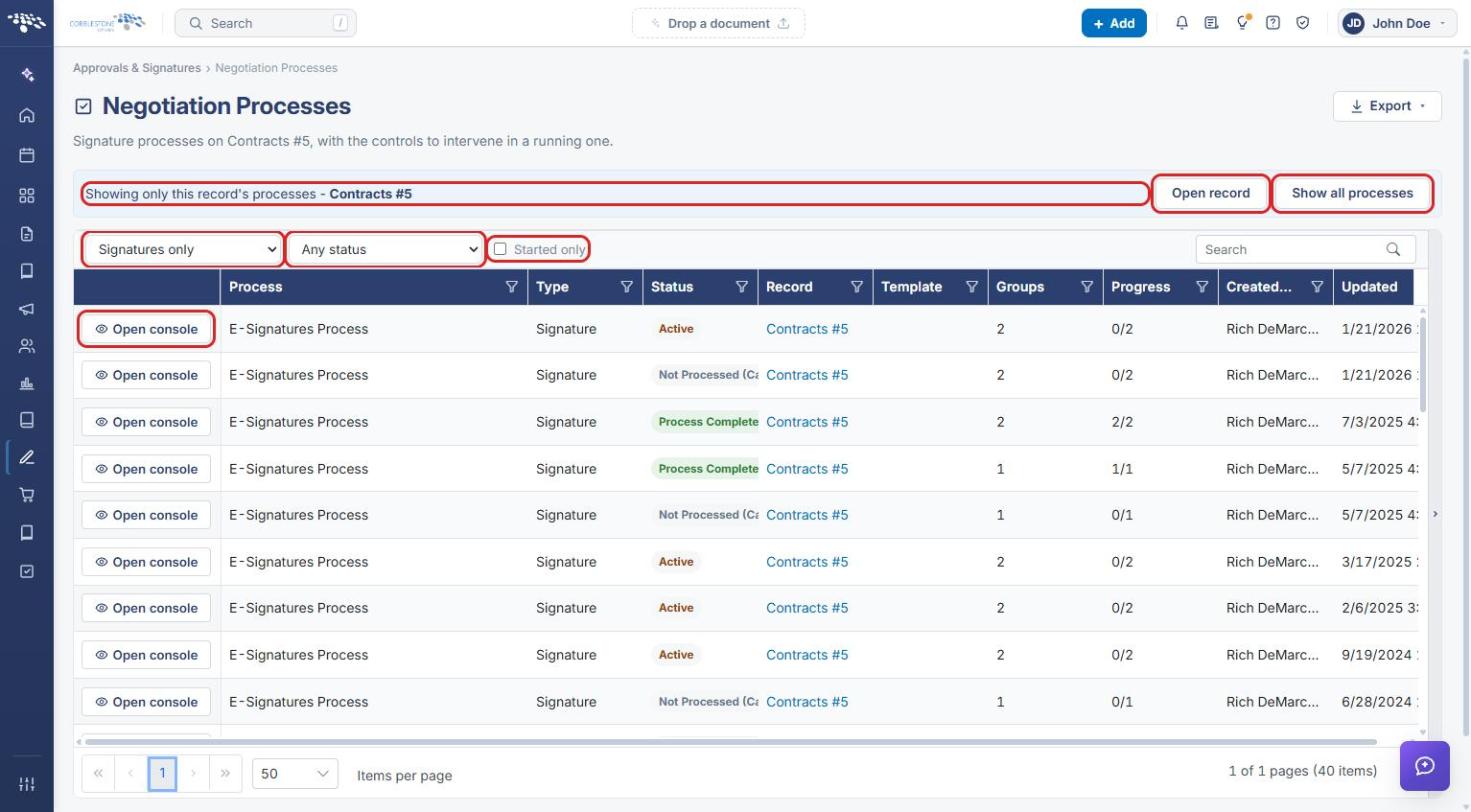
- On the record, click the Attachments & Templates tab.
- In Merged Document Templates → Saved documents, click Signatures on the generated document's row. The panel lists the signers carried over from the template.
- Click Set up signature process.
- In New signature process, confirm the Name of this process and enter an optional Description (shown in the email participants receive).
- Choose who Replies go to. This person receives every alert about the process.
- Select How they sign: Electronically, in the system or On paper - they download, sign and upload it back.
- Select Where they sign: Only where fields have been placed or Anywhere on the document.
- Select How the signed files come back: One attachment per document or All of them as a single PDF.
- Click Create process, or Cancel to leave without creating it.
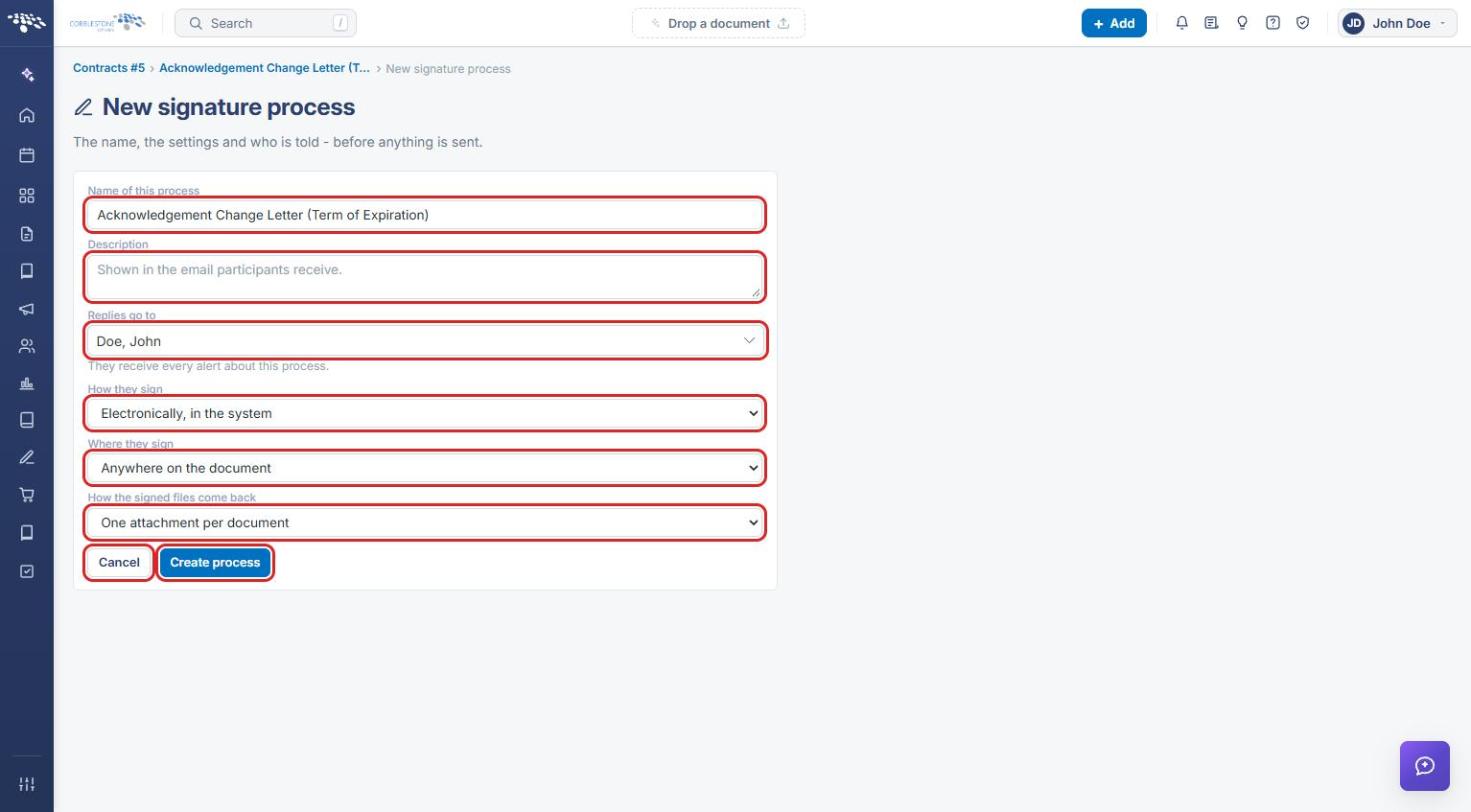
Note: Nothing is sent when the process is created; the form sets the name, settings and who is told before anything goes out. Track the process afterwards from Actions → Signature Processes (see Section 3).
5. Quick Reference Summary
| Task | How to Complete It |
|---|---|
| See a record's signature processes | Record → Actions → Document Processing → Signature Processes. |
| Track a signature process | Record-scoped Negotiation Processes → Open console. |
| See all processes, not just this record's | Click Show all processes. |
| Start a new signature process | Record → Attachments & Templates → Saved documents → Signatures → Set up signature process. |
| Set how and where people sign | New signature process → How they sign / Where they sign. |
| Create the process | Complete the form → Create process. |