COBBLESTONE SOFTWARE
Contract Insight — User Guide
CobbleStone Electronic Signatures Overview
Module: Document Collaboration Gateway › Document Collaboration Gateway E-Approvals & E-Signatures › CobbleStone Electronic Signatures Overview
Note: Each procedure in this guide begins at the Contract Insight homepage, so any section can be followed on its own. Record names and counts shown in the screenshots are from a test environment.
1. Overview
Electronic approvals and signatures in Contract Insight are managed from a few connected places:
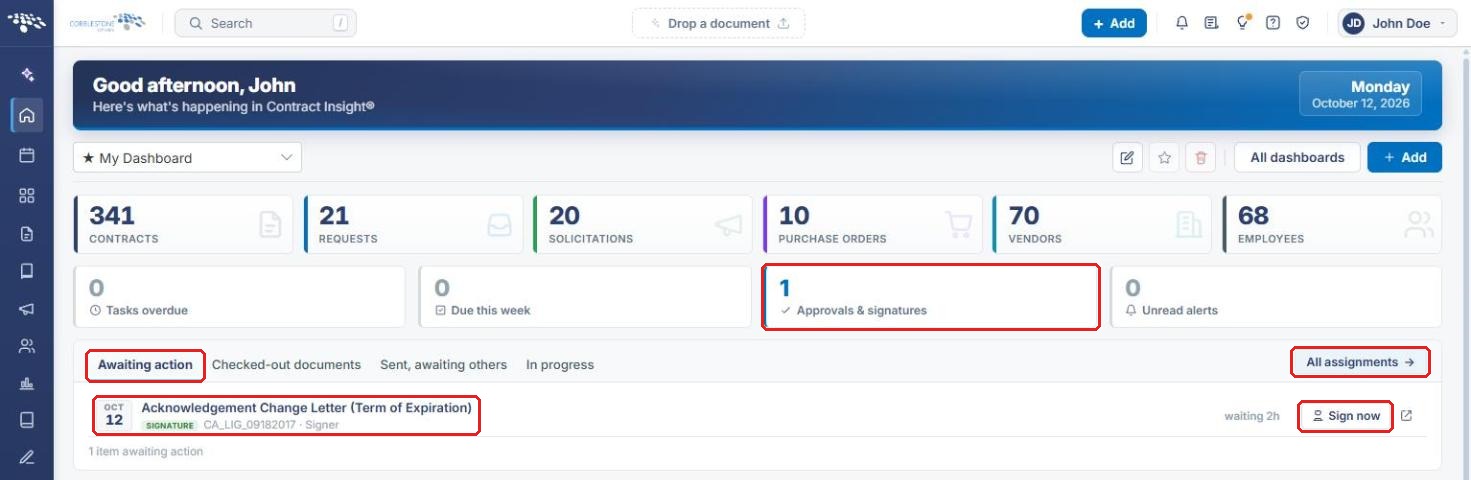
- The home dashboard shows an Approvals & signatures counter and an Awaiting action list of steps waiting on you, with Sign now shortcuts.
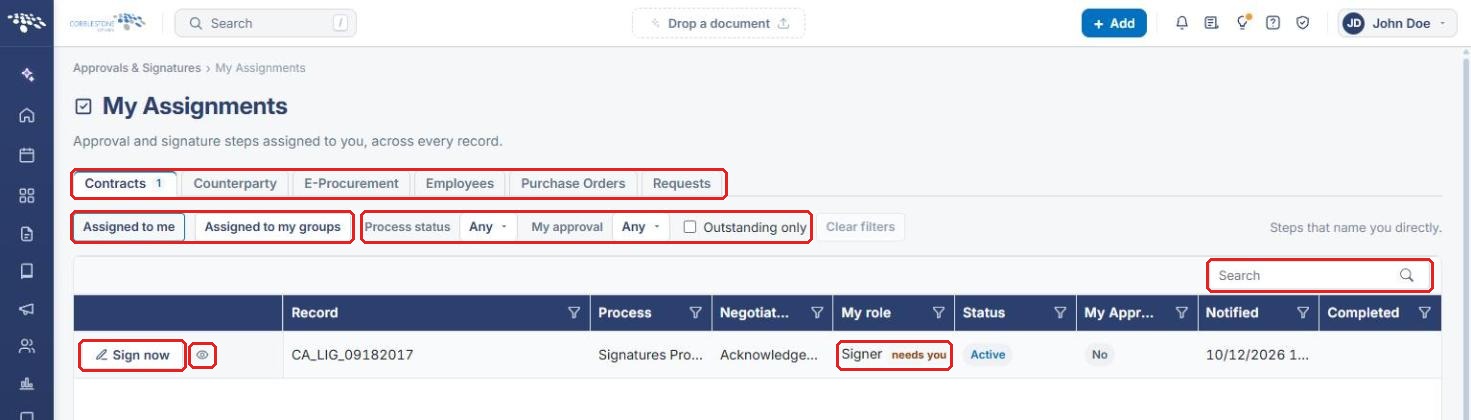
- My Assignments lists every approval and signature step assigned to you, or to your groups, across every record.
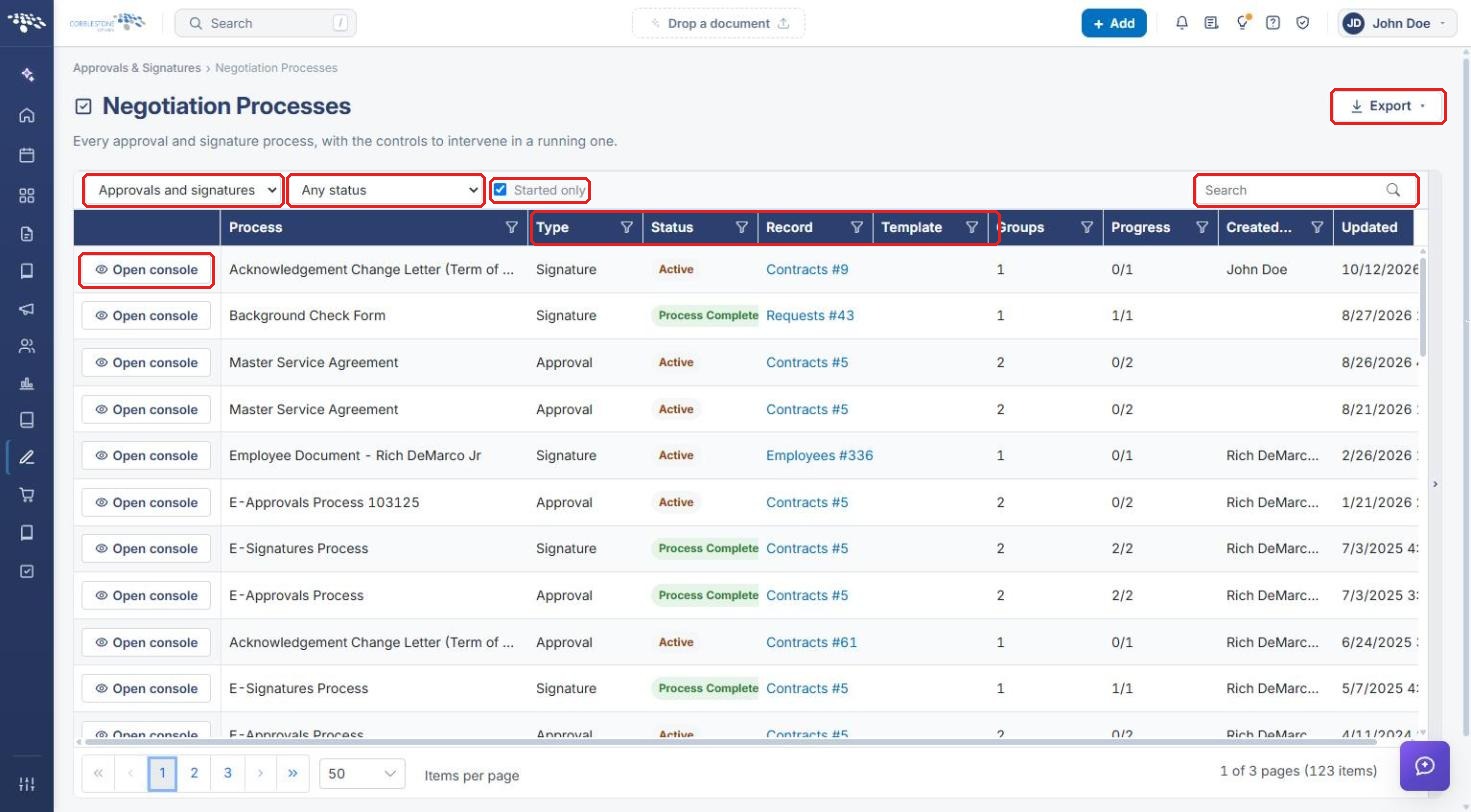
- Approvals & Signatures → Negotiation Processes is the central hub for every approval and signature process, "with the controls to intervene in a running one."
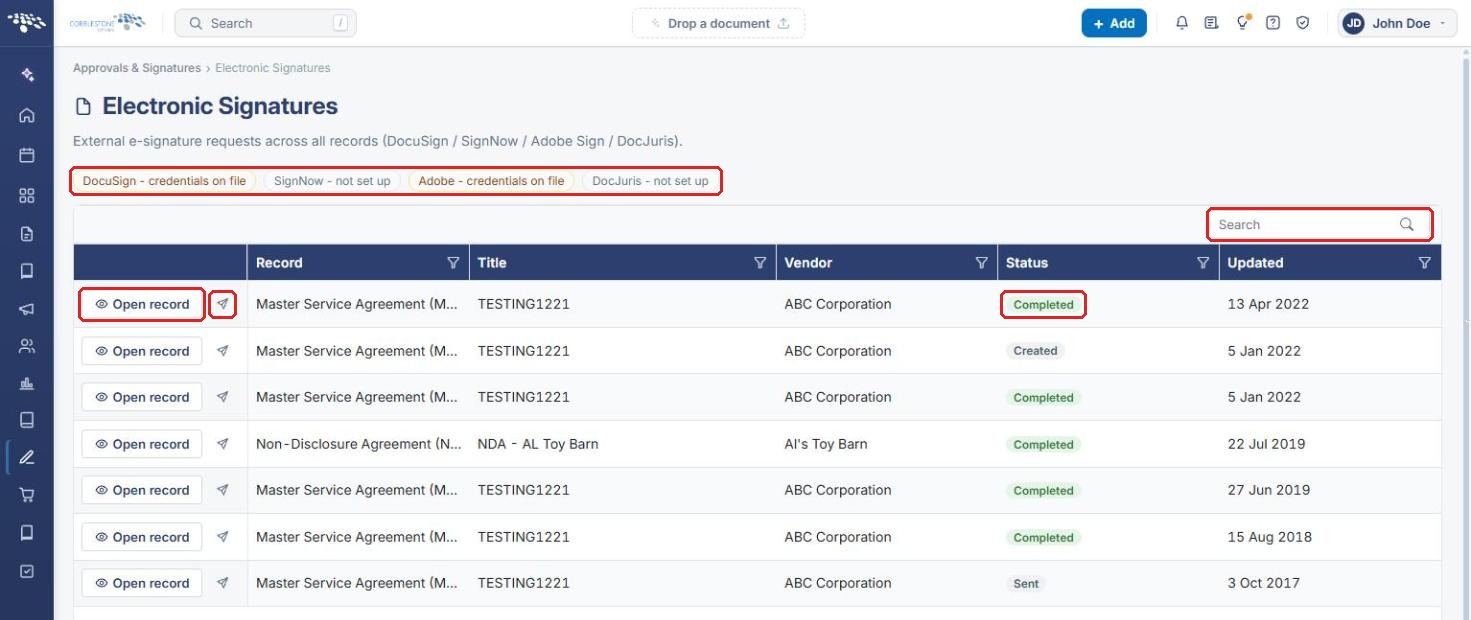
- Approvals & Signatures → E-Signatures lists external e-signature requests (DocuSign, SignNow, Adobe Sign, DocJuris) across all records.
- Each record's Actions menu has a Document Processing group for starting External Esign, Approval Processes, Signature Processes, IntelliApprove, or IntelliSign.
2. Key Elements
- Approvals & signatures counter (home dashboard): the number of approval and signature items outstanding for you.
- Awaiting action tab and All assignments link (home dashboard): your pending steps, and a link to My Assignments.
- My Assignments: tabs by area (Contracts, Counterparty, E-Procurement, Employees, Purchase Orders, Requests), with Assigned to me / Assigned to my groups and status filters.
- Negotiation Processes: every process, filterable by type (Approvals and signatures, Approvals only, Signatures only) and status, with Open console for each.
- Electronic Signatures: external e-signature requests, the connection status of each provider, and Open record / View envelope actions.
- Actions → Document Processing (record page): where processes are started for that record.
3. Checking Your Outstanding Approvals and Signatures
3a. From the Home Dashboard
- From the Contract Insight homepage, check the Approvals & signatures counter for the number of items waiting on you.
- On the Awaiting action tab, review each pending step (document name, process type such as SIGNATURE, record, and your role).
- Click Sign now to act on a step, or click All assignments to see everything assigned to you.
3b. From My Assignments
- Click All assignments on the home dashboard.
- Select the area tab (for example, Contracts). The number on each tab shows how many items it contains.
- Use Assigned to me (steps that name you) or Assigned to my groups (steps that name a role or group you belong to). Narrow the list with Process status, My approval, Outstanding only, or Search.
- Click Sign now on a row to sign, or the view (eye) icon to open it. The My role column flags steps that need you.
4. Managing Every Process from Negotiation Processes
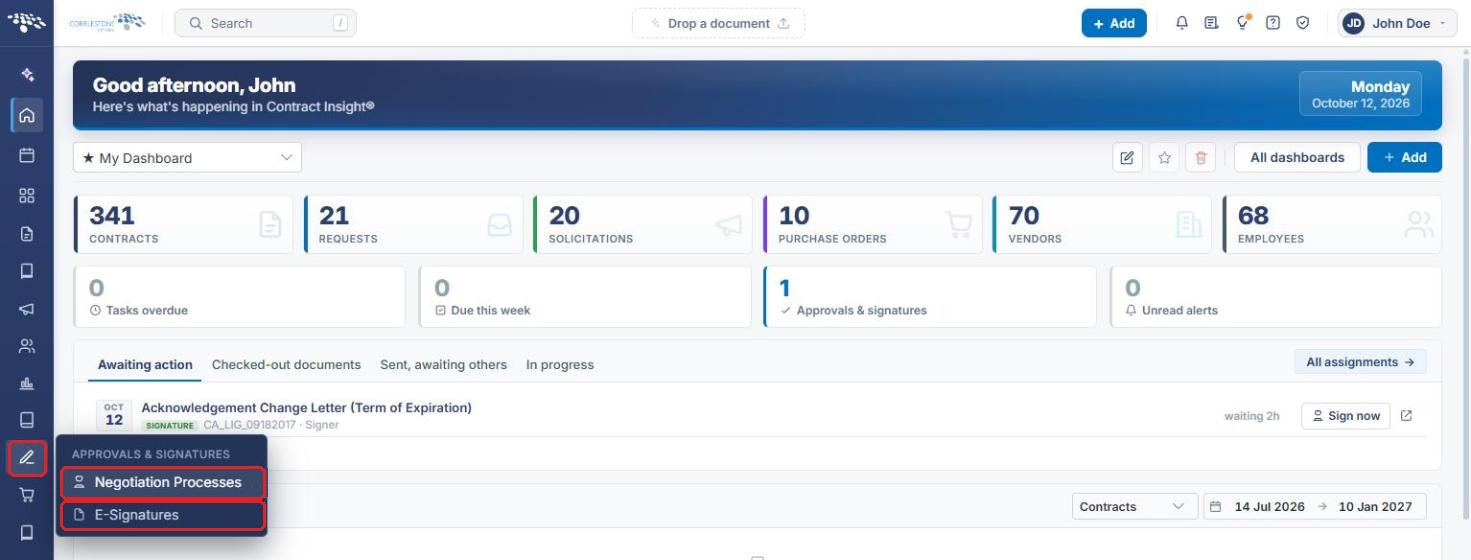
- Hover over the Approvals & Signatures icon in the left navigation bar and select Negotiation Processes. (Select E-Signatures for external e-signature requests; see Section 5.)
- Filter the list by type (Approvals and signatures, Approvals only, or Signatures only) and by status (for example, Active, Paused, or Completed). Leave Started only checked to hide processes that haven't started.
- Use Search to find a process, and the Type, Status, Record, Groups, and Progress columns to review it.
- Click Open console to manage the process, or Export to download the list.
5. Reviewing External E-Signature Requests
- Hover over the Approvals & Signatures icon and select E-Signatures.
- Check the provider badges at the top for each provider's connection status (for example, credentials on file or not set up).
- Use Search or the column filters to find a request, and check its Status (for example, Sent, Created, or Completed).
- Click Open record to go to the record, or the View envelope (send) icon to view the envelope.
6. Starting a Process from a Record
- Open the record (for example, from Contracts, click Manage).
- Click Actions at the top right and scroll to Document Processing.
- Select External Esign, Approval Processes, Signature Processes, IntelliApprove, or IntelliSign.
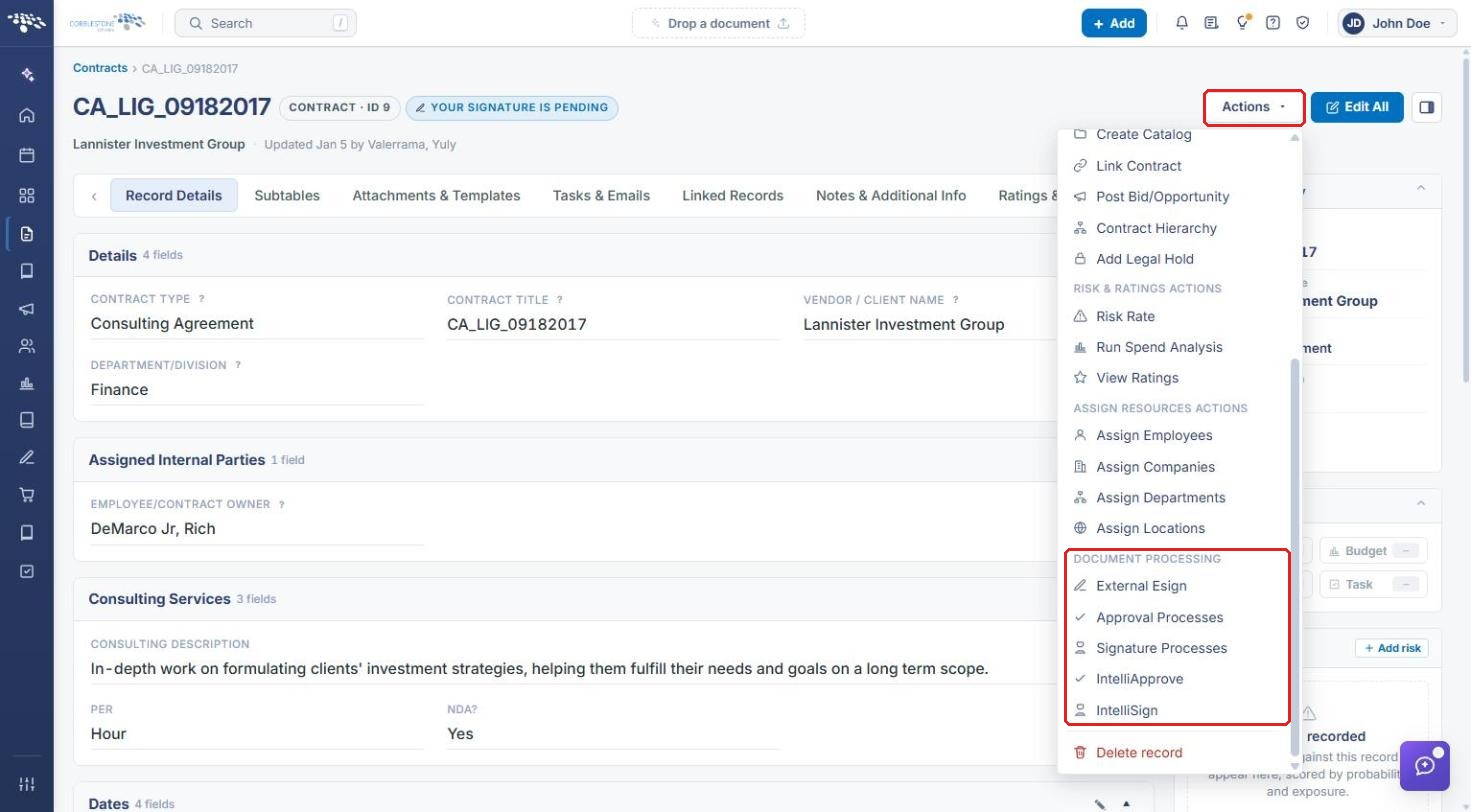
Note: Each of these options is covered in its own article in this section.
7. Quick Reference Summary
| Task | Where | Action |
|---|---|---|
| See how many items wait on you | Home dashboard | Approvals & signatures counter |
| Act on a pending signature | Home dashboard → Awaiting action | Sign now |
| See everything assigned to you | Home dashboard | All assignments → My Assignments |
| Find any approval or signature process | Approvals & Signatures → Negotiation Processes | Filter → Open console |
| Review external e-signature requests | Approvals & Signatures → E-Signatures | Open record / View envelope |
| Start a process on a record | Record → Actions → Document Processing | Choose the process type |