COBBLESTONE SOFTWARE
Contract Insight — User Guide
Header Overview
04. End User General Information › Header Area and Top & Side Menus › Header Overview
Note: Each procedure in this guide begins at the Contract Insight homepage, so any section can be followed on its own. Custom fields are configurable, so the exact field list on a contract category record may vary between environments.
1. Overview
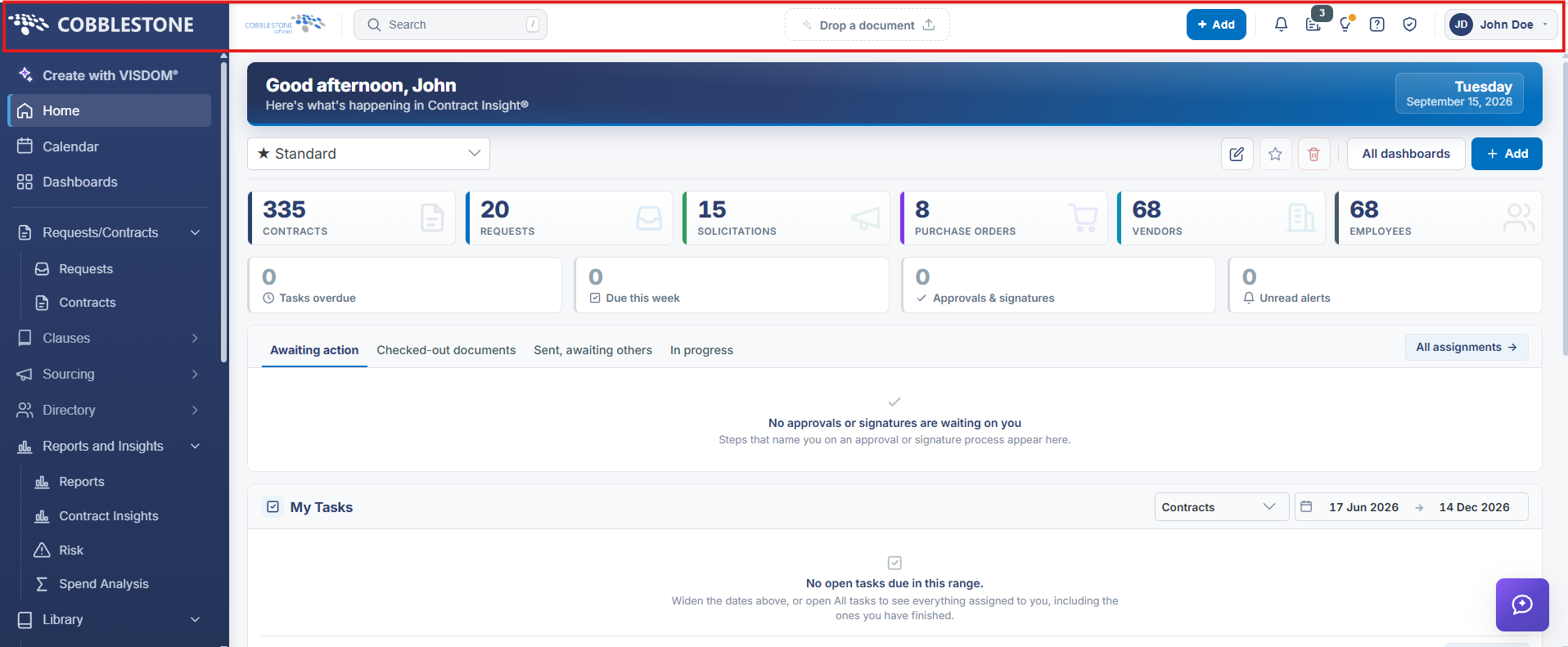
The header appears consistently across every screen. From left to right it holds: a Search box (press / to focus it) for records, vendors, requests, and their attachments; a Drop a document control for uploading a file to start Create with VISDOM; an Add button for creating a new record of any type; a Notifications bell; an Announcements icon (news/announcement posts, with "read more" links and dates); a Guided tutorials icon (lightbulb); a Help and support icon (question mark); a Confidentiality notice icon (shield); and the account menu (avatar and name) on the far right, which opens My Assignments, My Drafts, My Pending Files, My Surveys, My Decision Matrices, My Links, My Signature Settings, Appearance, Employee Profile, Change language, Change Workspace, Change profile picture, Change password, Request Account Deletion, Submit a System Request, and Sign out. The side menu's own collapse/expand control lives at its top edge, separate from the header.
2. Key Elements
- Left to right: Search, Drop a document, Add, Notifications, Announcements, Guided tutorials, Help and support, Confidentiality notice, and the account menu.
- The account menu is the gateway to personal tools (My Assignments/Drafts/Pending Files/Surveys/Decision Matrices/Links/Signature Settings) and account settings (Appearance, language, workspace, password, profile picture).
- The header is present on every screen; the side menu's collapse control is separate, at the top of the navigation panel.