COBBLESTONE SOFTWARE
Contract Insight — User Guide
Generated Document Packages
Document Templates: Generation/Merging › Generated Document Packages
Note: Each procedure in this guide begins at the Contract Insight homepage, so any section can be followed on its own. Custom fields are configurable, so the exact field list on a contract category record may vary between environments.
1. Overview
Every record's Attachments & Templates tab includes a Merged Document Templates section with its own Saved documents list. The list shows each document package previously generated for that record with its Package name, Type (Document Package or Third Party Paper), a Files count, and Created date/author, along with row actions to manage signatures, approvals, files, and downloads. Packages currently routed for signature are flagged with an "Active Signature Process" badge.
Document packages are generated and reviewed directly from each record's own details page — Contracts, Requests, Employees, Vendors/Customers, and (where licensed) Solicitations and Purchase Orders — without separate navigation.
2. Key Elements
- Every record's Attachments & Templates tab has its own Merged Document Templates > Saved documents list.
- Each saved package shows Package (name), Type, Files count, and Created date/author.
- Each row offers Signatures, Manage, Download, Files, and Approvals actions.
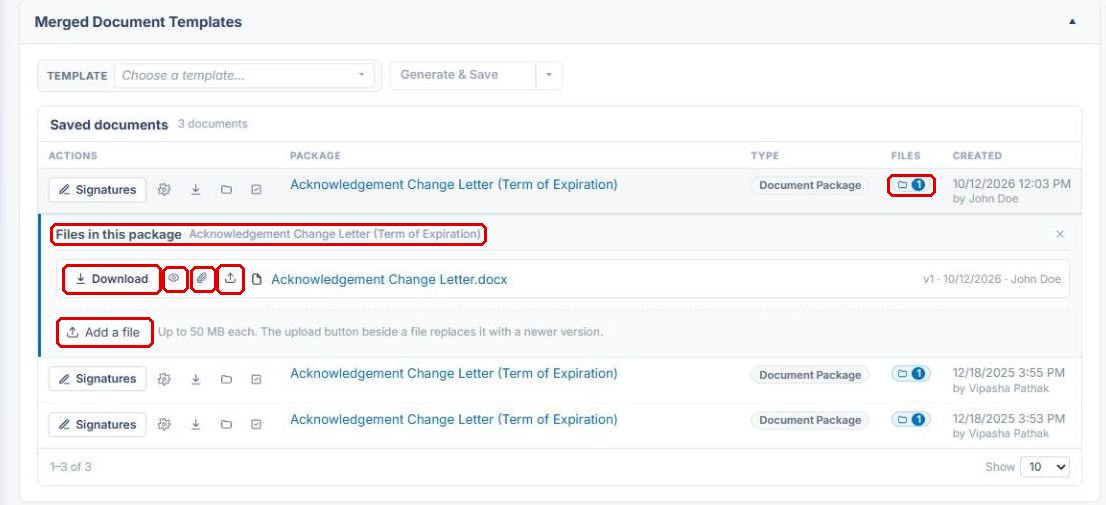
- Clicking a package's Files badge opens a Files in this package panel where individual files can be downloaded, read, attached to the record, replaced, or added.
- A package currently routed for signature is flagged with an "Active Signature Process" badge.
- Available the same way across supported record types (Contracts, Requests, Employees, Vendors/Customers, and licensed Solicitations/Purchase Orders modules), centralized on each record's own page.
3. Navigating to a Record's Saved Documents
The steps below use a contract as the example. Other record types follow the same pattern from their own module.
- From the Contract Insight homepage, hover over the Requests/Contracts icon in the left navigation bar and select Contracts.
.png)
- Locate the contract — use the Search box if needed — and click Manage on its row.
.png)
- On the contract's record page, click the Attachments & Templates tab.
.png)
- Scroll past Files / Attachments to the Merged Document Templates section. The Saved documents list appears below the Template picker, with a count of the record's saved packages.
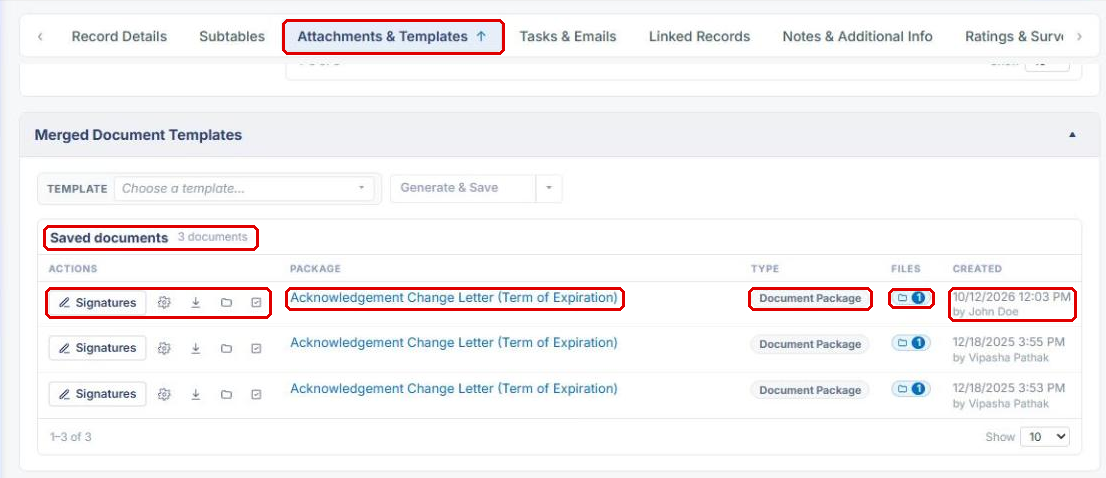
Note: To create a new package from this section, choose a template in the Template picker and click Generate & Save. See Generate New Document Package for full steps.
4. Understanding the Saved Documents List
4a. Columns
| Column | What It Shows |
|---|---|
| Actions | Row actions for the package (see Section 4b). |
| Package | The package name. Click it to read the package's document in the viewer. |
| Type | Document Package or Third Party Paper. |
| Files | A badge with the number of files in the package. Click it to show the package's files (see Section 5). |
| Created | The date and time the package was generated and who generated it. |
Use Show at the bottom of the list to change how many packages display per page.
4b. Row Actions
| Action | What It Does |
|---|---|
| Signatures | Opens the package's electronic signature process. See E-Signature Processing. |
| Manage (gear icon) | Opens the package for management. See Manage Generated Document Package. |
| Download (download icon) | Downloads the package. |
| Files (folder icon) | Shows the files in the package. |
| Approvals (check icon) | Opens the package's electronic approval process. See E-Approvals Processing. |
5. Viewing and Downloading a Package's Files
- Navigate to the record's Saved documents list (see Section 3).
- Click the Files badge on the package's row. The Files in this package panel opens beneath the row.
- For each file in the package, use:
- Download to download the file.
- The eye icon to read the file in the viewer.
- The paperclip icon to attach the file to the record.
- The upload icon to replace the file with a newer version.
- Click Add a file to add another file to the package (up to 50 MB each).
- Click × to close the panel.
6. Quick Reference Summary
| Task | How to Complete It |
|---|---|
| Open a record's saved packages | Open the record → Attachments & Templates tab → Merged Document Templates → Saved documents. |
| Open a contract | Left navigation → Requests/Contracts → Contracts → Manage on the contract's row. |
| Generate a new package | Template picker → choose a template → Generate & Save. |
| Read a package | Click the package name in the Package column. |
| Download a package | Download icon in the package's Actions. |
| View, download, or replace a package's files | Click the Files badge → Files in this package panel. |
| Add a file to a package | Files badge → Add a file. |
| Manage signatures or approvals | Signatures button or Approvals icon in the package's Actions. |
| Manage the package | Manage (gear) icon in the package's Actions. |