COBBLESTONE SOFTWARE
Contract Insight — User Guide
E-Signature Processing
Document Templates Management › Managing Generated Document E-Approvals & E-Signatures › E-Signature Processing
Note: Each procedure in this guide begins at the Contract Insight homepage, so any section can be followed on its own. Custom fields are configurable, so the exact field list on a contract category record may vary between environments.
1. Overview
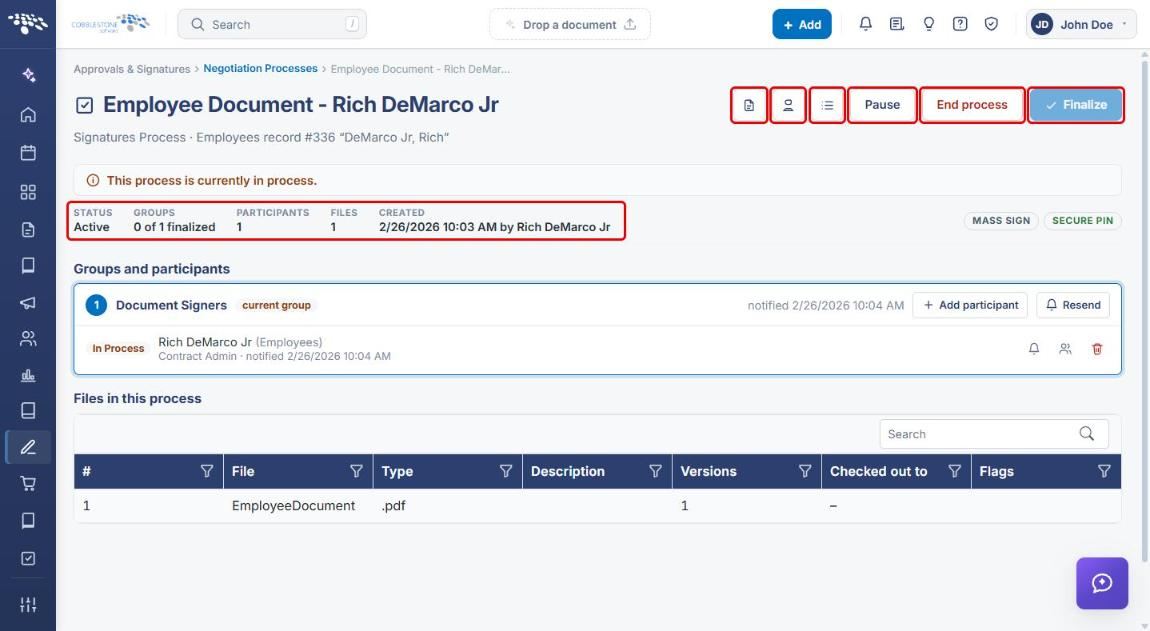
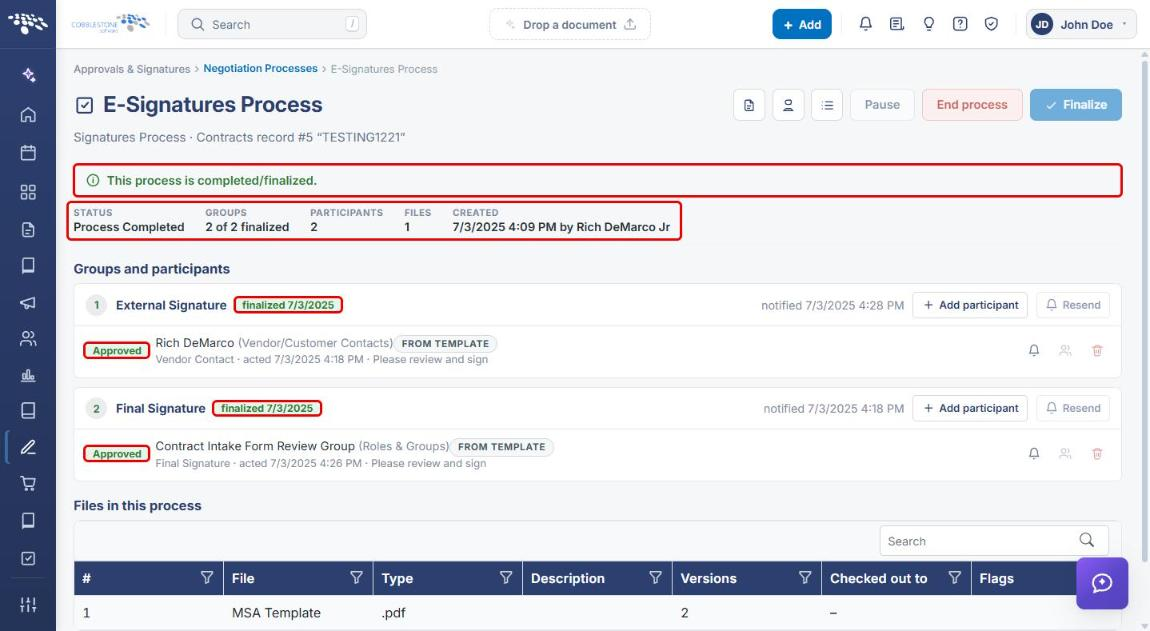
Every e-signature process in Contract Insight is monitored and managed from its console. A signature process's console follows the same pattern as an approval process's — a status summary showing Status, Groups finalized, Participants, Files, and Created, with Pause, End process, and Finalize controls. You reach the console from Approvals & Signatures → Negotiation Processes, or from a record's Actions → Signature Processes.
2. Key Elements
- Negotiation Processes list: every approval and signature process, filterable by type (Signatures only), status, and Started only. Columns include Process, Type, Status, Record, Template, Groups, Progress, Created by, and Updated. Each row has an Open console button.
- Console header: icon buttons to Open record, view the Signature receipt (who signed what, and when), and Place fields (pre-define where each participant signs), plus the Pause, End process, and Finalize controls.
- Status summary: Status, Groups (for example, “0 of 1 finalized”), Participants, Files, and Created date/author. Badges such as MASS SIGN and SECURE PIN show the process's signing options.
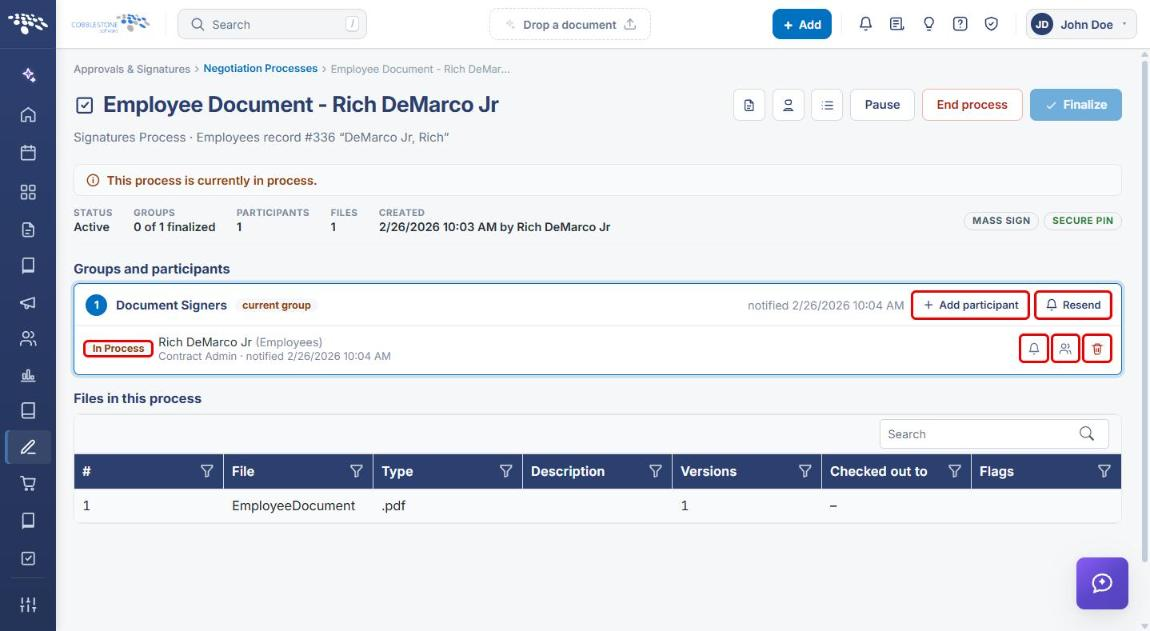
- Groups and participants: each signing group in order, with the current group flagged. Each group offers + Add participant and Resend; each participant row shows their status and offers Re-send this invitation, Replace this participant, and Remove this participant.
- Files in this process: the documents being signed, with File, Type, Description, Versions, Checked out to, and Flags.
3. Navigating to Signature Processes
3a. From Negotiation Processes
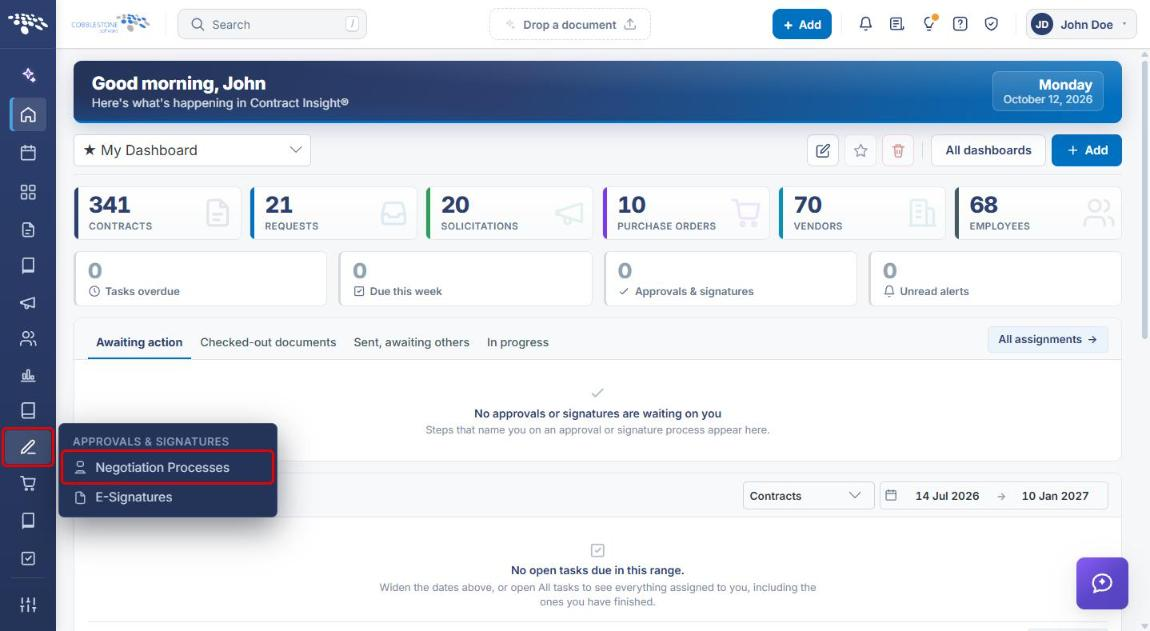
- From the Contract Insight homepage, click the Approvals & Signatures icon in the left navigation bar.
- Select Negotiation Processes.
- In the type filter, select Signatures only. Optionally filter by status (for example, Active) or use the Search box.
- Click Open console on the process's row.
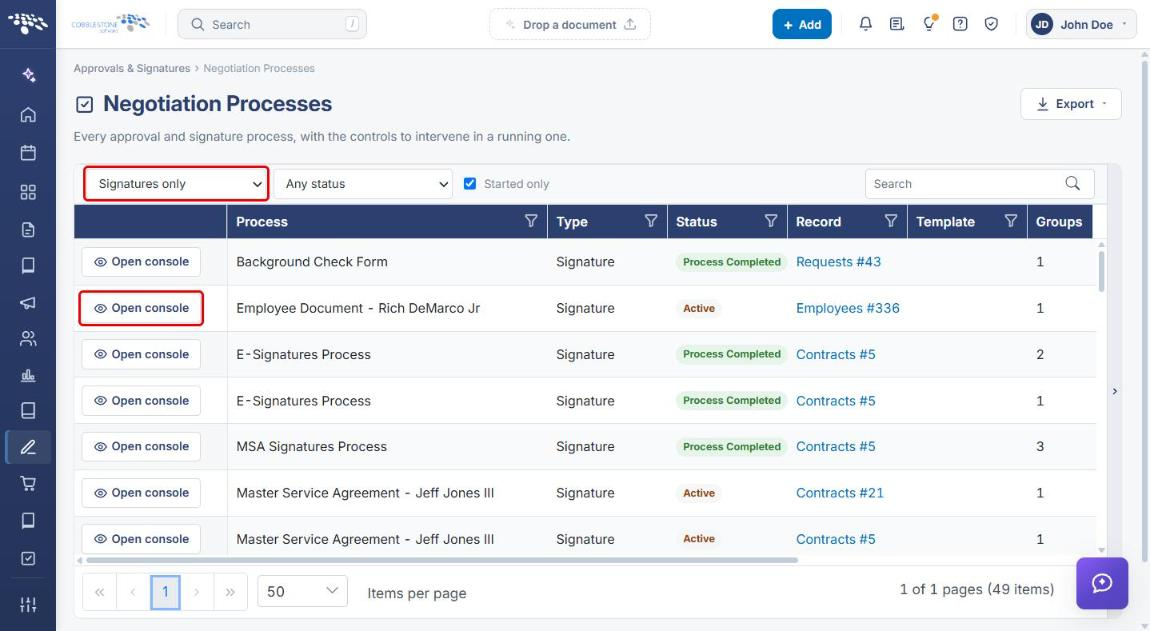
Note: Started only is checked by default. Clear it to also see processes that haven't started yet.
3b. From a Record's Actions Menu
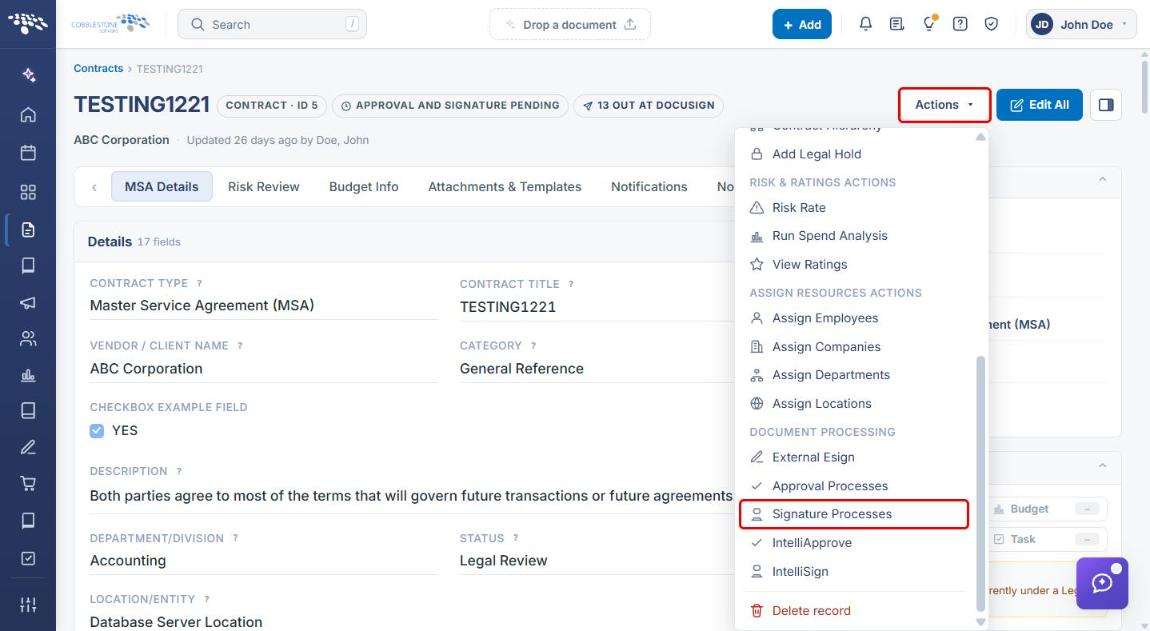
- Open the record (for example, a contract) that the signature process belongs to.
- Click Actions in the record header.
- Under Document Processing, select Signature Processes.
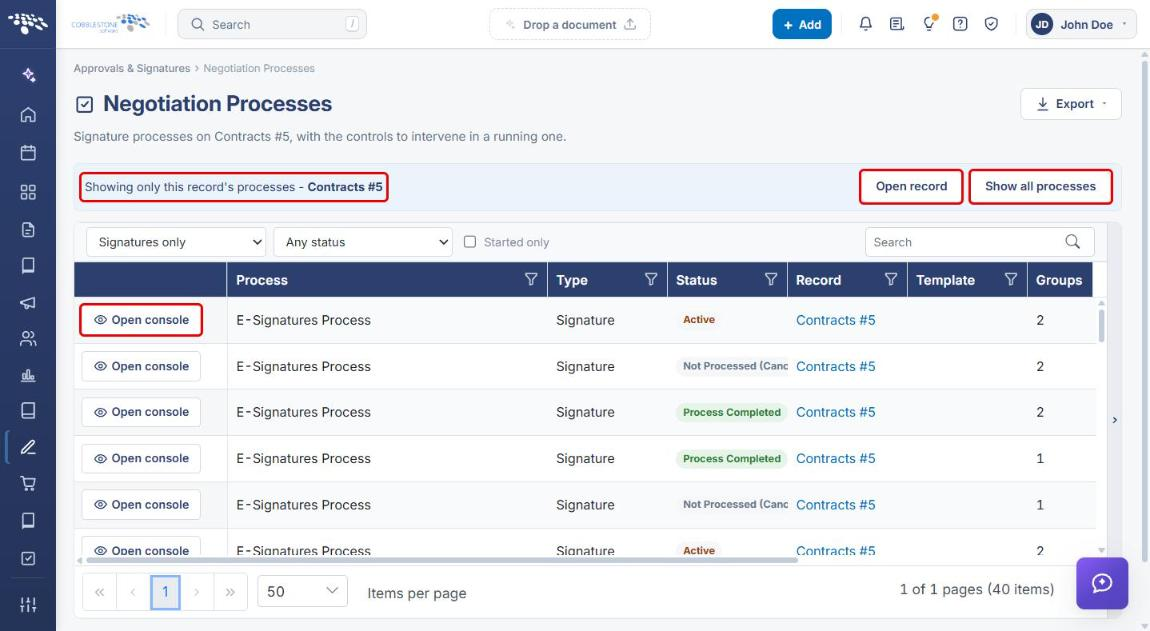
- The Negotiation Processes page opens showing only that record's signature processes. Click Open console on the process you want to manage. Use Open record to return to the record, or Show all processes to remove the record filter.
4. Using the Signature Process Console
The console opens with the process name, its type and record, and a status message (for example, “This process is currently in process”).
- Review the status summary: Status, Groups finalized, Participants, Files, and Created.
- Use the header icons to Open record (first icon), view the Signature receipt (second icon), or Place fields (third icon; see Section 6).
- Use Pause, End process, or Finalize to intervene in the running process (see Section 7).
5. Managing Groups and Participants
The Groups and participants section lists each signing group in order. The active group is labeled current group, and each participant shows a status such as In Process or Approved.
- Click Resend on a group to re-send notifications to everyone in that group.
- On a participant's row, use the bell icon to Re-send this invitation, the people icon to Replace this participant, or the trash icon to Remove this participant.
5a. Adding a Participant
- Click + Add participant on the group.
- Select the participant type: External participant, Employee participant, or Company contact participant.
- Enter the Full name and E-mail address (for an external participant), and optionally Why are they being added?
- Click Add, or Cancel to close the form.
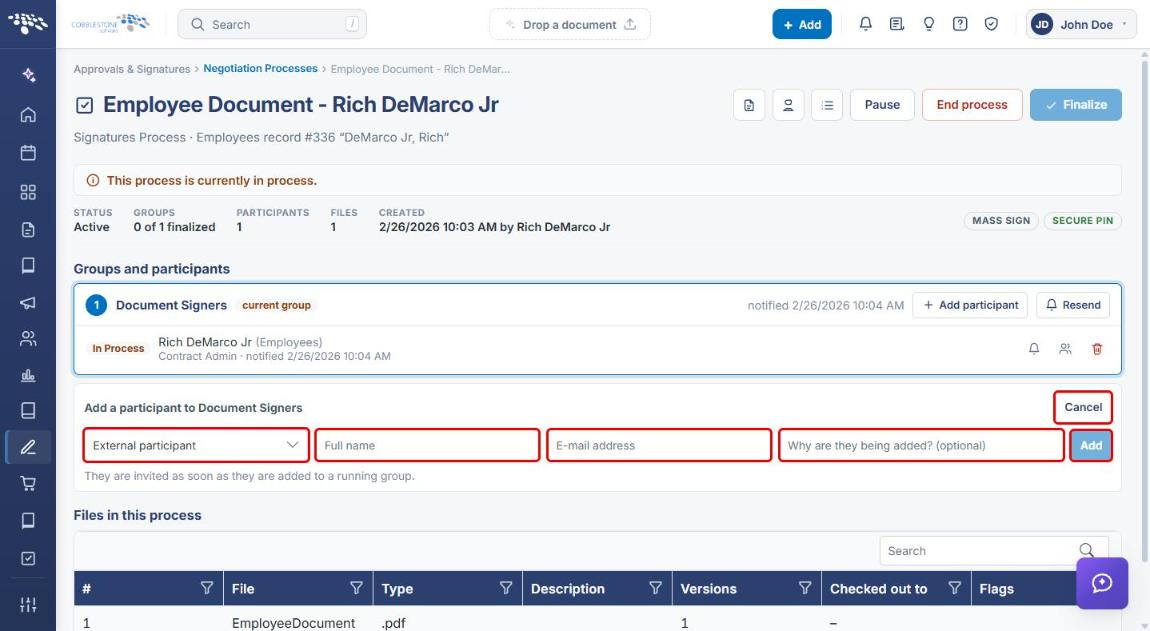
Note: Participants are invited as soon as they are added to a running group.
6. Placing Signature Fields
- In the console header, click the Place fields icon. The Signature fields page opens.
- Under Document Signers, select the participant you're placing fields for. The selection appears under Placing for.
- Click Signature, Text, or Date, then place the field on the document.
- Optionally click Suggest fields to have fields suggested automatically.
- Track progress in the placed/outstanding counter above the document. Changes save automatically (“All changes saved”).
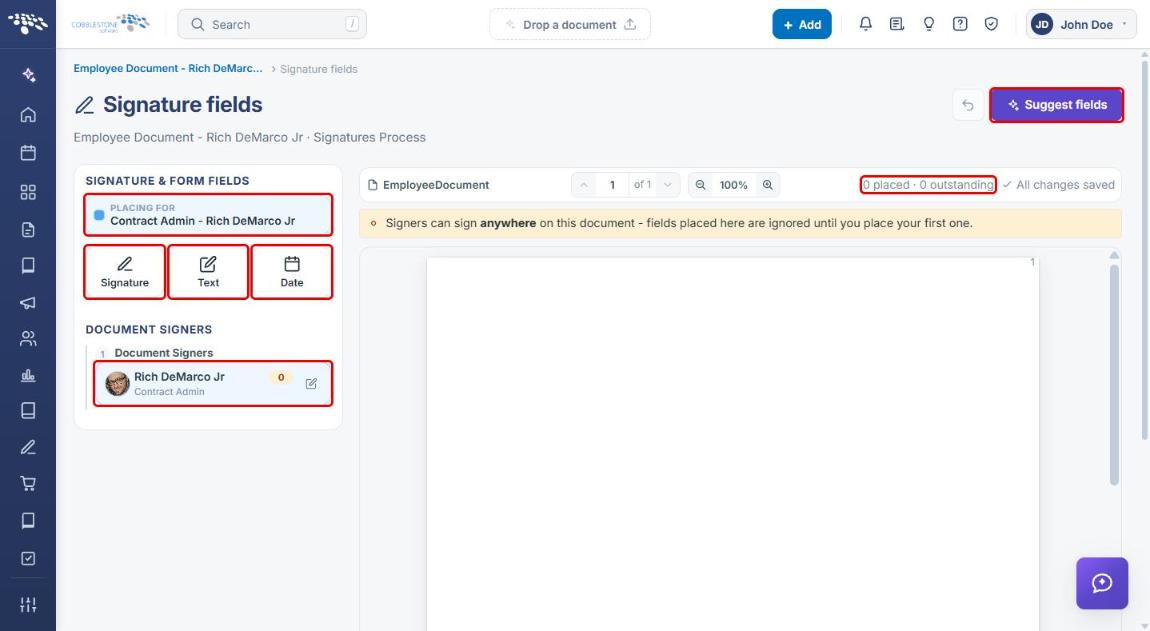
Note: Until you place the first field, signers can sign anywhere on the document.
7. Pausing, Ending, or Finalizing a Process
Use the controls in the console header (see the screenshot in Section 4):
- Pause: temporarily stops the process.
- End process: stops the process before it completes.
- Finalize: completes the process. It's available only after every group is finalized; until then, hovering over it shows how many groups are finalized (for example, “0 of 1 are”).
8. Reviewing a Completed Process
When every group has signed, the console shows “This process is completed/finalized.” The status summary reads Process Completed with all groups finalized, each group shows its finalized date, and each participant shows Approved. The Pause, End process, and Finalize controls are disabled.
9. Quick Reference Summary
| Task | How to Complete It |
|---|---|
| Find all signature processes | Approvals & Signatures → Negotiation Processes → filter to Signatures only. |
| Find a record's signature processes | Open the record → Actions → Signature Processes. |
| Open a process's console | Click Open console on the process's row. |
| Add a participant | Console → + Add participant on the group → choose type, enter details → Add. |
| Re-send invitations | Console → Resend on the group, or the bell icon on a participant's row. |
| Replace or remove a participant | Console → people icon (replace) or trash icon (remove) on the participant's row. |
| Place signature fields | Console → Place fields icon → select participant → Signature, Text, or Date. |
| View the signature receipt | Console → Signature receipt icon. |
| Pause, end, or finalize a process | Console → Pause, End process, or Finalize. |