COBBLESTONE SOFTWARE
Contract Insight — User Guide
Generate New Document Package
Document Templates: Generation/Merging › Generated Document Packages › Generate New Document Package
Note: Each procedure in this guide begins at the Contract Insight homepage, so any section can be followed on its own. Custom fields are configurable, so the exact field list on a contract category record may vary between environments.
1. Overview
A document package is generated from a merged document template on a record's Attachments & Templates tab. In the Merged Document Templates section, the TEMPLATE control (“Choose a template…”) lists every template available for the record, and the Generate & Save split button merges the record's data into the chosen template. The new package is added to the Saved documents list in the same section, where previously generated packages are also found, managed, or removed (see Manage Generated Document Package). Template availability is governed by the user's permissions and by the templates configured for the record's category.
2. Key Elements
- TEMPLATE > Choose a template…: opens a searchable list of the templates available for the record (for example, “Search 14 templates” on the Consulting Agreement contract CA_LIG_09182017). Each template shows badges such as Document Package, clauses, Third Party Paper, or can't generate.
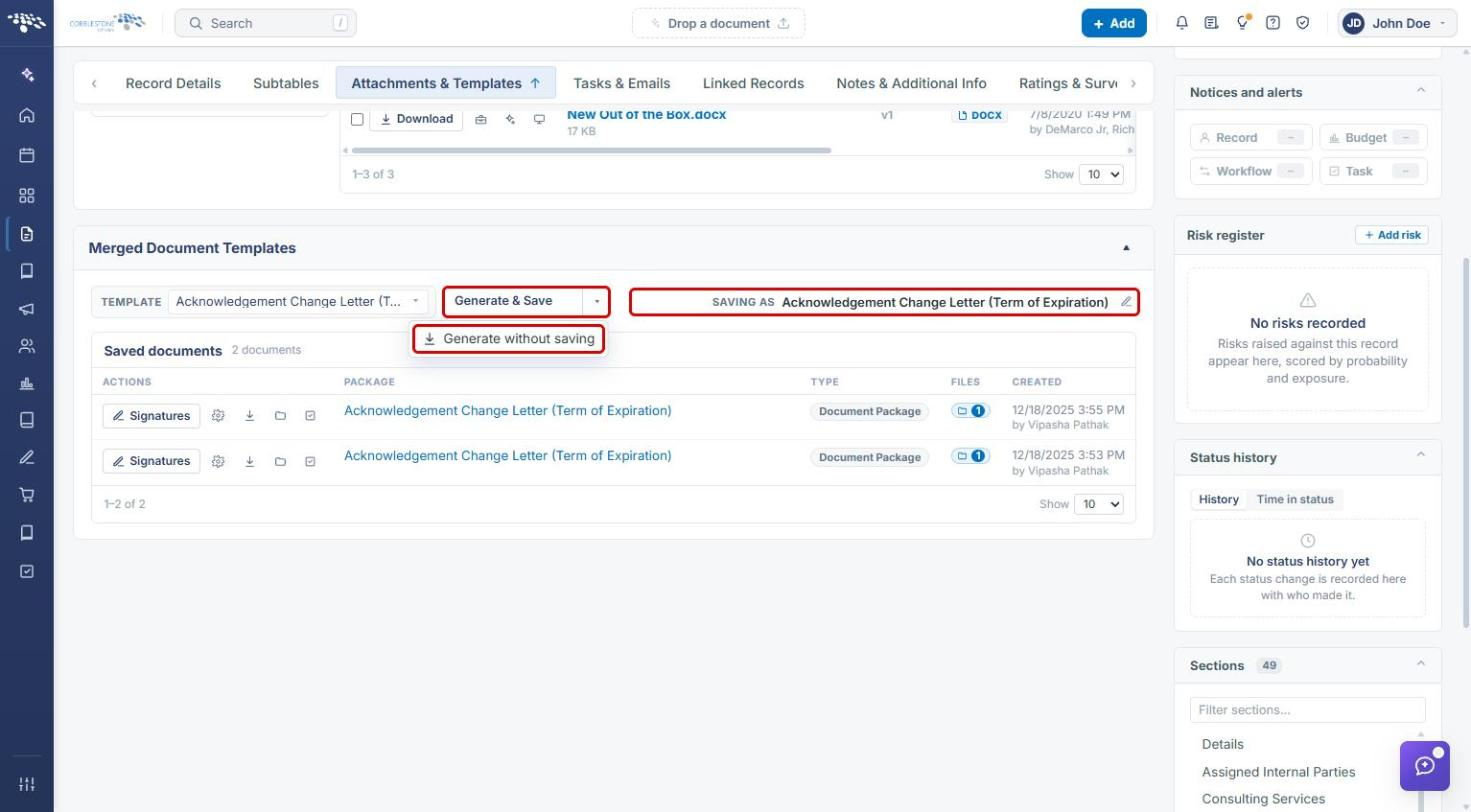
- SAVING AS: shows the name the new package will be saved under once a template is chosen. Click the pencil icon to rename it before generating.
- Generate & Save: generates the package and adds it to the Saved documents list.
- ▾ (options) > Generate without saving: generates the document without adding a package to the Saved documents list.
- Saved documents: lists every package generated on the record, newest first, with its Package name, Type, Files, and Created date and user. Row actions are Signatures, Manage, Download, Files, and Approvals.
3. Navigating to a Record's Attachments & Templates Tab
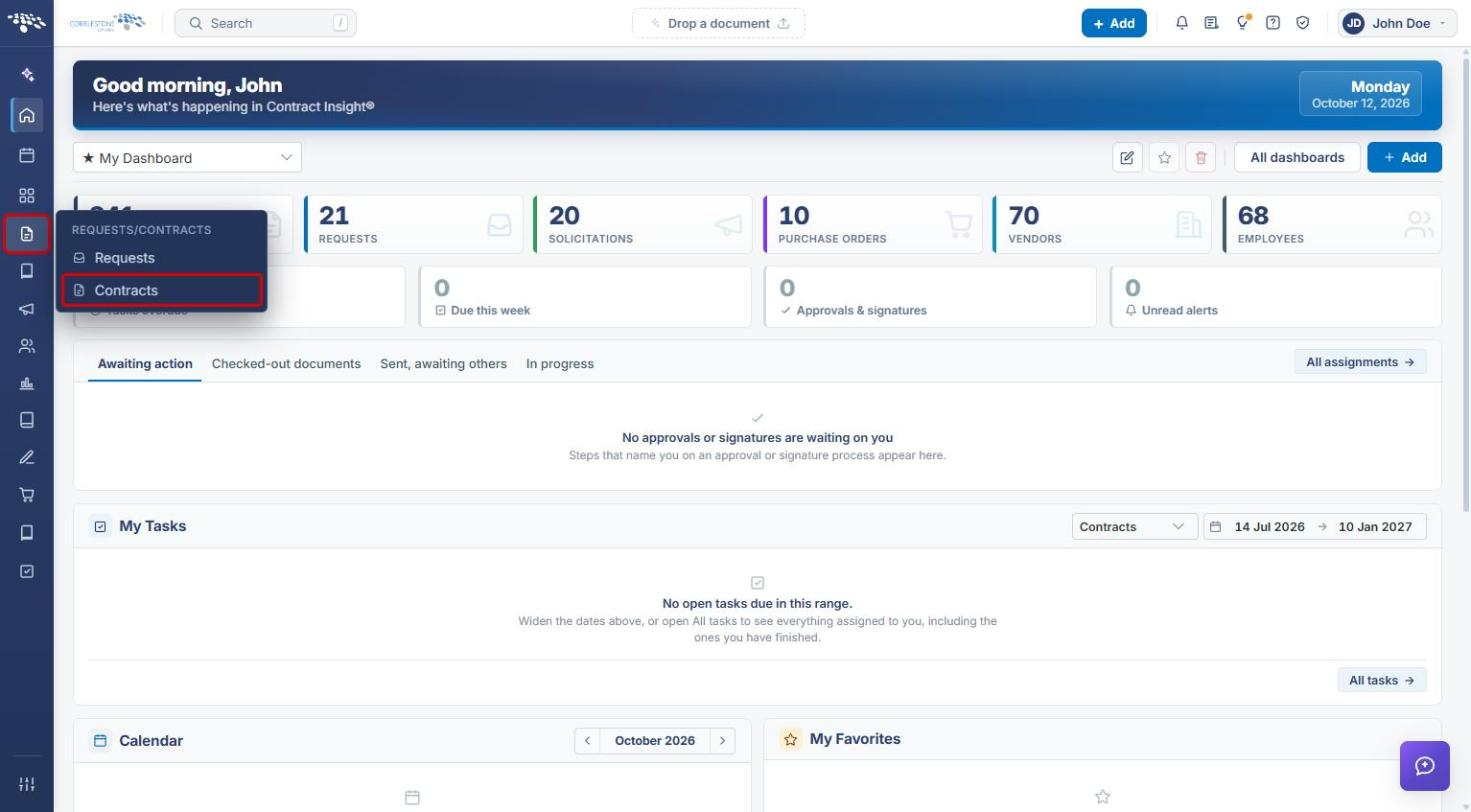
- From the Contract Insight homepage, click the Requests/Contracts icon in the left navigation bar and select Contracts.
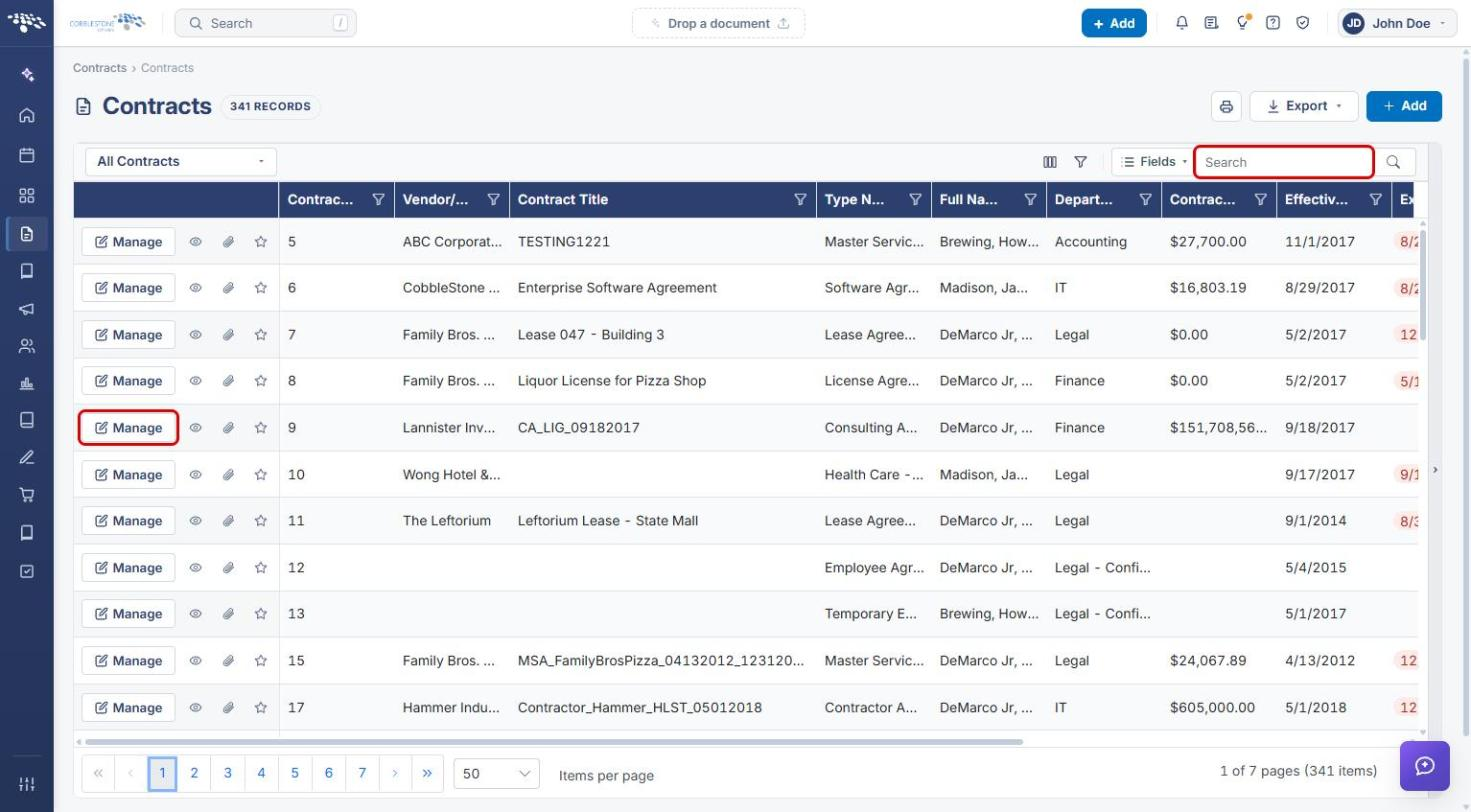
- Locate the contract using the Search box or the list, then click Manage on the contract's row.
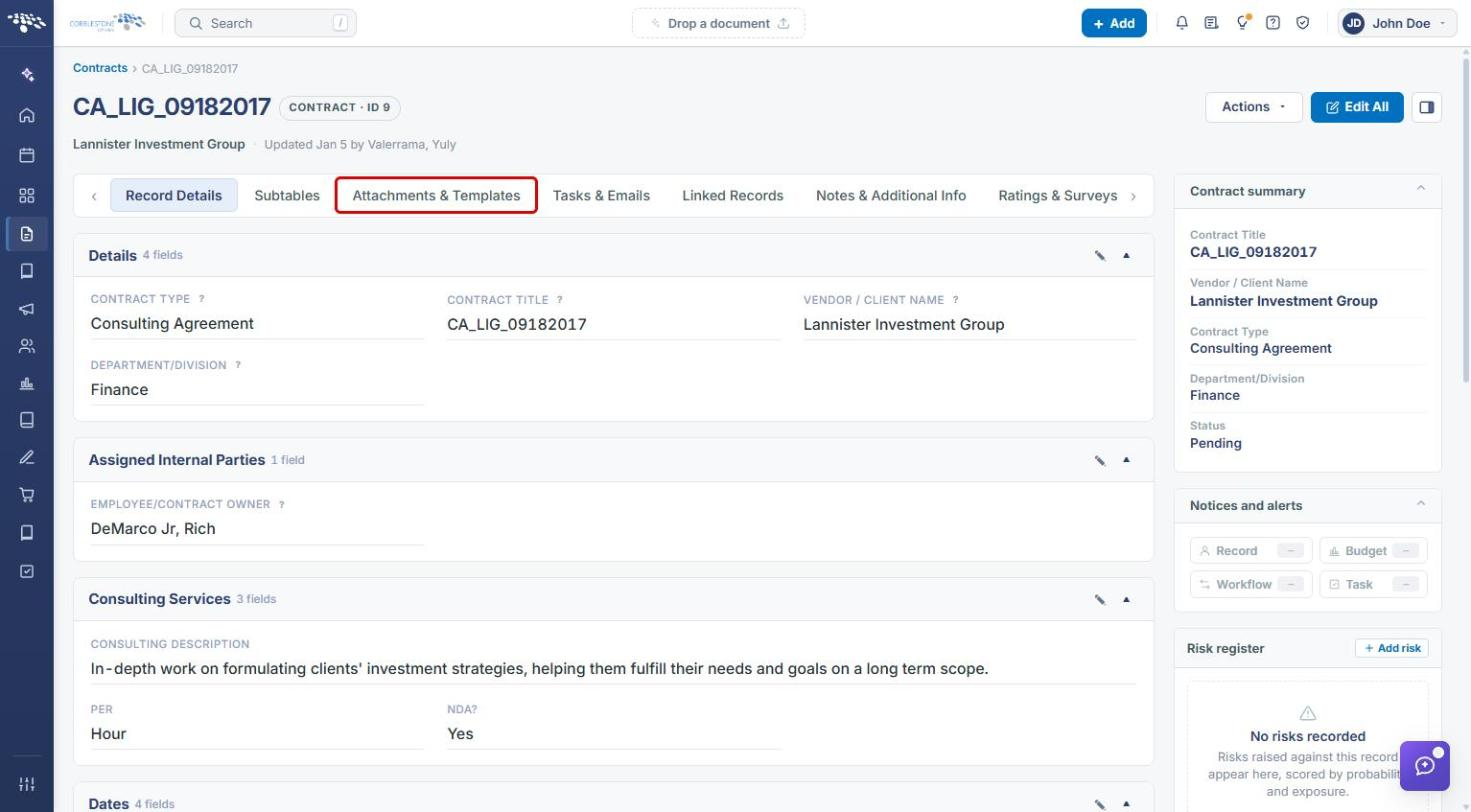
- On the contract record, click the Attachments & Templates tab.
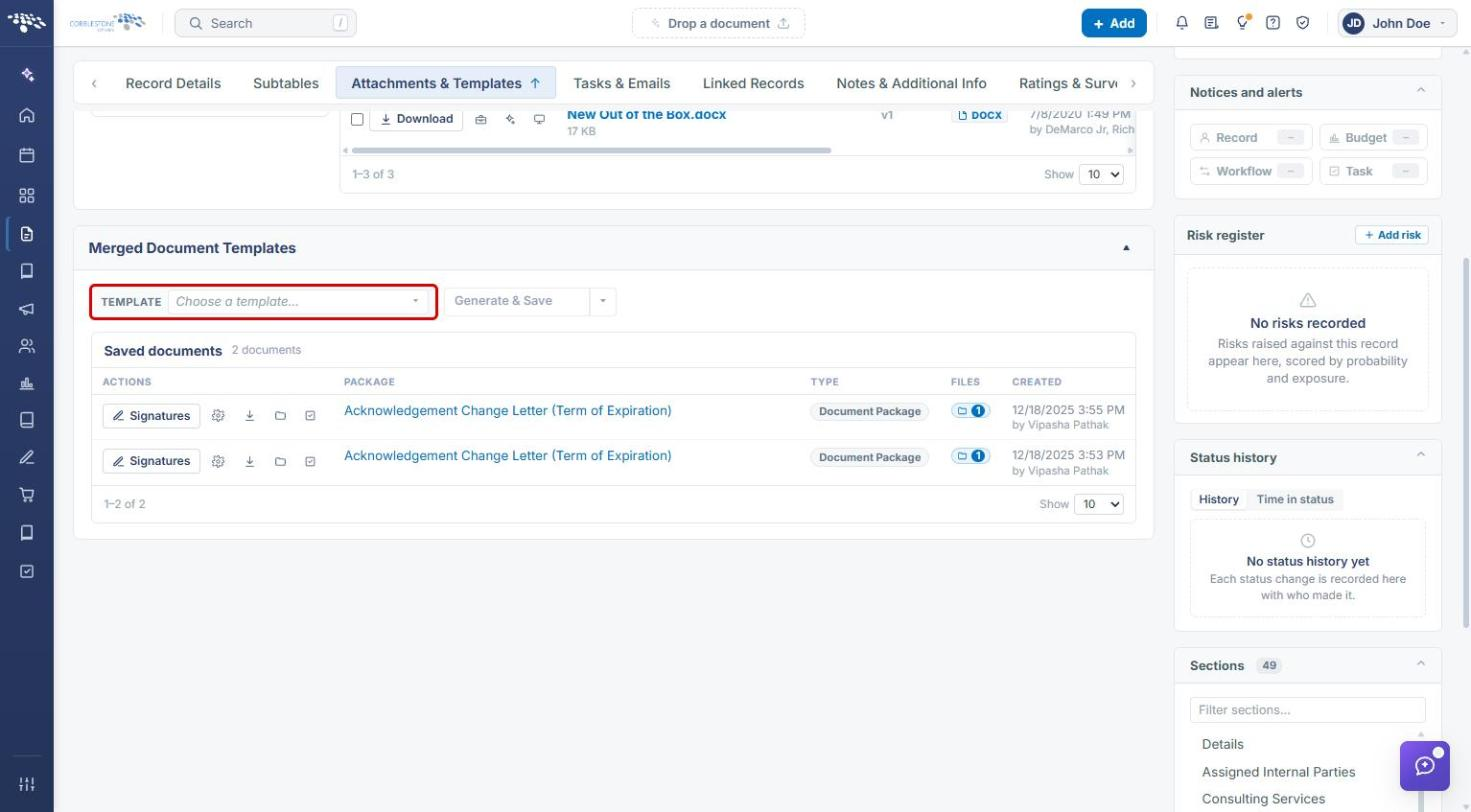
- Scroll past Files / Attachments to the Merged Document Templates section.
4. Generating a New Document Package
4a. Choosing a Template
- Navigate to the record's Attachments & Templates tab (see Section 3).
- In the Merged Document Templates section, click the TEMPLATE control (“Choose a template…”).
- Type in the Search templates box to filter the list, or scroll through it, and click the template to use.
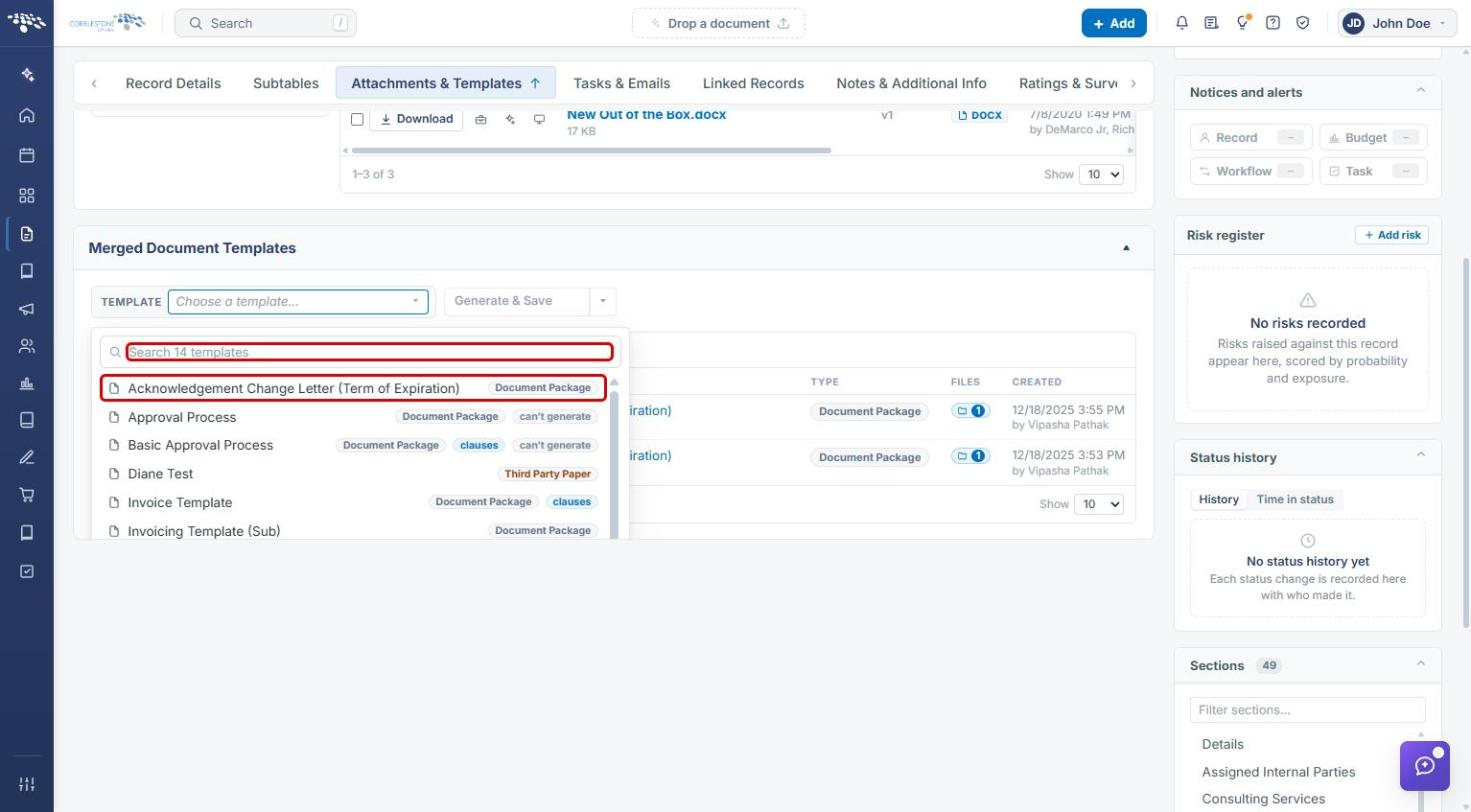
Note: Templates marked can't generate are listed but cannot be generated from this record. Choose a template without that badge.
4b. Generating the Package
- After a template is chosen, review the name shown next to SAVING AS. To change it, click the pencil icon and enter a new name.
- Click Generate & Save to generate the package and add it to the Saved documents list.
- Alternatively, click the ▾ arrow beside Generate & Save and select Generate without saving to produce the document without saving a package to the record.
The button shows Saving… while the package is generated. When it finishes, the TEMPLATE control resets to “Choose a template…”.
5. Reviewing the New Package
- The new package appears at the top of the Saved documents list, with the current date and your name under Created, and the document count increases by one.
- A Signatures panel opens beneath the new package, listing any signers that come from the template. Nothing is sent at this point. Click Set up signature process to start an e-signature process, or close the panel with the × icon.
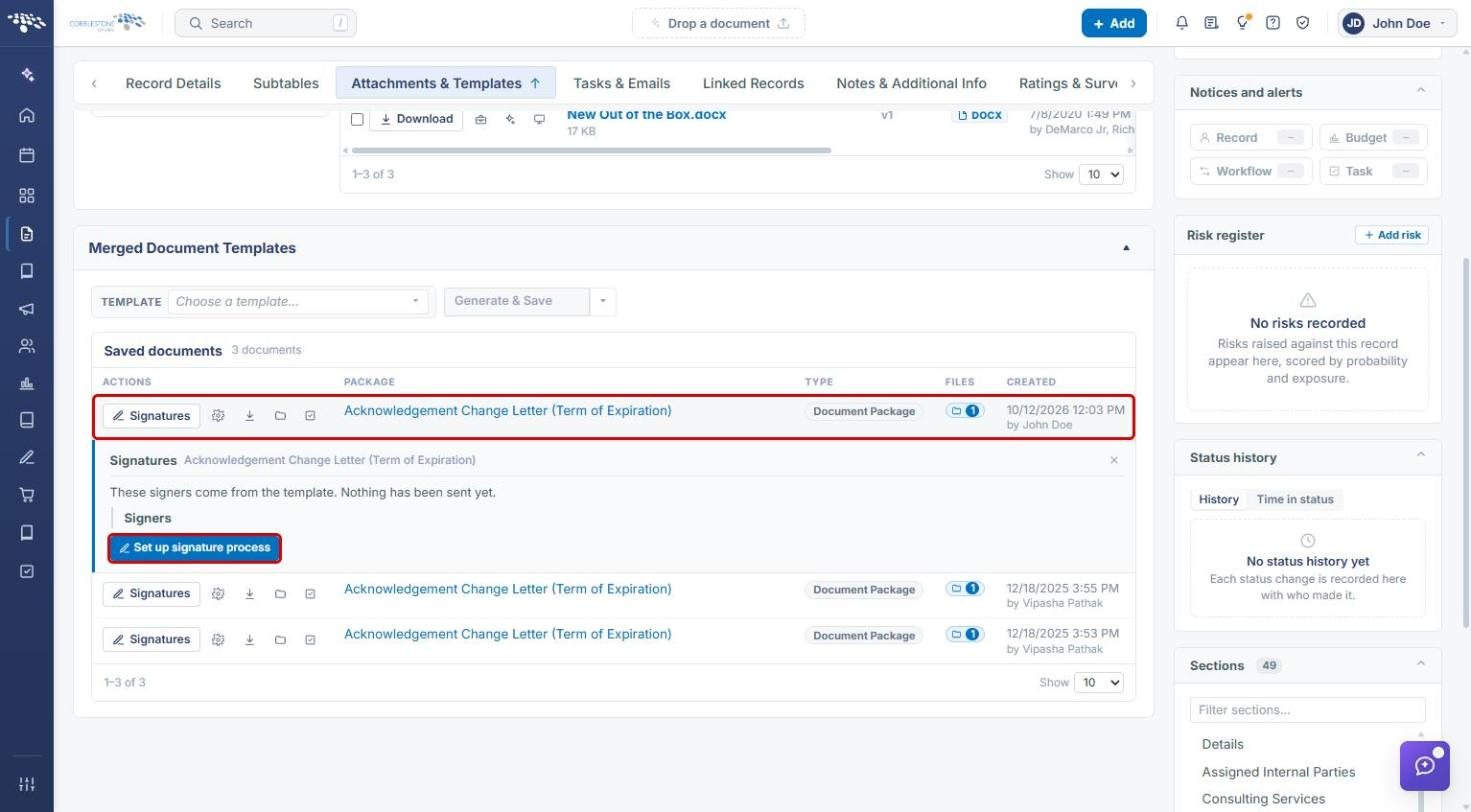
Use the row actions to work with the package: Signatures, Manage (gear icon), Download, Files (folder icon), and Approvals (checklist icon). See Manage Generated Document Package for details.
6. Quick Reference Summary
| Task | How to Complete It |
|---|---|
| Open a contract record | Requests/Contracts icon → Contracts → Manage on the contract's row. |
| Find the template controls | Record → Attachments & Templates tab → Merged Document Templates. |
| Choose a template | TEMPLATE → Choose a template… → search or scroll → click the template. |
| Rename the package | Pencil icon next to SAVING AS. |
| Generate and save a package | Generate & Save. |
| Generate without saving | ▾ beside Generate & Save → Generate without saving. |
| Find the new package | Top of the Saved documents list. |
| Start e-signatures | Signatures panel → Set up signature process. |