COBBLESTONE SOFTWARE
Contract Insight — User Guide
Manage Generated Document Package
Document Templates: Generation/Merging › Generated Document Packages › Manage Generated Document Package
Note: Each procedure in this guide begins at the Contract Insight homepage, so any section can be followed on its own. Custom fields are configurable, so the exact field list on a contract category record may vary between environments.
1. Overview
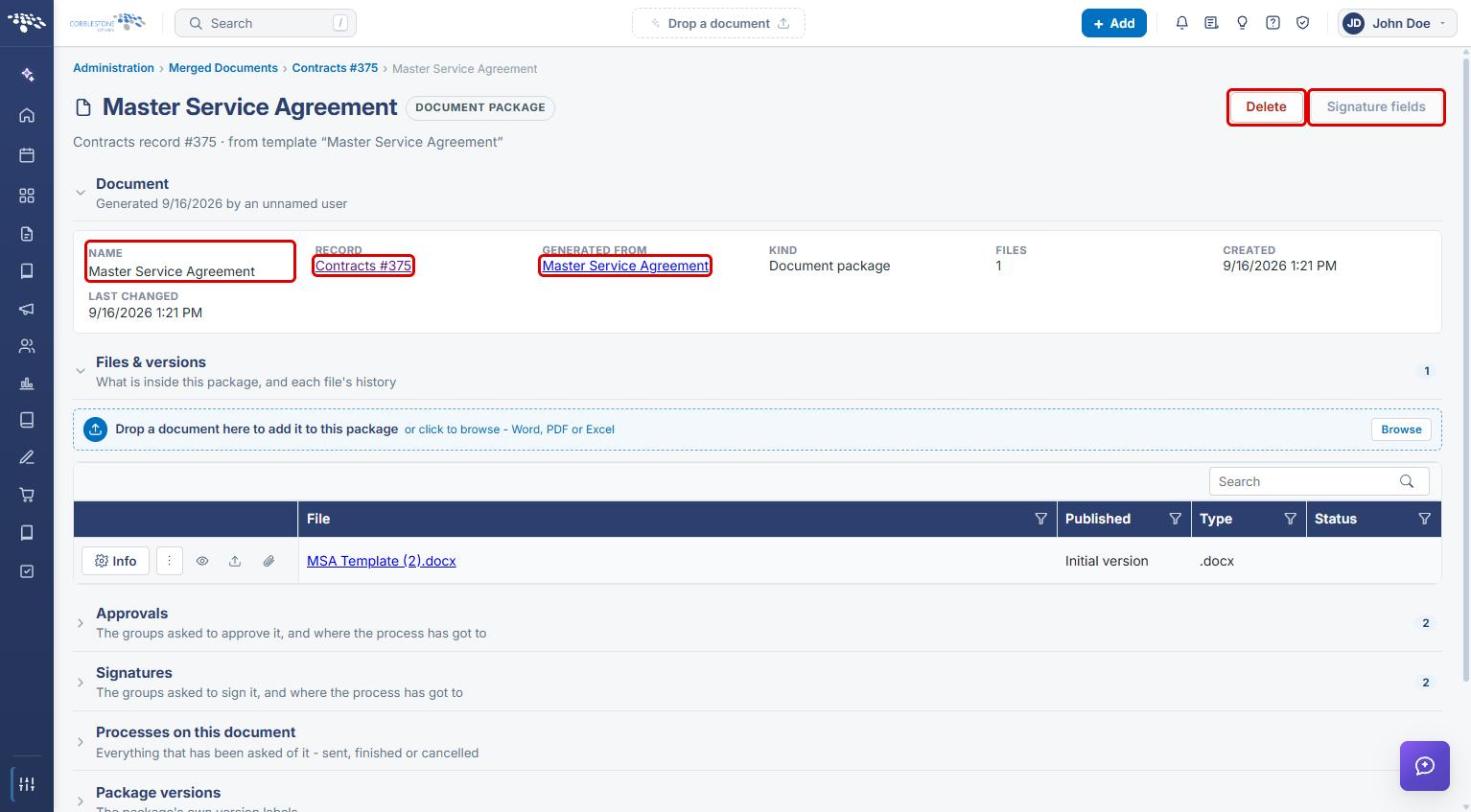
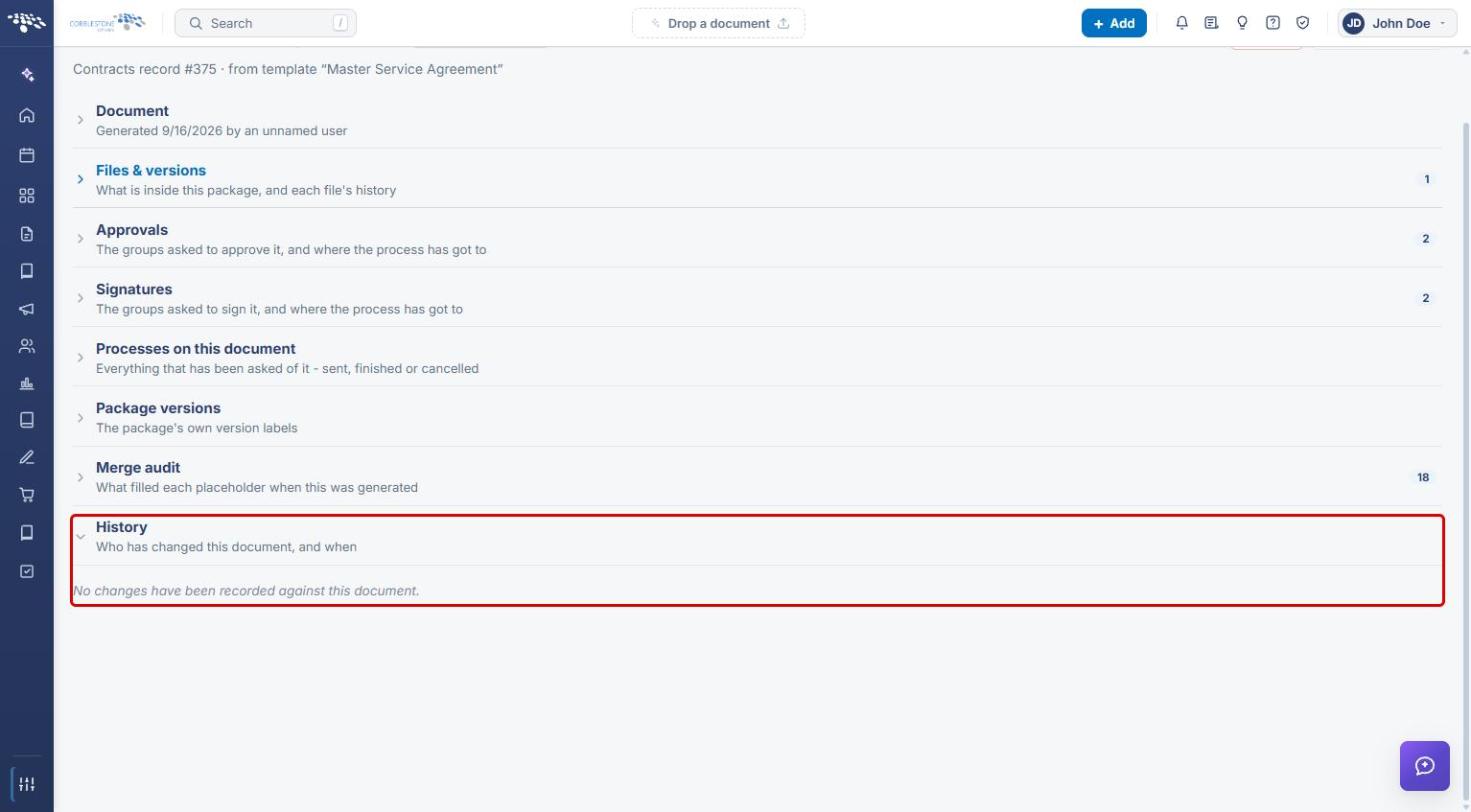
Every document generated from a template is saved as a document package. Opening a package — from Administration › Merged Documents, or from the Saved documents list on the record it was generated on — reaches the package detail screen. The header shows the package name, a Document Package badge, the source record and template (for example, “Contracts record #375 · from template ‘Master Service Agreement’”), and the Delete and Signature fields actions. Below the header, the package is organized into collapsible sections: Document, Files & versions, Approvals, Signatures, Processes on this document, Package versions, Merge audit, and History. A count badge on the right of a section header shows how many items it holds.
2. Key Elements
- Administration › Merged Documents lists every document generated from a template across all records, with a record-type filter, search, and per-row Open, Open the source template, and Delete this merged document actions.
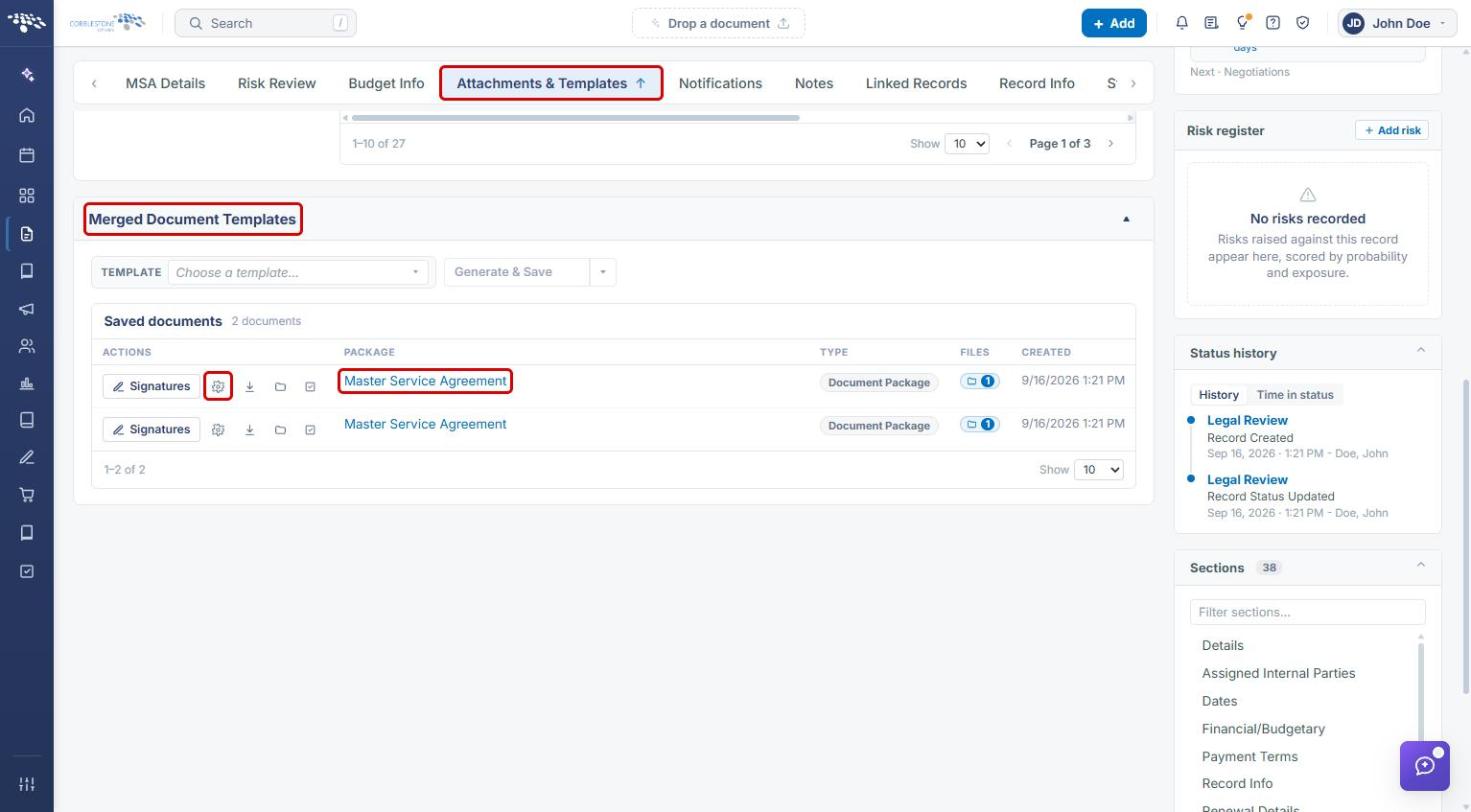
- On a record, the Merged Document Templates section (Attachments & Templates tab) lists the record's Saved documents, with Signatures, Manage, Download, Files, and Approvals actions.
- The Document section shows the package Name (editable), Record, Generated from, Kind, Files, Created, and Last changed.
- Files & versions lets you add files to the package, edit each file's settings, preview it, upload a new version, attach it to the record, check it out for editing, and view its version history.
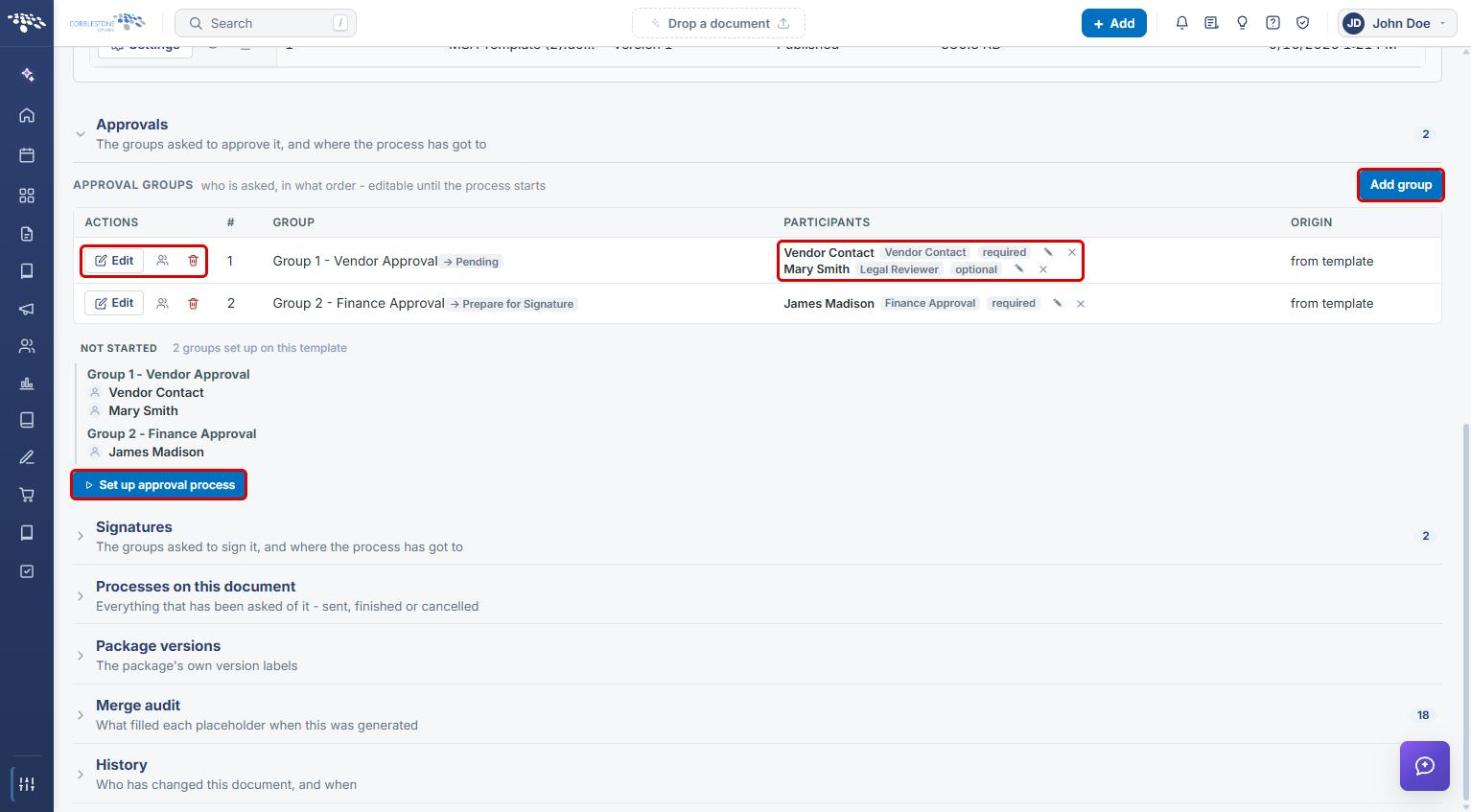
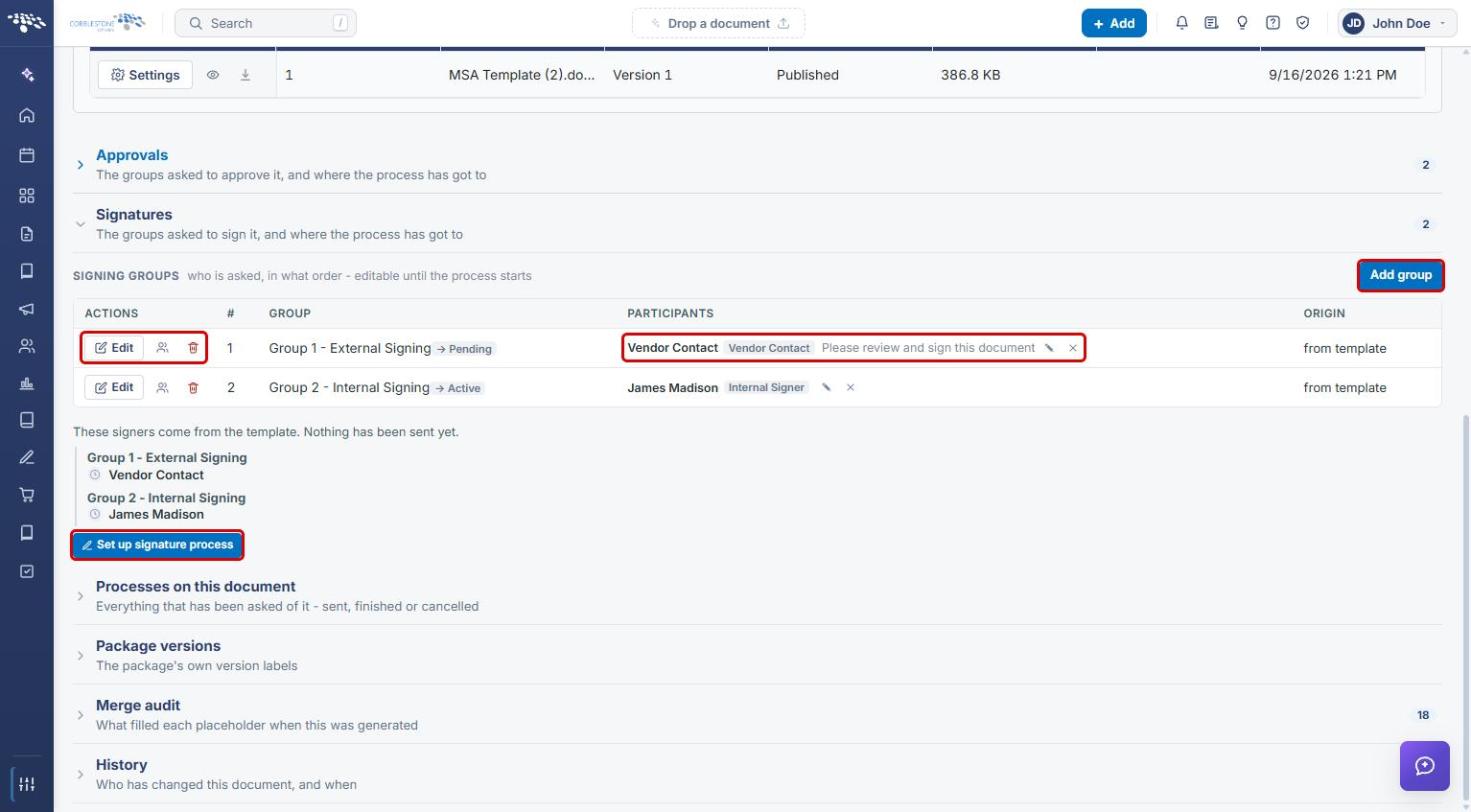
- Approvals and Signatures list the groups asked to approve or sign the package. Groups are editable until the process starts.
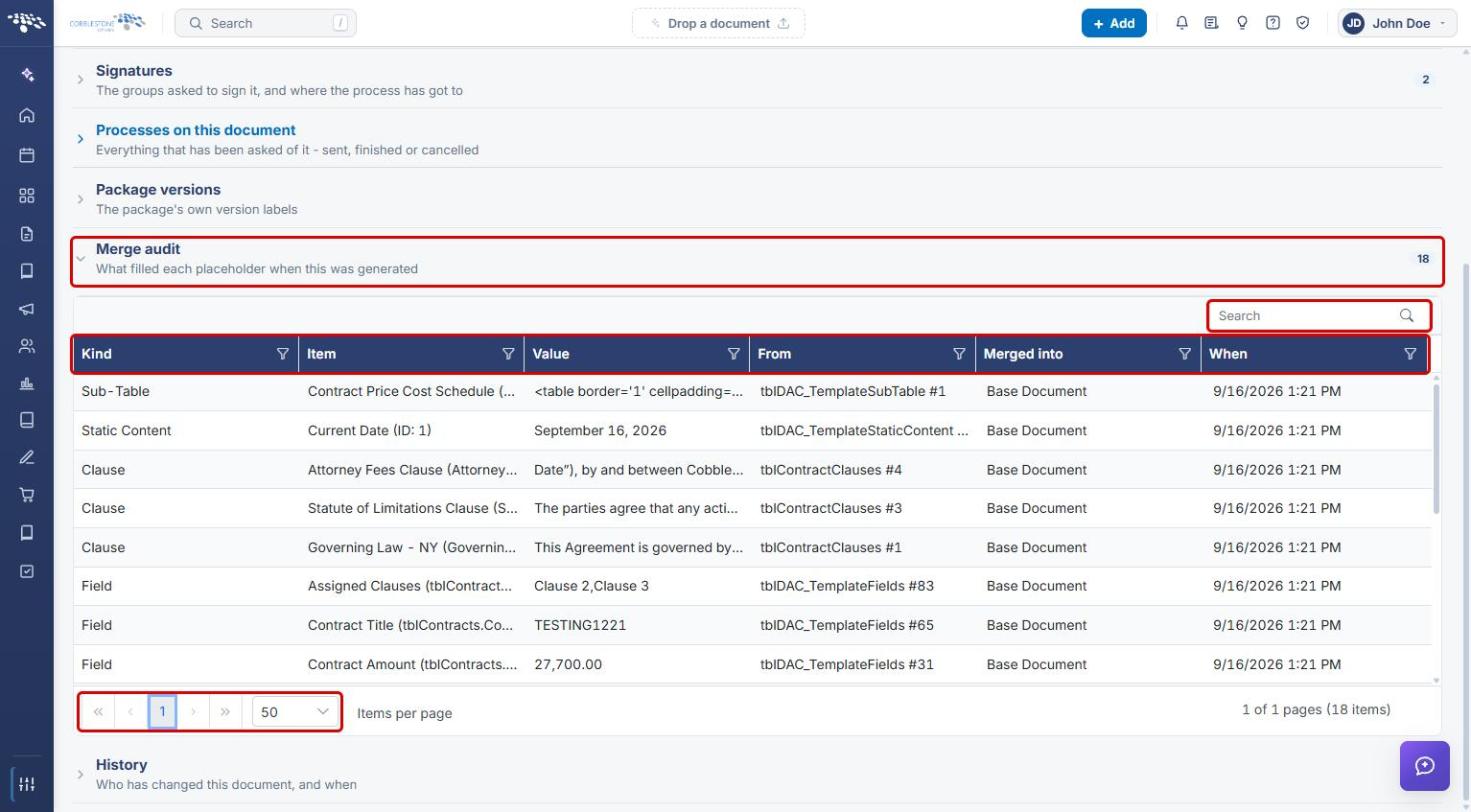
- Merge audit shows what filled each placeholder when the package was generated, and History shows who has changed the package and when.
3. Opening a Generated Document Package
3a. From Administration › Merged Documents
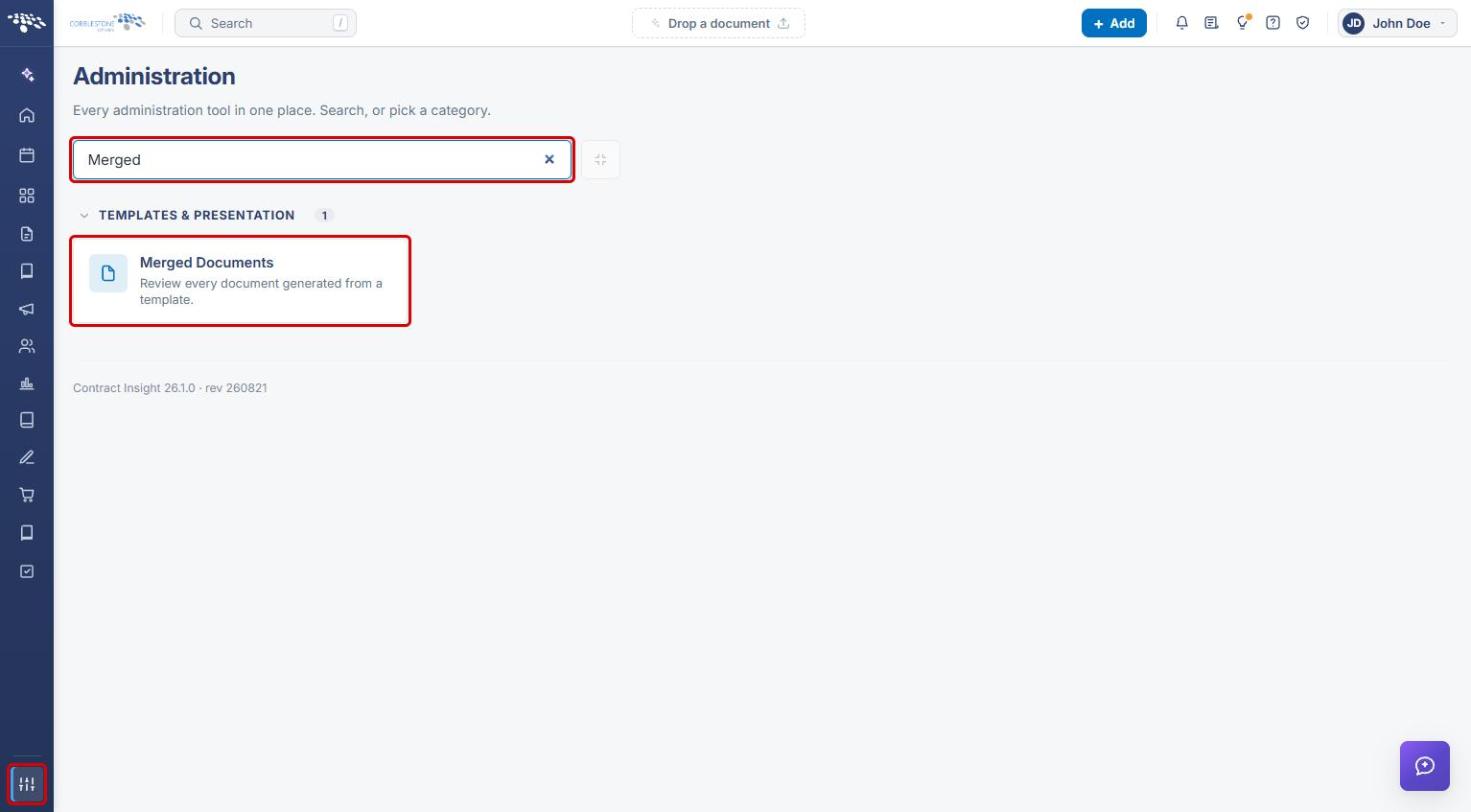
- From the Contract Insight homepage, click the Administration (settings) icon at the bottom of the left navigation bar.
- In the Search administration… box, type Merged, then click the Merged Documents card.
- On the Merged Documents page, narrow the list with the All record types drop-down or the Search box.
- Click Open on the package's row. The package detail screen opens.
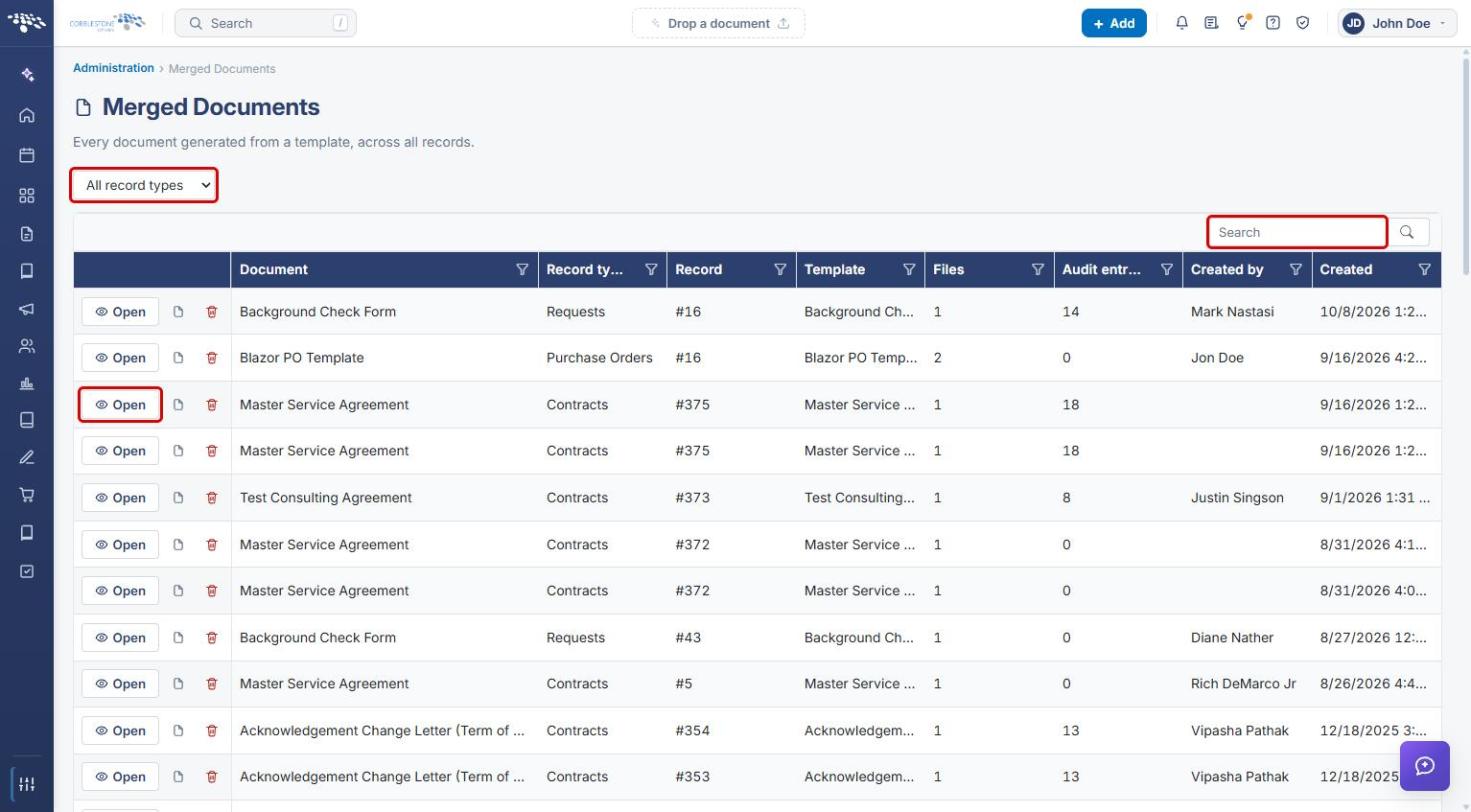
Note: The other row actions are Open the source template (document icon) and Delete this merged document (trash icon).
3b. From the Record
- Open the record the package was generated on (for example, a contract).
- Click the Attachments & Templates tab and scroll to the Merged Document Templates section.
- In the Saved documents list, click the Manage (gear) icon on the package's row to open the package detail screen. To read the package's document without opening it, click the package name instead.
4. Reviewing Package Details
The Document section opens expanded and shows the package's Name, Record, Generated from (template), Kind, Files count, Created, and Last changed dates.
- To rename the package, hover over Name and click the Edit the document's name (pencil) icon.
- Click the Record link to open the source record, or the Generated from link to open the template.
- Use Signature fields in the header to place where signers sign. This button becomes available once a signature process has been set up (see Section 6b).
5. Managing Files & Versions
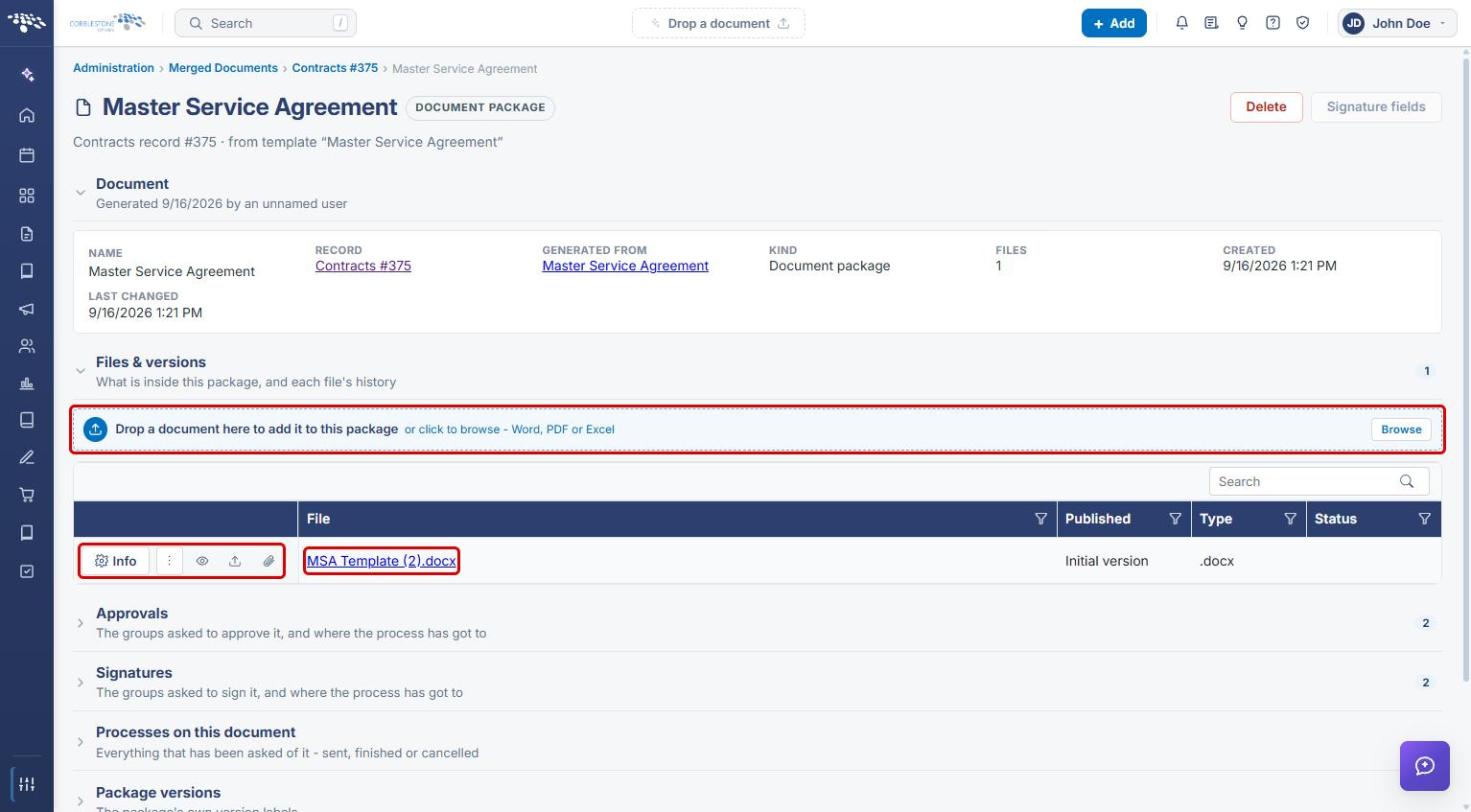
The Files & versions section lists what is inside the package and each file's history. The grid shows each file's File name, Published version, Type, and Status.
5a. Adding a File and Using Row Actions
- To add a file to the package, drag a Word, PDF, or Excel file onto Drop a document here to add it to this package, or click Browse.
- Use the icons on a file's row: Info (file settings), More actions (⋮), Preview (eye), Upload a new version, and Attach to the record (paperclip).
- Click the file name to open the file.
5b. Editing File Settings
- Click Info on the file's row. The File settings panel opens.
- Update the Title (the name people see wherever the package is listed) and add Help text for signers or approvers.
- Choose the file's Position in the document. Files are put together in this order, and moving one shuffles the rest along.
- Turn on Reference file if the file is to be read, not signed or approved. Only a reference file can be limited with Who can see it.
- Click Save.
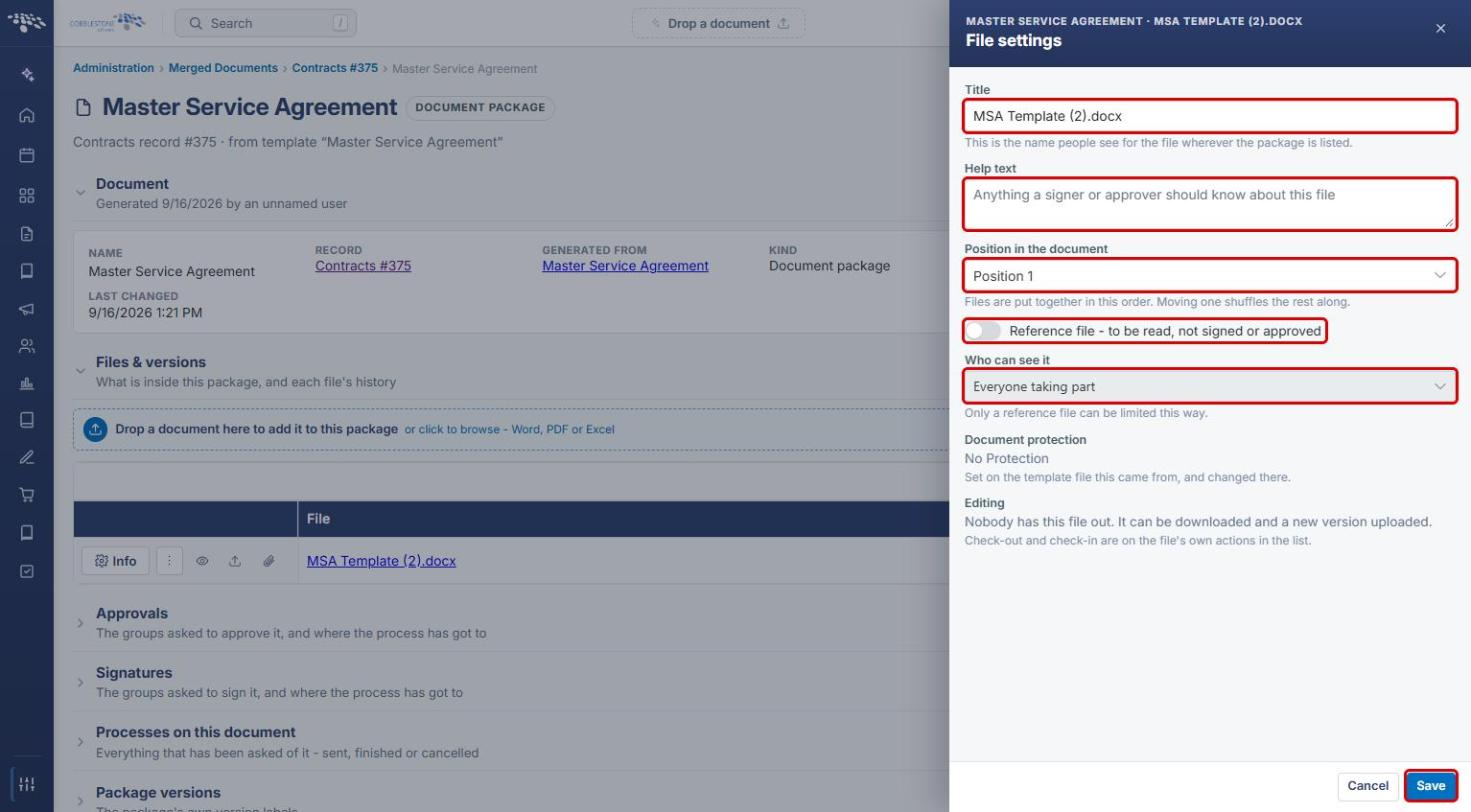
Note: Document protection is set on the template file the package came from and can only be changed there. The Editing line shows whether anyone has the file checked out.
5c. More File Actions
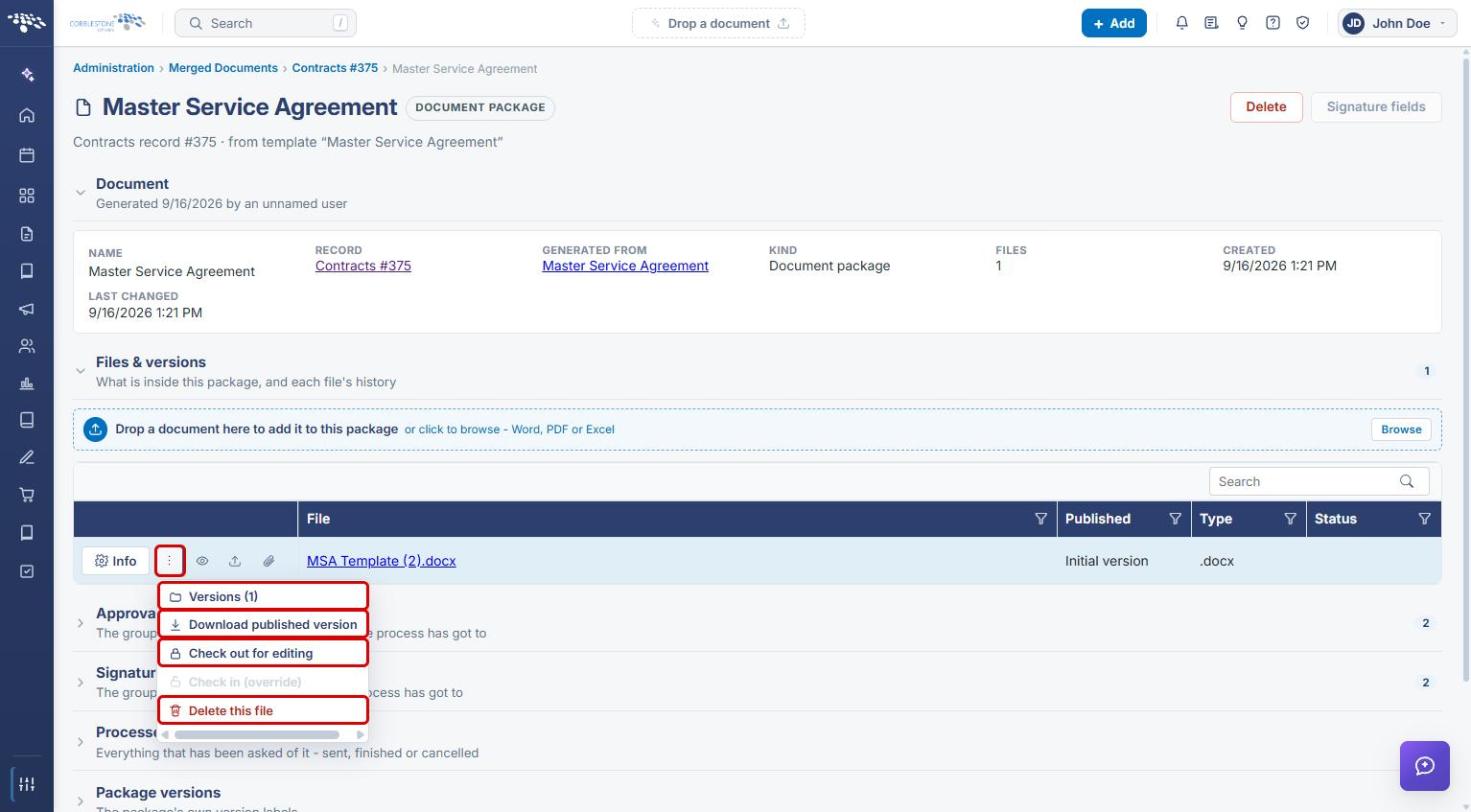
- Click the More actions (⋮) icon on the file's row.
- Choose Versions to view the file's version history, Download published version, Check out for editing (or Check in once checked out), or Delete this file.
5d. Viewing and Adding File Versions
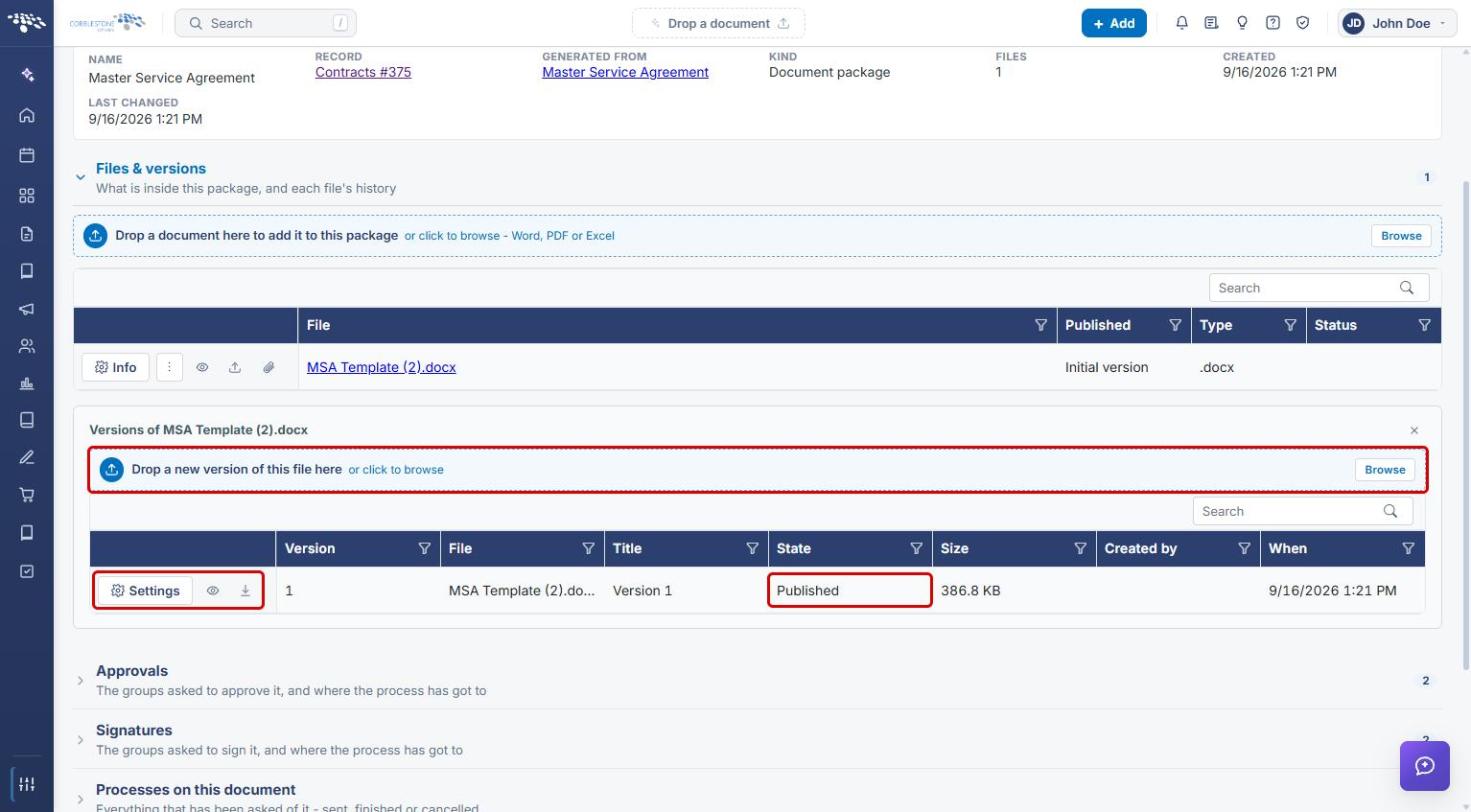
- Select Versions from the More actions menu. The Versions of [file name] panel opens below the file grid, listing each version's Version, File, Title, State, Size, Created by, and When.
- To add a new version, drag the file onto Drop a new version of this file here, or click Browse.
- Use Settings, Read it here (eye), or Download on a version's row to manage, preview, or retrieve that specific version without disturbing the published one.
6. Managing Approval and Signature Groups
The Approvals and Signatures sections list who is asked, in what order. Groups copied from the template show from template in the Origin column, and all groups are editable until the process starts.
6a. Approvals
- Expand the Approvals section.
- Click Add group to add an approval group.
- On a group's row, click Edit to change the group, the Add participant (people) icon to add an approver, or the Delete this group (trash) icon to remove it.
- In the Participants column, click a participant's pencil icon to change their title, reason, and whether they are required, or × to remove them.
- When the groups are ready, click Set up approval process.
6b. Signatures
- Expand the Signatures section.
- Click Add group to add a signing group, and use Edit, Add participant, and Delete this group on a group's row as needed.
- Adjust participants in the Participants column with the pencil and × icons.
- When the signers are ready, click Set up signature process. Once a signature process exists, use Signature fields in the header to place where each signer signs.
7. Tracking Processes and Package Versions
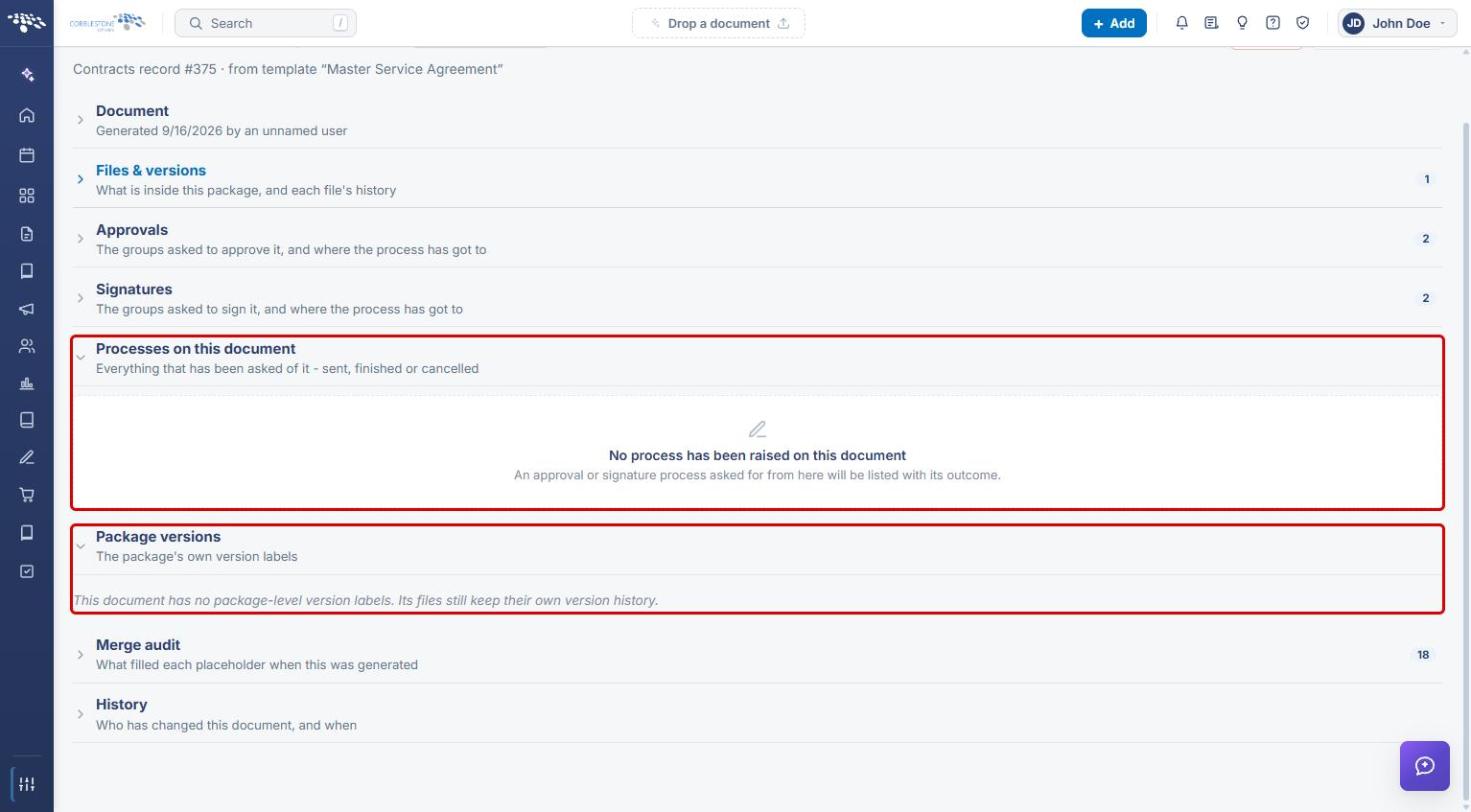
- Processes on this document lists everything that has been asked of the package — approval or signature processes that were sent, finished, or cancelled — with their outcome.
- Package versions shows the package's own version labels. If none exist, the package's files still keep their own version history (see Section 5d).
8. Reviewing the Merge Audit and History
8a. Merge Audit
- Expand the Merge audit section. The count badge shows how many entries were recorded.
- Review each placeholder's Kind (Field, Clause, Static Content, Sub-Table), Item, the Value merged, where it came From, what it was Merged into, and When.
- Use the Search box or the column filter icons to find an entry, and the pager and Items per page control to page through results.
8b. History
Expand the History section to see who has changed the package and when. If no changes have been made, the section reads “No changes have been recorded against this document.”
9. Deleting a Generated Document Package
- Open the package (see Section 3).
- Click Delete in the header (see the screenshot in Section 4) and confirm. You can also delete a package from the Merged Documents list using the Delete this merged document (trash) icon on its row.
Note: To remove a single file instead of the whole package, use Delete this file from the file's More actions menu (see Section 5c).
10. Quick Reference Summary
| Task | How to Complete It |
|---|---|
| Open a package from Administration | Administration → Merged Documents → Open on the package's row. |
| Open a package from its record | Record → Attachments & Templates tab → Merged Document Templates → Manage (gear) icon. |
| Rename a package | Document section → hover over Name → Edit the document's name (pencil). |
| Add a file to a package | Files & versions → drag a file onto the drop zone, or click Browse. |
| Change a file's title, order, or visibility | Files & versions → Info → update File settings → Save. |
| Download, check out, or delete a file | Files & versions → More actions (⋮) on the file's row. |
| View or add file versions | More actions → Versions → drop a new version or click Browse. |
| Edit approvers or signers | Approvals or Signatures section → Add group, Edit, or participant pencil/× icons. |
| Start an approval or signature process | Set up approval process or Set up signature process. |
| Place signature fields | Header → Signature fields (after a signature process is set up). |
| See what filled each placeholder | Merge audit section. |
| See who changed the package | History section. |
| Delete a package | Header → Delete, or the trash icon in Merged Documents. |