COBBLESTONE SOFTWARE
Contract Insight — User Guide
Folders: Create New
07. End Users - Contracts › Contract Attachments › Folders: Create New
Note: Each procedure in this guide begins at the Contract Insight homepage, so any section can be followed on its own. Custom fields are configurable, so the exact field list on a contract category record may vary between environments.
1. Overview
Folders organize the attachments on a single record. Within a record's Attachments & Templates tab, the Files / Attachments panel shows a Folders list on the left (Root Folder plus any existing subfolders, each with its file count) and a + Add folder button above it for creating a new one. For example, a sample contract might have Root Folder plus subfolders such as Amendments, Drafts, Invoices, and Signed Agreements — letting related files be grouped without leaving the record.
2. Key Elements
- Folders toggle: located above the file grid; shows or hides the folder sidebar.
- Folders list: shows Root Folder and every existing subfolder with its file count. Click a folder to view its files and make it the current folder.
- + Add folder: at the top of the folder sidebar; creates a new folder inside the folder you currently have selected.
- Add folder window: contains Name, an optional Description (shown when you hover over the folder), and Parent Folder, which controls where the new folder is created.
- Folders are scoped to the individual record — they organize that record's own attachments rather than the shared Library.
- Newly uploaded files can be dropped directly into a selected folder rather than the Root Folder, keeping related attachments grouped as they're added.
3. Navigating to a Record's Attachments
- From the Contract Insight homepage, click the Requests/Contracts icon in the left navigation bar, then select Contracts.
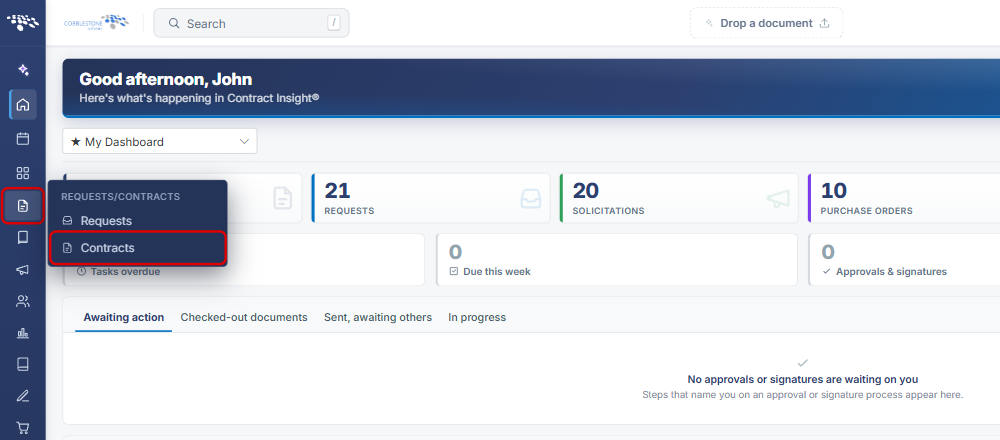
- On the Contracts list, locate the contract (use the Search box or the column filters if needed) and click Manage on its row.
.png)
- On the contract record, click the Attachments & Templates tab. The Files / Attachments panel opens with the folder sidebar on the left.
.png)
4. Creating a New Folder
- Navigate to the record's Attachments & Templates tab (see Section 3).
- If the folder sidebar is hidden, click the Folders toggle above the file grid to show it.
- In the Folders list, select the folder the new folder should be created in. Select Root Folder to create a top-level folder.
- Click + Add folder.
.png)
- In the Add folder window, enter a Name for the folder.
- Optionally, enter a Description. The description is shown when users hover over the folder.
- Confirm the Parent Folder. It defaults to the folder you had selected; choose a different folder from the drop-down if needed.
- Click Create folder. Click Cancel to close the window without creating a folder.
.png)
Note: The new folder appears in the Folders list under its parent folder. Select it before dropping or browsing for files to upload them directly into that folder.
5. Quick Reference Summary
| Task | Where | Action |
|---|---|---|
| Open a contract's attachments | Requests/Contracts → Contracts → Manage | Click the Attachments & Templates tab |
| Show or hide the folder sidebar | Files / Attachments panel | Click the Folders toggle |
| Create a top-level folder | Folders list | Select Root Folder → + Add folder → enter Name → Create folder |
| Create a subfolder | Folders list | Select the parent folder (or set Parent Folder) → + Add folder → Create folder |
| Upload files into a folder | Folders list / Drop files or browse | Select the folder, then drop or browse for files |