COBBLESTONE SOFTWARE
Contract Insight — User Guide
Attachment Check-In/Check-Out
07. End Users - Contracts › Contract Attachments › Attachment Check-In/Check-Out
Note: Each procedure in this guide begins at the Contract Insight homepage, so any section can be followed on its own. Custom fields are configurable, so the exact field list on a contract category record may vary between environments.
1. Overview
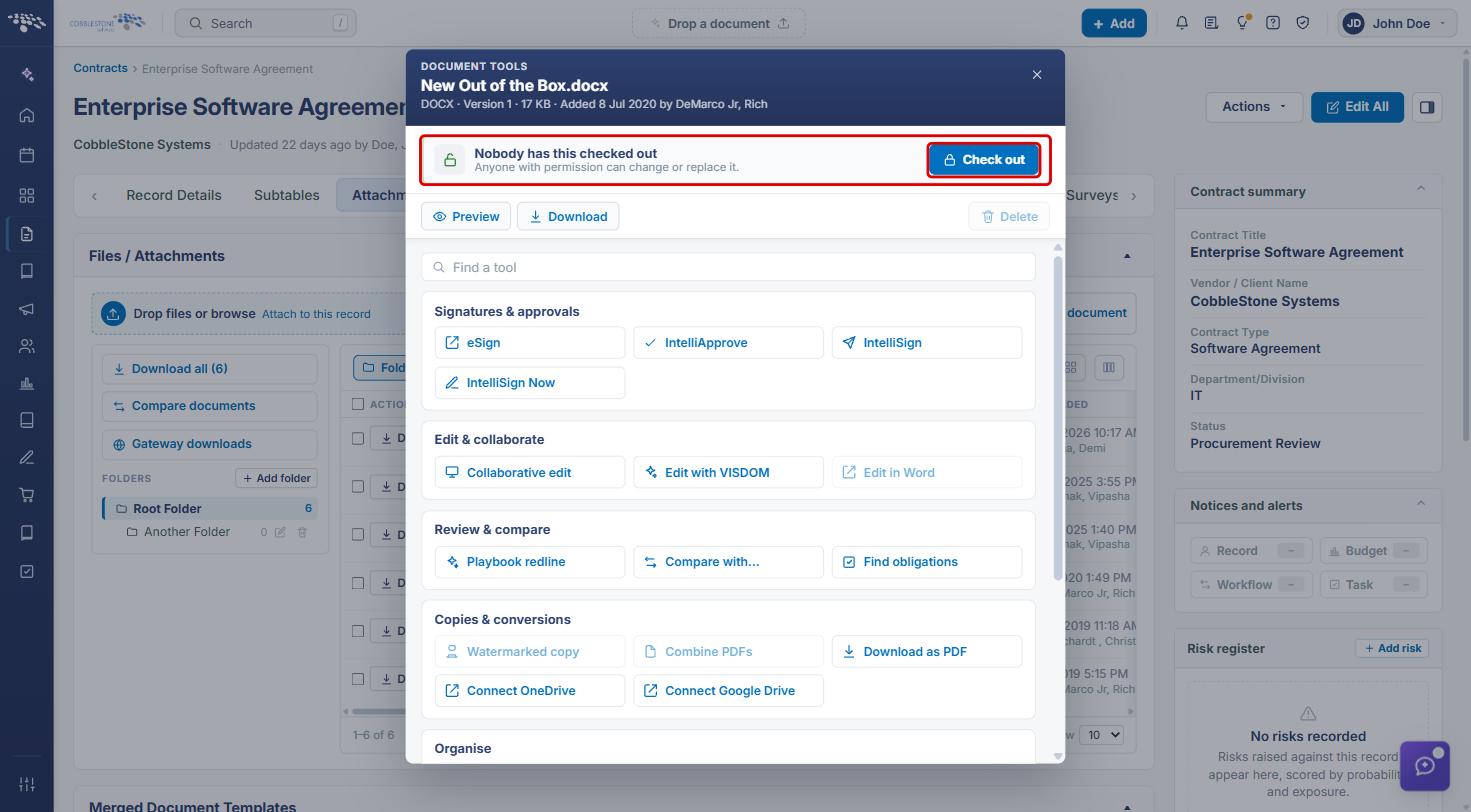
Check-in/check-out lets one person lock a contract attachment while they work on it, so nobody else can replace it until it is checked back in. The control sits at the top of every attachment's Document Tools panel (opened from the tool icon on the file's row in Attachments & Templates). When nobody holds the file, the banner reads "Nobody has this checked out — Anyone with permission can change or replace it." alongside a Check out button. Once you check it out, the banner changes to "You have this checked out — Only you can replace it until you check it back in." and the button becomes Check in; other users see who holds the file ("Checked out by [name]"). Checked-out files are also flagged directly in the attachments grid and listed on the homepage under the Checked-out documents tab, where they can be checked back in with one click.
Note: Check-in/check-out must be switched on by an administrator (see Section 3). While it is off, the Document Tools banner reads "Check-out isn't switched on for this record type." and the Check out button is unavailable.
2. Key Elements
- Check In/Out for Contract Files (Administration → Application Settings): the system-wide setting that turns check-in/check-out on for contract files and attachments.
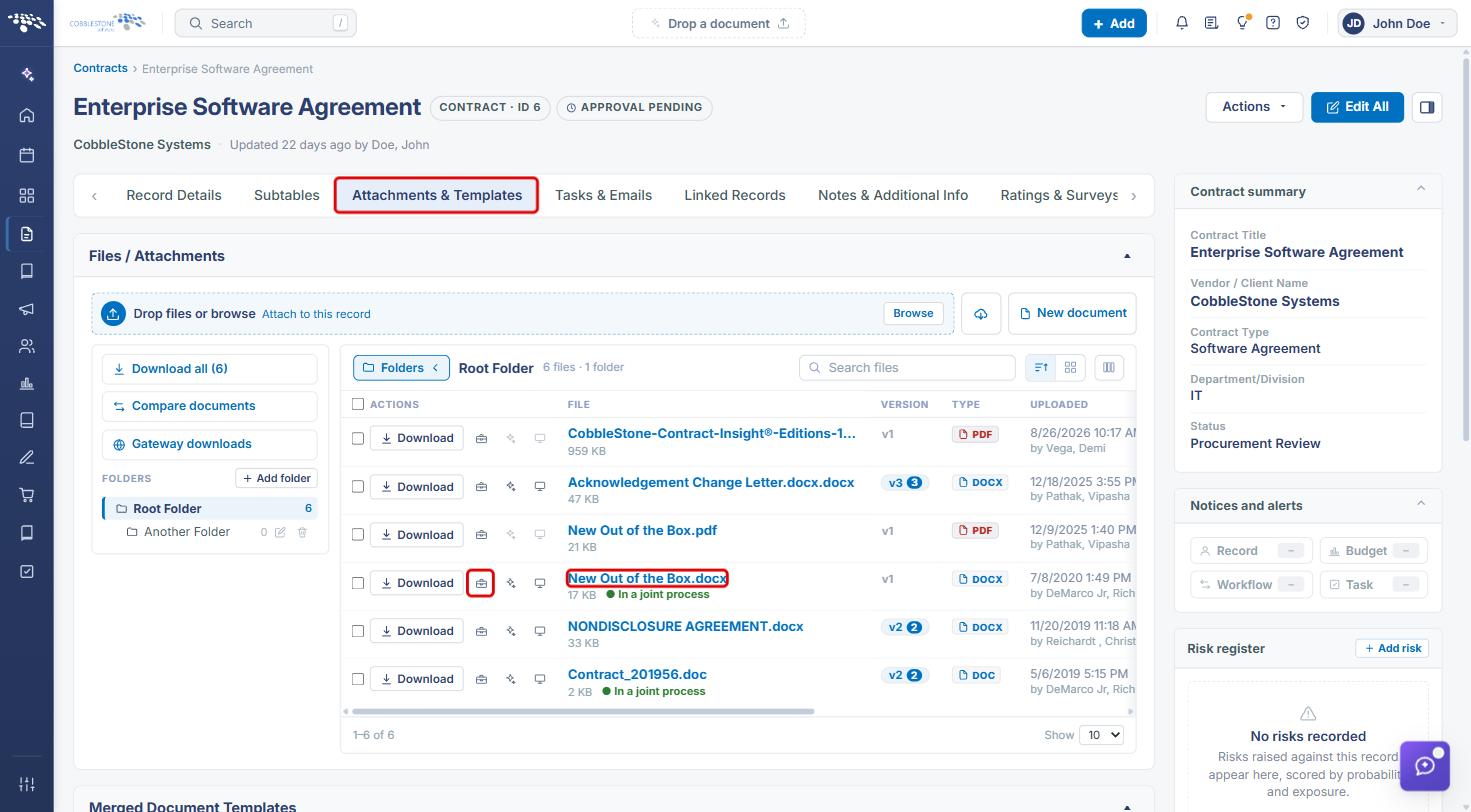
- Document tools icon: the small toolbox icon next to Download on each file's row in Attachments & Templates. It opens the Document Tools panel, with the check-out banner and button at the top.
- Check out: locks the file to you so only you can replace it until you check it back in.
- Check in: releases the lock so anyone with permission can change or replace the file again.
- Checked out to you: a label shown beneath the file name in the attachments grid, alongside other status labels such as In a joint process, so you can see the file's state without opening Document Tools.
- Checked-out documents tab (homepage): lists every document you have checked out on any record, with its contract number and a Check in button.
- Checking a file out does not open it for editing. Pair it with Edit with VISDOM, Collaborative edit, or Edit in Word to make changes.
3. Enabling Check-In/Check-Out (Administrators)
- From the Contract Insight homepage, click the Administration (sliders) icon at the bottom of the left navigation bar.
- Click Application Settings.
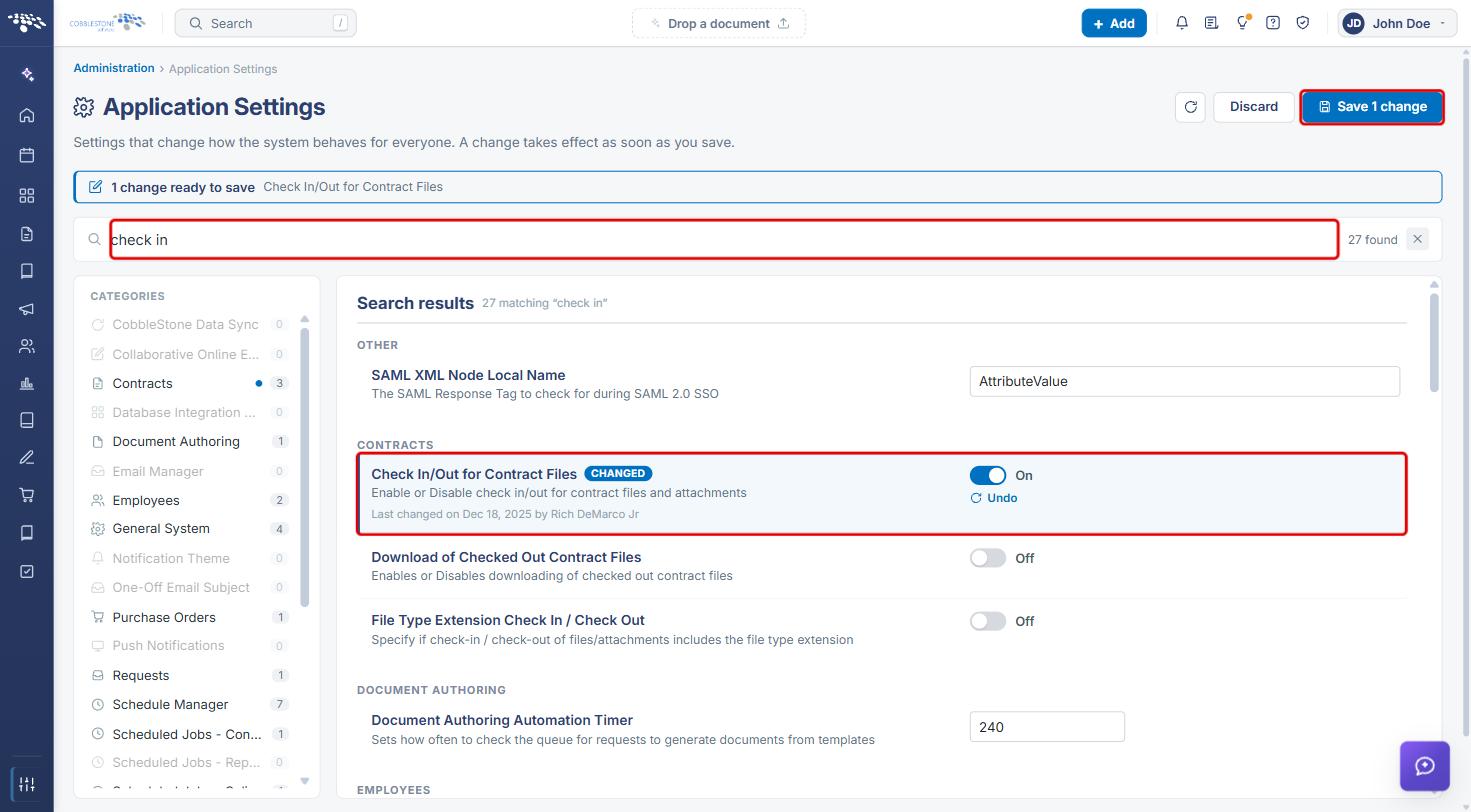
- In the Search every setting box, type check in.
- Under Contracts, switch the Check In/Out for Contract Files toggle to On.
- Click Save 1 change at the top right.
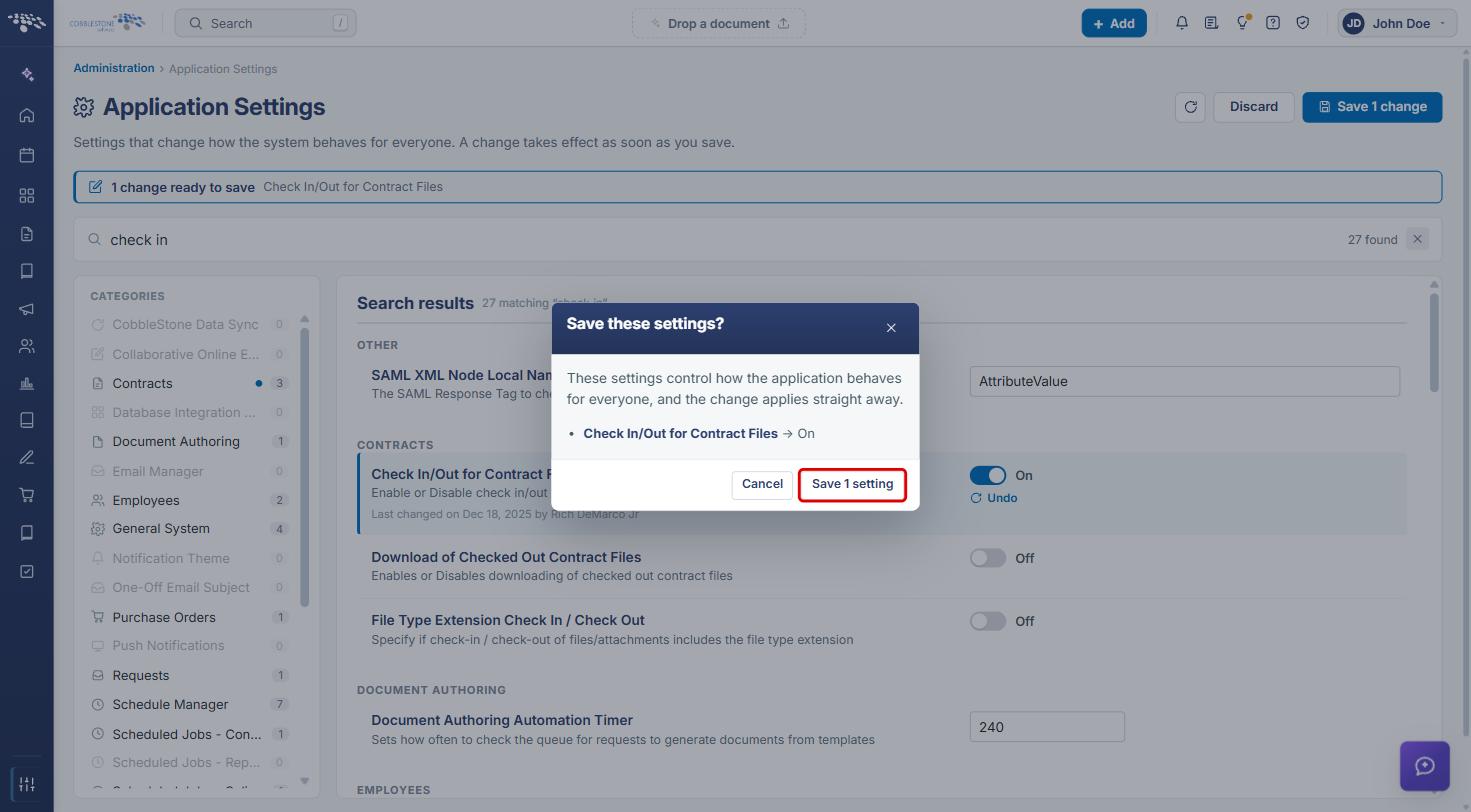
- In the Save these settings? window, click Save 1 setting. The change applies to all users immediately.
Note: Two related settings appear in the same search results: Download of Checked Out Contract Files (allows checked-out files to be downloaded) and File Type Extension Check In / Check Out (when Off, files that share a name but differ only in extension, such as Agreement.docx and Agreement.pdf, are checked out and in together).
4. Navigating to a Contract's Attachments
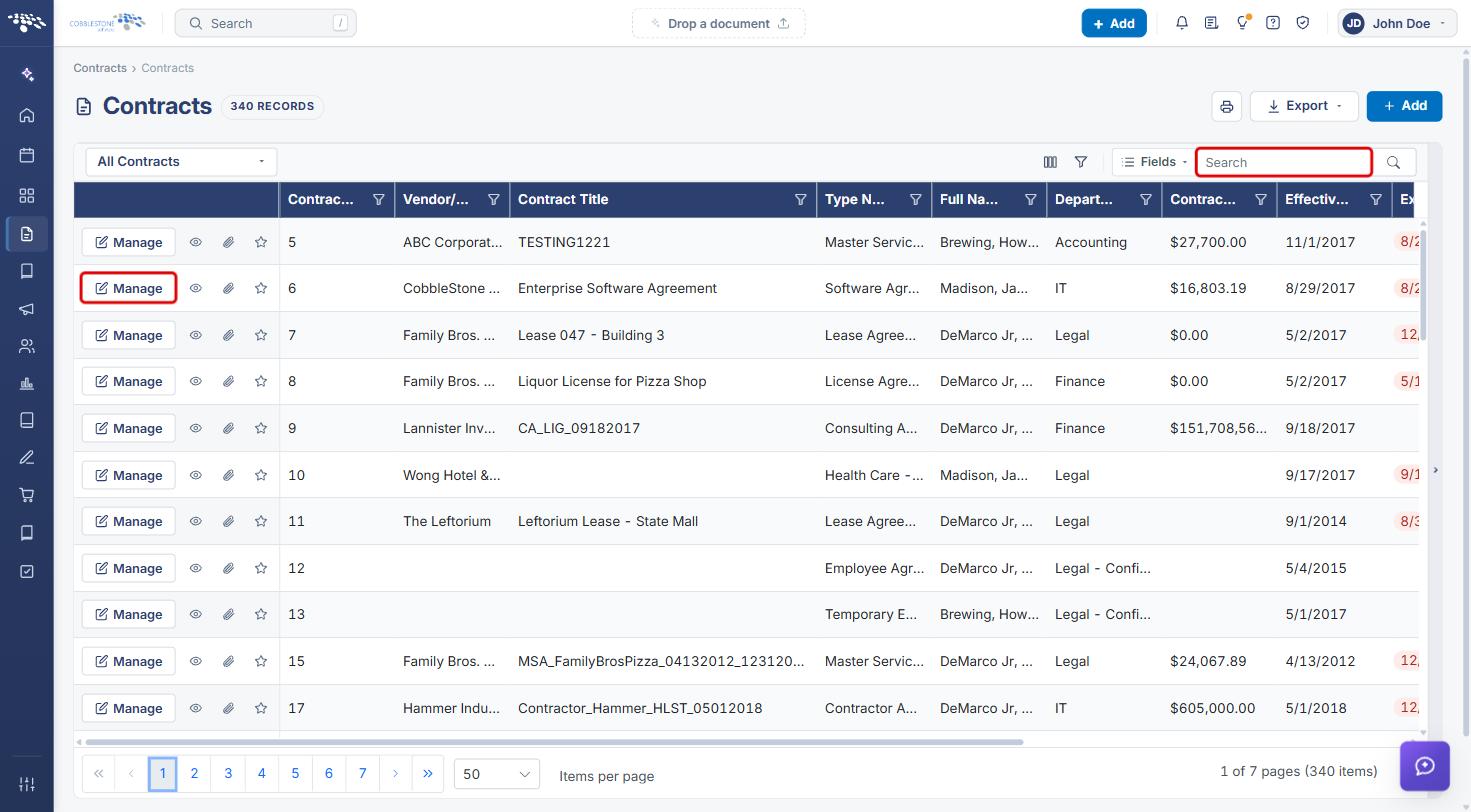
- From the Contract Insight homepage, click the Requests/Contracts icon in the left navigation bar and select Contracts.
.jpg)
- Locate the contract (use the Search box if needed) and click Manage on its row.
- On the contract record, click the Attachments & Templates tab.
- In the Files / Attachments grid, find the file and click its Document tools icon (next to Download).
5. Checking Out an Attachment
- Navigate to the contract's Attachments & Templates tab and open the file's Document Tools panel (see Section 4).
- At the top of the panel, confirm the banner reads Nobody has this checked out, then click Check out.
- The panel closes and the file is locked to you. In the attachments grid, Checked out to you now appears beneath the file name.
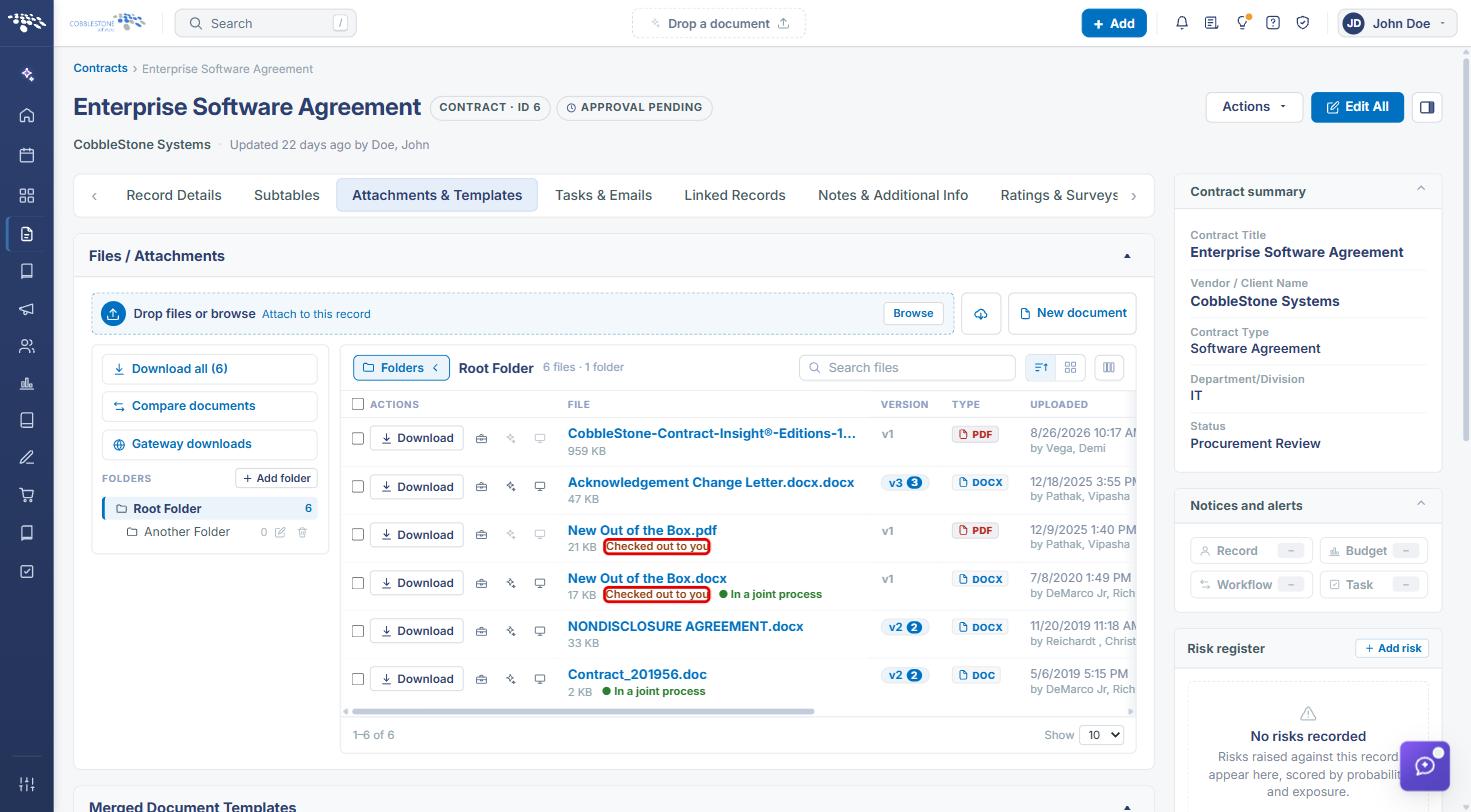
Note: Checking out does not open the file. To make changes, use Edit with VISDOM, Collaborative edit, or Edit in Word from Document Tools, or download the file. In the example above, File Type Extension Check In / Check Out is Off, so checking out New Out of the Box.docx also checked out New Out of the Box.pdf.
6. Checking In an Attachment
6a. Checking In from Document Tools
- Navigate to the contract's Attachments & Templates tab and open the file's Document Tools panel.
- The banner reads You have this checked out — "Only you can replace it until you check it back in." Click Check in.
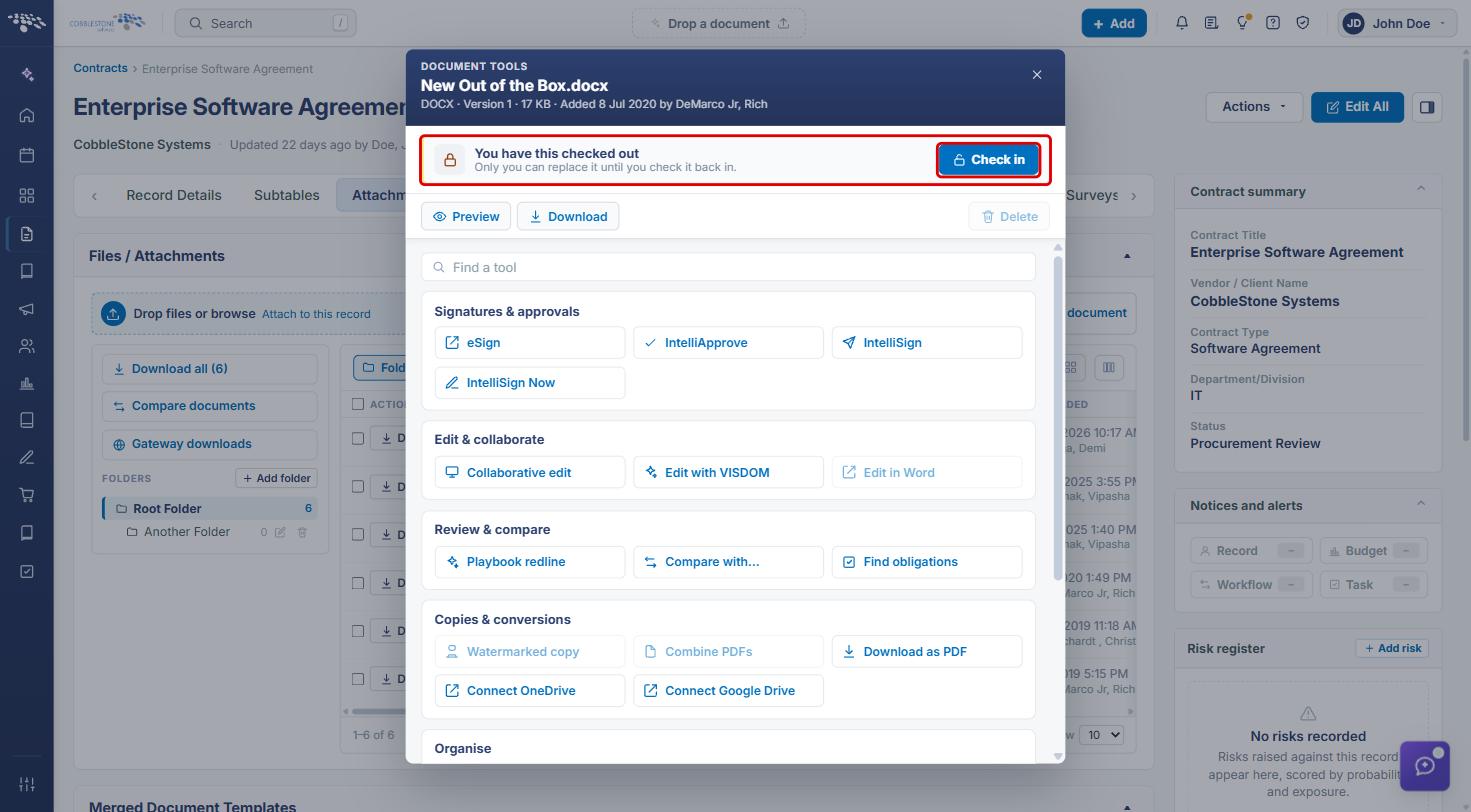
- The lock is released: the Checked out to you label disappears from the grid, and anyone with permission can change or replace the file again.
6b. Checking In from the Homepage
- On the Contract Insight homepage, click the Checked-out documents tab in the assignments panel.
- Every file you have checked out, on any record, is listed with its contract number. Click Check in on the file's row.
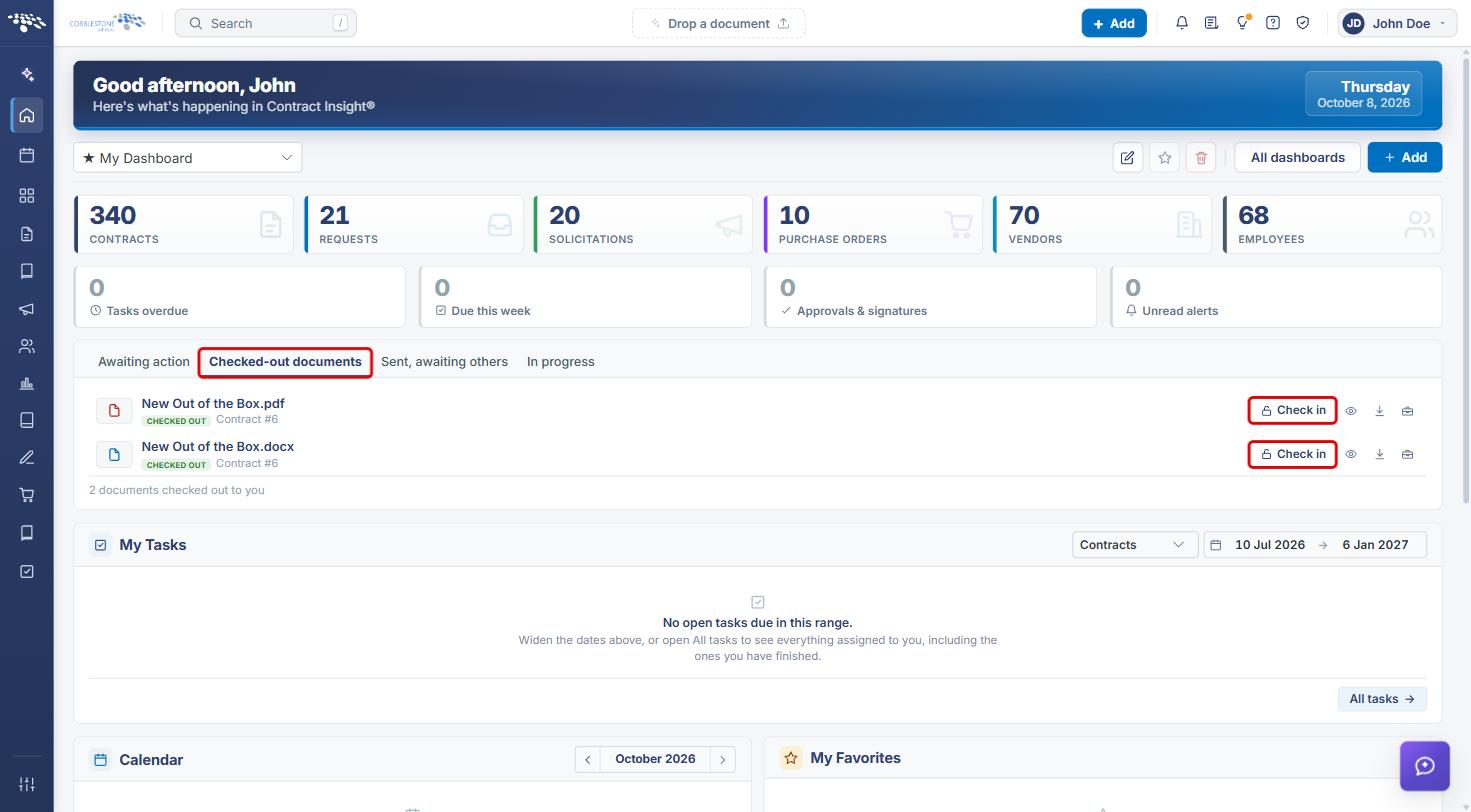
- When nothing remains checked out, the tab reads You have nothing checked out.
7. Quick Reference Summary
| Task | Where | Action |
|---|---|---|
| Enable check-in/check-out | Administration → Application Settings | Search check in, switch Check In/Out for Contract Files On, then Save 1 change → Save 1 setting |
| Open a file's check-out control | Contract → Attachments & Templates | Click the Document tools icon on the file's row |
| Check out a file | Document Tools panel | Click Check out |
| See check-out status on a record | Attachments grid | Look for Checked out to you beneath the file name |
| See everything you have checked out | Homepage → Checked-out documents tab | Review the list (shows the contract number for each file) |
| Check in a file | Document Tools panel or Checked-out documents tab | Click Check in |