COBBLESTONE SOFTWARE
Contract Insight — User Guide
Filtering & Sorting Find/Search Contracts List
06. End Users: Searching & Reporting › Find/Search Contracts › Filtering & Sorting Find/Search Contracts List
Note: Each procedure in this guide begins at the Contract Insight homepage, so any section can be followed on its own. Custom fields are configurable, so the exact field list on a contract category record may vary between environments.
1. Overview
The Find/Search Contracts screen can be filtered by entering the filter criteria into the appropriate column's text box and then clicking the filter icon to determine how the displayed records are to be filtered based on the entered criteria.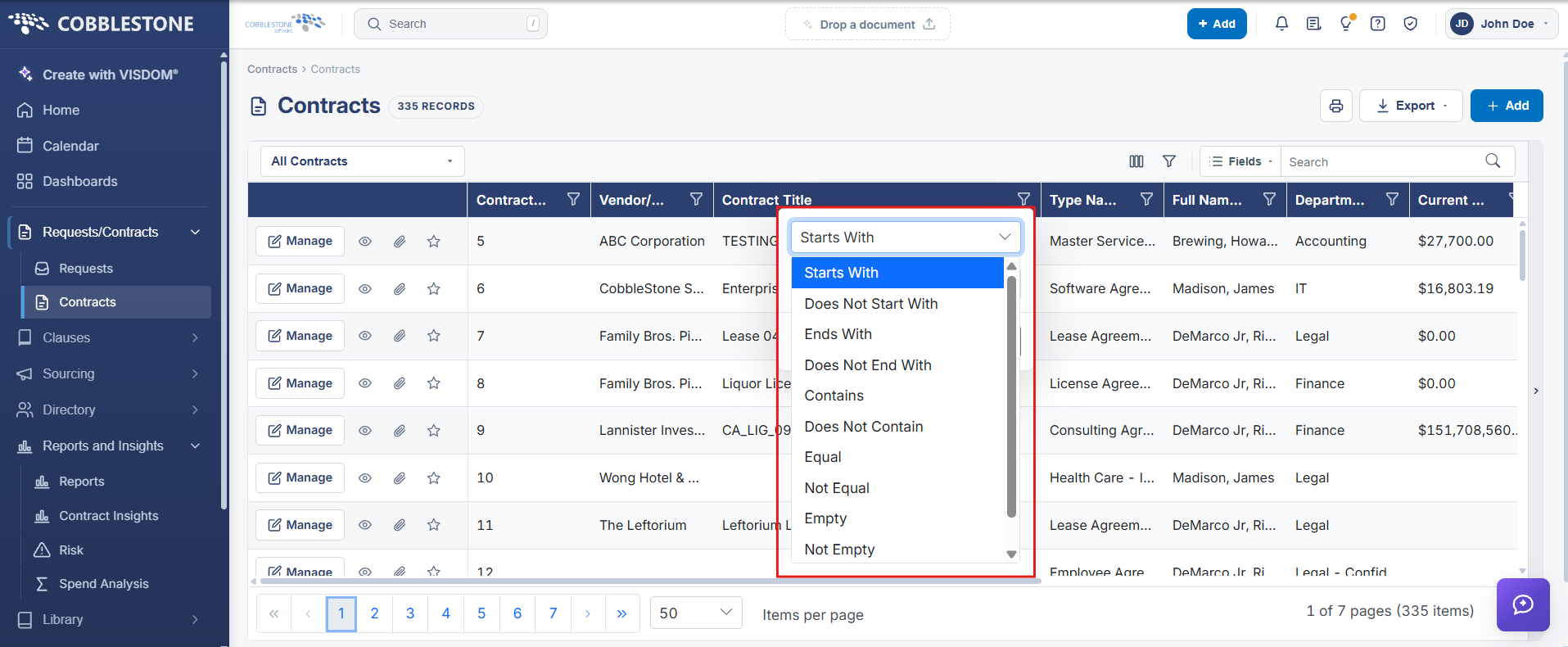
To filter from a date column
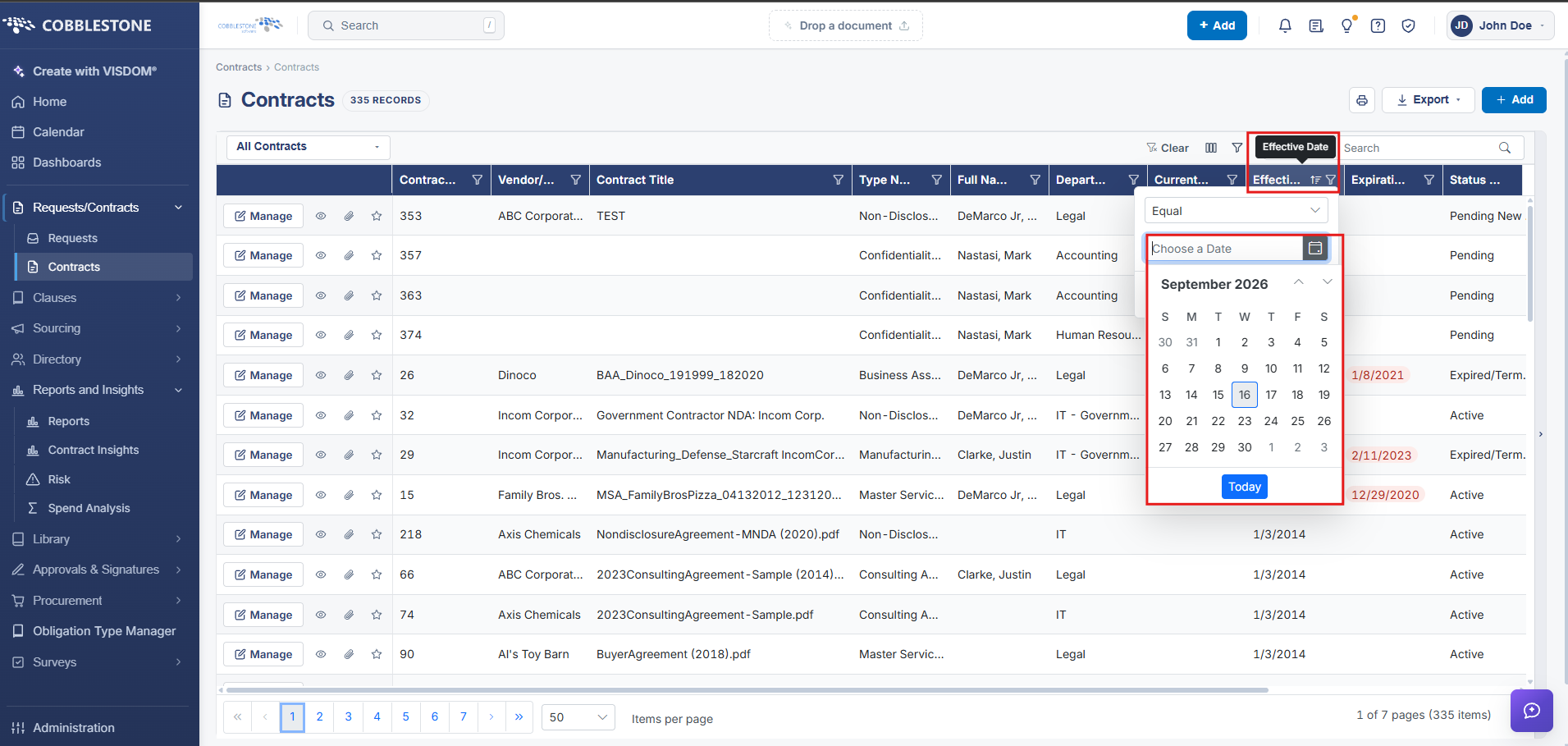
1. Click the calendar icon for the desired field.
2. Select the date from the calendar pop-up.
3. Click the filter icon and select the filter criteria.
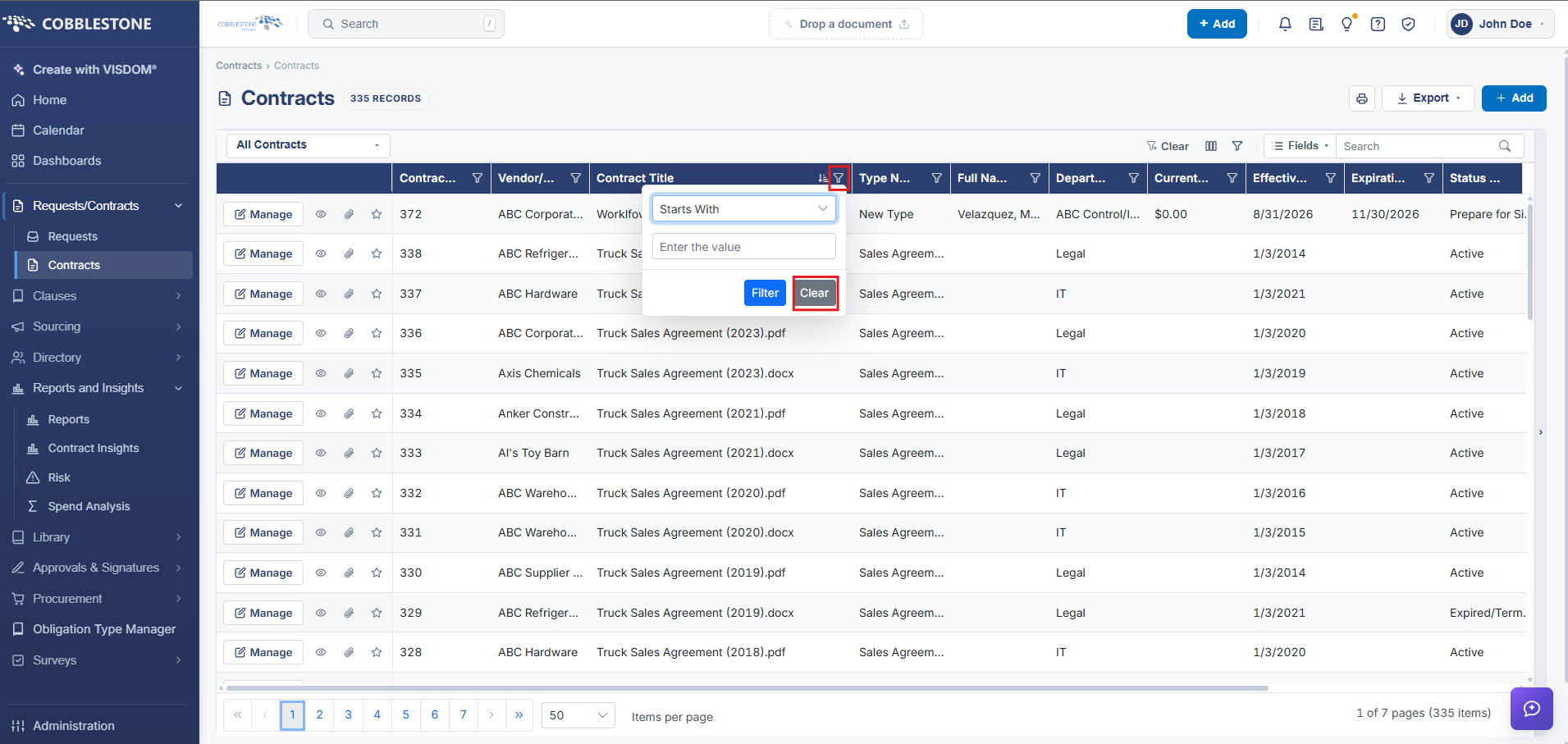
To remove a filter, click the filter icon and select the Clear option.
Each column can be sorted as well by clicking the column name once to sort in ascending order, a second time to sort in descending order, and a third time to return the entries to the original sort order.
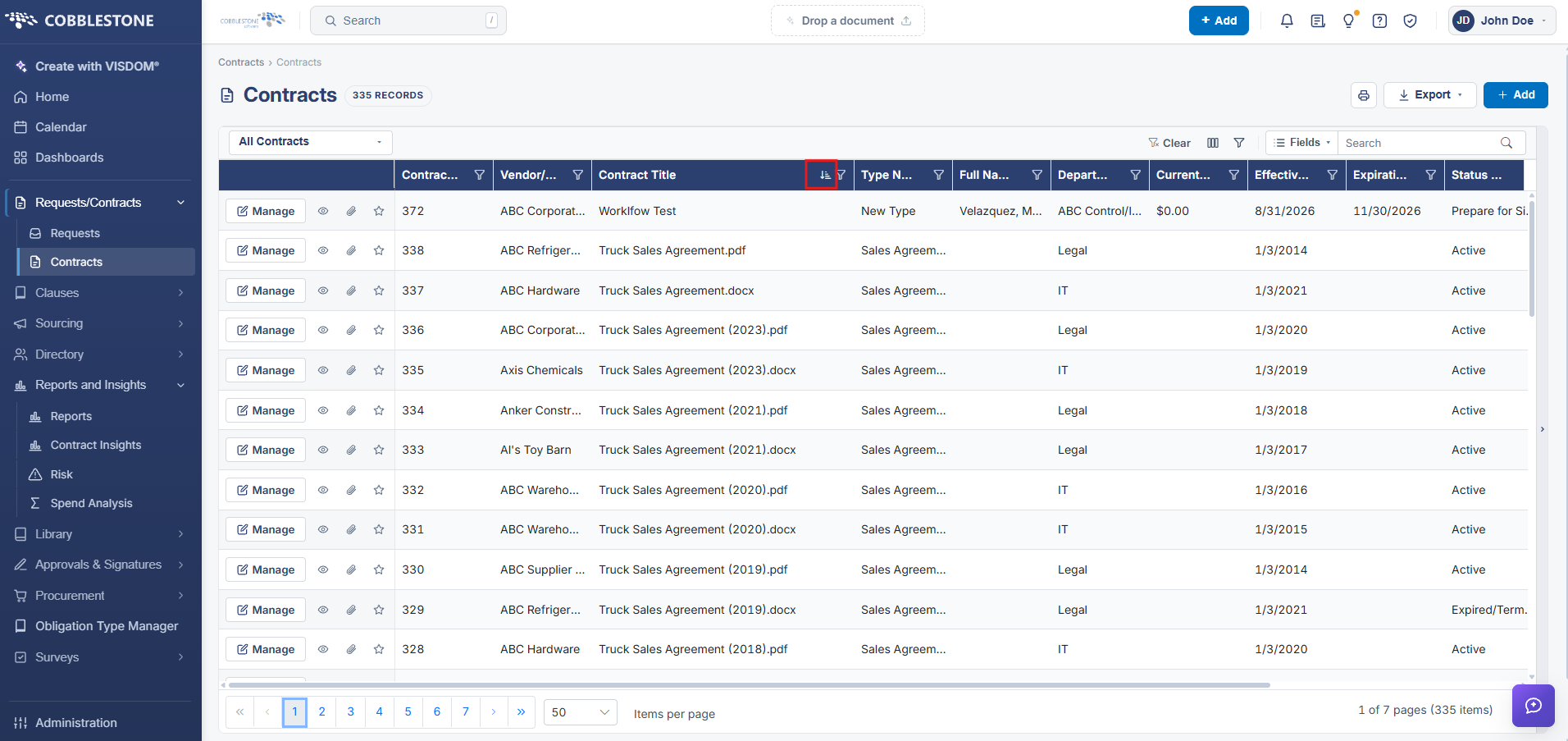
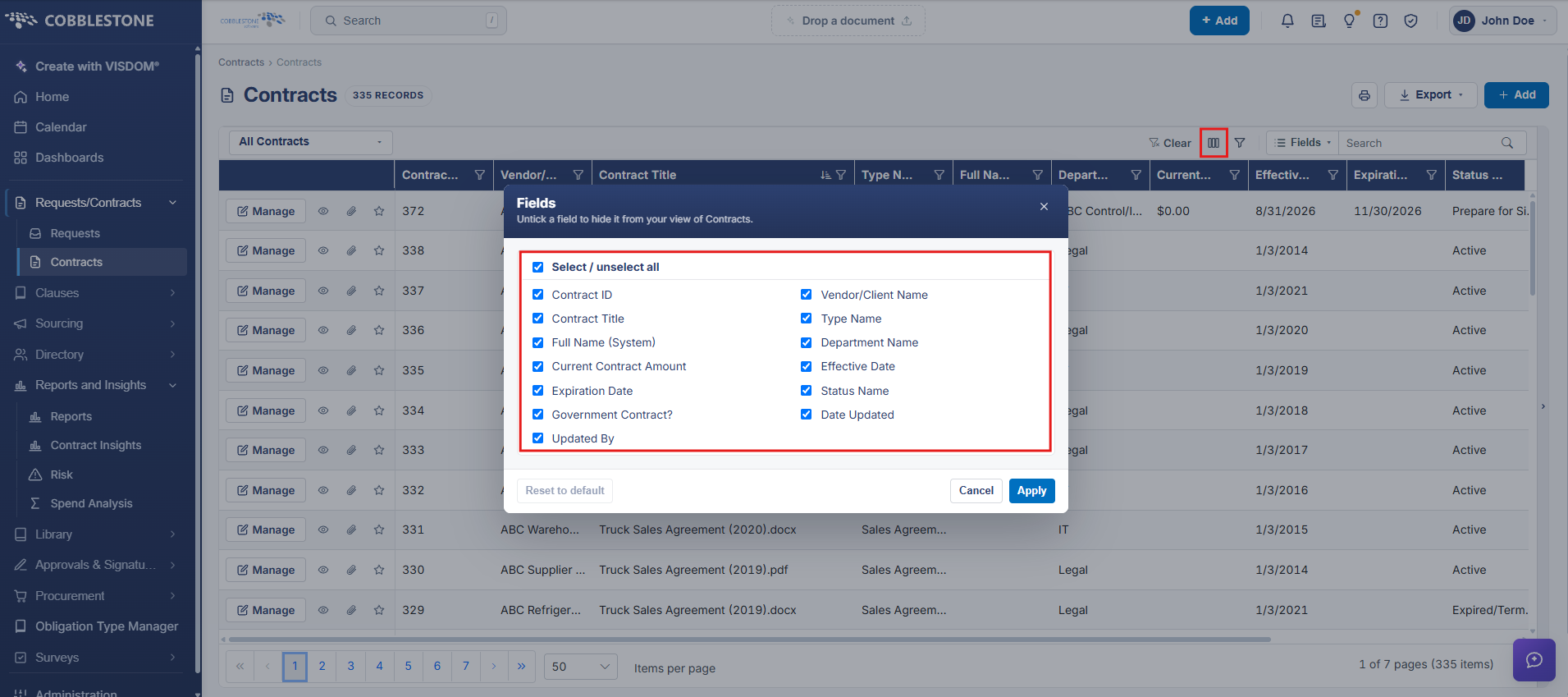
A system administrator can alter the fields visible on the report and their order by clicking the Manage Columns icon.
To add fields to the search screen, check the boxes of the fields that are to be added. To remove an existing field, uncheck the box to remove it from the display screen. Check/uncheck the select all button to add/remove all fields. Click apply when done.