COBBLESTONE SOFTWARE
Contract Insight — User Guide
Adding a Dun and Bradstreet Number on the Company Add Screen
Risk Compliance › Dun and Bradstreet › Adding a Dun and Bradstreet Number on the Company Add Screen
Note: Each procedure in this guide begins at the Contract Insight homepage, so any section can be followed on its own. Custom fields are configurable, so the exact field list on a contract category record may vary between environments.
1. Overview
A company's Dun and Bradstreet Number is stored in the Vendor/Client Details section of the vendor/customer record, alongside the Vendor/Client Name, Tax ID, and Web Address. The field appears on the Add screen when a new company is created and on the record afterward. The number is matched through the Dun & Bradstreet connection configured in Administration › Data Aggregator Service, which is the system-level setup for screening companies against OFAC sanctions, SAM.gov debarment, and Dun & Bradstreet data.
2. Key Elements
- The Dun and Bradstreet Number field is in the Vendor/Client Details section (step 2 of the Add screen).
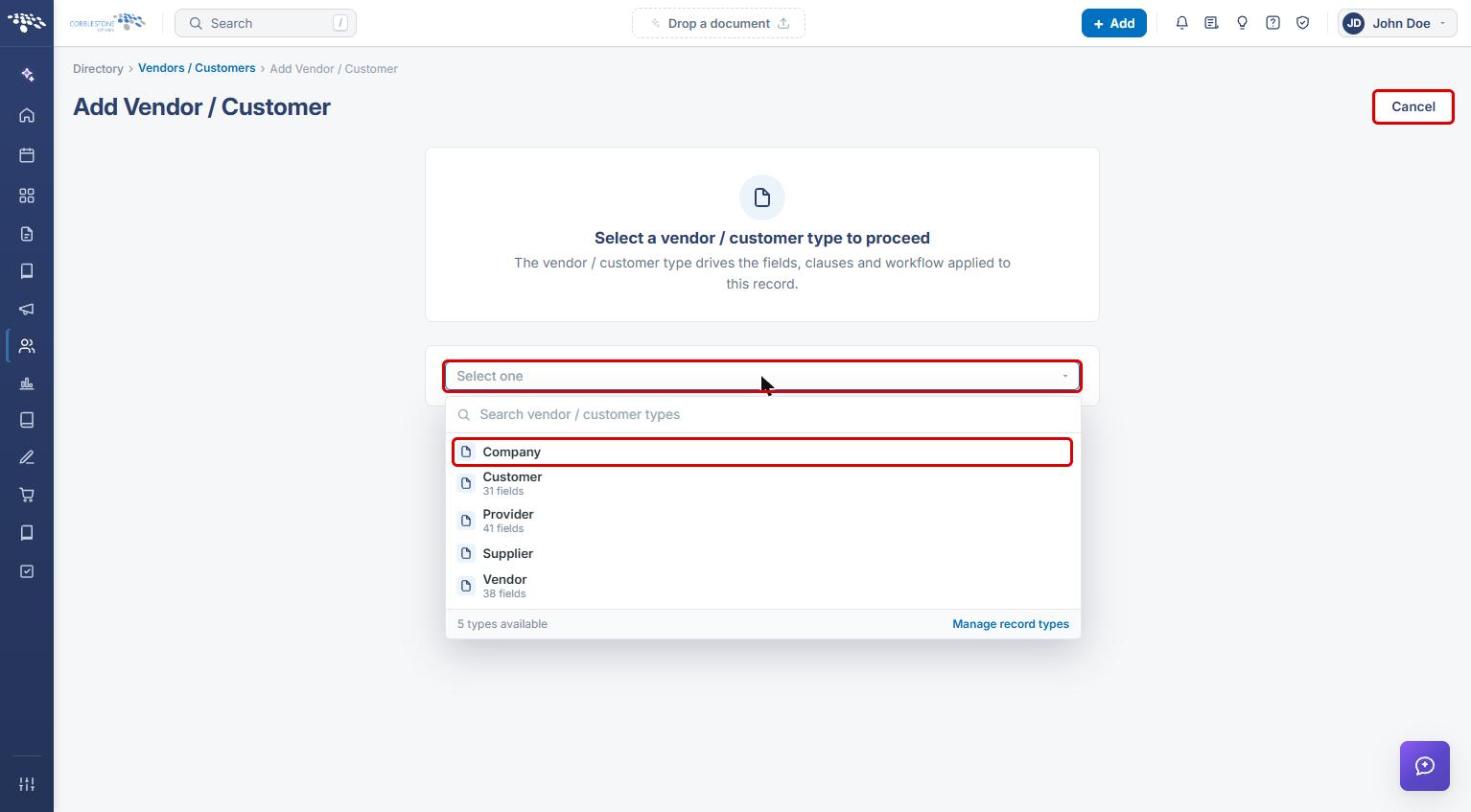
- The vendor/customer type chosen on the Add screen (for example, Company) decides which fields and sections appear.
- When the field is locked, it shows a grey background and the tooltip “This field is locked and can't be edited.” It is filled when the company is matched to a D&B number.
- Administration › Data Aggregator Service › Dun & Bradstreet holds the D&B connection used to match companies.
3. Opening the Company Add Screen
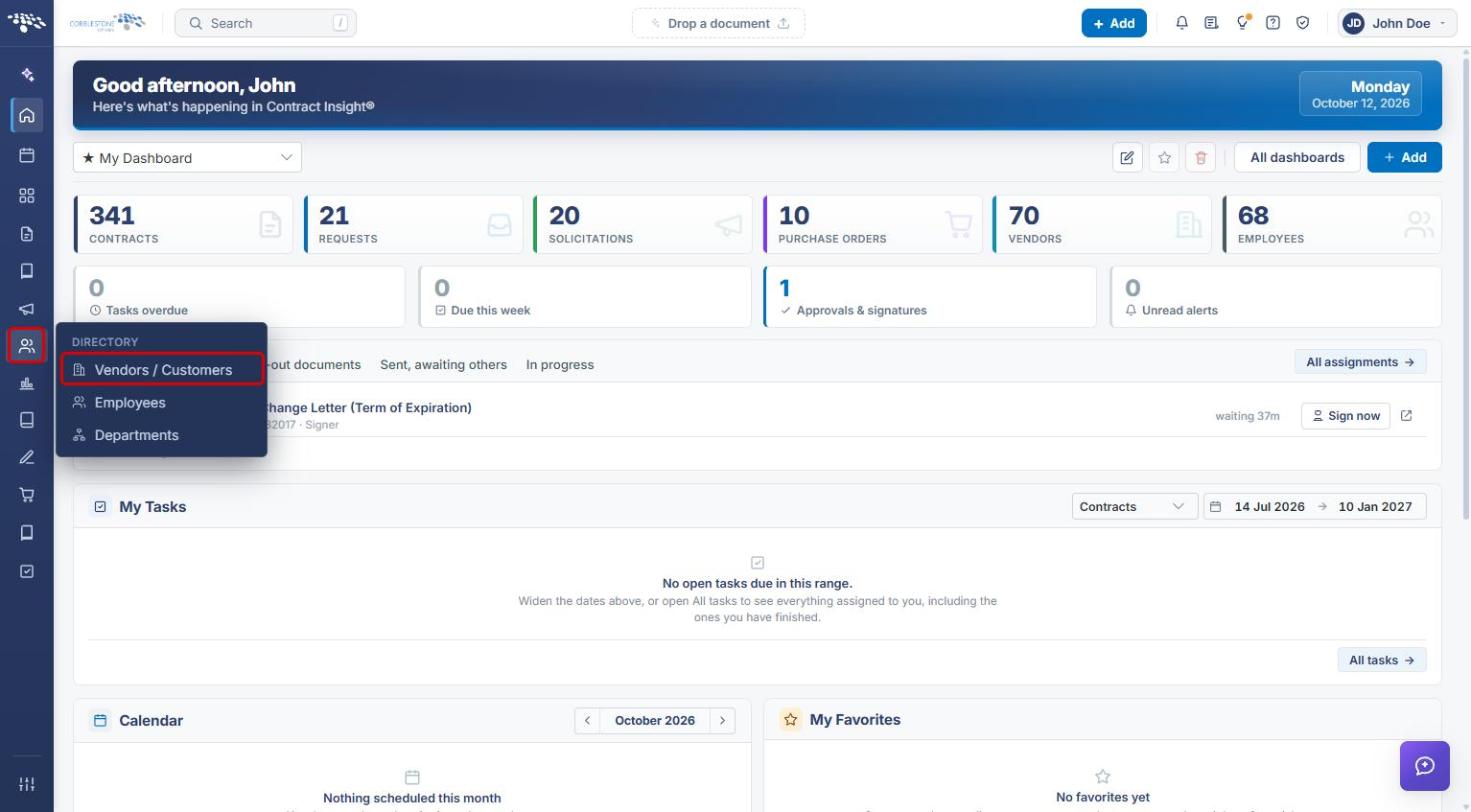
- From the Contract Insight homepage, click the Directory icon in the left navigation bar.
- Select Vendors / Customers.
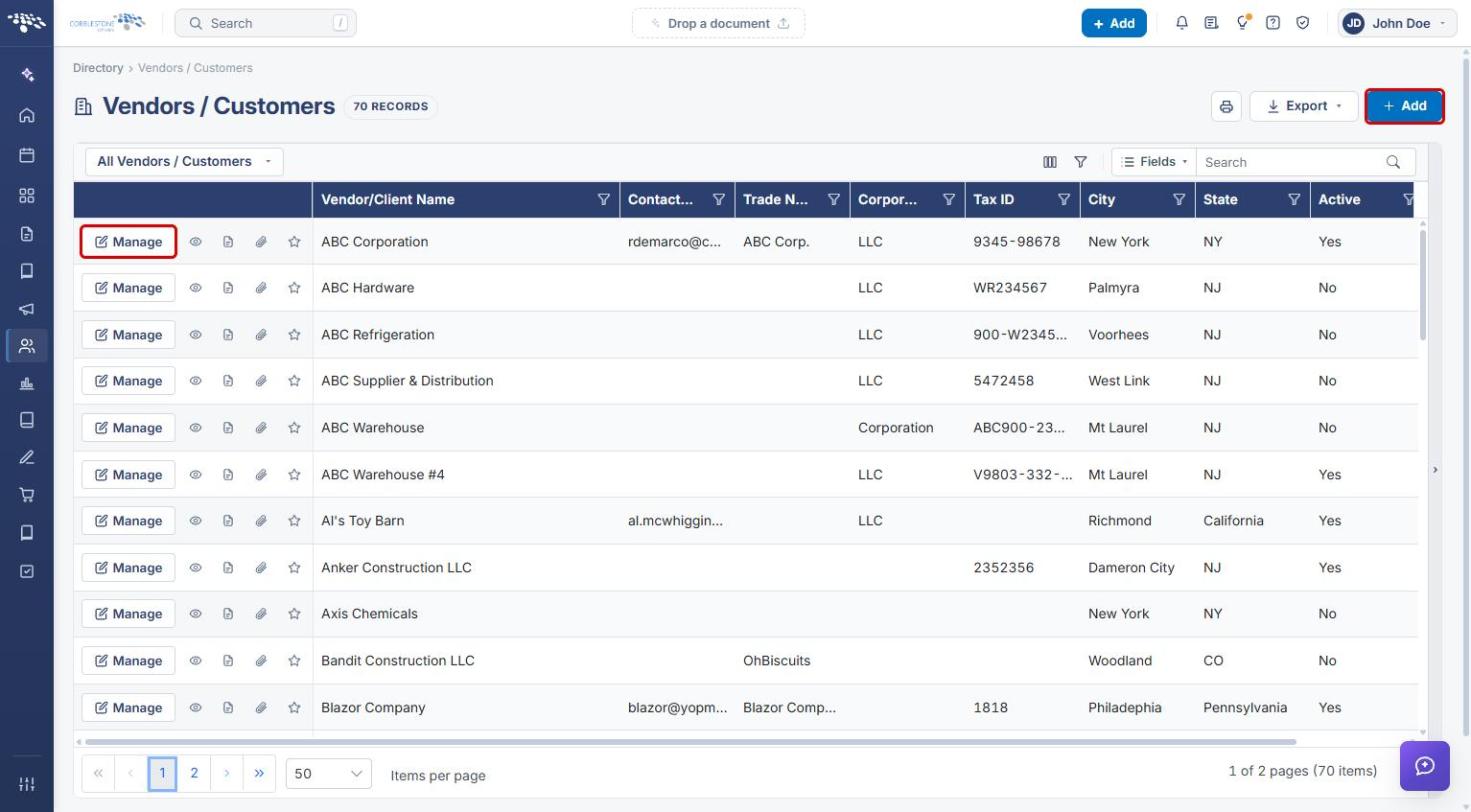
- On the Vendors / Customers page, click + Add. To work with an existing company instead, click Manage on its row (see Section 5).
- On the Add Vendor / Customer screen, open the Select one list and choose the vendor/customer type (for example, Company). Click Cancel to leave without adding a record.
4. Entering Company Details and the D&B Number
- The Add Company screen opens on step 1. Click Vendor/Client Details in the Sections list on the right (or click Next ›).
- Enter the Vendor/Client Name and the other required fields (marked with a red asterisk).
- Locate the Dun and Bradstreet Number field. Enter the company's nine-digit D-U-N-S number if the field is editable in your environment. If it is locked, it is filled when the company is matched to D&B (see Section 6).
- Complete the remaining sections, then click Save Record, or Save as draft to finish later.
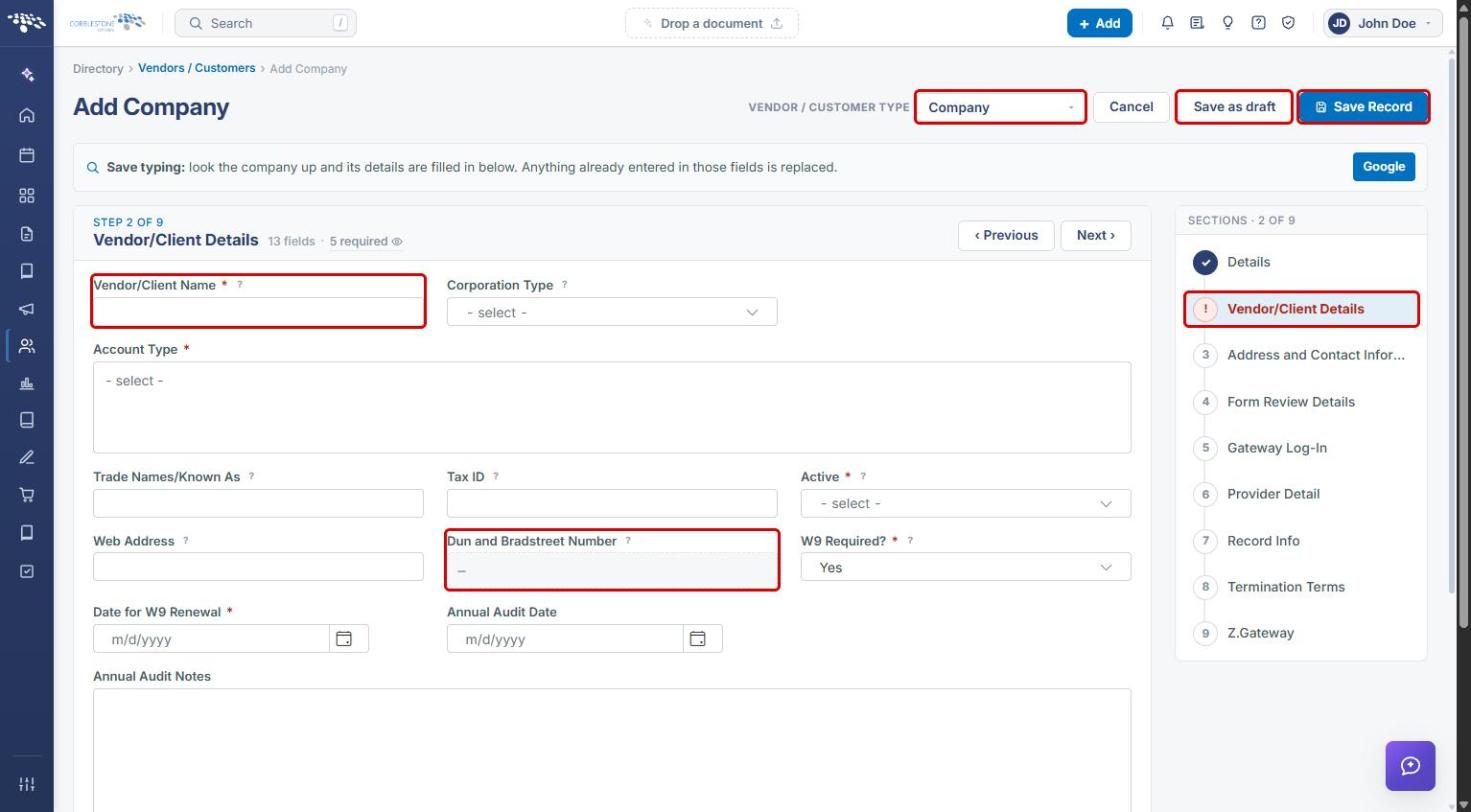
Note: Use Vendor / Customer Type at the top of the screen to switch types if needed. The type drives which fields, clauses, and workflow apply to the record.
5. Viewing the D&B Number on an Existing Company
- Go to Directory › Vendors / Customers and click Manage on the company's row.
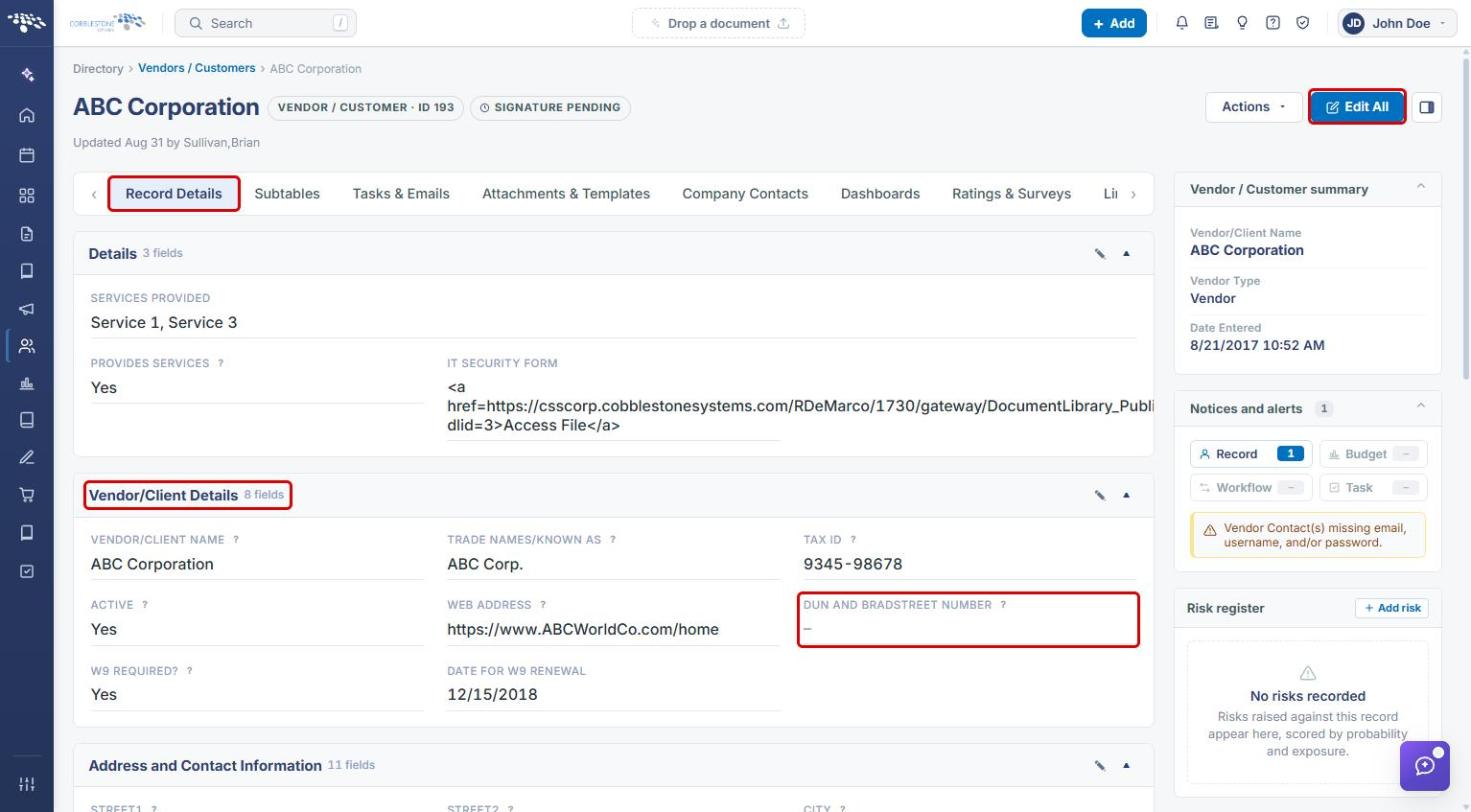
- On the Record Details tab, find the Dun and Bradstreet Number in the Vendor/Client Details section. A dash (–) means no number has been recorded yet.
- To update other fields in the section, click Edit All or the section's pencil icon.
6. Connecting Dun & Bradstreet (Administrators)
Companies can only be matched to a D&B number once the Dun & Bradstreet connection is set up.
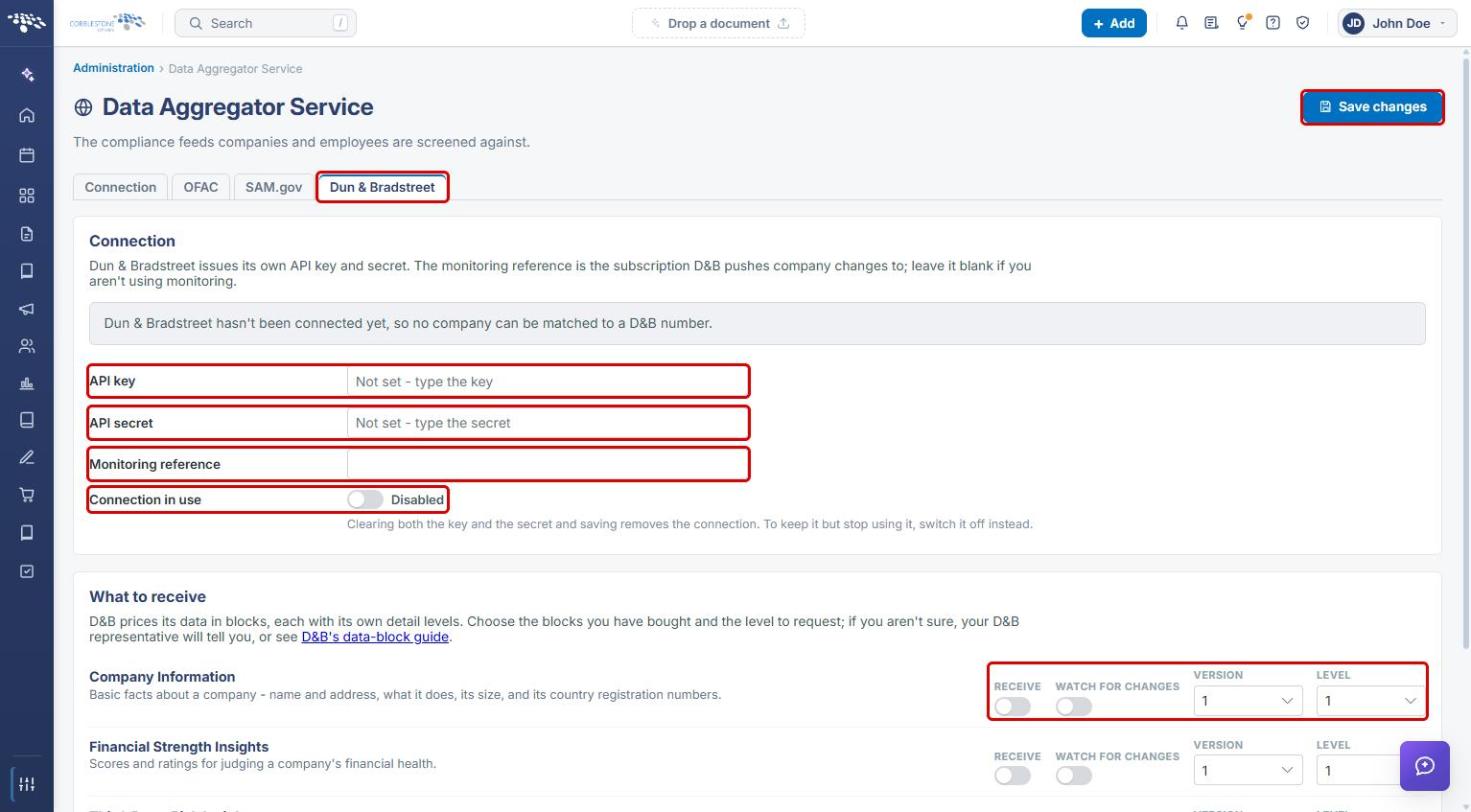
- Go to Administration, search for Data Aggregator, and open Data Aggregator Service.
- Click the Dun & Bradstreet tab and enter the API key and API secret from D&B.
- Turn Connection in use on, choose the data blocks to receive, and click Save changes.
See Data Aggregator Overview for the full setup.
7. Quick Reference Summary
| Task | How to Complete It |
|---|---|
| Add a new company | Directory → Vendors / Customers → + Add → choose a type (for example, Company). |
| Find the D&B Number field | Add screen or record → Vendor/Client Details section. |
| Enter the D&B Number | Vendor/Client Details → Dun and Bradstreet Number (if editable) → Save Record. |
| View a company's D&B Number | Vendors / Customers → Manage → Record Details → Vendor/Client Details. |
| Set up the D&B connection | Administration → Data Aggregator Service → Dun & Bradstreet tab. |