COBBLESTONE SOFTWARE
Contract Insight — User Guide
Creating a New Third Party Paper Template
Document Templates: Generation/Merging › E-Signature - Document Generation › Creating a New Third Party Paper Template
Note: Each procedure in this guide begins at the Contract Insight homepage, so any section can be followed on its own. Custom fields are configurable, so the exact field list on a contract category record may vary between environments.
1. Overview
Every document template has a Type of either Document Package (the default, content-merging template used for most documents) or Third Party Paper. A Third Party Paper template is used when the document comes from the other party — for example, a vendor's own contract — so it is used to route a document for approval and signature rather than to merge content into a Word file. The type is chosen when the template is created in Administration › Document Templates and appears in the template's subtitle, on the Template overview panel, and in the Type column of the Document Templates list. Once created, a Third Party Paper template is configured the same way as any other template: its Rules & conditions and its Approvals & signing steps (E-Approvals and E-Signatures tabs). A Third Party Paper template typically shows No document yet under Content, because its document is supplied after the template is generated onto a record rather than merged automatically.
2. Key Elements
- Templates are managed in Administration › Document Templates, which lists each template's Area, Type, Status, Content, and whether Approvals and Signatures are on.
- + Add template opens an inline form with Name, Record type, Table, and Type (Document Package or Third Party Paper), then Create & open.
- The record type, base table, and template type are set when the template is created and cannot be changed afterward.
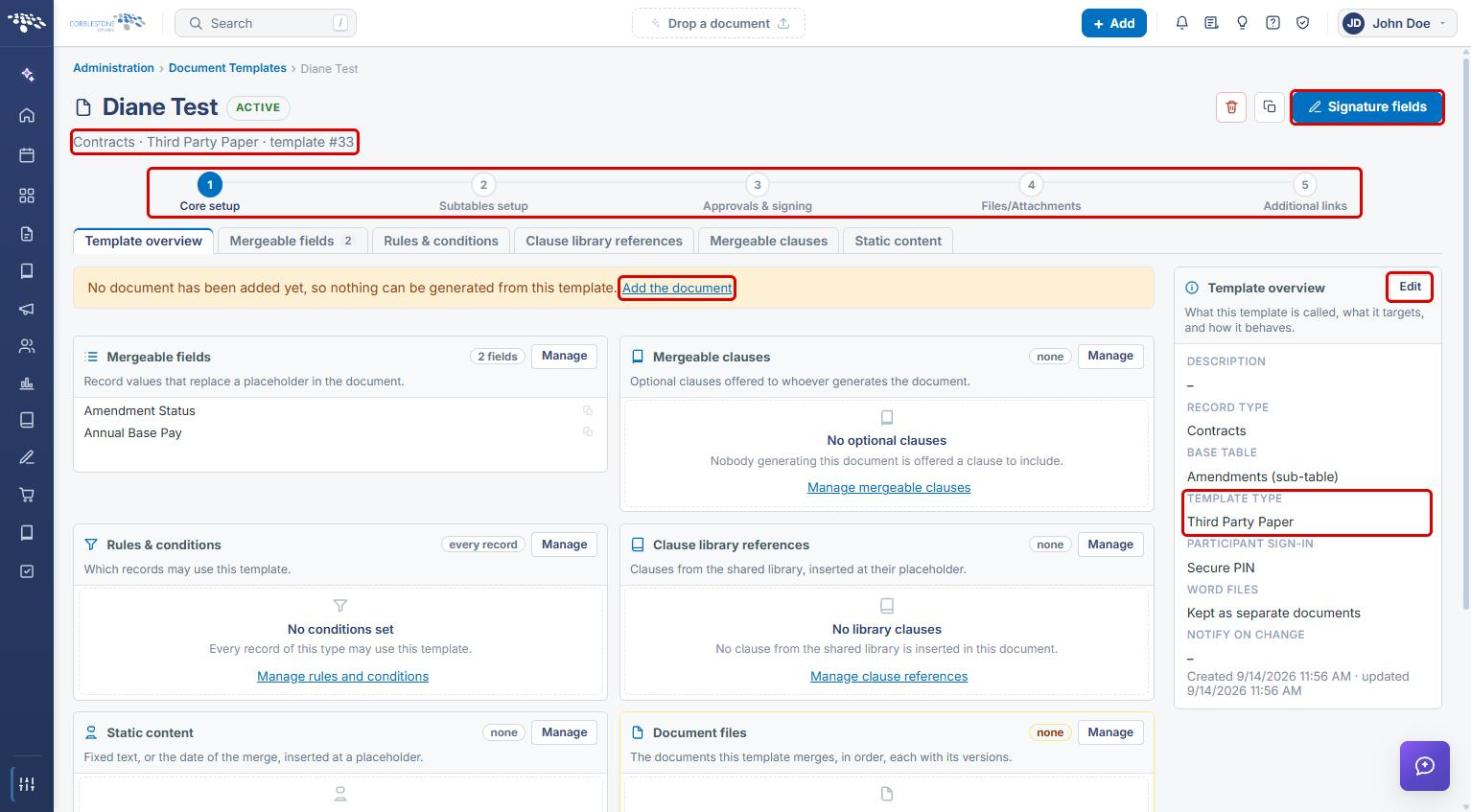
- The template editor is organized into five steps: Core setup, Subtables setup, Approvals & signing, Files/Attachments, and Additional links.
- Rules & conditions and the E-Approvals / E-Signatures tabs are configured the same way as for a Document Package template.
3. Navigating to Document Templates
- From the Contract Insight homepage, click the Administration (settings) icon at the bottom of the left navigation bar.
- In the Search administration… box, type Document Templates, then click the Document Templates card.
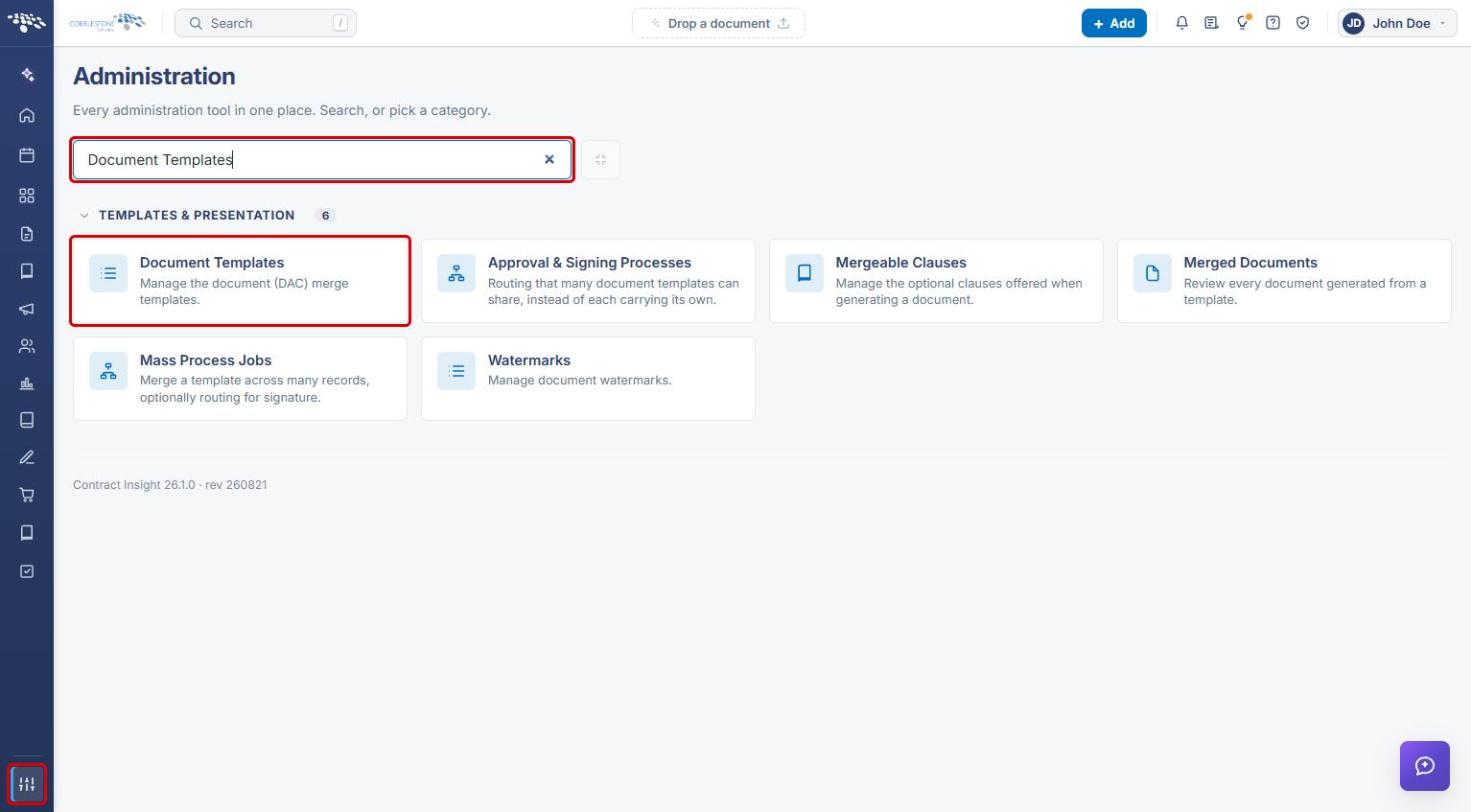
The Document Templates page lists every template. Third Party Paper templates show Third Party Paper in the Type column. Use the Search box or the Type column filter to find them.
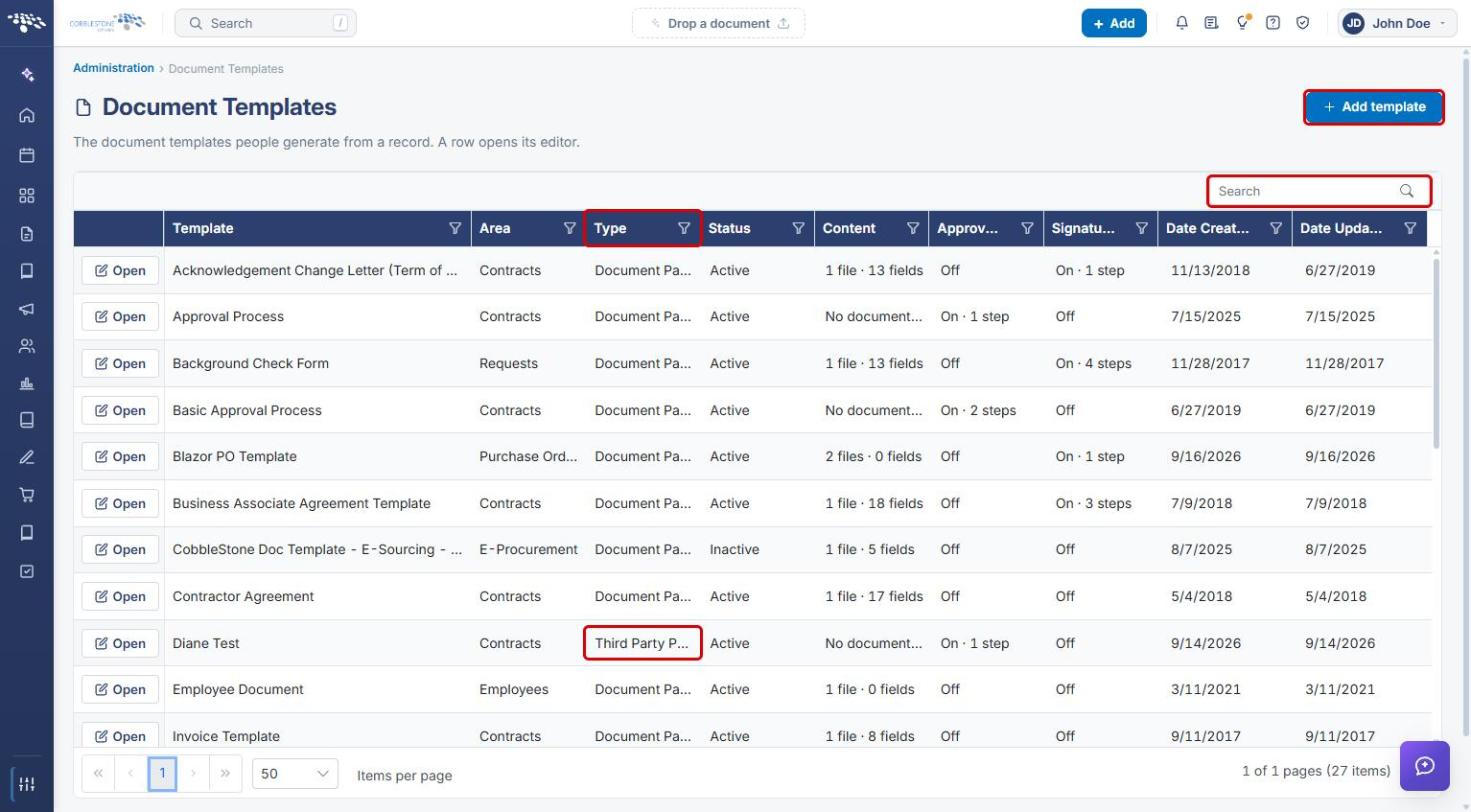
4. Creating a Third Party Paper Template
- On the Document Templates page, click + Add template. The Add template form opens above the list.
- Enter a Name for the template.
- Select the Record type the template is generated from (for example, Contracts).
- Select the Table (for example, Contract Details). The list is available once a record type is chosen.
- Set Type to Third Party Paper.
- Click Create & open. The template editor opens on Core setup. Click Cancel to close the form without creating a template.
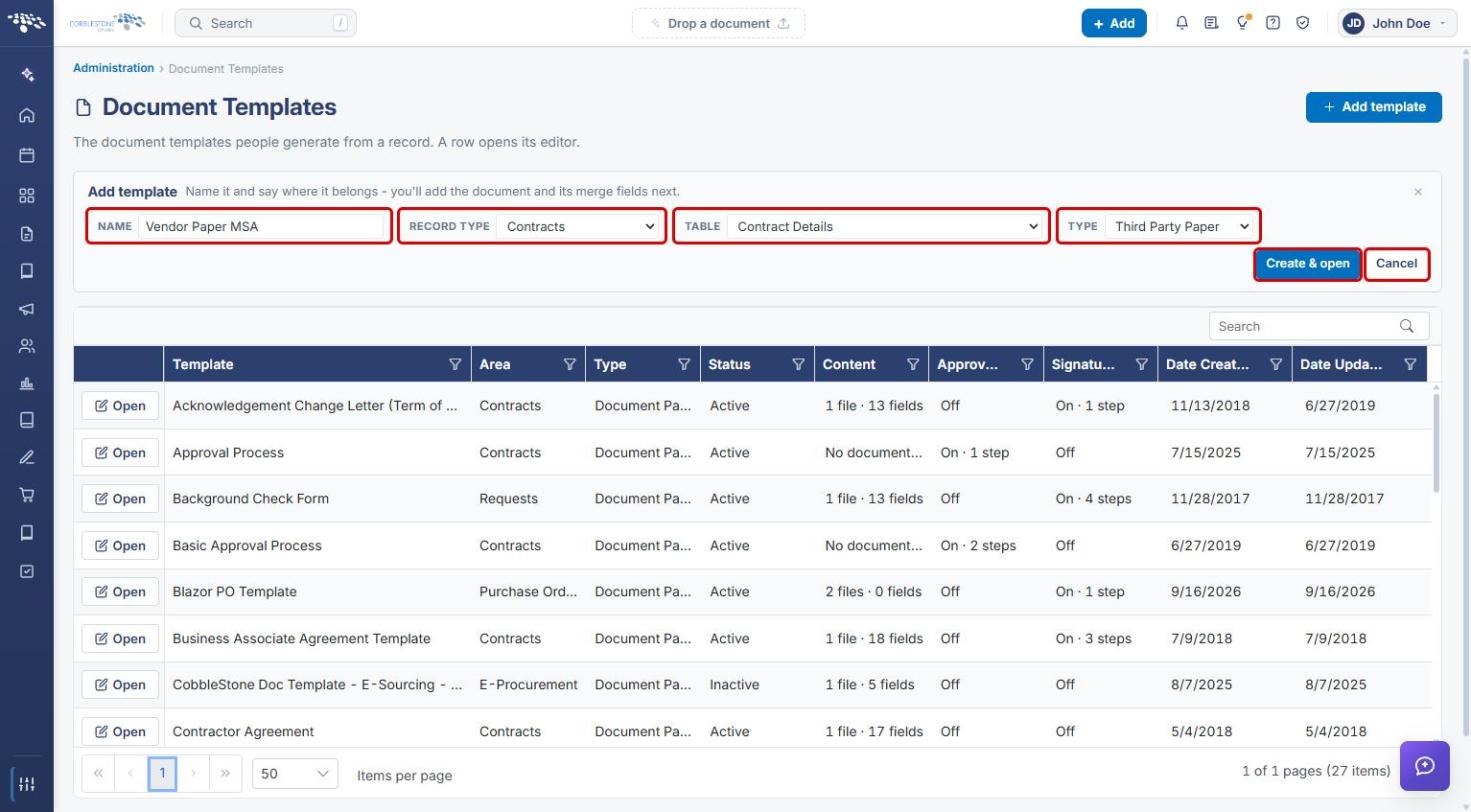
Note: Choose the record type, table, and type carefully. They are set when the template is created, and every field and condition on the template is written against them.
5. Reviewing the Template Overview
The template editor opens on Core setup › Template overview. The subtitle confirms the record type and template type (for example, “Contracts · Third Party Paper · template #33”), and the step bar across the top moves between the five setup steps.
- Confirm Template type reads Third Party Paper on the Template overview panel.
- A banner reads No document has been added yet. For a Third Party Paper template, the document is usually supplied after the template is generated onto a record. To attach a document to the template itself, click Add the document (see Section 8).
- Click Edit on the Template overview panel to change the template's details (see Section 5a).
- Use Signature fields in the header to place where signers sign.
5a. Editing Template Overview Information
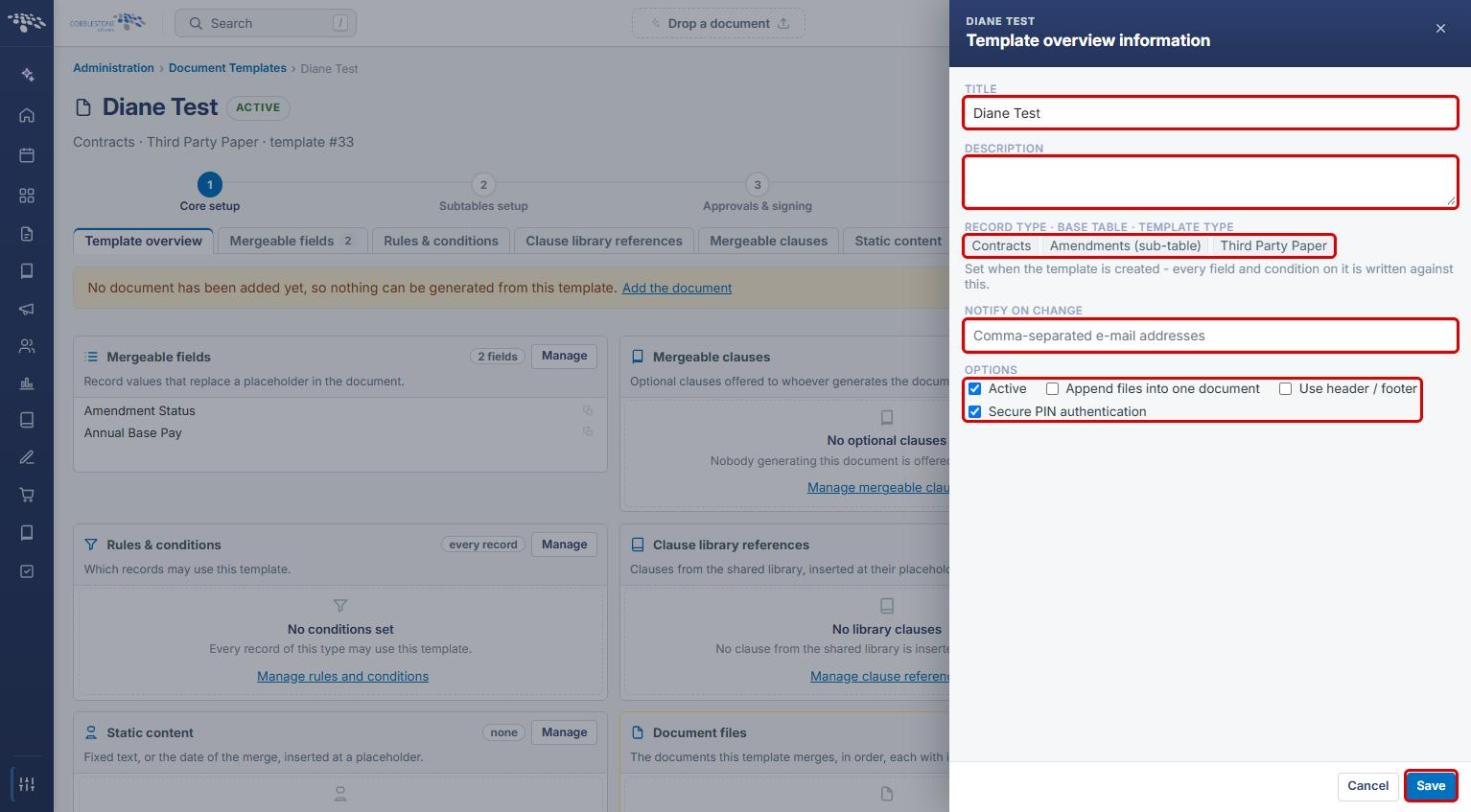
- Click Edit on the Template overview panel. The Template overview information panel opens.
- Update the Title and Description.
- Review the Record type · Base table · Template type values. These are read-only.
- Optionally enter e-mail addresses in Notify on change (comma-separated).
- Set the Options: Active, Append files into one document, Use header / footer, and Secure PIN authentication.
- Click Save.
6. Setting Rules & Conditions
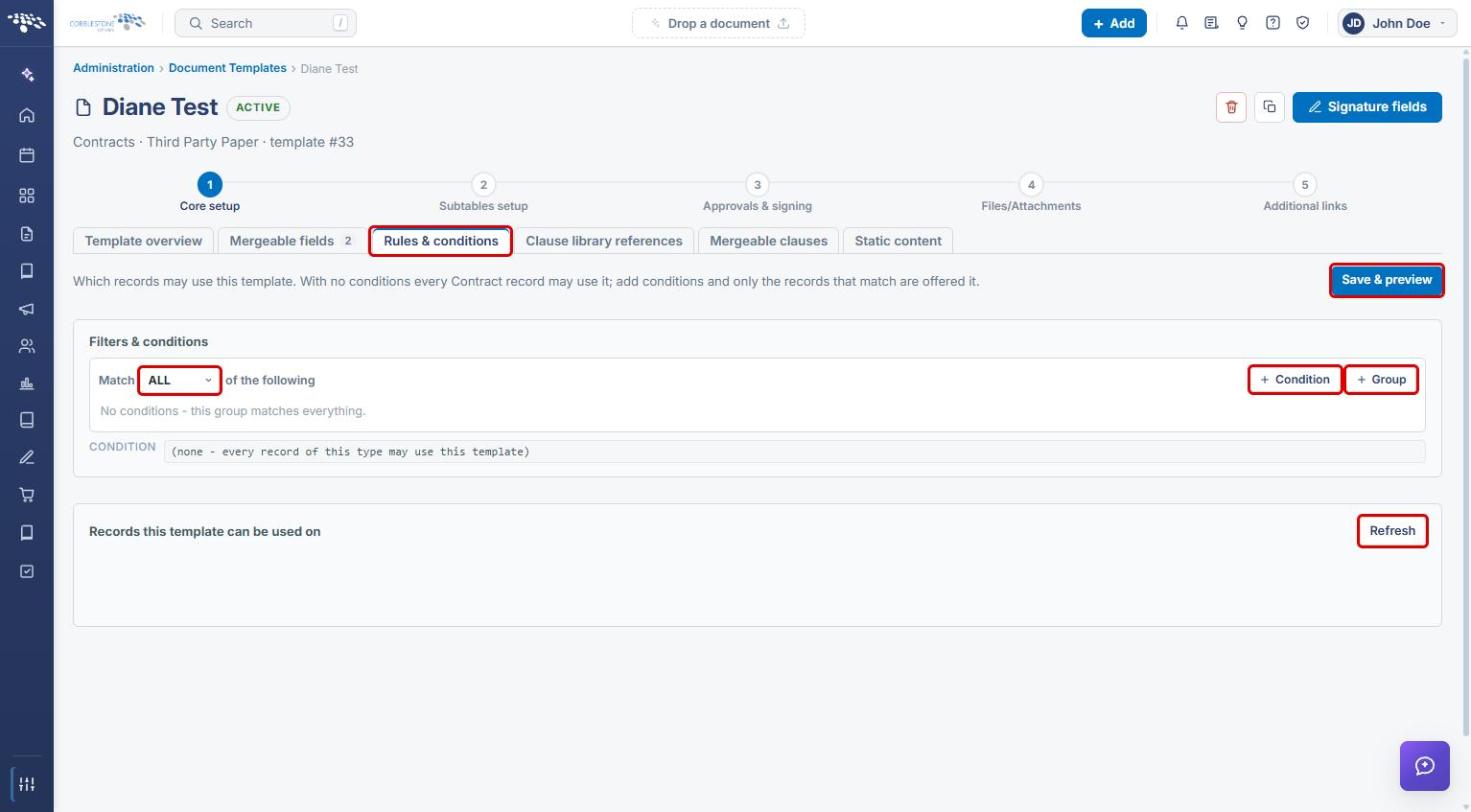
Rules and conditions decide which records may use the template. With no conditions, every record of the template's type may use it.
- On Core setup, click the Rules & conditions tab.
- Choose whether records must match ALL or ANY of the conditions.
- Click + Condition to add a field, operator, and value, or + Group to nest a group of conditions.
- Click Save & preview. Use Refresh under Records this template can be used on to see which records now qualify.
7. Configuring Approvals & Signing
7a. E-Approvals
- Click step 3 Approvals & signing in the step bar, then the E-Approvals tab.
- Check Use E-Approvals › Enabled to route generated documents for approval, then click Save approval settings.
- Under Who approves, and in what order, click Add group. Approvers within a group act in parallel; groups run in sequence.
- Use Edit, Participant, Rules, Copy, and Delete on a group to manage it. A group with no participants is skipped at generation.
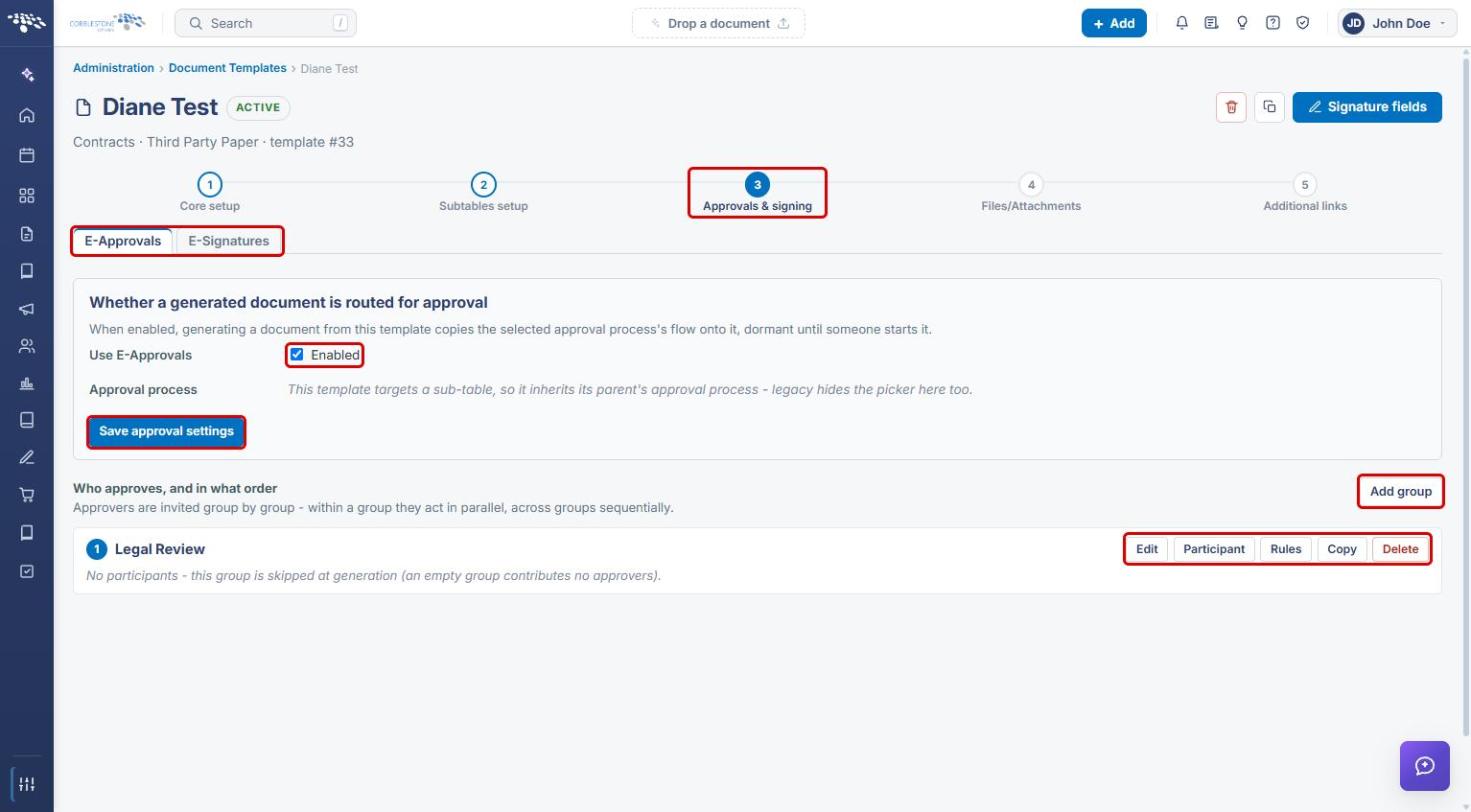
Note: A template that targets a sub-table inherits its parent's approval process, so the Approval process picker is hidden.
7b. E-Signatures
- Click the E-Signatures tab.
- Check Use E-Signatures › Enabled, and optionally Allow direct signing, then click Save signature settings.
- Under Who signs, and in what order, click Add step to add signers. Signers within a step sign in parallel; steps run in sequence.
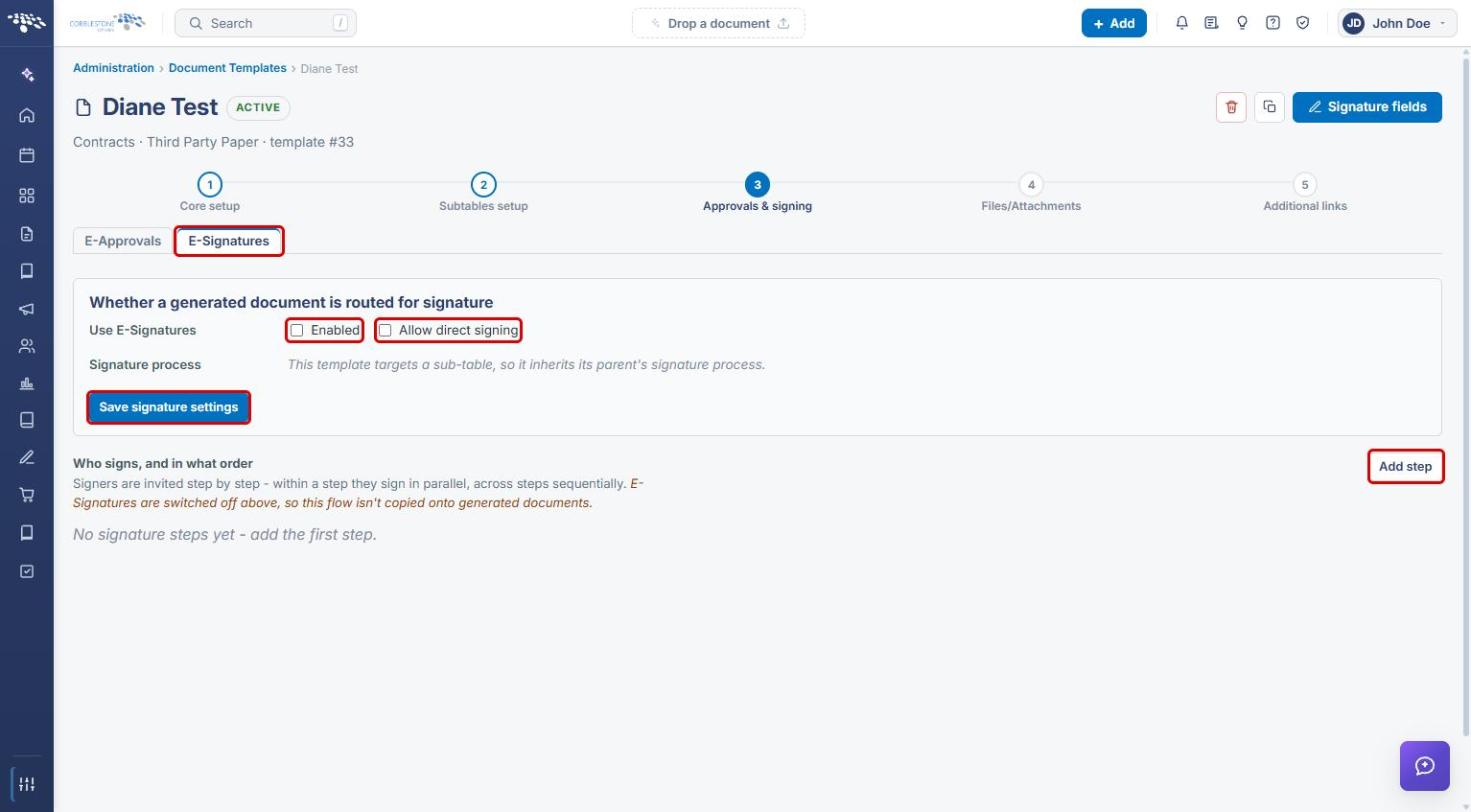
Note: If E-Signatures is switched off, the signing flow is not copied onto generated documents.
8. Adding a Document (Optional)
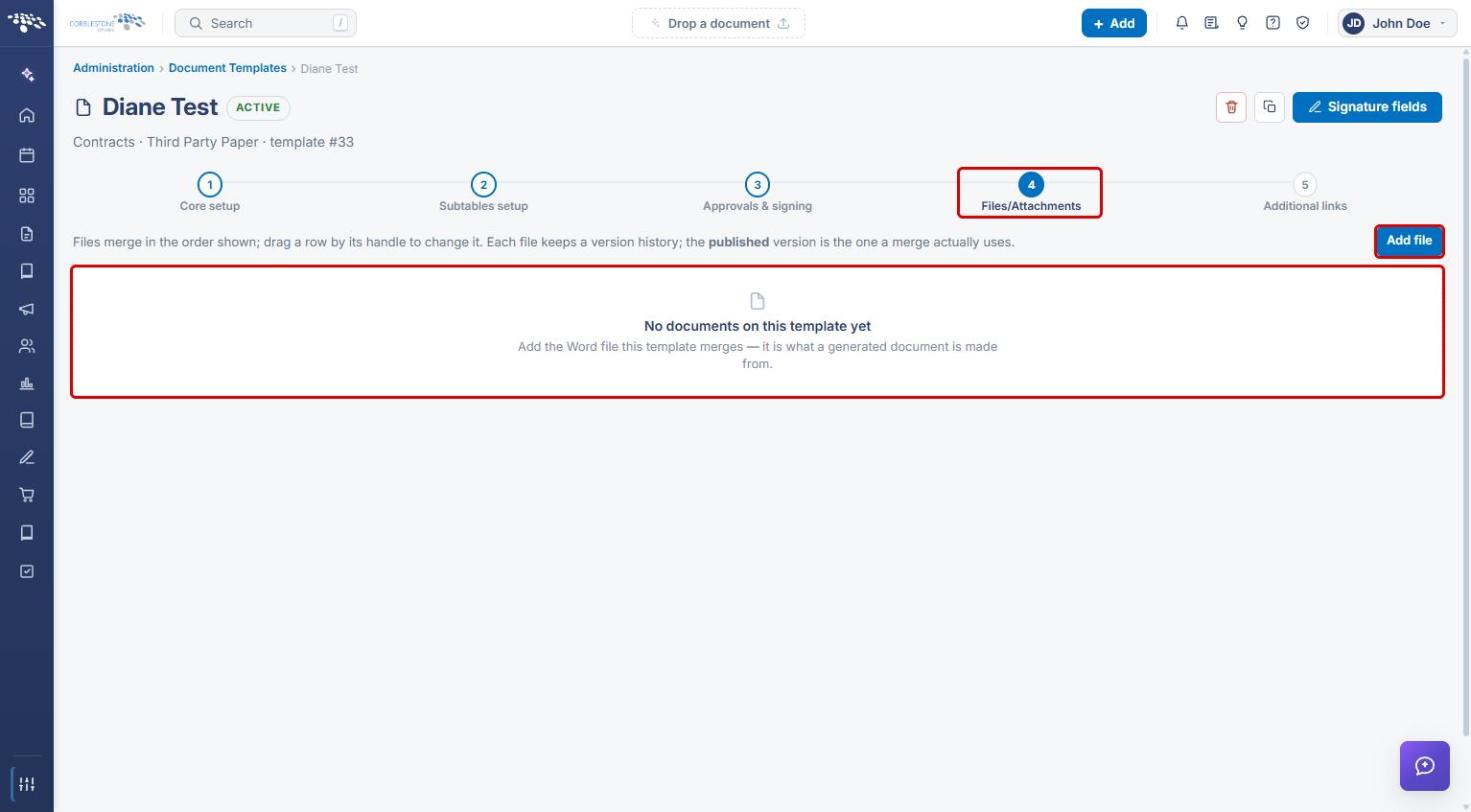
A Third Party Paper template does not need a document of its own, because the other party's document is added after the template is generated onto a record. If you do want a file on the template:
- Click step 4 Files/Attachments in the step bar (or Add the document on the Template overview banner).
- Click Add file and upload the document. Files merge in the order shown, and each file keeps its own version history.
9. Quick Reference Summary
| Task | How to Complete It |
|---|---|
| Open Document Templates | Administration → Document Templates. |
| Find Third Party Paper templates | Document Templates → Type column, or Search. |
| Create a Third Party Paper template | + Add template → Name, Record type, Table → Type Third Party Paper → Create & open. |
| Confirm the template type | Core setup → Template overview → Template type. |
| Edit title, description, or options | Template overview → Edit → Save. |
| Limit which records can use it | Core setup → Rules & conditions → + Condition → Save & preview. |
| Turn on approvals | Approvals & signing → E-Approvals → Enabled → Save approval settings → Add group. |
| Turn on signatures | Approvals & signing → E-Signatures → Enabled → Save signature settings → Add step. |
| Add a document to the template (optional) | Files/Attachments → Add file. |