COBBLESTONE SOFTWARE
Contract Insight — User Guide
E-Signature Flow/Groups
Document Templates Management › Managing Generated Document E-Approvals & E-Signatures › E-Signature Flow/Groups
Note: Each procedure in this guide begins at the Contract Insight homepage, so any section can be followed on its own. Custom fields are configurable, so the exact field list on a contract category record may vary between environments.
1. Overview
Signature flow/groups define who signs a generated document and in what order. They work the same way as approval flow/groups: signers are organized into numbered steps (signing groups). Everyone within a step signs in parallel, and the steps run one after another.
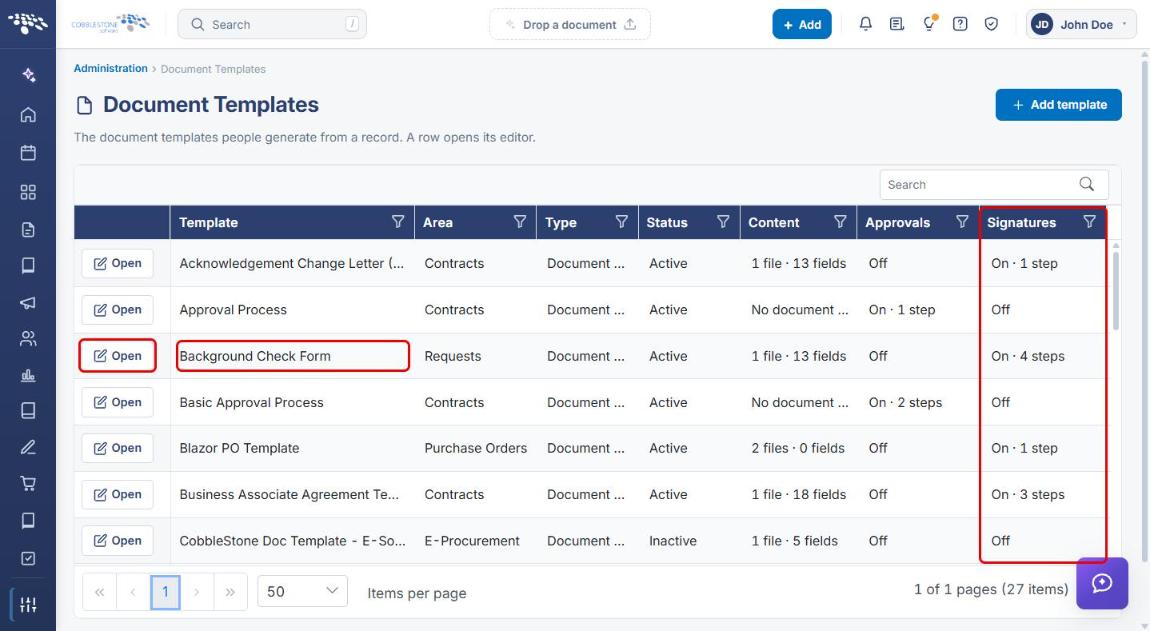
Signing steps are built once in a shared signing process under Administration → Approval & Signing Processes. Each document template that follows the process copies its steps onto every document generated from it, and the Document Templates grid's Signatures column reports whether a template has e-signatures On, with its step count. After a document is generated, its signing groups can still be adjusted until the process starts, and the running process shows its progress in the Groups and participants section.
2. Key Elements
- Approval & Signing Processes page: lists every shared process with its For (record type), Kind (Approval or Signing), Steps, Templates (how many templates follow it), and Status. Use the Show filter (All, Approval, Signing) and + New process.
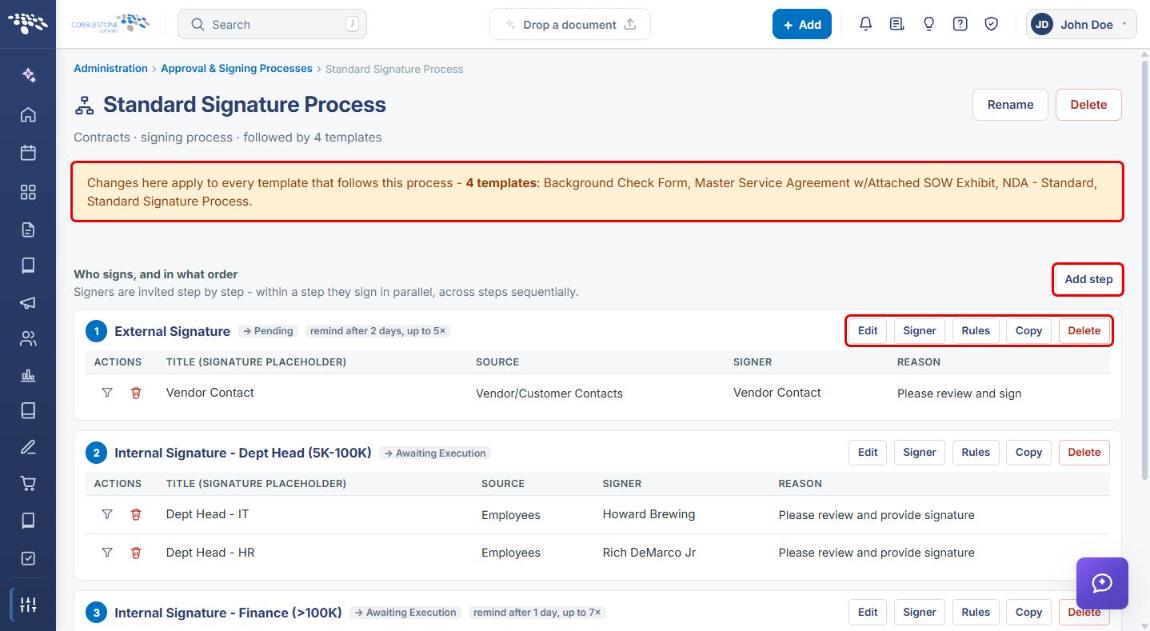
- Who signs, and in what order: the step list on a signing process. Each step card has Edit, Signer, Rules, Copy, and Delete buttons, badges for the status set on completion and the reminder schedule, and a table of signers (Title (Signature Placeholder), Source, Signer, Reason).
- Signer sources: Employees, Roles & Groups, or Vendor/Customer Contacts.
- Document Templates grid – Signatures column: shows Off or On · n steps for each template.
- Template E-Signatures tab: under the template's Approvals & signing stage; turns on Use E-Signatures and selects the Signature process the template follows.
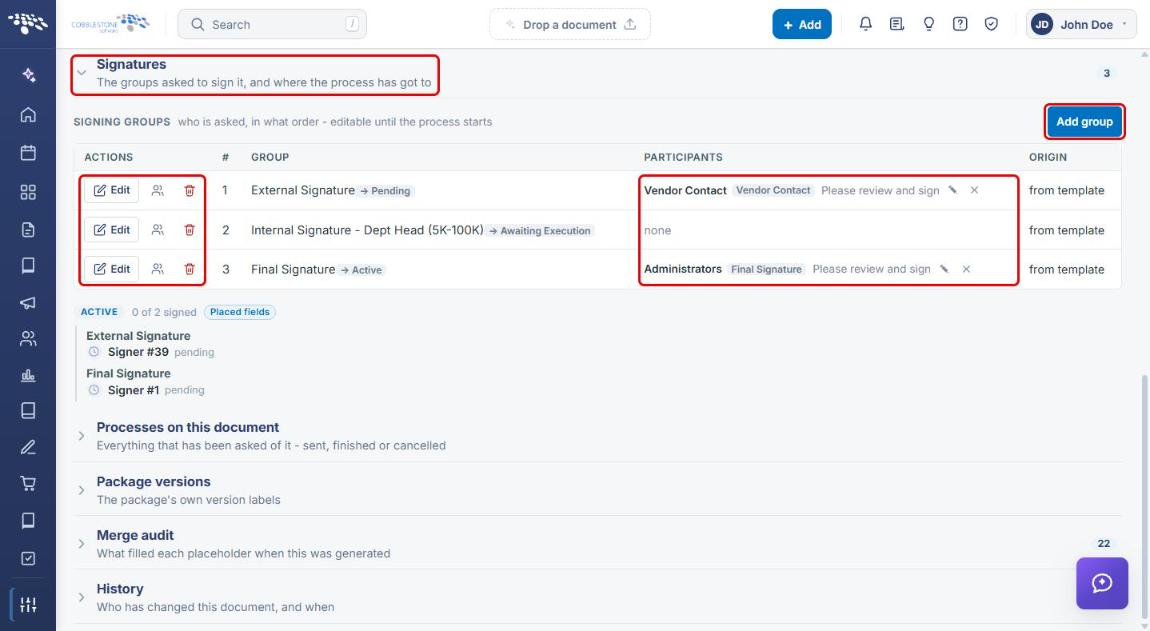
- Signatures section on a generated document: the document's Signing groups, editable until the process starts.
- Groups and participants: the live view of a running signature process, showing the current group and each participant's status.
3. Navigating to Approval & Signing Processes
- From the Contract Insight homepage, click the Administration icon at the bottom of the left navigation bar.
- Type signing in the Search administration box (or scroll to Templates & Presentation) and click Approval & Signing Processes.
.png)
- Click Signing in the Show filter to list only signing processes. Each row shows how many steps the process has and how many templates follow it.
.png)
4. Creating a Signing Process
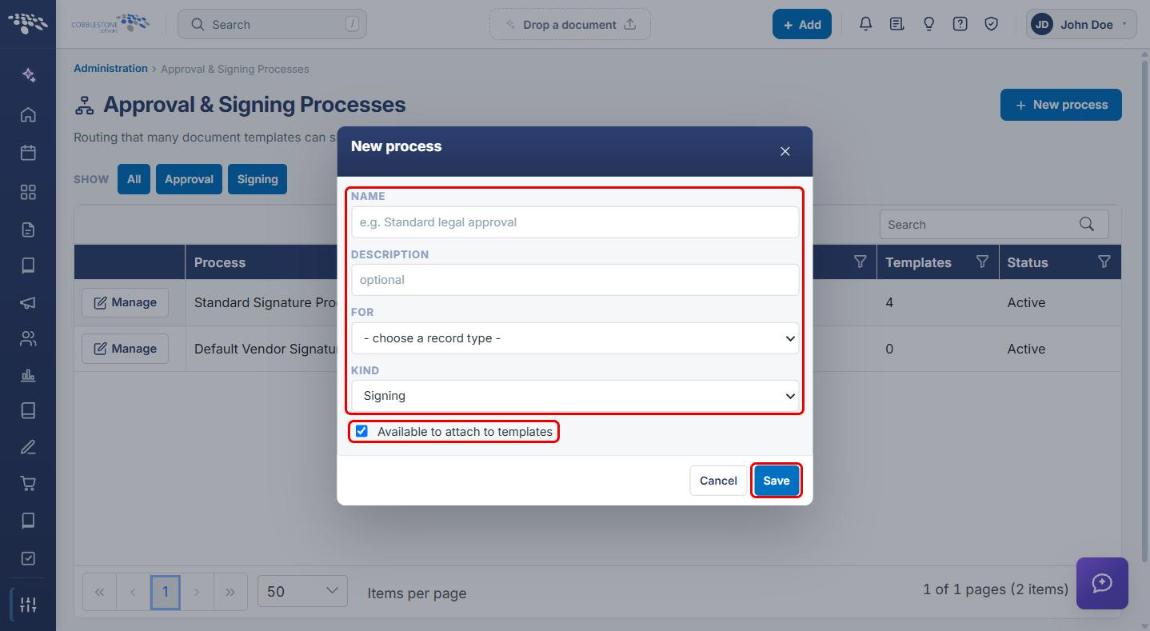
- Navigate to Administration → Approval & Signing Processes (see Section 3) and click + New process.
- Enter a Name and, optionally, a Description.
- In For, choose the record type the process applies to (for example, Contracts).
- Set Kind to Signing.
- Leave Available to attach to templates selected so templates can follow the process.
- Click Save.
Note: A new process starts with no steps. Click Manage on its row and continue with Section 5 to add signing steps.
5. Adding Signature Steps (Groups)
- On the Approval & Signing Processes page, click Manage on the signing process.
- Review the yellow banner. Changes made here apply to every template that follows this process, and the banner lists those templates.
- Click Add step.
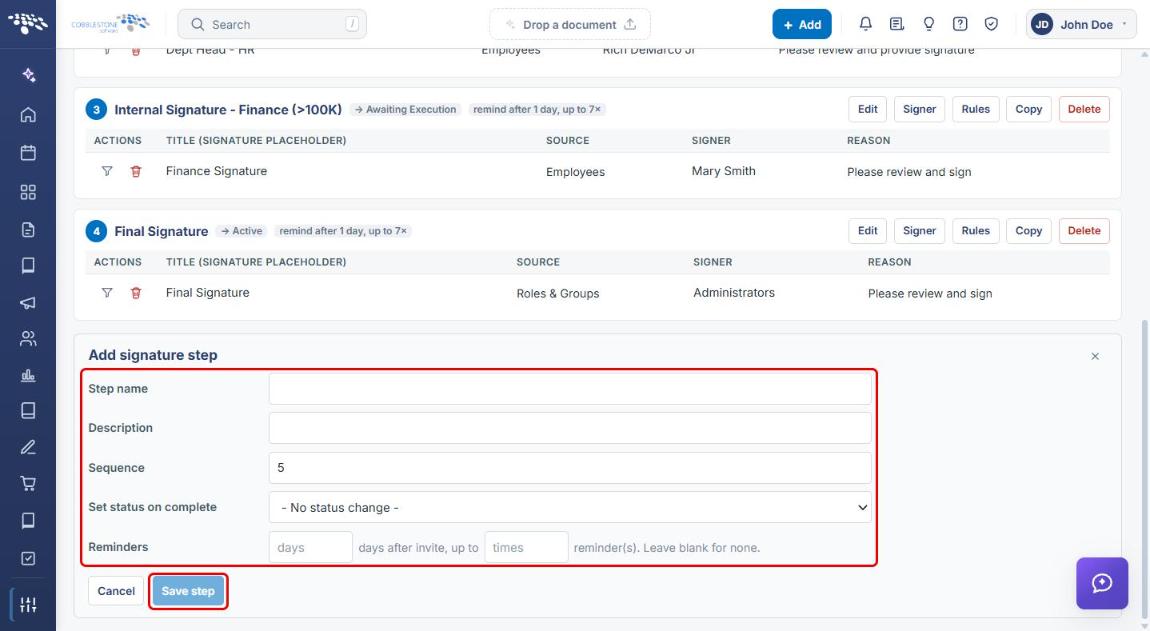
- In the Add signature step form, enter a Step name and, optionally, a Description.
- Confirm the Sequence. It defaults to the next step number; steps run in sequence order.
- Optionally choose a Set status on complete value to update the record's status when the step finishes.
- Optionally set Reminders: the number of days after the invite and the maximum number of times to remind. Leave blank for no reminders.
- Click Save step.
6. Adding Signers to a Step
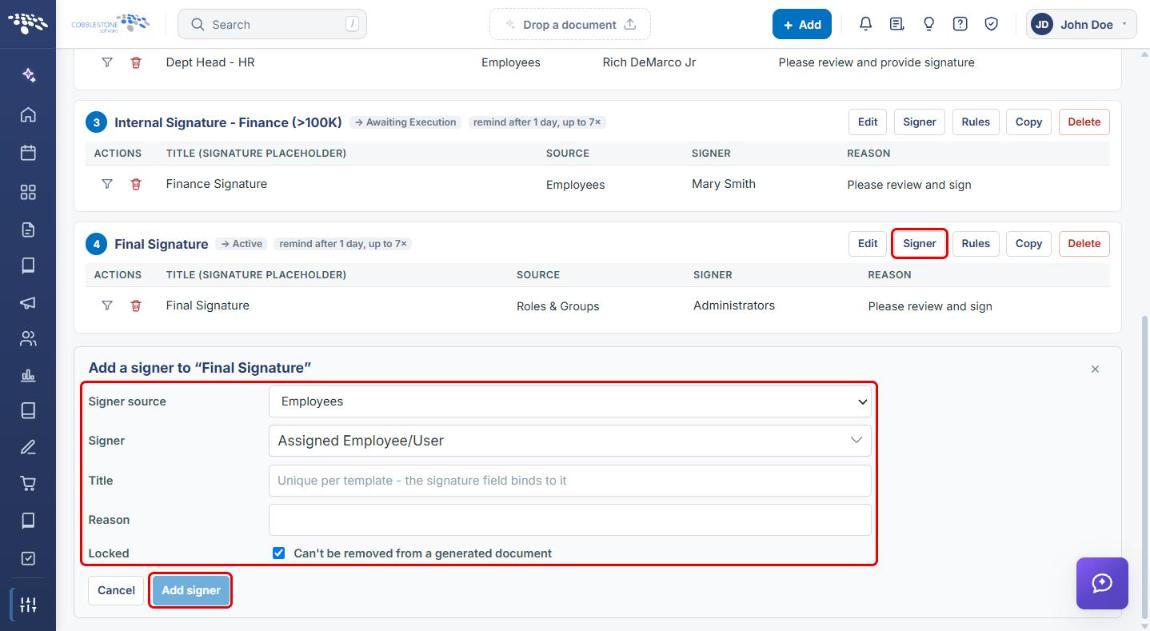
- On the signing process, click Signer on the step card.
- Choose the Signer source: Employees, Roles & Groups, or Vendor/Customer Contacts.
- Select the Signer.
- Enter a Title. The title must be unique per template because the signature field in the document binds to it.
- Enter a Reason (for example, “Please review and sign”).
- Leave Locked selected if the signer can't be removed from a generated document.
- Click Add signer.
Note: Add more than one signer to a step to have them sign in parallel. Add a separate step when one signer must wait for another.
7. Managing Existing Steps
Each step card on a signing process has these controls:
- Edit: change the step name, description, sequence, completion status, or reminders.
- Signer: add another signer to the step (see Section 6).
- Rules: set conditions that decide when the step is included (see below).
- Copy: duplicate the step and its signers.
- Delete: remove the step.
- On each signer row, the filter icon sets rules for that signer and the trash icon removes the signer.
7a. Setting Step Rules
- Click Rules on the step card. The When this group applies panel opens.
- With no conditions, the step is part of every signature process generated from the template. Add conditions to include the step only when the record matches.
- Click Save rules.
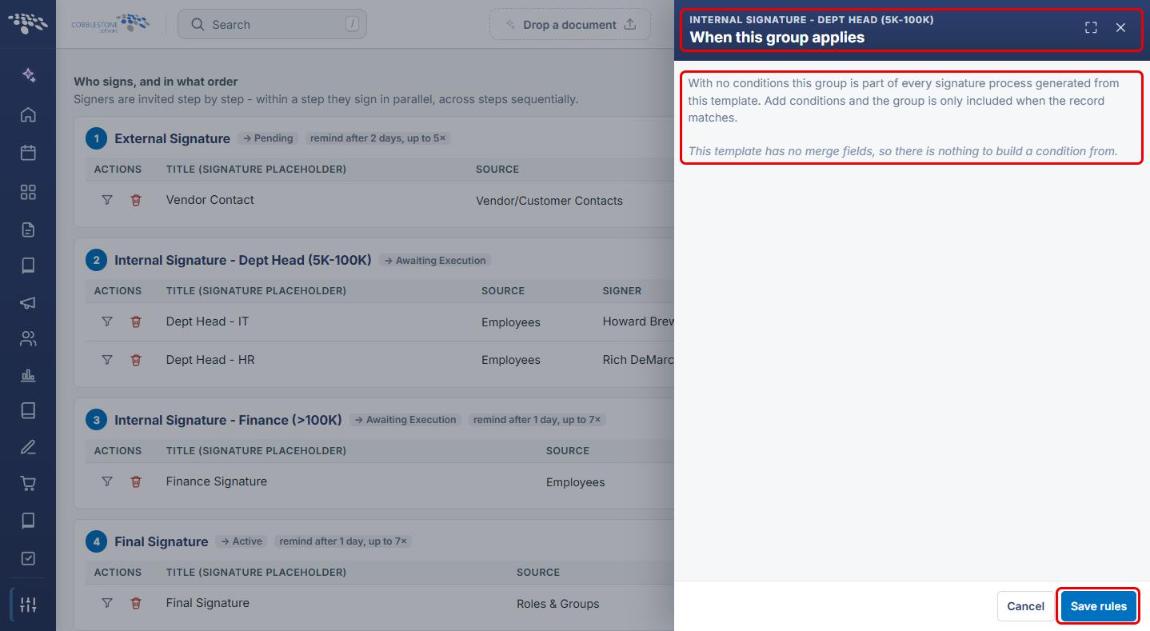
Note: Conditions are built from the template's merge fields. If the panel reports that there are no merge fields, add them to the template first.
8. Attaching a Signing Process to a Document Template
8a. Checking the Signatures Column
- From the Contract Insight homepage, click the Administration icon and select Document Templates.
- Review the Signatures column (scroll the grid to the right if it isn't visible). On · n steps means the template routes generated documents for signature; Off means it doesn't.
8b. Enabling E-Signatures on a Template
- On the Document Templates page, click Open on the template.
- Click stage 3 Approvals & signing, then click the E-Signatures tab.
- Next to Use E-Signatures, select Enabled. Optionally select Allow direct signing.
- In Signature process, select the signing process to follow.
- Click Save signature settings.
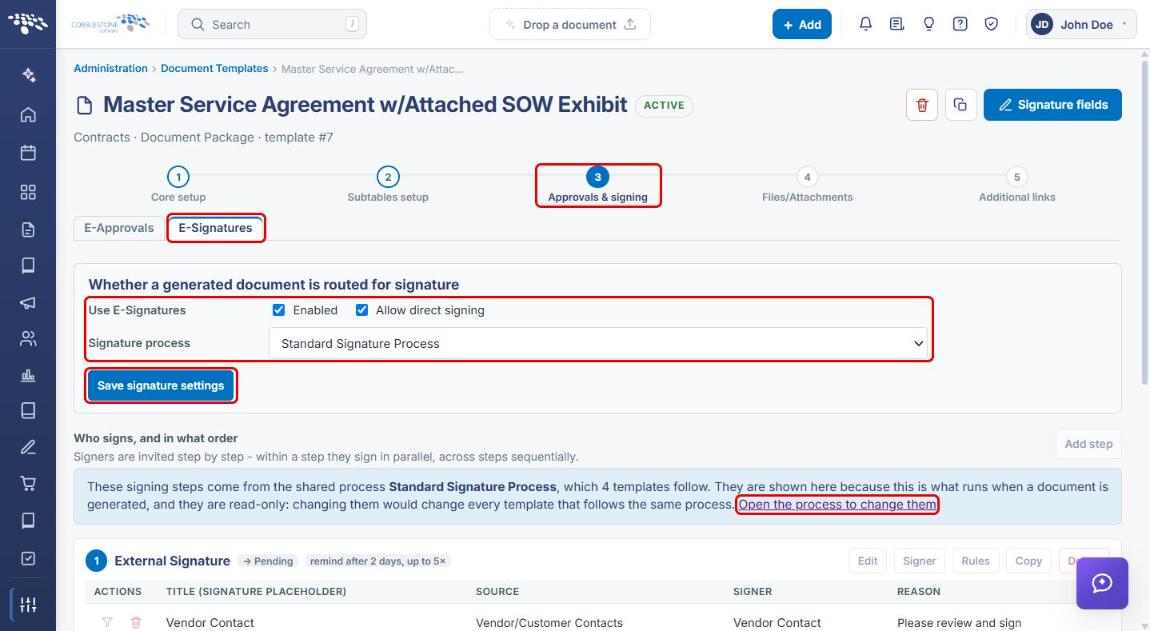
Note: The Who signs, and in what order list on the template is a read-only preview of the shared process. To change the steps, click Open the process to change them, keeping in mind that changes affect every template that follows the process.
9. Adjusting Signing Groups on a Generated Document
- Open the record (for example, a contract) and click the Attachments & Templates tab.
- In Merged Document Templates → Saved documents, find the generated document. Click Signatures to see a quick summary of who has signed, or click the Manage (gear) icon to open the document.
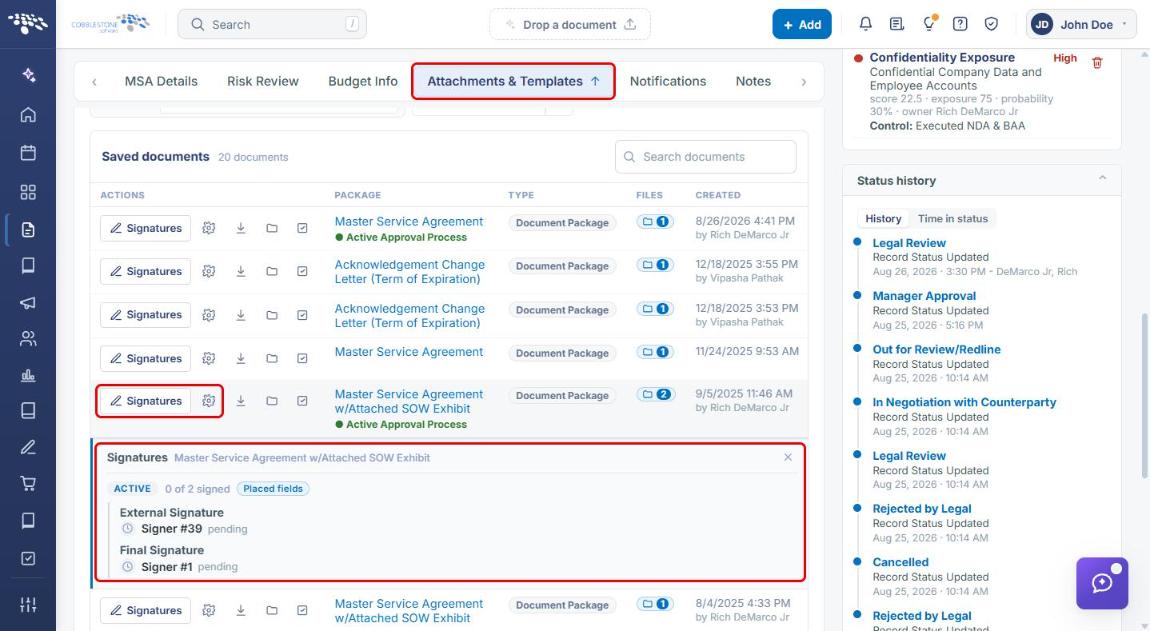
- On the document page, expand Signatures. The Signing groups table lists each group, its participants, and its Origin (for example, from template).
- Until the process starts, click Add group to add a group, Edit to change a group, the participants icon to add participants, or the trash icon to remove a group.
10. Monitoring a Running Signature Process
- On the generated document page, expand Processes on this document and click Open on the Signatures process.
- Review the summary (Status, Groups finalized, Participants, Files).
- In Groups and participants, the current group badge marks the step that is active now. Each participant shows their status, source, and title.
- Use Add participant to add a signer to a group, or Resend to resend the group's notifications.
- Use Pause, Cancel process, or Finalize at the top of the page to control the whole process.
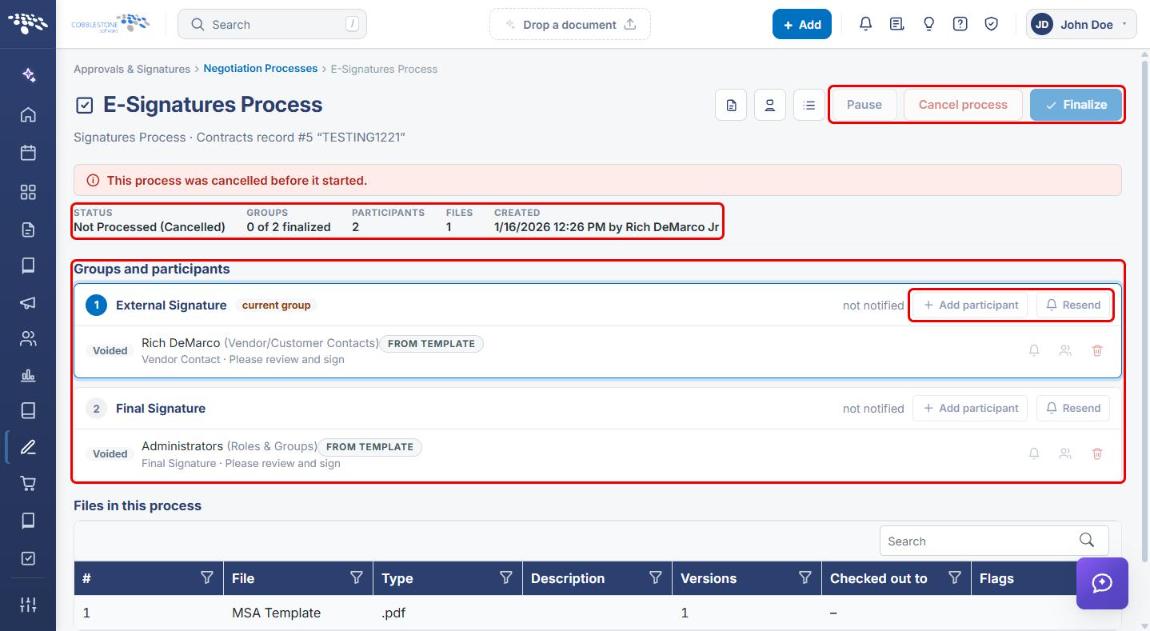
Note: The example shown was cancelled before it started, so its controls are unavailable. On an active process, Add participant, Resend, Pause, Cancel process, and Finalize are enabled.
11. Quick Reference Summary
| Task | How to Complete It |
|---|---|
| Open the signing processes list | Administration → Approval & Signing Processes → Show: Signing. |
| Create a signing process | + New process → enter Name, choose For, set Kind to Signing → Save. |
| Add a signing step (group) | Manage on the process → Add step → enter Step name, Sequence, completion status, reminders → Save step. |
| Add a signer to a step | Signer on the step card → choose Signer source and Signer, enter Title and Reason → Add signer. |
| Make a step conditional | Rules on the step card → add conditions → Save rules. |
| See which templates have signatures | Administration → Document Templates → Signatures column (Off / On · n steps). |
| Turn on e-signatures for a template | Open the template → 3 Approvals & signing → E-Signatures tab → Use E-Signatures: Enabled → choose Signature process → Save signature settings. |
| Change signing groups on one document | Record → Attachments & Templates → Saved documents → Manage → Signatures → Add group / Edit. |
| Track a running signature process | Document page → Processes on this document → Open → Groups and participants. |