COBBLESTONE SOFTWARE
Contract Insight — User Guide
E-Signature Flow/Groups Overview
Document Templates Management › E-Signature Flow/Groups › E-Signature Flow/Groups Overview
Note: Each procedure in this guide begins at the Contract Insight homepage, so any section can be followed on its own. Custom fields are configurable, so the exact field list on a contract category record may vary between environments.
1. Overview
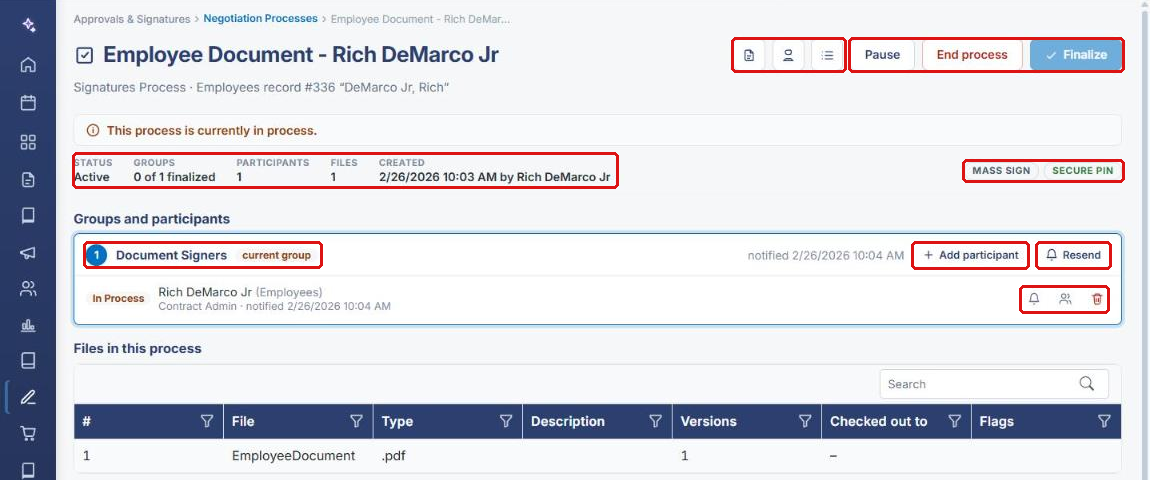
Every signature process has a console that reports its flow at a glance. The summary row shows the process STATUS, how many signing GROUPS are finalized (for example, “0 of 2 finalized”), the number of PARTICIPANTS, the number of FILES, and when and by whom it was CREATED. Badges such as SECURE PIN, MASS SIGN, or IntelliApprove flag special handling on that specific process. Below the summary, Groups and participants lists each signing group in order, so you can see where the flow has got to before drilling into individual participants.
2. Key Elements
- Negotiation Processes (Approvals & Signatures menu) lists every approval and signature process, with an Open console button on each row.
- Console summary: STATUS, GROUPS finalized, PARTICIPANTS, FILES, and CREATED.
- Badges (for example, SECURE PIN and MASS SIGN) flag special handling on that process.
- Groups and participants shows each signing group in order, its state (current group or finalized), and each participant’s status.
- Console controls: Open record, Signature receipt, Place fields, Pause, End process, and Finalize.
- Files in this process lists the documents being signed, with type, versions, and check-out status.
3. Navigating to a Signature Process Console
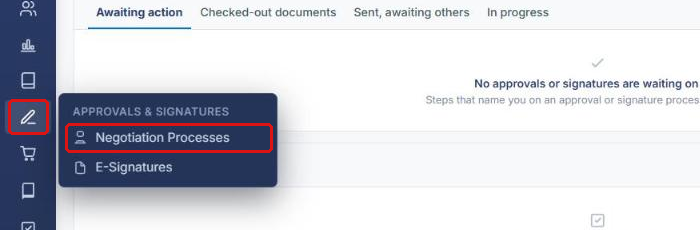
- From the Contract Insight homepage, click the Approvals & Signatures icon in the left navigation bar.
- Select Negotiation Processes.
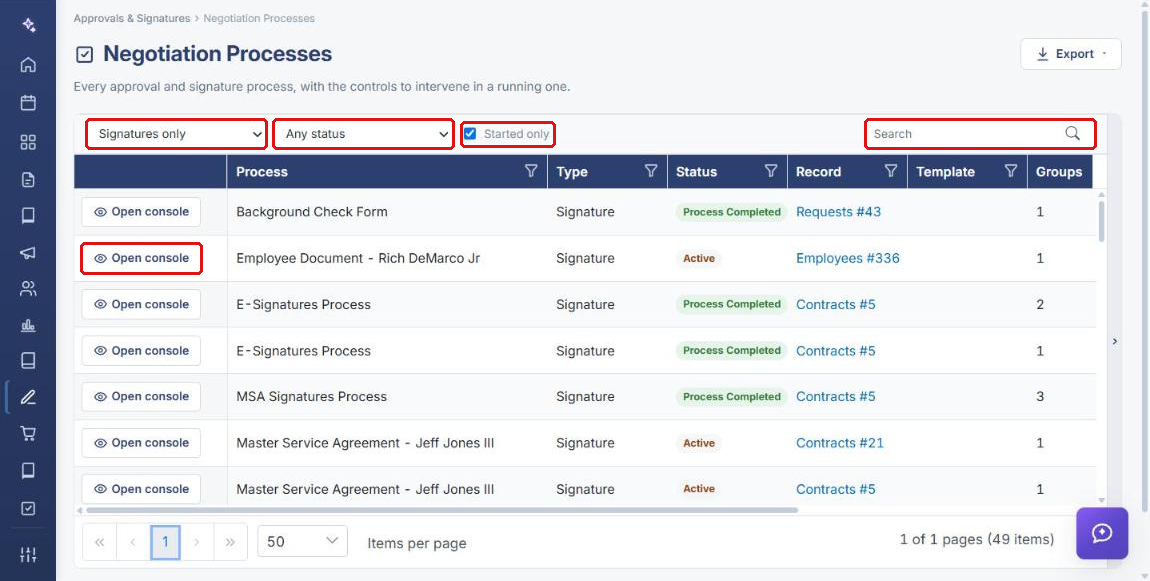
- To narrow the list, set the type filter to Signatures only, choose a status (for example, Active), or use Search. Leave Started only checked to hide processes that have not been sent.
- Click Open console on the process’s row.
4. Reading the Console Summary
The top of the console summarizes the signature flow:
| Field | What It Shows |
|---|---|
| STATUS | The process state, such as Active or Process Completed. A banner above the summary repeats it (for example, “This process is currently in process.”). |
| GROUPS | How many signing groups are finalized out of the total (for example, “0 of 1 finalized”). |
| PARTICIPANTS | The number of people, contacts, or roles asked to sign. |
| FILES | The number of documents in the process. |
| CREATED | When the process was created, and by whom. |
| Badges | Special handling on this process, such as SECURE PIN (signers must enter a PIN) or MASS SIGN. |
5. Working with Signing Groups and Participants
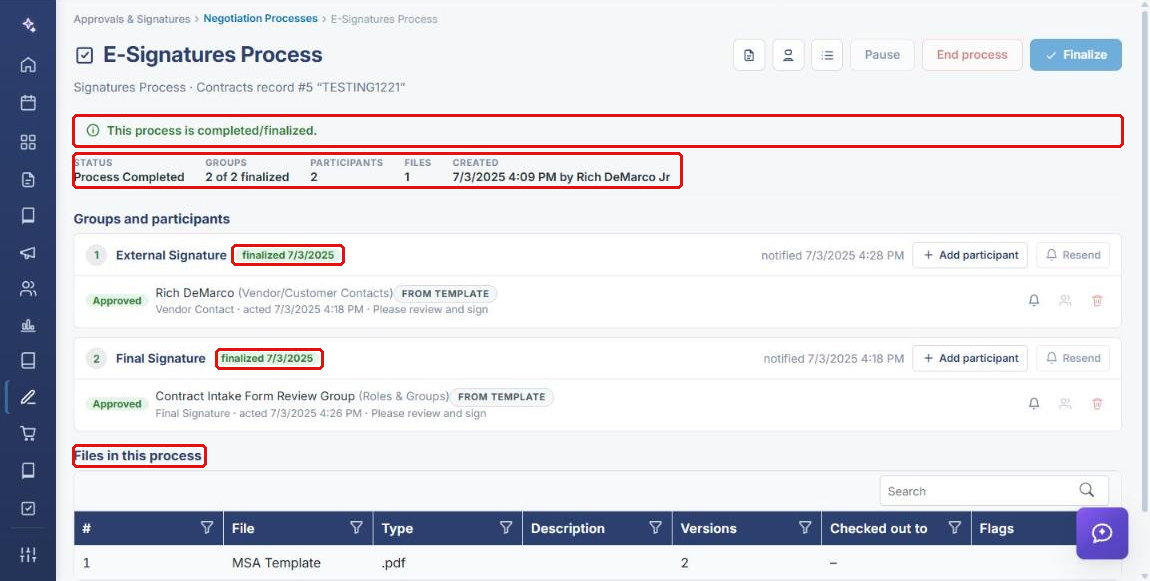
Signing groups are worked in order. The group being signed now is labeled current group; earlier groups show finalized with a date. Each participant row shows a status such as In Process or Approved, the participant’s role, and when they were notified or acted.
- Add participant adds someone to that group.
- Resend re-sends the invitation to the whole group (running processes only).
- Participant row icons: Re-send this invitation (bell), Replace this participant (people), and Remove this participant (trash).
When every group is finalized, the banner reads “This process is completed/finalized,” and the GROUPS count shows all groups finalized (for example, “2 of 2 finalized”).
6. Controlling a Running Process
Use the buttons at the top right of the console:
- Open record (document icon) opens the record the process belongs to.
- Signature receipt (person icon) shows who signed what, and when.
- Place fields (list icon) pre-defines where each participant signs.
- Pause pauses or resumes a running process.
- End process cancels a running process.
- Finalize completes the process. It is available only once every group is finalized.
Note: Pause, End process, and Resend are disabled on processes that are already completed or cancelled.
7. Setting Up a Signature Flow on a Document
7a. Reviewing the Signing Groups
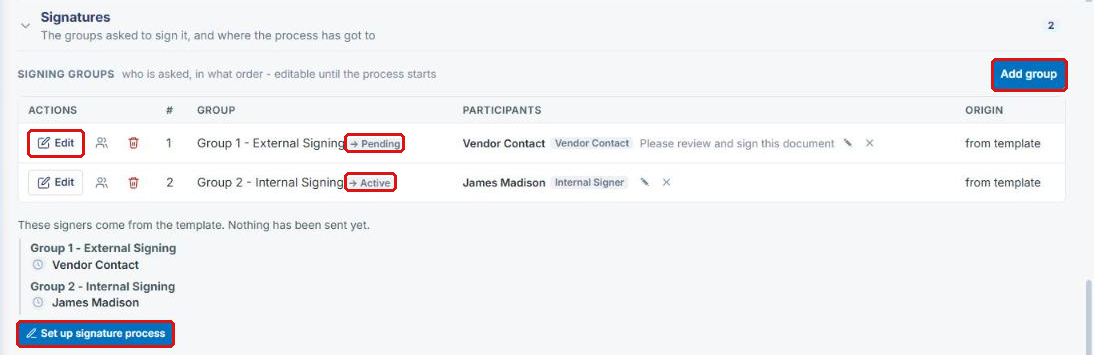
- Open the record, select the Attachments & Templates tab, and click Signatures on the saved document. Administrators can also open the document from Administration → Merged Documents and expand Signatures.
- Review the Signing groups: who is asked, and in what order. Groups come from the template and can be edited until the process starts.
- Use Edit on a group to change it, or Add group to add another.
- Click Set up signature process.
7b. Creating the Process
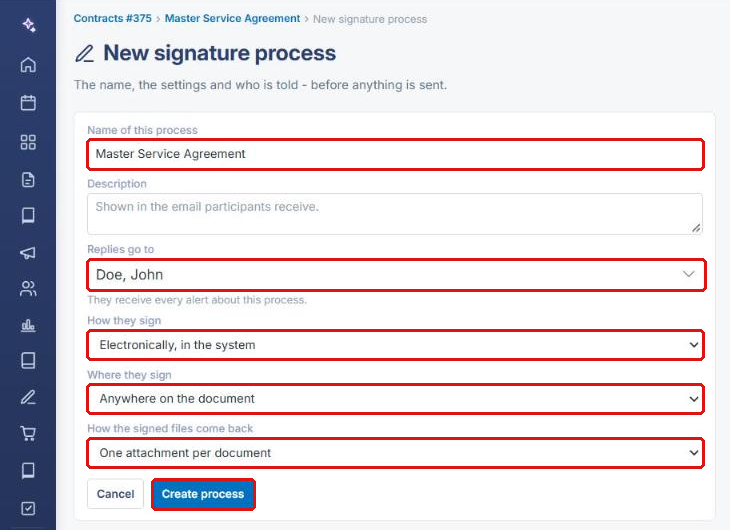
- On the New signature process page, confirm the Name of this process and optionally add a Description (shown in the email participants receive).
- Choose who Replies go to. This person receives every alert about the process.
- Set How they sign, Where they sign, and How the signed files come back.
- Click Create process. Nothing is sent yet.
7c. Finishing Setup and Starting the Process
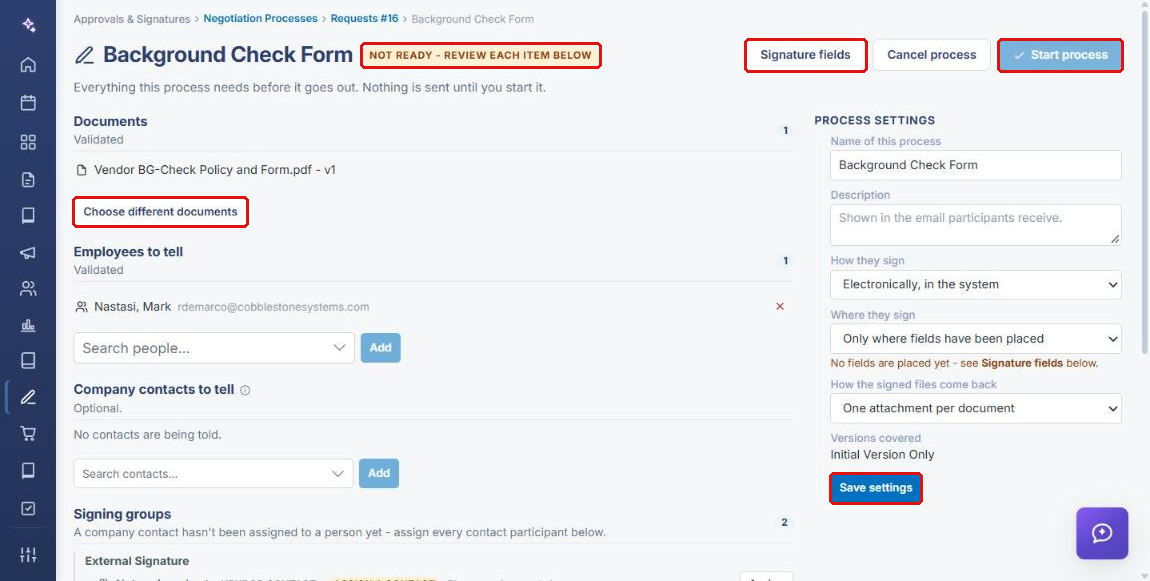
- On the setup page, review each item flagged by the status badge (for example, NOT READY - REVIEW EACH ITEM BELOW): documents, employees and company contacts to tell, and signing groups.
- If Where they sign is set to Only where fields have been placed, click Signature fields to place them.
- Adjust the Process settings if needed and click Save settings.
- Click Start process. The process then appears on the Negotiation Processes list, and its console tracks progress (see Sections 4–6).
8. Quick Reference Summary
| Task | How to Complete It |
|---|---|
| Open the process list | Approvals & Signatures → Negotiation Processes. |
| Show only signature processes | Negotiation Processes → type filter → Signatures only. |
| Open a process console | Open console on the process’s row. |
| Check how far a flow has got | Console summary → STATUS and GROUPS (x of y finalized). |
| See whether a Secure PIN applies | Console summary → SECURE PIN badge. |
| Re-send an invitation | Resend on the group, or the bell icon on a participant. |
| Add or replace a signer | Add participant on the group, or the Replace icon on a participant. |
| See who signed and when | Signature receipt icon at the top of the console. |
| Pause, cancel, or complete a process | Pause, End process, or Finalize at the top of the console. |
| Start a new signature flow | Record → Attachments & Templates → Signatures → Set up signature process → Create process → Start process. |