COBBLESTONE SOFTWARE
Contract Insight — User Guide
Approval and Signature Process Templates
Document Templates Management › E-Approval Flow/Groups › Approval and Signature Process Templates
Note: Each procedure in this guide begins at the Contract Insight homepage, so any section can be followed on its own. Custom fields are configurable, so the exact field list on a contract category record may vary between environments.
1. Overview
Approval and signature flows are attached to document templates in two ways. A template can carry its own approval or signing steps, or it can follow a shared process template managed under Administration → Approval & Signing Processes ("Routing that many document templates can share, instead of each carrying its own"). Changes to a shared process apply to every template that follows it.
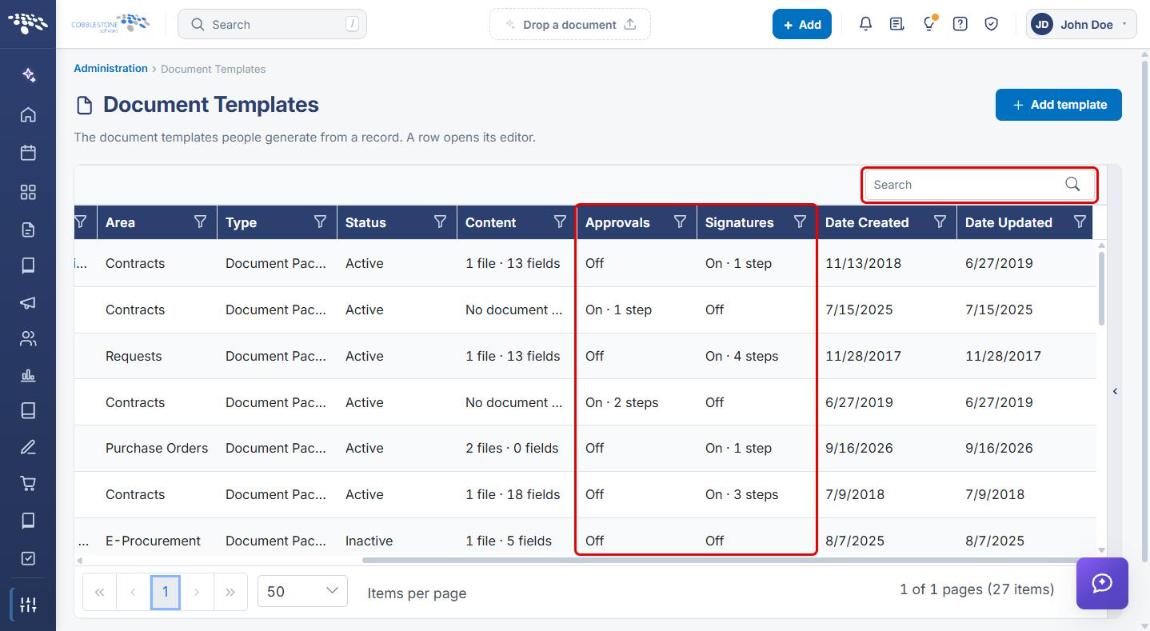
The Administration → Document Templates grid shows Approvals and Signatures columns for each template, reporting Off or On with a step count (for example, "On · 3 steps"), so a template's process configuration is visible without opening it. Clicking Open on a template row edits its full configuration, including these flows.
2. Key Elements
- Document Templates grid: Approvals and Signatures columns show Off/On and the number of steps for each template.
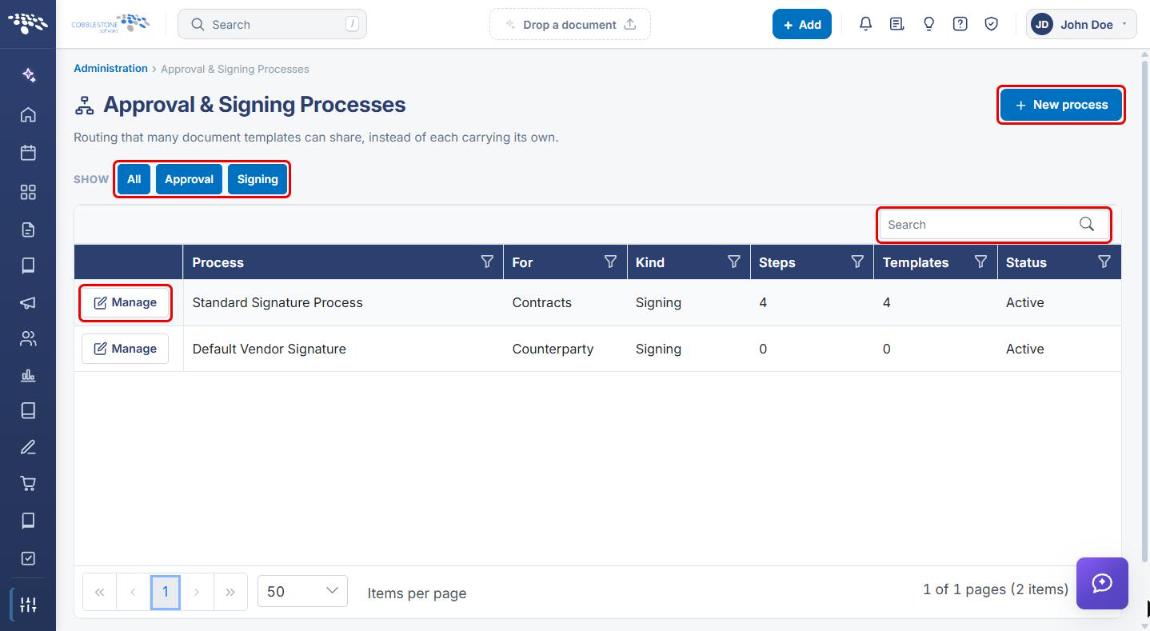
- Approval & Signing Processes page: lists every shared process with its Process name, For (record type), Kind (Approval or Signing), Steps, Templates (how many templates follow it), and Status. Use the All, Approval, and Signing buttons to filter the list.
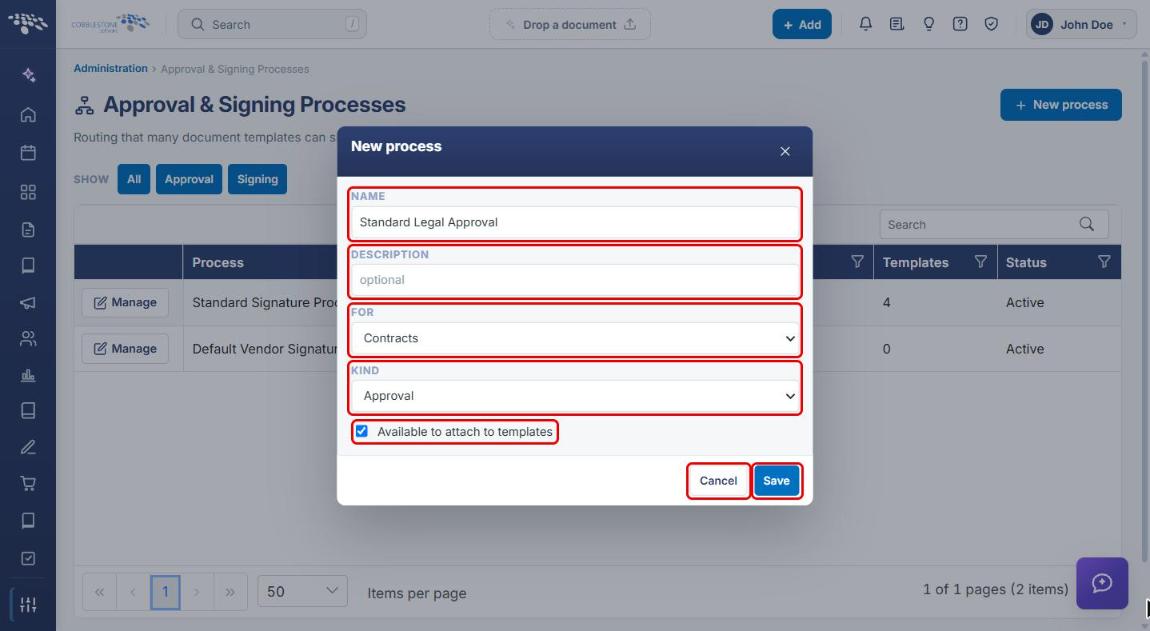
- New process: creates a shared process with a Name, Description, For, Kind, and Available to attach to templates.
- Manage: opens a process to Rename or Delete it, and to add and edit its steps (Add step, then Edit, Signer/Participant, Rules, Copy, Delete on each step).
- Template's Approvals & signing step: where a template is switched to follow a shared process, from the Approval process or Signature process list.
3. Checking a Template's Approval and Signature Status
- From the Contract Insight homepage, click the Administration icon at the bottom of the left navigation bar.
- Search for or click Document Templates.
- Scroll the grid to the right to see the Approvals and Signatures columns. Each shows Off, or On with the number of steps in that template's flow.
- Use the Search box or column filters to find a template, then click Open on its row to change its flows (see Section 7).
4. Navigating to Approval & Signing Processes
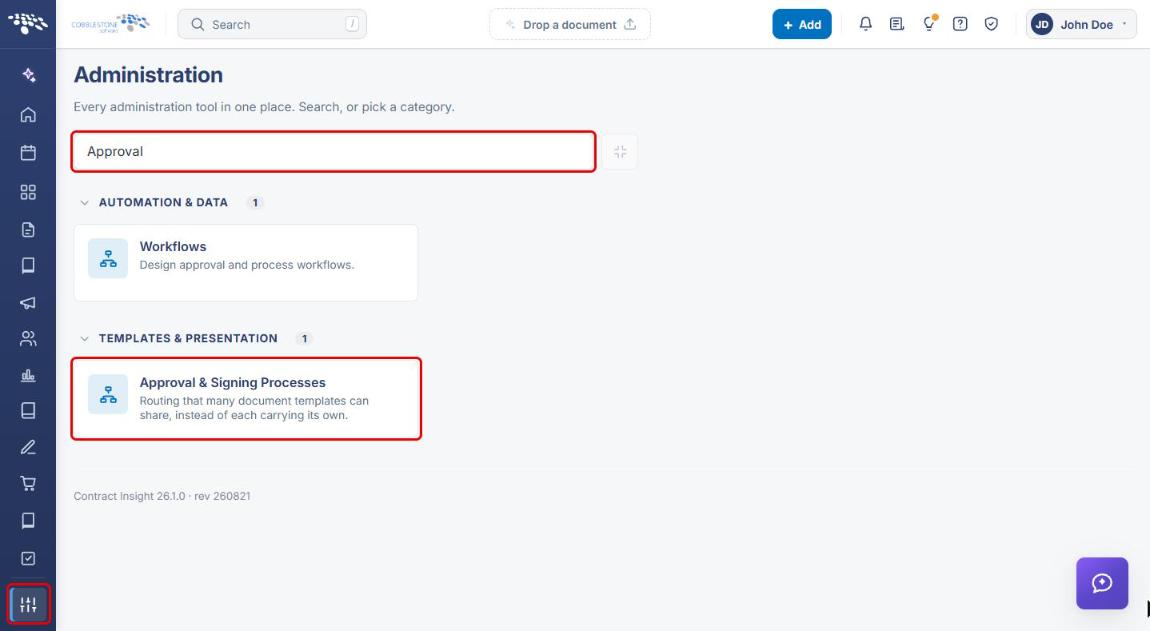
- From the Contract Insight homepage, click the Administration icon at the bottom of the left navigation bar.
- In the Search administration box, type Approval (or scroll to the Templates & Presentation category).
- Click the Approval & Signing Processes card.
The Approval & Signing Processes page lists every shared process. Use All, Approval, or Signing to filter by kind, or the Search box to find a process by name.
5. Creating a Process Template
- On the Approval & Signing Processes page, click + New process.
- In the New process window, enter a Name (for example, Standard Legal Approval).
- Optionally enter a Description.
- Select the record type the process is For: Contracts, Counterparty, E-Procurement, Employees, Purchase Orders, or Requests.
- Select the Kind: Approval or Signing.
- Leave Available to attach to templates selected so templates can follow this process.
- Click Save to create the process, or Cancel to close the window without saving.
6. Managing a Process Template's Steps
- On the Approval & Signing Processes page, click Manage on the process's row.
- Review the banner at the top: it lists every template that follows this process. Changes here apply to all of them.
- Click Add step to add another step to the flow. Steps run in order; people within a step act in parallel.
- Use the buttons on each step to Edit it, add a Signer (or Participant on an approval process), set Rules, Copy it, or Delete it. See 2. Adding An Approval Group for the step and participant fields.
- Use Rename or Delete at the top of the page to rename or remove the whole process.
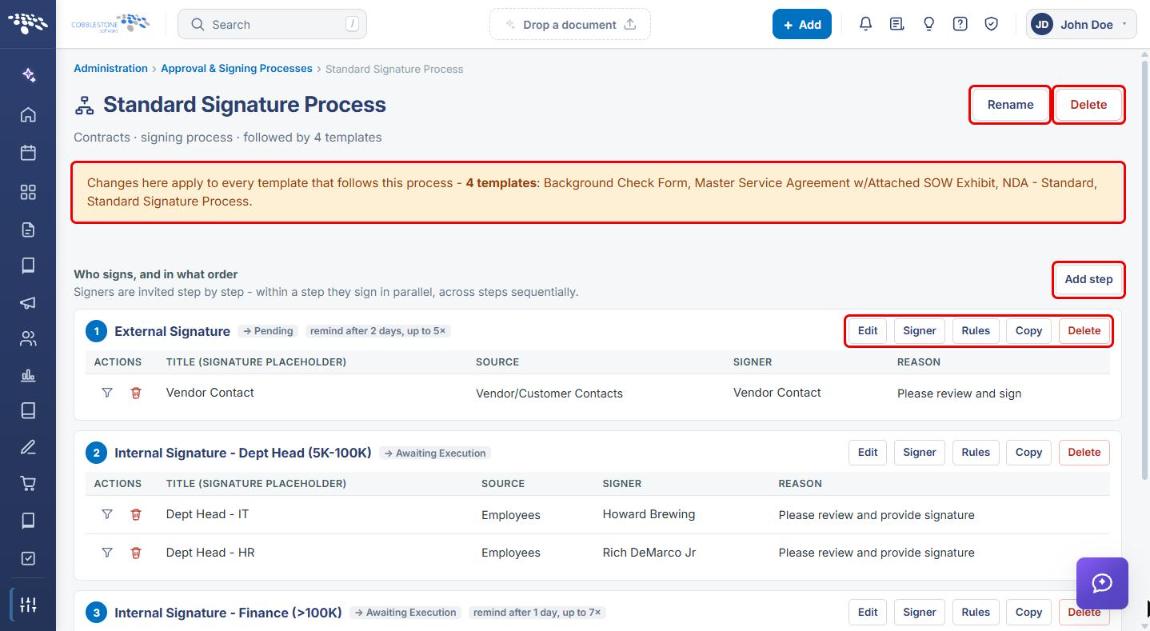
Note: A process's steps cannot be changed from a template that follows it; they are read-only there. Open the process from this page (or with the Open the process to change them link on the template) to make changes.
7. Attaching a Process Template to a Document Template
- Navigate to Administration → Document Templates and click Open on the template.
- Click step 3 Approvals & signing.
- Select the E-Approvals or E-Signatures tab, depending on the kind of process.
- Make sure Use E-Approvals or Use E-Signatures is Enabled. On the E-Signatures tab, select Allow direct signing if needed.
- Choose the shared process from the Approval process or Signature process list. Choose - none - to stop following a process.
- Click Save approval settings or Save signature settings.
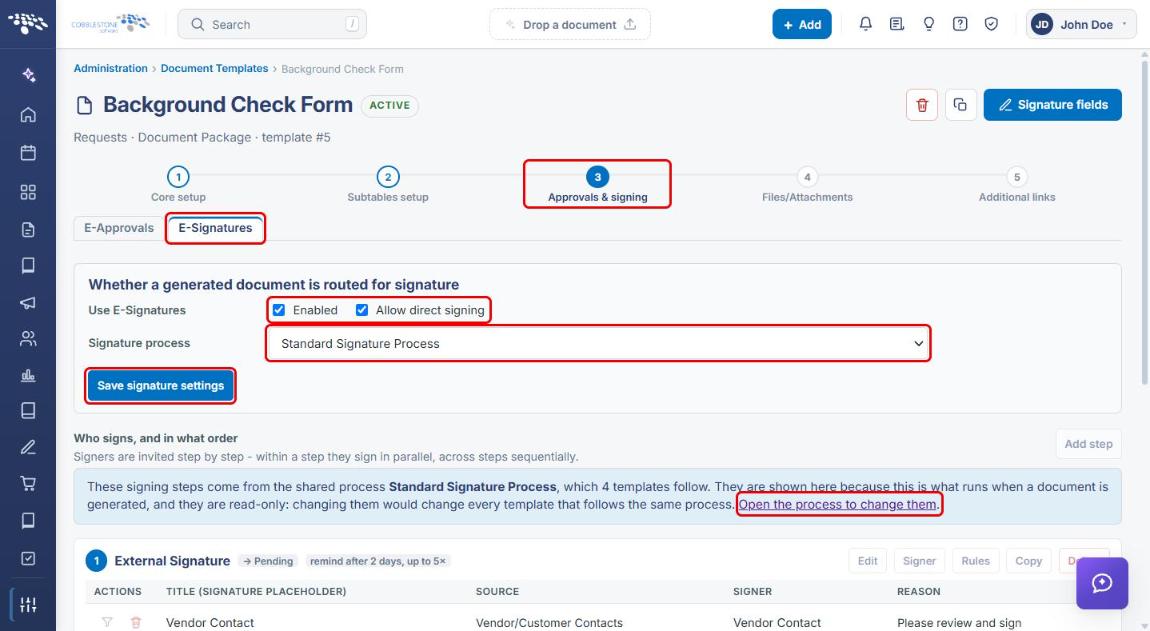
Once saved, the process's steps appear under Who signs, and in what order (or Who approves, and in what order) as read-only, with a link to open the process.
8. Quick Reference Summary
| Task | Where / How |
|---|---|
| See which templates use approvals or signatures | Administration → Document Templates → Approvals and Signatures columns |
| Open the shared process list | Administration → search Approval → Approval & Signing Processes |
| Create a process template | + New process → Name, For, Kind → Save |
| Change a process's steps | Manage → Add step / step buttons |
| Rename or delete a process | Manage → Rename or Delete |
| Make a template follow a process | Template → step 3 Approvals & signing → E-Approvals or E-Signatures → choose the process → Save |