COBBLESTONE SOFTWARE
Contract Insight — User Guide
Adding a Signature Group
Document Templates Management › E-Signature Flow/Groups › Adding a Signature Group
Note: Each procedure in this guide begins at the Contract Insight homepage, so any section can be followed on its own. Custom fields are configurable, so the exact field list on a contract category record may vary between environments.
1. Overview
A signature group is the signature-process equivalent of an approval group: one step in a document template's signature flow, with its own named signer(s), defining who needs to sign at that stage before the process moves to the next step. In Contract Insight, signature groups are set up on a template's Approvals & signing step, on the E-Signatures tab, where they're called signature steps. The tab explains: "Signers are invited step by step - within a step they sign in parallel, across steps sequentially."
When a document is generated from the template, these steps become the groups shown in the running process's console (see Approval Groups Grid).
2. Key Elements
- A signature group (signature step) is one stage in a template's signature flow. Steps run in Sequence order.
- Add step opens the Add signature step form: Step name, Description, Sequence, Set status on complete, and Reminders.
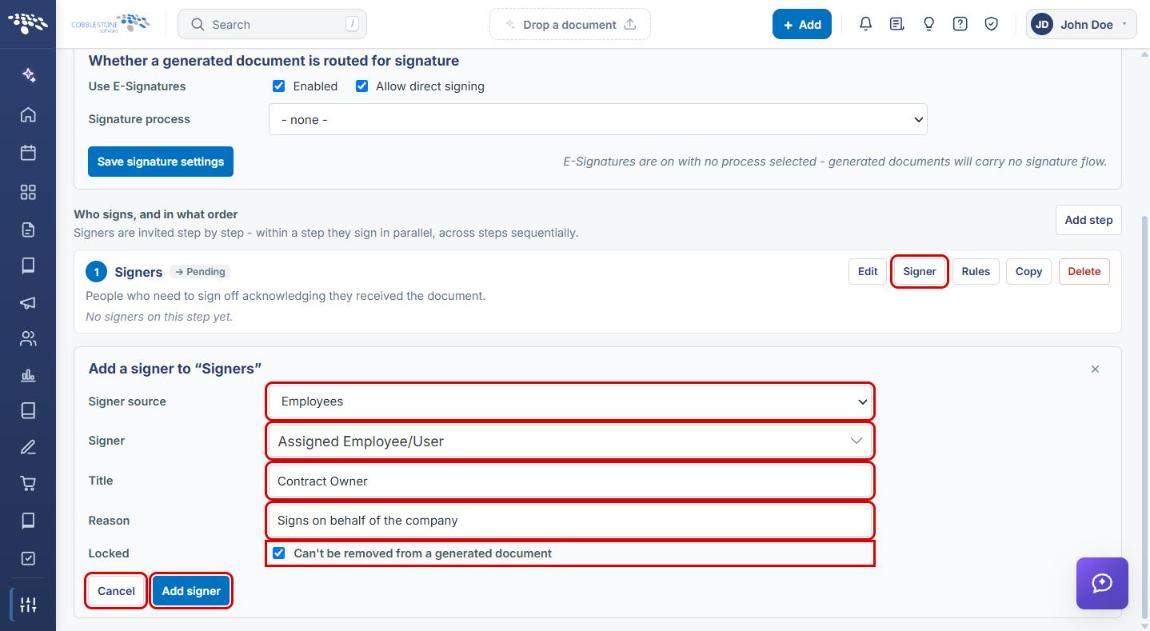
- Each step names its signer(s). Signer on a step opens Add a signer, with Signer source (Employees, Roles & Groups, or Vendor/Customer Contacts), Signer, Title, Reason, and Locked.
- Each step row also offers Edit, Rules, Copy, and Delete.
- Use E-Signatures must be Enabled for generated documents to be routed for signature.
3. Navigating to a Template's E-Signatures Tab
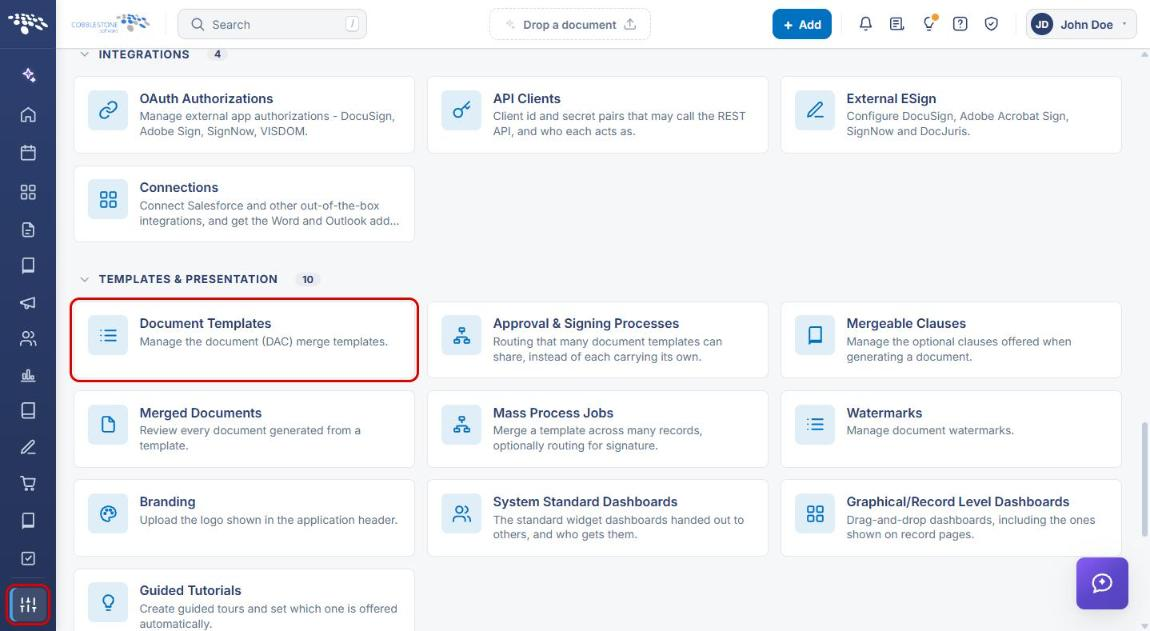
- From the Contract Insight homepage, click the Administration icon (sliders) at the bottom of the left navigation bar.
- Under Templates & Presentation, click Document Templates.
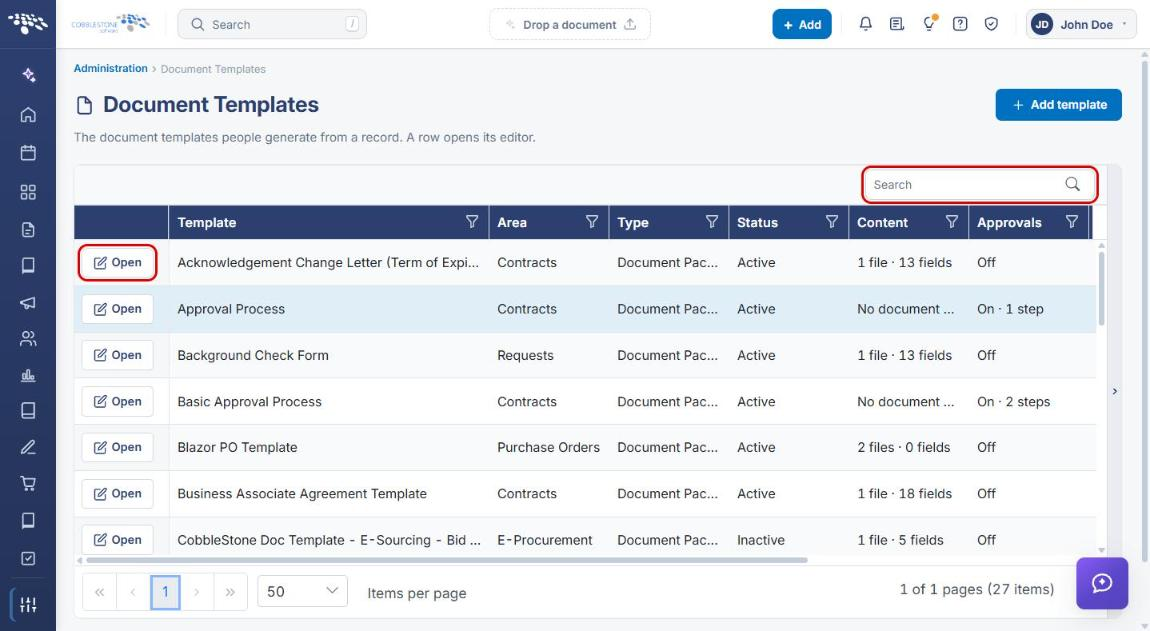
- Locate the template (use the Search box if needed) and click Open on its row.
- Click step 3 Approvals & signing, then click the E-Signatures tab.
- Confirm Use E-Signatures is checked (Enabled). Optionally check Allow direct signing or choose a shared Signature process, then click Save signature settings.
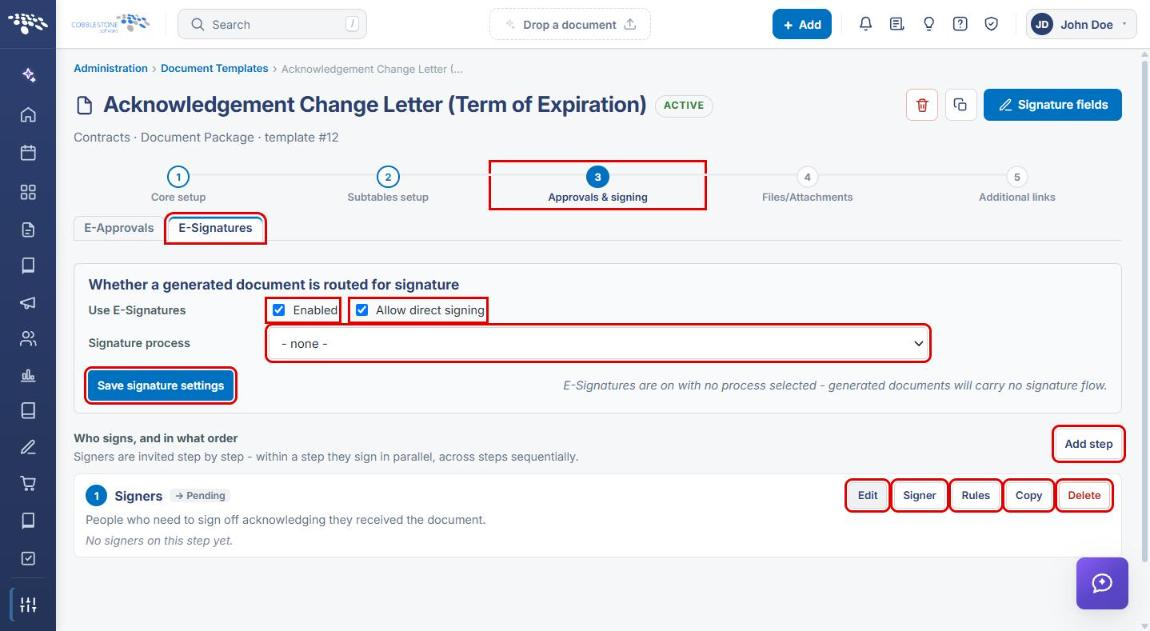
Note: If E-Signatures is on but no signature process is selected, the tab notes that "generated documents will carry no signature flow."
4. Adding a Signature Group
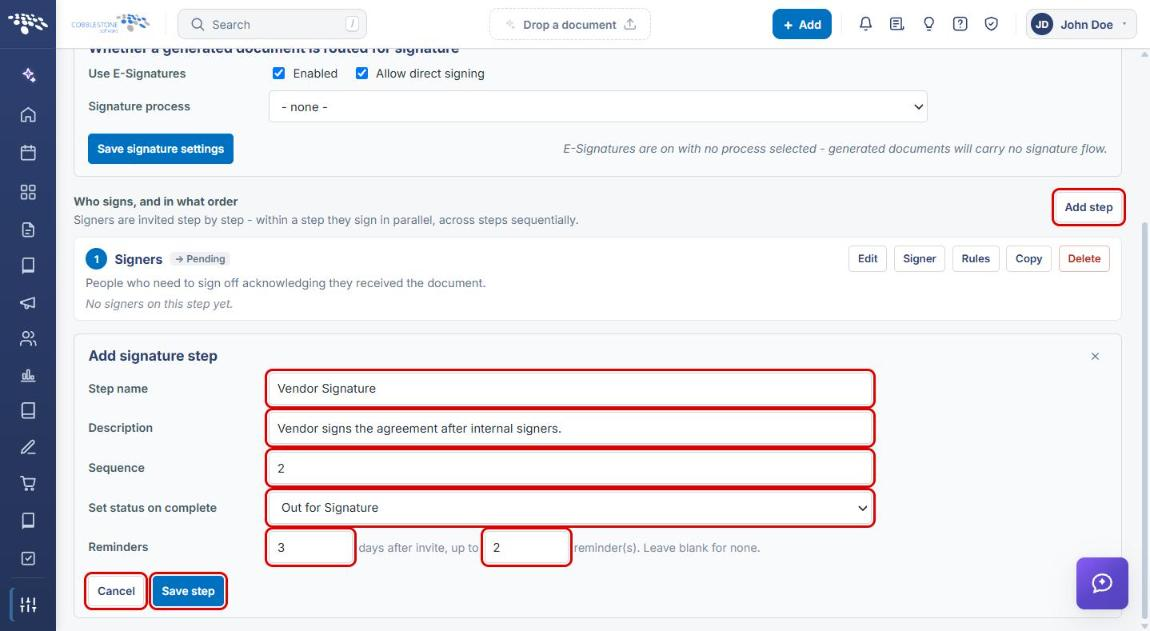
- On the E-Signatures tab, under Who signs, and in what order, click Add step. The Add signature step form opens below the existing steps.
- Enter a Step name (for example, "Vendor Signature").
- Enter a Description of who signs at this stage.
- Confirm the Sequence. It defaults to the next number; steps with a lower sequence sign first.
- Optionally choose a Set status on complete value to update the record's status when this step finishes (for example, "Out for Signature"), or leave - No status change -.
- Optionally set Reminders: how many days after the invite to remind, and up to how many times. Leave blank for none.
- Click Save step, or click Cancel to discard.
5. Adding Signers to the Group
- On the step's row, click Signer. The Add a signer to form opens.
- Choose the Signer source: Employees, Roles & Groups, or Vendor/Customer Contacts.
- Select the Signer (for example, Assigned Employee/User).
- Enter a Title. It must be unique per template, because the signature field binds to it.
- Optionally enter a Reason.
- Leave Locked checked so the signer can't be removed from a generated document, or clear it to allow removal.
- Click Add signer, or click Cancel to discard. Repeat for each signer in the group. Signers in the same step sign in parallel.
6. Managing an Existing Signature Group
- Edit — change the step's name, description, sequence, status on complete, or reminders, then click Save step.
- Signer — add another signer to the step.
- Rules — open the step's rules.
- Copy — duplicate the step.
- Delete — remove the step from the template's signature flow.
7. Quick Reference Summary
| Task | How to Complete It |
|---|---|
| Open a template's signature flow | Administration → Document Templates → Open → 3 Approvals & signing → E-Signatures tab. |
| Turn on E-Signatures | E-Signatures tab → Use E-Signatures: Enabled → Save signature settings. |
| Add a signature group | Add step → Step name, Description, Sequence → Save step. |
| Add a signer to a group | Step row → Signer → Signer source, Signer, Title → Add signer. |
| Change a group | Step row → Edit → Save step. |
| Duplicate or remove a group | Step row → Copy or Delete. |