COBBLESTONE SOFTWARE
Contract Insight — User Guide
E-Signature Flow/Groups- Document Generation
Document Templates: Generation/Merging › E-Signature - Document Generation › E-Signature Flow/Groups- Document Generation
Note: Each procedure in this guide begins at the Contract Insight homepage, so any section can be followed on its own. Custom fields are configurable, so the exact field list on a contract category record may vary between environments.
1. Overview
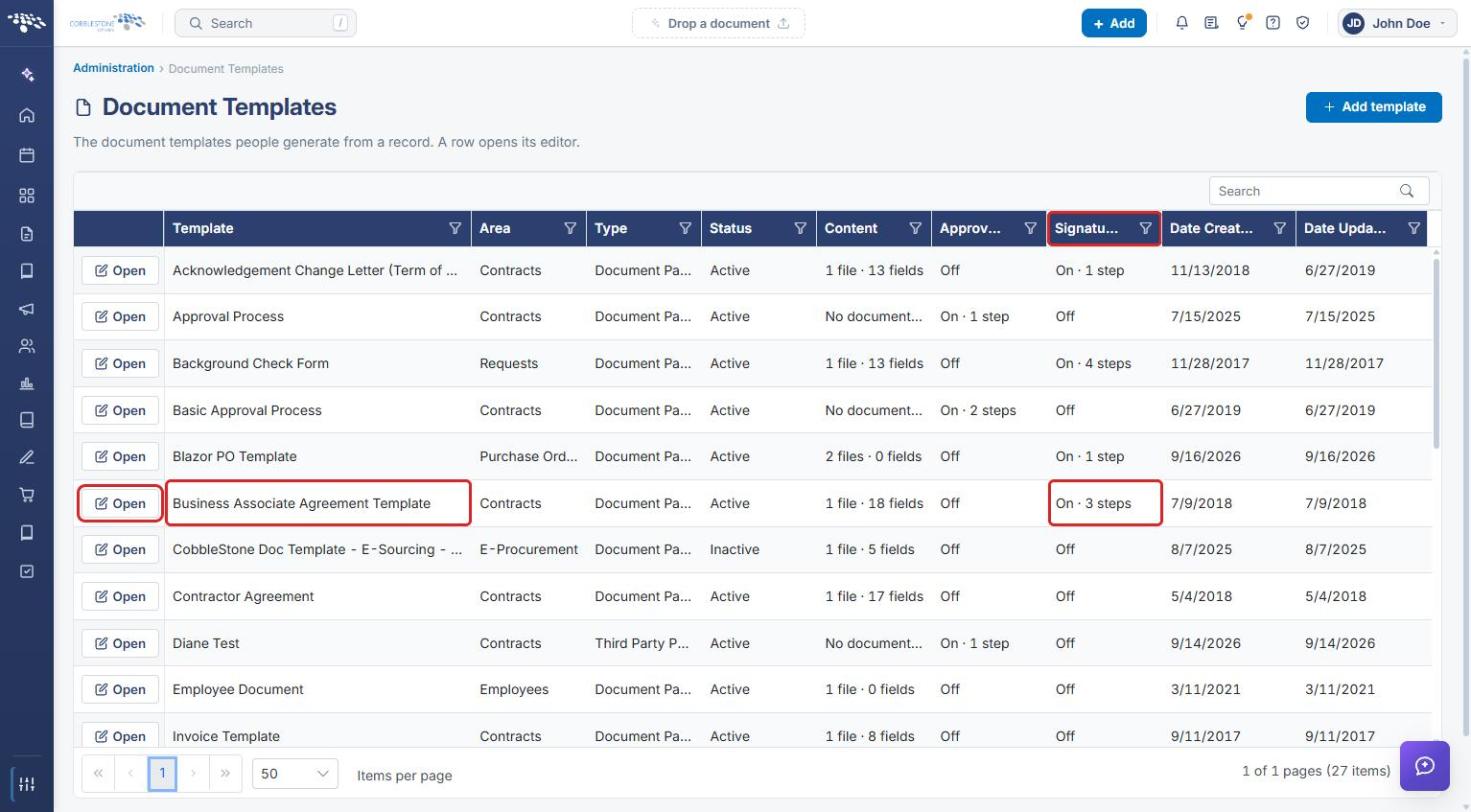
As with approvals, a document generated from a template with Signatures turned On automatically starts a signature process using that template's configured steps — visible ahead of time on the Document Templates grid's Signatures column (e.g. "On · 3 steps").
A template's signature flow is configured on its Approvals & signing step, on the E-Signatures tab. Signers are organized into steps (groups) under Who signs, and in what order: signers within a step sign in parallel, and the steps run sequentially. Each step can carry rules so it is only included when the record matches.
2. Key Elements
- A template's Signatures configuration (On/Off, step count) is set before any document is generated from it.
- Generating a document from that template starts a signature process using those steps.
- Use E-Signatures, Allow direct signing, and Signature process control whether a generated document is routed for signature. Shared processes are maintained under Administration → Approval & Signing Processes.
- Signature steps (groups) each have Edit, Signer, Rules, Copy, and Delete actions.
- Signers come from Employees, Roles & Groups, or Vendor/Customer Contacts. Each signer has a Title (the signature placeholder, unique per template), a Reason, and an optional Locked setting.
- Rules limit a step to records that match a condition. With no conditions, the step is part of every signature process generated from the template.
3. Navigating to Document Templates
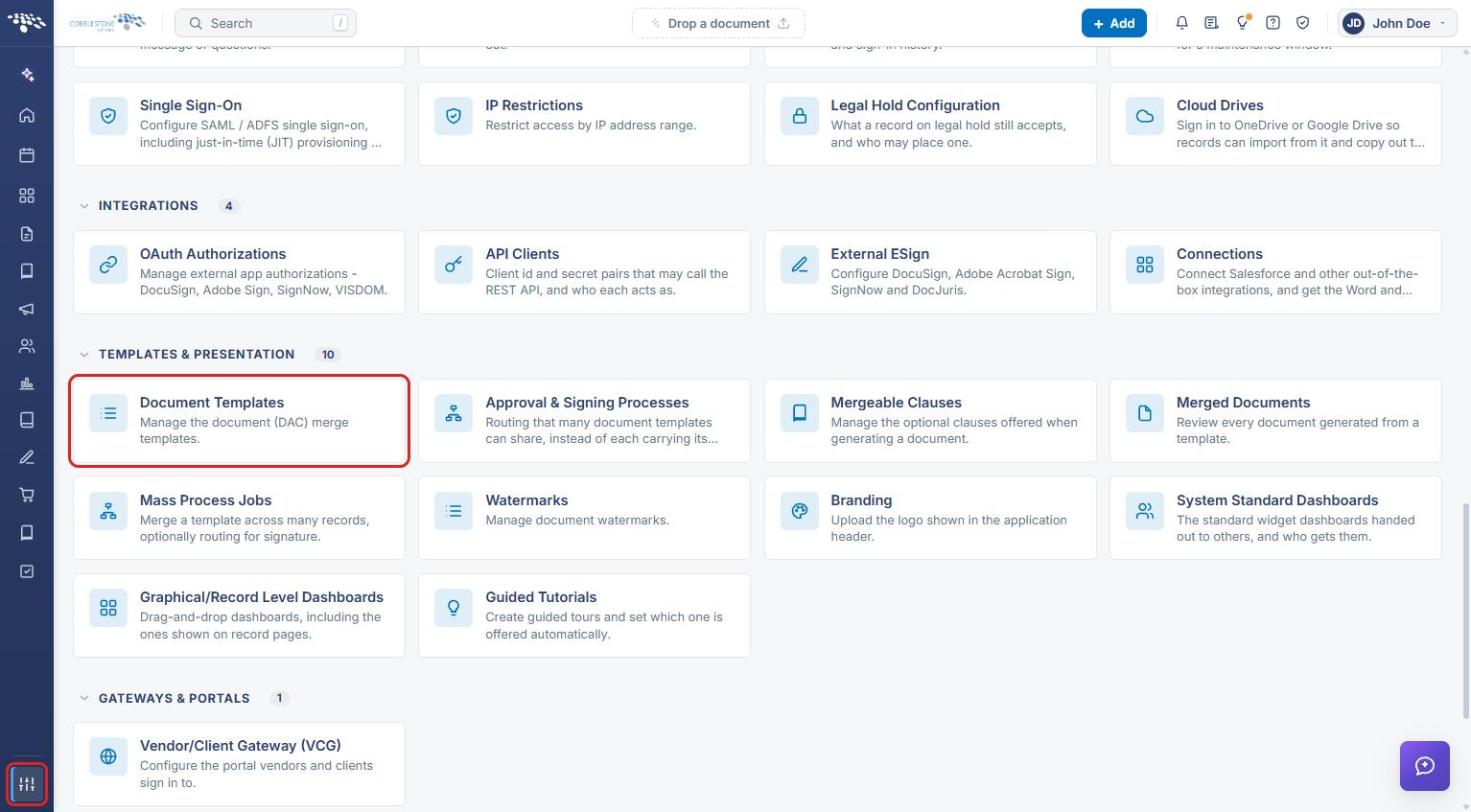
- From the Contract Insight homepage, click the Administration (settings) icon at the bottom of the left navigation bar.
- Under Templates & Presentation, click Document Templates.
- On the Document Templates grid, review the Signatures column to see each template's signature setting (for example, On · 3 steps or Off).
- Click Open on the template's row to open it.
4. Configuring a Template's Signature Flow
4a. Turning On E-Signatures
- Open the template (see Section 3) and click step 3 Approvals & signing.
- Click the E-Signatures tab.
- Under Whether a generated document is routed for signature, check Use E-Signatures – Enabled. Check Allow direct signing if needed.
- Select a Signature process (for example, Standard Signature Process).
- Click Save signature settings.
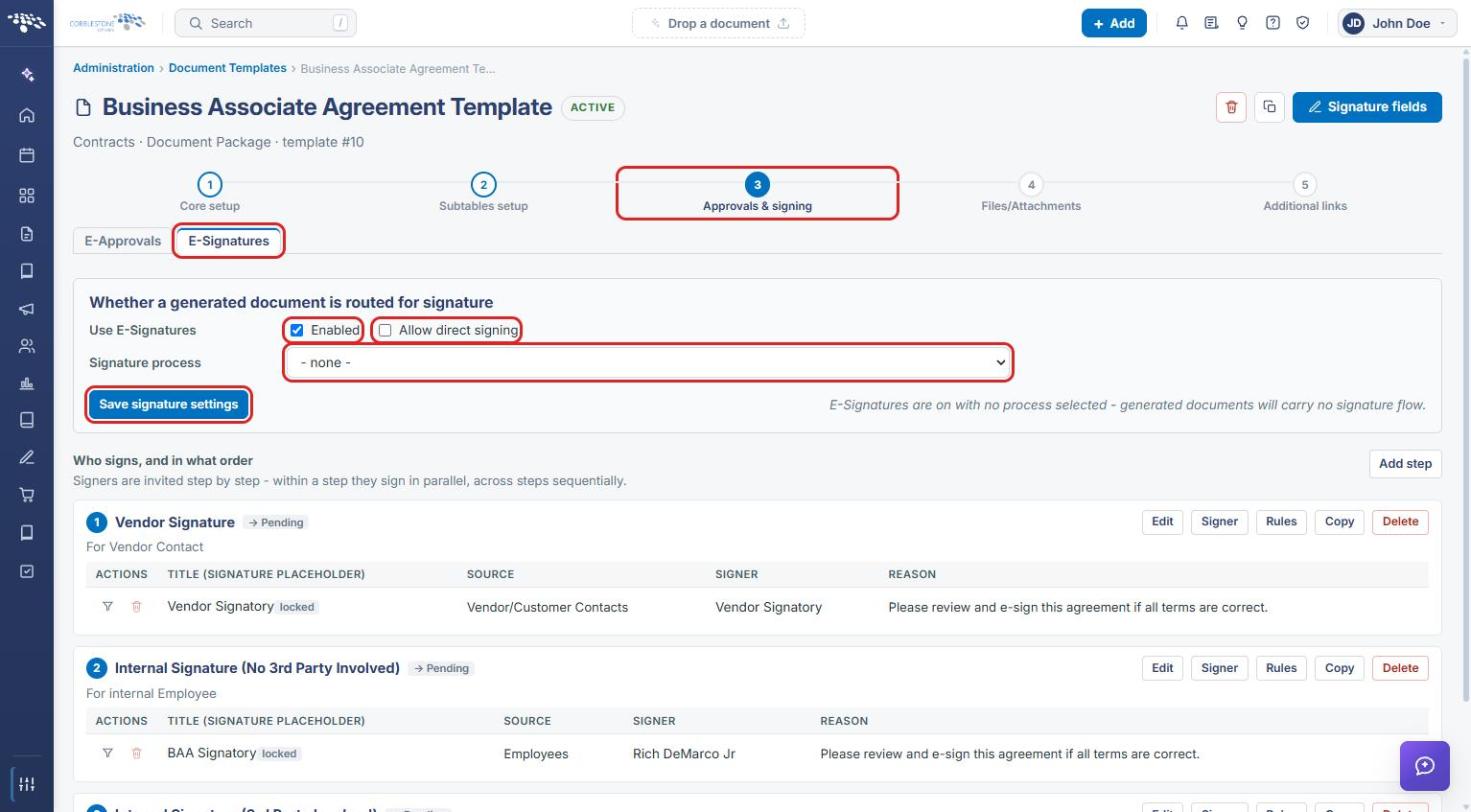
Note: If E-Signatures is enabled with no signature process selected, the page shows "E-Signatures are on with no process selected - generated documents will carry no signature flow." Confirm this message no longer appears before generating documents from the template.
4b. Reviewing the Signature Steps
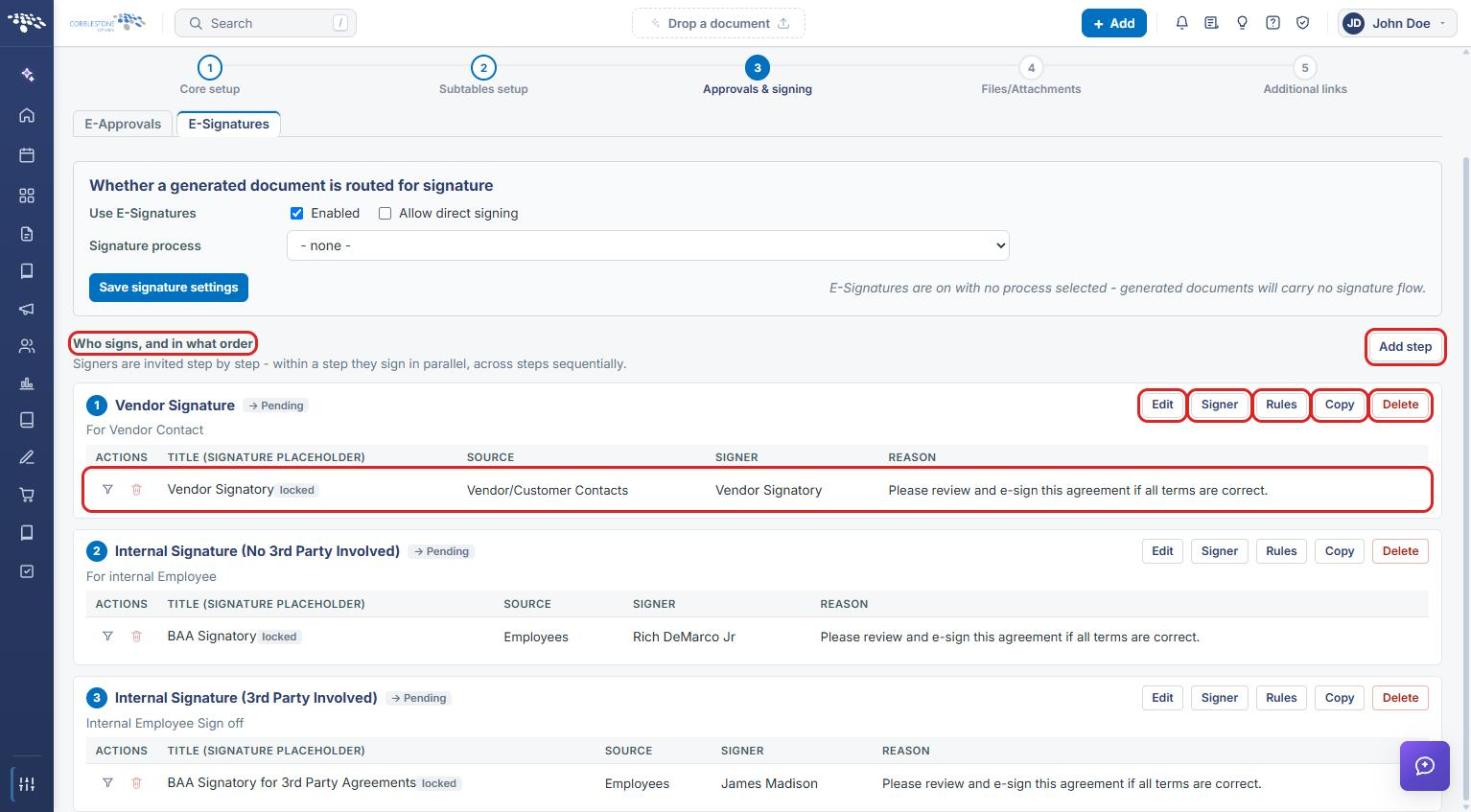
The Who signs, and in what order section lists the template's signature steps. Signers are invited step by step — within a step they sign in parallel, across steps sequentially. Each step lists its signers with their Title (signature placeholder), Source, Signer, and Reason. Use the buttons on the step's header to manage it:
- Edit – change the step's name, description, sequence, status, or reminders.
- Signer – add a signer to the step (see Section 4d).
- Rules – limit the step to records that match a condition (see Section 4e).
- Copy – add a copy of the step, and every signer in it, at the end of the flow.
- Delete – remove the step.
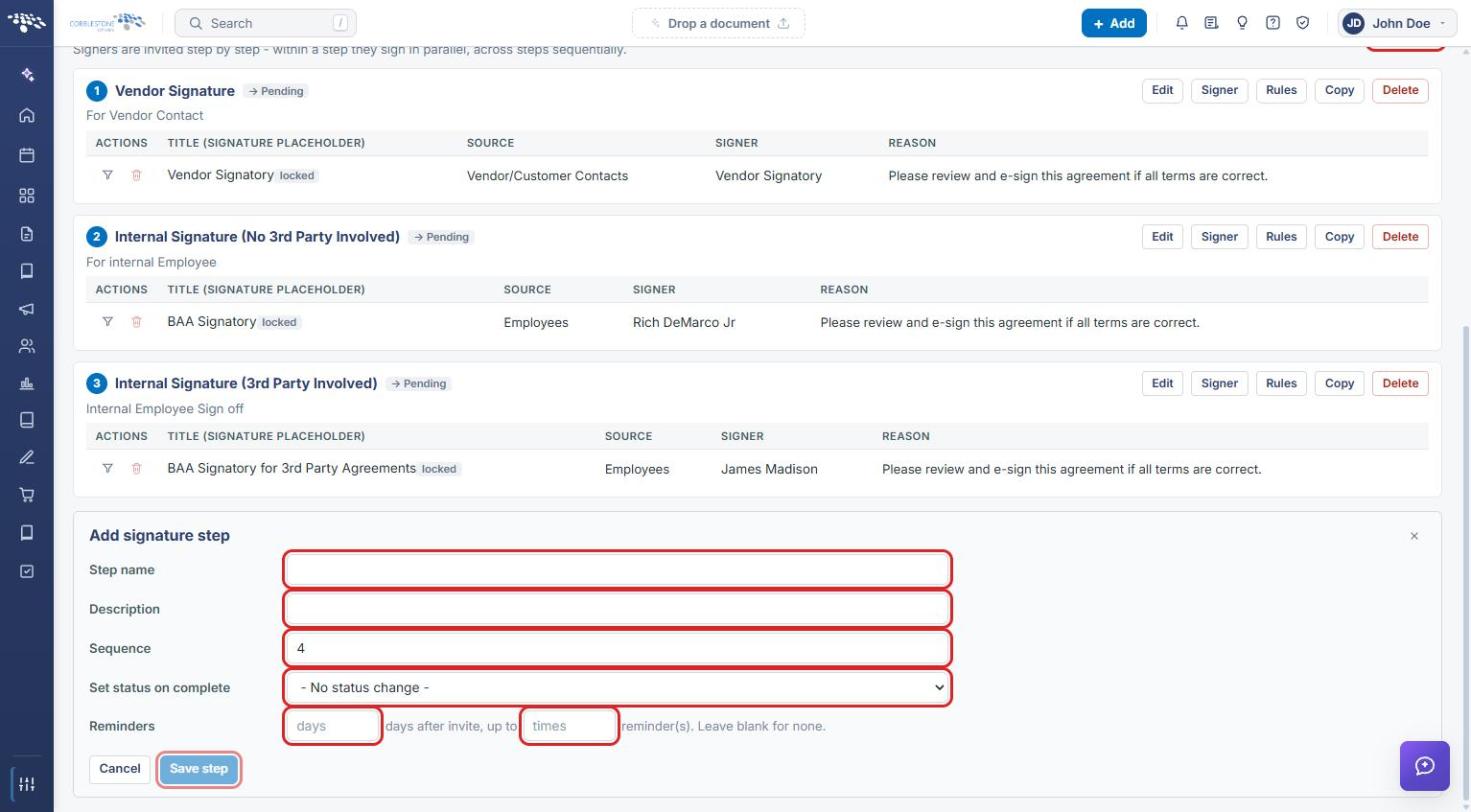
4c. Adding a Signature Step
- In the Who signs, and in what order section, click Add step.
- In the Add signature step form, enter a Step name and Description.
- Confirm the Sequence. It defaults to the next step number; steps run in sequence order.
- Optionally select a Set status on complete value to update the record's status when the step finishes.
- Optionally set Reminders: the number of days after the invite, up to a number of times. Leave both blank for no reminders.
- Click Save step.
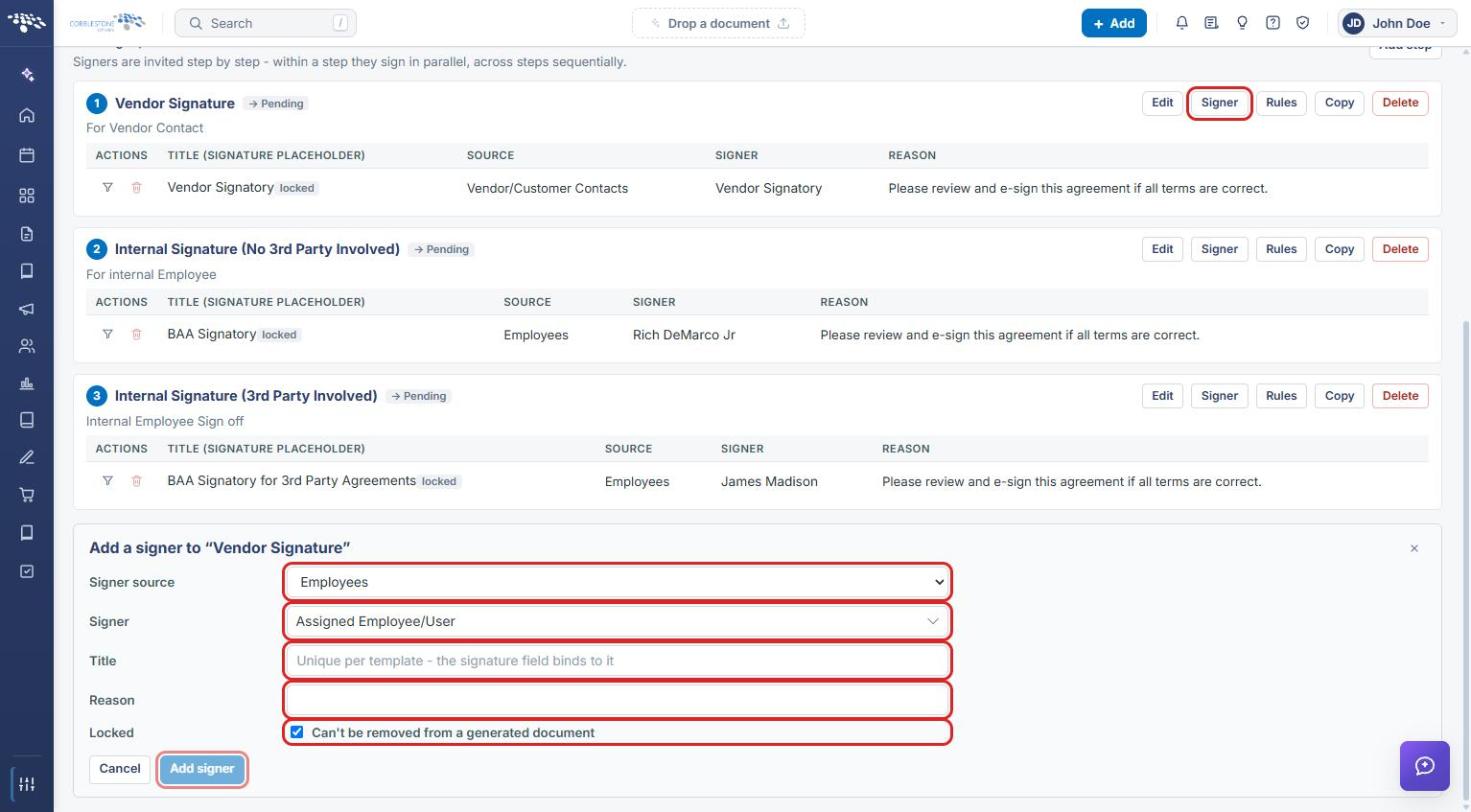
4d. Adding Signers to a Step
- Click Signer on the step's header.
- In the Add a signer to "<step name>" form, select the Signer source: Employees, Roles & Groups, or Vendor/Customer Contacts.
- Select the Signer.
- Enter a Title. The title must be unique per template — the signature field on the document binds to it.
- Enter a Reason (for example, "Please review and e-sign this agreement if all terms are correct.").
- Leave Locked checked if the signer can't be removed from a generated document.
- Click Add signer.
Tip: Use the Signature fields button at the top of the template to place where each signer signs on the template's document (see Setting Signature Place Holders - E-Signatures). On a signer's row, the filter icon sets when that signature is required.
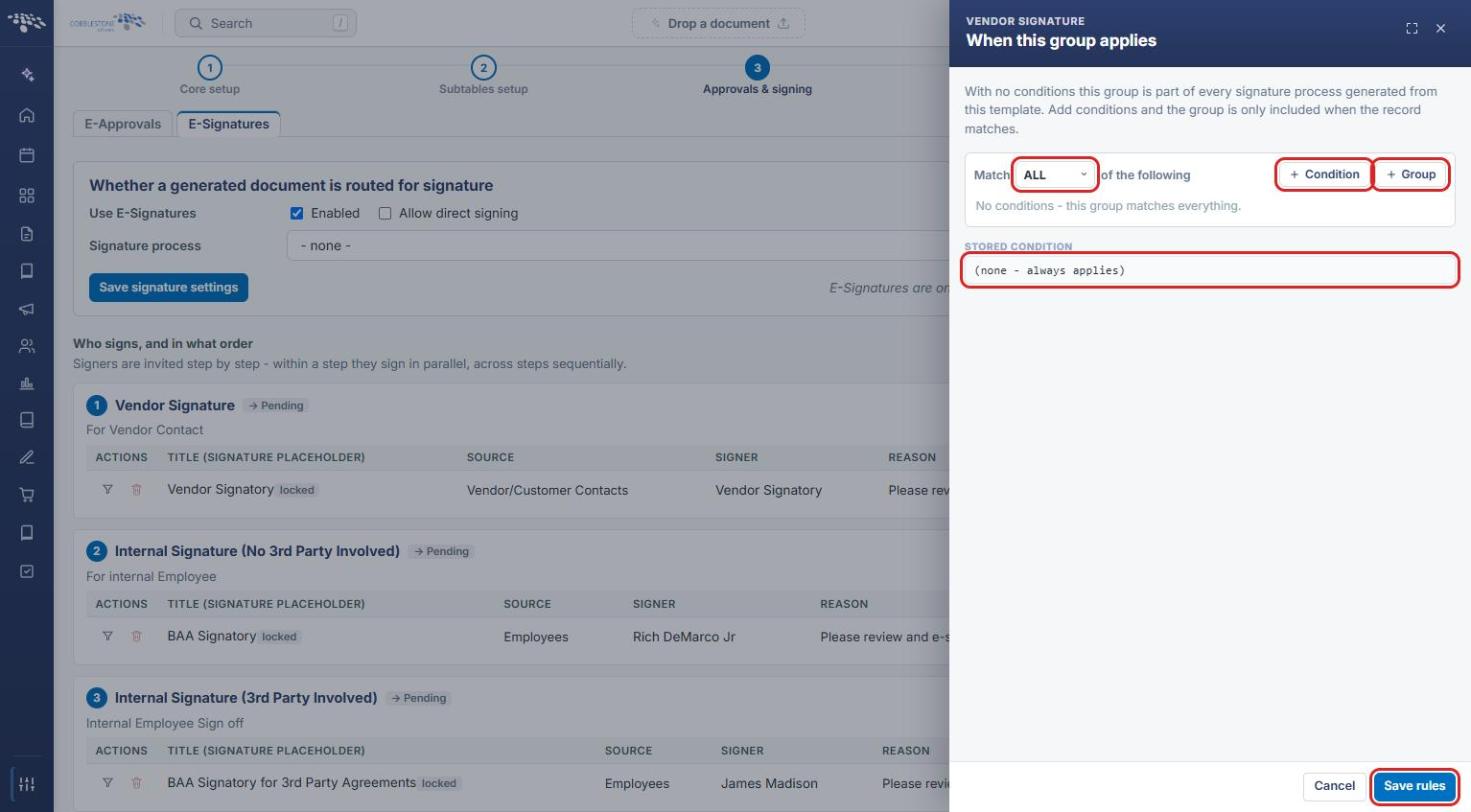
4e. Setting When a Step Applies (Rules)
- Click Rules on the step's header. The When this group applies panel opens.
- Set Match to ALL or ANY of the following conditions.
- Click + Condition to add a condition, or + Group to nest a group of conditions.
- Review the Stored condition. With no conditions it reads "(none - always applies)", and the step is part of every signature process generated from the template.
- Click Save rules.
5. Generating a Document That Starts the Signature Flow
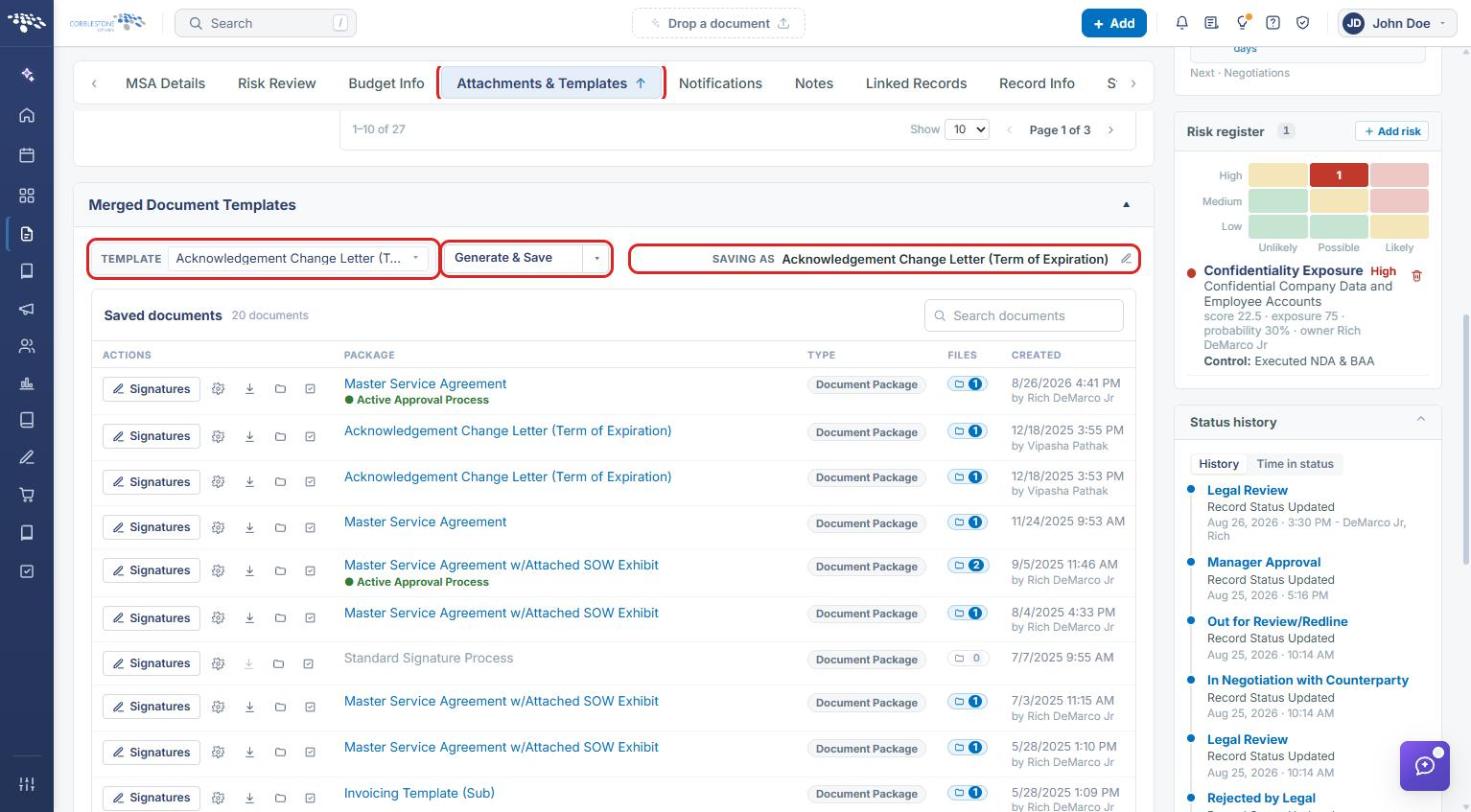
- From the Contract Insight homepage, open the record (for example, Requests/Contracts → Contracts, then click Manage on the contract's row).
- Click the Attachments & Templates tab.
- In the Merged Document Templates section, choose the template from the Template list. Templates marked can't generate can't be used on this record.
- Confirm the name under Saving as (click the pencil icon to change it).
- Click Generate & Save. The arrow beside it also offers Generate without saving, which downloads the document without saving it to the record.
6. Reviewing the Signers on a Generated Document
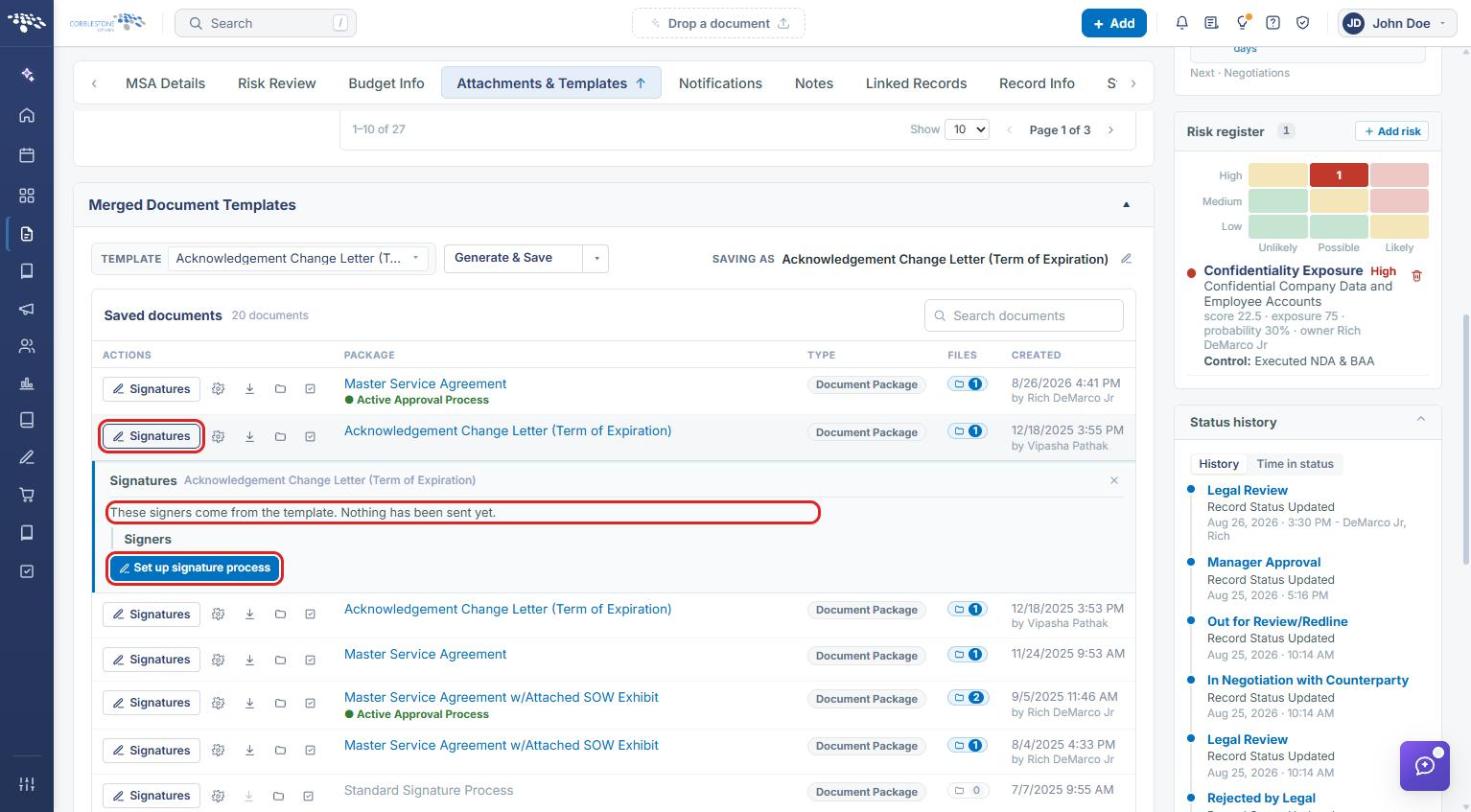
- In the Saved documents list, click Signatures on the document's row.
- The Signatures panel shows the signers carried over from the template ("These signers come from the template. Nothing has been sent yet.").
- Click Set up signature process to name the process and send it to signers (see E- Signature Processing).
7. Quick Reference Summary
| Task | How to Complete It |
|---|---|
| Open Document Templates | Administration (settings icon) → Templates & Presentation → Document Templates. |
| Check a template's signature setting | Document Templates grid → Signatures column (e.g. On · 3 steps). |
| Turn on E-Signatures | Open template → 3 Approvals & signing → E-Signatures tab → Enabled, select Signature process → Save signature settings. |
| Add a signature step | E-Signatures tab → Add step → complete the form → Save step. |
| Add a signer to a step | Step header → Signer → choose source, signer, title, reason → Add signer. |
| Limit when a step applies | Step header → Rules → add conditions → Save rules. |
| Duplicate or remove a step | Step header → Copy or Delete. |
| Generate a document | Record → Attachments & Templates → Merged Document Templates → choose Template → Generate & Save. |
| Review a document's signers | Saved documents → Signatures → Set up signature process. |