COBBLESTONE SOFTWARE
Contract Insight — User Guide
E-Approvals Processing
Document Templates: Generation/Merging › E-Approvals - Document Generation › E-Approvals Processing
Note: Each procedure in this guide begins at the Contract Insight homepage, so any section can be followed on its own. Custom fields are configurable, so the exact field list on a contract category record may vary between environments.
1. Overview
Once an e-approval process has been started on a generated document, it is tracked and managed from its process console. Processes are listed under Approvals & Signatures › Negotiation Processes, which shows every approval and signature process with the controls to intervene in a running one. The console shows the process status and a summary (Status, Groups finalized, Participants, Files, Created), then a Groups and participants section that lists each numbered approval group in order. The group currently being worked is marked current group and shows when it was notified, while later groups show not notified. Each participant is listed with their status (for example Pending or Expired), name, source, and role (for example Vendor Contact, Legal Reviewer, or Finance Approval). A Files in this process grid lists the documents being approved.
2. Key Elements
- Negotiation Processes lists every approval and signature process, with filters for type (Approvals only), status, and Started only, plus a Search box and an Open console button on each row.
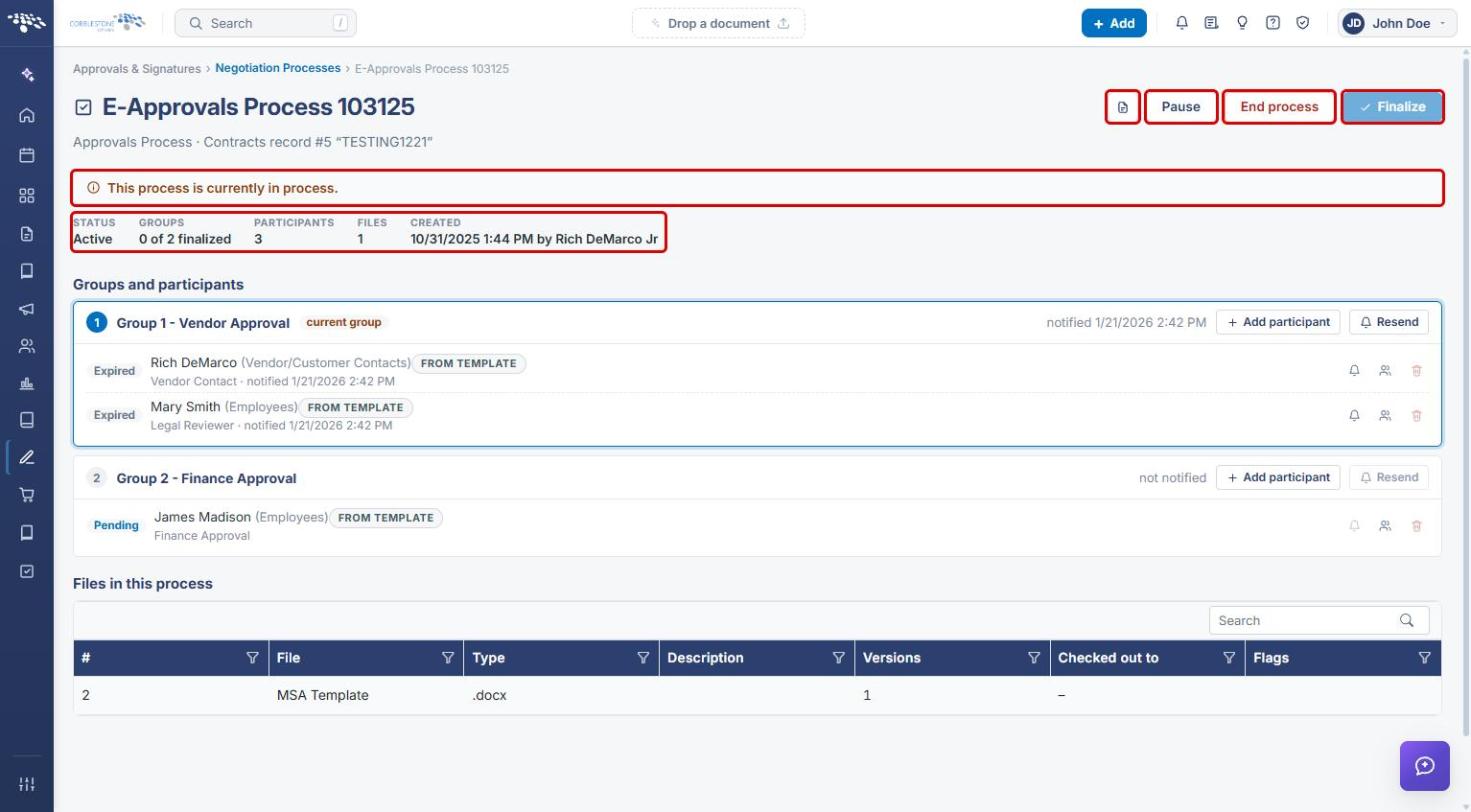
- The console header offers Open record, Pause, End process, and Finalize. Finalize is available only after every group has been finalized.
- Groups and participants numbers each group in sequence, marks the current group, and shows its notified timestamp (or not notified).
- Each group offers Add participant and Resend. Only the current group can be re-notified.
- Each participant shows a status, their name and role, a FROM TEMPLATE tag when they came from the template, and Re-send this invitation, Replace this participant, and delete icons.
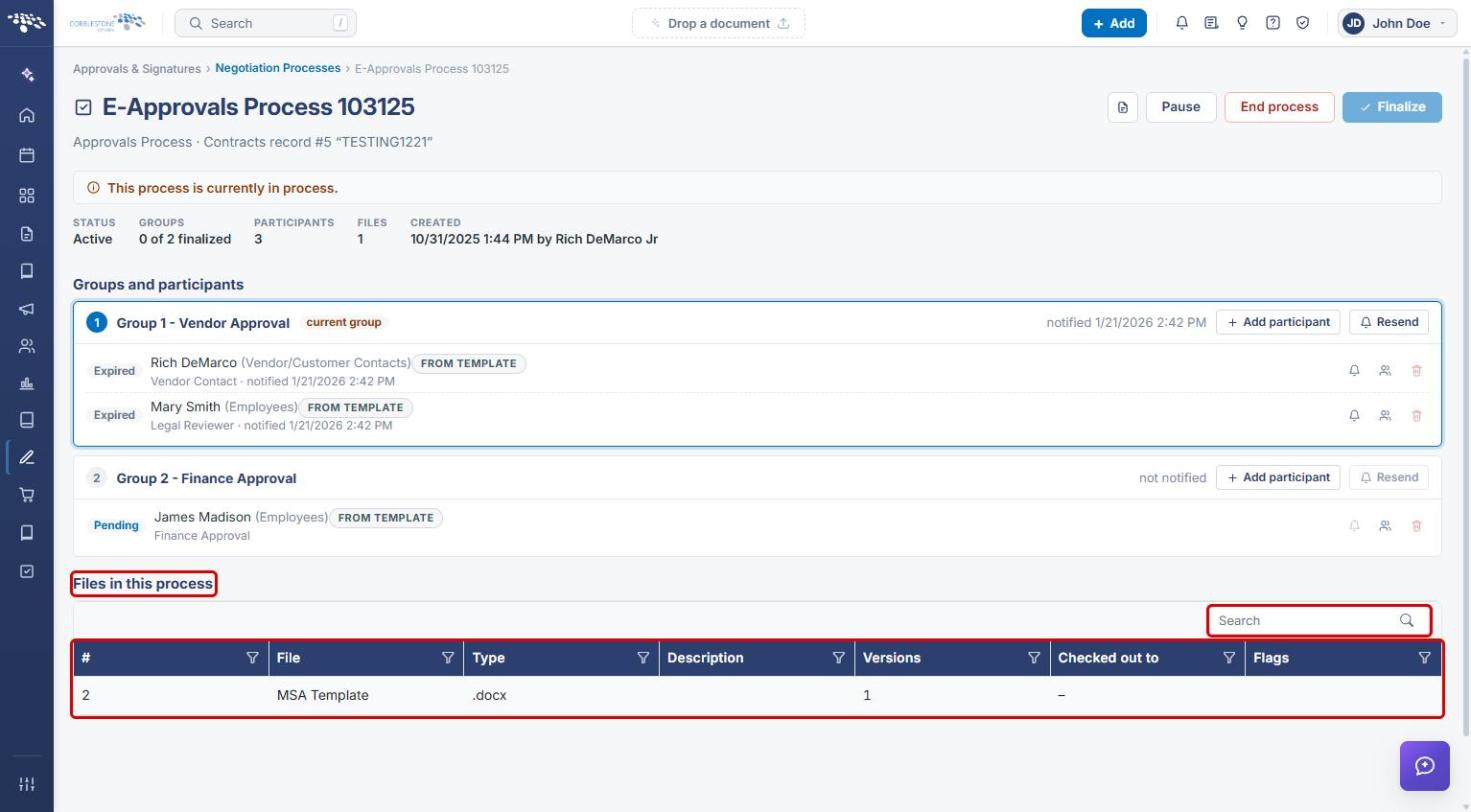
- Files in this process lists each file's #, File, Type, Description, Versions, Checked out to, and Flags.
3. Opening an Approval Process
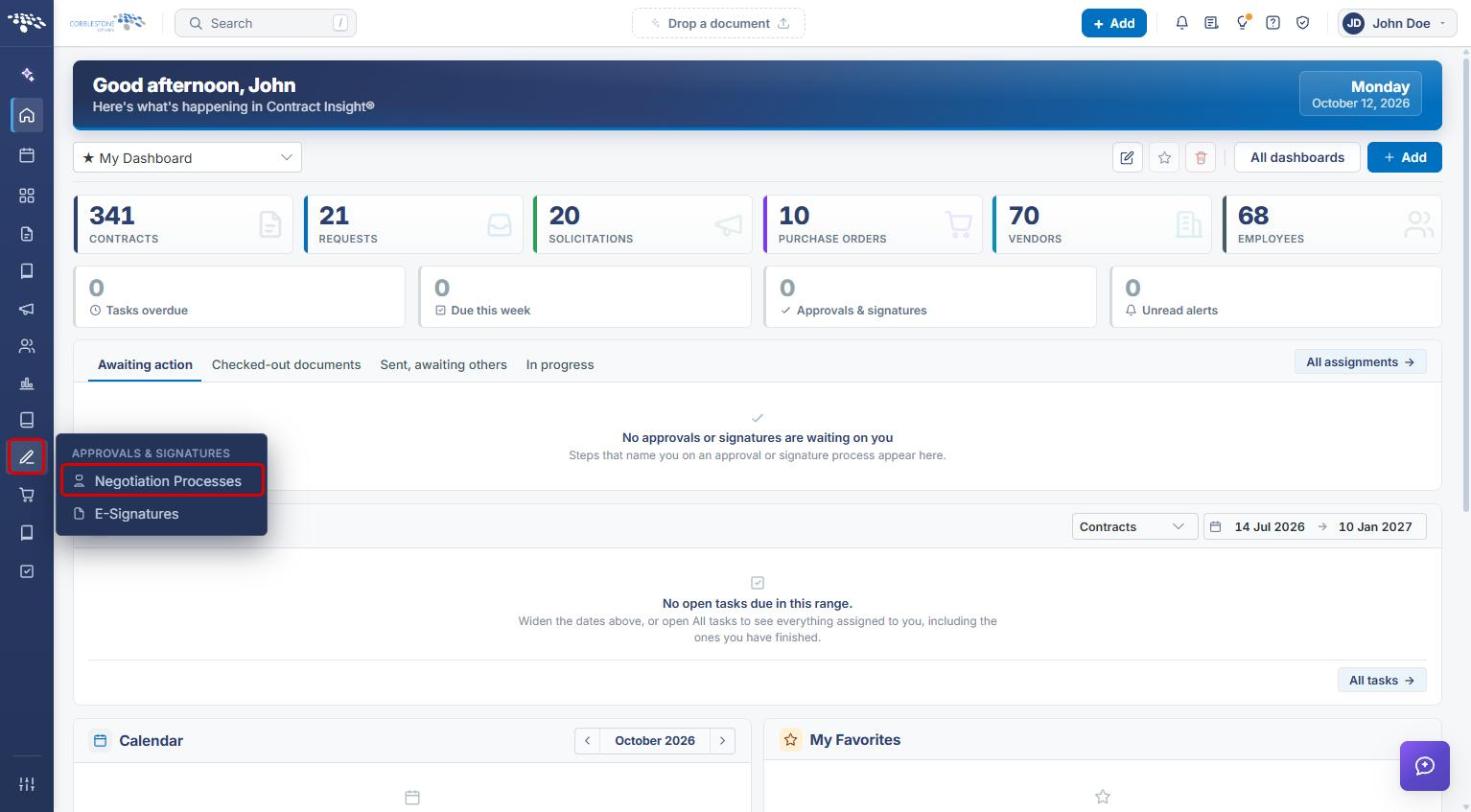
- From the Contract Insight homepage, click the Approvals & Signatures icon in the left navigation bar.
- Select Negotiation Processes.
- Set the type filter to Approvals only to hide signature processes. Optionally choose a status (for example Active) and leave Started only checked to hide processes that have not started.
- Use the Search box to find the process, then click Open console on its row.
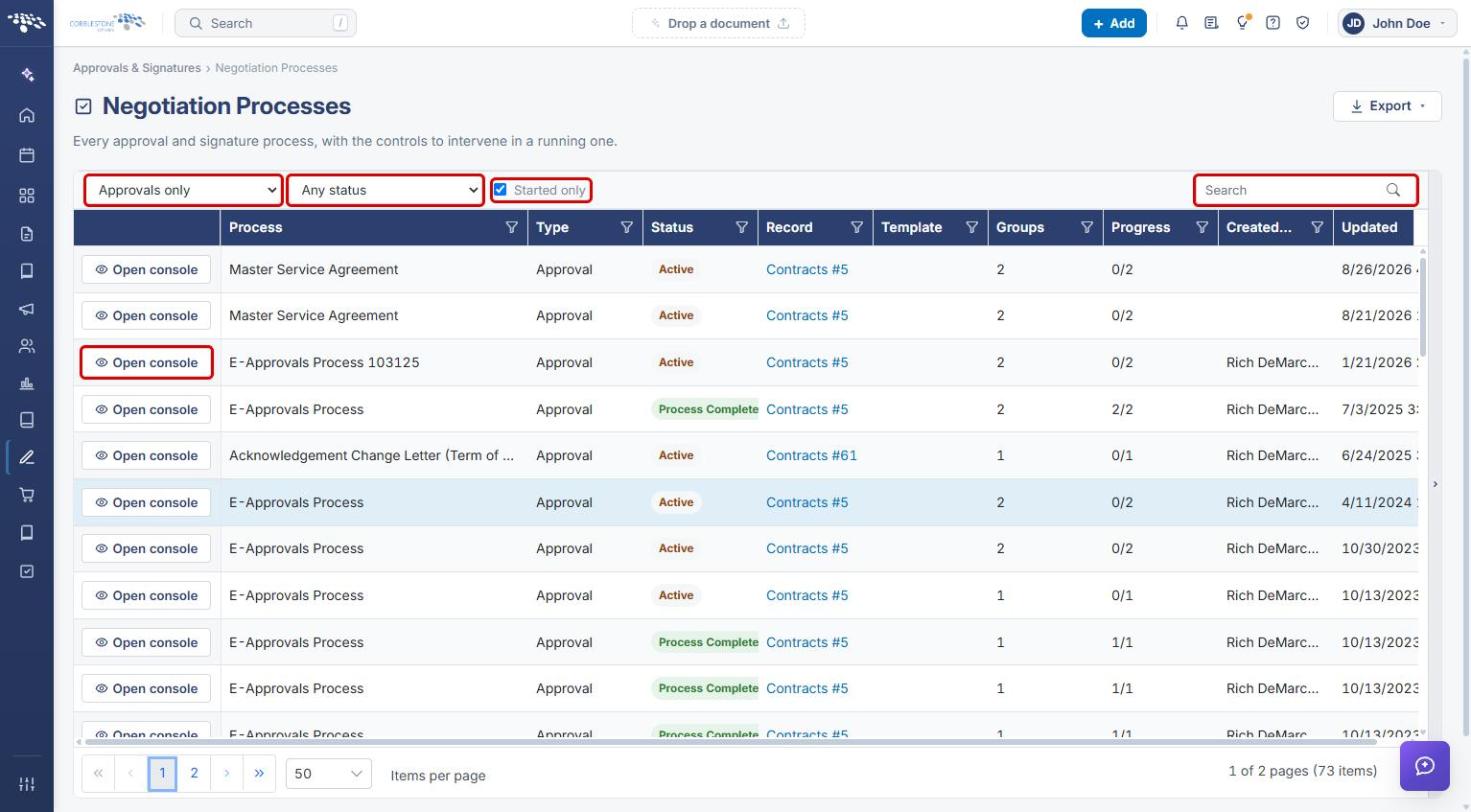
Note: Click the link in the Record column to go straight to the record the process belongs to. Use Export at the top right to export the list.
4. Reviewing the Process Console
The console opens with the process name, its type and record (for example, “Approvals Process · Contracts record #5”), and a status banner such as This process is currently in process.
- Review the summary bar: Status, Groups (for example 0 of 2 finalized), Participants, Files, and Created date and creator.
- Use the header buttons as needed: Open record (document icon), Pause, End process, and Finalize (see Section 9).
5. Tracking Groups and Participants
The Groups and participants section lists each approval group in the order it runs. Groups are notified one at a time.
- Find the group marked current group. Its notified timestamp shows when its participants were invited. Later groups read not notified until the earlier groups finish.
- Check each participant's status badge on the left (for example Pending for a participant not yet notified, or Expired when the invitation has lapsed).
- To re-notify everyone in the current group, click Resend on the group header. To re-notify one person, click the Re-send this invitation (bell) icon on their row.
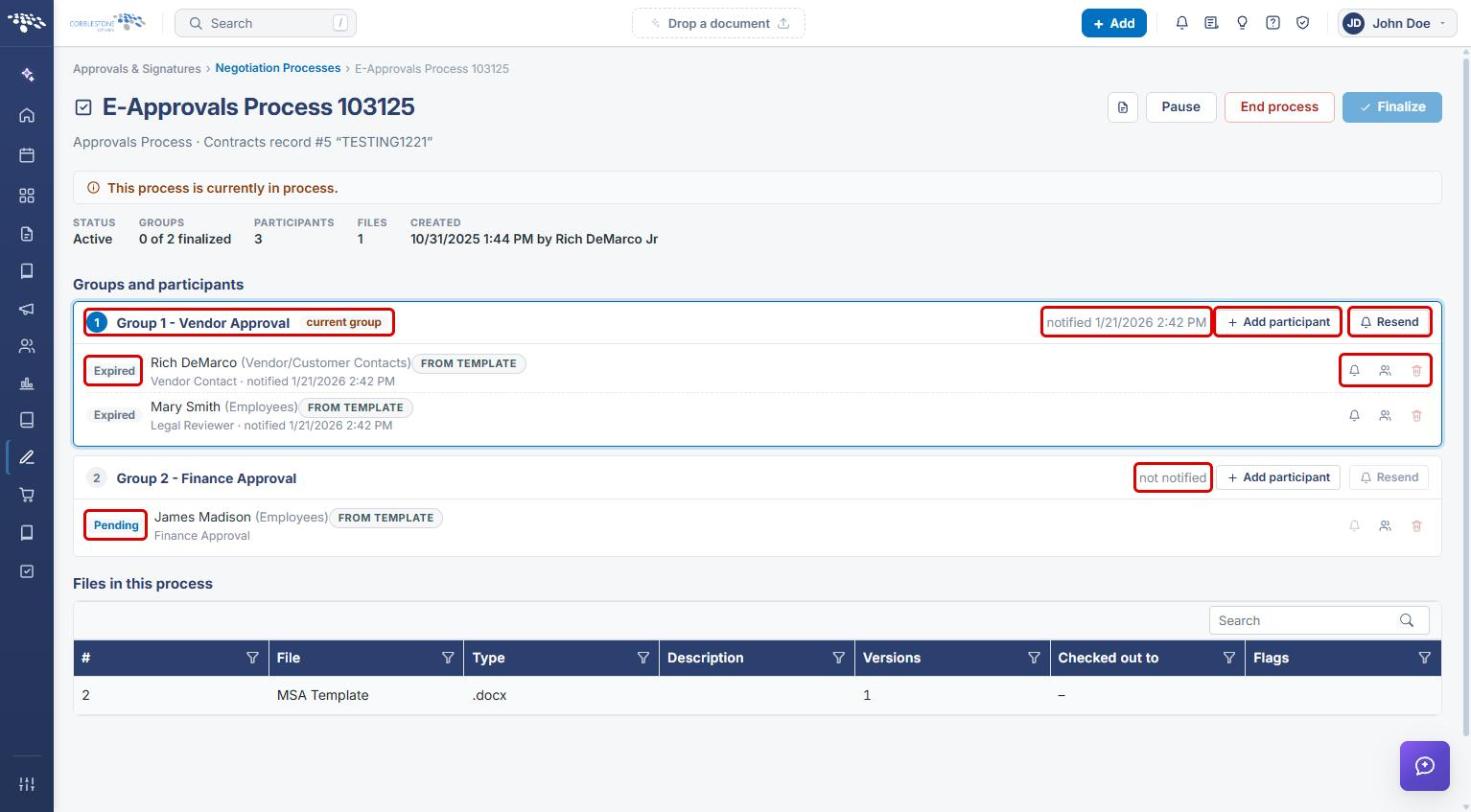
Note: Participants added through the template show a FROM TEMPLATE tag and cannot be deleted from the console. Use Replace this participant instead (see Section 7).
6. Adding a Participant to a Group
- Click Add participant on the group's header. The Add a participant to [group] panel opens below the groups.
- Choose the participant type: External participant, Employee participant, or Company contact participant.
- Enter the Full name and E-mail address (or select the employee or contact), and optionally explain Why are they being added?
- Click Add, or Cancel to close the panel.
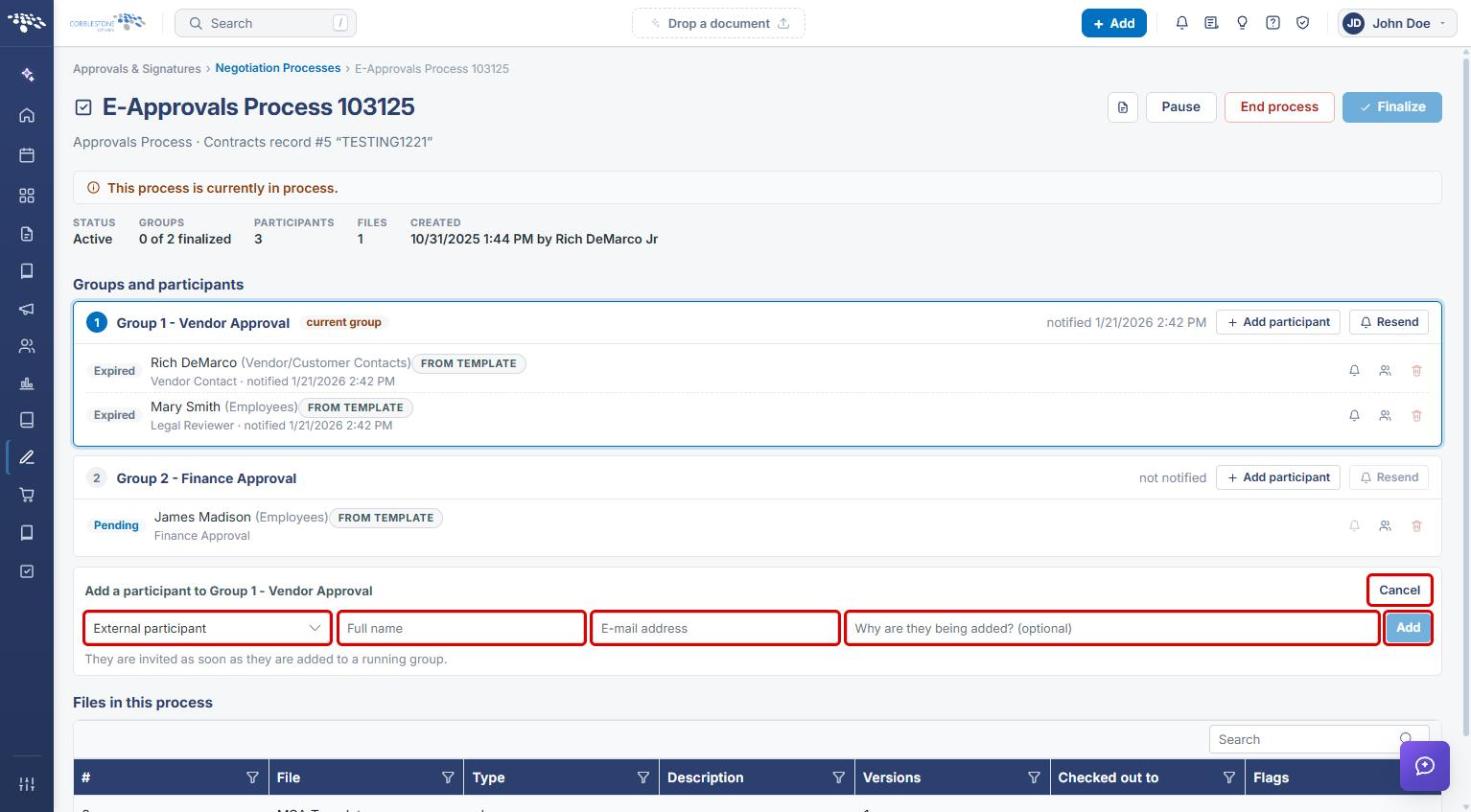
Note: Participants added to a running group are invited as soon as they are added.
7. Replacing a Participant
- Click the Replace this participant (people) icon on the participant's row. The Replace “[name]” in this group panel opens.
- Select the replacement from the drop-down and enter Why are you replacing them?
- Click Replace, or Cancel to close the panel.
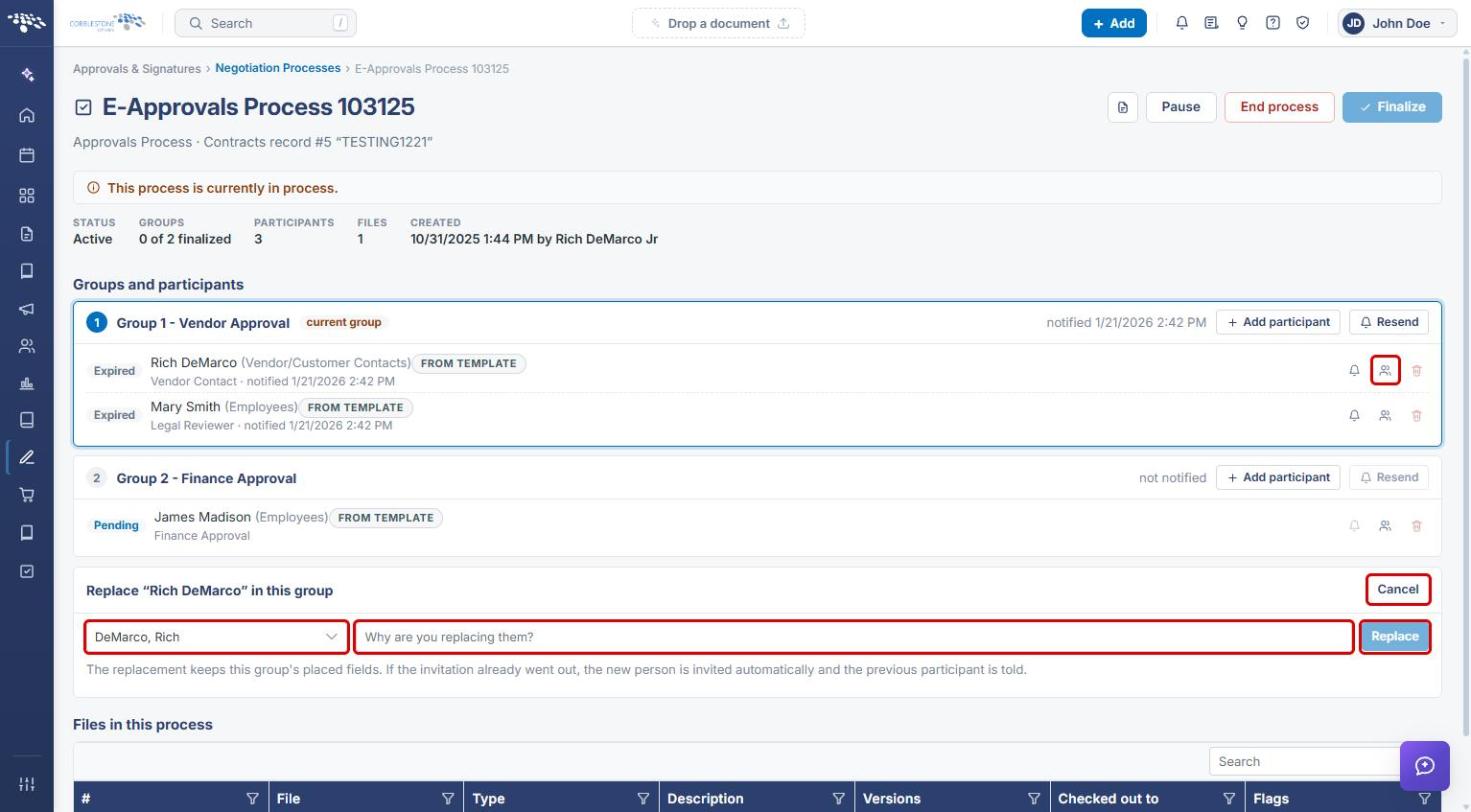
Note: The replacement keeps the group's placed fields. If the invitation already went out, the new person is invited automatically and the previous participant is told.
8. Reviewing Files in the Process
The Files in this process grid lists the documents being approved, with each file's #, File, Type, Description, Versions, Checked out to, and Flags. Use the Search box or column filter icons to find a file.
9. Pausing, Ending, or Finalizing a Process
- Pause temporarily stops the process. Resume it from the same console.
- End process cancels the running process.
- Finalize completes the process. It is available only once every group has been finalized (for example, 2 of 2).
These buttons are in the console header (see the screenshot in Section 4).
10. Quick Reference Summary
| Task | How to Complete It |
|---|---|
| Open the process list | Approvals & Signatures → Negotiation Processes. |
| Show only approval processes | Type filter → Approvals only. |
| Open a process | Open console on the process's row. |
| See which group is active | Groups and participants → group marked current group. |
| Re-notify the current group | Resend on the group header. |
| Re-notify one participant | Re-send this invitation (bell) icon on their row. |
| Add a participant | Add participant → choose type → enter details → Add. |
| Replace a participant | Replace this participant icon → select replacement → Replace. |
| Open the related record | Console header → Open record (document icon). |
| Pause, end, or finalize | Console header → Pause, End process, or Finalize. |