COBBLESTONE SOFTWARE
Contract Insight — User Guide
Data Aggregator Overview
Risk Compliance › OFAC › Data Aggregator Overview
Note: Each procedure in this guide begins at the Contract Insight homepage, so any section can be followed on its own. Custom fields are configurable, so the exact field list on a contract category record may vary between environments.
1. Overview
Administration › Data Aggregator Service is described as “The compliance feeds companies and employees are screened against.” It has four tabs: Connection, OFAC, SAM.gov, and Dun & Bradstreet. The Connection tab holds one set of CobbleStone-issued credentials that covers OFAC screening, SAM.gov exclusion checks, and FAR/DFAR clause updates. Once connected, it shows a live Status with Access Granted and Access Expires timestamps; until then, a banner explains that the service hasn't been set up yet. User name and Password fields sit alongside Test connection and Save credentials buttons, and saving new credentials ends the current access straight away so the next screening run signs in again with them. The OFAC and SAM.gov tabs configure sanctions and debarment screening, while Dun & Bradstreet has its own separate connection for company data enrichment.
2. Key Elements
- Data Aggregator Service is the single admin tool for every third-party compliance data feed: OFAC sanctions, SAM.gov debarment, and Dun & Bradstreet, plus FAR/DFAR clause updates.
- The Connection tab holds the shared CobbleStone-issued credentials for OFAC, SAM.gov, and FAR/DFAR clause updates. Dun & Bradstreet is separate, with its own tab and connection.
- Connection status is shown live, with Access Granted and Access Expires timestamps for the current session.
- Test connection and Save credentials let an admin verify and rotate the shared credentials. Saving new ones immediately ends the current access.
- The OFAC and SAM.gov tabs set the match threshold and which record fields are compared. Changes on these tabs are saved with Save changes.
3. Navigating to the Data Aggregator Service
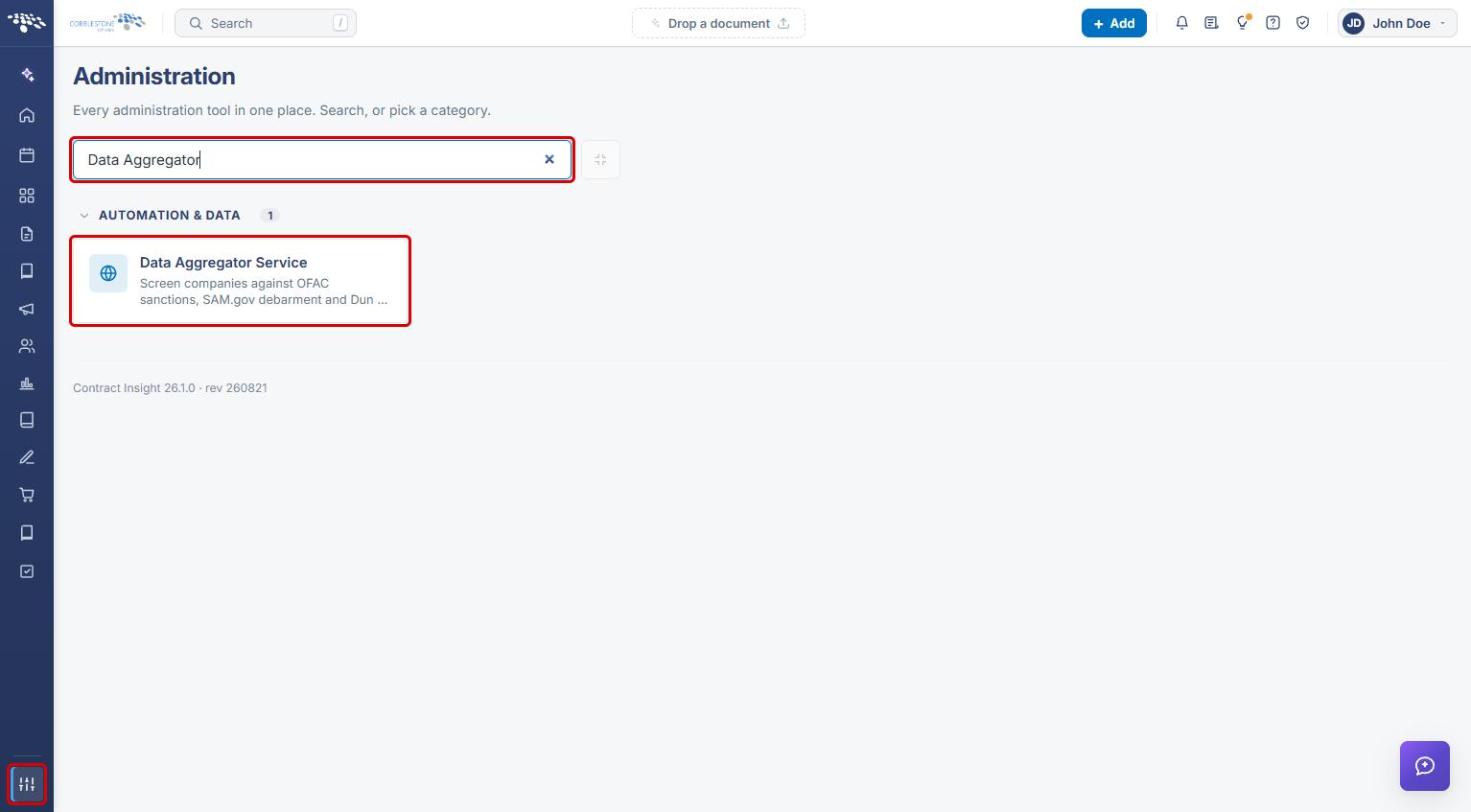
- From the Contract Insight homepage, click the Administration (settings) icon at the bottom of the left navigation bar.
- In the Search administration… box, type Data Aggregator, then click the Data Aggregator Service card (under Automation & Data).
4. Connecting the Data Aggregator Service
- On the Connection tab, review the status. If the service hasn't been set up, a banner reads “The Data Aggregator service hasn't been set up yet, so OFAC and SAM.gov screening can't run.”
- Enter the User name and Password that CobbleStone issued to you.
- Click Test connection to confirm the credentials work.
- Click Save credentials. Once connected, the tab shows the Status, Access Granted, and Access Expires timestamps.
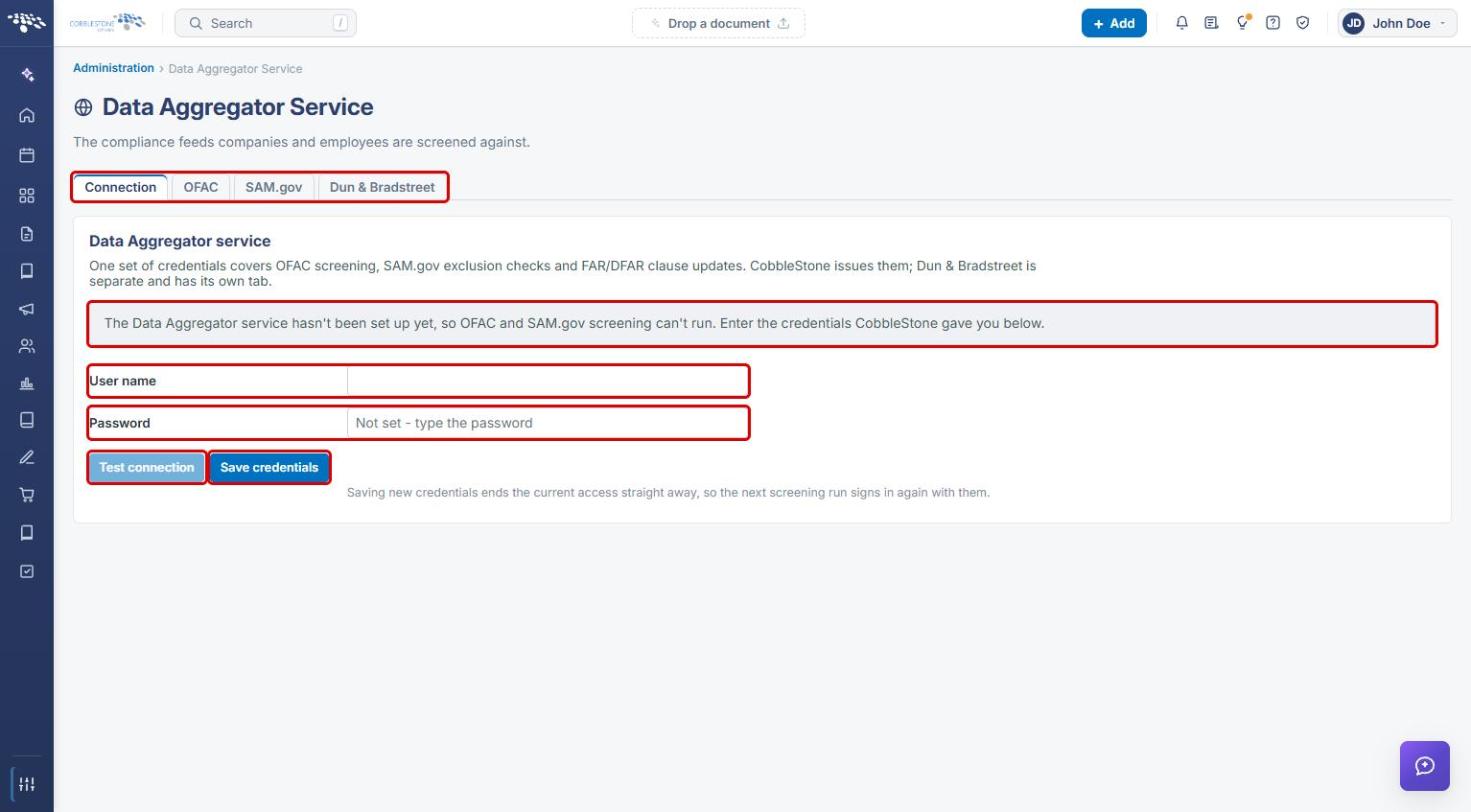
Note: Saving new credentials ends the current access straight away, so the next screening run signs in again with them.
5. Configuring OFAC Screening
OFAC screening compares a company or person against the US sanctions and watch lists. Settings are made separately for Companies and vendors and for Employees and users.
- Click the OFAC tab.
- Turn Screen companies against OFAC on or off.
- Set Report a match at to a value between 70 and 100 (% similarity or above). Lower values report more possible matches to review; higher values report fewer and may miss a misspelling. 80 suits most systems.
- Choose whether to Also search alternate names (aliases), which catches more but reports more to review.
- Set When more than one field is mapped (for example, Any one of them may match).
- Under Which fields are compared, map Name (required) and, optionally, Street address, City, State or province, and Country to fields on the record. Leave a field Not compared rather than mapping it to a field people don't fill in.
- Scroll down and repeat for Employees and users, then click Save changes.
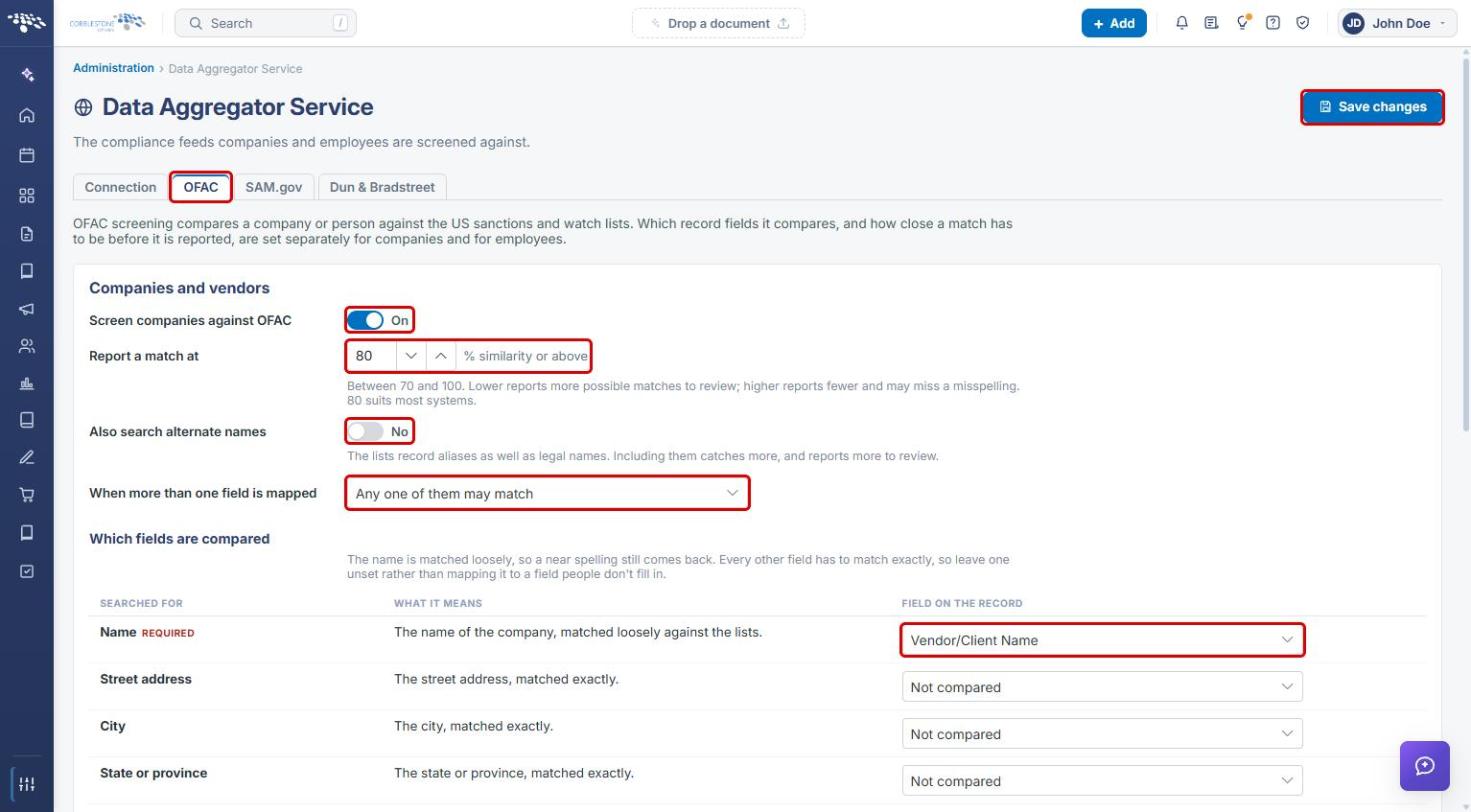
Note: The name is matched loosely, so a near spelling still comes back. Every other field must match exactly.
6. Configuring SAM.gov Exclusion Checks
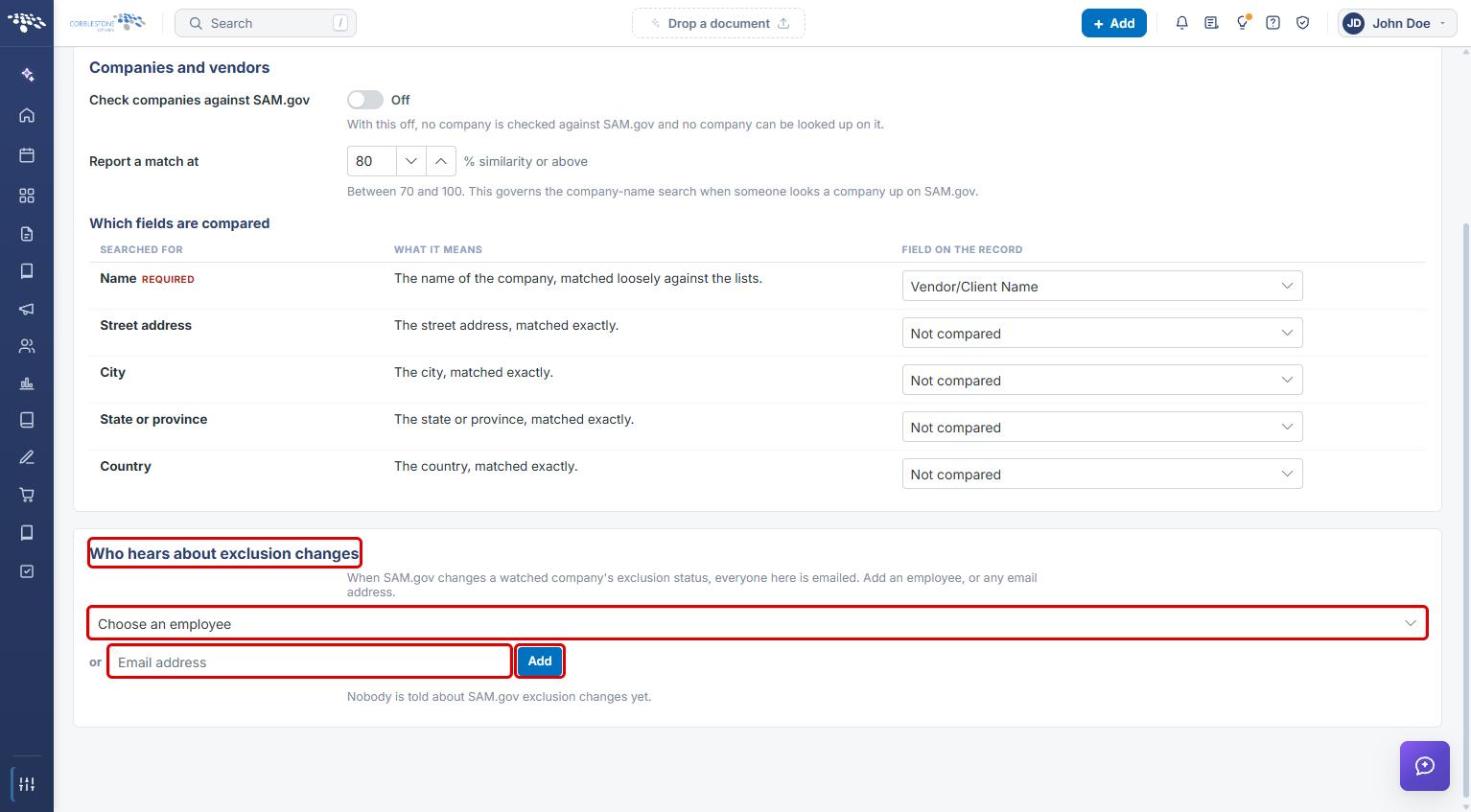
SAM.gov holds the federal exclusion (debarment) list. A company matched to its SAM.gov entity is checked against it, and selected people are told when its status changes.
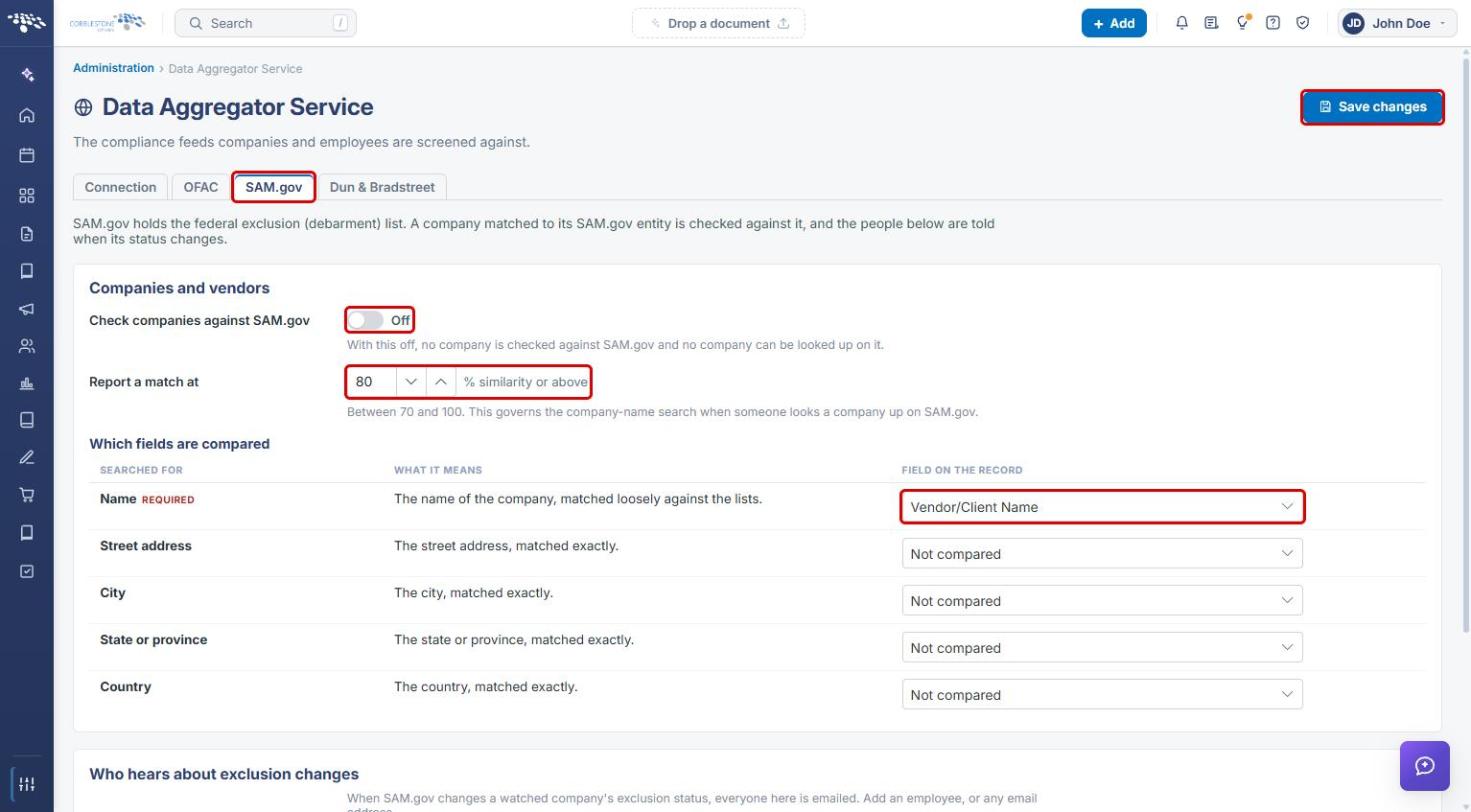
- Click the SAM.gov tab.
- Turn Check companies against SAM.gov on. With this off, no company is checked against SAM.gov and no company can be looked up on it.
- Set Report a match at (70–100). This governs the company-name search when someone looks a company up on SAM.gov.
- Under Which fields are compared, map Name (required) and any optional address fields.
- Click Save changes.
6a. Choosing Who Hears About Exclusion Changes
- Scroll to Who hears about exclusion changes.
- Select an employee from Choose an employee, or type an Email address.
- Click Add. Everyone listed is emailed when SAM.gov changes a watched company's exclusion status.
7. Connecting Dun & Bradstreet
Dun & Bradstreet issues its own API key and secret and is configured separately from the shared Data Aggregator credentials.
- Click the Dun & Bradstreet tab.
- Enter the API key and API secret from D&B.
- Optionally enter a Monitoring reference (the subscription D&B pushes company changes to). Leave it blank if you aren't using monitoring.
- Turn Connection in use on.
- Under What to receive, for each data block you have purchased (Company Information, Financial Strength Insights, Third-Party Risk Insights), turn on Receive, optionally Watch for changes, and choose the Version and Level.
- Click Save changes.
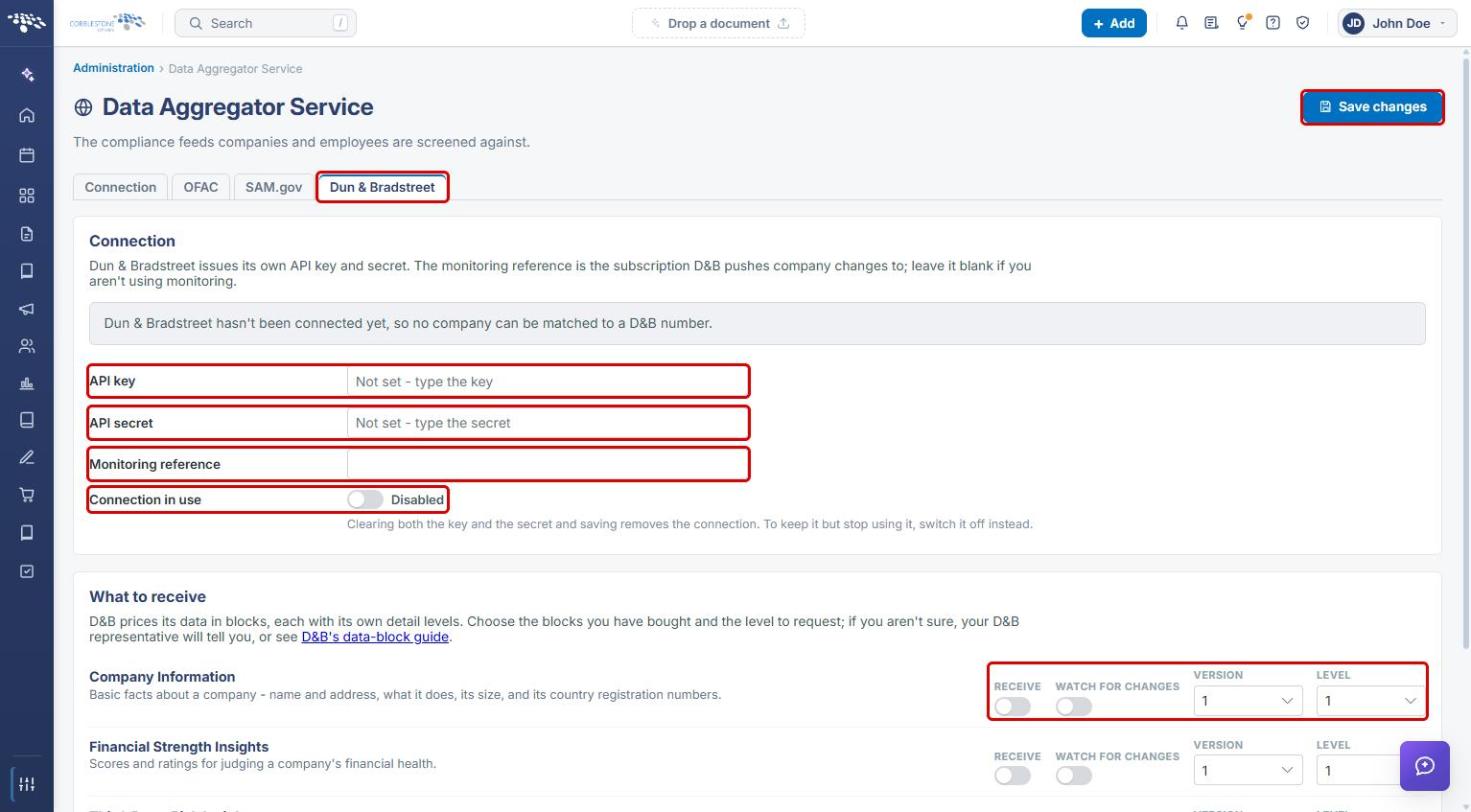
Note: Clearing both the key and the secret and saving removes the connection. To keep it but stop using it, switch Connection in use off instead. Turning off Watch for changes for every block withdraws your companies from D&B monitoring.
8. Quick Reference Summary
| Task | How to Complete It |
|---|---|
| Open the Data Aggregator Service | Administration → search “Data Aggregator” → Data Aggregator Service. |
| Connect or rotate credentials | Connection tab → User name, Password → Test connection → Save credentials. |
| Turn OFAC screening on or off | OFAC tab → Screen companies against OFAC / Screen employees against OFAC → Save changes. |
| Change how close a match must be | OFAC or SAM.gov tab → Report a match at (70–100) → Save changes. |
| Choose which fields are compared | OFAC or SAM.gov tab → Which fields are compared → map each field. |
| Turn SAM.gov checks on | SAM.gov tab → Check companies against SAM.gov → Save changes. |
| Notify people of exclusion changes | SAM.gov tab → Who hears about exclusion changes → employee or email → Add. |
| Connect Dun & Bradstreet | Dun & Bradstreet tab → API key, API secret → Connection in use → Save changes. |