Contract Financials
Contract Details: Financials
Financial detail on a contract is split between dedicated subtables (Financials, Budgeting, Price / Cost Schedule, Price / Cost Line Items) reachable from the Subtables tab, and a spend summary surfaced on the Linked Records tab that rolls up purchase-order activity against the contract's budget — showing purchase-order total, budget total, remaining amount, and both used and remaining as percentages.
- Financials, Budgeting, Price / Cost Schedule, and Price / Cost Line Items subtables hold financial line items
- Linked Records tab's PO / Spend Against Budget widget totals purchase orders against budget
- That widget reports amount used and amount remaining, both in dollars and as percentages
Add a Financial Transaction for a Contract
1. Access the Financials section of the Contract Details screen by clicking the Subtables tab.
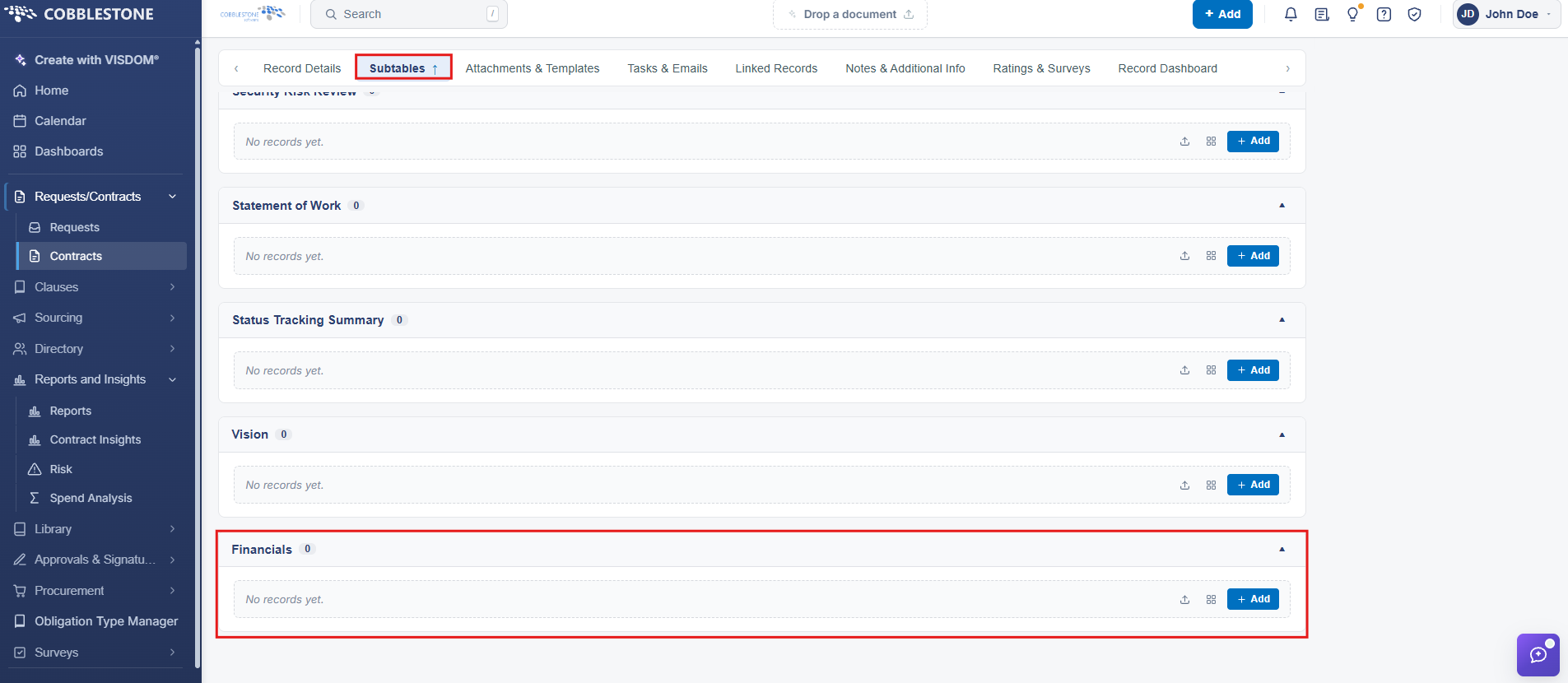
3. To add financial infor click Add. nter the necessary information. Click Save to save the transaction information. 
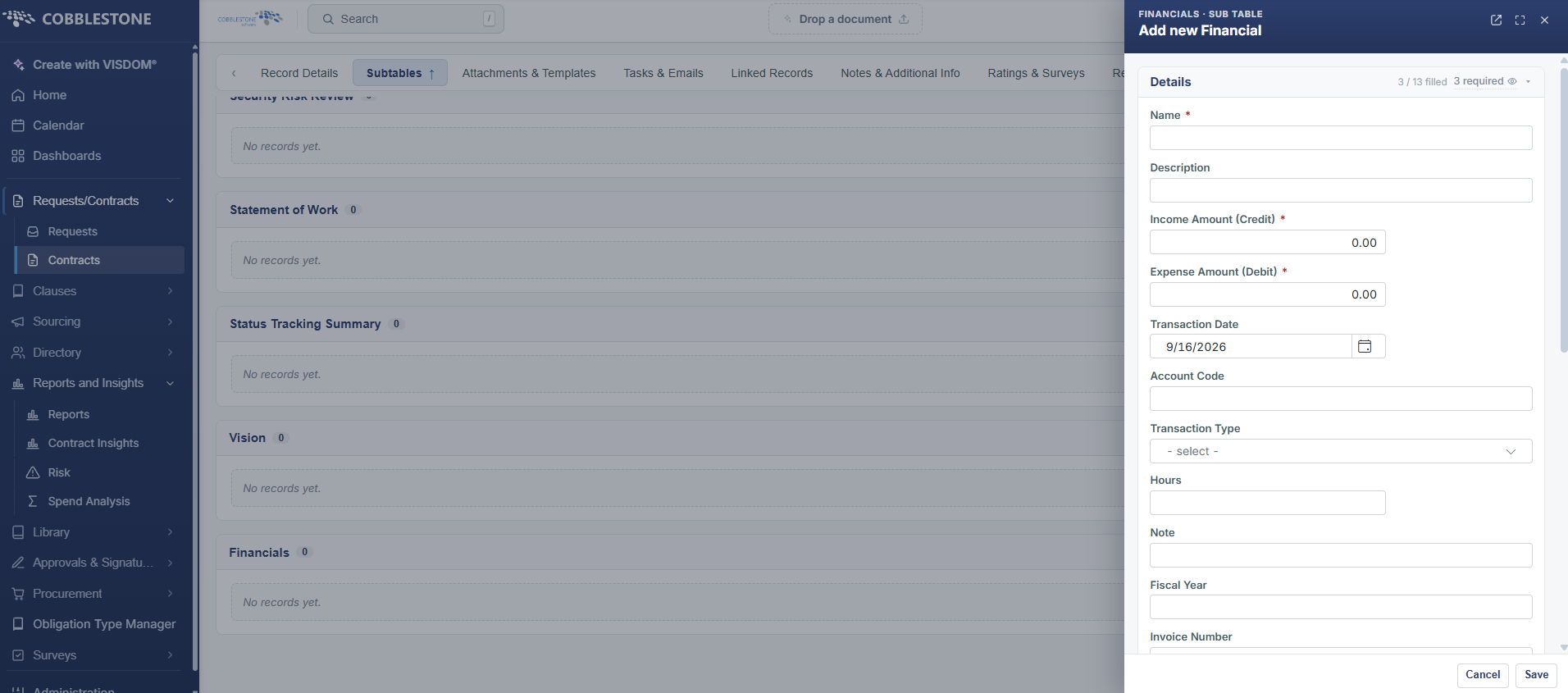
Import Financial Data
1. Click Import Data icon on the side menu of the Add button.

2. The Import Data screen displays.
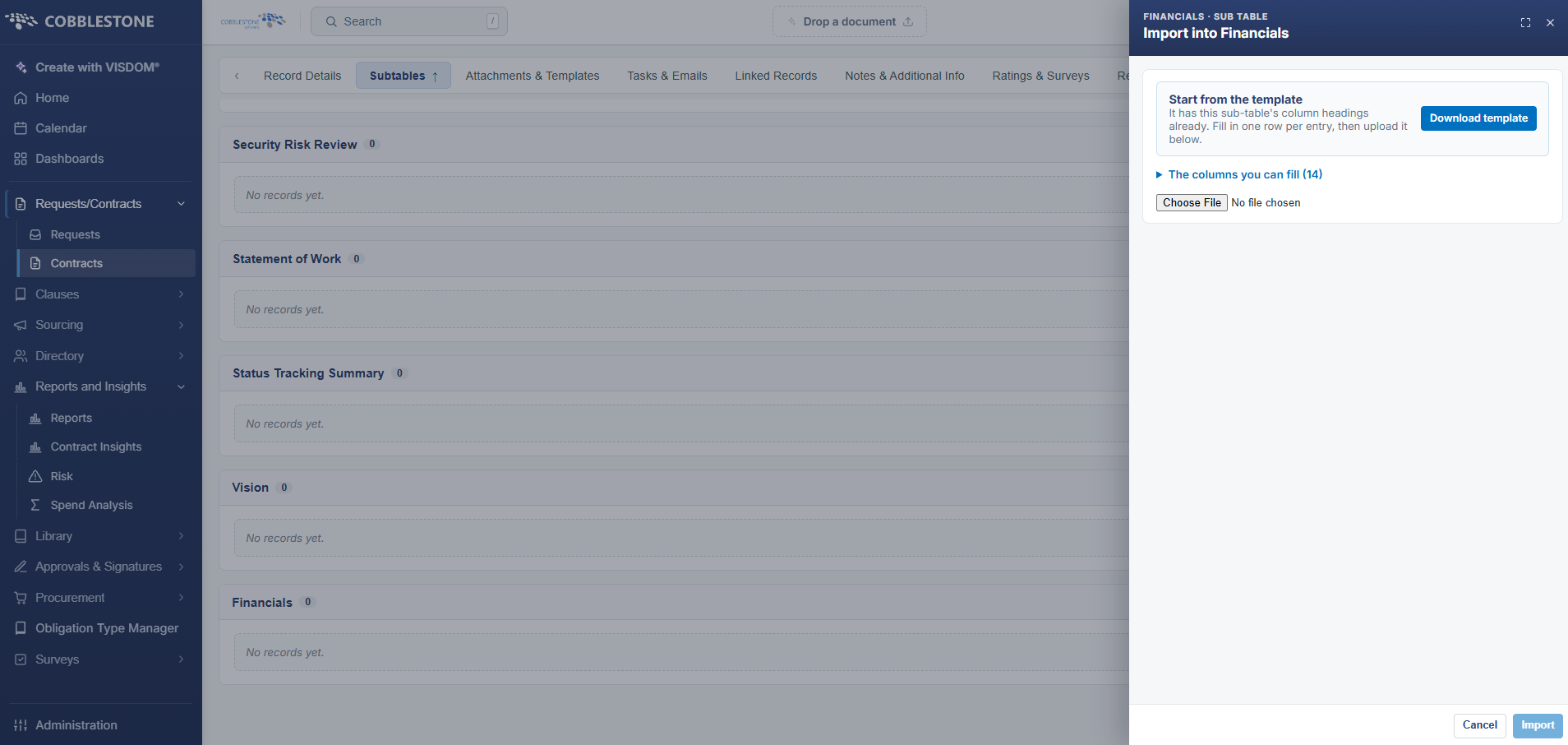
3. Select the import destination from the drop down menu.
4. Click Click to download this Template file.
5. Choose the destination for the template.
6. The template opens in Excel.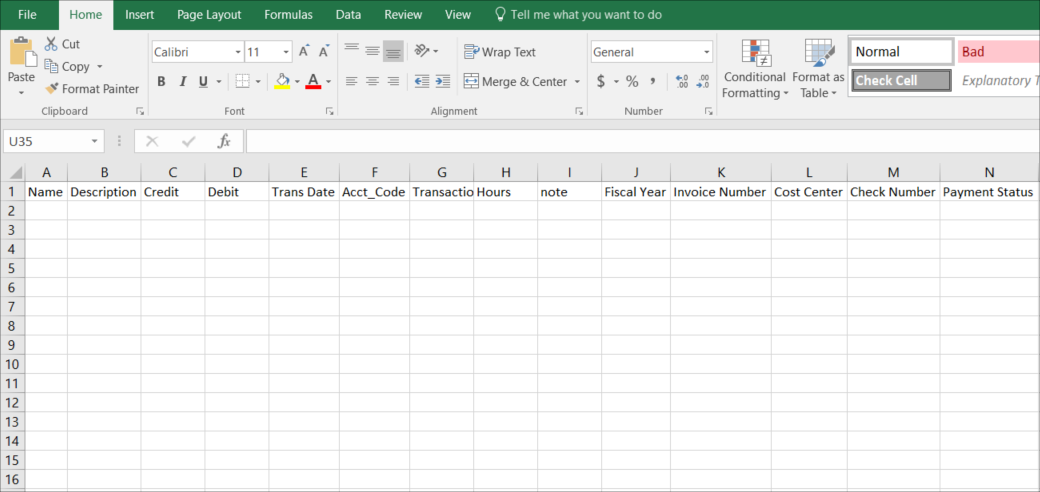
7. Enter the necessary data for each column.
8. Save the file as a .csv file to your computer.
9. Click Choose File on the Import Data screen in Contract Insight. Find and select the .csv file previously saved.
10. After selecting the file, the file address appears in the text box next to Browse. Click Import. The data will show below on the screen.
Note: A budget alert is sent automatically from your Contract Insight system once the contract's total incurred amount in the Financials section has reached a threshold. The system is defaulted to send the alert when the total incurred amount reaches 80% of the defined budget amount.