COBBLESTONE SOFTWARE
Contract Insight — User Guide
Contract Attachments on the Vendor/Client Gateway
07. End Users - Contracts › Contract Details on the Vendor/Client Gateway › Contract Attachments on the Vendor/Client Gateway
Note: Each procedure in this guide begins at the Contract Insight homepage, so any section can be followed on its own. The settings in this guide are on administrator screens, so you need administrator access to change them. Custom fields are configurable, so the exact field list on a contract category record may vary between environments.
1. Overview
File visibility on Gateway contracts is governed by two Vendor/Client Gateway (VCG) settings — Allow Viewing and Adding of Files, which determines whether a vendor or client can see and upload files at all, and Allow Previewing and Downloading of Files/Attachments, which further decides whether they can only preview a file or also download it — combined with which File Categories carry a Gateway collaboration type. All VCG settings live on a single page, Administration → Vendor/Client Gateway (VCG), on the Settings tab, grouped into sections such as Access, Content, Emails and General. Changes are not applied until you click Save changes.
2. Key Elements
- Allow Viewing and Adding of Files (VCG Settings → Access) is the master switch for file visibility on the Gateway.
- Allow Previewing and Downloading of Files/Attachments (VCG Settings → Access) narrows that further: On allows preview and download; Off allows preview only.
- Only File Categories with a Default Collaboration Type of Gateway are relevant to what a vendor or client uploads or sees. Categories set to Internal stay inside Contract Insight.
- Vendor document upload message (VCG Settings → Content) is the text shown above the File Upload box on the Create Account form.
- Allow vendor to upload document before account creation and Allow vendor to upload documents after account creation (VCG Settings → General) decide when a new vendor can upload files during sign-up.
- Enable Alerts for File Uploads (VCG Settings → Emails) sends notifications when files are uploaded from the Gateway.
3. Navigating to the Vendor/Client Gateway Settings
- From the Contract Insight homepage, click the Administration icon (sliders) at the bottom of the left navigation bar.
- On the Administration page, scroll to Gateways & Portals (or type Gateway in the Search administration… box) and click Vendor/Client Gateway (VCG).
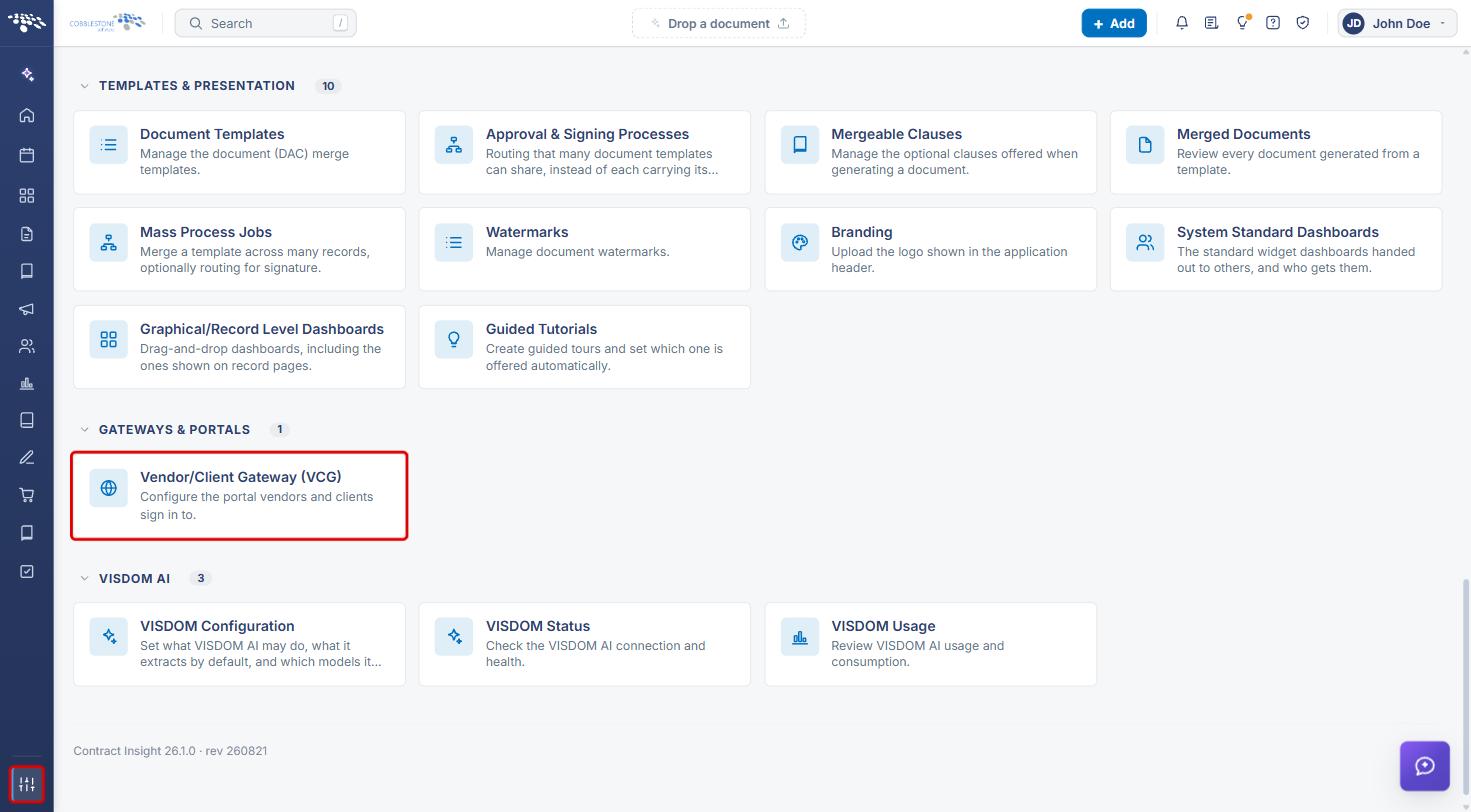
The Vendor/Client Gateway (VCG) page opens on the Settings tab.
4. Configuring File Access on the Gateway
4a. Allowing Vendors/Clients to View, Add, Preview and Download Files
- Navigate to Administration → Vendor/Client Gateway (VCG) (see Section 3) and confirm the Settings tab is selected.
- In the Access section, set Allow Viewing and Adding of Files to On so vendor/client users can see and add files.
- Set Allow Previewing and Downloading of Files/Attachments to On to allow files to be previewed and downloaded, or Off to allow preview only.
- Click Save changes at the top right of the page.
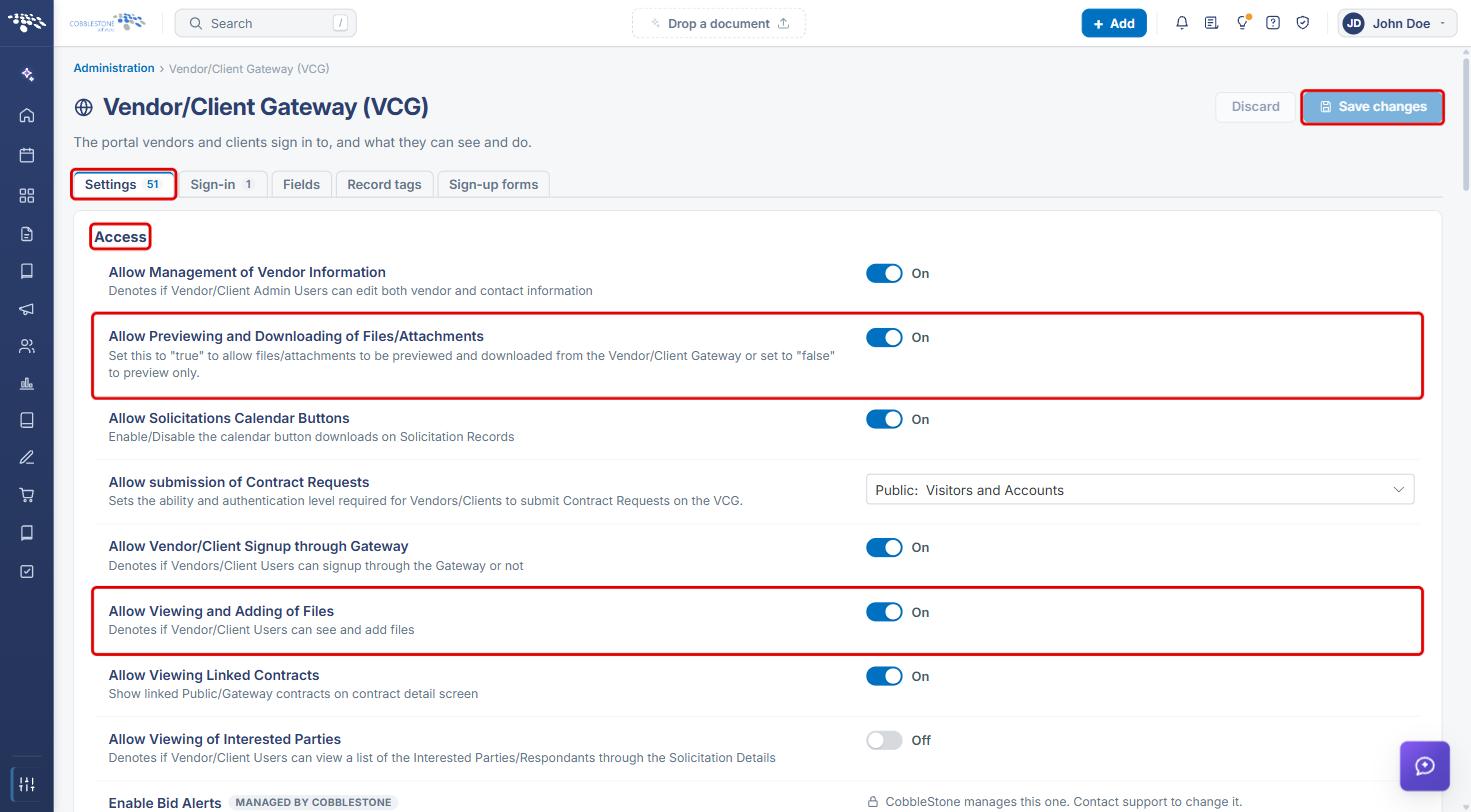
The two Access toggles work together as follows:
| Allow Viewing and Adding of Files | Allow Previewing and Downloading of Files/Attachments | What the vendor/client can do |
|---|---|---|
| Off | On or Off | Cannot see or upload files on the Gateway. |
| On | Off | Can see and upload files, and preview them, but cannot download them. |
| On | On | Can see, upload, preview and download files. |
4b. Setting the Upload Message and File Upload Alerts
- On the Settings tab, scroll to the Content section and enter the text for Vendor document upload message. This message is displayed above the File Upload box on the Create Account form.
- In the Emails section, set Enable Alerts for File Uploads to On to send notifications when files are uploaded.
- Click Save changes.
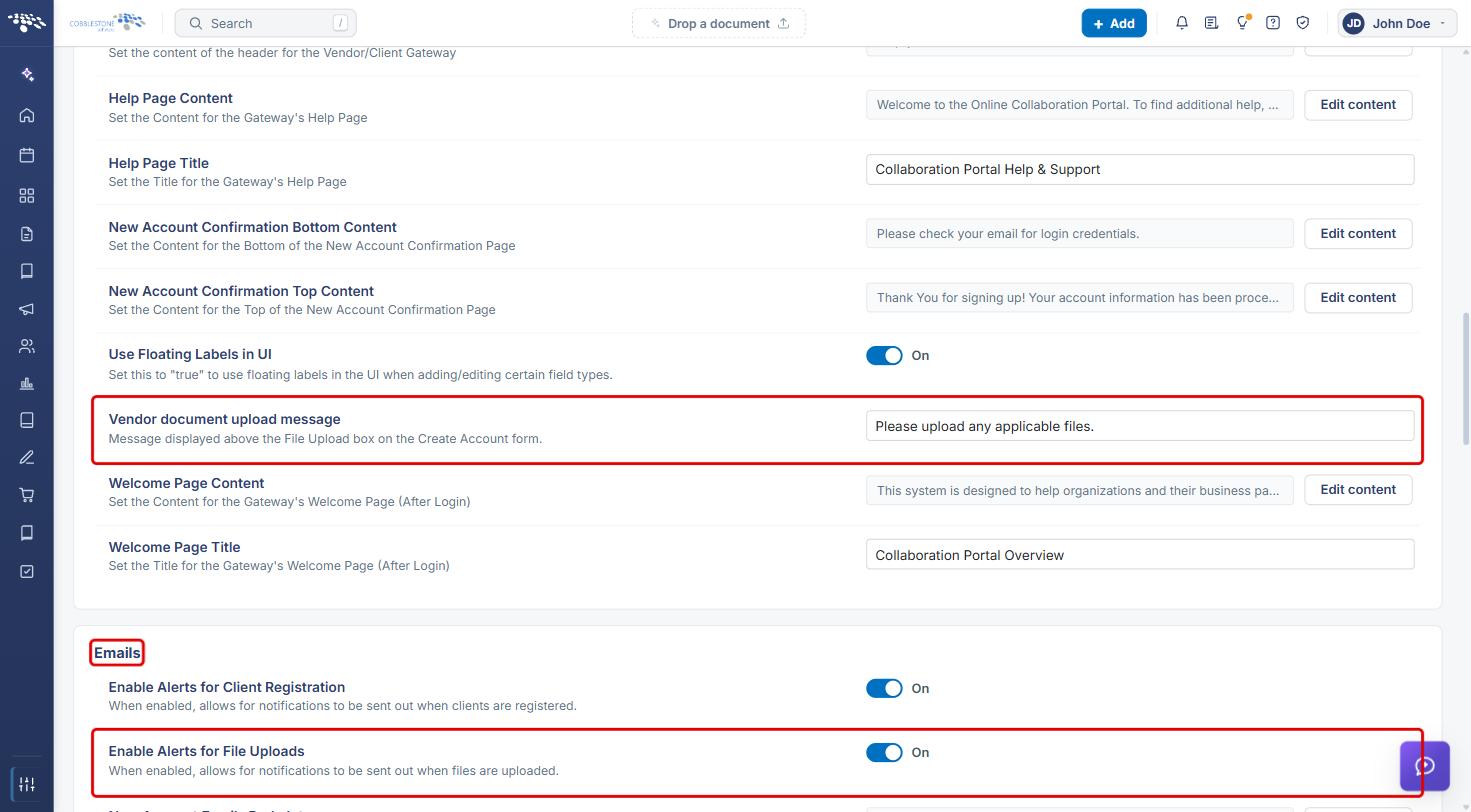
4c. Allowing Uploads Before or After Account Creation
- On the Settings tab, scroll to the General section.
- Set Allow vendor to upload document before account creation. to On to let vendors upload a document on the Create Account form.
- Set Allow vendor to upload documents after account creation to On to let vendors upload documents after creating a new account.
- Click Save changes.
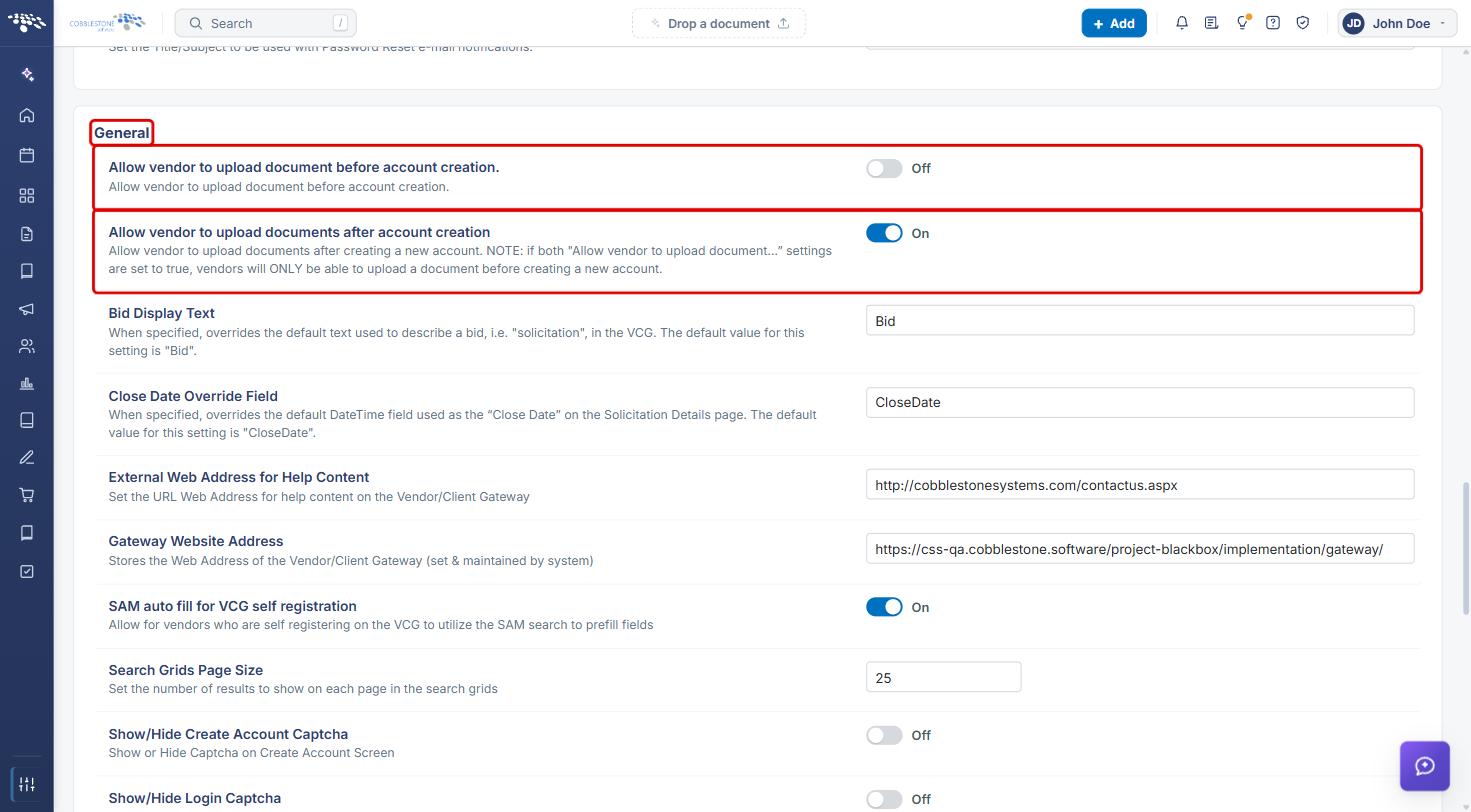
Note: If both Allow vendor to upload document… settings are set to On, vendors will only be able to upload a document before creating a new account.
5. Making a File Category Available on the Gateway
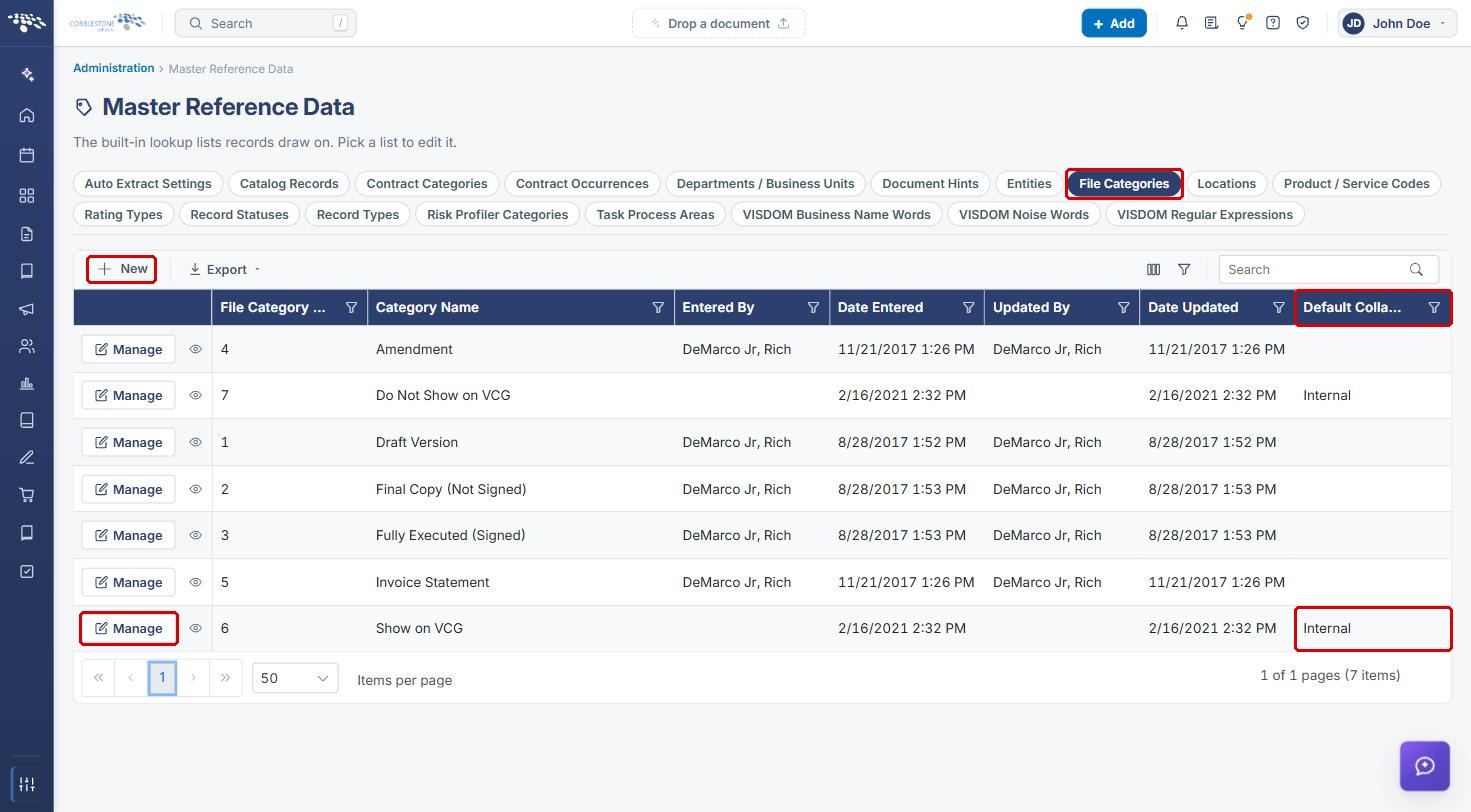
- From the Contract Insight homepage, click the Administration icon and, under Lookup Tables, click Master Reference Data.
- Click the File Categories list. The Default Collaboration Type column shows whether each category is Internal or Gateway.
- Click Manage on the category you want to change (or click + New to add a category).
- Click Edit All.
- In Default Collaboration Type, select Gateway.
- Click Save.
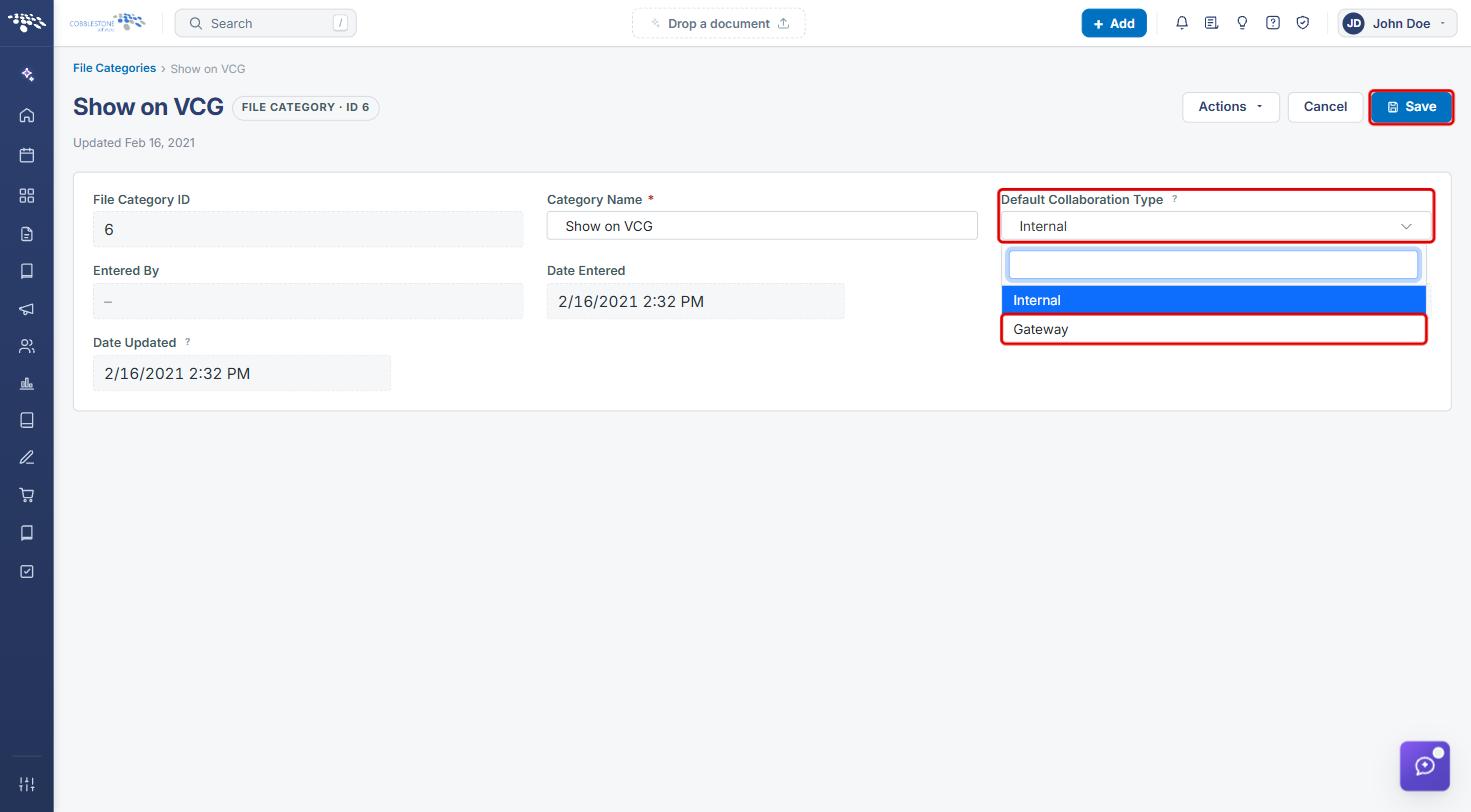
Note: A category named for the Gateway (for example, Show on VCG) is not shared with vendors/clients unless its Default Collaboration Type is set to Gateway. Check this column when files are not appearing on the Gateway as expected.
6. Quick Reference Summary
| Task | How to Complete It |
|---|---|
| Open the VCG settings | Administration → Gateways & Portals → Vendor/Client Gateway (VCG) → Settings tab. |
| Let vendors/clients see and add files | Settings → Access → Allow Viewing and Adding of Files = On → Save changes. |
| Allow downloads (not just previews) | Settings → Access → Allow Previewing and Downloading of Files/Attachments = On → Save changes. |
| Restrict to preview only | Settings → Access → Allow Previewing and Downloading of Files/Attachments = Off → Save changes. |
| Change the upload message on the Create Account form | Settings → Content → Vendor document upload message → Save changes. |
| Get alerts when files are uploaded | Settings → Emails → Enable Alerts for File Uploads = On → Save changes. |
| Control uploads during sign-up | Settings → General → Allow vendor to upload document before/after account creation → Save changes. |
| Share a file category with the Gateway | Administration → Master Reference Data → File Categories → Manage → Edit All → Default Collaboration Type = Gateway → Save. |