COBBLESTONE SOFTWARE
Contract Insight — User Guide
Contract Hierarchy
07. End Users - Contracts › Contract Details › Contract Hierarchy
Note: Each procedure in this guide begins at the Contract Insight homepage, so any section can be followed on its own. Custom fields are configurable, so the exact field list on a contract category record may vary between environments.
1. Overview
Contracts that belong together — a master agreement and its task orders, for instance — can be connected in a hierarchy (also called a contract family). The Hierarchy section on a contract's Linked Records tab shows every family the record belongs to and renders each one as an interactive org-chart diagram. From this section you can switch between Map and List views, use Add to hierarchy to attach another contract as a parent or child, rename or delete a family, and use the Fit, Arrange, Snap, PNG, and SVG controls to view or export the diagram. The same section can also be opened from Actions → Contract Hierarchy.
2. Key Elements
- Linked Records tab → Hierarchy panel: lists each contract family this record belongs to, with a count of the contracts in it.
- Map / List toggle: switches between the org-chart diagram and an indented list of the family.
- Add to hierarchy: opens an inline form to choose a Family, a Relationship (child or parent of this contract), and the contract to link.
- Rename family (pencil) and Delete whole family (trash) icons on each family's header.
- Diagram toolbar: Zoom out (−) / Zoom in (+), Fit, Arrange, Snap, and PNG / SVG export.
- Node open icon: opens that contract's record. A legend identifies This contract, Other contracts in the family, and No access (contracts you can see in the family but cannot open).
- Actions → Contract Hierarchy (Manage Record Actions group): jumps to the same Hierarchy section.
3. Navigating to a Contract's Hierarchy
3a. From the Linked Records Tab
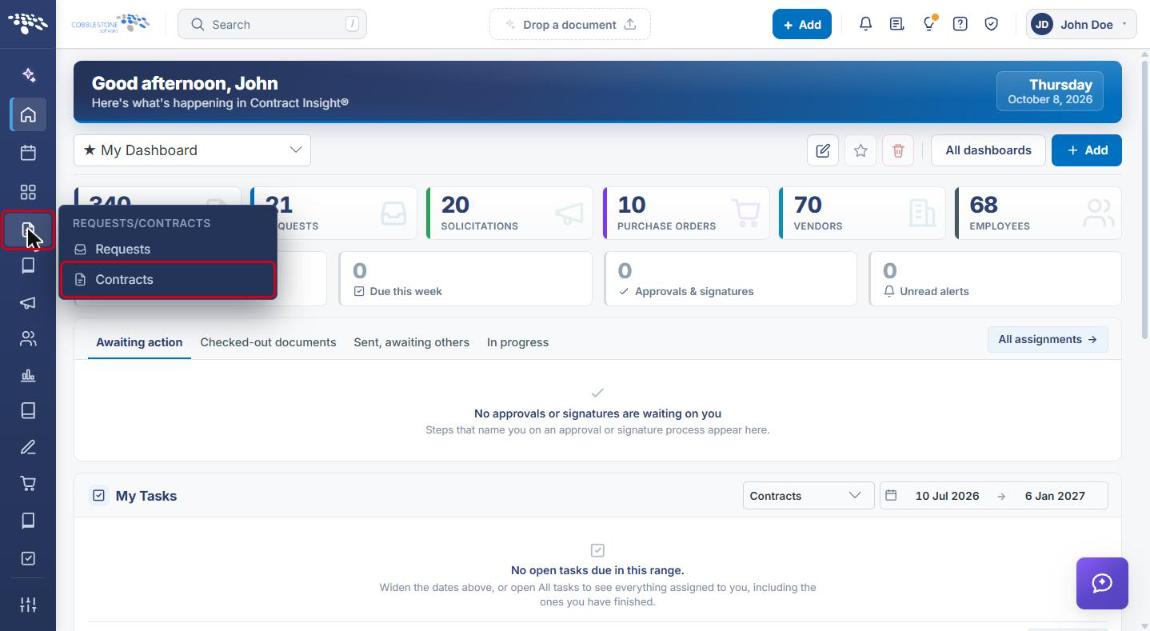
- From the Contract Insight homepage, click the Requests/Contracts icon in the left navigation bar.
- Select Contracts.
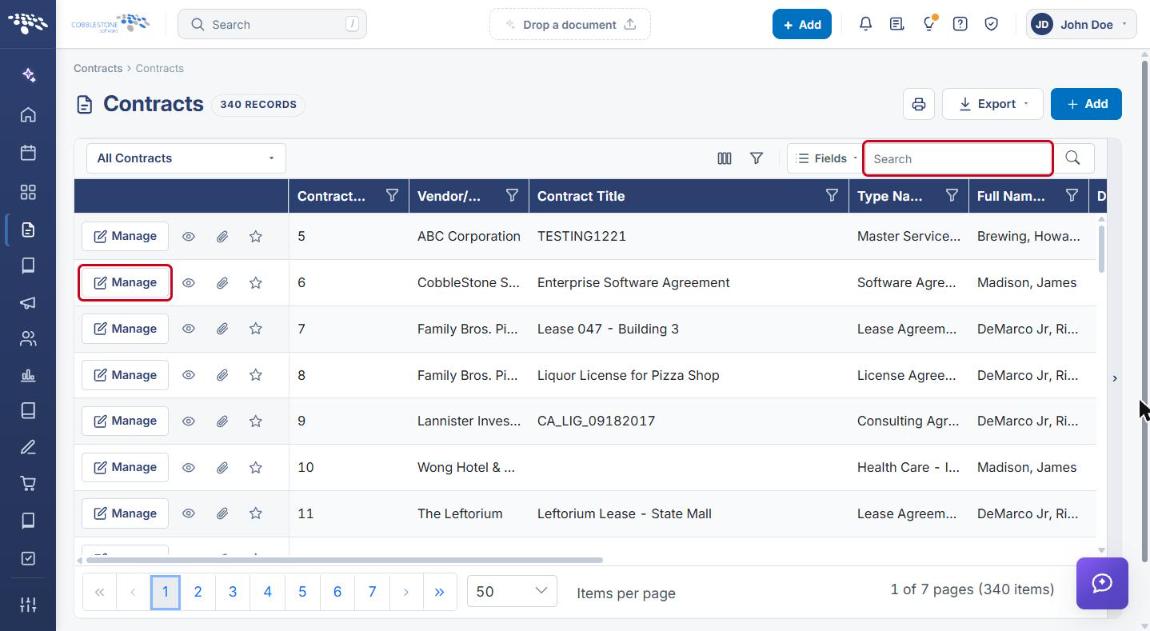
- On the Contracts list, locate the contract (use the Search box if needed) and click Manage on its row.
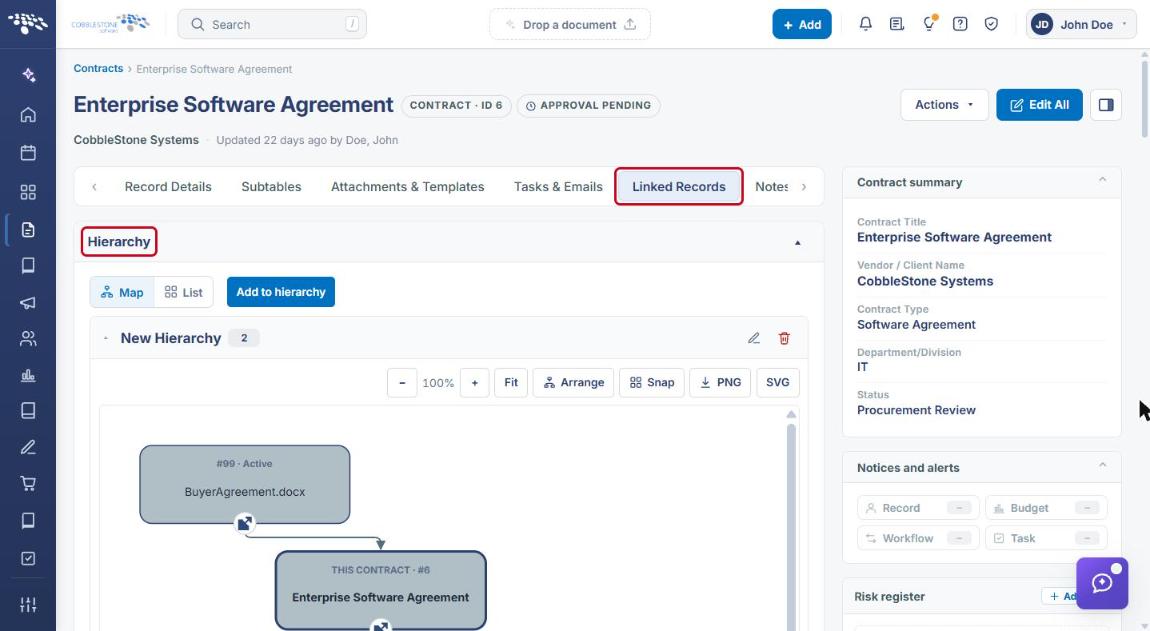
- On the contract record, click the Linked Records tab.
- The Hierarchy section appears at the top of the tab.
3b. From the Actions Menu
- Open the contract record (see Section 3a, steps 1–3).
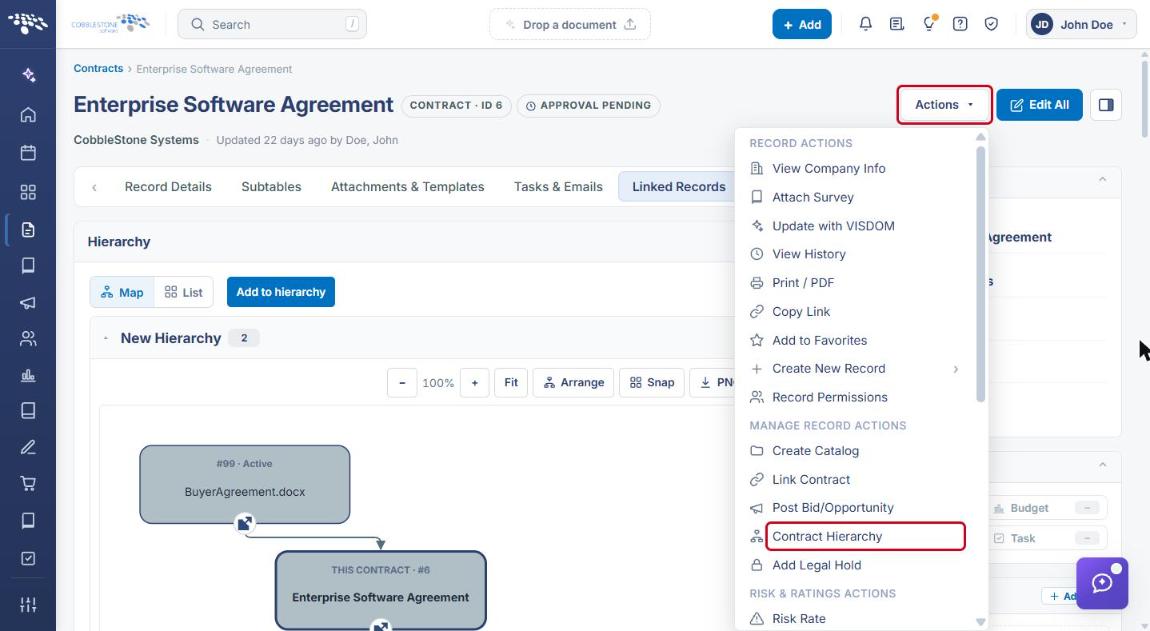
- Click Actions in the upper-right corner of the record.
- Under Manage Record Actions, select Contract Hierarchy. The record switches to the Linked Records tab with the Hierarchy section in view.
4. Viewing a Hierarchy
4a. Map View
Map is the default view. Each family appears in its own collapsible panel showing the family name and the number of contracts in it. The Map / List toggle and Add to hierarchy button sit above the families, and the Rename family (pencil) and Delete whole family (trash) icons sit on the right of each family's header.
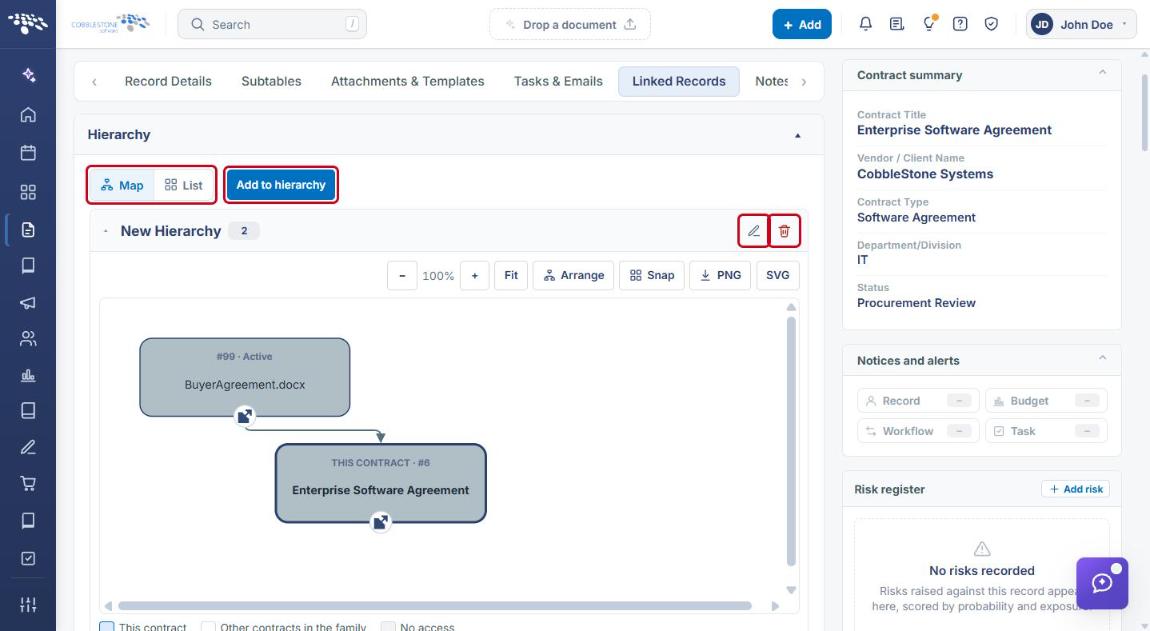
Each contract appears as a node showing its ID, status, and title; arrows point from parent to child, and the current record is labeled THIS CONTRACT. Use the toolbar above the diagram to work with it:
| Control | What It Does |
|---|---|
| − / + | Zoom out / zoom in. The current zoom level is shown between the buttons. |
| Fit | Sizes the diagram to fit the viewing area. |
| Arrange | Re-lays out the nodes automatically. |
| Snap | Snaps nodes to a grid when they are moved. |
| PNG / SVG | Downloads the diagram as a PNG image or SVG file. |
| Node open icon | Opens that contract's record. |
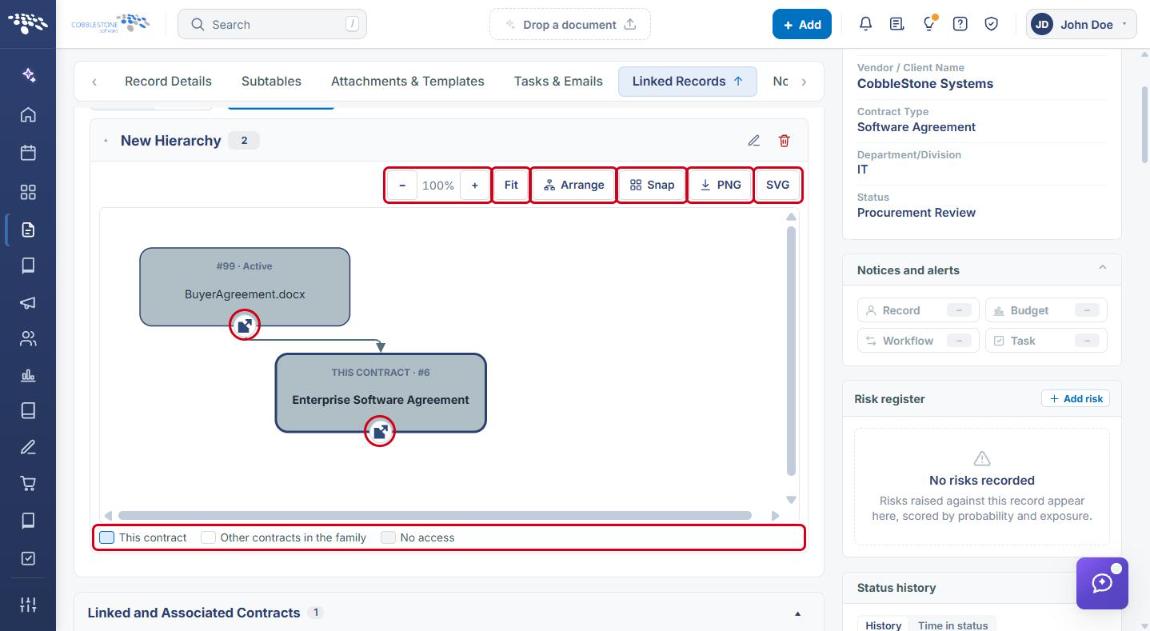
Note: The legend below the diagram identifies This contract, Other contracts in the family, and No access. Contracts you don't have permission to view still appear in the family so its structure is complete, but they can't be opened.
4b. List View
- In the Hierarchy section, click List.
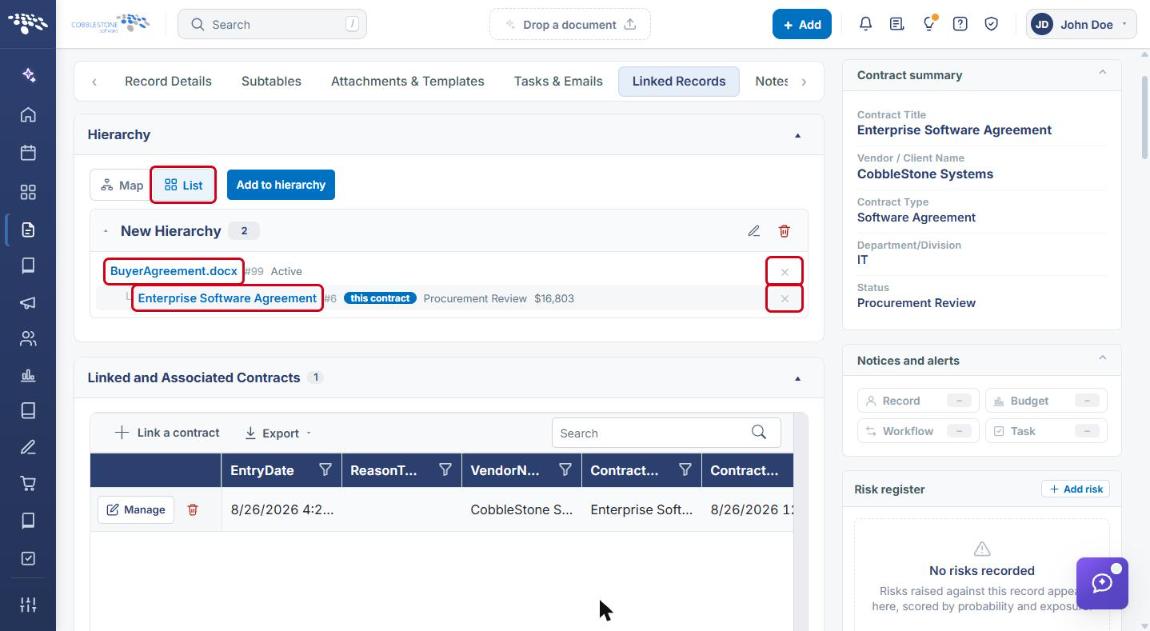
- The family is shown as an indented list: child contracts are nested under their parent, and the current record is tagged this contract. Each row shows the contract ID and status (and, where available, amount).
- Click a contract title to open that record, or click the × (Remove this contract from the family) on a row to take it out of the family (see Section 6b).
5. Adding a Contract to a Hierarchy
- Navigate to the contract's Linked Records tab (see Section 3).
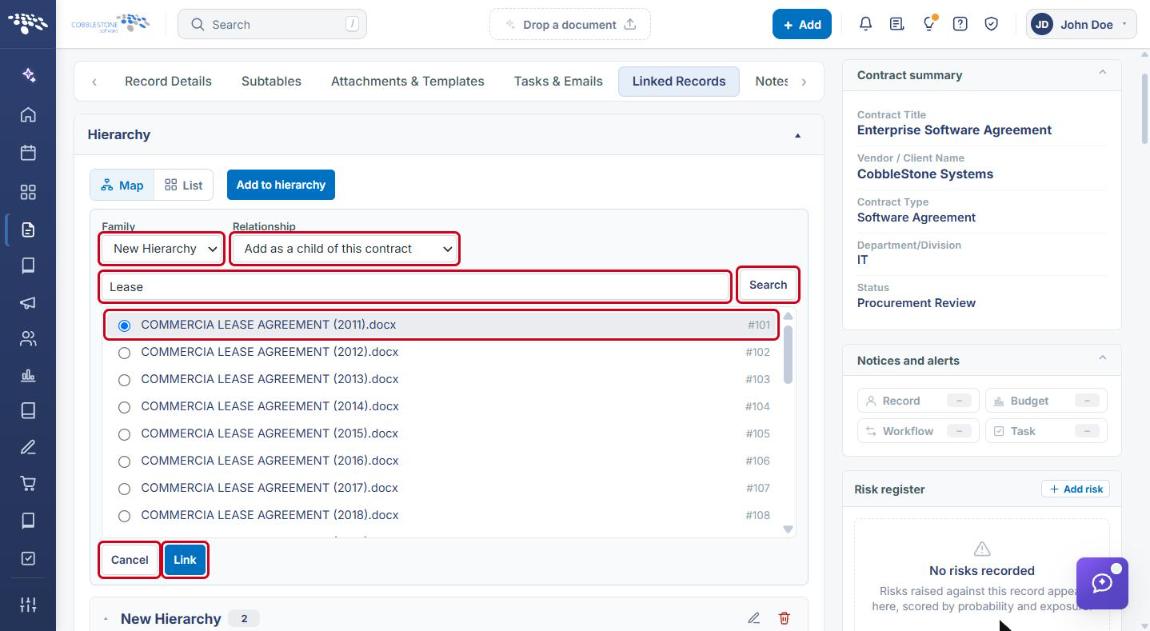
- In the Hierarchy section, click Add to hierarchy.
- In Family, select an existing family, or choose - New family - to start a new one.
- In Relationship, select Add as a child of this contract or Add as the parent of this contract.
- Type part of a contract title in the Search contracts by title... box and click Search.
- Select the contract to link from the results.
- Click Link to add it to the family, or Cancel to close the form without changes.
6. Managing a Hierarchy
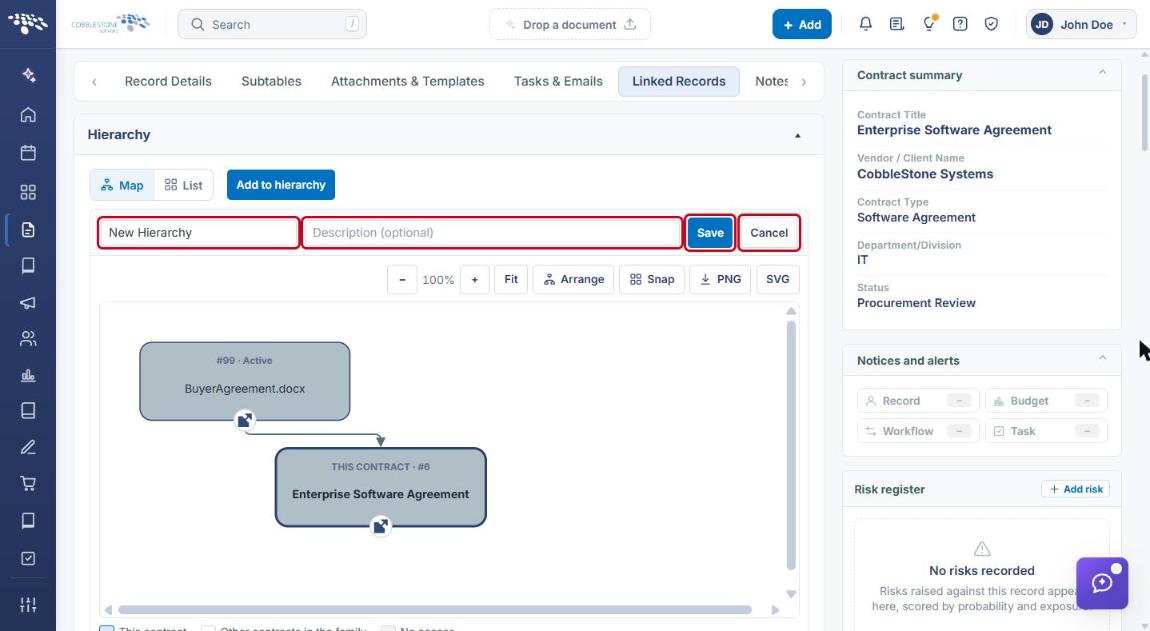
6a. Renaming a Family
- In the Hierarchy section, click the Rename family (pencil) icon on the family's header.
- Edit the family name and, optionally, enter a Description.
- Click Save, or Cancel to discard the change.
6b. Removing a Contract from a Family
- In the Hierarchy section, click List.
- Click the × (Remove this contract from the family) at the end of the contract's row (see the screenshot in Section 4b).
6c. Deleting a Family
- In the Hierarchy section, click the Delete whole family (trash) icon on the family's header (see the screenshot in Section 4a).
Note: Deleting a family removes the hierarchy grouping itself; it does not delete the contracts that were in it.
7. Quick Reference Summary
| Task | How to Complete It |
|---|---|
| Open a contract's hierarchy | Requests/Contracts → Contracts → Manage → Linked Records tab → Hierarchy. |
| Open the hierarchy from the record menu | Contract record → Actions → Contract Hierarchy. |
| Switch views | Hierarchy → Map or List. |
| Add a parent or child contract | Hierarchy → Add to hierarchy → choose Family and Relationship → search → select a contract → Link. |
| Rename a family | Family header → pencil icon → edit name/description → Save. |
| Remove a contract from a family | Hierarchy → List → × on the contract's row. |
| Delete a family | Family header → trash icon. |
| Resize or tidy the diagram | Map view → − / +, Fit, Arrange, or Snap. |
| Export the diagram | Map view → PNG or SVG. |
| Open a related contract | Map view → node open icon, or List view → contract title. |