COBBLESTONE SOFTWARE
Contract Insight — User Guide
Schedule Manager
Configuration Group: Schedule Manager
Note: Each procedure in this guide begins at the Contract Insight homepage, so any section can be followed on its own. Several timers relate to Optional Add-On Modules and third-party integrations, so the exact list on any one system may vary.
1. Overview
The Schedule Manager configuration group holds the settings that control how often the system’s background jobs run. These are the scheduled processes that send queued email alerts, import completed documents from e-signature providers, run data and SQL imports, synchronize VISDOM AI services, and perform system health checks.
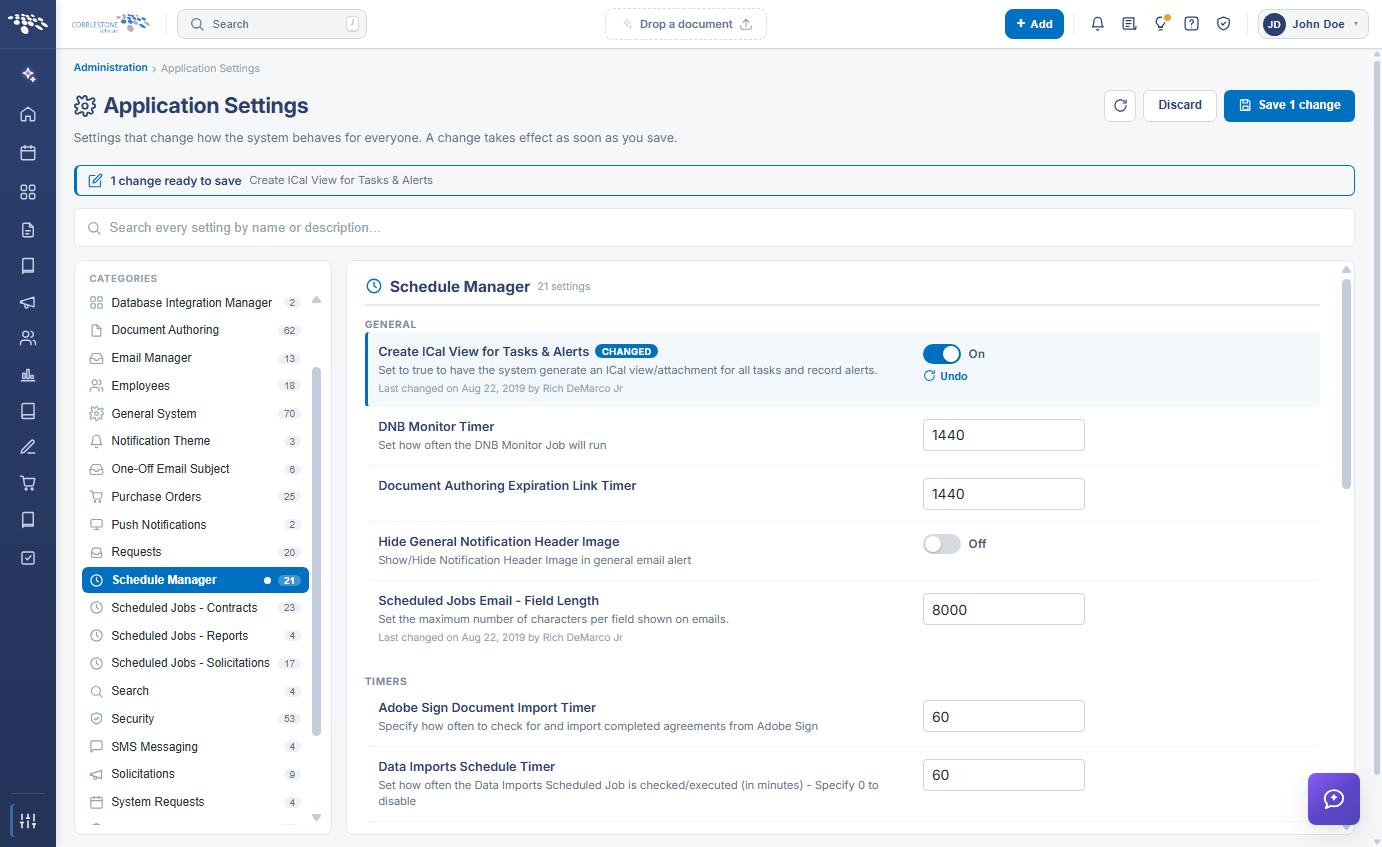
Schedule Manager contains 21 settings, organized under two subsection headings in the settings panel: GENERAL and TIMERS.
As with every configuration group, each setting is presented as a single row containing:
- ● The name of the application setting
- ● A description of what the setting does
- ● An editing control holding the current value — a toggle for the true/false settings, or a numeric text box for the timers and length values
- ● A “Last changed” line recording when the setting was last modified and by whom
Because the Schedule Manager group is maintained from the Administration area, only Application Administrators — or other users specifically granted the appropriate permission — can view and change these values.
Caution: Timer values determine how frequently background jobs execute against the database. Setting a timer too low can place unnecessary load on the system, and setting one to 0 stops the related job entirely. Change one timer at a time and confirm the result before making the next change.
2. Accessing the Schedule Manager Configuration Group
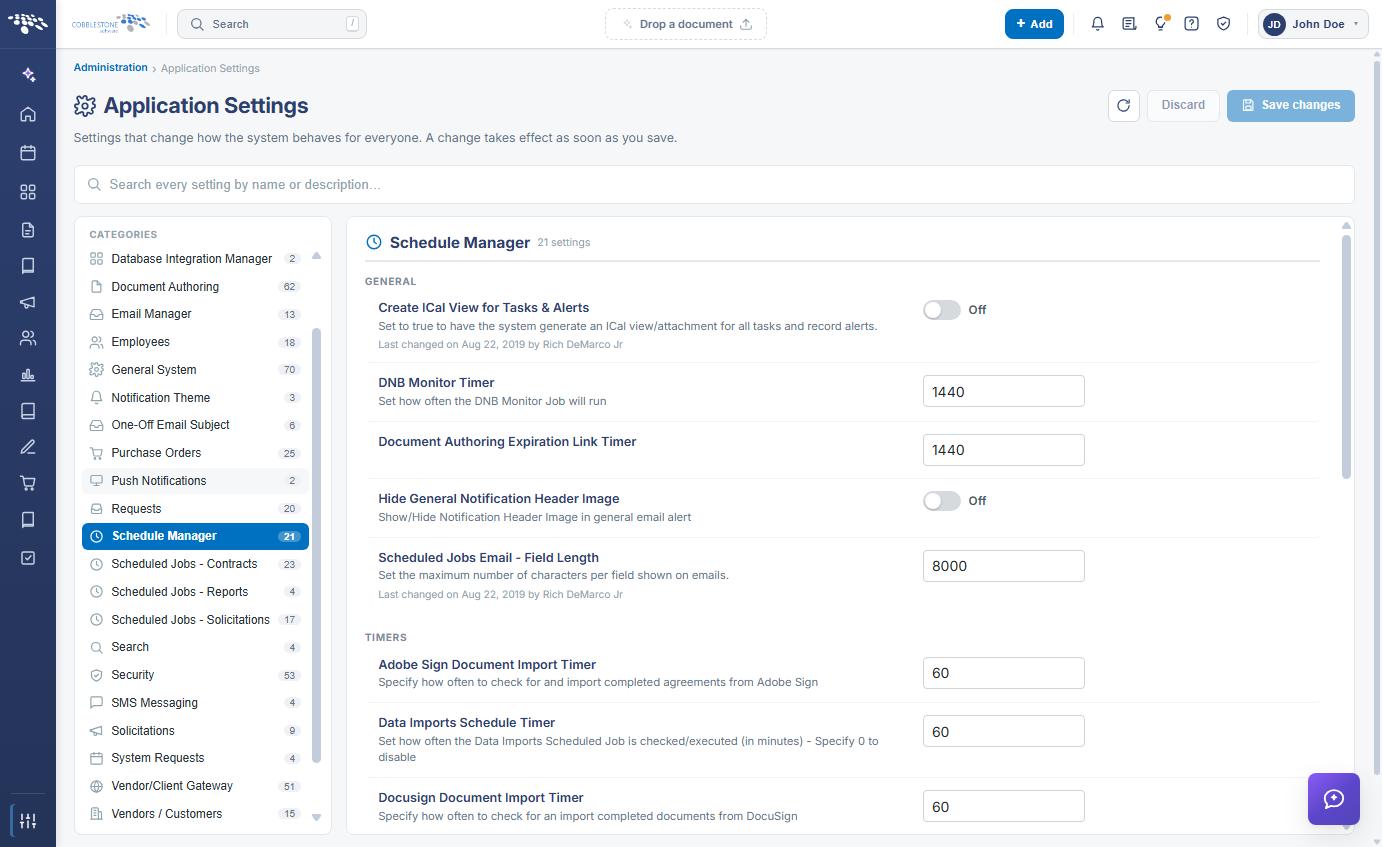
The Schedule Manager settings are reached through Application Settings. To open them:
- 1. From the Contract Insight homepage, click Administration at the bottom of the left navigation menu.
- 2. On the Administration page, under Configuration & Fields, select Application Settings.
- 3. In the CATEGORIES rail on the left, click Schedule Manager. The category is highlighted, and the count beside it shows the number of settings it contains.
- 4. The settings panel on the right is headed Schedule Manager with its setting count, and lists the settings under the GENERAL and TIMERS subsection headings.
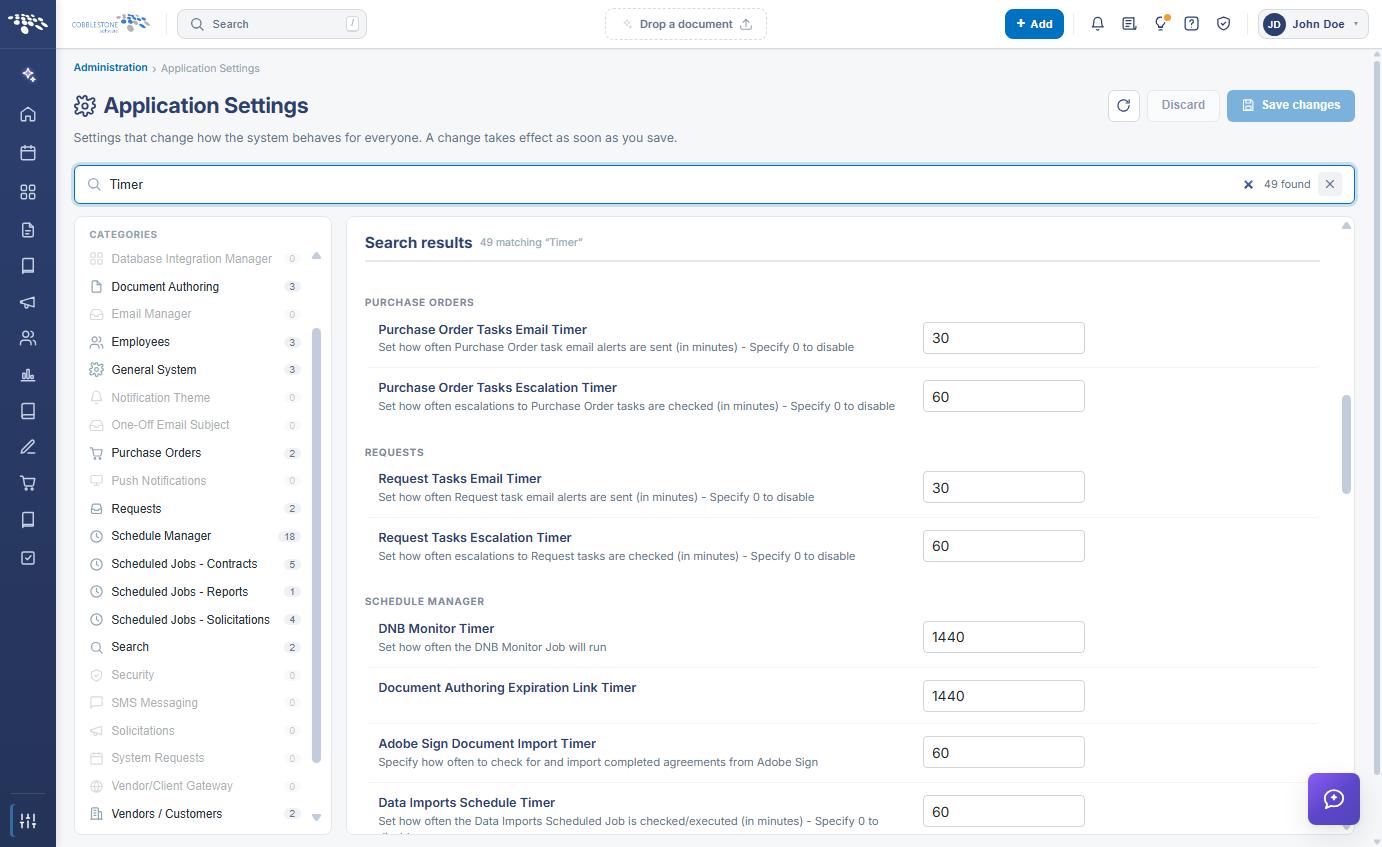
A specific setting can also be reached without browsing the category, by typing part of its name or description into the Search box at the top of the Application Settings screen.
3. GENERAL Settings
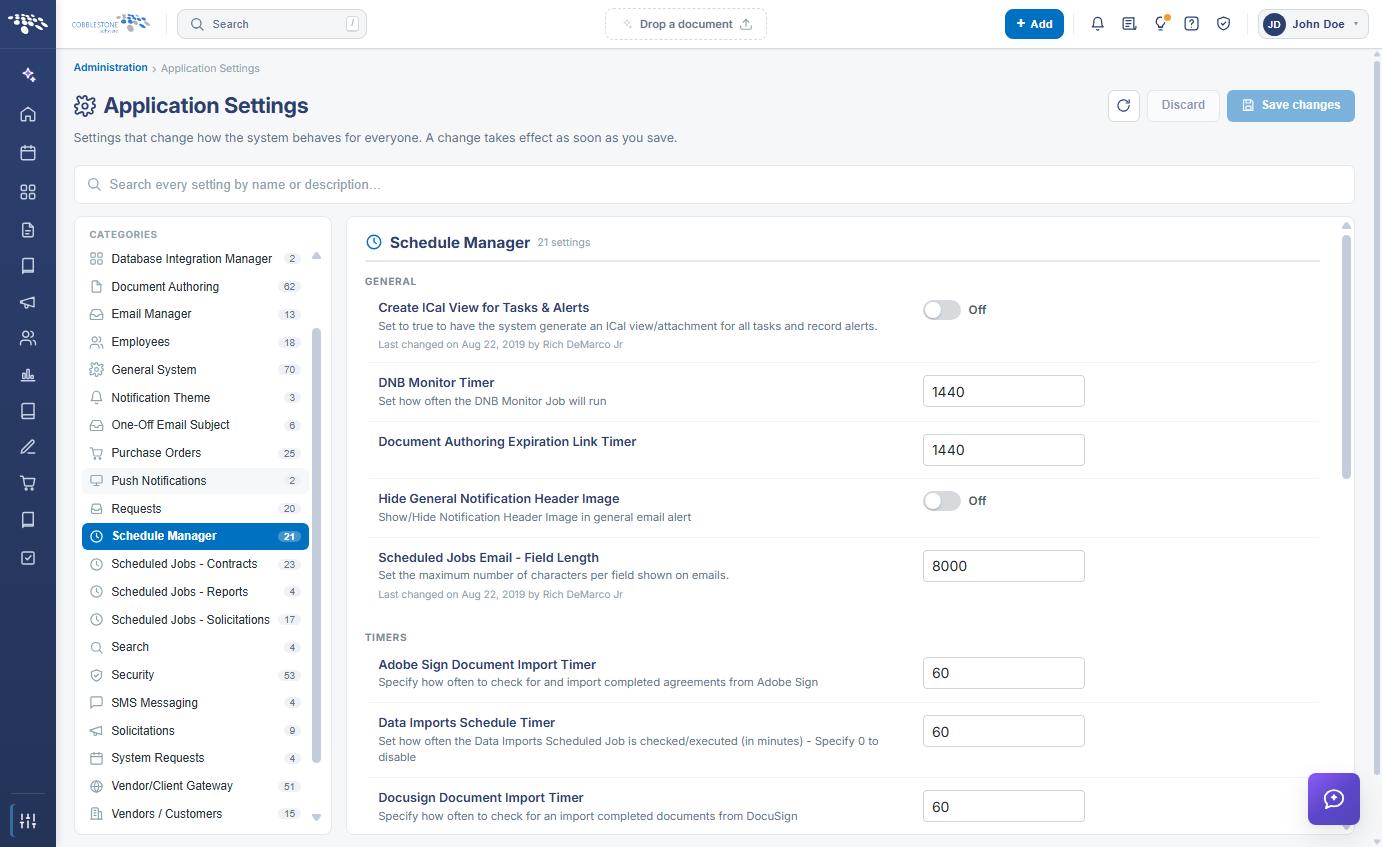
The GENERAL subsection controls calendar attachments on alerts, the appearance of general email alerts, the length of fields shown in scheduled job emails, and two job frequencies held outside the TIMERS heading.
The GENERAL settings are:
- ● Create ICal View for Tasks & Alerts — Set to On to have the system generate an iCal view or attachment for all tasks and record alerts. Toggle.
- ● DNB Monitor Timer — How often the Dun & Bradstreet (D&B) Monitor job runs. Entered in a numeric text box.
- ● Document Authoring Expiration Link Timer — How often document authoring expiration links are checked. Entered in a numeric text box.
- ● Hide General Notification Header Image — Shows or hides the notification header image in general email alerts. Toggle.
- ● Scheduled Jobs Email - Field Length — The maximum number of characters shown per field on emails. Entered in a numeric text box.
4. TIMERS Settings
The TIMERS subsection sets how often each background job is checked and executed. Values are expressed in minutes and entered in numeric text boxes. Where a setting notes it, specifying 0 disables the job.
The TIMERS settings are:
- ● Adobe Sign Document Import Timer — How often to check for and import completed agreements from Adobe Sign.
- ● Data Imports Schedule Timer — How often the Data Imports scheduled job is checked and executed, in minutes. Specify 0 to disable.
- ● Docusign Document Import Timer — How often to check for and import completed documents from DocuSign.
- ● iCal Notification Email Timer — How often the system checks for iCal emails to be sent out.
- ● OCR Services — Refreshes OAuth tokens, and runs OCR imports and jobs.
- ● Process WorkFlow Email Alerts Queue — How often all workflow email alerts in the queue are processed.
- ● Request Account Deletion Email Timer — How often account deletion requests are checked.
- ● Risk Comparison Data Timer — How often to check the Risk Comparison Definitions update schedules.
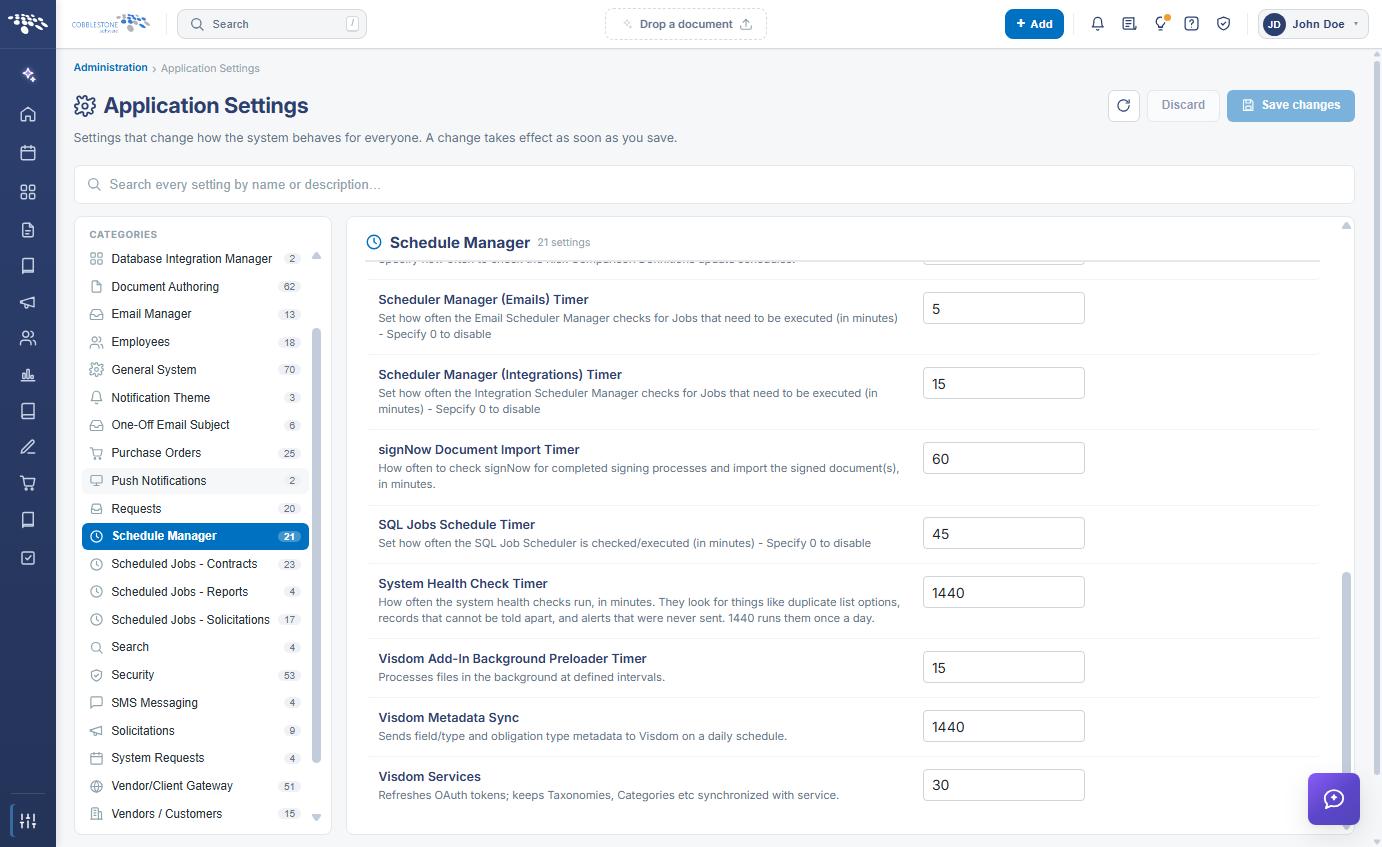
- ● Scheduler Manager (Emails) Timer — How often the Email Scheduler Manager checks for jobs that need to be executed, in minutes. Specify 0 to disable.
- ● Scheduler Manager (Integrations) Timer — How often the Integration Scheduler Manager checks for jobs that need to be executed, in minutes. Specify 0 to disable.
- ● signNow Document Import Timer — How often to check signNow for completed signing processes and import the signed documents, in minutes.
- ● SQL Jobs Schedule Timer — How often the SQL Job Scheduler is checked and executed, in minutes. Specify 0 to disable.
- ● System Health Check Timer — How often the system health checks run, in minutes. They look for issues such as duplicate list options, records that cannot be told apart, and alerts that were never sent. A value of 1440 runs them once a day.
- ● Visdom Add-In Background Preloader Timer — Processes files in the background at defined intervals.
- ● Visdom Metadata Sync — Sends field/type and obligation type metadata to VISDOM on a daily schedule.
- ● Visdom Services — Refreshes OAuth tokens and keeps taxonomies, categories, and similar data synchronized with the service.
Note: The two Scheduler Manager timers are the ones that drive scheduled email alerts and integration jobs generally. If alerts or integrations stop arriving, confirm that neither has been set to 0 before investigating the individual job timers.
5. Modifying a Schedule Manager Setting
Function: Changes how often a background job runs, for the entire system.
Steps:
- 1. From the Contract Insight homepage, click Administration at the bottom of the left navigation menu. On the Administration page, under Configuration & Fields, select Application Settings, then click Schedule Manager in the CATEGORIES rail.
- 2. Locate the setting by name under the GENERAL or TIMERS heading, and read its description to confirm which job the value controls.
- 3. Change the value using the control on the right of the setting row — a numeric text box for the timers and length values, or a toggle for Create ICal View for Tasks & Alerts and Hide General Notification Header Image.
- 4. The setting is marked with a CHANGED badge, an Undo link appears beneath it, a dot appears beside Schedule Manager in the CATEGORIES rail, and a banner at the top of the screen reports how many changes are ready to save.
- 5. Click Save changes in the upper right to commit the change, or Discard to put every changed setting back to its saved value. Undo on the setting row reverts that one setting only.
Note: A change takes effect as soon as it is saved. The next run of the affected job follows the new interval, so allow at least one full interval to pass before assessing the result.
6. Related Scheduled Job Settings
Schedule Manager holds the system-wide job frequencies. Record-specific alert and job schedules are maintained in their own configuration categories, listed separately in the CATEGORIES rail.
The related categories are:
- ● Scheduled Jobs - Contracts — the alert and job schedules for contract records
- ● Scheduled Jobs - Reports — the schedules for report generation and distribution
- ● Scheduled Jobs - Solicitations — the alert and job schedules for solicitation records
The frequency of alert, import, and indexing jobs can also be reviewed and changed on the Scheduled Jobs administration page, reached from the Administration page under Automation & Data.
7. Quick Reference Summary
Task | How to Complete It |
Open the group | Homepage → Administration → Configuration & Fields → Application Settings → Schedule Manager. |
Change a job frequency | Enter the interval in minutes in the relevant timer, then Save changes. |
Disable a job | Set its timer to 0, where the description states that 0 disables it. |
Fix missing email alerts | Check Scheduler Manager (Emails) Timer and Process WorkFlow Email Alerts Queue. |
Fix missing integrations | Check Scheduler Manager (Integrations) Timer, then the individual import timers. |
Import signed documents | Adobe Sign, Docusign, and signNow Document Import Timers. |
Sync VISDOM services | Visdom Services, Visdom Metadata Sync, and Visdom Add-In Background Preloader Timer. |
Run health checks daily | Set System Health Check Timer to 1440, then Save changes. |
Attach calendar items | Create ICal View for Tasks & Alerts toggle, plus iCal Notification Email Timer. |
Trim email field length | Scheduled Jobs Email - Field Length under GENERAL, then Save changes. |
Record-specific schedules | The Scheduled Jobs - Contracts, Reports, and Solicitations categories. |
Undo a change | Undo on the setting row, or Discard in the upper right, before saving. |