COBBLESTONE SOFTWARE
Contract Insight — User Guide
Passwords
Configuration Group: Passwords
Note: Each procedure in this guide begins at the Contract Insight homepage, so any section can be followed on its own. The password settings apply to employee accounts that sign in with a Contract Insight password; accounts authenticated through single sign-on are governed by the identity provider instead.
1. Overview
The Passwords settings control the password rules Contract Insight applies to employee accounts — whether stored passwords are encrypted, whether complexity is enforced and what it requires, how many prior passwords cannot be reused, and how often a password must be reset.
The settings are found under the PASSWORDS subsection heading within the Security configuration category, and there are 10 of them.
The subsection governs four things:
- Encryption — whether all user passwords are stored encrypted
- Complexity — whether complexity is tracked at all, and the individual character and length requirements applied when it is
- History — how many prior passwords cannot be reused, and for how long
- Expiration — how many days pass before an employee must reset their password
Because these settings are maintained from the Administration area, only Application Administrators — or other users specifically granted the appropriate permission — can view and change them.
Caution: These settings apply to every employee account in the system. Tightening complexity or expiration rules affects users at their next sign-in or next password change, so confirm the intended policy with your organization before saving.
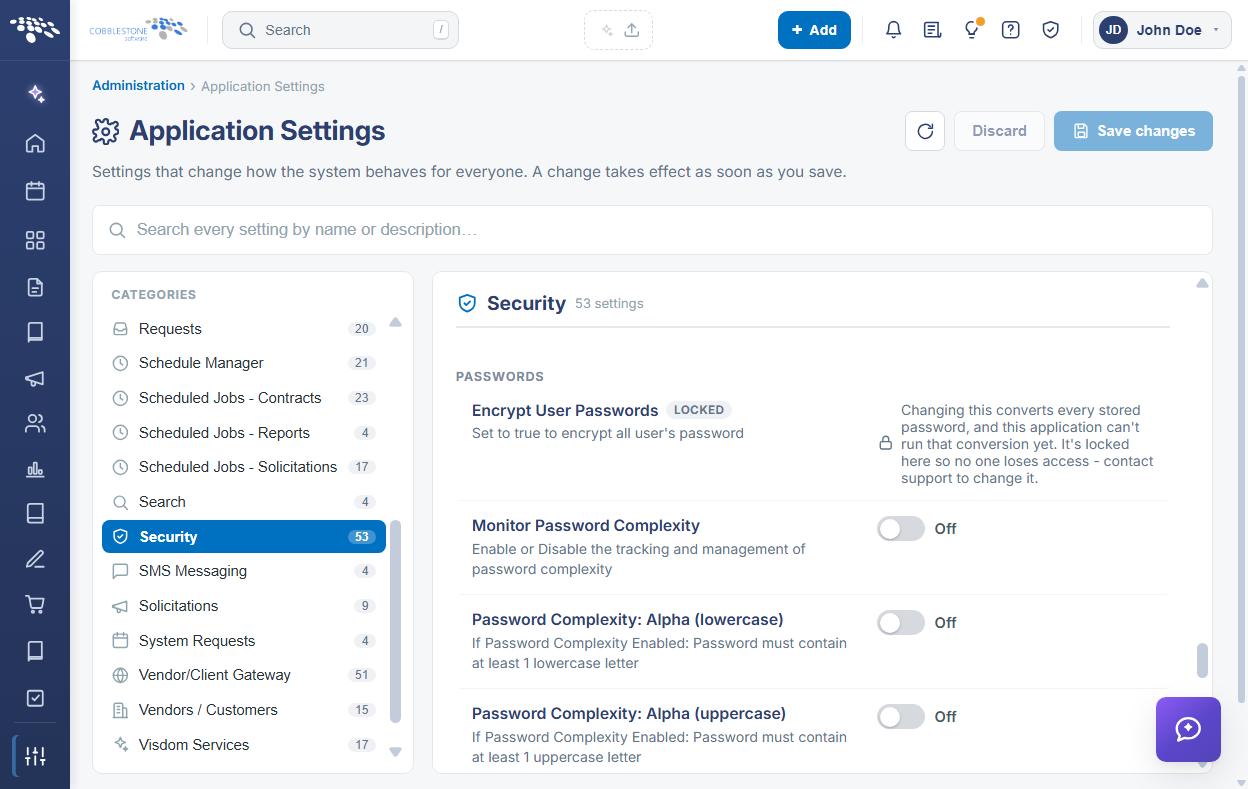
2. Accessing the Password Settings
The password settings are reached through Application Settings. To open them:
- From the Contract Insight homepage, click Administration at the bottom of the left navigation menu.
- On the Administration page, under Configuration & Fields, select Application Settings.
- In the CATEGORIES rail on the left, click Security. The category is highlighted, and the count beside it shows the number of settings it contains.
- Scroll the settings panel to the PASSWORDS subsection heading, where the ten password settings are listed.
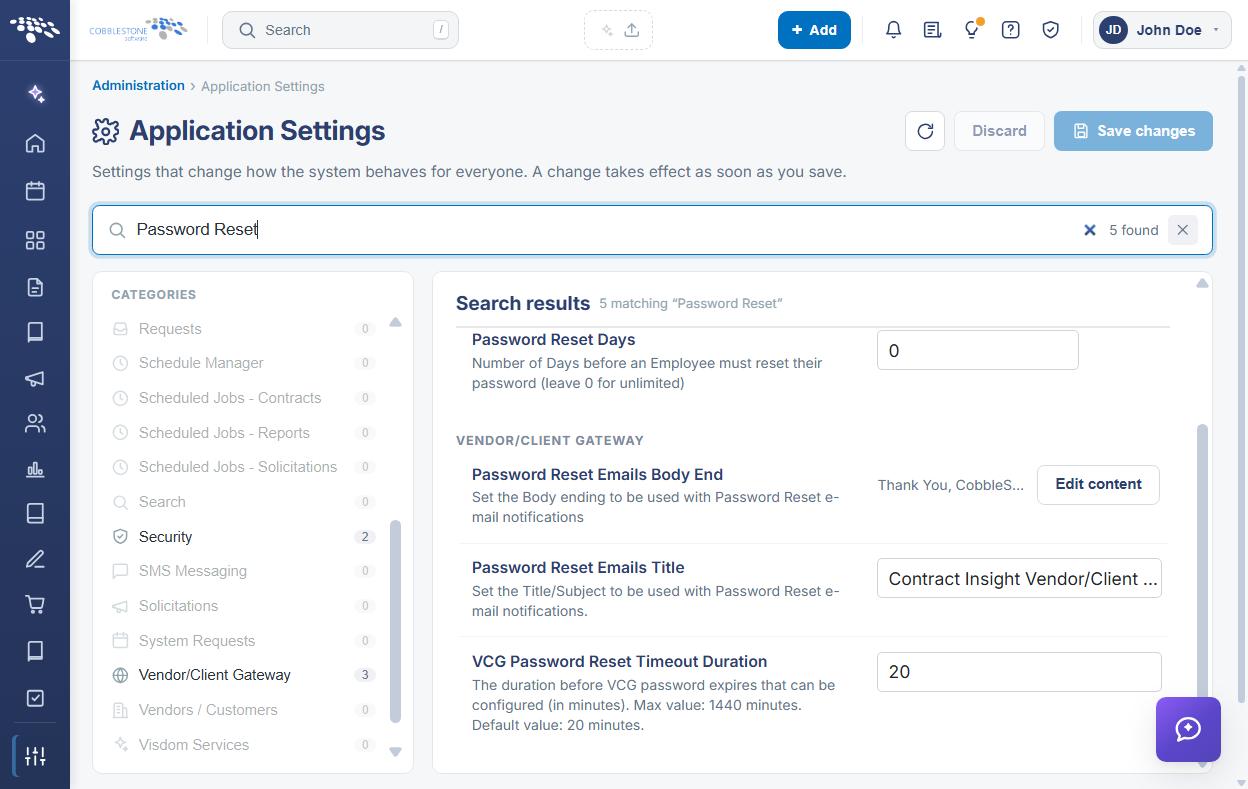
Alternatively, type Password into the Search box at the top of the Application Settings screen. The results are grouped by configuration group, so the password settings appear together under a SECURITY heading, alongside password-related matches from other groups.
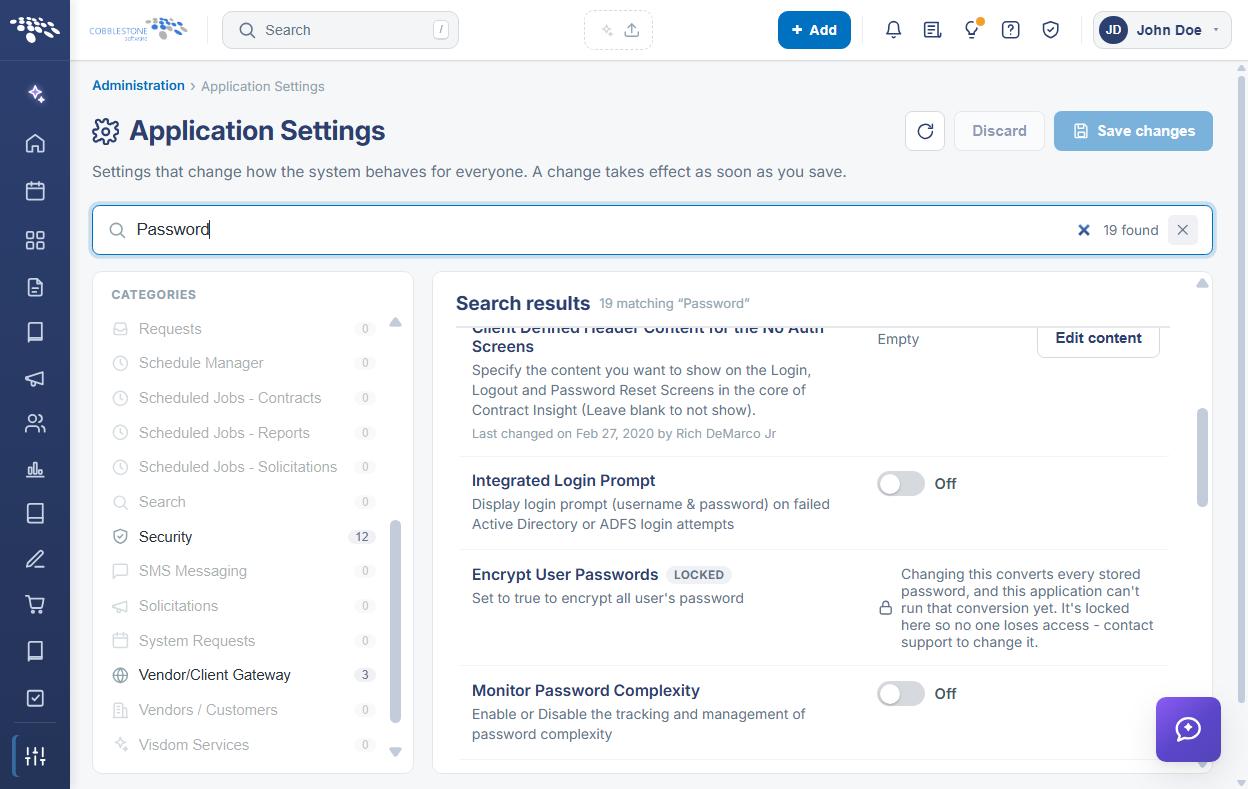
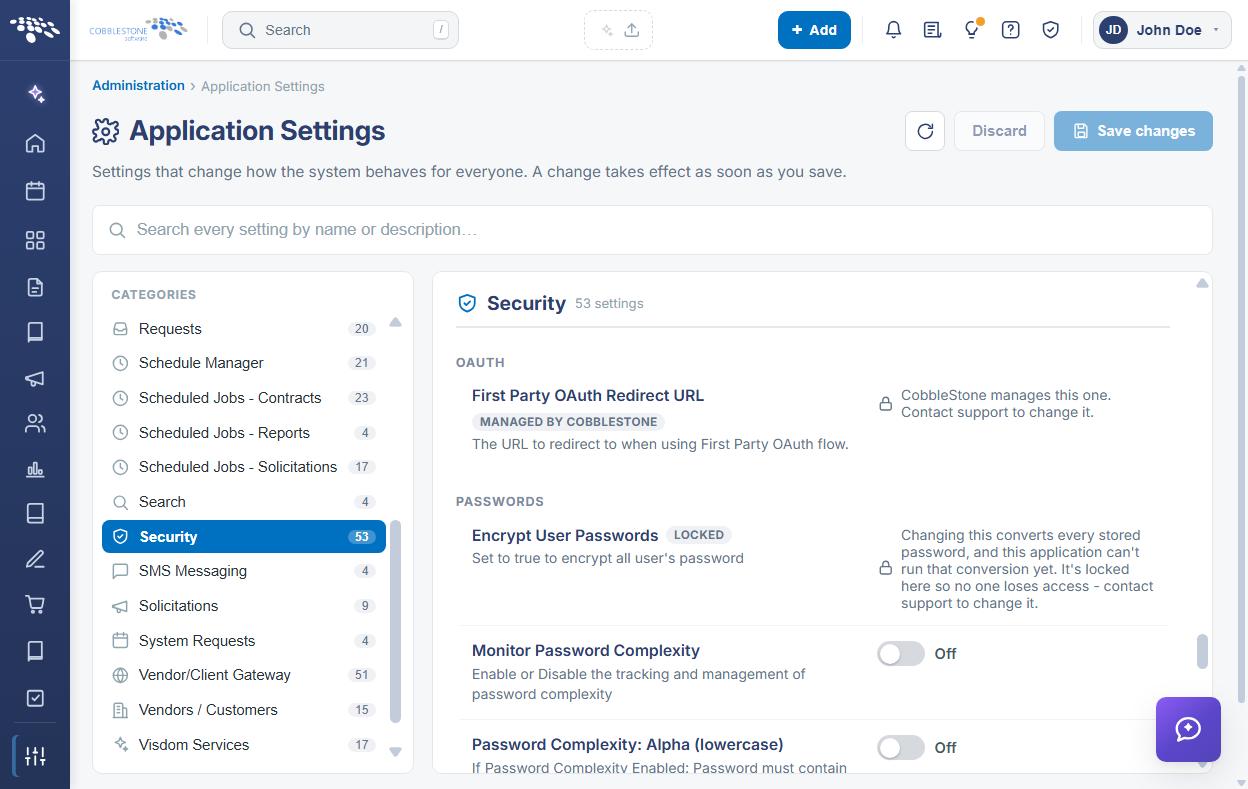
3. Password Encryption
A single setting controls how passwords are stored:
- Encrypt User Passwords — Set to On to encrypt all user passwords. This is a toggle.
Note: This setting should remain enabled in normal operation. Contact CobbleStone Support before changing it, as it affects how every stored credential is held.
4. Password Complexity Settings
Password complexity is controlled by a master switch and five individual requirements. The requirements apply only while the master switch is enabled — each is described in the application as taking effect “If Password Complexity Enabled”.
The complexity settings are:
- Monitor Password Complexity — Enables or disables the tracking and management of password complexity. This is the master switch for the five requirements below. Toggle.
- Password Complexity: Alpha (lowercase) — The password must contain at least one lowercase letter. Toggle.
- Password Complexity: Alpha (uppercase) — The password must contain at least one uppercase letter. Toggle.
- Password Complexity: Numeric — The password must contain at least one number. Toggle.
- Password Complexity: Special Characters — The password must contain at least one special character. Toggle.
- Password Complexity: Length — The minimum length for employee passwords. Leave at 0 for no minimum length. Entered in a numeric text box.
Note: Turning Monitor Password Complexity off leaves the five requirement settings visible but inactive. To enforce a policy, enable the master switch first, then set each requirement.
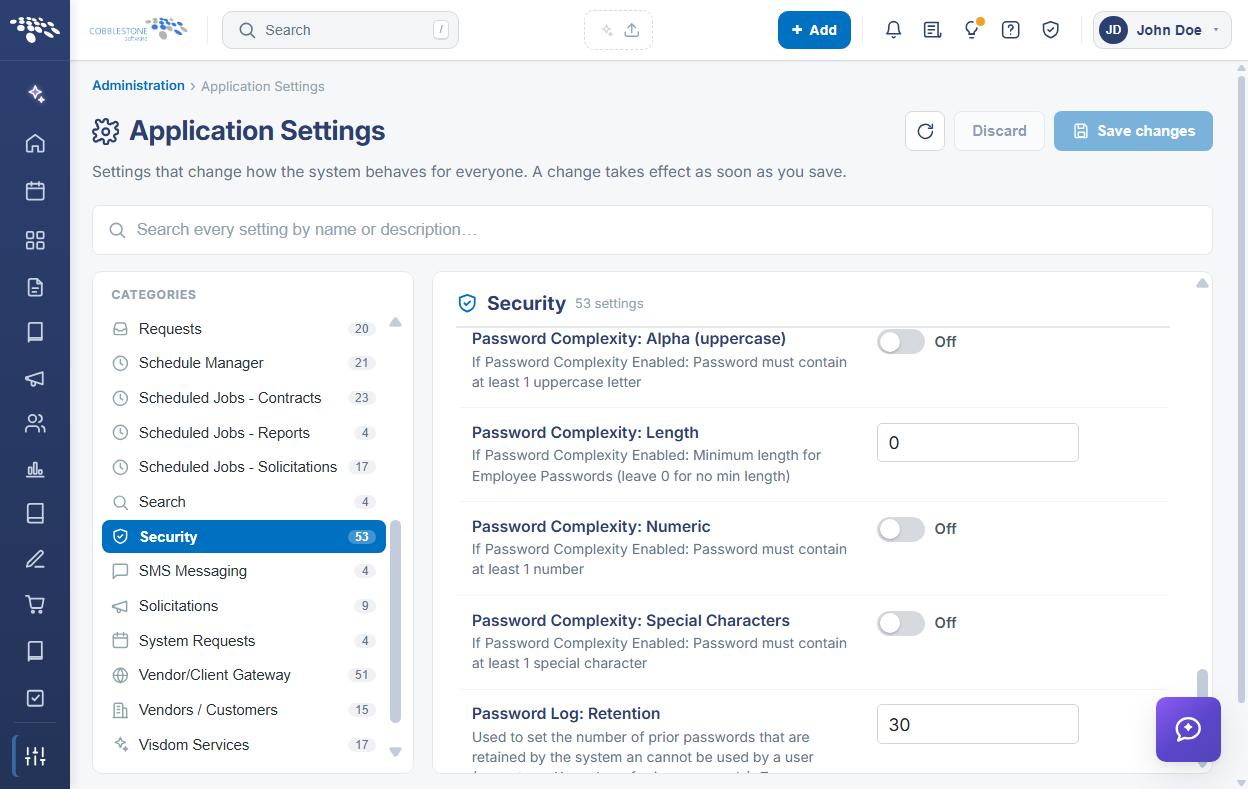
5. Password History Settings
Two settings prevent employees from reusing recent passwords. Both are entered in numeric text boxes, and both treat 0 as no restriction.
The password history settings are:
- Password Log: Retention — The number of prior passwords the system retains and prevents a user from reusing. Zero means a user can reuse any previous password.
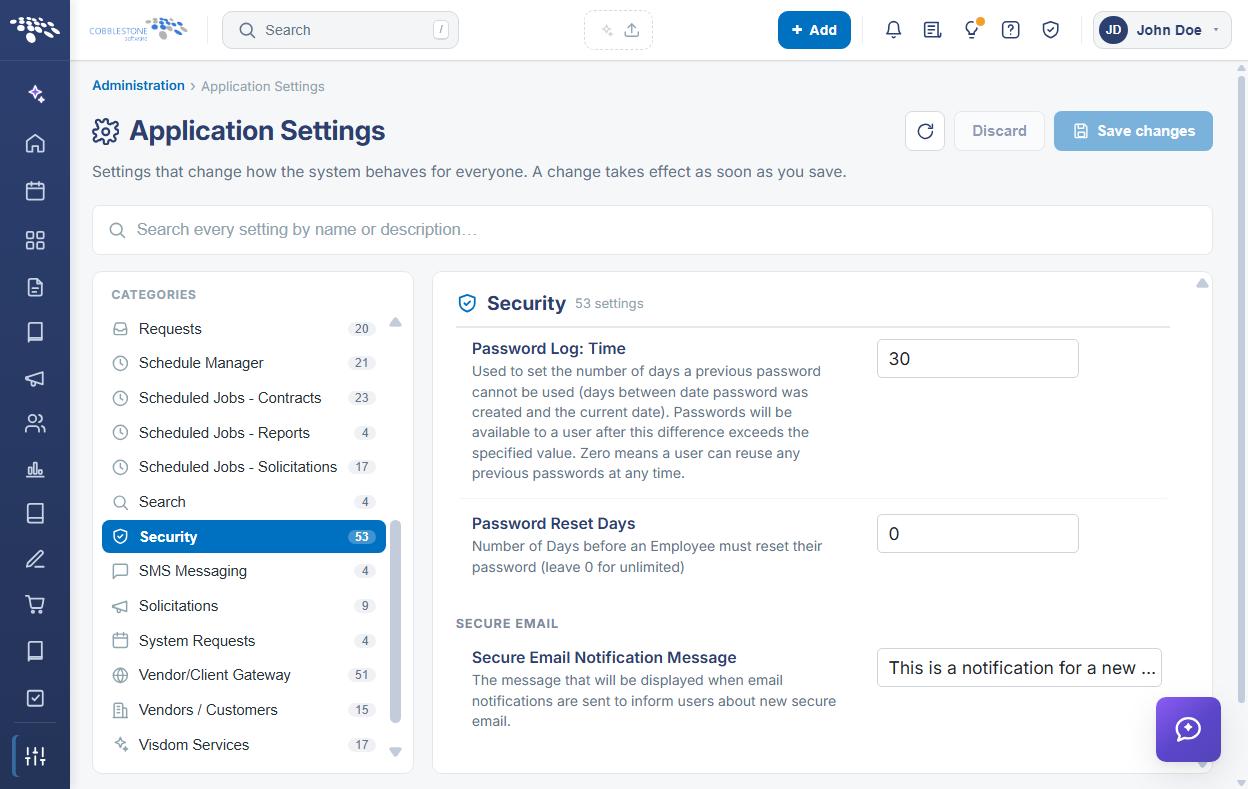
- Password Log: Time — The number of days a previous password cannot be reused, measured as the difference between the date the password was created and the current date. Passwords become available to the user again once that difference exceeds the specified value. Zero means a user can reuse any previous password at any time.
The two settings work together: Retention limits how many past passwords are remembered, and Time limits how long each of those remains blocked.
6. Password Expiration
A single setting controls how often a password must be changed:
- Password Reset Days — The number of days before an employee must reset their password. Leave at 0 for unlimited, so that passwords do not expire. Entered in a numeric text box.
7. Related Password Settings
Several settings outside the PASSWORDS subsection also affect how passwords and password resets are handled. They are listed here for reference, and are maintained in their own subsections and categories.
7.1 Security Category
- Integrated Login Prompt (LOGIN) — Displays a login prompt for user name and password on failed Active Directory or ADFS login attempts. Toggle.
- Client Defined Header Content for the No Auth Screens (CONTENT) — The content shown on the Login, Logout, and Password Reset screens in the core of Contract Insight. Leave blank to show nothing. Edited through the rich-text editor using Edit content.
7.2 Vendor/Client Gateway Category
- Password Reset Emails Title — The title and subject used for password reset email notifications. Entered in a text box.
- Password Reset Emails Body End — The body ending used with password reset email notifications. Edited through the rich-text editor using Edit content.
- VCG Password Reset Timeout Duration — The duration, in minutes, before a Vendor/Client Gateway password reset expires. The maximum is 1440 minutes and the default is 20 minutes. Entered in a text box.
Employee account lockout rules are configured separately, in the Employees configuration group — see the Inactive Login - days until lock, Log-in Failures - Count, and Log-in Failures - Timeframe settings. Multifactor authentication and single sign-on are configured on their own administration screens, under Security & Access.
8. Modifying a Password Setting
Function: Changes the value of a password setting for the entire system.
Steps:
- From the Contract Insight homepage, click Administration at the bottom of the left navigation menu. On the Administration page, under Configuration & Fields, select Application Settings, then click Security in the CATEGORIES rail and scroll to the PASSWORDS heading.
- Locate the setting by name and read its description to confirm what the value controls.
- Change the value using the control on the right of the setting row — a toggle for the encryption and complexity requirement settings, or a numeric text box for Password Complexity: Length, Password Log: Retention, Password Log: Time, and Password Reset Days.
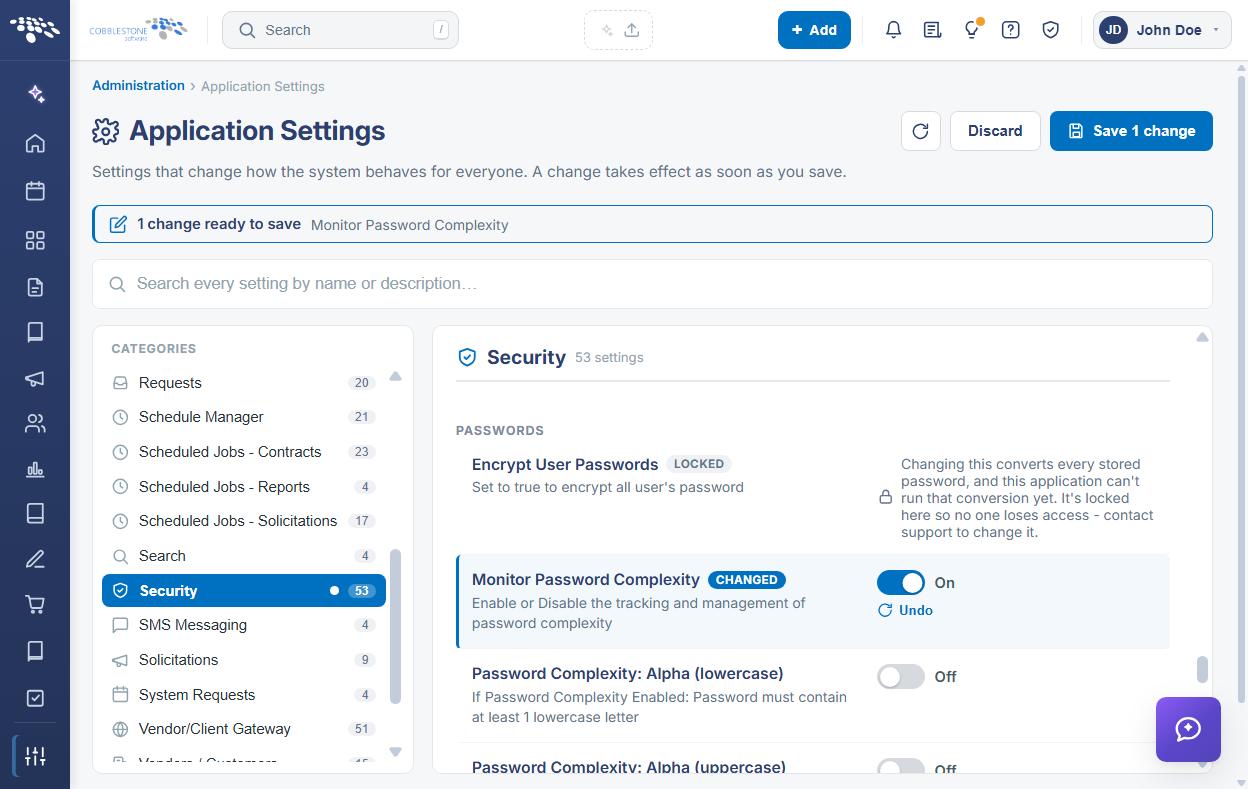
- The setting is marked with a CHANGED badge, an Undo link appears beneath it, a dot appears beside Security in the CATEGORIES rail, and a banner at the top of the screen reports how many changes are ready to save.
- Click Save changes in the upper right to commit the change, or Discard to put every changed setting back to its saved value. Undo on the setting row reverts that one setting only.
Caution: A change takes effect as soon as it is saved. Enabling complexity requirements or a reset interval will require users to choose a new password that satisfies the policy, so plan the change and notify users before saving.
9. Quick Reference Summary
Task | How to Complete It |
Open the settings | Homepage → Administration → Configuration & Fields → Application Settings → Security → PASSWORDS. |
Find them by search | Type Password into the Search box; results group under a SECURITY heading. |
Encrypt stored passwords | Encrypt User Passwords toggle, then Save changes. |
Turn complexity on | Monitor Password Complexity toggle — the master switch for the five requirements. |
Require letter case | Password Complexity: Alpha (lowercase) and Alpha (uppercase) toggles. |
Require a number | Password Complexity: Numeric toggle, then Save changes. |
Require a symbol | Password Complexity: Special Characters toggle, then Save changes. |
Set a minimum length | Password Complexity: Length (0 for no minimum), then Save changes. |
Block password reuse | Password Log: Retention for how many, Password Log: Time for how long (0 disables each). |
Expire passwords | Password Reset Days (0 for unlimited), then Save changes. |
Brand the login screens | Client Defined Header Content for the No Auth Screens, under Security → CONTENT. |
Set gateway reset emails | Password Reset Emails Title and Body End, under Vendor/Client Gateway. |
Set account lockout rules | Employees group — Inactive Login - days until lock and the Log-in Failures settings. |
Undo a change | Undo on the setting row, or Discard in the upper right, before saving. |